2007 GMC ACADIA phone
[x] Cancel search: phonePage 277 of 554

Playing an MP3/WMA CD-R or
CD-RW Disc
If you have a radio with a six-disc CD player, it
has the capability of playing an MP3/WMA CD-R
or CD-RW disc. For more information on how
to play an MP3/WMA CD-R or CD-RW disc,
see “Using an MP3” in the index.
CD Messages
CHECK DISC:If this message displays and/or
the CD comes out, it could be for one of the
following reasons:
It is very hot. When the temperature
returns to normal, the CD should play.
You are driving on a very rough road.
When the road becomes smoother,
the CD should play.
The CD is dirty, scratched, wet,
or upside down.
The air is very humid. If so, wait about
an hour and try again.
There could have been a problem while
burning the CD.
The label could be caught in the CD player.If the CD is not playing correctly, for any other
reason, try a known good CD.
If any error occurs repeatedly or if an error cannot
be corrected, contact your dealer/retailer. If the
radio displays an error message, write it down and
provide it to your dealer/retailer when reporting
the problem.
Using the Auxiliary Input Jack
Your radio system has an auxiliary input jack
located on the lower right side of the faceplate.
This is not an audio output; do not plug the
headphone set into the front auxiliary input jack.
You can however, connect an external audio
device such as an iPod, laptop computer,
MP3 player, CD changer, or cassette tape player,
etc. to the auxiliary input jack for use as another
source for audio listening.
Drivers are encouraged to set up any auxiliary
device while the vehicle is in PARK (P).
SeeDefensive Driving on page 330for more
information on driver distraction.
277
Page 294 of 554

Ejecting a Disc
Press the eject button on the radio to eject the
disc. If a disc is ejected from the radio, but
not removed, the radio reloads the disc after a
short period of time. The disc is stored in the
radio. The radio does not resume play of the disc
automatically. If the RSA system is sourced to
the DVD, the movie when reloaded into the DVD
player begins to play again. In case loading
and reading of a DVD or CD cannot be completed
(unknown format, etc.), and the disc fails to
eject, press and hold the DVD Eject button more
than 5 seconds to force the disc to eject.
DVD Radio Error Messages
Player Error:This message displays when there
are disc load or eject problems.
Disc Format Error:This message displays, if the
disc is inserted with the disc label wrong side
up, or if the disc is damaged.
Disc Region Error:This message displays, if the
disc is not from a correct region.
No Disc Inserted:This message displays, if no
disc is present when the EJECT or DVD/CD AUX
button is pressed on the radio.
Using the Auxiliary Input Jack(s)
Your radio system has an auxiliary input jack
located on the lower right side of the faceplate.
This is not an audio output; do not plug the
headphone set into the front auxiliary input jack.
You can however, connect an external audio
device such as an iPod, laptop computer,
MP3 player, CD player, or cassette tape player,
etc. to the auxiliary input jack for use as another
source for audio listening.
Drivers are encouraged to set up any auxiliary
device while the vehicle is in PARK (P).
SeeDefensive Driving on page 330for more
information on driver distraction.
To use a portable audio player, connect a
1/8 inch (3.5 mm) cable to the radio’s front
auxiliary input jack. When a device is connected,
the radio automatically begins playing audio
from the device over the vehicle speakers.
To listen to a device through the rear auxiliary
input over the speakers, cycle the DVD/CD Aux
button on the radio faceplate until “Rear Aux Input”
displays on the radio. The RSA or DVD Screen
must be on in order for the radio to source to
rear auxiliary.
294
Page 311 of 554

Navigation/Radio System
Your vehicle may have a navigation radio system.
The navigation system has built-in features
intended to minimize driver distraction. Technology
alone, no matter how advanced, can never
replace your own judgment. See the Navigation
System manual for some tips to help you
reduce distractions while driving.
Rear Seat Entertainment System
Your vehicle may have a DVD Rear Seat
Entertainment (RSE) system. The RSE system
works with the vehicle’s audio system. The
DVD player is part of the front radio. The RSE
system includes a radio with a DVD player, a video
display screen, audio/video jacks, two wireless
headphones, and a remote control. SeeRadio with
CD and DVD on page 278for more information
on the vehicle’s audio/DVD system.
Before You Drive
The RSE is designed for rear seat passengers
only. The driver cannot safely view the video
screen while driving and should not try to do so.
In severe or extreme weather conditions the
RSE system might not work until the temperature
is within the operating range. The operating
range for the RSE system is above−4°F (−20°C)
or below 140°F (60°C). If the temperature of
your vehicle is outside of this range, heat or cool
the vehicle until the temperature is within the
operating range of the RSE system.
Parental Control
The RSE system may have a Parental Control
feature, depending on which radio you have.
To enable Parental Control, press and hold the
radio power button for more than two seconds to
stop all system features such as: radio, video
screen, RSA, DVD and/or CD. While Parental
Control is on, a padlock icon displays.
When the radio is turned back on, Parental
Control is unlocked.
311
Page 312 of 554
Headphones
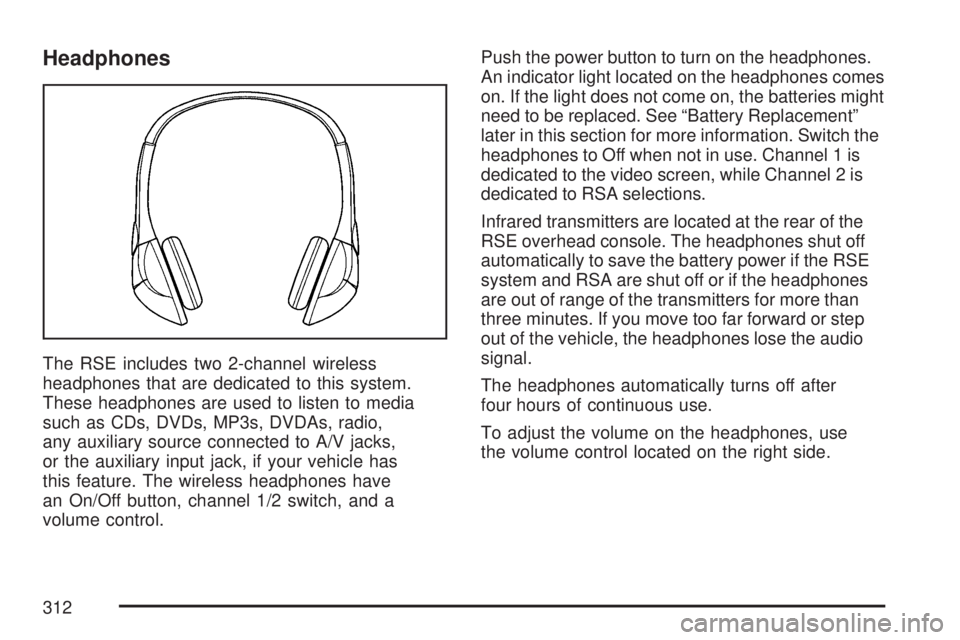
The RSE includes two 2-channel wireless
headphones that are dedicated to this system.
These headphones are used to listen to media
such as CDs, DVDs, MP3s, DVDAs, radio,
any auxiliary source connected to A/V jacks,
or the auxiliary input jack, if your vehicle has
this feature. The wireless headphones have
an On/Off button, channel 1/2 switch, and a
volume control.Push the power button to turn on the headphones.
An indicator light located on the headphones comes
on. If the light does not come on, the batteries might
need to be replaced. See “Battery Replacement”
later in this section for more information. Switch the
headphones to Off when not in use. Channel 1 is
dedicated to the video screen, while Channel 2 is
dedicated to RSA selections.
Infrared transmitters are located at the rear of the
RSE overhead console. The headphones shut off
automatically to save the battery power if the RSE
system and RSA are shut off or if the headphones
are out of range of the transmitters for more than
three minutes. If you move too far forward or step
out of the vehicle, the headphones lose the audio
signal.
The headphones automatically turns off after
four hours of continuous use.
To adjust the volume on the headphones, use
the volume control located on the right side.
312
Page 313 of 554
For optimal audio performance, the headphones
must be worn correctly. The symbol L (Left)
appears on the upper left side, above the ear pad
and should be positioned on the left ear. The
symbol R (Right) appears on the upper right side,
above the ear pad and should be positioned on
the right ear.
Notice:Do not store the headphones in heat
or direct sunlight. This could damage the
headphones and repairs will not be covered by
your warranty. Keep the headphones stored
in a cool, dry place.
If the foam ear pads attached to the headphones
become worn or damaged, the pads can be
replaced separately from the headphone set
through your dealer/retailer for more information.
Headphones should be stored in the front oor
console and not in the front seat back pocket.
Headphone damage can occur when the second
row seats are folded forward.Battery Replacement
To change the batteries on the headphones,
do the following:
1. Turn the screw with a coin or screw driver to
loosen the battery door located on the left
side of the headphones. Slide the battery
door open.
2. Replace the two batteries in the compartment.
Make sure that they are installed correctly,
using the diagram on the inside of the battery
compartment.
3. Replace the battery door and tighten the
door screw.
If the headphones are to be stored for a long
period of time, remove the batteries and keep
them in a cool, dry place.
313
Page 315 of 554

How to Change the RSE Video Screen
Settings
The screen display mode (normal, full, and zoom),
screen brightness, and setup menu language
can be changed from the on screen setup menu.
To change any feature, do the following:
1. Press the display menu button on the
remote control.
2. Use the remote control menu navigation
arrows and the enter button to use the
setup menu.
3. Press the display menu button again to
remove the setup menu from the screen.
Audio Output
Audio from the DVD player or auxiliary inputs can
be heard through the following possible sources:
Wireless Headphones
Vehicle Speakers
Vehicle wired headphone jacks on the rear
seat audio system, if your vehicle has this
feature.The RSE system always transmits the audio
signal to the wireless headphones, if there is
audio available. See “Headphones” earlier in this
section for more information.
When a device is connected to the A/V jacks,
or the radio’s auxiliary input jack, if your vehicle
has this feature, the rear seat passengers are able
to hear audio from the auxiliary device through
the wireless or wired headphones. The front
seat passengers are able to listen to playback
from this device through the vehicle speakers by
selecting AUX as the source on the radio.
Video Screen
The video screen is located in the RSE overhead
console.
To use the video screen, do the following:
1. Push the release button located on the
RSE overhead console.
2. Move the screen to the desired position.
When the video screen is not in use, push it up
into its locked position.
315
Page 316 of 554

If a DVD is playing and the screen is raised to
its locked position, the screen remains on. This is
normal. The DVD continues to play through the
previous audio source. Use the remote control
power button or eject the disc to turn off the
screen.
The RSE overhead console contains the IR
transmitters for the wireless headphones and
the IR receivers for the remote control. They
are located at the rear of the console.
Notice:Avoid directly touching the video
screen, as damage may occur. See “Cleaning
the Video Screen” later in this section for
more information.Remote Control
To use the remote control, aim it at the transmitter
window at the rear of the RSE overhead console
and press the desired button. Direct sunlight
or very bright light can affect the ability of the
RSE transmitter to receive signals from the remote
control. If the remote control does not seem to
be working, the batteries might need to be
replaced. See “Battery Replacement” later in this
section. Objects blocking the line of sight can
also affect the function of the remote control.
If a CD or DVD is in the Radio DVD slot,
the remote control power button can be used to
turn on the video screen display and start the disc.
The radio can also turn on the video screen
display. SeeRadio with CD and DVD on page 278
for more information.
Notice:Storing the remote control in a hot
area or in direct sunlight can damage it,
and the repairs will not be covered by your
warranty. Keep the remote control stored in a
cool, dry place.
316
Page 321 of 554

Problem Recommended Action
The auxiliary source is
running but there is no
picture or sound.Check that the RSE
video screen is in the
auxiliary source mode.
Check the auxiliary input
connections at both
devices.
Sometimes the wireless
headphone audio cuts
out or buzzes.Check for obstructions,
low batteries, reception
range, and interference
from cellular telephone
towers or by using
your cellular telephone
in the vehicle.
Check that the
headphones are on
correctly using the
L (left) and R (right) on
the headphones.
I lost the remote and/or
the headphones.See your dealer/retailer
for assistance.
The DVD is playing,
but there is no picture
or sound.Check that the RSE video
screen is sourced to the
DVD player.DVD Display Error Messages
The DVD display error message depends on
which radio you have. The video screen may
display one of the following:
Disc Load/Eject Error:This message displays
when there are disc load or eject problems.
Disc Format Error:This message displays, if the
disc is inserted with the disc label wrong side
up, or if the disc is damaged.
Disc Region Error:This message displays, if the
disc is not from a correct region.
No Disc Inserted:This message displays, if no
disc is present when the EJECT button is pressed
on the radio.
321