2007 CHEVROLET TAHOE remote control
[x] Cancel search: remote controlPage 183 of 634
Do not use this system with any garage door
opener that does not have the stop and reverse
feature. This includes any garage door opener
model manufactured before April 1, 1982.
Read the instructions completely before attempting
to program the transmitter. Because of the steps
involved, it may be helpful to have another
person available to assist you in programming the
transmitter.
Be sure to keep the original remote control
transmitter for use in other vehicles, as well as, for
future programming. You only need the original
remote control transmitter for Fixed Code
programming. It is also recommended that upon
the sale or lease termination of the vehicle,
the programmed buttons should be erased for
security purposes. See “Erasing Universal Home
Remote Buttons” later in this section.When programming a garage door, it is advised to
park outside of the garage. Be sure that people
and objects are clear of the garage door or
security device you are programming.
Programming Universal Home
Remote — Rolling Code
Most garage door openers sold after 1996 are
Rolling Code units.
Programming a garage door opener involves
time-sensitive actions, so read the entire procedure
before you begin. If you do not follow these
actions, the device will time out and you will have
to repeat the procedure.
183
Page 185 of 634
3. Immediately return to your vehicle. Press and
hold the universal home remote button that
you would like to use to control the garage
door until the garage door moves. The
indicator light, above the selected button,
should slowly blink. You may need to hold the
button from ve to 20 seconds.
4. Immediately, within one second, release the
button when the garage door moves. The
indicator light will blink rapidly until
programming is complete.
5. Press and release the same button again.
The garage door should move, conrming
that programming is successful and complete.
To program another Rolling Code device such as
an additional garage door opener, a security
device, or home automation device, repeat Steps
1-5, choosing a different function button in
Step 3 than what you used for the garage door
opener.If these instructions do not work, you probably
have a Fixed Code garage door opener. Follow the
Programming instructions below for a Fixed
Code garage door opener.
Programming Universal Home
Remote — Fixed Code
Most garage door openers sold before 1996 are
Fixed Code units.
Programming a garage door opener involves
time-sensitive actions, so read the entire procedure
before you begin. If you do not follow these
actions, the device will time out and you will have
to repeat the procedure.
185
Page 188 of 634
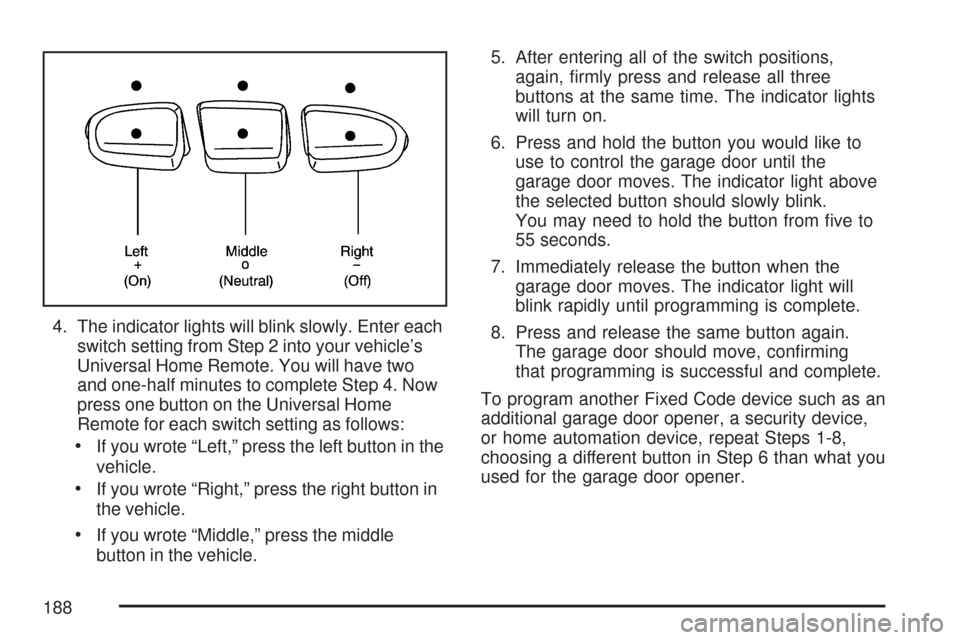
4. The indicator lights will blink slowly. Enter each
switch setting from Step 2 into your vehicle’s
Universal Home Remote. You will have two
and one-half minutes to complete Step 4. Now
press one button on the Universal Home
Remote for each switch setting as follows:
If you wrote “Left,” press the left button in the
vehicle.
If you wrote “Right,” press the right button in
the vehicle.
If you wrote “Middle,” press the middle
button in the vehicle.5. After entering all of the switch positions,
again, rmly press and release all three
buttons at the same time. The indicator lights
will turn on.
6. Press and hold the button you would like to
use to control the garage door until the
garage door moves. The indicator light above
the selected button should slowly blink.
You may need to hold the button from ve to
55 seconds.
7. Immediately release the button when the
garage door moves. The indicator light will
blink rapidly until programming is complete.
8. Press and release the same button again.
The garage door should move, conrming
that programming is successful and complete.
To program another Fixed Code device such as an
additional garage door opener, a security device,
or home automation device, repeat Steps 1-8,
choosing a different button in Step 6 than what you
used for the garage door opener.
188
Page 313 of 634
sREV (Reverse):Press and hold this button
to reverse playback quickly within a track. Sound is
heard at a reduced volume. Release this
pushbutton to resume playing the track. The
elapsed time of the track displays.
\FWD (Fast Forward):Press and hold this
button to advance playback quickly within a track.
Sound is heard at a reduced volume. Release
this button to resume playing the track. The
elapsed time of the track displays.
RDM (Random):With random, tracks can be
listened to in random, rather than sequential order.
To play the tracks from the CD, press the
DVD/CD AUX button when not sourced to the CD,
or insert a disc partway into the slot. A RDM
label displays. Press the pushbutton positioned
under the RDM label until Random Current
Disc displays. Press the pushbutton again to turn
off random play.
BAND:Press this button to listen to the radio
when a CD or DVD is playing. The CD or
DVD remains inside the radio for future listening
or for viewing entertainment.DVD/CD AUX (Auxiliary):Press this button to
cycle through DVD, CD, or Auxiliary when listening
to the radio. The DVD/CD text label and a
message showing the track or chapter number
displays when a disc is in either slot. Press
this button again and the system automatically
searches for an auxiliary input device, such as a
portable audio player. If a portable audio player
is not connected, “No Aux Input Device” displays.
If a disc is in both the DVD slot and the CD
slot the DVD/CD AUX button cycles between the
two sources and not indicate “No Aux Input
Device”. If a front auxiliary device is connected,
the DVD/CD AUX button cycles through all
available options, such as: DVD slot, CD slot,
Front Auxiliary, and Rear Auxiliary (if available).
See “Using the Auxiliary Input Jack(s)” later in this
section, or “Audio/Video (A/V) Jacks” under,
Rear Seat Entertainment System on page 337for
more information.
If a disc is inserted into top DVD slot, the rear
seat operator can turn on the video screen
and use the remote control to navigate the CD
(tracks only) through the remote control.
313
Page 315 of 634
The air is very humid. If so, wait about an hour
and try again.
There could have been a problem while burning
the CD.
The label could be caught in the CD player.
If the CD is not playing correctly, for any other
reason, try a known good CD.
If any error occurs repeatedly or if an error cannot
be corrected, contact your dealer. If the radio
displays an error message, write it down and
provide it to your dealer when reporting the
problem.
Using the DVD Player
The DVD player is controlled by the buttons on
the remote control or by the buttons on the radio
faceplate. See “Remote Control”, underRear
Seat Entertainment System on page 337for more
information.
The DVD player is only compatible with DVDs of
the appropriate region code that is printed on
the jacket of most DVDs.The DVD slot of the radio is compatible with most
audio CDs, CD-R, CD-RW, DVD-Video,
DVD-Audio, DVD-R/RW, DVD+R/RW media along
with MP3 and WMA formats.
If an error message appears on the video screen
or the radio, see “DVD Display Error Messages”
under,Rear Seat Entertainment System on
page 337and “DVD Radio Error Messages” in this
section for more information.
Playing a DVD
DVD/CD AUX (Auxiliary):Press this button to
cycle through DVD, CD, or Auxiliary when listening
to the radio. The DVD/CD text label and a message
showing track or chapter number displays when a
disc is in either slot. Press this button again and the
system automatically searches for an auxiliary input
device, such as a portable audio player. If a
portable audio player is not connected, “No Aux
Input Device” displays. If a disc is in both the DVD
slot and the CD slot the DVD/CD AUX button cycles
between the two sources and not indicate “No Aux
Input Device”. If a front auxiliary device is
connected, the DVD/CD AUX button cycles through
all available options, such as: DVD slot, CD slot,
Front Auxiliary, and Rear Auxiliary (if available).
315
Page 316 of 634

See “Using the Auxiliary Input Jack(s)” later in this
section, or “Audio/Video (A/V) Jacks” under,Rear
Seat Entertainment System on page 337for more
information.
O(Power):Press this knob to turn the radio on or
off. Turn this knob clockwise or counterclockwise to
increase or decrease the volume. Press and hold
the knob for more than two seconds to turn off the
entire radio and Rear Seat Entertainment (RSE)
system and to start the parental control feature.
Parental control prevents the rear seat occupant
from operating the Rear Seat Audio (RSA) system
or remote control.
A lock symbol appears next to the clock display.
The parental control feature remains on until this
button is pressed and held for more than
two seconds again, or until the driver turns the
ignition off and exits the vehicle.
f(Tune):Turn this knob to change tracks on a CD
or DVD, to manually tune a radio station, or to
change clock or date settings, while in the clock or
date setting mode. See the information given earlier
in this section specic to the radio, CD, and the
DVD. Also, see “Setting the Time” in the index, for
setting the clock and date.
©SEEK (Previous Track/Chapter):Press this
button to return to the start of the current track
or chapter. Press this button again to go to
the previous track or chapter. This button might
not work when the DVD is playing the copyright
information or the previews.
SEEK
¨(Next Track/Chapter):Press this
button to go to the next track or chapter. This
button might not work when the DVD is playing the
copyright information or the previews.
sREV (Reverse):Press this button to quickly
reverse the CD or DVD at ve times the normal
speed. The radio displays the elapsed time while in
fast reverse. To stop fast reversing, press this
button again. This button might not work when the
DVD is playing the copyright information or the
previews.
\FWD (Fast Forward):Press this button to
fast forward the CD or DVD. The radio displays the
elapsed time and fast forwards ve times the
normal speed. To stop fast forwarding, press this
button again. This button might not work when
the DVD is playing the copyright information or the
previews.
316
Page 317 of 634

Z(Eject):Press this button to eject a CD or
DVD. If a CD or DVD is ejected, but not removed,
the player automatically pulls it back in after
15 seconds.
If loading and reading of a CD cannot be
completed, because of an unknown format, etc.,
and the disc fails to eject, press and hold the
CD eject button for more than ve seconds to force
the disc to eject.
DVD-V (Video) Display Buttons
Once a DVD-V is inserted, the radio display menu
shows several tag options for DVD playing.
Press the pushbuttons located under any desired
tag option during DVD playback. See the tag
options listed below for more information.
The rear seat passenger can navigate the DVD-V
menus and controls through the remote control.
See “Remote Control”, underRear Seat
Entertainment System on page 337for more
information. The Video Screen automatically turns
on when the DVD-V is inserted into the DVD slot.
r/j(Play/Pause):Press either the play or
pause icon displays on the radio system, to toggle
between pausing or restarting playback of a
DVD. If the forward arrow is showing on display,
the system is in pause mode. If the pause
icon is showing on display, the system is in
playback mode. If the DVD screen is off, press the
play button to turn the screen on.
Some DVDs begin playing after the previews have
nished, although there might be a delay of up
to 30 seconds. If the DVD does not begin playing
the movie automatically, press the pushbutton
located under the play/pause symbol tag displayed
on the radio. If the DVD still does not play, refer
to the on-screen instructions, if available.
c(Stop):Press this button to stop playing,
rewinding, or fast forwarding a DVD.
r(Enter):Press this button to select the
choices that are highlighted in any menu.
317
Page 318 of 634

y(Menu):Press this button to access the DVD
menu. The DVD menu is different on every
DVD. Use the pushbuttons located under the
navigation arrows to navigate the cursor through
the DVD menu. After making a selection press the
enter button. This button only operates when
using a DVD.
Nav (Navigate):Press this button to display
directional arrows for navigating through the
menus.
q(Return):Press this button to exit the current
active menu and return to the previous menu.
This button operates only when a DVD is playing
and a menu is active.
DVD-A (Audio) Display Buttons
Once a DVD-A is inserted, radio display menu
shows several tag options for DVD playing. Press
the pushbuttons located under any desired tag
option during DVD playback. See the tag options
listed below for more information.
The rear seat operator can navigate the DVD-A
menus and controls through the remote control.
See “Remote Control”, underRear Seat
Entertainment System on page 337for more
information.The Video Screen does not automatically power
on when the DVD-A is inserted into the DVD slot. It
must be manually turned on by the rear seat
occupant through the remote control power button.
r/j(Play/Pause):Press either the play or
pause icon displays on the radio system, to toggle
between pausing or restarting playback of a
DVD. If the forward arrow is showing on display,
the system is in pause mode. If the pause
icon is showing on display, the system is in
playback mode.
qGroupr:Press this button to cycle through
musical groupings on the DVD-A disc.
Nav (Navigate):Press this button to display
directional arrows for navigating through the
menus.
e(Audio Stream):Press this button to cycle
through audio stream formats located on the
DVD-A disc. There is not any type of notication
for the customer to see through the radio
display, but VSM has a text eld that shows audio
stream changing.
318