2007 CHEVROLET SUBURBAN lock
[x] Cancel search: lockPage 310 of 634

3. Turn the tune knob, press the buttons below
the right or left arrows displayed, or press the
right or left SEEK buttons to go to the next
or previous XM™ station within the selected
category.
4. To exit the category search mode, press the
FAV button or BAND button to display your
favorites again.
Undesired XM™ categories can be removed
through the setup menu. To remove an undesired
category, perform the following:
1. Press the MENU button to display the radio
setup menu.
2. Press the pushbutton located below the XM
CAT label.
3. Turn the tune knob to display the category
you want removed.
4. Press the pushbutton located under the
Remove label until the category name
along with the word Removed displays.
5. Repeat the steps to remove more categories.Removed categories can be restored by pressing
the pushbutton under the Add label when a
removed category displays or by pressing the
pushbutton under the Restore All label.
Categories cannot be removed or added while the
vehicle is moving faster than 5 mph (8 km/h).
Radio Messages
Calibration Error:The audio system has been
calibrated for your vehicle from the factory. If
Calibration Error displays, it means that the radio
has not been congured properly for your
vehicle and it must be returned to your dealer for
service.
Locked:This message displays when the
THEFTLOCK
®system has locked up the radio.
Take the vehicle to your dealer for service.
If any error occurs repeatedly or if an error cannot
be corrected, contact your dealer.
Radio Messages for XM™ Only
SeeXM Radio Messages on page 335later in this
section for further detail.
310
Page 316 of 634

See “Using the Auxiliary Input Jack(s)” later in this
section, or “Audio/Video (A/V) Jacks” under,Rear
Seat Entertainment System on page 337for more
information.
O(Power):Press this knob to turn the radio on or
off. Turn this knob clockwise or counterclockwise to
increase or decrease the volume. Press and hold
the knob for more than two seconds to turn off the
entire radio and Rear Seat Entertainment (RSE)
system and to start the parental control feature.
Parental control prevents the rear seat occupant
from operating the Rear Seat Audio (RSA) system
or remote control.
A lock symbol appears next to the clock display.
The parental control feature remains on until this
button is pressed and held for more than
two seconds again, or until the driver turns the
ignition off and exits the vehicle.
f(Tune):Turn this knob to change tracks on a CD
or DVD, to manually tune a radio station, or to
change clock or date settings, while in the clock or
date setting mode. See the information given earlier
in this section specic to the radio, CD, and the
DVD. Also, see “Setting the Time” in the index, for
setting the clock and date.
©SEEK (Previous Track/Chapter):Press this
button to return to the start of the current track
or chapter. Press this button again to go to
the previous track or chapter. This button might
not work when the DVD is playing the copyright
information or the previews.
SEEK
¨(Next Track/Chapter):Press this
button to go to the next track or chapter. This
button might not work when the DVD is playing the
copyright information or the previews.
sREV (Reverse):Press this button to quickly
reverse the CD or DVD at ve times the normal
speed. The radio displays the elapsed time while in
fast reverse. To stop fast reversing, press this
button again. This button might not work when the
DVD is playing the copyright information or the
previews.
\FWD (Fast Forward):Press this button to
fast forward the CD or DVD. The radio displays the
elapsed time and fast forwards ve times the
normal speed. To stop fast forwarding, press this
button again. This button might not work when
the DVD is playing the copyright information or the
previews.
316
Page 320 of 634

DVD Radio Error Messages
Player Error:This message displays when there
are disc load or eject problems.
Disc Format Error:This message displays, if the
disc is inserted with the disc label wrong side
up, or if the disc is damaged.
Disc Region Error:This message displays, if the
disc is not from a correct region.
No Disc Inserted:This message displays, if no
disc is present when the EJECT or DVD/CD AUX
button is pressed on the radio.
Using the Auxiliary Input Jack(s)
The radio system has an auxiliary input jack
located on the lower right side of the faceplate.
This is not an audio output; do not plug the
headphone set into the front auxiliary input jack.
However, an external audio device such as
an iPod, laptop computer, MP3 player, CD player,
or cassette tape player, etc. can be connected
to the auxiliary input jack for use as another source
for audio listening.Drivers are encouraged to set up any auxiliary
device while the vehicle is in PARK (P). See
Defensive Driving on page 356for more
information on driver distraction.
To use a portable audio player, connect a 1/8 inch
(3.5 mm) cable to the radio’s front auxiliary
input jack. While a device is connected, the radio
automatically begins playing audio from the
device over the vehicle speakers.
To listen to a device through the rear auxiliary
input over the speakers, cycle the DVD/CD Aux
button on the radio faceplate until “Rear Aux Input”
displays on the radio. The RSA or DVD Screen
must be on in order for the radio to source to rear
auxiliary.O(Power/Volume):Turn this knob clockwise or
counterclockwise to increase or decrease the
volume of the portable player. Additional volume
adjustments might be needed from the portable
device if the volume is not loud or soft enough.
BAND:Press this button to listen to the radio
when a portable audio device is playing. The
portable audio device continues playing, so you
might want to stop it or power it off.
320
Page 335 of 634
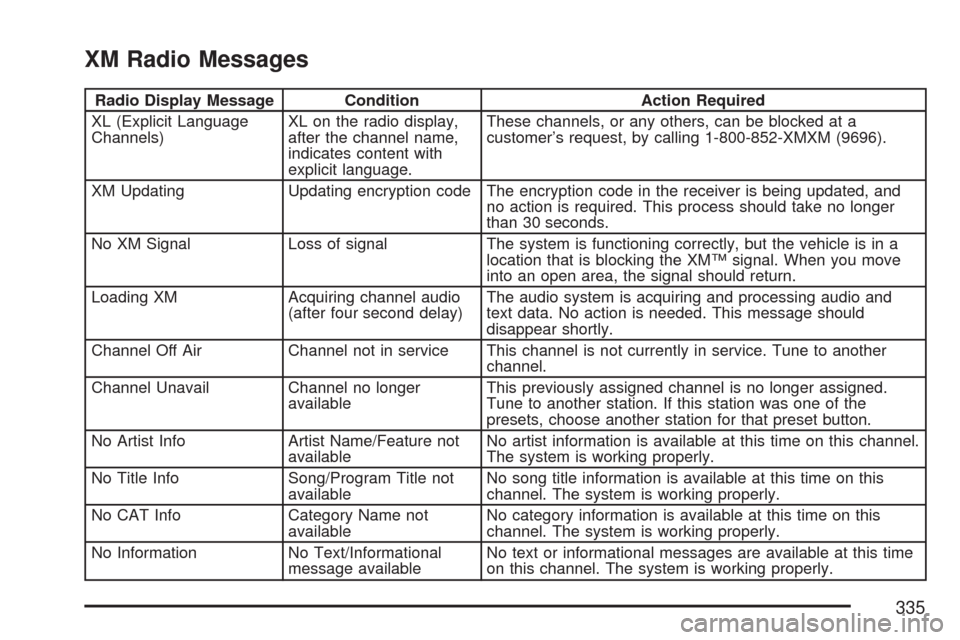
XM Radio Messages
Radio Display Message Condition Action Required
XL (Explicit Language
Channels)XL on the radio display,
after the channel name,
indicates content with
explicit language.These channels, or any others, can be blocked at a
customer’s request, by calling 1-800-852-XMXM (9696).
XM Updating Updating encryption code The encryption code in the receiver is being updated, and
no action is required. This process should take no longer
than 30 seconds.
No XM Signal Loss of signal The system is functioning correctly, but the vehicle is in a
location that is blocking the XM™ signal. When you move
into an open area, the signal should return.
Loading XM Acquiring channel audio
(after four second delay)The audio system is acquiring and processing audio and
text data. No action is needed. This message should
disappear shortly.
Channel Off Air Channel not in service This channel is not currently in service. Tune to another
channel.
Channel Unavail Channel no longer
availableThis previously assigned channel is no longer assigned.
Tune to another station. If this station was one of the
presets, choose another station for that preset button.
No Artist Info Artist Name/Feature not
availableNo artist information is available at this time on this channel.
The system is working properly.
No Title Info Song/Program Title not
availableNo song title information is available at this time on this
channel. The system is working properly.
No CAT Info Category Name not
availableNo category information is available at this time on this
channel. The system is working properly.
No Information No Text/Informational
message availableNo text or informational messages are available at this time
on this channel. The system is working properly.
335
Page 336 of 634
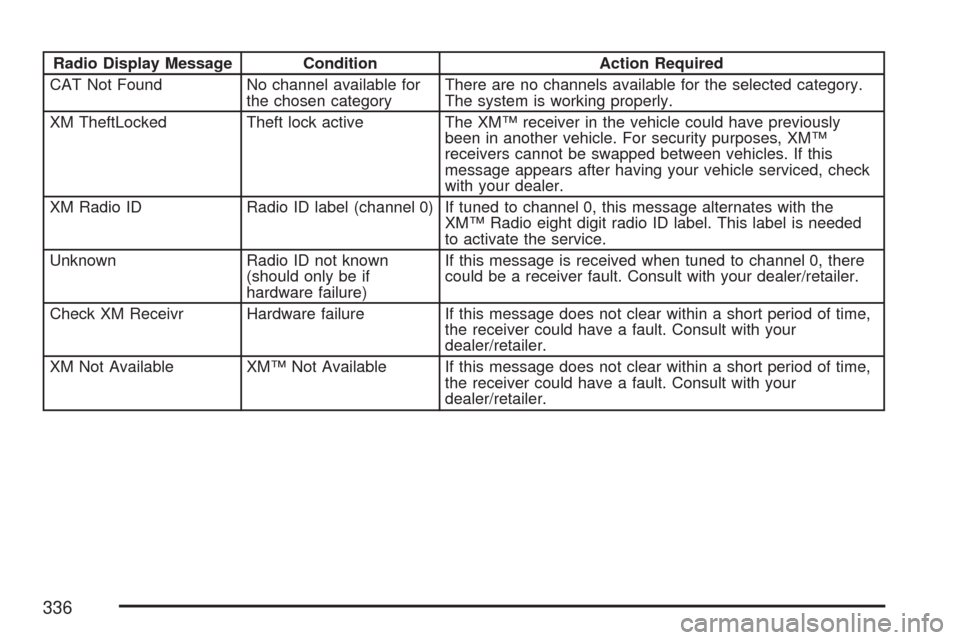
Radio Display Message Condition Action Required
CAT Not Found No channel available for
the chosen categoryThere are no channels available for the selected category.
The system is working properly.
XM TheftLocked Theft lock active The XM™ receiver in the vehicle could have previously
been in another vehicle. For security purposes, XM™
receivers cannot be swapped between vehicles. If this
message appears after having your vehicle serviced, check
with your dealer.
XM Radio ID Radio ID label (channel 0) If tuned to channel 0, this message alternates with the
XM™ Radio eight digit radio ID label. This label is needed
to activate the service.
Unknown Radio ID not known
(should only be if
hardware failure)If this message is received when tuned to channel 0, there
could be a receiver fault. Consult with your dealer/retailer.
Check XM Receivr Hardware failure If this message does not clear within a short period of time,
the receiver could have a fault. Consult with your
dealer/retailer.
XM Not Available XM™ Not Available If this message does not clear within a short period of time,
the receiver could have a fault. Consult with your
dealer/retailer.
336
Page 338 of 634
To enable Parental Control, press and hold the
radio power button for more than two seconds. If
on, the radio, video screen, and RSA turns
off. If a DVD and/or CD is playing, it stops. While
Parental Control is on, either a padlock icon or
a text message comes on, depending on the radio.
When the radio is turned back on, the RSE
system remains in Parental Control.
To turn off Parental Control, press and hold the
radio power button for more than two seconds. The
video screen and RSA returns to the state they
were in before Parental Control was turned on and
if the padlock icon is on the display, it disappears.
Parental Control is also turned off by inserting
or ejecting a disc, by pressing the play icon on the
radio DVD display menu, or when the ignition is
turned off.Headphones
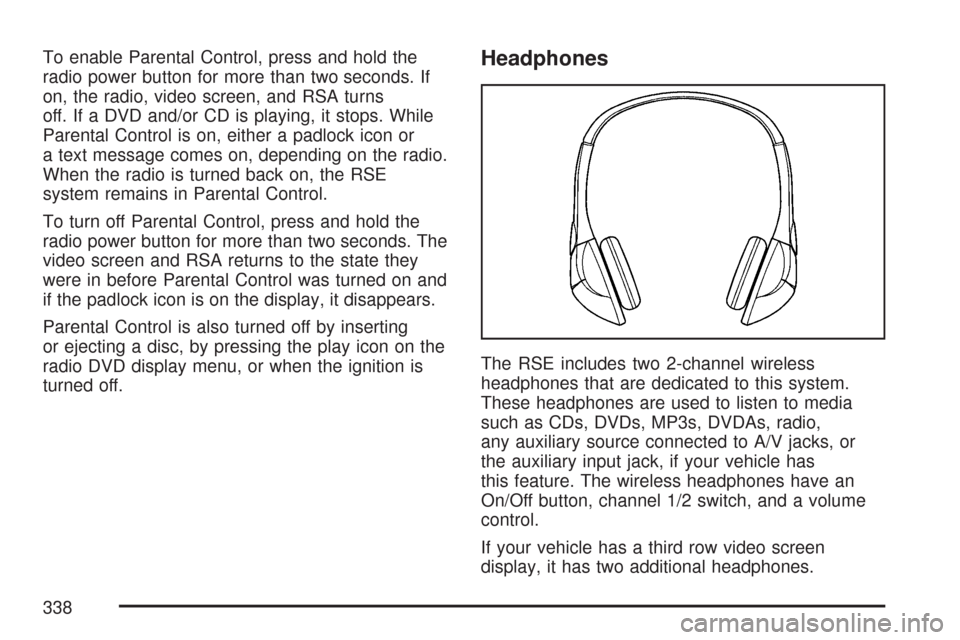
The RSE includes two 2-channel wireless
headphones that are dedicated to this system.
These headphones are used to listen to media
such as CDs, DVDs, MP3s, DVDAs, radio,
any auxiliary source connected to A/V jacks, or
the auxiliary input jack, if your vehicle has
this feature. The wireless headphones have an
On/Off button, channel 1/2 switch, and a volume
control.
If your vehicle has a third row video screen
display, it has two additional headphones.
338
Page 342 of 634
When a device is connected to the A/V jacks, or
the radio’s auxiliary input jack, if your vehicle
has this feature, the rear seat passengers are able
to hear audio from the auxiliary device through
the wireless or wired headphones. The front seat
passengers are able to listen to playback from
this device through the vehicle speakers by
selecting AUX as the source on the radio.
Video Screen
The video screen is located in the RSE overhead
console.
To use the video screen, do the following:
1. Push the release button located on the RSE
overhead console.
2. Turn the screen to the desired position.
When the video screen is not in use, push it up
into its locked position.If a DVD is playing and the screen is raised to its
locked position, the screen remains on, this is
normal, and the DVD continues to play through the
previous audio source. Use the remote control
power button or eject the disc to turn off the
screen.
The RSE overhead console contains the infrared
receivers for the wireless headphones and the
infrared receivers for the remote control. They are
located at the rear of the console.
Notice:Avoid directly touching the video
screen, as damage may occur. See “Cleaning
the Video Screen” later in this section for
more information.
342
Page 343 of 634
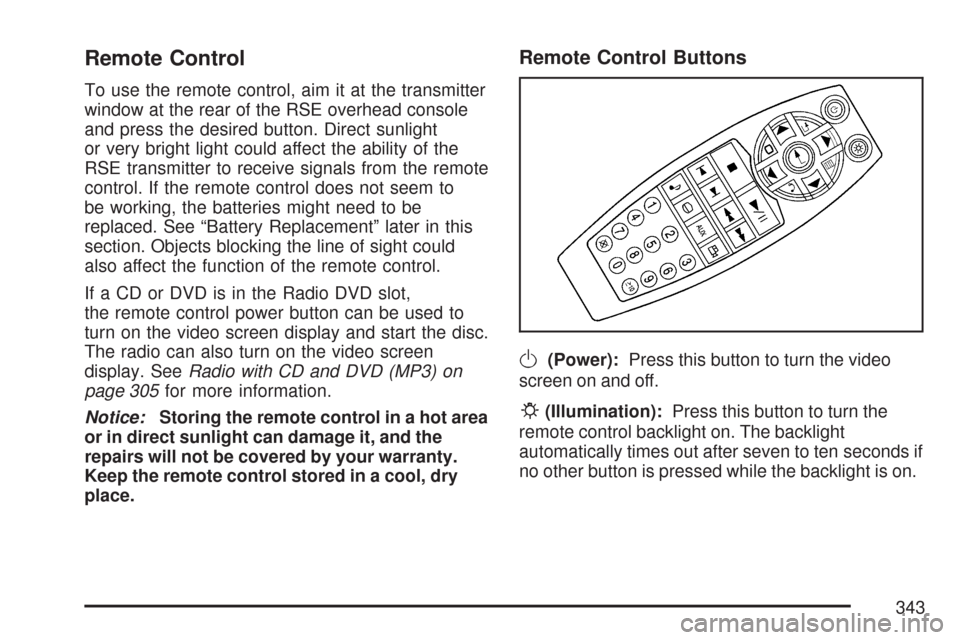
Remote Control
To use the remote control, aim it at the transmitter
window at the rear of the RSE overhead console
and press the desired button. Direct sunlight
or very bright light could affect the ability of the
RSE transmitter to receive signals from the remote
control. If the remote control does not seem to
be working, the batteries might need to be
replaced. See “Battery Replacement” later in this
section. Objects blocking the line of sight could
also affect the function of the remote control.
If a CD or DVD is in the Radio DVD slot,
the remote control power button can be used to
turn on the video screen display and start the disc.
The radio can also turn on the video screen
display. SeeRadio with CD and DVD (MP3) on
page 305for more information.
Notice:Storing the remote control in a hot area
or in direct sunlight can damage it, and the
repairs will not be covered by your warranty.
Keep the remote control stored in a cool, dry
place.
Remote Control Buttons
O(Power):Press this button to turn the video
screen on and off.
P(Illumination):Press this button to turn the
remote control backlight on. The backlight
automatically times out after seven to ten seconds if
no other button is pressed while the backlight is on.
343