2007 CHEVROLET SILVERADO steering wheel
[x] Cancel search: steering wheelPage 221 of 684
T(On/Off):This button can both activate and
turn off the system. The indicator light is on
when cruise control is on and turns off when cruise
control is off.
+ RES (Resume/Accelerate):Press this button
to make the vehicle accelerate or resume to
a previously set speed.
SET−(Set/Coast):Press this button to set the
speed or make the vehicle decelerate.
[(Cancel):Press this button to cancel cruise
control without erasing the set speed from
memory.
Setting Cruise Control
Cruise control will not work if the parking brake
is set, or if the master cylinder brake uid level
is low.
The cruise control light on the instrument panel
cluster will come on after the cruise control
has been set to the desired speed.
{CAUTION:
If you leave your cruise control on when
you are not using cruise, you might hit a
button and go into cruise when you do not
want to. You could be startled and even
lose control. Keep the cruise control switch
off until you want to use cruise control.
1. Press the cruise control On/Off button.
2. Get up to the desired speed.
3. Press the SET−button located on the steering
wheel and release it.
4. Take your foot off the accelerator.
Resuming a Set Speed
Suppose you set the cruise control at a desired
speed and then you apply the brake. This shuts off
the cruise control. But you do not need to reset it.
Once you are driving about 25 mph (40 km/h) or
more, press the +RES button on the steering
wheel. The vehicle will go back to the previous set
speed and stay there.
221
Page 222 of 684
Increasing Speed While Using Cruise
Control
To increase the cruise speed while using cruise
control:
Press and hold the +RES button on the
steering wheel until you reach your new
desired speed, then release it.
To increase vehicle speed in small increments,
press the +RES button. Each time this is
done, the vehicle will go about 1 mph
(1.6 km/h) faster.
Reducing Speed While Using Cruise
Control
To reduce the vehicle speed while using cruise
control:
Press and hold the SET– button on the
steering wheel until the desired lower speed is
reached, then release it.
To slow down in very small amounts, press
the SET– button on the steering wheel
briey. Each time this is done, the vehicle will
go about 1 mph (1.6 km/h) slower.
Passing Another Vehicle While Using
Cruise Control
Use the accelerator pedal to increase the vehicle
speed. When you take your foot off the pedal,
the vehicle will slow down to the previous
set cruise speed.
Using Cruise Control on Hills
How well the cruise control will work on hills
depends upon the vehicle speed, load, and the
steepness of the hills. When going up steep hills,
you might have to step on the accelerator
pedal to maintain the vehicle’s speed. When going
downhill, you might have to brake or shift to a
lower gear to keep the vehicle’s speed down. Of
course, applying the brake turns off the cruise
control. Many drivers nd this to be too much
trouble and do not use cruise control on steep hills.
Ending Cruise Control
There are three ways to end cruise control:
Step lightly on the brake pedal.
Press the cancel button on the steering wheel.
Press the On/Off button on the
steering wheel.
222
Page 223 of 684
Erasing Speed Memory
When you turn off the cruise control or the ignition,
the cruise control set speed memory is erased.
Exterior Lamps
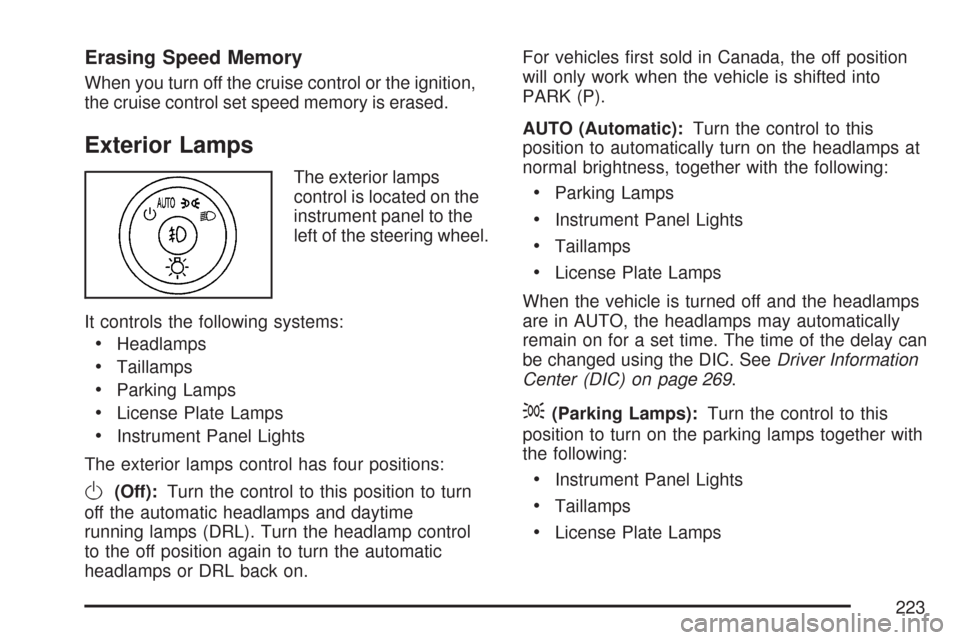
The exterior lamps
control is located on the
instrument panel to the
left of the steering wheel.
It controls the following systems:
Headlamps
Taillamps
Parking Lamps
License Plate Lamps
Instrument Panel Lights
The exterior lamps control has four positions:
O(Off):Turn the control to this position to turn
off the automatic headlamps and daytime
running lamps (DRL). Turn the headlamp control
to the off position again to turn the automatic
headlamps or DRL back on.For vehicles rst sold in Canada, the off position
will only work when the vehicle is shifted into
PARK (P).
AUTO (Automatic):Turn the control to this
position to automatically turn on the headlamps at
normal brightness, together with the following:
Parking Lamps
Instrument Panel Lights
Taillamps
License Plate Lamps
When the vehicle is turned off and the headlamps
are in AUTO, the headlamps may automatically
remain on for a set time. The time of the delay can
be changed using the DIC. SeeDriver Information
Center (DIC) on page 269.
;(Parking Lamps):Turn the control to this
position to turn on the parking lamps together with
the following:
Instrument Panel Lights
Taillamps
License Plate Lamps
223
Page 270 of 684
DIC Operation and Displays
(With DIC Buttons)
If your vehicle has DIC buttons, the information
below explains the operation of this system.
The DIC has different displays which can be
accessed by pressing the DIC buttons located on
the instrument panel, next to the steering
wheel.
The DIC displays trip, fuel, and vehicle system
information, and warning messages if a system
problem is detected.
The DIC also allows some features to be
customized. SeeDIC Vehicle Customization (With
DIC Buttons) on page 291for more information.
If your vehicle has DIC buttons, you can also use
the trip odometer reset stem to view some of
the DIC displays. See “DIC Operation and Displays
(Without DIC Buttons)” later in this section.
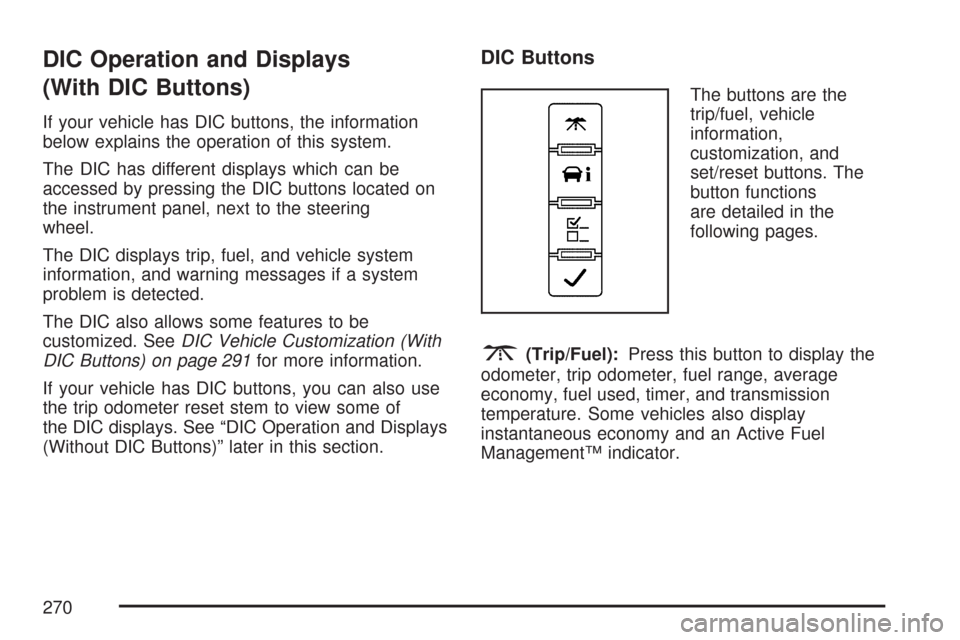
DIC Buttons
The buttons are the
trip/fuel, vehicle
information,
customization, and
set/reset buttons. The
button functions
are detailed in the
following pages.
3(Trip/Fuel):Press this button to display the
odometer, trip odometer, fuel range, average
economy, fuel used, timer, and transmission
temperature. Some vehicles also display
instantaneous economy and an Active Fuel
Management™ indicator.
270
Page 302 of 684
Audio System(s)
Determine which radio your vehicle has and then
read the pages following to familiarize yourself
with its features.
Driving without distraction is a necessity for a
safer driving experience. SeeDefensive Driving on
page 376. By taking a few moments to read this
manual and get familiar with your vehicle’s
audio system, you can use it with less effort, as
well as take advantage of its features. While your
vehicle is parked, set up your audio system by
presetting your favorite radio stations, setting the
tone and adjusting the speakers. Then, when
driving conditions permit, you can tune to
your favorite stations using the presets and
steering wheel controls if the vehicle has them.{CAUTION:
This system provides you with a far greater
access to audio stations and song listings.
Giving extended attention to entertainment
tasks while driving can cause a crash and
you or others can be injured or killed.
Always keep your eyes on the road and
your mind on the drive — avoid engaging
in extended searching while driving.
Keeping your mind on the drive is important for
safe driving. Here are some ways in which you can
help avoid distraction while driving.
While your vehicle is parked:
Familiarize yourself with all of its controls.
Familiarize yourself with its operation.
302
Page 303 of 684

Set up your audio system by presetting your
favorite radio stations, setting the tone, and
adjusting the speakers. Then, when driving
conditions permit, you can tune to your favorite
radio stations using the presets and steering
wheel controls if the vehicle has them.
Notice:Before adding any sound equipment to
your vehicle, such as an audio system, CD
player, CB radio, mobile telephone, or two-way
radio, make sure that it can be added by
checking with your dealer/retailer. Also, check
federal rules covering mobile radio and
telephone units. If sound equipment can be
added, it is very important to do it properly.
Added sound equipment can interfere with the
operation of your vehicle’s engine, radio, or
other systems, and even damage them. Your
vehicle’s systems can interfere with the
operation of sound equipment that has
been added.
Your vehicle has a feature called Retained
Accessory Power (RAP). With RAP, the audio
system can be played even after the ignition
is turned off. SeeRetained Accessory Power
(RAP) on page 136for more information.Setting the Time
AM-FM Radio with Optional CD Player
If your vehicle has an AM/FM radio with an
optional CD player, it has a clock button for setting
the time. With these types of radios, the clock
can be set with either the radio turned on or off.
Set the time by following these steps:
1. Press the clock button until the hour numbers
begin ashing on the display. Press the clock
button a second time and the minute
numbers begin ashing on the display. Press
the clock button a third time and the 12HR
or 24HR time format begins ashing.
2. While either the hour or the minute numbers
are ashing, turn the tune knob, located on
the upper right side of the radio faceplate,
clockwise or counterclockwise to increase or
decrease the time. While the 12HR or
24HR time format is ashing, turn the tune
knob clockwise or counterclockwise to select
the default time settings.
3. Press the clock button again until the clock
display stops ashing to set the currently
displayed time; otherwise, the ashing stops
after ve seconds and the current time
displayed will be automatically set.
303
Page 316 of 684
4(Information) (XM™ Satellite Radio Service,
MP3, and RDS Features):Press the information
button to display additional text information
related to the current FM-RDS or XM™ station, or
MP3 song. A choice of additional information
such as: Channel, Song, Artist, and CAT
(category) might appear. Continue pressing the
information button to highlight the desired label, or
press the pushbutton positioned under any one
of the labels and the information about that
label displays.
When information is not available, No Info
displays.
Storing a Radio Station as a Favorite
Drivers are encouraged to set up their radio station
favorites while the vehicle is parked. Tune to
your favorite stations using the presets, favorites
button, and steering wheel controls, if the
vehicle has this feature. SeeDefensive Driving on
page 376.FAV (Favorites):A maximum of 36 stations can
be programmed as favorites using the
six pushbuttons positioned below the radio station
frequency labels and by using the radio favorites
page button (FAV button). Press the FAV button to
go through up to six pages of favorites, each
having six favorite stations available per page.
Each page of favorites can contain any
combination of AM, FM, or XM™ (if equipped)
stations. To store a station as a favorite, perform
the following steps:
1. Tune to the desired radio station.
2. Press the FAV button to display the page
where you want the station stored.
3. Press and hold one of the six pushbuttons
until a beep sounds. Whenever that
pushbutton is pressed and released, the
station that was set, returns.
4. Repeat the steps for each pushbutton radio
station you want stored as a favorite.
316
Page 326 of 684
Finding a Station
BAND:Press this button to switch between AM,
FM, or XM™ (if equipped). The display shows
the selection.
f(Tune):Turn this knob to select radio stations.
©SEEK¨:Press the left or right SEEK
arrow to go to the next or to the previous station
and stay there.
To scan stations, press and hold either SEEK
arrow for a few seconds until a beep sounds. The
radio goes to a station, plays for a few seconds,
then goes to the next station. Press either
SEEK arrow again to stop scanning.
The radio seeks and scans stations only with a
strong signal that are in the selected band.
4(Information) (XM™ Satellite Radio Service,
MP3, and RDS Features):Press the information
button to display additional text information related
to the current FM-RDS or XM™ station, or MP3
song. A choice of additional information such as:
Channel, Song, Artist, and CAT (category) could
appear. Continue pressing the information button to
highlight the desired label, or press the pushbutton
positioned under any one of the labels and the
information about that label is displayed.
When information is not available, No Info displays.
Storing a Radio Station as a Favorite
Drivers are encouraged to set up their radio station
favorites while the vehicle is parked. Tune to your
favorite stations using the presets, favorites button,
and steering wheel controls, if the vehicle has them.
SeeDefensive Driving on page 376.
326