2007 BUICK TERRAZA radio
[x] Cancel search: radioPage 191 of 562

Accessory Power Outlet(s)
Your vehicle may be equipped with a front
accessory power outlet located below the climate
controls on the instrument panel. It can be
used to plug in electrical equipment such as a
cellular telephone or CB radio.
Pull the cover down to use the accessory power
outlet. When not in use, keep the cover on.
The rear accessory power outlet is located on the
rear compartment on the driver’s side.
To remove the cover, pull the tab on the cover
and pull it off. To put the cover back on, line up
the tabs at the back of the cover and put the
cover in place. Push down the tab to secure the
cover. When not in use, always cover the rear
accessory power outlet with the protective cap.
Notice:Leaving electrical equipment on
for extended periods will drain the battery.
Always turn off electrical equipment when
not in use and do not plug in equipment that
exceeds the maximum amperage rating of
20 amperes.Certain electrical accessories may not be
compatible with the accessory power outlet and
could result in blown vehicle or adapter fuses.
If you experience a problem see your dealer for
additional information on accessory power outlets.
Notice:Adding any electrical equipment to
your vehicle may damage it or keep other
components from working as they should.
The repairs would not be covered by your
warranty. Do not use equipment exceeding
maximum amperage rating of 20 amperes.
Check with your dealer before adding electrical
equipment.
When adding electrical equipment, be sure to
follow the proper installation instructions included
with the equipment.
Notice:Improper use of the power outlet can
cause damage not covered by your warranty.
Do not hang any type of accessory or
accessory bracket from the plug because the
power outlets are designed for accessory
power plugs only.
191
Page 213 of 562

If the word OFF or the off symbol is lit on the
airbag status indicator, it means that the
passenger sensing system has turned off the
right front passenger’s airbag or airbags.
SeePassenger Sensing System on page 86
for more on this, including important safety
information.
If, after several seconds, all status indicator lights
remain on, or if there are no lights at all, there
may be a problem with the lights or the passenger
sensing system. See your dealer for service.
{CAUTION:
If the off indicator and the airbag readiness
light ever come on together, it means
that something may be wrong with the
airbag system. If this ever happens, have
the vehicle serviced promptly, because
an adult-size person sitting in the right
front passenger seat may not have the
protection of an airbag. SeeAirbag
Readiness Light on page 210.
Charging System Light
The charging system
light will come on
briey when you turn on
the ignition, but the
engine is not running,
as a check to show you
it is working.
It should go out once the engine is running. If it
stays on, or comes on while you are driving,
you may have a problem with the charging system.
It could indicate that you have problems with a
generator drive belt, or another electrical problem.
Have it checked right away. Driving while this
light is on could drain your battery.
If you must drive a short distance with the light on,
be certain to turn off all your accessories, such
as the radio and air conditioner.
213
Page 249 of 562

DIC Vehicle Personalization
(Uplevel Only)
Your vehicle may have customization capabilities
that allow you to program certain features to
one preferred setting. Customization features
can only be programmed to one setting on
the vehicle and cannot be programmed to a
preferred setting for two different drivers. The
customization features include the following:
Exterior lighting delay
Interior lighting delay
Delayed locking
Content theft
Remote keyless entry feedback
Remote start
Rear park chime
Your vehicle may also have personalization
capabilities that allow you to program certain
features to a preferred setting for up to two drivers.
The rst personalized key corresponds to driver 1
and the second personalized key corresponds to
driver 2. The driver number also corresponds to the
numbers, 1 or 2, on the back of the remote keyless
entry transmitters.The personalization features include the following:
Radio station presets
Auto door unlock preferences
Remote keyless entry unlock preferences
All of the customization and personalization
options may not be available on your vehicle.
Only the options available will be displayed
on your DIC.
The default settings for the customization and
personalization features were set when your
vehicle left the factory, but may have been
changed from their default setting since then.
The customization preferences are automatically
recalled.
The driver’s personalization preferences are
recalled by using the key programmed for
driver 1 or 2. The driver number also corresponds
to the numbers, 1 or 2, on the back of the
remote keyless entry transmitters.
To change customization and personalization
preferences, use the following procedure.
249
Page 256 of 562

RADIO STATIONS PERSONALIZED
This screen displays only if YES was selected for
the PERSONALIZE KEY feature. This feature
allows you to set the radio station presets to be
recognized for the key, 1 or 2, that is being
used. Once this message displays, set the radio
station presets. If the presets are not set at
this time, the presets will not be recognized for
key 1 or 2, however, the vehicle radio station
presets will be maintained.
AUTO DOOR UNLOCK
This feature allows automatic door unlocking to be
turned off, used for the driver’s door only, or for
all of the doors.
Press the menu button until AUTO DOOR UNLOCK
appears on the DIC display. Press the set/reset
button to scroll through the following choices:
OFF:None of the doors will unlock when the
vehicle is shifted into PARK (P) or the key is taken
out of the ignition.
DRIVER:Only the driver’s door will unlock when
the vehicle is shifted into PARK (P) or the key
is taken out of the ignition.ALL (default):All of the doors will unlock when
the vehicle is shifted into PARK (P) or the key
is taken out of the ignition.
Choose one of the available settings and press
the menu button while it is displayed on the DIC to
select it and move on to the next feature.
AUTO UNLOCK ON
This feature displays only if DRIVER or ALL was
selected for the AUTO DOOR UNLOCK feature.
This feature allows the selection of when the
vehicle’s doors will unlock.
Press the menu button until AUTO UNLOCK ON
appears on the DIC display. Press the set/reset
button to scroll through the following choices:
KEY-OUT:The door(s) will unlock when the key
is taken out of the ignition.
PARK (default):The door(s) will unlock when the
vehicle is shifted into PARK (P).
Choose one of the available settings and press
the menu button while it is displayed on the DIC to
select it and move on to the next feature.
256
Page 258 of 562

Audio System(s)
Determine which radio your vehicle has and then
read the pages following to familiarize yourself
with its features.
Driving without distraction is a necessity for a
safer driving experience. SeeDefensive Driving on
page 346. By taking a few moments to read this
manual and get familiar with your vehicle’s
audio system, you can use it with less effort, as
well as take advantage of its features. While your
vehicle is parked, set up your audio system by
presetting your favorite radio stations, setting the
tone, and adjusting the speakers. Then, when
driving conditions permit, you can tune to
your favorite stations using the presets and
steering wheel controls if the vehicle has them.{CAUTION:
This system provides you with a far greater
access to audio stations and song listings.
Giving extended attention to entertainment
tasks while driving can cause a crash and
you or others can be injured or killed.
Always keep your eyes on the road and
your mind on the drive — avoid engaging
in extended searching while driving.
Keeping your mind on the drive is important for
safe driving. Here are some ways in which you can
help avoid distraction while driving.
While your vehicle is parked:
Familiarize yourself with all of its controls.
Familiarize yourself with its operation.
Set up your audio system by presetting your
favorite radio stations, setting the tone, and
adjusting the speakers. Then, when driving
conditions permit, you can tune to your favorite
radio stations using the presets and steering
wheel controls if the vehicle has them.
258
Page 259 of 562

Notice:Before adding any sound equipment
to your vehicle, such as an audio system,
CD player, CB radio, mobile telephone,
or two-way radio, make sure that it can be
added by checking with your dealer. Also,
check federal rules covering mobile radio and
telephone units. If sound equipment can be
added, it is very important to do it properly.
Added sound equipment may interfere with the
operation of your vehicle’s engine, radio, or
other systems, and even damage them.
Your vehicle’s systems may interfere with the
operation of sound equipment that has
been added.
Notice:The chime signals related to safety
belts, parking brake, and other functions
of your vehicle operate through the
radio/entertainment system. If that equipment
is replaced or additional equipment is added
to your vehicle, the chimes may not work.
Make sure that replacement or additional
equipment is compatible with your vehicle
before installing it. SeeAccessories and
Modifications on page 400.Your vehicle has a feature called Retained
Accessory Power (RAP). With RAP, the audio
system can be played even after the ignition
is turned off. SeeRetained Accessory
Power (RAP) on page 130for more information.
Setting the Time
Press the H or the M button to enter clock mode.
Press and hold H until the correct hour appears
on the display. Press and hold M until the correct
minute appears on the display.
To change the time default setting from 12 hour to
24 hour, press either the H or the M button to
enter the clock mode, then press the tune knob to
select between the 12 or 24 hour display format.
The clock mode will automatically time out with
the changed display format set as the current
default setting.
259
Page 260 of 562
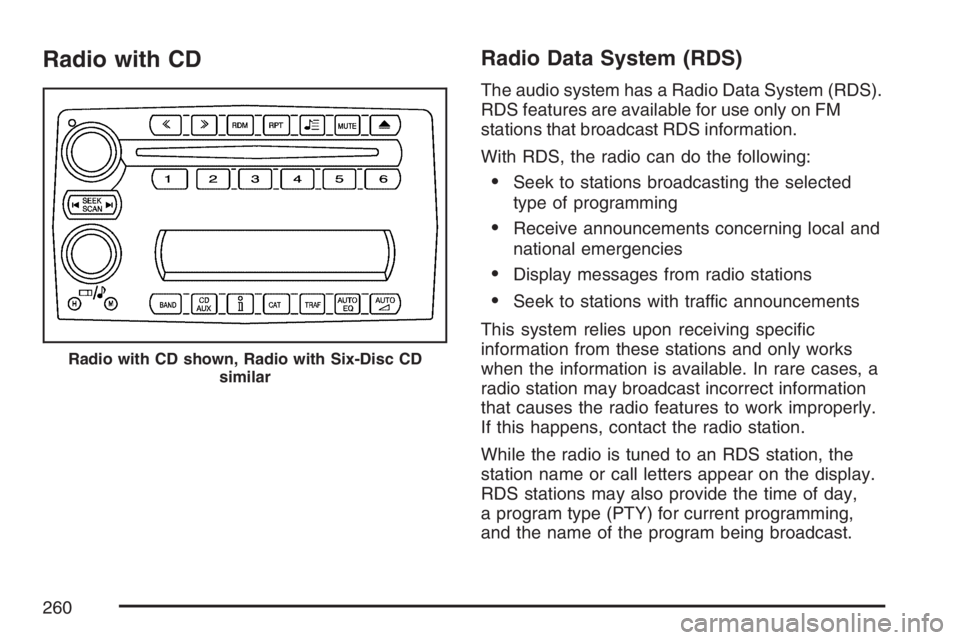
Radio with CDRadio Data System (RDS)
The audio system has a Radio Data System (RDS).
RDS features are available for use only on FM
stations that broadcast RDS information.
With RDS, the radio can do the following:
Seek to stations broadcasting the selected
type of programming
Receive announcements concerning local and
national emergencies
Display messages from radio stations
Seek to stations with traffic announcements
This system relies upon receiving specic
information from these stations and only works
when the information is available. In rare cases, a
radio station may broadcast incorrect information
that causes the radio features to work improperly.
If this happens, contact the radio station.
While the radio is tuned to an RDS station, the
station name or call letters appear on the display.
RDS stations may also provide the time of day,
a program type (PTY) for current programming,
and the name of the program being broadcast.
Radio with CD shown, Radio with Six-Disc CD
similar
260
Page 261 of 562

XM™ Satellite Radio Service
XM™ is a satellite radio service that is based in
the 48 contiguous United States and Canada.
XM™ offers a large variety of coast-to-coast
channels including music, news, sports, talk,
traffic/weather (U.S. subscribers), and children’s
programming. XM™ provides digital quality
audio and text information that includes song title
and artist name. A service fee is required in
order to receive the XM™ service. For more
information, contact XM™; In the U.S. at
www.xmradio.com or call 1-800-852-XMXM (9696)
or in Canada at www.xmradio.ca or call
1-877-GET-XMSR (438-9677).
Playing the Radio
Top Knob (Power/Volume):Press this knob
to turn the system on and off. Turn this knob
clockwise or counterclockwise to increase or
to decrease the volume.
4(Information):For RDS, press this button to
change what appears on the display while
using RDS. The display options are station name,
RDS station frequency, PTY (program type),
and the name of the program (if available).For XM™ (if equipped), press the information
button while in XM™ mode to retrieve four different
categories of information related to the current
song or channel: Artist, Song Title, Category
or PTY, Channel Number/Channel Name.
To change the default on the display, press the
information button until you see the desired
display, then hold the button for two seconds.
The radio produces one beep and the selected
display becomes the default.
AUTO
n(Automatic Volume):With automatic
volume, the audio system adjusts automatically
to make up for road and wind noise as you drive,
by increasing the volume as the vehicle speed
increases.
Set the volume at the desired level. Press this
button to select AUTO VOLUME MIN (minimum),
AUTO VOLUME MED (medium), or AUTO
VOLUME MAX (maximum). Each higher setting
provides more volume compensation at faster
vehicle speeds. To turn automatic volume
off, press this button until AUTO VOLUME OFF
appears on the display.
261