2007 BUICK LACROSSE service
[x] Cancel search: servicePage 246 of 512

SCV (Speed Compensated Volume):With SCV,
the audio system adjusts automatically to make
up for road and wind noise as you drive.
Set the volume at the desired level. Press this
button to select SPEED VOL MIN, SPEED
VOL MED, or SPEED VOL MAX. Each higher
setting will allow for more volume compensation at
faster vehicle speeds. Then as you drive, SCV
increases the volume, as necessary, to overcome
noise at any speed. The volume level should
always sound the same to you as you drive. NONE
will appear on the display if the radio cannot
determine the vehicle speed. To turn SCV
off, press this button until SPEED VOL OFF
appears on the display.
Finding a Station
BAND:Press this button to switch between FM1,
FM2, AM, or XM1 or XM2 (if equipped). The
display will show the selection.
e(Tune):Turn this knob to select radio stations.
oSEEKp:Press and release the right or
the left arrow to go to the next or to the previous
station and stay there.To scan stations, press and hold either arrow for
more than two seconds. SCAN will appear on
the display and the radio will produce one beep.
The radio will go to a station, play for a few
seconds, then go on to the next station. Press
either arrow again or one of the pushbuttons
to stop scanning presets.
To scan preset stations, press and hold either arrow
for more than four seconds. PSCAN will appear on
the display and the radio will produce two beeps.
The radio will go to a preset station, play for a few
seconds, then go on to the next preset station.
Press either arrow again or one of the pushbuttons
to stop scanning presets.
The radio will only seek and scan stations with a
strong signal that are in the selected band.
INFO (Information) (XM™ Satellite Radio
Service Only):If the current station has a
message, the information symbol will appear on
the display. Press this button to see the message.
The message may display the artist, song title,
call in phone numbers, etc.
246
Page 248 of 512

EQ (Equalization):Press this button to select
customized equalization settings designed
for country/western, jazz, talk, pop, rock, classical,
and custom.
To return the bass and treble to the manual mode,
push and release the tone knob until BASS or
TREBLE appears on the display.
Adjusting the Speakers (Balance/Fade)
e
(Balance/Fade):To adjust the balance
between the right and the left speakers, push and
release this knob until BAL appears on the
display. Turn the knob to move the sound toward
the right or the left speakers.
To adjust the fade between the front and the rear
speakers, push and release the speaker knob until
FAD appears on the display. Turn the knob to move
the sound toward the front or the rear speakers.
To adjust the balance and the fade to the middle
position, push the speaker knob, then push it again
and hold it until you hear one beep.
To adjust all tone and speaker controls to the
middle position, push and hold the speaker knob
when no tone or speaker control is displayed.
ALL CENTERED will appear on the display and you
will hear a beep.
Finding a Category (CAT) Station
(XM™ Satellite Radio Service Only)
To select and nd a desired category perform the
following:
1. Press the CAT button to activate category
select mode. The current category will
appear on the display.
2. Turn the tune knob to select a category.
3. Once the desired category is displayed, press
either SEEK arrow to take you to the
categories rst station.
4. To go to another station within that category
and the category is displayed, press either
SEEK arrow again. If CAT times out and is no
longer on the display, go back to Step 1.
5. Press CAT to exit category select mode or
wait for CAT to time out.
If the radio cannot nd the desired category,
NOT FOUND will appear on the display and the
radio will return to the last station you were
listening to.
248
Page 249 of 512

Scanning Categories (CAT)
(XM™ Satellite Radio Service Only)
To scan a desired category perform the following:
1. Press the CAT button to activate category
select mode. The current category will
appear on the display.
2. Turn the tune knob to select a category.
3. Once the desired category is displayed, press
either SEEK arrow for two seconds to scan
the stations in the category.
4. Press either SEEK arrow again to stop
scanning.
If the radio cannot nd the desired category,
NOT FOUND will appear on the display and the
radio will return to the last station you were
listening to.
Radio Messages
CALIBRATE:The audio system has been
calibrated for your vehicle from the factory. If
CALIBRATE appears on the display it means that
the radio has not been congured properly for
your vehicle and it must be returned to your
GM dealer for service.LOCKED:This message is displayed when the
THEFTLOCK
®system has locked up. Take
your vehicle to your GM dealer for service.
If any error occurs repeatedly or if an error cannot
be corrected, contact your GM dealer.
Radio Messages for XM™ Only
SeeXM Radio Messages on page 278later in this
section for further detail.
Playing a CD
Insert a CD partway into the slot, label side up. The
player will pull it in and the CD should begin playing.
If you want to insert a CD with the ignition off, rst
press the eject button or the DISP knob.
If the ignition or radio is turned off with a CD in
the player it will stay in the player. When the
ignition or radio is turned on, the CD will start to
play where it stopped, if it was the last selected
audio source.
When the CD is inserted, the CD symbol will appear
on the display. As each new track starts to play, the
track number will appear on the display.
249
Page 252 of 512
CD Messages
CHECK CD:If this message appears on the
display and/or the CD comes out, it could be for
one of the following reasons:
It is very hot. When the temperature returns to
normal, the CD should play.
You are driving on a very rough road.
When the road becomes smoother, the
CD should play.
The CD is dirty, scratched, wet, or
upside down.
The air is very humid. If so, wait about an
hour and try again.
There may have been a problem while
burning the CD.
The label may be caught in the CD player.
If the CD is not playing correctly, for any other
reason, try a known good CD.
If any error occurs repeatedly or if an error cannot
be corrected, contact your GM dealer. If the
radio displays an error message, write it down and
provide it to your GM dealer when reporting the
problem.
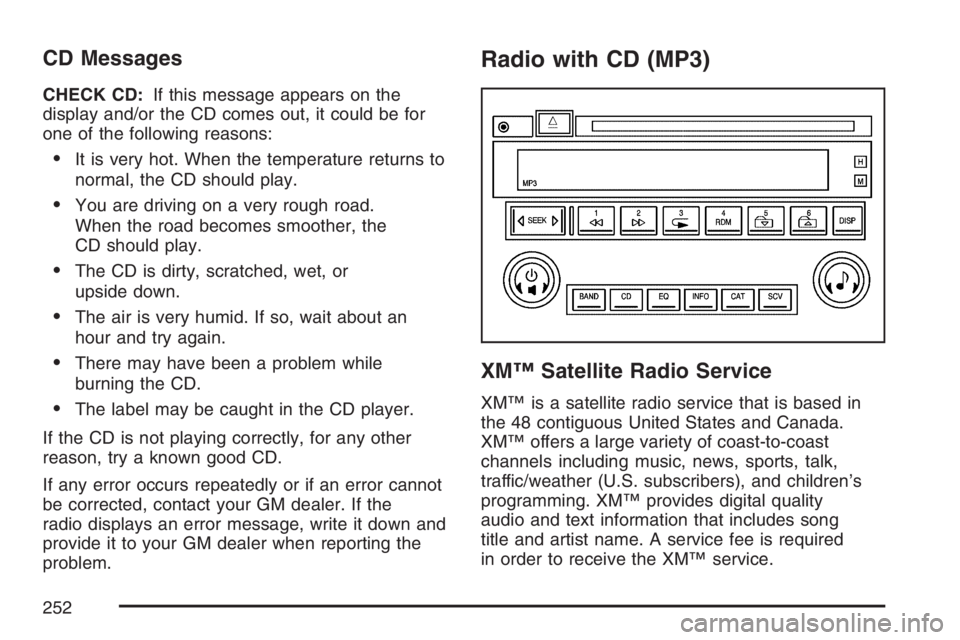
Radio with CD (MP3)
XM™ Satellite Radio Service
XM™ is a satellite radio service that is based in
the 48 contiguous United States and Canada.
XM™ offers a large variety of coast-to-coast
channels including music, news, sports, talk,
traffic/weather (U.S. subscribers), and children’s
programming. XM™ provides digital quality
audio and text information that includes song
title and artist name. A service fee is required
in order to receive the XM™ service.
252
Page 254 of 512

Finding a Station
BAND:Press this button to switch between FM1,
FM2, AM, or XM1 or XM2 (if equipped). The
display will show the selection.
e(Tune):Turn this knob to select radio stations.
oSEEKp:Press and release the right or
the left arrow to go to the next or to the previous
station and stay there.
To scan stations, press and hold either arrow for
more than two seconds. SCAN will appear on
the display and the radio will produce one beep.
The radio will go to a station, play for a few
seconds, then go on to the next station. Press
either arrow again or one of the pushbuttons
to stop scanning presets.
To scan preset stations, press and hold either arrow
for more than four seconds. PSCAN will appear on
the display and the radio will produce two beeps.
The radio will go to a preset station, play for a
few seconds, then go on to the next preset station.
Press either arrow again or one of the pushbuttons
to stop scanning presets.
The radio will only seek and scan stations with a
strong signal that are in the selected band.INFO (Information) (XM™ Satellite Radio
Service Only):If the current station has a
message, the information symbol will appear on
the display. Press this button to see the message.
The message may display the artist, song title,
call in phone numbers, etc.
If the entire message is not displayed, parts of the
message will appear every three seconds. To
scroll through the message, press and release the
INFO button. A new group of words will appear
on the display after every press of this button.
Once the complete message has been displayed,
the information symbol will disappear from the
display until another new message is received.
The last message can be displayed by pressing
the INFO button. You can view the last message
until a new message is received or a different
station is tuned to.
When a message is not available from a station,
NO INFO will appear on the display.
254
Page 256 of 512
Adjusting the Speakers (Balance/Fade)
e
(Balance/Fade):To adjust the balance
between the right and the left speakers, push and
release this knob until BAL appears on the
display. Turn the knob to move the sound toward
the right or the left speakers.
To adjust the fade between the front and the rear
speakers, push and release the speaker knob
until FAD (fade) appears on the display. Turn the
knob to move the sound toward the front or
the rear speakers.
To adjust the balance and the fade to the middle
position, push the speaker knob, then push it
again and hold it until you hear one beep.
To adjust all tone and speaker controls to the
middle position, push and hold the speaker knob
when no tone or speaker control is displayed.
ALL CENTERED will appear on the display and
you will hear a beep.
Finding a Category (CAT) Station
(XM™ Satellite Radio Service Only)
To select and nd a desired category perform the
following:
1. Press the CAT button to activate category
select mode. The current category will
appear on the display.
2. Turn the tune knob to select a category.
3. Once the desired category is displayed, press
either SEEK arrow to take you to the
categories rst station.
4. To go to another station within that category
and the category is displayed, press either
SEEK arrow again. If CAT times out and is no
longer on the display, go back to Step 1.
5. Press CAT to exit category select mode or
wait for CAT to time out.
If the radio cannot nd the desired category,
NOT FOUND will appear on the display and the
radio will return to the last station you were
listening to.
256
Page 257 of 512

Scanning Categories (CAT)
(XM™ Satellite Radio Service Only)
To scan a desired category perform the following:
1. Press the CAT button to activate category
select mode. The current category will
appear on the display.
2. Turn the tune knob to select a category.
3. Once the desired category is displayed, press
either SEEK arrow for two seconds to scan
the stations in the category.
4. Press either SEEK arrow again to stop
scanning.
If the radio cannot nd the desired category,
NOT FOUND will appear on the display and the
radio will return to the last station you were
listening to.
Radio Messages
CALIBRATE:The audio system has been
calibrated for your vehicle from the factory. If
CALIBRATE appears on the display it means that
the radio has not been congured properly for
your vehicle and it must be returned to your dealer
for service.LOCKED:This message is displayed when the
THEFTLOCK
®system has locked up. Take
your vehicle to your dealer for service.
If any error occurs repeatedly or if an error cannot
be corrected, contact your GM dealer.
Radio Messages for XM™ Only
SeeXM Radio Messages on page 278later in this
section for further detail.
Playing a CD
Insert a CD partway into the slot, label side up. The
player will pull it in and the CD should begin playing.
If you want to insert a CD with the ignition off, rst
press the eject button or the DISP knob.
If the ignition or radio is turned off with a CD in
the player it will stay in the player. When the
ignition or radio is turned on, the CD will start to
play where it stopped, if it was the last selected
audio source.
When the CD is inserted, the CD symbol will appear
on the display. As each new track starts to play, the
track number will appear on the display.
257
Page 260 of 512
CD Messages
CHECK CD:If this message appears on the
display and/or the CD comes out, it could be for
one of the following reasons:
It is very hot. When the temperature returns to
normal, the CD should play.
You are driving on a very rough road.
When the road becomes smoother, the
CD should play.
The CD is dirty, scratched, wet, or
upside down.
The air is very humid. If so, wait about an
hour and try again.
The format of the CD may not be compatible.
See “MP3 Format” earlier in this section.
There may have been a problem while burning
the CD.
The label may be caught in the CD player.
If the CD is not playing correctly, for any other
reason, try a known good CD.
If any error occurs repeatedly or if an error cannot
be corrected, contact your GM dealer. If the radio
displays an error message, write it down and
provide it to your dealer when reporting the
problem.
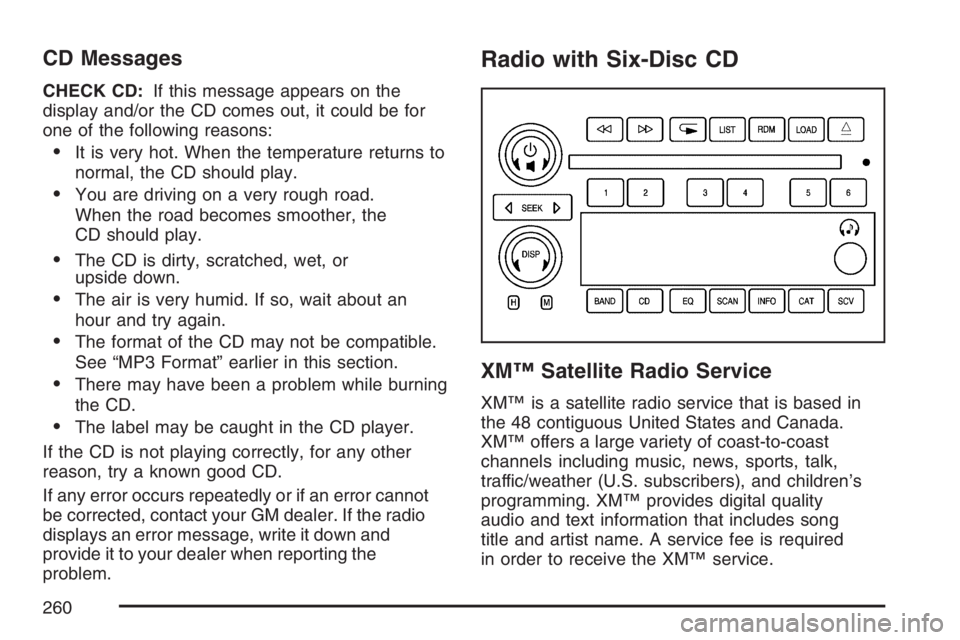
Radio with Six-Disc CD
XM™ Satellite Radio Service
XM™ is a satellite radio service that is based in
the 48 contiguous United States and Canada.
XM™ offers a large variety of coast-to-coast
channels including music, news, sports, talk,
traffic/weather (U.S. subscribers), and children’s
programming. XM™ provides digital quality
audio and text information that includes song
title and artist name. A service fee is required
in order to receive the XM™ service.
260