2007 BMW 760LI SEDAN navigation
[x] Cancel search: navigationPage 21 of 253
At a glance
19Reference
Controls
Driving tips
Communications
Navigation
Entertainment
Mobility
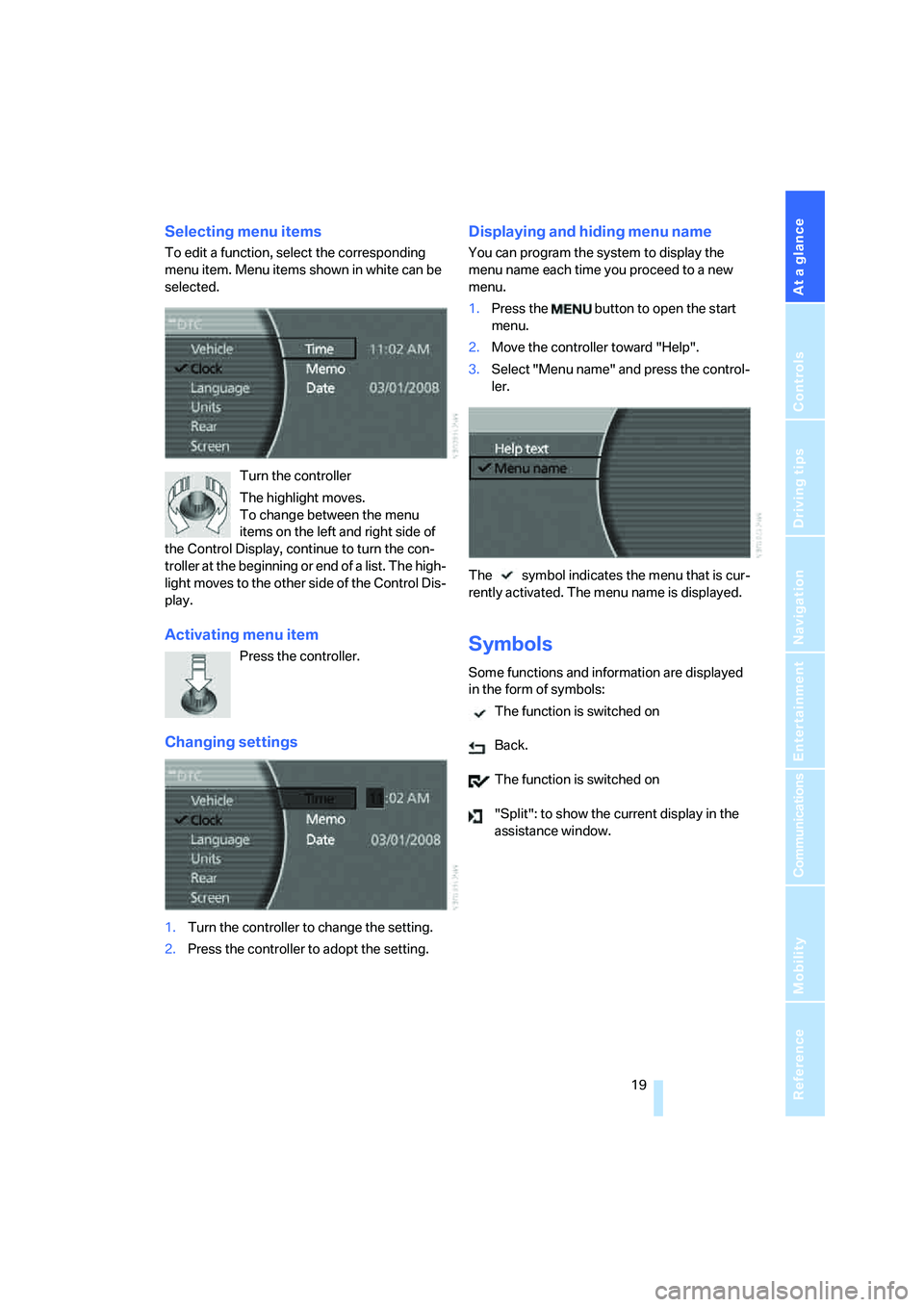
Selecting menu items
To edit a function, select the corresponding
menu item. Menu items shown in white can be
selected.
Turn the controller
The highlight moves.
To change between the menu
items on the left and right side of
the Control Display, continue to turn the con-
troller at the beginning or end of a list. The high-
light moves to the other side of the Control Dis-
play.
Activating menu item
Press the controller.
Changing settings
1.Turn the controller to change the setting.
2.Press the controller to adopt the setting.
Displaying and hiding menu name
You can program the system to display the
menu name each time you proceed to a new
menu.
1.Press the button to open the start
menu.
2.Move the controller toward "Help".
3.Select "Menu name" and press the control-
ler.
The symbol indicates the menu that is cur-
rently activated. The menu name is displayed.
Symbols
Some functions and information are displayed
in the form of symbols:
The function is switched on
Back.
The function is switched on
"Split": to show the current display in the
assistance window.
Page 23 of 253
At a glance
21Reference
Controls
Driving tips
Communications
Navigation
Entertainment
Mobility
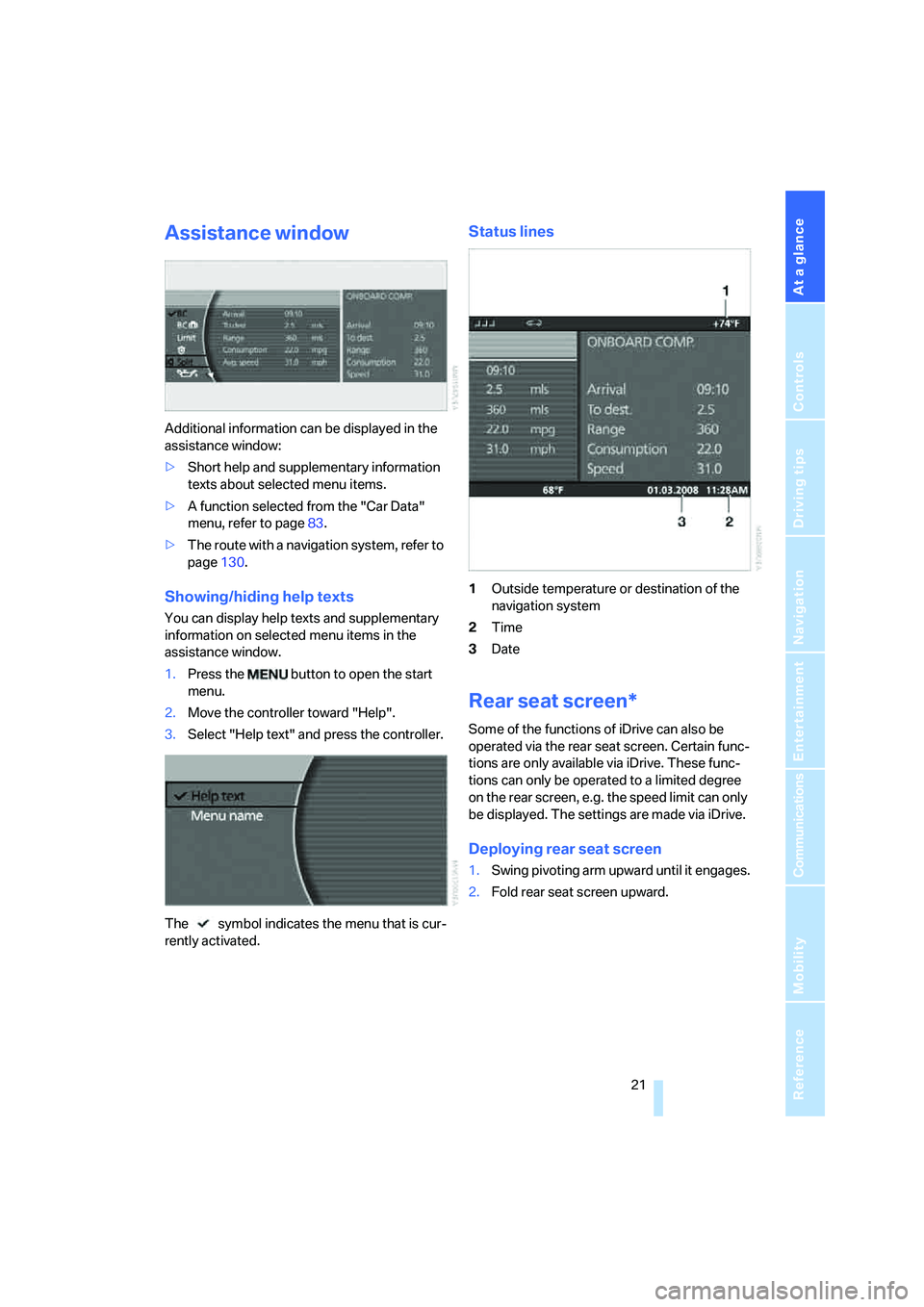
Assistance window
Additional information can be displayed in the
assistance window:
>Short help and supplementary information
texts about selected menu items.
>A function selected from the "Car Data"
menu, refer to page83.
>The route with a navigation system, refer to
page130.
Showing/hiding help texts
You can display help texts and supplementary
information on selected menu items in the
assistance window.
1.Press the button to open the start
menu.
2.Move the controller toward "Help".
3.Select "Help text" and press the controller.
The symbol indicates the menu that is cur-
rently activated.
Status lines
1Outside temperature or destination of the
navigation system
2Time
3Date
Rear seat screen*
Some of the functions of iDrive can also be
operated via the rear seat screen. Certain func-
tions are only available via iDrive. These func-
tions can only be operated to a limited degree
on the rear screen, e.g. the speed limit can only
be displayed. The settings are made via iDrive.
Deploying rear seat screen
1.Swing pivoting arm upward until it engages.
2.Fold rear seat screen upward.
Page 25 of 253

At a glance
23Reference
Controls
Driving tips
Communications
Navigation
Entertainment
Mobility
seat screen are played back separately. For
example, a radio station can be listened to while
a DVD is being played in the rear.<
Headphones are only intended for passengers
in the rear seats. Please check with local regu-
lations regarding use of headphones.
Page 26 of 253
Voice command system
24
Voice command system
The concept
The voice command system allows you to con-
trol operation of various vehicle systems with-
out ever removing your hands from the steering
wheel. The system operates on the basis of
voice commands that you will learn easily after
using them a few times. In many cases, the
voice command system assists you with
announcements or questions while you are
making your entries.
The voice command system transforms your
oral commands and dialog answers into control
signals for the selected systems.
Please take the time to acquaint yourself
with how a particular system operates
before proceeding to control it using the voice
command system.<
Note
Use iDrive to set the language that will be used
so that the voice command system will be able
to identify the commands to be spoken. Setting
the language of iDrive, refer to page84.
Symbols used
{...} Verbal instructions to use with the voice
command system.
{{...}} Identifies the answers generated by the
voice command system.
Systems available for use with voice
command
>{Navigation}, refer to page130
>{Radio}, refer to page156
>{Telephone}, refer to page184
>{CD}, refer to page163
>{CD changer}, refer to page165
>{Notepad}, refer to page26
>{DVD}, refer to page170The Info Display, refer to page25, will display
either the equipment that you are now operat-
ing or any current error messages.
Voice commands
Voice command system activation
Briefly press the button on the steering
wheel.
An acoustic signal and the display "SVS active"
on the Info Display, refer to page25, indicate
that the system is ready for operation. The sys-
tem automatically starts in the main menu.
From here, you can call up all the equipment
that can be operated.
Canceling voice command
Briefly press the button on the steering
wheel
or
In dialogs in which any text can be spoken, e.g.
names, notes, canceling is only possible using
the button.
The system automatically switches over
to its telephone mode if you receive a call
during voice input. "SVS active" appears on the
Info Display, refer to page25.<
Voice commands
The voice command system operates on the
basis of specific, predefined commands; these
commands should be spoken precisely as indi-
cated. You can have the possible commands
read aloud at any point. To do so, say the com-
mand {Options}.
In addition to the commands described, there
are often other commands that run the same
function. Instead of {Options}, you can, for
example, also say {What now}. In addition,
*
These sections contain information on
using the voice command system.
{Cancel}.
Page 27 of 253
At a glance
25Reference
Controls
Driving tips
Communications
Navigation
Entertainment
Mobility
numerous options are often available, such as
{Scale 100 miles} instead of {Scale}.
Short commands
In the {Main menu} level, you can run certain
functions directly with brief commands, refer to
page228, without having to open an equipment
level first.
For example, if you want to dial a phone num-
ber, you can directly
without previously
to call.
Identification in Owner's Manual
Special commands are available for specific
systems. In this Owner's Manual you will find
these commands in the sections describing the
individual systems.
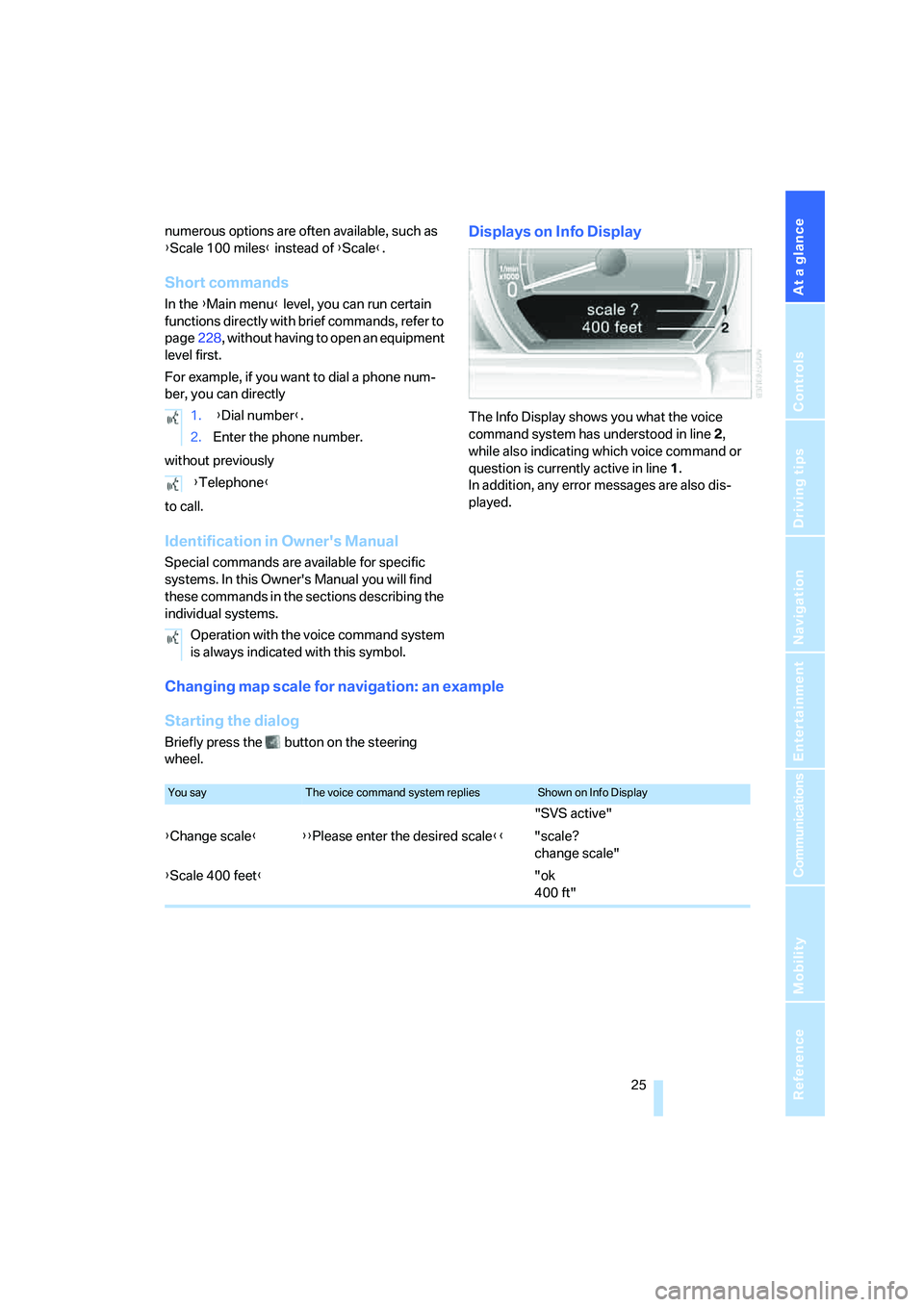
Displays on Info Display
The Info Display shows you what the voice
command system has understood in line 2,
while also indicating which voice command or
question is currently active in line1.
In addition, any error messages are also dis-
played.
Changing map scale for navigation: an example
Starting the dialog
Briefly press the button on the steering
wheel.1. {Dial number}.
2.Enter the phone number.
{Telephone}
Operation with the voice command system
is always indicated with this symbol.
You sayThe voice command system repliesShown on Info Display
"SVS active"
{Change scale}{{Please enter the desired scale}}"scale?
change scale"
{Scale 400 feet}"ok
400 ft"
Page 29 of 253
At a glance
27Reference
Controls
Driving tips
Communications
Navigation
Entertainment
Mobility
Deleting notes
Clearing notepad
To delete all contents from the notepad:
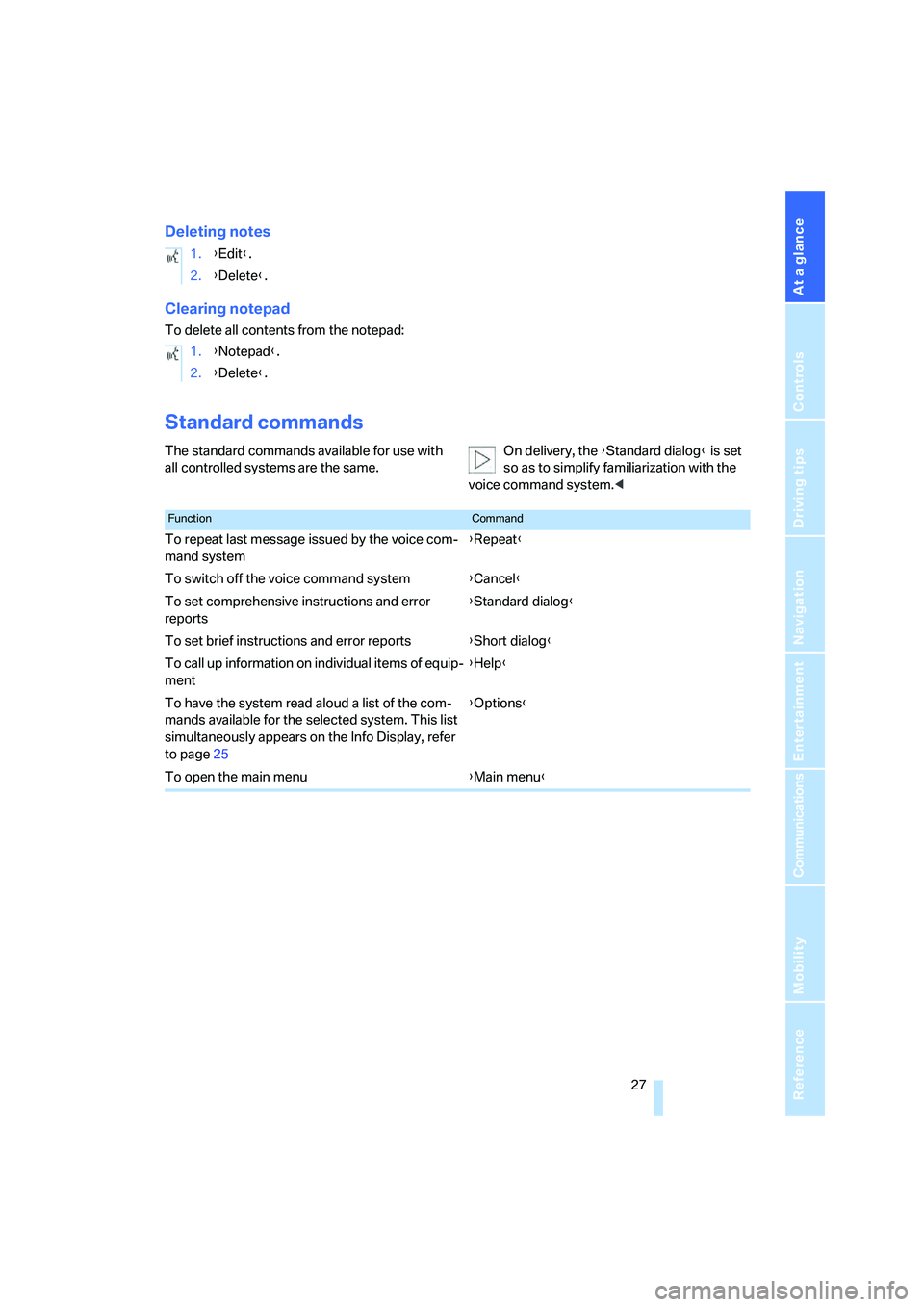
Standard commands
The standard commands available for use with
all controlled systems are the same.On delivery, the {Standard dialog} is set
so as to simplify familiarization with the
voice command system.< 1.{Edit}.
2.{Delete}.
1.{Notepad}.
2.{Delete}.
FunctionCommand
To repeat last message issued by the voice com-
mand system{Repeat}
To switch off the voice command system{Cancel}
To set comprehensive instructions and error
reports{Standard dialog}
To set brief instructions and error reports{Short dialog}
To call up information on individual items of equip-
ment{Help}
To have the system read aloud a list of the com-
mands available for the selected system. This list
simultaneously appears on the Info Display, refer
to page25{Options}
To open the main menu{Main menu}
Page 33 of 253
Controls
31Reference
At a glance
Driving tips
Communications
Navigation
Entertainment
Mobility
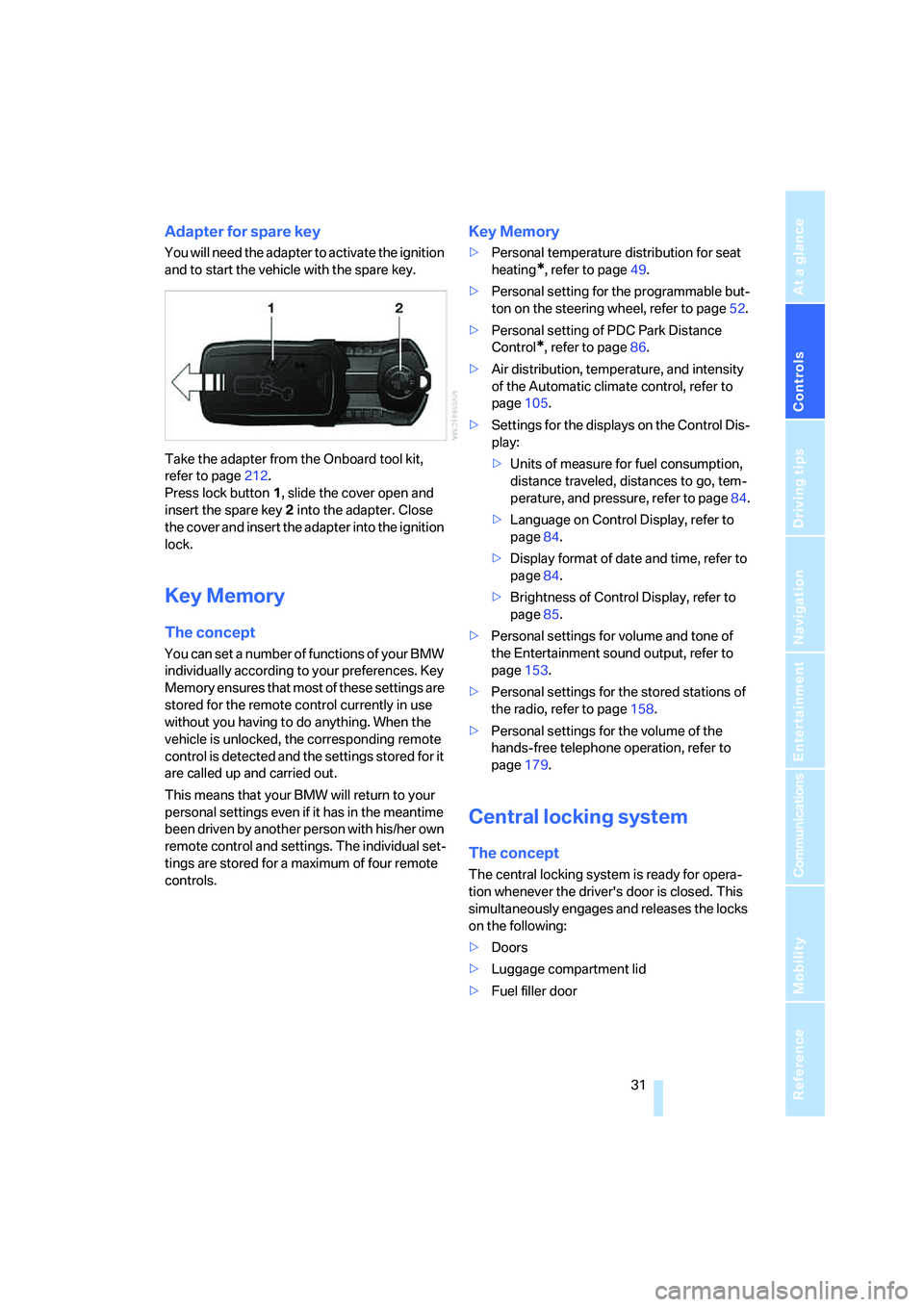
Adapter for spare key
You will need the adapter to activate the ignition
and to start the vehicle with the spare key.
Take the adapter from the Onboard tool kit,
refer to page212.
Press lock button1, slide the cover open and
insert the spare key2 into the adapter. Close
the cover and insert the adapter into the ignition
lock.
Key Memory
The concept
You can set a number of functions of your BMW
individually according to your preferences. Key
Memory ensures that most of these settings are
stored for the remote control currently in use
without you having to do anything. When the
vehicle is unlocked, the corresponding remote
control is detected and the settings stored for it
are called up and carried out.
This means that your BMW will return to your
personal settings even if it has in the meantime
been driven by another person with his/her own
remote control and settings. The individual set-
tings are stored for a maximum of four remote
controls.
Key Memory
>Personal temperature distribution for seat
heating
*, refer to page49.
>Personal setting for the programmable but-
ton on the steering wheel, refer to page52.
>Personal setting of PDC Park Distance
Control
*, refer to page86.
>Air distribution, temperature, and intensity
of the Automatic climate control, refer to
page105.
>Settings for the displays on the Control Dis-
play:
>Units of measure for fuel consumption,
distance traveled, distances to go, tem-
perature, and pressure, refer to page84.
>Language on Control Display, refer to
page84.
>Display format of date and time, refer to
page84.
>Brightness of Control Display, refer to
page85.
>Personal settings for volume and tone of
the Entertainment sound output, refer to
page153.
>Personal settings for the stored stations of
the radio, refer to page158.
>Personal settings for the volume of the
hands-free telephone operation, refer to
page179.
Central locking system
The concept
The central locking system is ready for opera-
tion whenever the driver's door is closed. This
simultaneously engages and releases the locks
on the following:
>Doors
>Luggage compartment lid
>Fuel filler door
Page 35 of 253
Controls
33Reference
At a glance
Driving tips
Communications
Navigation
Entertainment
Mobility
Switching on interior lamps
Press the button.
You can also use this function to locate your
vehicle in parking garages etc.
Panic mode*
You can also trigger the alarm system in case of
danger:
Press the button for at least 3 seconds.
To deactivate the alarm: press any button
Opening luggage compartment lid
Press the button for approx. one second.
The luggage compartment lid opens, regard-
less of whether it was previously locked or
unlocked.
During opening, the luggage compart-
ment lid pivots back and up. Make sure
there is adequate clearance available before
opening.
To avoid being inadvertently locked out, never
set the remote control down in the luggage
compartment. A previously locked luggage
compartment lid is also locked again after clos-
ing.<
Automatic luggage compartment lid
operation*
Opening luggage compartment lid
Press the button for approx. one second.
The luggage compartment lid opens all the way,
regardless of whether it was previously locked
or unlocked.
To interrupt the opening process:
Press the button again while opening is in
progress.
During opening, the luggage compart-
ment lid pivots back and up. Make sure
there is adequate clearance available before
opening.
To avoid being inadvertently locked out, never
set the remote control down in the luggage
compartment. A previously locked luggage
compartment lid is also locked again after clos-
ing.<
Malfunction
Local radio waves can cause the remote control
to malfunction.
Should the remote control fail to operate due to
interference of this kind, the vehicle can be
opened and closed with a key via the door lock.
If it is no longer possible to lock the vehicle with
a remote control, then its battery is discharged.
Use this remote control during an extended
drive; this will recharge the battery, refer to
page30.
For US owners only
The transmitter and receiver units comply with
part 15 of the FCC/Federal Communication
Commission regulations. Operation is gov-
erned by the following:
FCC ID:
>LX8766S
>LX8766E
>LX8CAS
>LX8CAS2
Compliance statement:
This device complies with part 15 of the FCC
Rules. Operation is subject to the following two
conditions:
>This device may not cause harmful interfer-
ence, and
>this device must accept any interference
received, including interference that may
cause undesired operation.
Any unauthorized modifications or
changes to these devices could void the
user's authority to operate this equipment.<