2007 BMW 760LI SEDAN display
[x] Cancel search: displayPage 176 of 253
DVD changer
174 Refer to the information on your DVD for possi-
ble selections.<
Opening DVD-specific menu
Additional functions may be available on DVDs.
For example, the viewer can select from several
possible plots or display information on the film.
1.During playback, press the controller to dis-
play the DVD control.
2.Select "MENU" or "TOP" and press the
controller.
Selecting "MENU" generally takes you to
the DVD-specific main menu. On some
DVDs, "TOP" takes you to another menu in
which you can select music scenes, for
example.
To make a selection:
3.Select .
4.Select "OK" and press the controller.
To return to a previous menu:
Select or the arrow and press the con-
troller.
You can also select language, subtitles,
camera angle, or track in the DVD-spe-
cific menu.
Refer to the information on your DVD for possi-
ble selections.<
Notes
The DVD changer can play the following for-
mats:
>Video DVD
>CD-DA (audio CD)
The DVD Audio format is not supported by the
DVD changer. However, many audio DVDs
available in stores also contain a video track in
the DVD Video format in addition to the audio
track. These DVDs can be played back by the
DVD changer. Please refer to the information on
your DVD to determine whether your audio DVD
contains an additional video track.DVDs are usually divided into tracks and chap-
ters and can contain different subtitles, camera
angles or sound tracks, languages and sound
formats. Depending on the version of the DVD,
these functions can be selected either directly
with the DVD control system or only via the
DVD-specific menu. Refer to the information on
your DVD for possible selections.
Dual-sided DVDs available from retail suppliers
are coated on both sides and bear no markings.
This means both sides are information carriers.
To play back the information on the other side,
remove the magazine and turn the DVD over.
Safety note
The BMW DVD changer is a Class 1 laser
product. Do not operate with a damaged
cover panel as this can lead to severe eye injury.
Never play CDs/DVDs with stick-on labels.
They can come loose during playback due to
the heat buildup and cause irreparable damage
to the system.
Only use round CDs/DVDs with a standard
diameter of 4.7 in/12 cm and do not play CDs/
DVDs with an adapter, e.g. CD singles; other-
wise, the CD/DVD or the adapter can jam and
may no longer eject properly.
Do not use combined CD/DVDs, e.g. DVD
Plus;
otherwise, the CD/DVD can jam, preventing it
from being ejected properly.<
General malfunctions
The BMW DVD changer is optimized for opera-
tion in the vehicle. It may react more sensitively
to defective CDs/DVDs than devices intended
for stationary use.
If a CD/DVD cannot be played back, first check
to make sure it has been correctly inserted.
Humidity
High humidity can fog the CD/DVD or the focus-
ing lens for the laser beam, temporarily prevent-
ing playback.
Page 184 of 253
Getting started
182 2.Remove the protective cap from the mobile
phone's antenna connector if necessary, so
that the mobile phone can engage in the
snap-in adapter.
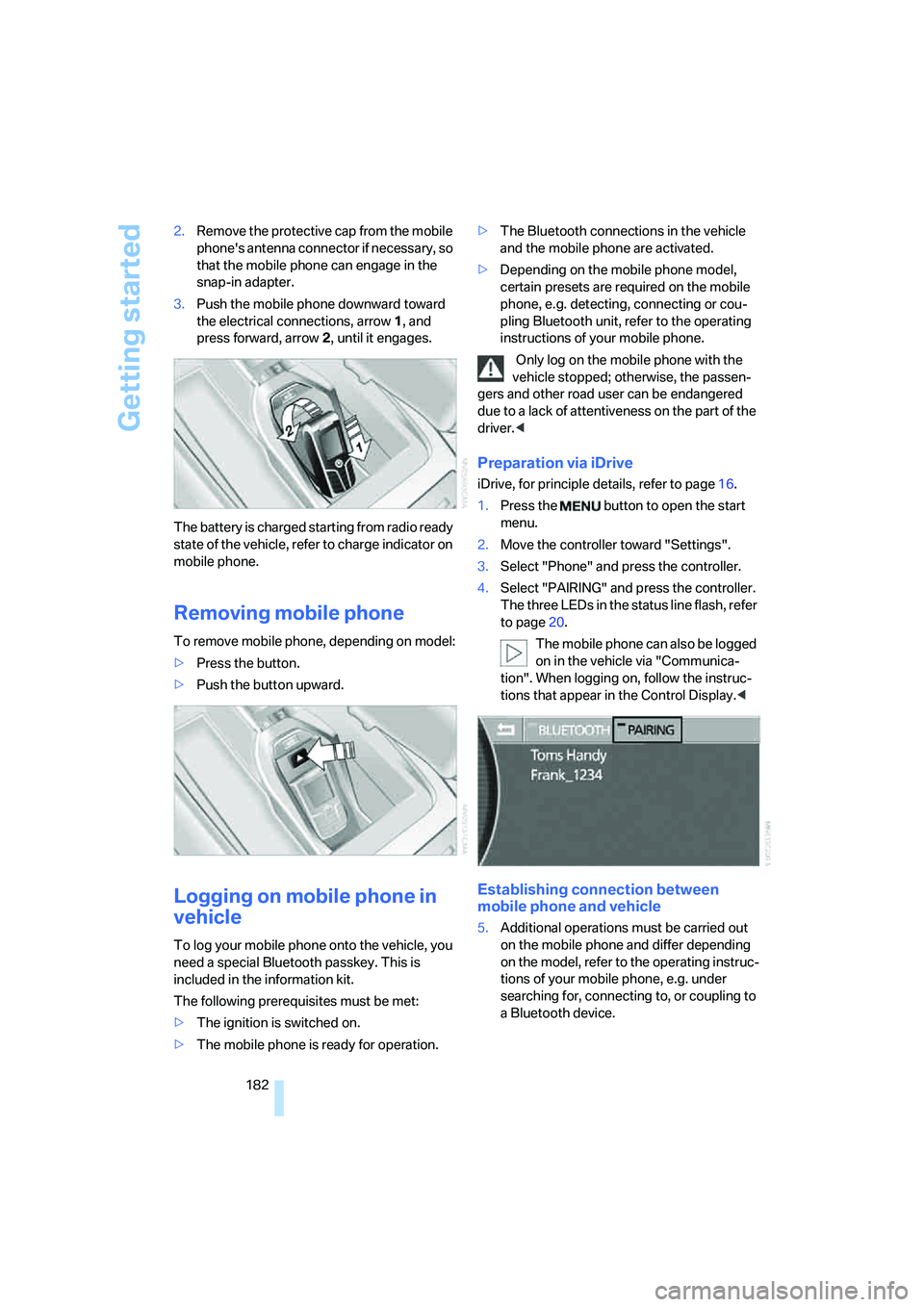
3.Push the mobile phone downward toward
the electrical connections, arrow1, and
press forward, arrow2, until it engages.
The battery is charged starting from radio ready
state of the vehicle, refer to charge indicator on
mobile phone.
Removing mobile phone
To remove mobile phone, depending on model:
>Press the button.
>Push the button upward.
Logging on mobile phone in
vehicle
To log your mobile phone onto the vehicle, you
need a special Bluetooth passkey. This is
included in the information kit.
The following prerequisites must be met:
>The ignition is switched on.
>The mobile phone is ready for operation.>The Bluetooth connections in the vehicle
and the mobile phone are activated.
>Depending on the mobile phone model,
certain presets are required on the mobile
phone, e.g. detecting, connecting or cou-
pling Bluetooth unit, refer to the operating
instructions of your mobile phone.
Only log on the mobile phone with the
vehicle stopped; otherwise, the passen-
gers and other road user can be endangered
due to a lack of attentiveness on the part of the
driver.<
Preparation via iDrive
iDrive, for principle details, refer to page16.
1.Press the button to open the start
menu.
2.Move the controller toward "Settings".
3.Select "Phone" and press the controller.
4.Select "PAIRING" and press the controller.
The three LEDs in the status line flash, refer
to page20.
The mobile phone can also be logged
on in the vehicle via "Communica-
tion". When logging on, follow the instruc-
tions that appear in the Control Display.<
Establishing connection between
mobile phone and vehicle
5.Additional operations must be carried out
on the mobile phone and differ depending
on the model, refer to the operating instruc-
tions of your mobile phone, e.g. under
searching for, connecting to, or coupling to
a Bluetooth device.
Page 185 of 253
183
Entertainment
Reference
At a glance
Controls
Driving tips Communications
Navigation
Mobility
6.Enter and confirm Bluetooth passkey using
your mobile phone keypad.
Following successful logon, the name of
your mobile phone will appear on the Con-
trol Display.
The next time you use the mobile phone within
Bluetooth range of the vehicle, it will be
detected within a short time with the ignition
switched on.
As soon as the vehicle detects a mobile phone,
the phone book entries stored on the SIM card
and/or in your mobile phone are transmitted to
your vehicle. This transfer is dependent on your
mobile phone, refer to the operating instruc-
tions of your mobile phone if necessary, and
can take several minutes.
During each connection, the phone book
entries present in the vehicle are calibrated with
the phone book entries currently stored in the
mobile phone. The entries in the vehicle are
added to or deleted as needed in the process of
this.
Up to four mobile phones can be logged on one
after the other. If you want to log on a fifth
mobile phone, the logon data of one mobile
phone must first be deleted, refer to Logging off
mobile phone from vehicle.
Logging off mobile phone
from vehicle
If you no longer want to operate a particular
mobile phone via the vehicle, you can delete the
logon data of the mobile phone.
iDrive, for principle details, refer to page16.
1.Press the button to open the start
menu.
2.Move the controller toward "Settings".
3.Select "Phone" and press the controller.
4.Select the desired mobile phone and press
the controller.
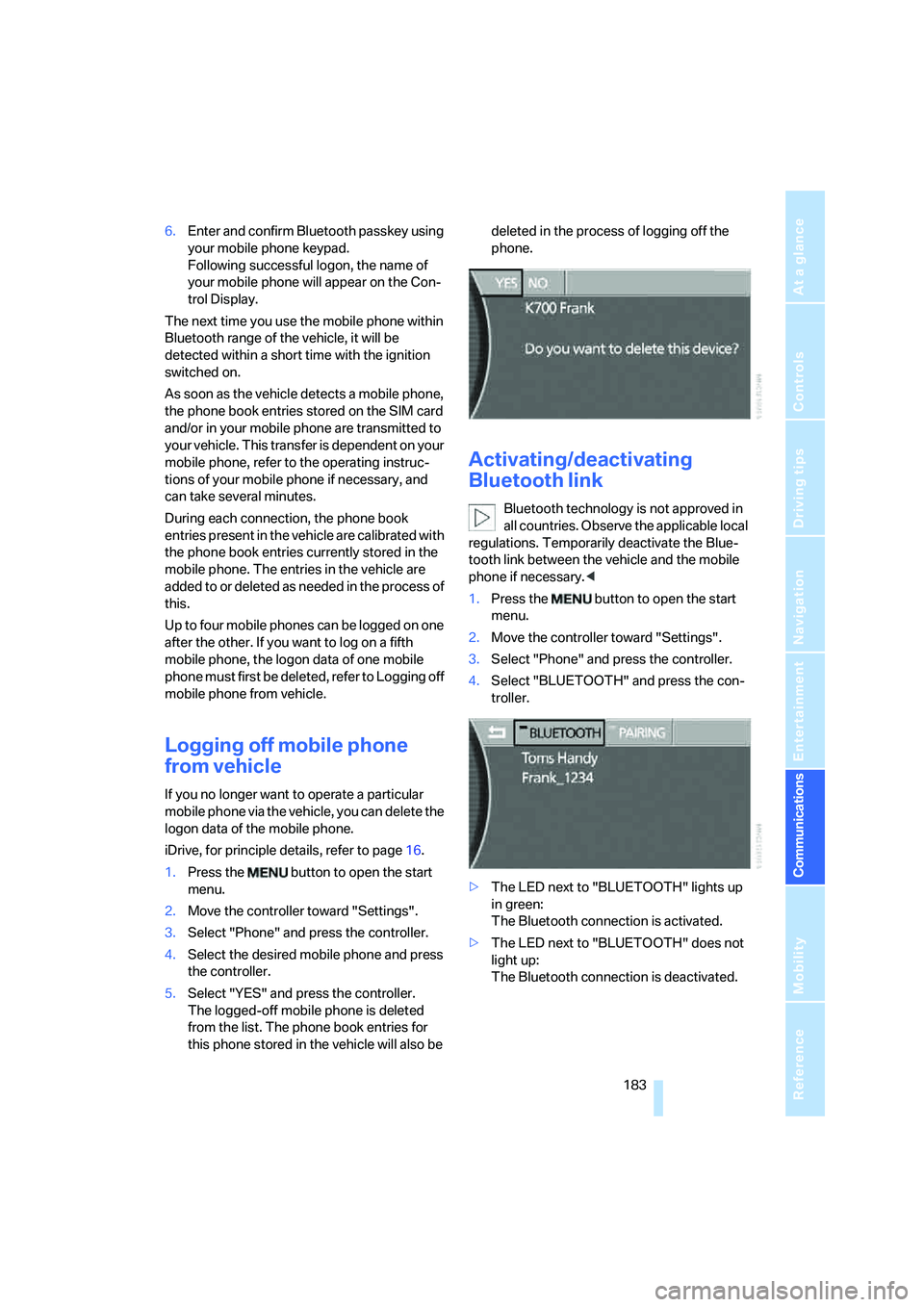
5.Select "YES" and press the controller.
The logged-off mobile phone is deleted
from the list. The phone book entries for
this phone stored in the vehicle will also be deleted in the process of logging off the
phone.
Activating/deactivating
Bluetooth link
Bluetooth technology is not approved in
all countries. Observe the applicable local
regulations. Temporarily deactivate the Blue-
tooth link between the vehicle and the mobile
phone if necessary.<
1.Press the button to open the start
menu.
2.Move the controller toward "Settings".
3.Select "Phone" and press the controller.
4.Select "BLUETOOTH" and press the con-
troller.
>The LED next to "BLUETOOTH" lights up
in green:
The Bluetooth connection is activated.
>The LED next to "BLUETOOTH" does not
light up:
The Bluetooth connection is deactivated.
Page 186 of 253
Using the phone
184
Using the phone
You have the option of controlling the phone
using various parts of the vehicle equipment:
>the button on the steering wheel, refer to
page11
>the retracting telephone keypad, refer to
page179
>iDrive, refer to Initiating communication
>the voice command system
*, refer to
page24
The phone number appears in the upper status
line, refer to page20.
With the ignition switched off, you can continue
an ongoing call for a maximum of 16 minutes via
the hands-free system.
Requirements
>The logon data of the mobile phone are
stored in the vehicle and the mobile phone
is ready to operate.
>The ignition is switched on.
>The mobile phone is detected by the vehi-
cle.
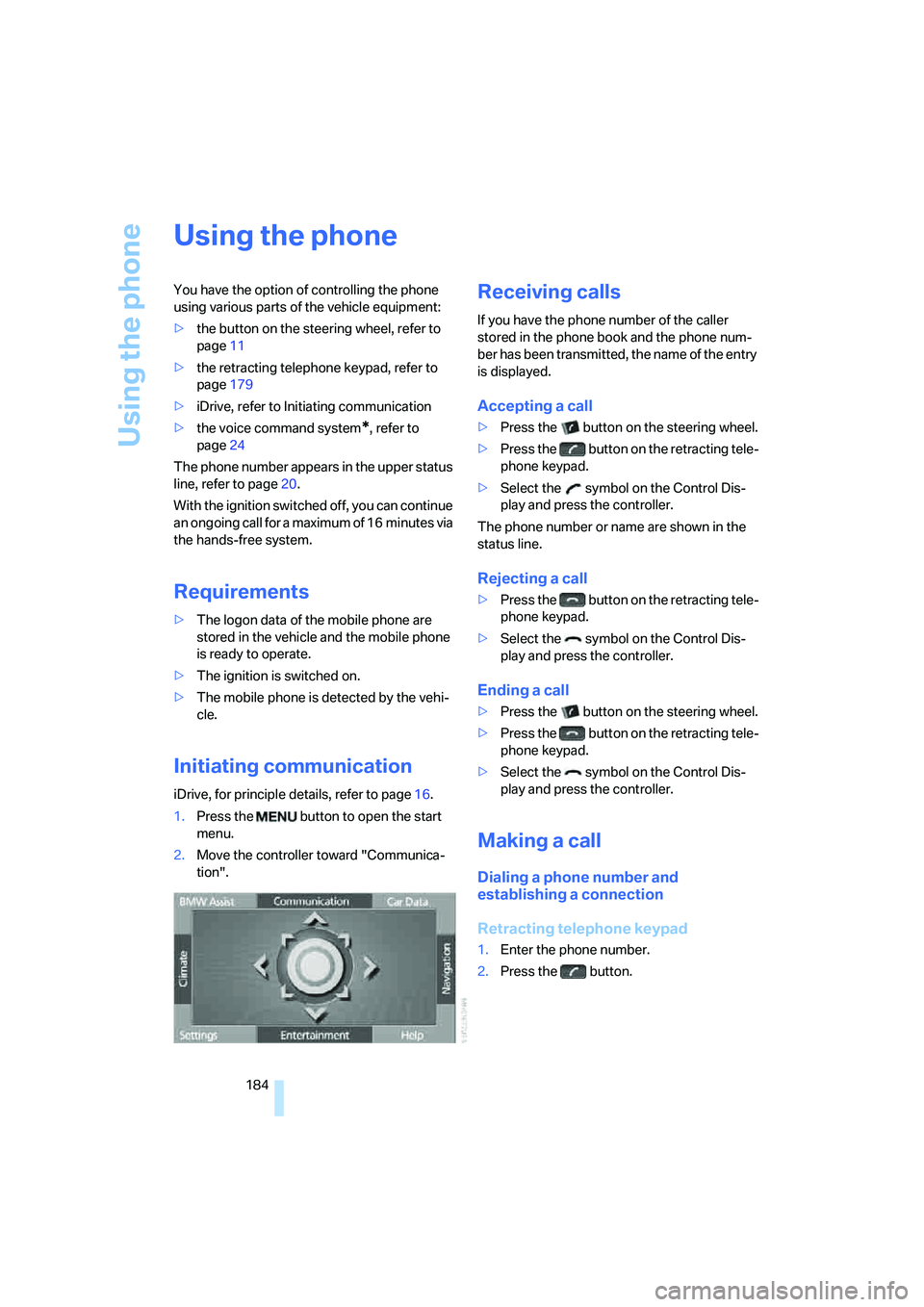
Initiating communication
iDrive, for principle details, refer to page16.
1.Press the button to open the start
menu.
2.Move the controller toward "Communica-
tion".
Receiving calls
If you have the phone number of the caller
stored in the phone book and the phone num-
ber has been transmitted, the name of the entry
is displayed.
Accepting a call
>Press the button on the steering wheel.
>Press the button on the retracting tele-
phone keypad.
>Select the symbol on the Control Dis-
play and press the controller.
The phone number or name are shown in the
status line.
Rejecting a call
>Press the button on the retracting tele-
phone keypad.
>Select the symbol on the Control Dis-
play and press the controller.
Ending a call
>Press the button on the steering wheel.
>Press the button on the retracting tele-
phone keypad.
>Select the symbol on the Control Dis-
play and press the controller.
Making a call
Dialing a phone number and
establishing a connection
Retracting telephone keypad
1.Enter the phone number.
2.Press the button.
Page 187 of 253
185
Entertainment
Reference
At a glance
Controls
Driving tips Communications
Navigation
Mobility
Voice command system*
T h e s ys t e m r ec o g n i z es d i g it s f r o m z e ro t o n i n e .
You can say each digit individually or group
them into a sequence to speed up the entry
process:
After the last spoken sequence of digits has
been repeated by the system, you can delete
this sequence of digits:
With {Delete number} all digits previously
entered are deleted:
Redialing
>Press the button on the steering wheel.
>Press the button on the retracting tele-
phone keypad.
Using the voice command system:
Dialing a number from phone book or
from numbers stored in a list
Phone numbers you have called, missed calls,
and the entries of the phone book of the SIM
card or of the mobile phone are stored in lists
when the mobile phone is connected to the
vehicle via Bluetooth. If the caller is listed in the
phone book, the name of the entry is displayed
instead of the phone number. The following
lists are available:
>"TOP 8":
The eight phone numbers in the phone
book that are called most frequently are
automatically stored in the Top 8 list. The
number called most often appears at the
top of the list.>"Last":
The last eight phone numbers you have
dialed are automatically stored. The last
number dialed is at the top of the list.
>"A-Z":
The entries in the phone book of the SIM
card or of the mobile phone, including name
and phone number, are displayed in alpha-
betical order.
>"Missed":
The phone numbers of the last eight calls
not accepted are stored, provided that the
phone numbers of the callers were trans-
mitted. A missed call is indicated by an
envelope symbol in the top status line.
Dialing phone numbers from phone
book
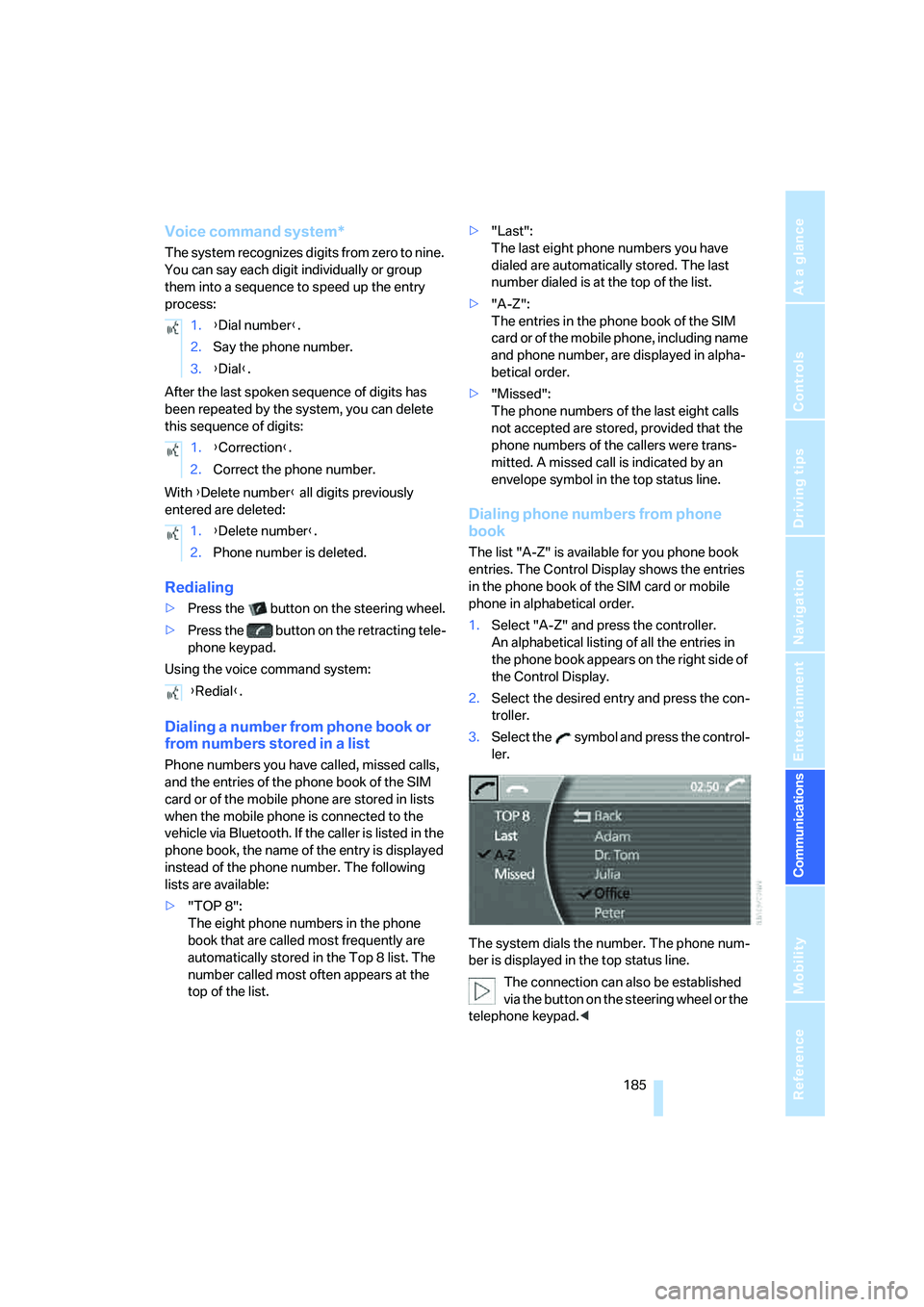
The list "A-Z" is available for you phone book
entries. The Control Display shows the entries
in the phone book of the SIM card or mobile
phone in alphabetical order.
1.Select "A-Z" and press the controller.
An alphabetical listing of all the entries in
the phone book appears on the right side of
the Control Display.
2.Select the desired entry and press the con-
troller.
3.Select the symbol and press the control-
ler.
The system dials the number. The phone num-
ber is displayed in the top status line.
The connection can also be established
via the button on the steering wheel or the
telephone keypad.< 1.{Dial number}.
2.Say the phone number.
3.{Dial}.
1.{Correction}.
2.Correct the phone number.
1.{Delete number}.
2.Phone number is deleted.
{Redial}.
Page 188 of 253
Using the phone
186
Dialing numbers stored in a list
To select an entry and establish a connection:
1.Select the list and press the controller.
>"TOP 8"
>"Last"
>"Missed"
2.Select the desired entry and press the con-
troller.
3.Select the symbol and press the control-
ler.
The system dials the number.
The phone number is displayed in the top sta-
tus line as this happens.
The connection can also be established
via the button on the steering wheel or the
telephone keypad.<
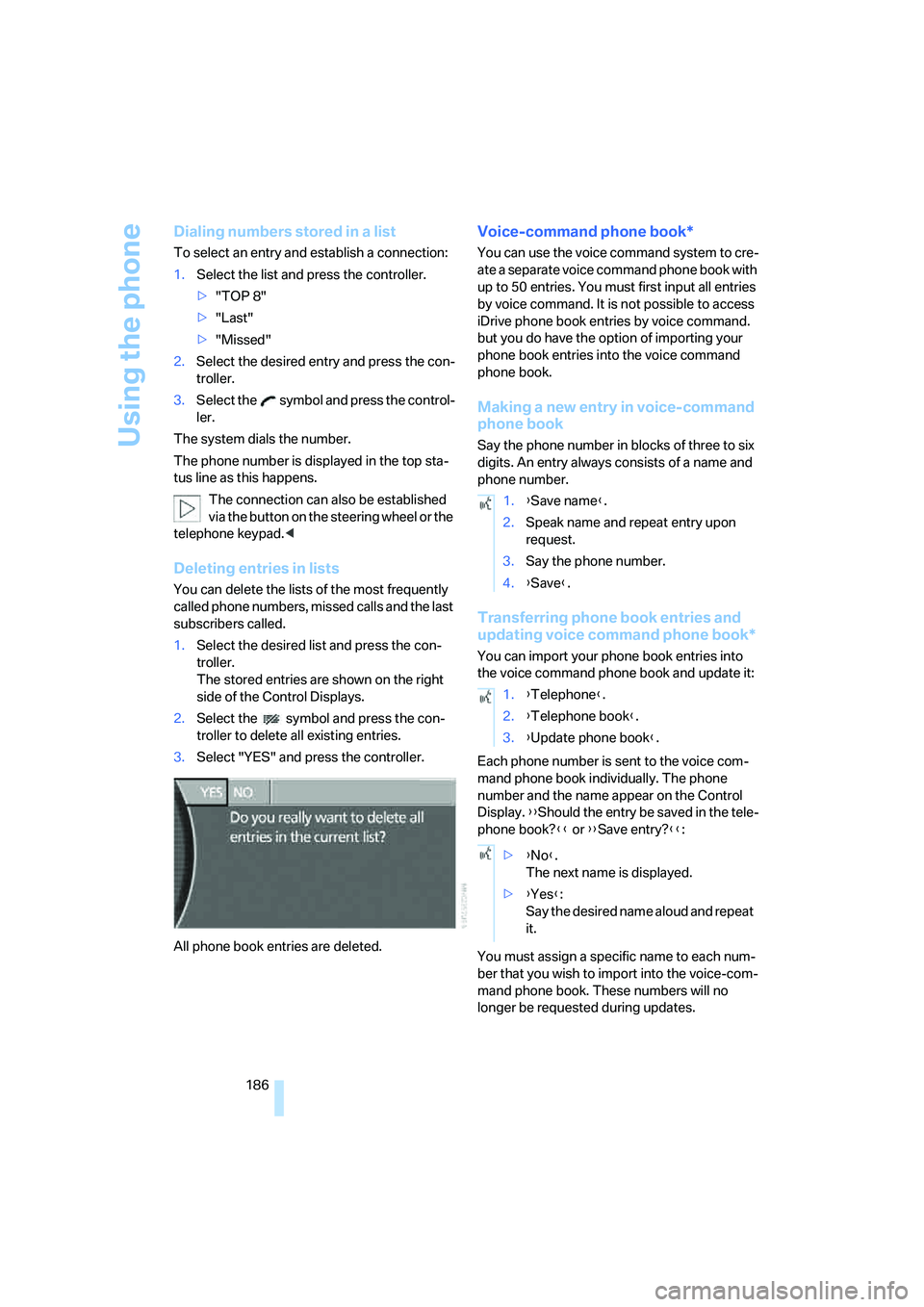
Deleting entries in lists
You can delete the lists of the most frequently
called phone numbers, missed calls and the last
subscribers called.
1.Select the desired list and press the con-
troller.
The stored entries are shown on the right
side of the Control Displays.
2.Select the symbol and press the con-
troller to delete all existing entries.
3.Select "YES" and press the controller.
All phone book entries are deleted.
Voice-command phone book*
You can use the voice command system to cre-
ate a separate voice command phone book with
up to 50 entries. You must first input all entries
by voice command. It is not possible to access
iDrive phone book entries by voice command.
but you do have the option of importing your
phone book entries into the voice command
phone book.
Making a new entry in voice-command
phone book
Say the phone number in blocks of three to six
digits. An entry always consists of a name and
phone number.
Transferring phone book entries and
updating voice command phone book*
You can import your phone book entries into
the voice command phone book and update it:
Each phone number is sent to the voice com-
mand phone book individually. The phone
number and the name appear on the Control
Display. {{Should the entry be saved in the tele-
phone book?}} or {{Save entry?}}:
You must assign a specific name to each num-
ber that you wish to import into the voice-com-
mand phone book. These numbers will no
longer be requested during updates.
1.{Save name}.
2.Speak name and repeat entry upon
request.
3.Say the phone number.
4.{Save}.
1.{Telephone}.
2.{Telephone book}.
3.{Update phone book}.
>{No}.
The next name is displayed.
>{Yes}:
Say the desired name aloud and repeat
it.
Page 189 of 253
187
Entertainment
Reference
At a glance
Controls
Driving tips Communications
Navigation
Mobility
Having entries read
You can have all the entries of your voice-com-
mand phone book read aloud in the order of
their input and select a certain entry to establish
a connection:
Dialing from voice-command phone
book
You can recall a saved entry by the name and
dial the phone number:
Deleting entry of voice-command
phone book
You can delete individual entries from the
voice-command phone book:
Deleting all entries of voice-command
phone book
You can delete all entries in the phone book:
Switching between mobile
phone and hands-free system
If you insert the mobile phone into or remove it
from the snap-in adapter during a call, this can
cause the call to be disconnected.
From mobile phone to hands-free
system
You can continue calls begun outside the Blue-
tooth range of the vehicle via the hands-free
system when the motor is running or the igni-
tion is switched on.
Depending on your mobile phone, the switch to
hands-free mode occurs automatically.
With mobile phones that do not switch over
automatically to hands-free operation:
>Press the button in the upper area of
the snap-in adapter.
>Depending on the mobile phone model
used, the conversation can also be contin-
ued via the hands-free system if necessary.
Follow the instructions given on the mobile
phone display, refer to the operating
instructions of your mobile phone.
From hands-free system to mobile
phone
When you telephone via the hands-free system,
you can also continue the call via the mobile
phone if necessary, depending on the mobile
phone model. Follow the instructions given on
the mobile phone display, refer to the operating
instructions of your mobile phone. {Read out}.
>To scroll forward:
{Next}
>To scroll back:
{Previous}
>To repeat entry:
{Repeat}
>To call:
{Dial}
1.{Dial name}.
2.Say the name.
3.{Dial}.
1.{Telephone}.
2.{Delete entry}.
3.Say the name.
4.Confirm the prompt with {Yes}.
1.{Telephone}.
2.{Delete telephone book}.
3.Confirm the prompt twice with {Yes}.
Page 190 of 253
BMW Assist
188
BMW Assist
BMW Assist offers you various services; for
example, the position data of your vehicle can
be transmitted to the BMW Assist Response
Center if an emergency call
* has been initiated.
Many functions of BMW Assist depend on the
individually agreed contract.
After your contract has expired, the BMW
Assist system can be deactivated by the BMW
Assist Response Center without you having to
visit a BMW center. After the BMW Assist sys-
tem has been deactivated, no BMW Assist ser-
vice will be available. The BMW Assist system
can be reactivated by a BMW center after a new
contract has been signed.
Requirements
You can use BMW Assist when the following
requirements are met:
>The installed BMW Assist system is logged
on to a mobile phone network. This network
must be capable of transmitting the ser-
vices.
>To transmit position data, the vehicle must
be able to determine the current position.
>A GPS signal must be available in order for
BMW Assist to be activated and updated.
>You have placed an order for BMW Assist at
your BMW center or BMW Assist Response
Center and signed a service contract. Acti-
vation must be completed.
>BMW Assist is activated, refer to page192.
The position of the vehicle can influence
the mobile communications/GPS recep-
tion. As a rule, mobile communications/GPS
reception is only possible when your vehicle is
out in the open.
When vehicle data is exchanged with the BMW
center, a corresponding message appears on
the Control Display.<
Services offered
The following services are available via
BMW Assist:
>Emergency call, refer to page218:
When you press the SOS button, a connec-
tion is established to the BMW Assist
Response Center. The BMW Assist
Response Center contacts you and takes
further steps to help you.
>Automatic emergency call:
Under certain conditions, a connection is
established to the BMW Assist Response
Center immediately after a serious acci-
dent. If possible, the BMW Assist Response
Center contacts you and takes further steps
to help you.
>Roadside Assistance:
You can call the Roadside Assistance
* of
the BMW Group should you require help in
the event of a breakdown. If possible, the
vehicle data and position data are transmit-
ted during this time.
>BMW Hotline:
For information related to your vehicle, call
the BMW Hotline.
>TeleService:
Data on your vehicle's service status or
legally mandated inspections are transmit-
ted to your BMW center either automati-
cally before a service due date or when you
request a BMW service appointment.
>Remote unlocking of your vehicle through
the BMW Assist Response Center:
Contact the BMW Assist Response Center
if you have lost your remote control, for
example, and would like to have the vehicle
unlocked.
To do so, the vehicle electronics must be
operational.
>Vehicle search:
After you have reported the theft of your
vehicle to the police, the BMW Assist
*