Page 20 of 256
iDrive
18
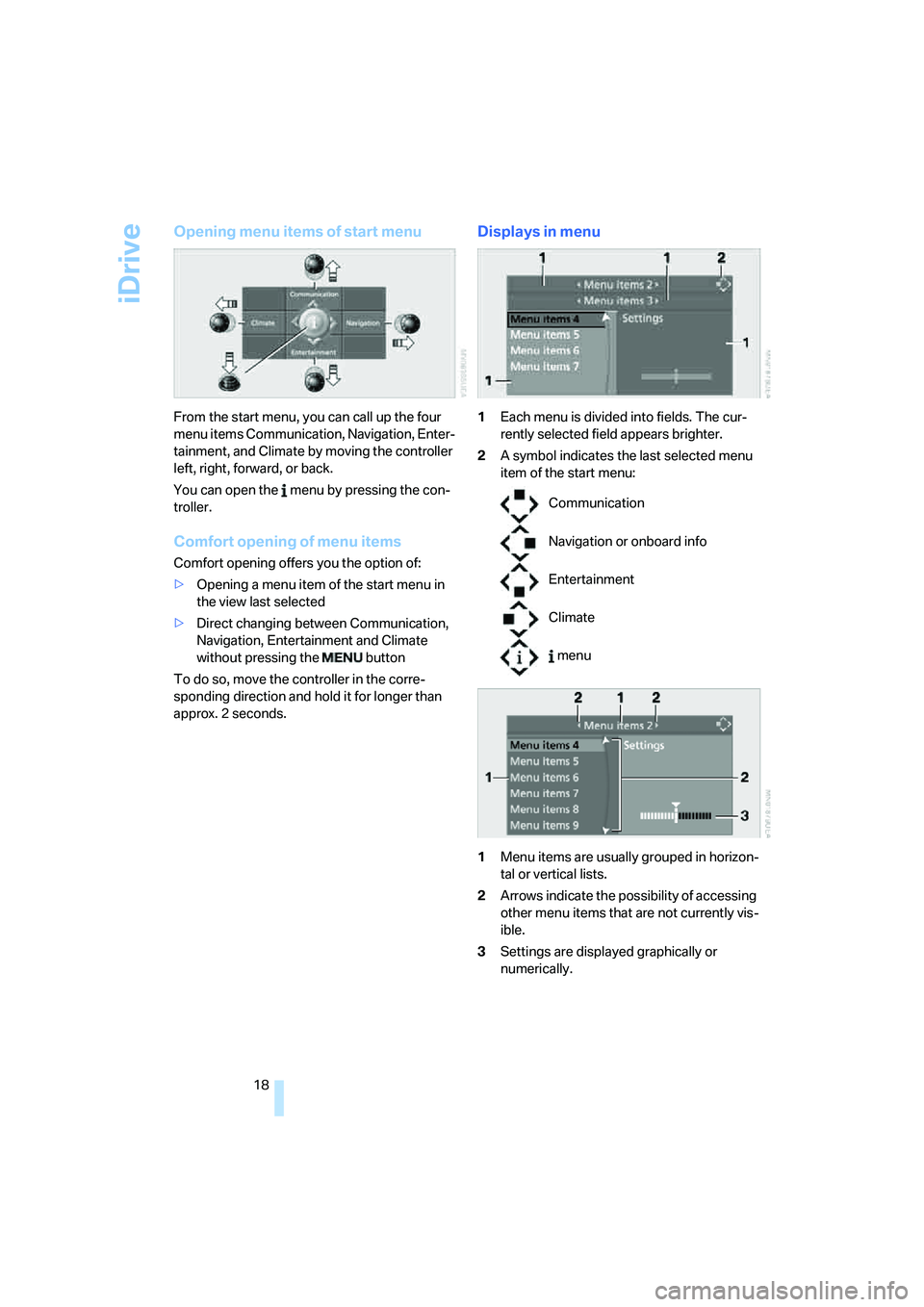
Opening menu items of start menu
From the start menu, you can call up the four
menu items Communication, Navigation, Enter-
tainment, and Climate by moving the controller
left, right, forward, or back.
You can open the menu by pressing the con-
troller.
Comfort opening of menu items
Comfort opening offers you the option of:
>Opening a menu item of the start menu in
the view last selected
>Direct changing between Communication,
Navigation, Entertainment and Climate
without pressing the button
To do so, move the controller in the corre-
sponding direction and hold it for longer than
approx. 2 seconds.
Displays in menu
1Each menu is divided into fields. The cur-
rently selected field appears brighter.
2A symbol indicates the last selected menu
item of the start menu:
1Menu items are usually grouped in horizon-
tal or vertical lists.
2Arrows indicate the possibility of accessing
other menu items that are not currently vis-
ible.
3Settings are displayed graphically or
numerically.
Communication
Navigation or onboard info
Entertainment
Climate
menu
Page 21 of 256
At a glance
19Reference
Controls
Driving tips
Communications
Navigation
Entertainment
Mobility
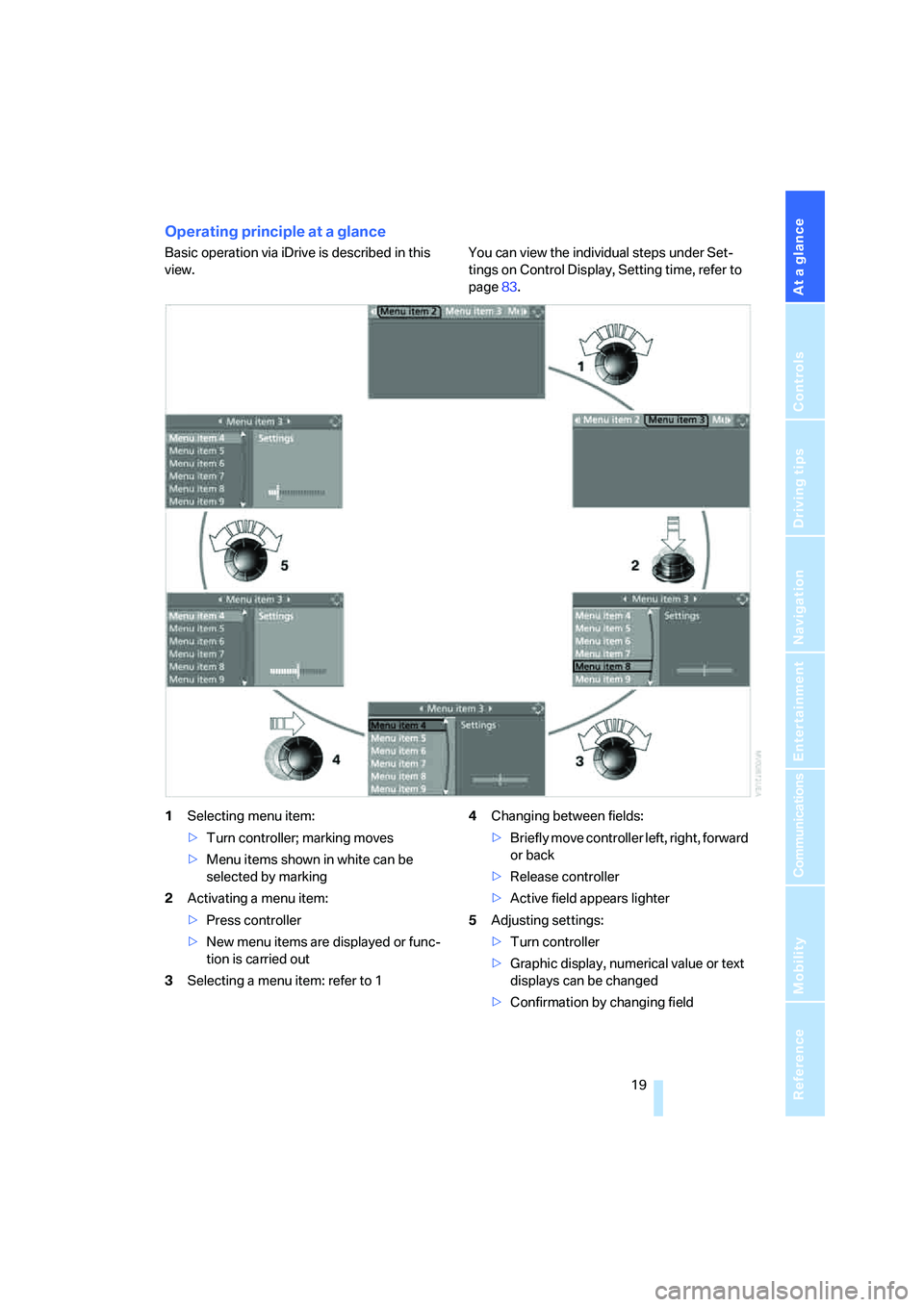
Operating principle at a glance
Basic operation via iDrive is described in this
view.You can view the individual steps under Set-
tings on Control Display, Setting time, refer to
page83.
1Selecting menu item:
>Turn controller; marking moves
>Menu items shown in white can be
selected by marking
2Activating a menu item:
>Press controller
>New menu items are displayed or func-
tion is carried out
3Selecting a menu item: refer to 14Changing between fields:
>Briefly move controller left, right, forward
or back
>Release controller
>Active field appears lighter
5Adjusting settings:
>Turn controller
>Graphic display, numerical value or text
displays can be changed
>Confirmation by changing field
Page 22 of 256
iDrive
20
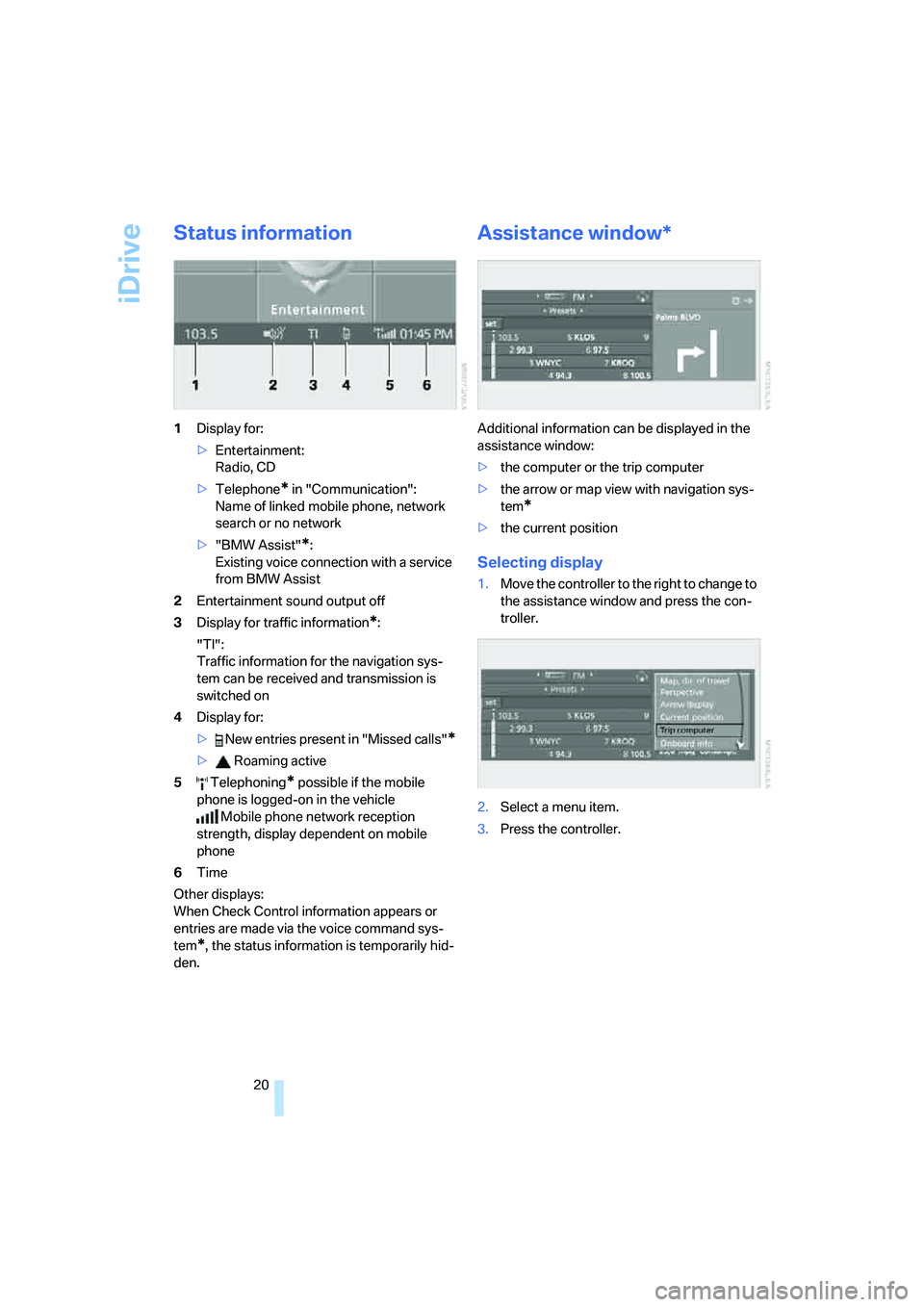
Status information
1Display for:
>Entertainment:
Radio, CD
>Telephone
* in "Communication":
Name of linked mobile phone, network
search or no network
>"BMW Assist"
*:
Existing voice connection with a service
from BMW Assist
2Entertainment sound output off
3Display for traffic information
*:
"TI":
Traffic information for the navigation sys-
tem
can be received and transmission is
switched on
4Display for:
> New entries present in "Missed calls"
*
> Roaming active
5 Telephoning
* possible if the mobile
phone is logged-on in the vehicle
Mobile phone network reception
strength, display dependent on mobile
phone
6Time
Other displays:
When Check Control information appears or
entries are made via the voice command sys-
tem
*, the status information is temporarily hid-
den.
Assistance window*
Additional information can be displayed in the
assistance window:
>the computer or the trip computer
>the arrow or map view with navigation sys-
tem
*
>the current position
Selecting display
1.Move the controller to the right to change to
the assistance window and press the con-
troller.
2.Select a menu item.
3.Press the controller.
Page 23 of 256
At a glance
21Reference
Controls
Driving tips
Communications
Navigation
Entertainment
Mobility
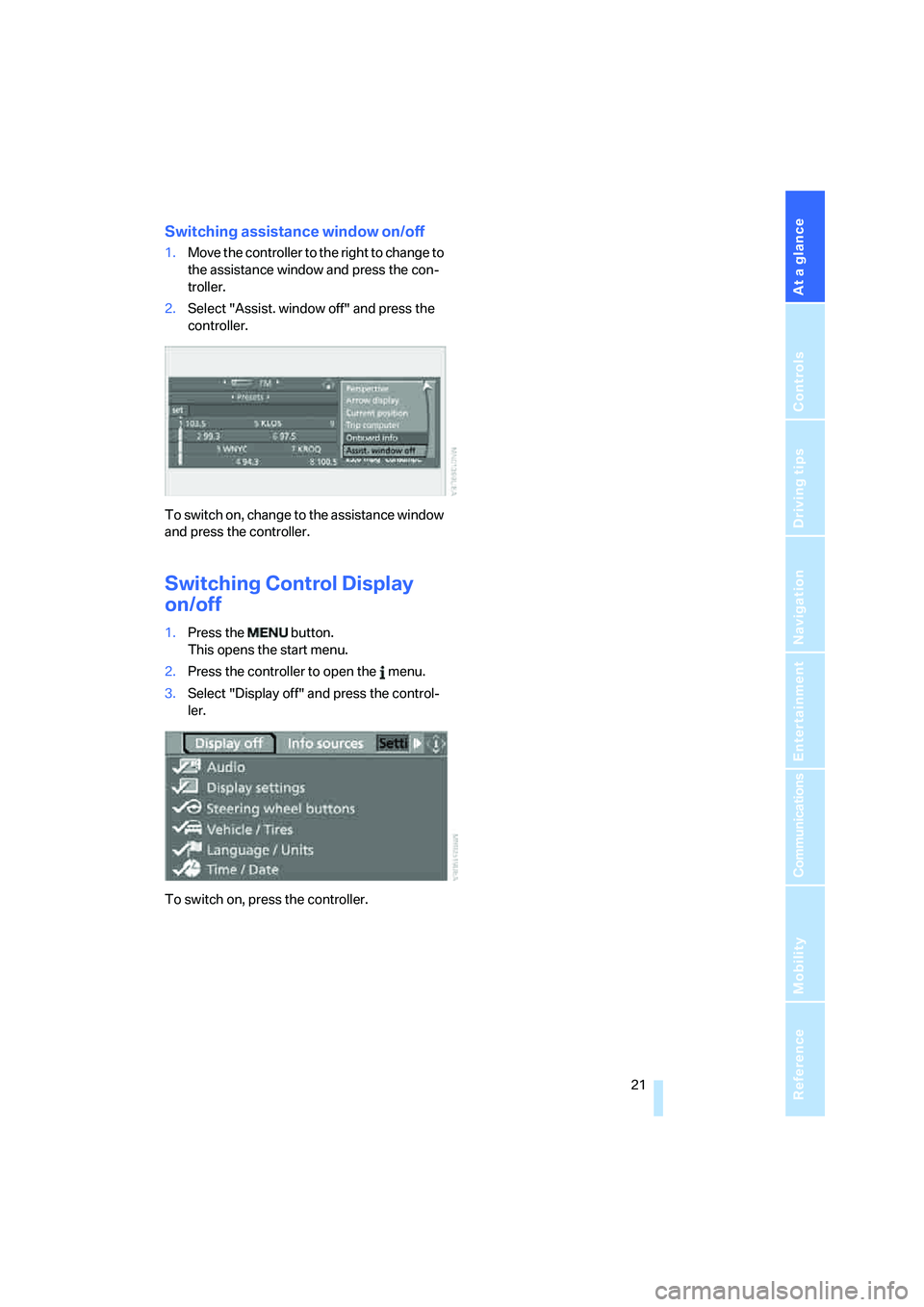
Switching assistance window on/off
1.Move the controller to the right to change to
the assistance window and press the con-
troller.
2.Select "Assist. window off" and press the
controller.
To switch on, change to the assistance window
and press the controller.
Switching Control Display
on/off
1.Press the button.
This opens the start menu.
2.Press the controller to open the menu.
3.Select "Display off" and press the control-
ler.
To switch on, press the controller.
Page 25 of 256
At a glance
23Reference
Controls
Driving tips
Communications
Navigation
Entertainment
Mobility
If no other commands are possible, then oper-
ate the equipment using iDrive.
Terminating or canceling voice
command
Press the button on the steering wheel or in
the center console
or
Commands
Having possible commands read aloud
You can have the system read aloud the possi-
ble commands related to the selected menu
item on the Control Display.
To have the system list the possible com-
mands:
For example, if you have selected "CD", the
system will read aloud the possible commands
for operating the CD player and the CD
changer
*.
Opening help
Using alternative commands
There are often several commands for running
a function, e.g.:
Running functions directly with short
commands
You can use short commands to carry out cer-
tain functions directly, regardless of which
menu item is selected, refer to page230.
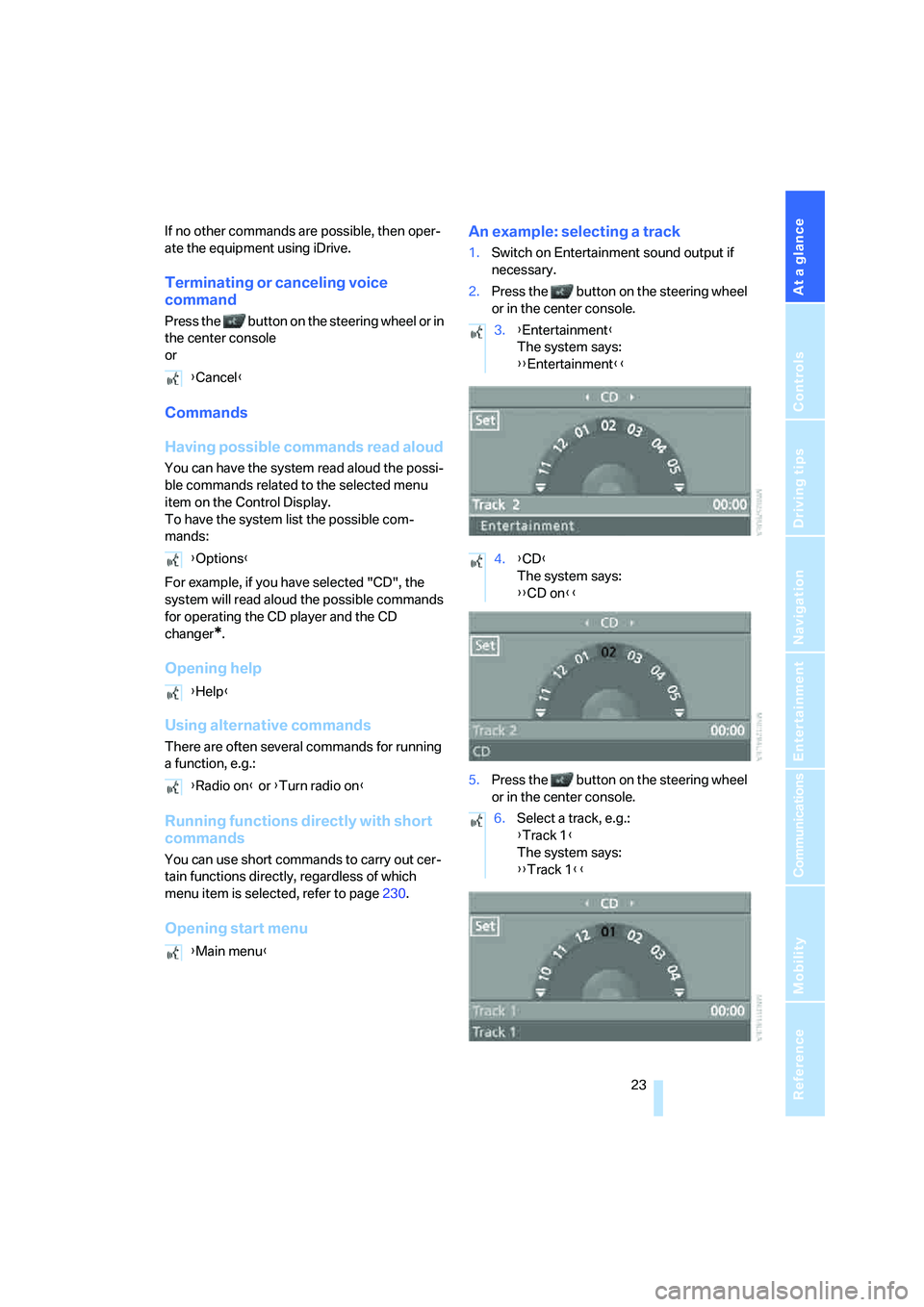
Opening start menuAn example: selecting a track
1.Switch on Entertainment sound output if
necessary.
2.Press the button on the steering wheel
or in the center console.
5.Press the button on the steering wheel
or in the center console. {Cancel}
{Options}
{Help}
{Radio on} or {Turn radio on}
{Main menu}
3.{Entertainment}
The system says:
{{Entertainment}}
4.{CD}
The system says:
{{CD on}}
6.Select a track, e.g.:
{Track 1}
The system says:
{{Track 1}}
Page 27 of 256
At a glance
25Reference
Controls
Driving tips
Communications
Navigation
Entertainment
Mobility
Page 31 of 256
Controls
29Reference
At a glance
Driving tips
Communications
Navigation
Entertainment
Mobility
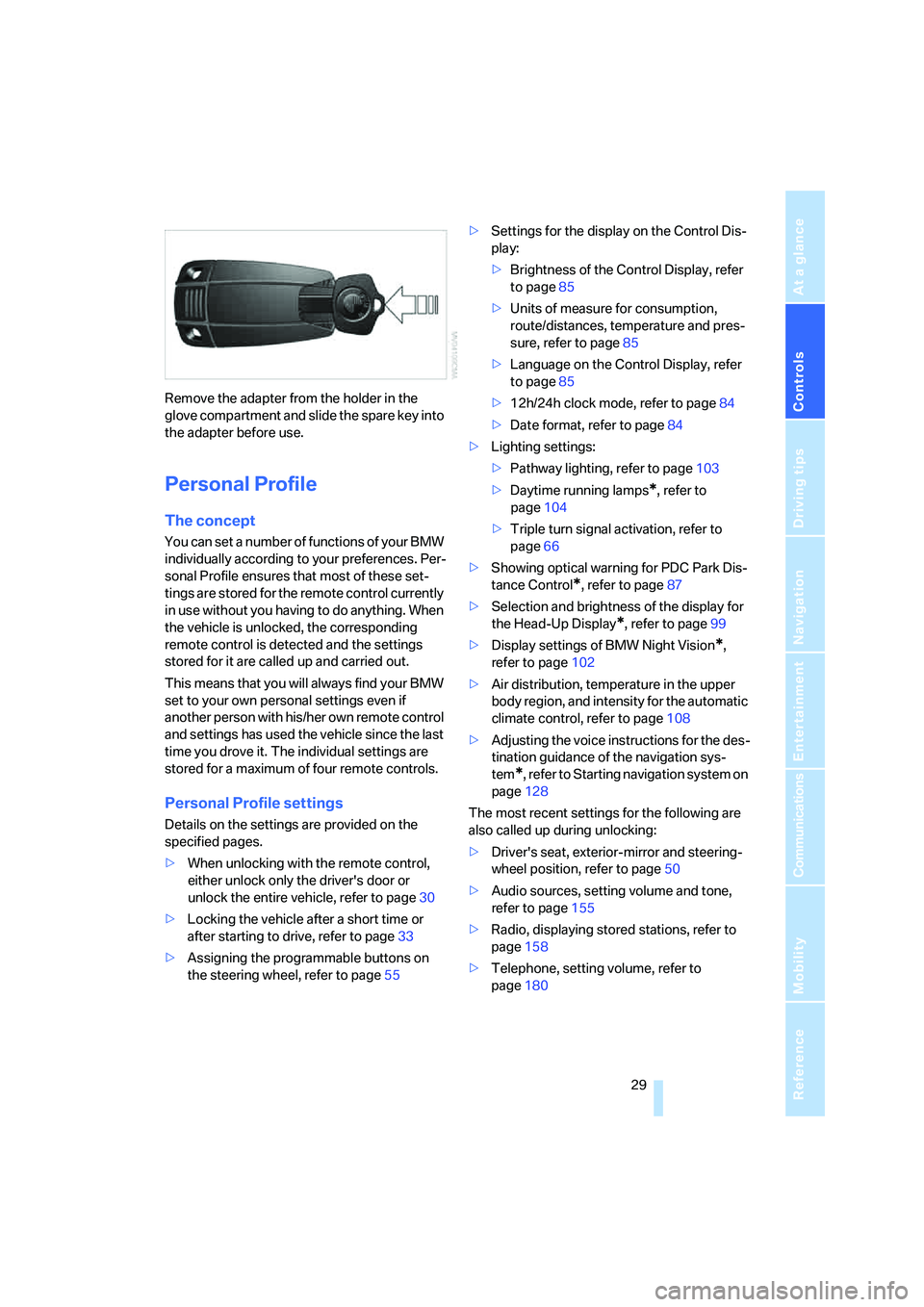
Remove the adapter from the holder in the
glove compartment and slide the spare key into
the adapter before use.
Personal Profile
The concept
You can set a number of functions of your BMW
individually according to your preferences. Per-
sonal Profile ensures that most of these set-
tings are stored for the remote control currently
in use without you having to do anything. When
the vehicle is unlocked, the corresponding
remote control is detected and the settings
stored for it are called up and carried out.
This means that you will always find your BMW
set to your own personal settings even if
another person with his/her own remote control
and settings has used the vehicle since the last
time you drove it. The individual settings are
stored for a maximum of four remote controls.
Personal Profile settings
Details on the settings are provided on the
specified pages.
>When unlocking with the remote control,
either unlock only the driver's door or
unlock the entire vehicle, refer to page30
>Locking the vehicle after a short time or
after starting to drive, refer to page33
>Assigning the programmable buttons on
the steering wheel, refer to page55>Settings for the display on the Control Dis-
play:
>Brightness of the Control Display, refer
to page85
>Units of measure for consumption,
route/distances, temperature and pres-
sure, refer to page85
>Language on the Control Display, refer
to page85
>12h/24h clock mode, refer to page84
>Date format, refer to page84
>Lighting settings:
>Pathway lighting, refer to page103
>Daytime running lamps
*, refer to
page104
>Triple turn signal activation, refer to
page66
>Showing optical warning for PDC Park Dis-
tance Control
*, refer to page87
>Selection and brightness of the display for
the Head-Up Display
*, refer to page99
>Display settings of BMW Night Vision
*,
refer to page102
>Air distribution, temperature in the upper
body region, and intensity for the automatic
climate control, refer to page108
>Adjusting the voice instructions for the des-
tination guidance of the navigation sys-
tem
*, refer to Starting navigation system on
page128
The most recent settings for the following are
also called up during unlocking:
>Driver's seat, exterior-mirror and steering-
wheel position, refer to page50
>Audio sources, setting volume and tone,
refer to page155
>Radio, displaying stored stations, refer to
page158
>Telephone, setting volume, refer to
page180
Page 33 of 256
Controls
31Reference
At a glance
Driving tips
Communications
Navigation
Entertainment
Mobility
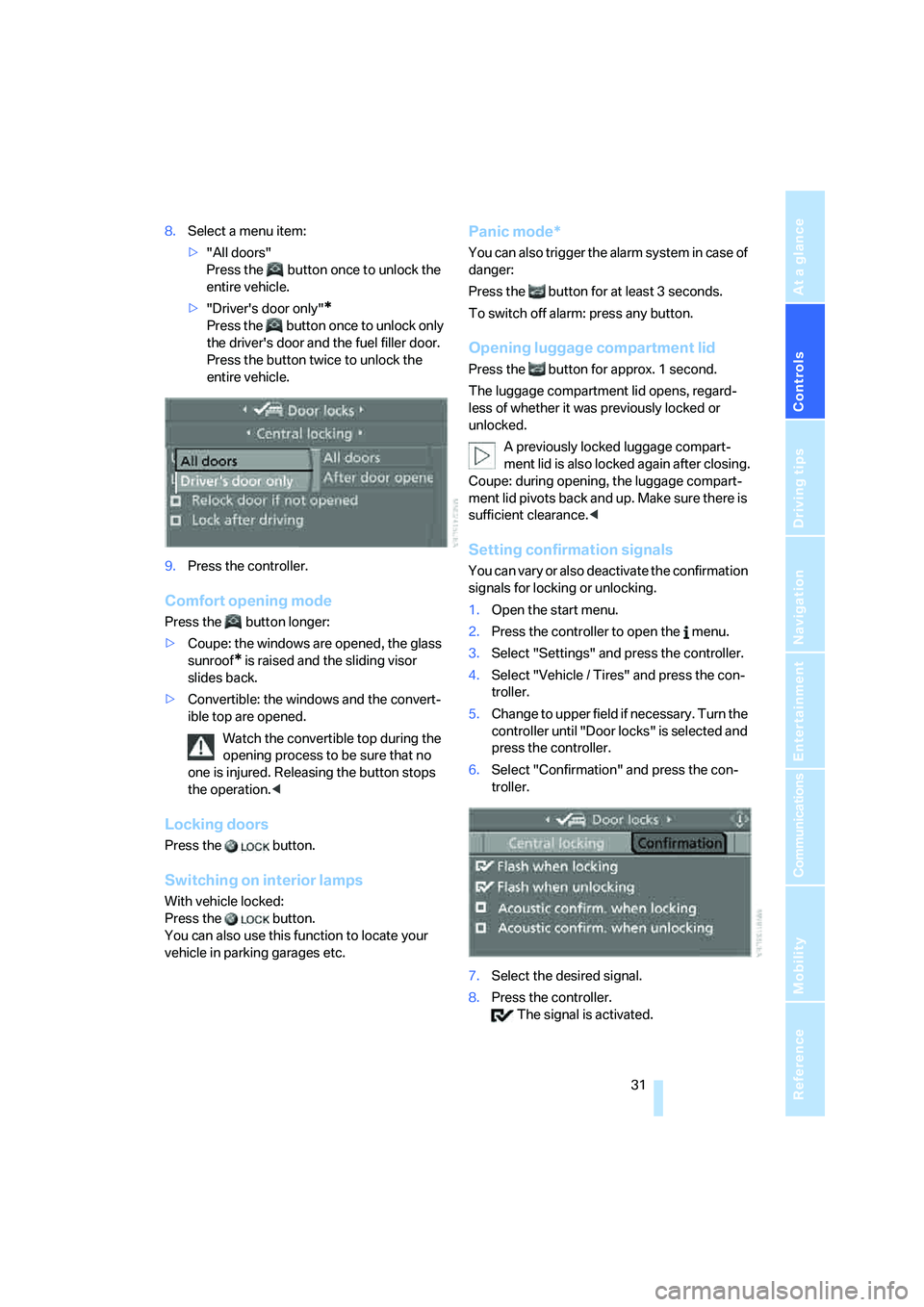
8.Select a menu item:
>"All doors"
Press the button once to unlock the
entire vehicle.
>"Driver's door only"
*
Press the button once to unlock only
the driver's door and the fuel filler door.
Press the button twice to unlock the
entire vehicle.
9.Press the controller.
Comfort opening mode
Press the button longer:
>Coupe: the windows are opened, the glass
sunroof
* is raised and the sliding visor
slides back.
>Convertible: the windows and the convert-
ible top are opened.
Watch the convertible top during the
opening process to be sure that no
one is injured. Releasing the button stops
the operation.<
Locking doors
Press the button.
Switching on interior lamps
With vehicle locked:
Press the button.
You can also use this function to locate your
vehicle in parking garages etc.
Panic mode*
You can also trigger the alarm system in case of
danger:
Press the button for at least 3 seconds.
To switch off alarm: press any button.
Opening luggage compartment lid
Press the button for approx. 1 second.
The luggage compartment lid opens, regard-
less of whether it was previously locked or
unlocked.
A previously locked luggage compart-
ment lid is also locked again after closing.
Coupe: during opening, the luggage compart-
ment lid pivots back and up. Make sure there is
sufficient clearance.<
Setting confirmation signals
You can vary or also deactivate the confirmation
signals for locking or unlocking.
1.Open the start menu.
2.Press the controller to open the menu.
3.Select "Settings" and press the controller.
4.Select "Vehicle / Tires" and press the con-
troller.
5.Change to upper field if necessary. Turn the
controller until "Door locks" is selected and
press the controller.
6.Select "Confirmation" and press the con-
troller.
7.Select the desired signal.
8.Press the controller.
The signal is activated.