Page 39 of 185

38 Audio
Radio operation
The following options are available:
�Tuning via station search (�page 38).
�Tuning via station presets (�page 39).
�Tuning via Autostore presets
(
�page 39).
�Tuning via scan search (�page 40).
�Manual tuning (�page 40).
�Tuning via direct frequency input
(
�page 41).
Tuning via station search
On COMAND control unit
�Switch to the desired FM or AM wave-
band (
�page 37).
�Press or :
The next receivable ascending frequen-
cy is tuned in and begins to play,
or
�Press or :
The next receivable descending fre-
quency is tuned in and begins to play.
On multifunction steering wheel
�Switch the multifunction display in the
instrument cluster to the Radio display
(
�page 25).
�Pressj:
The next receivable ascending frequen-
cy is tuned in and begins to play,
or
i
The wavebands cover different fre-
quency ranges.
FM broadcast band:
�FM (VHF = very high frequency)
87.7 - 107.9 MHz
�Tuning increments 0.2 MHz
AM broadcast band:
�MW (medium wave)
530 - 1710 kHz
�Tuning increments 10 kHz
WB waveband:
�WB (Weather Band)
162.400 - 162.550 MHz
�Tuning increments = 1 channel
Tuning to a FM/AM station
Page 40 of 185
39 Audio
Radio operation
�Pressk:
The next receivable descending fre-
quency is tuned in and begins to play.
Tuning via station presets
Ten presets each are available for FM and
AM. The presets are accessed using the
number keypad, or via the Presets menu.
Accessing via number keypad:
�Switch to the desired waveband
(
�page 37).
�Press one of the number keys
- :
The system tunes to the station stored
under this number.
Accessing via Presets menu:
�Switch to the desired waveband
(
�page 37).
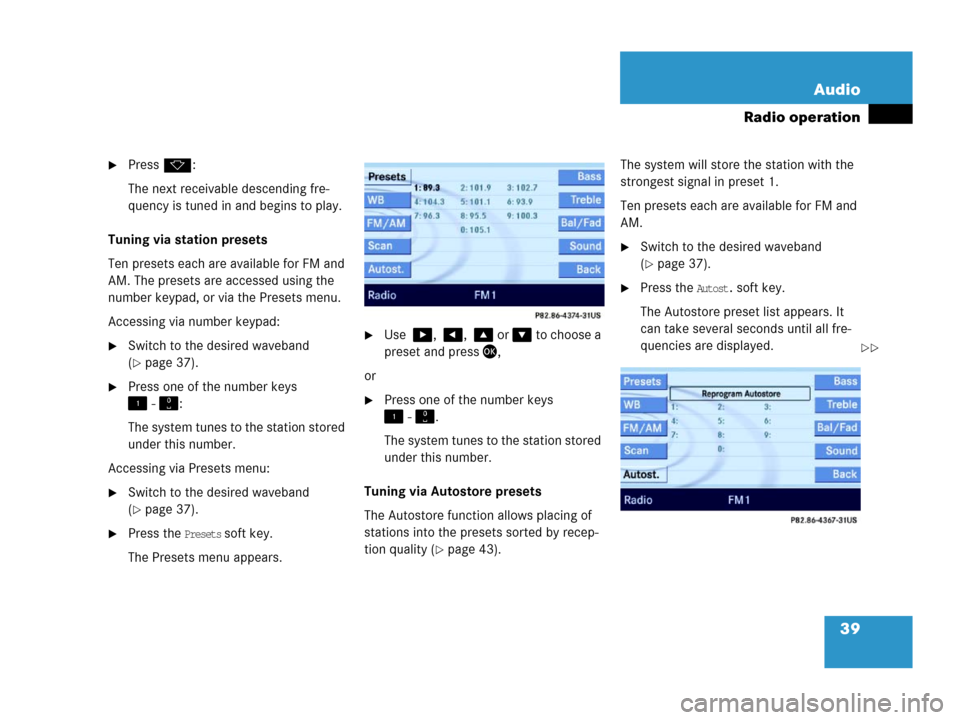
�Press the Presets soft key.
The Presets menu appears.
�Use , , or to choose a
preset and press,
or
�Press one of the number keys
- .
The system tunes to the station stored
under this number.
Tuning via Autostore presets
The Autostore function allows placing of
stations into the presets sorted by recep-
tion quality (
�page 43). The system will store the station with the
strongest signal in preset 1.
Ten presets each are available for FM and
AM.
�Switch to the desired waveband
(
�page 37).
�Press the Autost. soft key.
The Autostore preset list appears. It
can take several seconds until all fre-
quencies are displayed.
��
Page 41 of 185
40 Audio
Radio operation
�Use , , or to choose a
preset and press.
or
�Press one of the number keys
- .
The system tunes to the station stored
under this number.
Tuning via scan search
Scan search is characterized as follows:
�Scan search performs two runs.
During the first run, stations with ex-
tremely good reception are played.
During the second run, stations with
weaker reception are played.
�Scan search plays each receivable sta-
tion for approx. 8 seconds.
�Scan search can be ended manually.
�Scan search automatically stops at the
station listened to before the scan
search was started.
Starting scan search
�Switch to the desired waveband
(
�page 37).
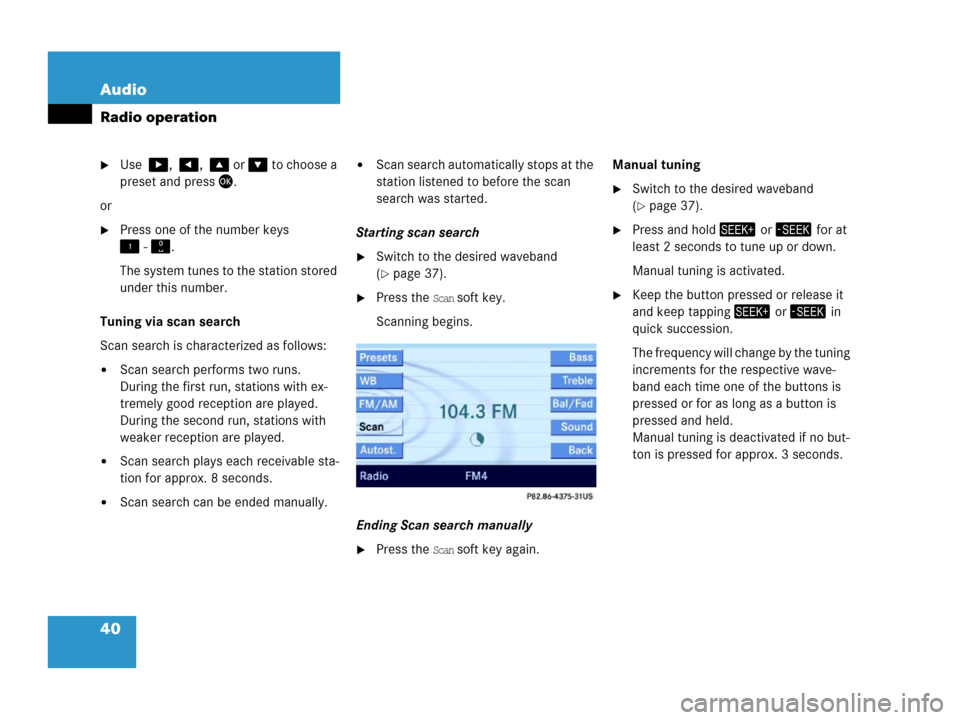
�Press the Scan soft key.
Scanning begins.
Ending Scan search manually
�Press the Scan soft key again.Manual tuning
�Switch to the desired waveband
(
�page 37).
�Press and hold or for at
least 2 seconds to tune up or down.
Manual tuning is activated.
�Keep the button pressed or release it
and keep tapping or in
quick succession.
The frequency will change by the tuning
increments for the respective wave-
band each time one of the buttons is
pressed or for as long as a button is
pressed and held.
Manual tuning is deactivated if no but-
ton is pressed for approx. 3 seconds.
Page 42 of 185
41 Audio
Radio operation
Tuning via direct frequency input
Entry example:
98.5 MHz in FM waveband
�Switch to the FM waveband
(
�page 37).
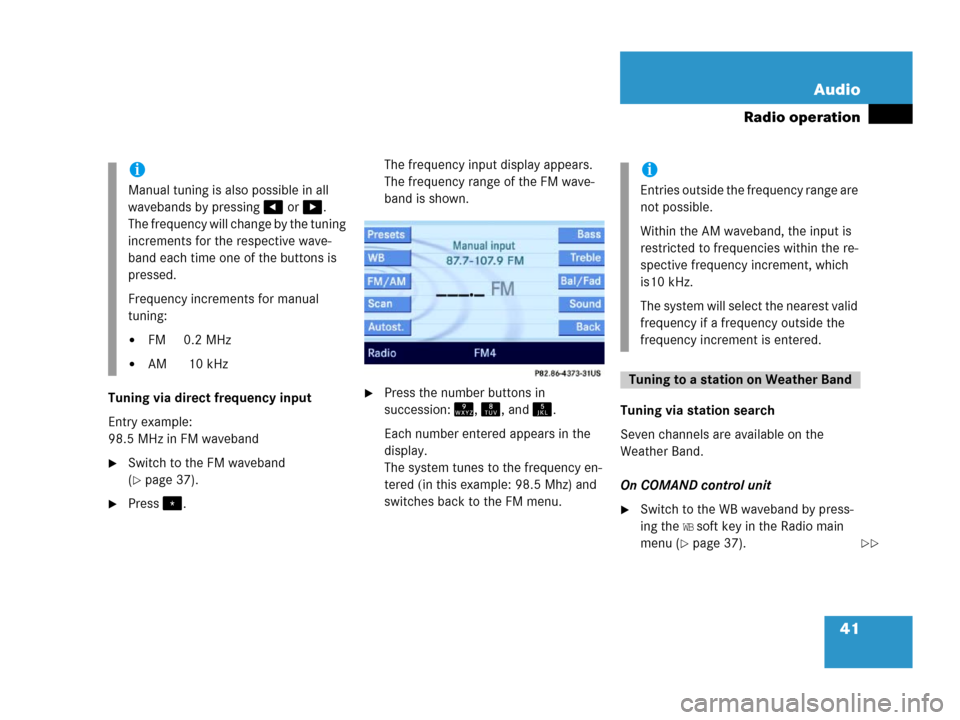
�Press.The frequency input display appears.
The frequency range of the FM wave-
band is shown.
�Press the number buttons in
succession:, , and .
Each number entered appears in the
display.
The system tunes to the frequency en-
tered (in this example: 98.5 Mhz) and
switches back to the FM menu.Tuning via station search
Seven channels are available on the
Weather Band.
On COMAND control unit
�Switch to the WB waveband by press-
ing the
WB soft key in the Radio main
menu (
�page 37).
i
Manual tuning is also possible in all
wavebands by pressing or .
The frequency will change by the tuning
increments for the respective wave-
band each time one of the buttons is
pressed.
Frequency increments for manual
tuning:
�FM 0.2 MHz
�AM 10 kHz
i
Entries outside the frequency range are
not possible.
Within the AM waveband, the input is
restricted to frequencies within the re-
spective frequency increment, which
is10 kHz.
The system will select the nearest valid
frequency if a frequency outside the
frequency increment is entered.
Tuning to a station on Weather Band
��
Page 43 of 185
42 Audio
Radio operation
The system will tune to the strongest
receivable station.
�Press or.
Search begins in ascending or
descending frequency.
The search stops at the next receivable
station.
On multifunction steering wheel
�Switch the multifunction display in the
instrument cluster to Radio display
(
�page 25).
�Pressj ork.
The search stops at the next receivable
station. Tuning via station presets
The seven strongest channels are sorted in
prest 1 to 7 each time you press the
WB soft
key. They are accessed using the number
keypad.
�Press one of the number keys
- .
The system tunes to the station stored
under this number.
Ten presets each are available for the
FM and AM waveband.
The following options are available:
�Storing manually using number keys
�Storing manually using the Presets
menu
�Storing using Autostore Storing manually using the number
keys -
�Tune to the station to be stored
(
�page 38).
�Press a number key between and
and hold it for more than 2 sec-
onds.
The station is now stored in the respec-
tive memory location.
Storing manually using the Presets
menu
�Tune to the station to be stored
(
�page 38).
�Press the Presets soft key.
The Presets menu appears.
Storing FM/AM stations
Page 46 of 185
45 Audio
Single CD operation
�Open the Single CD main menu
(
�page 46).
or
�Load an audio CD into the COMAND
CD drive.
Switching to Single CD mode
Loading a CD
WarningG
In order to avoid distraction which could
lead to an accident, the driver should insert
CDs with the vehicle at a standstill and oper-
ate the audio system only when road, weath-
er and traffic conditions permit.
Bear in mind that at a speed of just 30 mph
(approximately 50 km/h), your vehicle is
covering a distance of 44 feet (approximate-
ly 14 m) every second.
!
Do not attach labels of any type to the
CD. They may become detached and
damgage the drive.
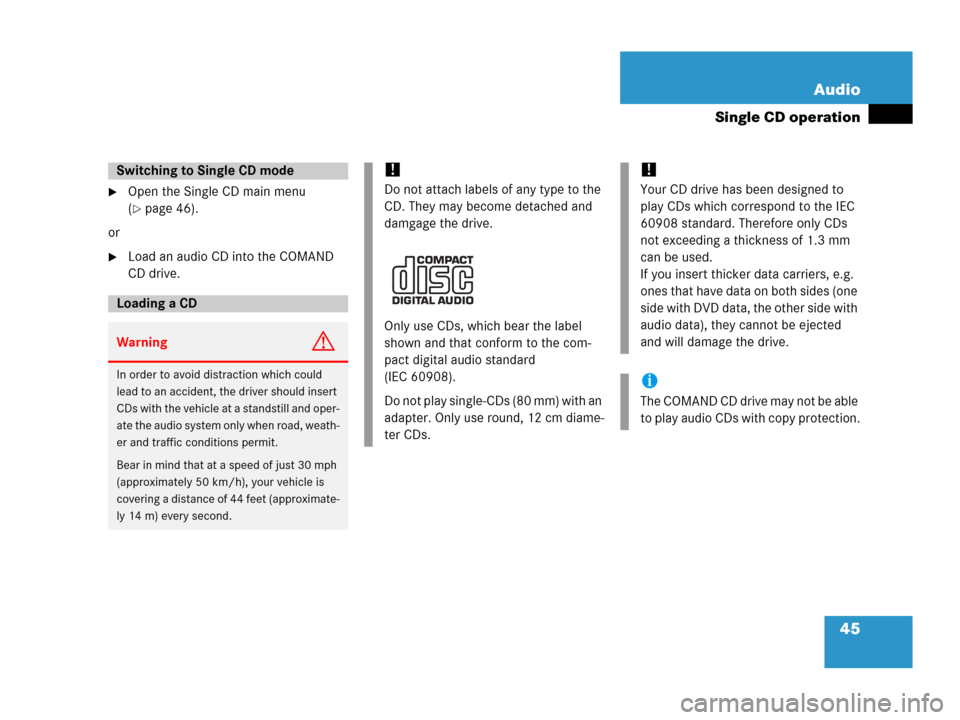
Only use CDs, which bear the label
shown and that conform to the com-
pact digital audio standard
(IEC 60908).
Do not play single-CDs (80 mm) with an
adapter. Only use round, 12 cm diame-
ter CDs.
!
Your CD drive has been designed to
play CDs which correspond to the IEC
60908 standard. Therefore only CDs
not exceeding a thickness of 1.3 mm
can be used.
If you insert thicker data carriers, e.g.
ones that have data on both sides (one
side with DVD data, the other side with
audio data), they cannot be ejected
and will damage the drive.
i
The COMAND CD drive may not be able
to play audio CDs with copy protection.
Page 47 of 185
46 Audio
Single CD operation
The COMAND CD drive holds one CD. The
slot for inserting a CD is located above the
display (
�page 15).
�Insert a CD into the CD slot while
COMAND is switched ON. Insert the
CD face up.
COMAND pulls in the CD. If the CD is
an audio CD, the system switches to
Single CD mode.
�Press.
COMAND ejects the CD.
�Remove the CD from the slot.
The CD will be pulled in again if it is not
removed from the slot within approx. 7
seconds.
�Open the Audio main menu
(
�page 36).
�Press the CD soft key.
The system switches to Single CD
mode.The center of the status bar shows: �The track number and total number
of tracks
�The elapsed playing time of the
track
!
If a CD is already loaded, it must be
ejected before inserting the new CD.
Inserting a second CD in the slot with
another CD still loaded will cause dam-
age to the CD drive not covered by the
Mercedes-Benz Limited Warranty.
i
If the CD is an MP3 CD, the system
switches to MP3 mode (
�page 53).
Ejecting a CD
Single CD main menu
i
The CD soft key is shaded out if no audio
CD is loaded. The system will not
switch to Single CD mode.
�Load an audio CD into the
COMAND CD drive (
�page 45).
The
MP3 soft key instead of the CD soft
key is visible when a MP3 CD has been
loaded.
Page 48 of 185
47 Audio
Single CD operation
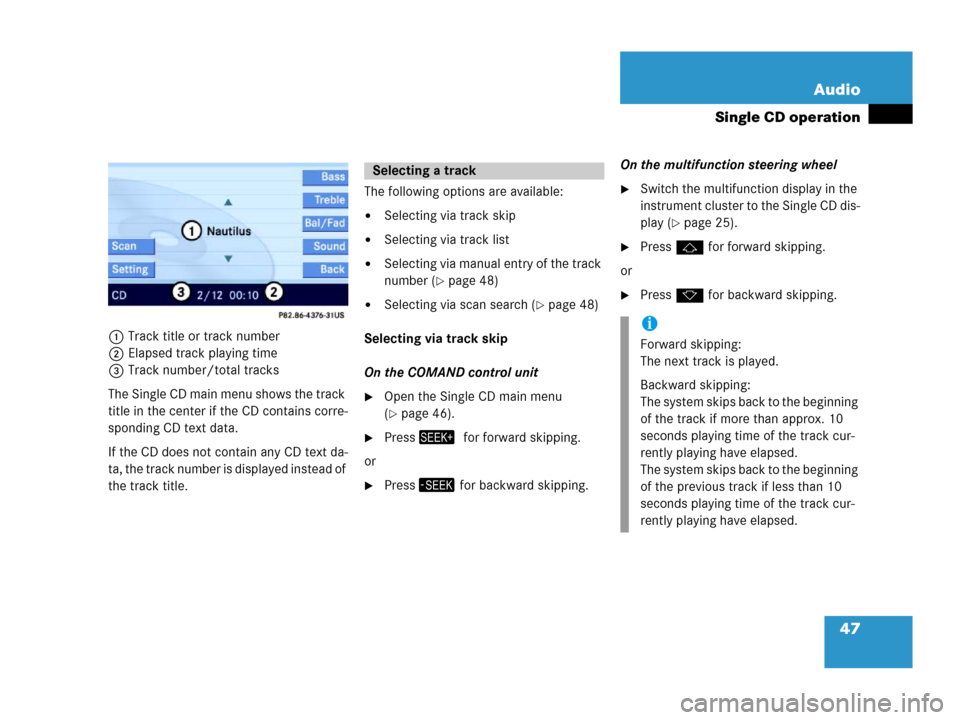
1Track title or track number
2Elapsed track playing time
3Track number/total tracks
The Single CD main menu shows the track
title in the center if the CD contains corre-
sponding CD text data.
If the CD does not contain any CD text da-
ta, the track number is displayed instead of
the track title. The following options are available:
�Selecting via track skip
�Selecting via track list
�Selecting via manual entry of the track
number (
�page 48)
�Selecting via scan search (�page 48)
Selecting via track skip
On the COMAND control unit
�Open the Single CD main menu
(
�page 46).
�Pressfor forward skipping.
or
�Press for backward skipping.On the multifunction steering wheel
�Switch the multifunction display in the
instrument cluster to the Single CD dis-
play (
�page 25).
�Pressj for forward skipping.
or
�Pressk for backward skipping.
Selecting a track
i
Forward skipping:
The next track is played.
Backward skipping:
The system skips back to the beginning
of the track if more than approx. 10
seconds playing time of the track cur-
rently playing have elapsed.
The system skips back to the beginning
of the previous track if less than 10
seconds playing time of the track cur-
rently playing have elapsed.