2006 CHEVROLET MALIBU light
[x] Cancel search: lightPage 184 of 442
DIC Vehicle Personalization
The following personalization options may appear on
your vehicle’s audio display by pressing the MENU
button:
UNITS:When UNITS appears on the display, press the
enter button to move between METRIC or ENGLISH.
When you have made your choice, press the MENU
button to record your selection. The initial setting from
the factory is English for the United States and metric
for Canada.
If you choose English, all information will be displayed
in English units. For example, distance in miles (mi) and
fuel economy in miles per gallon (mpg) is displayed.
If you choose metric, all information will be displayed in
metric units. For example, distance in kilometers
(km) and fuel economy in liters per 100 kilometers
(L/100 km) is displayed.
The unit measurement will also change the trip
odometer, temperature, and average fuel economy
displays.
OIL LIFE RESET:When this option is displayed, you
can reset the engine oil life system. To reset the system,
seeEngine Oil Life System on page 5-20.
REMOTE START:If your vehicle has this feature, the
remote start option can be enabled or disabled.When REMOTE START appears on the display, press
the enter button to move between OFF and ON.
When you have made your choice, press the MENU
button to record your selection. The initial setting from
the factory is ON.
LOCK HORN:If your vehicle has remote keyless entry,
this option which allows the vehicle’s horn to chirp
every time the lock button on the remote keyless entry
transmitter is pressed, can be enabled or disabled.
When LOCK HORN appears on the display, press the
enter button to move between ON and OFF. When
you have made your choice, press the MENU button to
record your selection. The initial setting from the
factory is OFF.
UNLOCK HORN:If your vehicle has remote keyless
entry, this option which allows the vehicle’s horn to chirp
every time the unlock button on the remote keyless
entry transmitter is pressed, can be enabled or disabled.
When UNLOCK HORN appears on the display, press
the enter button to move between ON and OFF.
When you have made your choice, press the MENU
button to record your selection. The initial setting from
the factory is OFF.
LIGHT FLASH:If your vehicle has remote keyless entry,
this option which allows the vehicle’s exterior perimeter
lighting to ash every time the lock or unlock button on
the remote keyless entry transmitter is pressed, can be
enabled or disabled.
3-52
Page 185 of 442
When LIGHT FLASH appears on the display, press the
enter button to move between OFF and ON. When you
have made your choice, press the MENU button to record
your selection. The initial setting from the factory is ON.
DELAY LOCK:The delayed locking option, which
delays the actual locking of the vehicle, can be enabled
or disabled. When DELAY LOCK appears on the
display, press the enter button to move between OFF
and ON. When you have made your choice, press
the MENU button to record your selection. The initial
setting from the factory is ON.
AUTO UNLK (Unlock):The automatic door unlocking
option, which allows the vehicle to automatically
unlock certain doors can be enabled or disabled. When
AUTO UNLK appears on the display, press the enter
button to move between ALL, DRIVER, or NONE. When
you have made your choice, press and the MENU
button to record your selection. The initial setting from
the factory is ALL. SeeProgrammable Automatic
Door Locks on page 2-13for more information.
UNLK (Unlock):This screen displays only if DRIVER
or ALL is selected for the AUTO UNLK option. This
option determines when the automatic door unlocking
will occur, when either the key is turned to OFF or
the vehicle is shifted into PARK (P). When UNLK
appears on the display, press the enter button to
move between KEY OFF and SHIFT TO P (Park).When you have made your choice, press the MENU
button to record your selection. The initial setting from
the factory is SHIFT TO P (Park). SeeProgrammable
Automatic Door Locks on page 2-13for more
information.
EXT (Exterior) LIGHTS:If your vehicle has remote
keyless entry, this option, which allows the vehicle’s
exterior perimeter lighting to turn on each time the
unlock button on the remote keyless entry transmitter
is pressed, can be enabled or disabled. When
EXT LIGHTS appears on the display, press the enter
button to move between ON and OFF. When you have
made your choice, press the MENU button to record
your selection. The initial setting from the factory is ON.
LANGUAGE:To select your choice of language,
press the enter button to move between the optional
languages.
The languages are ENGLISH, FRENCH, SPANISH,
and GERMAN.
Choosing a language will display all of the information
on the DIC in the desired language.
When you have made your choice, press the MENU
button for at least one second to record your selection.
The initial setting from the factory is ENGLISH.
3-53
Page 218 of 442
Rear Seat Entertainment System
Your vehicle may have a DVD Rear Seat Entertainment
(RSE) system. The RSE system includes a DVD
player, a video display screen, two sets of wireless
headphones, and a remote control.
This system also functions as a rear seat audio (RSA)
system. SeeRear Seat Audio (RSA) (Without
Entertainment System) on page 3-101orRear Seat
Audio (RSA) (With Entertainment System) on
page 3-103for more information.
Parental Control
The RSE system may be disabled from the driver’s
seat by pressing the power button on the radio twice.
To resume use of the RSE system press the RSE
power button.
Before You Drive
The RSE is designed for rear seat passengers only.
The driver cannot safely view the video screen
while driving and should not try to do so.The DVD system is designed to be inoperable when
the vehicle is exposed to extremely low or high
temperatures, in order to protect your system from
damage. Operate the DVD system under normal
or comfortable cabin temperature ranges.
Headphones
The RSE system includes two sets of wireless
headphones.
The wireless headphones have an ON/OFF button and a
volume control. To use the headphones press, the
ON/OFF button. An indicator light on the headphones will
illuminate. If the light does not illuminate, the batteries
may need to be replaced. See “Battery Replacement”
later in this section for more information. Press the button
to turn the headphones OFF when not in use.
If the RSE system is shut off or if the headphones are
out of range of the transmitters, located at the top of
the DVD player, for more than three minutes, the
headphones will shut off automatically to save the
battery power. If you move too far forward or step out
of the vehicle, the headphones will lose the audio signal.
3-86
Page 219 of 442
To adjust the volume on the wireless headphones,
use the volume control on the headphones.
Make sure that the headphones are worn correctly,
left to right, to ensure the signal is received properly.
Notice:Do not store the headphones in heat or
direct sunlight. This could damage the headphones
and repairs will not be covered by your warranty.
Keep the headphones stored in a cool, dry place.
MAXX vehicles with the RSE system may have a rear
seat storage compartment. Store the headphones and
the remote control in this compartment when not in use.
The MAXX vehicles may also include two sets of
wireless headphones with foam ear pads that can be
replaced.
Foam ear pads on the rear seat headphones may
become worn or damaged. The headphone foam ear
pads can become damaged if they are not handled
or stored properly. If the headphone foam ear pads do
become damaged or worn out, the foam pads can
be replaced separately from the headphone set. It is
not necessary to replace the complete headphone set.The headphone replacement foam ear pads can be
ordered in pairs. See your dealer for more information.
If there is a decreased audio signal during CD or
DVD play, there may be a low hissing noise through the
speakers and/or headphones. If the hissing sound in
the wireless headphones seems excessive, make sure
that the headphone batteries are fully charged. Some
amount of hissing is normal.
Battery Replacement
To change the batteries, do the following:
1. Loosen the screw on the battery compartment door
located on the left side of the headphone earpiece.
2. Replace the two AAA batteries in the compartment.
Make sure that they are installed correctly using the
diagram on the inside of the battery compartment.
3. Replace the battery compartment door and tighten
the screw.
If the headphones are to be stored for a long period of
time, remove the batteries, and keep them in a cool,
dry place.
3-87
Page 224 of 442
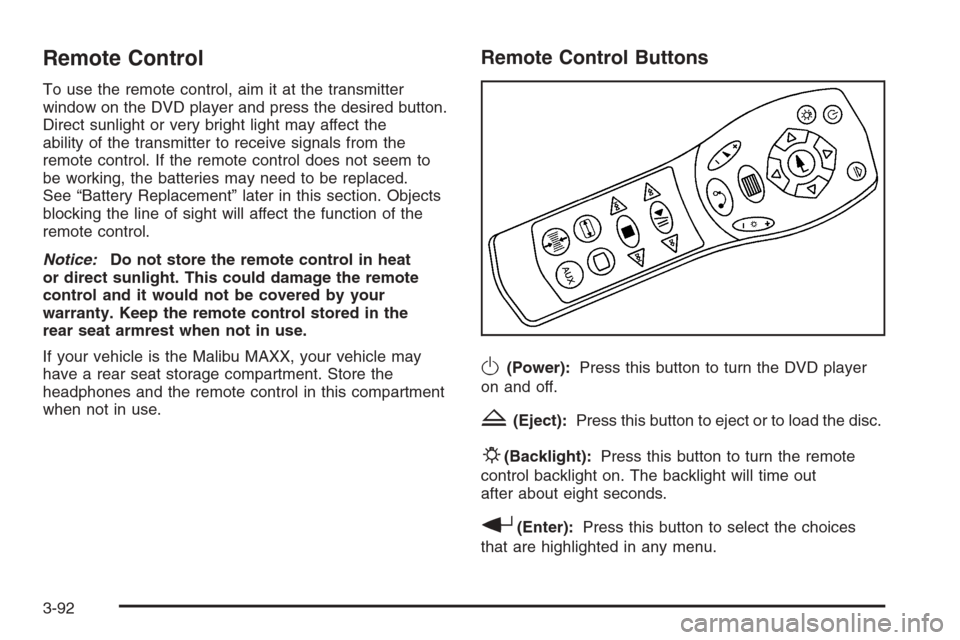
Remote Control
To use the remote control, aim it at the transmitter
window on the DVD player and press the desired button.
Direct sunlight or very bright light may affect the
ability of the transmitter to receive signals from the
remote control. If the remote control does not seem to
be working, the batteries may need to be replaced.
See “Battery Replacement” later in this section. Objects
blocking the line of sight will affect the function of the
remote control.
Notice:Do not store the remote control in heat
or direct sunlight. This could damage the remote
control and it would not be covered by your
warranty. Keep the remote control stored in the
rear seat armrest when not in use.
If your vehicle is the Malibu MAXX, your vehicle may
have a rear seat storage compartment. Store the
headphones and the remote control in this compartment
when not in use.
Remote Control Buttons
O(Power):Press this button to turn the DVD player
on and off.
Z(Eject):Press this button to eject or to load the disc.
P(Backlight):Press this button to turn the remote
control backlight on. The backlight will time out
after about eight seconds.
r(Enter):Press this button to select the choices
that are highlighted in any menu.
3-92
Page 228 of 442
Menu Bar
The menu bar can be displayed across the top of
the screen by pressing the DISPLAY button on the
remote control. Selecting icons from the menu bar
allows adjustments to the audio and video settings.
Use the remote control left and right arrow buttons
to scroll through the menu bar. A description of
the highlighted icon will appear at the bottom of the
screen. Use the down arrow to display the options
for the highlighted icon.
The movie may stop playing while selections are
being made.
Current Subtitle Language:The subtitle language
may be selected as Off, English, Spanish, or French.
The actual subtitle language is dependent on whether
a DVD supports the selected language.
Current Audio Language:The audio language may
be selected as Off, English, Spanish, or French.
The actual audio language is dependent on whether
a DVD supports the selected language.
Smart Color:This color setting may be selected
without changing the default from the color
settings menu.Sound Mode:This analog output may be changed
without changing the default from the analog
output menu.
Frame-by-Frame:The DVD will pause and may be
viewed frame-by-frame, in forward or reverse, by
using the remote control arrow buttons. Press play to
resume play of the DVD. DVD audio will not be available
during selection.
Slow Motion:The DVD will pause and may be
viewed in slow motion, at various speeds, in forward or
reverse, by using the remote control arrow buttons.
Press play to resume play of the DVD. DVD audio will
not be available during selection.
Scan Speeds:The DVD may be viewed in fast motion,
at various speeds, in forward or reverse, by using the
remote control arrow buttons. Press play to resume play
of the DVD. DVD audio will not be available during
selection.
Enlarge Picture:The DVD will pause and the frame
may be enlarged by using the remote control arrow
key buttons. Pressing the enter button on the remote
control allows panning of the frame using the remote
control arrow buttons. Press play to resume play of the
DVD. DVD audio will not be available during selection.
3-96
Page 229 of 442
Title:Move between DVD titles by using the remote
control arrow buttons.
Chapter:Move between DVD chapters by using the
remote control arrow buttons.
Time Search:The user can jump to different areas
of a DVD by using the remote control arrow and enter
buttons to select a specic time position.
Favorite Track Selection (FTS):You may program
the unit to play only your favorite track selections from a
DVD or Audio CD. For a DVD, FTS is accessed from
the Menu bar. For a CD, the FTS screen will appear
on the display immediately when the CD is inserted.
From the screen, choose the tracks on the CD that you
wish to store, using the remote control right and left
arrows and the ENTER button to select. The player will
remember the selections and each time the CD is
inserted in the player, only those tracks will be played,
if FTS is turned on. The player can remember
selections for up to 50 discs. To remove FTS for a
disc, the disc must be in the player and the highlighted
tracks must be de-selected. Use the right and left
arrow buttons and the ENTER button or select CLEAR
ALL on the display.Not all DVDs support all of the feature defaults in the
setup menus. In the event a feature is not supported,
defaults will be provided by the DVD media.
Exit the setup menu by pressing the return button
on the remote control. If changes are made to the setup
menu, the DVD will resume play from the beginning.
Battery Replacement
To change the remote control batteries, do the following:
1. Unclip the battery door located on the back of the
remote control.
2. Replace the two AA batteries. Make sure that they
are installed correctly, using the diagram on the
inside of the battery compartment.
3. Close the battery door.
If the remote control is to be stored for a long period of
time, remove the batteries and keep them in a cool,
dry place.
3-97
Page 239 of 442
AM
The range for most AM stations is greater than for FM,
especially at night. The longer range can cause station
frequencies to interfere with each other. For better radio
reception, most AM radio stations will boost the power
levels during the day, and then reduce these levels during
the night. Static can also occur when things like storms
and power lines interfere with radio reception. When this
happens, try reducing the treble on your radio.
FM Stereo
FM stereo will give the best sound, but FM signals will
reach only about 10 to 40 miles (16 to 65 km). Tall
buildings or hills can interfere with FM signals, causing
the sound to fade in and out.
XM™ Satellite Radio Service
XM™ Satellite Radio Service gives digital radio reception
from coast-to-coast in the 48 contiguous United States,
and in Canada (if available). Just as with FM, tall
buildings or hills can interfere with satellite radio signals,
causing the sound to fade in and out. In addition,
traveling or standing under heavy foliage, bridges,
garages, or tunnels may cause loss of the XM™ signal
for a period of time. The radio may display NO SIGNAL
to indicate interference.
Care of Your CDs and DVDs
Handle CDs carefully. Store them in their original
cases or other protective cases and away from direct
sunlight and dust. The CD player scans the bottom
surface of the disc. If the surface of a CD is damaged,
such as cracked, broken, or scratched, the CD will
not play properly or not at all. If the surface of a CD
is soiled, take a soft, lint free cloth or dampen a clean,
soft cloth in a mild, neutral detergent solution mixed
with water, and clean it. Make sure the wiping process
starts from the center to the edge.
Do not touch the bottom side of a CD while handling
it; this could damage the surface. Pick up CDs by
grasping the outer edges or the edge of the hole and
the outer edge.
Care of the CD and DVD Player
The use of CD lens cleaners for CDs is not advised, due
to the risk of contaminating the lens of the CD optics with
lubricants internal to the CD mechanism.
3-107