2006 CHEVROLET HHR service
[x] Cancel search: servicePage 177 of 394

LOW TRACTION
This message will display when the Enhanced Traction
System (ETS) is actively limiting wheel spin. Slippery
road conditions may exist if this message is displayed,
so adjust your driving accordingly. SeeEnhanced
Traction System (ETS) on page 4-10for more
information.
PARKING BRAKE
This message will display if the parking brake is left
engaged. SeeParking Brake on page 2-32for
more information.
POWER STEERING
This message will display if a problem has been
detected with the electric power steering. Have your
vehicle serviced immediately by your GM dealer.
SERVICE AIR BAG
This message will display when there is a problem with
the airbag system. Have your vehicle serviced
immediately by your GM dealer.
TRAILER SHIFT ON
On some models, if towing a trailer, this message will
display when the vehicle is changing shifting patterns so
that the engine oil does not heat up above the proper
engine operating temperature.
DIC Vehicle Personalization
Your vehicle has personalization capabilities that allow
you to program certain features to a preferred setting.
All of the features listed may not be available on
your vehicle. Only the features available will be
displayed on your DIC.
The default settings for the features were set when your
vehicle left the factory, but may have been changed
from their default state since that time.
To change feature settings, use the following procedure:
Entering Personalization Menu
1. Turn the ignition on while the vehicle is stopped.
2. Press and hold the information and reset buttons at
the same time for one second, then release to enter
the personalization menu.
If the vehicle speed is greater than 2 mph (3 km/h),
only the UNITS menu will be accessible.
3. Press the information button to scroll through the
available personalization menu modes.
Press the reset button to scroll through the available
settings for each mode.
If you do not make a selection within ten seconds,
the display will go back to the previous information
displayed.
3-45
Page 188 of 394
Adjusting the Speakers (Balance/Fade)
`
BAL/FADE (Balance/Fade):To adjust the
balance or fade, press this button or the tune knob
until the desired speaker control label appears on
the display. Turn the tune knob clockwise or
counterclockwise to adjust the setting. You can also
adjust the setting by pressing either the SEEK, FWD, or
REV buttons.
Radio Messages
Calibration Error:The audio system has been
calibrated for your vehicle from the factory. If Calibration
Error appears on the display, it means that the radio
has not been congured properly for your vehicle and it
must be returned to your dealer for service.
Loc:This message is displayed while the THEFTLOCK
®
system has locked up the radio. Take the vehicle to your
dealer for service.
If any error occurs repeatedly or if an error cannot be
corrected, contact your dealer.
Playing a CD (Single CD Player)
Insert a CD partway into the slot, label side up. The
player will pull it in and the CD should begin playing.
If the ignition or radio is turned off with a CD in the
player, it will stay in the player. When the ignition or
radio is turned on, the CD will start playing where
it stopped, if it was the last selected audio source.
When a CD is inserted, the CD symbol will appear on
the radio display. As each new track starts to play,
the track number will appear on the display.
The CD player can play the smaller 3 inch (8 cm) single
CDs with an adapter ring. Full-size CDs and the
smaller CDs are loaded in the same manner.
If playing a CD-R, the sound quality may be reduced
due to CD-R quality, the method of recording, the quality
of the music that has been recorded, and the way the
CD-R has been handled. There may be an increase
in skipping, difficulty in nding tracks, and/or difficulty in
loading and ejecting. If these problems occur, check
the bottom surface of the CD. If the surface of the CD is
damaged, such as cracked, broken, or scratched, the
CD will not play properly. If the surface of the CD is
soiled, seeCare of Your CDs on page 3-79for more
information.
If there is no apparent damage, try a known good CD.
3-56
Page 192 of 394
Radio with CD (MP3)Radio Data System (RDS)
The audio system has a Radio Data System (RDS).
The RDS feature is available for use only on FM stations
that broadcast RDS information. This system relies
upon receiving specic information from these stations
and will only work when the information is available.
While the radio is tuned to an FM-RDS station,
the station name or call letters will appear on the display.
In rare cases, a radio station may broadcast incorrect
information that will cause the radio features to
work improperly. If this happens, contact the radio
station.
XM™ Satellite Radio Service
XM™ is a satellite radio service that is based in the
48 contiguous United States and in Canada (if available).
XM™ offers over 100 coast-to-coast channels including
music, news, sports, talk, traffic/weather, and children’s
programming. XM™ provides digital quality audio and
text information that includes song title and artist name.
A service fee is required in order to receive the XM™
service. For more information, contact XM™ at
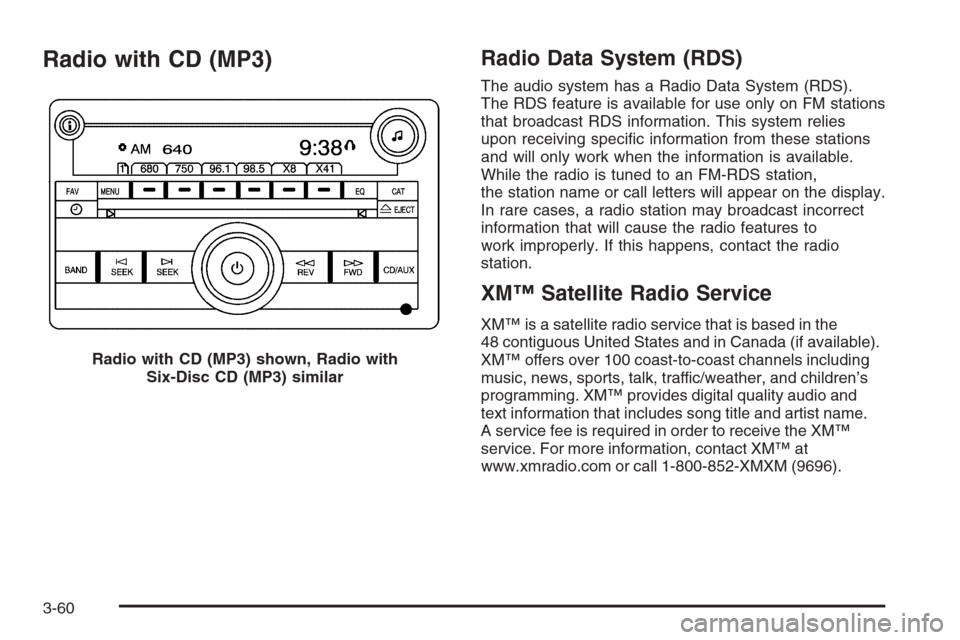
www.xmradio.com or call 1-800-852-XMXM (9696). Radio with CD (MP3) shown, Radio with
Six-Disc CD (MP3) similar
3-60
Page 193 of 394
Playing the Radio
O
(Power/Volume):Press this knob to turn the
system on and off.
Turn this knob clockwise or counterclockwise to increase
or decrease the volume.
Speed Compensated Volume (SCV):The radio has
Speed Compensated Volume (SCV). When SCV is
on, the radio volume automatically adjusts to
compensate for road and wind noise as you speed up
or slow down while driving. That way, the volume
level should sound about the same as you drive.
To activate SCV:
1. Set the radio volume to the desired level.
2. Press the MENU button to display the radio
setup menu.
3. Press the pushbutton under the AUTO VOLUM
label on the radio display.
4. Press the pushbutton under the desired Speed
Compensated Volume setting (OFF, Low, Med,
or High) to select the level of radio volume
compensation. The display will time out after
approximately 10 seconds. Each higher setting
allows for more radio volume compensation at faster
vehicle speeds.
Finding a Station
BAND:Press this button to switch between AM, FM, or
XM™ (if equipped). The display will show the selection.
f(Tune):Turn this knob to select radio stations.
©SEEK¨:Press the right or left SEEK arrow to go
to the next or to the previous station and stay there.
To scan stations, press and hold either SEEK arrow for
a few seconds until you hear a beep. The radio will
go to a station, play for a few seconds, then go on to the
next station. Press either SEEK arrow again to stop
scanning.
The radio will only seek and scan stations with a strong
signal that are in the selected band.
4(Information) (XM™ Satellite Radio Service, MP3,
and RDS Features):Press the information button
to display additional text information related to the
current FM-RDS or XM™ station, or MP3 song. A choice
of additional information such as: Channel, Song,
Artist, and CAT may appear. Continue pressing the
information button to highlight the desired label, or press
the pushbutton positioned under any one of the labels
and the information about that label will be displayed.
While information is not available, No Info will appear on
the display.
3-61
Page 197 of 394
Radio Messages
Calibration Error:The audio system has been
calibrated for your vehicle from the factory. If Calibration
Error appears on the display, it means that the radio
has not been congured properly for your vehicle and it
must be returned to your dealer for service.Locked:This message is displayed when the
THEFTLOCK
®system has locked up the radio.
Take the vehicle to your dealer for service.
If any error occurs repeatedly or if an error cannot be
corrected, contact your dealer.
XM™ Radio Messages
Radio Display
MessageCondition Action Required
XL (Explicit Language
Channels)XL on the radio display,
after the channel name,
indicates content with
explicit language.These channels, or any others, can be blocked at a
customer’s request, by calling 1-800-852-XMXM (9696).
XM Updating Updating encryption code The encryption code in the receiver is being updated, and no
action is required. This process should take no longer than
30 seconds.
No XM Signal Loss of signal The system is functioning correctly, but the vehicle is in a
location that is blocking the XM™ signal. When you move
into an open area, the signal should return.
Loading XM Acquiring channel audio
(after four second delay)The audio system is acquiring and processing audio and text
data. No action is needed. This message should disappear
shortly.
3-65
Page 198 of 394
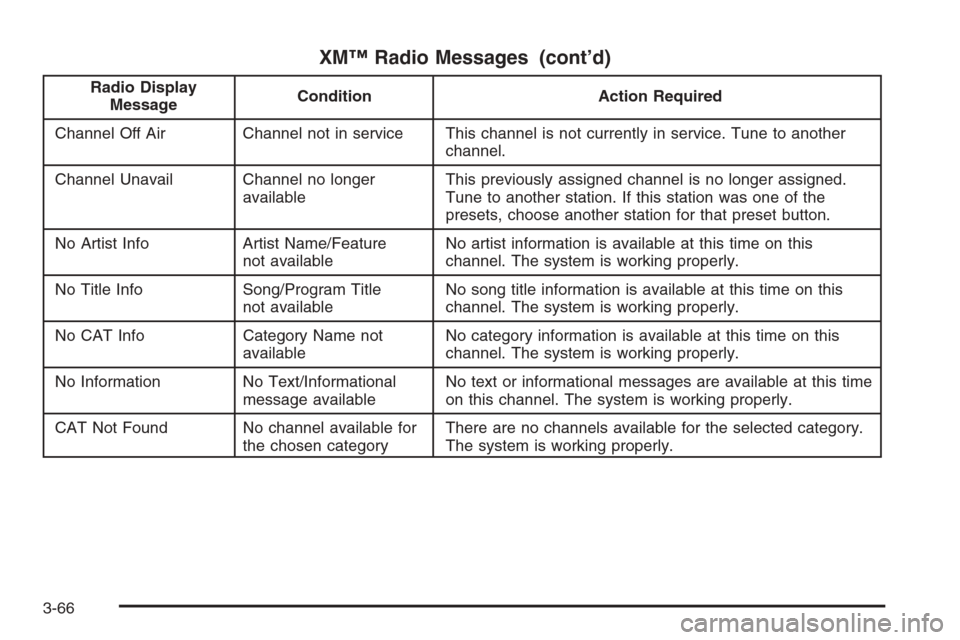
XM™ Radio Messages (cont’d)
Radio Display
MessageCondition Action Required
Channel Off Air Channel not in service This channel is not currently in service. Tune to another
channel.
Channel Unavail Channel no longer
availableThis previously assigned channel is no longer assigned.
Tune to another station. If this station was one of the
presets, choose another station for that preset button.
No Artist Info Artist Name/Feature
not availableNo artist information is available at this time on this
channel. The system is working properly.
No Title Info Song/Program Title
not availableNo song title information is available at this time on this
channel. The system is working properly.
No CAT Info Category Name not
availableNo category information is available at this time on this
channel. The system is working properly.
No Information No Text/Informational
message availableNo text or informational messages are available at this time
on this channel. The system is working properly.
CAT Not Found No channel available for
the chosen categoryThere are no channels available for the selected category.
The system is working properly.
3-66
Page 199 of 394
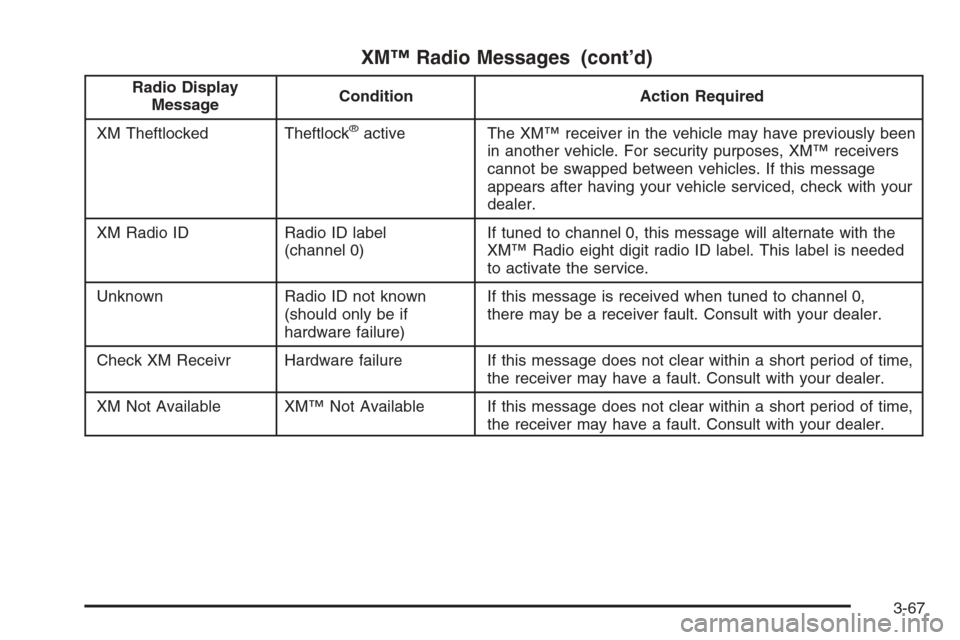
XM™ Radio Messages (cont’d)
Radio Display
MessageCondition Action Required
XM Theftlocked Theftlock
®active The XM™ receiver in the vehicle may have previously been
in another vehicle. For security purposes, XM™ receivers
cannot be swapped between vehicles. If this message
appears after having your vehicle serviced, check with your
dealer.
XM Radio ID Radio ID label
(channel 0)If tuned to channel 0, this message will alternate with the
XM™ Radio eight digit radio ID label. This label is needed
to activate the service.
Unknown Radio ID not known
(should only be if
hardware failure)If this message is received when tuned to channel 0,
there may be a receiver fault. Consult with your dealer.
Check XM Receivr Hardware failure If this message does not clear within a short period of time,
the receiver may have a fault. Consult with your dealer.
XM Not Available XM™ Not Available If this message does not clear within a short period of time,
the receiver may have a fault. Consult with your dealer.
3-67
Page 211 of 394
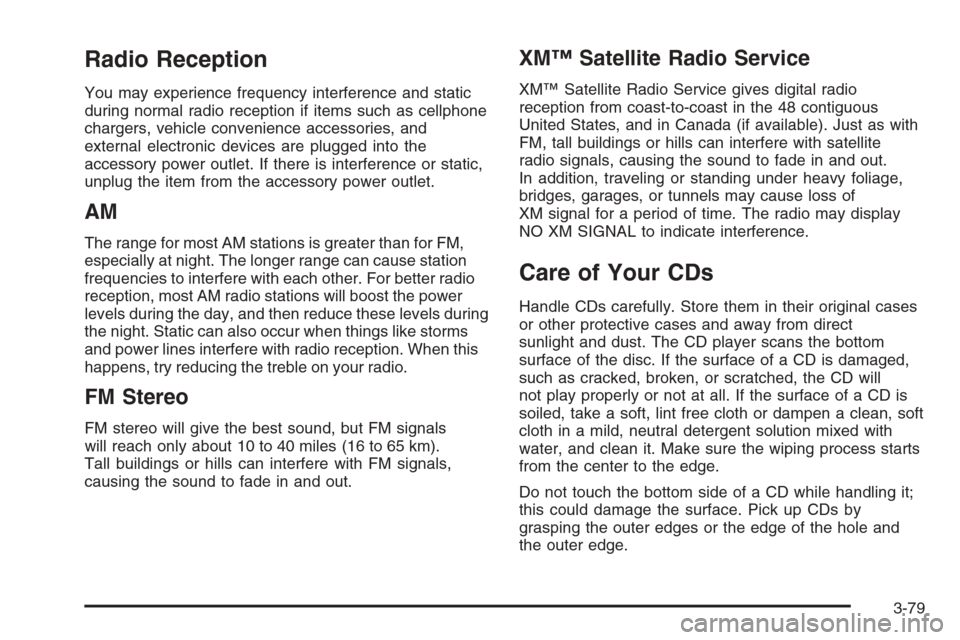
Radio Reception
You may experience frequency interference and static
during normal radio reception if items such as cellphone
chargers, vehicle convenience accessories, and
external electronic devices are plugged into the
accessory power outlet. If there is interference or static,
unplug the item from the accessory power outlet.
AM
The range for most AM stations is greater than for FM,
especially at night. The longer range can cause station
frequencies to interfere with each other. For better radio
reception, most AM radio stations will boost the power
levels during the day, and then reduce these levels during
the night. Static can also occur when things like storms
and power lines interfere with radio reception. When this
happens, try reducing the treble on your radio.
FM Stereo
FM stereo will give the best sound, but FM signals
will reach only about 10 to 40 miles (16 to 65 km).
Tall buildings or hills can interfere with FM signals,
causing the sound to fade in and out.
XM™ Satellite Radio Service
XM™ Satellite Radio Service gives digital radio
reception from coast-to-coast in the 48 contiguous
United States, and in Canada (if available). Just as with
FM, tall buildings or hills can interfere with satellite
radio signals, causing the sound to fade in and out.
In addition, traveling or standing under heavy foliage,
bridges, garages, or tunnels may cause loss of
XM signal for a period of time. The radio may display
NO XM SIGNAL to indicate interference.
Care of Your CDs
Handle CDs carefully. Store them in their original cases
or other protective cases and away from direct
sunlight and dust. The CD player scans the bottom
surface of the disc. If the surface of a CD is damaged,
such as cracked, broken, or scratched, the CD will
not play properly or not at all. If the surface of a CD is
soiled, take a soft, lint free cloth or dampen a clean, soft
cloth in a mild, neutral detergent solution mixed with
water, and clean it. Make sure the wiping process starts
from the center to the edge.
Do not touch the bottom side of a CD while handling it;
this could damage the surface. Pick up CDs by
grasping the outer edges or the edge of the hole and
the outer edge.
3-79