2006 CHEVROLET HHR change time
[x] Cancel search: change timePage 151 of 394
Climate Controls
Climate Control System
With this system you can control the heating, cooling,
and ventilation for your vehicle.
If your vehicle has remote start and you want to warm
up or cool down the interior before you get in, leave your
climate control system on with the settings adjusted
where you want them. The next time the vehicle
is started with remote start, the climate control system
will come on and adjust the interior to the temperature
settings.
Operation
To change the current mode, select one of the following:
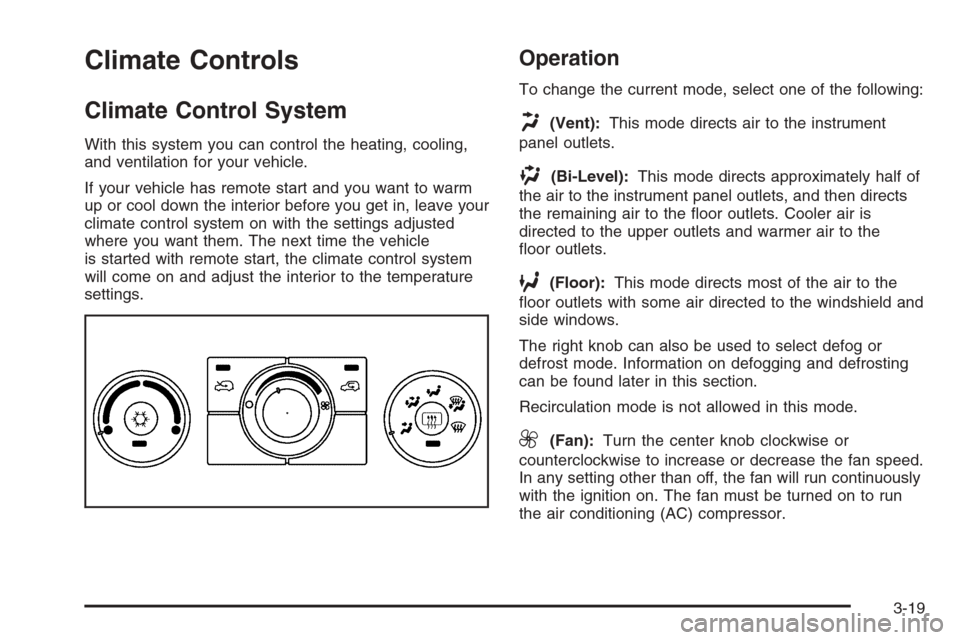
H(Vent):This mode directs air to the instrument
panel outlets.
)(Bi-Level):This mode directs approximately half of
the air to the instrument panel outlets, and then directs
the remaining air to the oor outlets. Cooler air is
directed to the upper outlets and warmer air to the
oor outlets.
6(Floor):This mode directs most of the air to the
oor outlets with some air directed to the windshield and
side windows.
The right knob can also be used to select defog or
defrost mode. Information on defogging and defrosting
can be found later in this section.
Recirculation mode is not allowed in this mode.
9(Fan):Turn the center knob clockwise or
counterclockwise to increase or decrease the fan speed.
In any setting other than off, the fan will run continuously
with the ignition on. The fan must be turned on to run
the air conditioning (AC) compressor.
3-19
Page 173 of 394
DIC Operation and Displays
The DIC comes on when the ignition is on. The DIC has
different modes which can be accessed by pressing
the DIC buttons. The button functions are detailed in the
following.
Information Modes
q
(Information):Press this button to scroll through
the following vehicle information modes:
Outside Air Temperature and Odometer
Press the information button until the outside air
temperature and the odometer are displayed. This mode
shows the temperature outside of the vehicle in either
degrees Fahrenheit (°F) or degrees Celsius (°C) and the
total distance the vehicle has been driven in either
miles (mi) or kilometers (km). The outside air
temperature will appear on the left side of the DIC
display and the odometer will appear on the right side of
the display.
To change the DIC display to English or metric units,
see “UNITS” underDIC Vehicle Personalization on
page 3-45.
TRIP A or TRIP B
Press the information button until TRIP A or TRIP B is
displayed. These modes show the current distance
traveled since the last reset for each trip odometer in
either miles (mi) or kilometers (km). Both odometers can
be used at the same time.
Each trip odometer can be reset to zero separately by
pressing and holding the reset button for a few seconds
while the desired trip odometer is displayed.
FUEL RANGE
Press the information button until FUEL RANGE is
displayed. This mode shows the remaining distance you
can drive without refueling in either miles (mi) or
kilometers (km). It is based on fuel economy and the
fuel remaining in the tank.
The fuel economy data used to determine fuel range is
an average of recent driving conditions. As your
driving conditions change, this data is gradually updated.
The FUEL RANGE mode cannot be reset.
3-41
Page 174 of 394
ECON (Economy)
Press the information button until ECON is displayed.
This mode shows how many miles per gallon (mpg)
or liters per 100 kilometers (L/100 km) your vehicle is
getting based on current and past driving conditions.
Press and hold the reset button while ECON is displayed
to reset the average fuel economy. Average fuel
economy will then be calculated starting from that point.
If the average fuel economy is not reset, it will be
continually updated each time you drive.
AV (Average) SPEED
Press the information button until AV SPEED is
displayed. This mode shows the vehicle’s average
speed in miles per hour (mph) or kilometers per
hour (km/h).
Press and hold the reset button while AV SPEED is
displayed to reset the average vehicle speed.
OIL LIFE
Press the information button until OIL LIFE is displayed.
The engine oil life system shows an estimate of the
oil’s remaining useful life. It will show 100% when the
system is reset after an oil change. It will alert you
to change your oil on a schedule consistent with your
driving conditions.
In addition to the engine oil life system monitoring the
oil life, additional maintenance is recommended in
the Maintenance Schedule in this manual. SeeEngine
Oil on page 5-13andScheduled Maintenance on
page 6-4.
Always reset the engine oil life system after an oil
change. See “How to Reset the Engine Oil Life System”
underEngine Oil Life System on page 5-16.
COOLANT
Press the information button until COOLANT is
displayed. This mode shows the temperature of the
engine coolant in either degrees Fahrenheit (°F)
or degrees Celsius (°C).
3-42
Page 175 of 394
DIC Warnings and Messages
These warning messages will appear in the DIC display
if there is a problem detected in one of your vehicle’s
systems. With most messages, a warning chime
will sound when the message is displayed.
The messages will clear from the display when the
condition no longer exists. You can also acknowledge
and clear some messages from the display by pressing
and holding either the reset or information buttons.
The message will come back on the next time the
vehicle is turned off and back on if the condition still
exists. Your vehicle may have other warning messages.
AUTO (Automatic) LIGHTS OFF
This message will display if the automatic headlamp
system is disabled with the headlamp switch.
SeeAutomatic Headlamp System on page 3-15for
more information.
AUTO (Automatic) LIGHTS ON
This message will display if the automatic headlamp
system is enabled with the headlamp switch.
SeeAutomatic Headlamp System on page 3-15for
more information.
BRAKE FLUID
This message will display to inform the driver that the
brake uid level is low while the ignition is on. Have the
brake system serviced by your GM dealer as soon
as possible.
CHANGE OIL SOON
This message will display when the life of the engine oil
has expired and it should be changed.
When you acknowledge the CHANGE OIL SOON
message by clearing it from the display, you still must
reset the engine oil life system separately. SeeEngine
Oil Life System on page 5-16andScheduled
Maintenance on page 6-4for more information.
CHECK GAS CAP
This message will display if the gas cap has not been
fully tightened. You should recheck your gas cap to
make sure that it is on properly. A few driving trips with
the cap properly installed should turn the message off.
CRUISE ENGAGED
This message will display when the cruise control
system is active. SeeCruise Control on page 3-11for
more information.
3-43
Page 177 of 394

LOW TRACTION
This message will display when the Enhanced Traction
System (ETS) is actively limiting wheel spin. Slippery
road conditions may exist if this message is displayed,
so adjust your driving accordingly. SeeEnhanced
Traction System (ETS) on page 4-10for more
information.
PARKING BRAKE
This message will display if the parking brake is left
engaged. SeeParking Brake on page 2-32for
more information.
POWER STEERING
This message will display if a problem has been
detected with the electric power steering. Have your
vehicle serviced immediately by your GM dealer.
SERVICE AIR BAG
This message will display when there is a problem with
the airbag system. Have your vehicle serviced
immediately by your GM dealer.
TRAILER SHIFT ON
On some models, if towing a trailer, this message will
display when the vehicle is changing shifting patterns so
that the engine oil does not heat up above the proper
engine operating temperature.
DIC Vehicle Personalization
Your vehicle has personalization capabilities that allow
you to program certain features to a preferred setting.
All of the features listed may not be available on
your vehicle. Only the features available will be
displayed on your DIC.
The default settings for the features were set when your
vehicle left the factory, but may have been changed
from their default state since that time.
To change feature settings, use the following procedure:
Entering Personalization Menu
1. Turn the ignition on while the vehicle is stopped.
2. Press and hold the information and reset buttons at
the same time for one second, then release to enter
the personalization menu.
If the vehicle speed is greater than 2 mph (3 km/h),
only the UNITS menu will be accessible.
3. Press the information button to scroll through the
available personalization menu modes.
Press the reset button to scroll through the available
settings for each mode.
If you do not make a selection within ten seconds,
the display will go back to the previous information
displayed.
3-45
Page 185 of 394
Setting the Time
(Without Date Display)
If your vehicle has a base AM/FM radio with a single
CD player and preset buttons numbered one through six,
the radio will have a clock button for setting the time.
You can set the time by following these steps:
1. Press the clock button until the hour numbers begin
ashing on the display. Press the clock button a
second time and the minute numbers will begin
ashing on the display.
2. While either the hour or the minute numbers are
ashing, rotate the tune knob clockwise or
counterclockwise to increase or decrease the time.
Instead of using the tune knob, you can also
press the SEEK, FWD, or REV buttons to adjust
the time.
3. Press the clock button again until the clock display
stops ashing to set the currently displayed time;
otherwise, the ashing will stop after ve seconds
and the current time displayed will be
automatically set.To change the time default setting from 12 hour to
24 hour, press the clock button and then the pushbutton
located under the forward arrow label. Once the time
12H and 24H are displayed, press the pushbutton
located under the desired option or press the SEEK,
FWD, or REV buttons to select the default. Press
the clock button again to apply the selected default,
or let the screen time out.
Setting the Time
(With Date Display)
If your vehicle has a radio with a single CD player,
the radio will have a clock button for setting the time and
date. Press the clock button and the HR, MIN, MM,
DD, YYYY (hour, minute, month, day, and year)
will appear on the display. Press the pushbutton located
under any one of the labels that you want to change.
Every time the pushbutton is pressed again, the time
or the date if selected, will increase by one. Another way
to increase the time or date, is to press the right
SEEK arrow or FWD button. To decrease, press the left
SEEK arrow or REV button. You can also rotate the
tune knob to adjust the selected setting.
3-53
Page 186 of 394
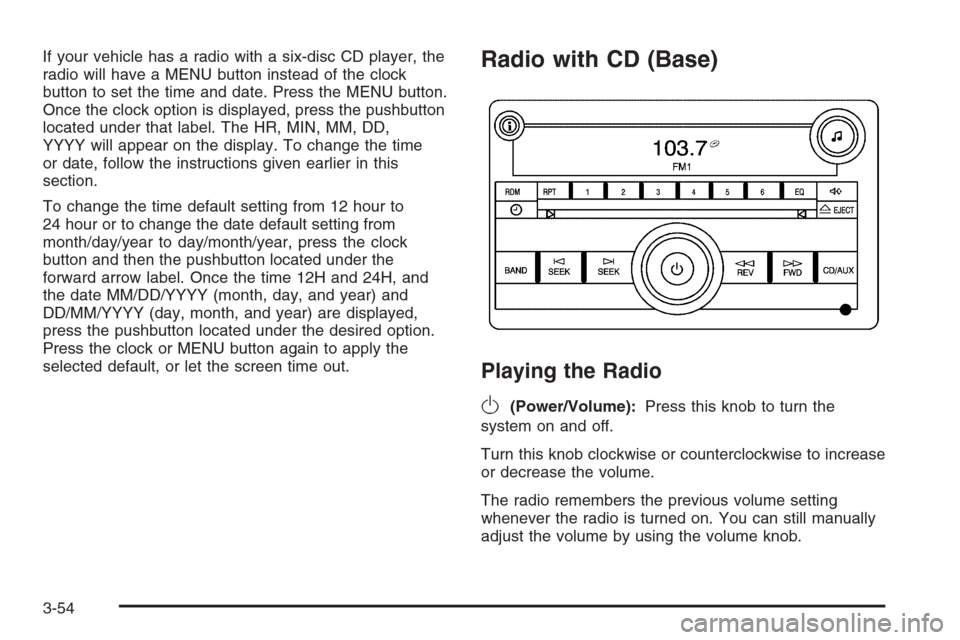
If your vehicle has a radio with a six-disc CD player, the
radio will have a MENU button instead of the clock
button to set the time and date. Press the MENU button.
Once the clock option is displayed, press the pushbutton
located under that label. The HR, MIN, MM, DD,
YYYY will appear on the display. To change the time
or date, follow the instructions given earlier in this
section.
To change the time default setting from 12 hour to
24 hour or to change the date default setting from
month/day/year to day/month/year, press the clock
button and then the pushbutton located under the
forward arrow label. Once the time 12H and 24H, and
the date MM/DD/YYYY (month, day, and year) and
DD/MM/YYYY (day, month, and year) are displayed,
press the pushbutton located under the desired option.
Press the clock or MENU button again to apply the
selected default, or let the screen time out.Radio with CD (Base)
Playing the Radio
O
(Power/Volume):Press this knob to turn the
system on and off.
Turn this knob clockwise or counterclockwise to increase
or decrease the volume.
The radio remembers the previous volume setting
whenever the radio is turned on. You can still manually
adjust the volume by using the volume knob.
3-54
Page 207 of 394
\FWD (Fast Forward):Press and hold this button
to advance playback quickly within an MP3 le. You
will hear sound at a reduced volume. Release this button
to resume playing the le. The elapsed time of the le
will appear on the display.
RDM (Random):With random, you can listen to MP3
les on the CD-R in random, rather than sequential
order, on one CD-R or all discs in a six-disc CD player.
To use random, do one of the following:
1. To play MP3 les from the CD-R you are listening
to in random order, press the pushbutton positioned
under the RDM label until Random Current Disc
is displayed. Press the same pushbutton again to
turn off random play.
2. To play songs from all CDs loaded in a six-disc CD
player in random order, press the pushbutton
positioned under the RDM label until Randomize All
Discs is displayed. Press the same pushbutton
again to turn off random play.h(Music Navigator):Use the music navigator
feature to play MP3 les on the CD-R in order by artist
or album. Press the pushbutton located below the
music navigator label. The player will scan the disc to
sort the les by artist and album ID3 tag information.
It may take several minutes to scan the disc depending
on the number of MP3 les recorded to the CD-R.
The radio may begin playing while it is scanning the
disc in the background. When the scan is nished,
the CD-R will begin playing again.
Once the disc has been scanned, the player will default
to playing MP3 les in order by artist. The current
artist playing is shown on the second line of the display
between the arrows. Once all songs by that artist are
played, the player will move to the next artist in
alphabetic order on the CD-R and begin playing MP3
les by that artist. If you want to listen to MP3 les
by another artist, press the pushbutton located below
either arrow button. You will go to the next or previous
artist in alphabetic order. Continue pressing either
button until the desired artist is displayed.
To change from playback by artist to playback by album,
press the pushbutton located below the Sort By label.
From the sort screen, push one of the buttons below the
album button. Press the pushbutton below the back label
to return to the main music navigator screen.
3-75