2006 CHEVROLET EPICA ignition
[x] Cancel search: ignitionPage 167 of 368
Adjusting the Speakers (Balance/Fade)
SOUND (Balance/Fade):To adjust the balance
between the right and the left speakers, press this button
until BAL appears on the display. Turn the volume
knob to increase or to decrease. The display will show
the balance level. When finished making the selection,
press this button to set the balance level.
To adjust the fade between the front and the rear
speakers, press this button until FAD appears on the
display. Turn the volume knob to increase or to
decrease the fade between the front and the rear
speakers. The display will show the fade level.
When finished making the selection, press this button
to set the fade level.
Setting the Equalization
The order for customized equalization settings are
EQ OFF, CLASSIC, DANCE, ROCK, JAZZ, POP,
VOICE, TECHNO, EQ OFF.
SOUND (Equalization):Press this button until EQ OFF
appears on the display to select customized equalization
settings designed for classic, dance, rock, jazz, pop,
voice and techno. Turn the volume knob until the
desired equalization setting appears on the display.
When finished making the selection, press the
SOUND button to set the equalization setting.To cancel an equalization setting, press the SOUND
button until EQ OFF appears on the display, turn
the volume knob until OFF appears on the display,
then press the SOUND button again to set the
equalization setting.
Playing a CD
Insert a CD partway into the slot, label side up. The
player will pull it in and the CD should begin playing.
You can insert a CD with the ignition off.
When the CD is inserted, CDP will appear on the
display. As the CD is loading Filecheck will appear on
the display. As each new track starts to play, Track
and the track number will appear on the display.
If the ignition or radio is turned off with a CD in the
player, it will stay in the player. When a CD is in
the player and the ignition is turned on, the radio
must be turned on before the CD will start playback.
When the ignition and radio are turned on, the CD
will start playing where it stopped, if it was the
last selected audio source.
The CD player can play the smaller 3 inch (8 cm)
single CDs with an adapter ring. Full-size CDs and
the smaller CDs are loaded in the same manner.
3-61
Page 169 of 368
CD:Press this button to play a CD when listening to
the radio. CDP will appear on the display when the CD
player has been selected. The CD symbol will appear
on the display when a CD is loaded.
Press this button while a CD is playing to pause the
CD. PAUSE will flash on the display. Press this button
again to start playing the CD.
EJECT:Press this button to eject a CD. The only way
a CD can be ejected from the player is by pressing
the eject button. The CD can eject when the ignition or
the radio is turned off.
Using an MP3 CD
MP3 Format
If you burn your own MP3/WMA disc on a personal
computer:
•Make sure the MP3/WMA files are recorded on
a CD-R disc.
•Do not mix standard audio and MP3/WMA files
on one disc.
•Make sure each MP3/WMA file has a.m3u or.wma
extension, other file extensions may not work.
•Files can be recorded with a variety of fixed or
variable bit rates. Song title, artist name, and
album will be available for display by the radio
when recorded using ID3 tags version 1 and 2.
•Create a folder structure that makes it easy to find
songs while driving. Organize songs by albums
using one folder for each album. Each folder
or album should contain 18 songs or less.
•Make sure to finalize the disc when burning an
MP3/WMA disc, using multiple sessions. It is usually
better to burn the disc all at once.
The player will be able to read and play a maximum of
50 folders, 5 sessions, and 999 files. Long file names
and folder names may use more disc memory space
than necessary. To conserve space on the disc, minimize
the length of the file and folder names. You can also
play an MP3/WMA CD that was recorded using no file
folders. The system can support up to 8 folders in depth,
though, keep the depth of the folders to a minimum in
order to keep down the complexity and confusion in
trying to locate a particular folder during playback.
If a CD contains more than the maximum of 50 folders,
5 sessions, and 999 files the player will let you access
and navigate up to the maximum, but all items over the
maximum will be ignored.
3-63
Page 171 of 368
Playing an MP3/WMA
With the ignition on, insert a CD partway into the slot,
label side up. The player will pull it in, Loading, then
Filecheck, and then MP3 or WMA will appear on
the display. The CD should begin playing. You cannot
insert a CD with the ACC off.
As each new track starts to play, the track number,
and the song name will appear on the display.
If the ignition or radio is turned off with a CD in the
player, it will stay in the player. When a CD is in
the player and the ignition is turned on, the radio
must be turned on before the CD will start playback.
When the ignition and radio are turned on, the CD
will start playing where it stopped, if it was the
last selected audio source.
The CD player can play the smaller 3 inch (8 cm)
single CDs with an adapter ring. Full-size CDs and
the smaller CDs are loaded in the same manner.
If playing a CD-R, the sound quality may be reduced
due to CD-R quality, the method of recording, the
quality of the music that has been recorded, and the
way the CD-R has been handled. There may be
an increase in skipping, difficulty in finding tracks,
and/or difficulty in loading and ejecting. If these
problems occur, check the bottom surface of the CD.If the surface of the CD is damaged, such as cracked,
broken, or scratched, the CD will not play properly. If the
surface of the CD is soiled, seeCare of Your CDs on
page 3-80for more information.
If there is no apparent damage, try a known good CD.
Do not add any label to a CD, it could get caught in the
CD player. If a CD is recorded on a personal computer
and a description label is needed, try labeling the top of
the recorded CD with a marking pen instead.
Notice:If you add any label to a CD, insert more
than one CD into the slot at a time, or attempt to play
scratched or damaged CDs, you could damage the
CD player. When using the CD player, use only CDs
in good condition without any label, load one CD at a
time, and keep the CD player and the loading slot free
of foreign materials, liquids, and debris.
If an error appears on the display, see “CD Messages”
later in this section.
All of the CD functions work the same while playing an
MP3/WMA, except for those listed here. See “Playing
a CD” earlier for more information.
SCROLL (MP3/WMA Mode Only):Press the SOUND
button for longer than two seconds. The song title or
other available information of a song will scroll on/off.
The offset is scroll on. The scroll mode can be changed
only when the SOUND button is pressed for longer
than two seconds.
3-65
Page 176 of 368
Once playback begins, the track and track number will
appear on the display.
If the ignition or radio is turned off with a CD in the
player, it will stay in the player. When a CD is in
the player and the ignition is turned on, the radio must
be turned on before the current CD will start playback.
When the ignition and radio are turned on, the CD
will start playing where it stopped, if it was the
last selected audio source.
The CD player can play the smaller 3 inch (8 cm)
single CDs with an adapter ring. Full-size CDs and
the smaller CDs are loaded in the same manner.
If playing a CD-R, the sound quality may be reduced due
to CD-R quality, the method of recording, the quality of
the music that has been recorded, and the way the CD-R
has been handled. There may be an increase in skipping,
difficulty in finding tracks, and/or difficulty in loading and
ejecting. If these problems occur, check the bottom
surface of the CD. If the surface of the CD is damaged,
such as cracked, broken, or scratched, the CD will not
play properly. If the surface of the CD is soiled, seeCare
of Your CDs on page 3-80for more information.
If there is no apparent damage, try a known good CD.
Do not add any label to a CD, it could get caught in the
CD player. If a CD is recorded on a personal computer
and a description label is needed, try labeling the top of
the recorded CD with a marking pen instead.Notice:If you add any label to a CD, insert more
than one CD into the slot at a time, or attempt to play
scratched or damaged CDs, you could damage the
CD player. When using the CD player, use only CDs
in good condition without any label, load one CD at a
time, and keep the CD player and the loading slot free
of foreign materials, liquids, and debris.
If an error appears on the display, see “CD Messages”
later in this section.
2 RPT (Repeat):Press this button to repeat the current
track. RPT will appear on the display. Press this
button again to turn off repeat play.
3 RDM (Random):Press this button to hear the tracks
in random, rather than sequential, order. RDM will
appear on the display.
To play tracks from all CDs loaded in a six-disc CD
player in random order, press this button until a
message that all discs are randomized is displayed.
Press the same button again to turn off random play.
4 INT (Scan):Press this button to listen to the first
few seconds of each track on each loaded CD. INTRO
will appear on the display. To stop scanning press
this button again. The current track will begin to play.
5 CDC−(Previous CDC):Press this button to go back
to the start of the previous CDC.
3-70
Page 177 of 368
6 CDC + (Next CDC):Press this button to go forward
to the start of the next CDC.
()TUNE (Previous/Next Track):Press the down
arrows to go to the start of the current track or press
the up arrows to go to the next track. The track number
will appear on the display. The player will continue
moving backward or forward through the CD with each
press of the up or down arrows.
AM:Press this button to listen to the radio when a CD
is playing. The inactive CD will remain safely inside
the radio for future listening.
FM:Press this button to listen to the radio when a CD
is playing. The inactive CD will remain safely inside
the radio for future listening.
CDC:Press this button to play a CD when listening
to the radio. CDP will appear on the display when
the CD player has been selected. The CD symbol
will appear on the display when a CD is loaded.
Press this button while a CD is playing to pause the
CD. PAUSE will flash on the display. Press this button
again to start playing the CD.
EJECT:Press this button to eject the CD. Press and
hold this button to eject all CDs. The only way a CD
can be ejected from the player is by pressing the eject
button. The CD can eject when the ignition or the
radio is turned off.
Using an MP3 CD
MP3 Format
If you burn your own MP3/WMA disc on a personal
computer:
•Make sure the MP3/WMA files are recorded on
a CD-R disc.
•Do not mix standard audio and MP3/WMA files
on one disc.
•Make sure each MP3/WMA file has a.m3u or.wma
extension, other file extensions may not work.
•Files can be recorded with a variety of fixed or
variable bit rates. Song title, artist name, and
album will be available for display by the radio
when recorded using ID3 tags version 1 and 2.
•Create a folder structure that makes it easy to
find songs while driving. Organize songs by albums
using one folder for each album. Each folder or
album should contain 18 songs or less.
•Make sure to finalize the disc when burning an
MP3/WMA disc, using multiple sessions. It is
usually better to burn the disc all at once.
The player will be able to read and play a maximum
of 50 folders, 5 sessions, and 999 files. Long file
names, folder names may use more disc memory
space than necessary. To conserve space on the
disc, minimize the length of the file, folder names.
3-71
Page 179 of 368
File System and Naming
The song name in the ID3 tag will be displayed. If the
song name is not present in the ID3 tag, then the
radio will display the file name without the extension
(such as MP3/WMA) instead.
Track names longer than 32 characters or 4 pages
will be shortened. The display will not show parts
of words on the last page of text and the extension
of the filename will not be displayed.
Playing an MP3/WMA
With the ignition on, insert a CD partway into the slot,
label side up. The player will pull it in, Loading, then
Filecheck, and then MP3 or WMA will appear on
the display. The CD should begin playing. You cannot
insert a CD with the ACC off.
As each new track starts to play, the track number,
and the song name will appear on the display.
If the ignition or radio is turned off with a CD in the
player, it will stay in the player. When a CD is in
the player and the ignition is turned on, the radio
must be turned on before the CD will start playback.When the ignition and radio are turned on, the CD
will start playing where it stopped, if it was the
last selected audio source.
The CD player can play the smaller 3 inch (8 cm)
single CDs with an adapter ring. Full-size CDs and
the smaller CDs are loaded in the same manner.
If playing a CD-R, the sound quality may be reduced due
to CD-R quality, the method of recording, the quality of
the music that has been recorded, and the way the CD-R
has been handled. There may be an increase in skipping,
difficulty in finding tracks, and/or difficulty in loading and
ejecting. If these problems occur, check the bottom
surface of the CD. If the surface of the CD is damaged,
such as cracked, broken, or scratched, the CD will not
play properly. If the surface of the CD is soiled, seeCare
of Your CDs on page 3-80for more information.
If there is no apparent damage, try a known good CD.
3-73
Page 197 of 368
Using ABS
Do not pump the brakes. Just hold the brake pedal
down firmly and let anti-lock work for you. You may feel
a slight brake pedal pulsation or notice some noise,
but this is normal.
Braking in Emergencies
With ABS, you can steer and brake at the same time.
In many emergencies, steering can help you more than
even the very best braking.
Traction Control System (TCS)
Your vehicle may have a Traction Control System (TCS)
that limits wheel spin. This is especially useful in
slippery road conditions. The system operates only if
it senses that one or both of the front wheels are
spinning or beginning to lose traction. When this
happens, the system works the front brakes to limit
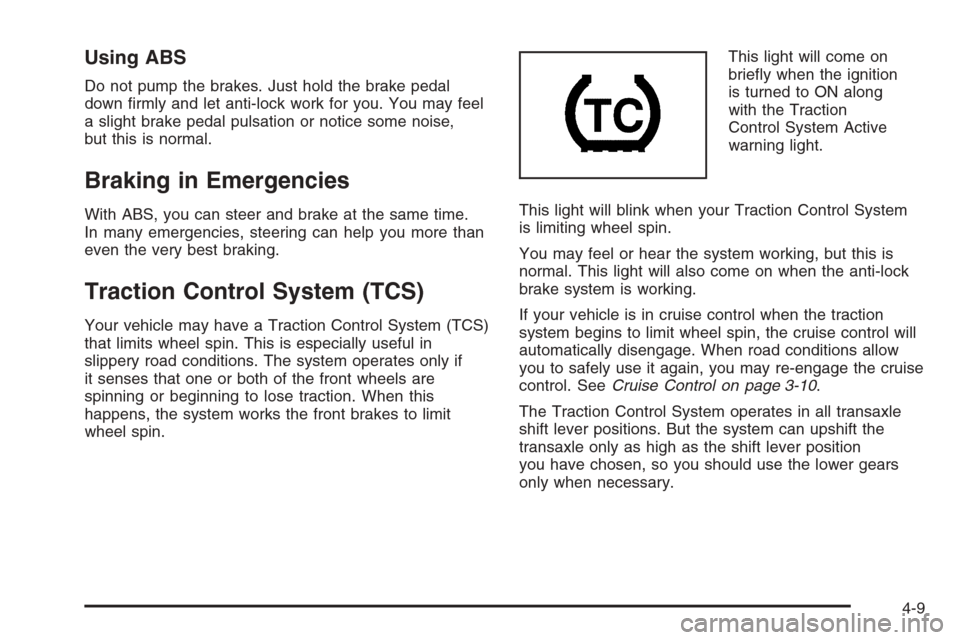
wheel spin.This light will come on
briefly when the ignition
is turned to ON along
with the Traction
Control System Active
warning light.
This light will blink when your Traction Control System
is limiting wheel spin.
You may feel or hear the system working, but this is
normal. This light will also come on when the anti-lock
brake system is working.
If your vehicle is in cruise control when the traction
system begins to limit wheel spin, the cruise control will
automatically disengage. When road conditions allow
you to safely use it again, you may re-engage the cruise
control. SeeCruise Control on page 3-10.
The Traction Control System operates in all transaxle
shift lever positions. But the system can upshift the
transaxle only as high as the shift lever position
you have chosen, so you should use the lower gears
only when necessary.
4-9
Page 198 of 368
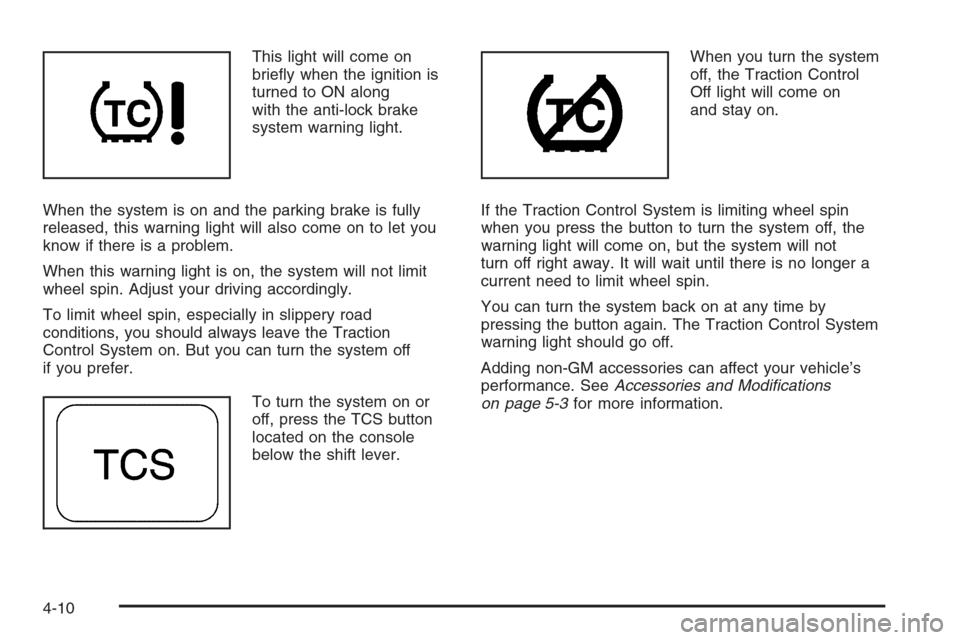
This light will come on
briefly when the ignition is
turned to ON along
with the anti-lock brake
system warning light.
When the system is on and the parking brake is fully
released, this warning light will also come on to let you
know if there is a problem.
When this warning light is on, the system will not limit
wheel spin. Adjust your driving accordingly.
To limit wheel spin, especially in slippery road
conditions, you should always leave the Traction
Control System on. But you can turn the system off
if you prefer.
To turn the system on or
off, press the TCS button
located on the console
below the shift lever.When you turn the system
off, the Traction Control
Off light will come on
and stay on.
If the Traction Control System is limiting wheel spin
when you press the button to turn the system off, the
warning light will come on, but the system will not
turn off right away. It will wait until there is no longer a
current need to limit wheel spin.
You can turn the system back on at any time by
pressing the button again. The Traction Control System
warning light should go off.
Adding non-GM accessories can affect your vehicle’s
performance. SeeAccessories and Modifications
on page 5-3for more information.
4-10