2006 CHEVROLET CORVETTE steering
[x] Cancel search: steeringPage 151 of 426
Exterior Lamps
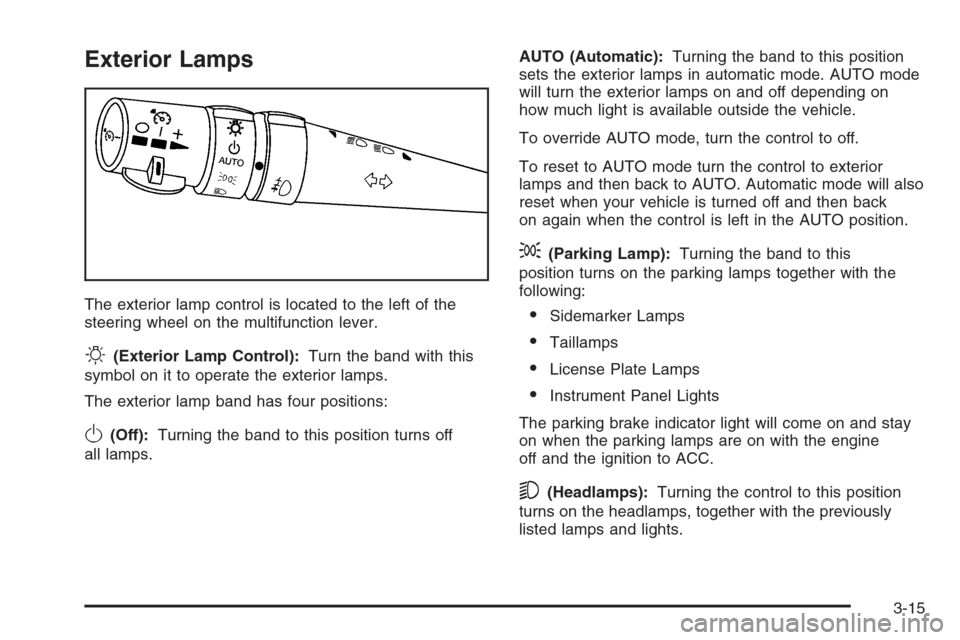
The exterior lamp control is located to the left of the
steering wheel on the multifunction lever.
O(Exterior Lamp Control):Turn the band with this
symbol on it to operate the exterior lamps.
The exterior lamp band has four positions:
O(Off):Turning the band to this position turns off
all lamps.AUTO (Automatic):Turning the band to this position
sets the exterior lamps in automatic mode. AUTO mode
will turn the exterior lamps on and off depending on
how much light is available outside the vehicle.
To override AUTO mode, turn the control to off.
To reset to AUTO mode turn the control to exterior
lamps and then back to AUTO. Automatic mode will also
reset when your vehicle is turned off and then back
on again when the control is left in the AUTO position.
;(Parking Lamp):Turning the band to this
position turns on the parking lamps together with the
following:
Sidemarker Lamps
Taillamps
License Plate Lamps
Instrument Panel Lights
The parking brake indicator light will come on and stay
on when the parking lamps are on with the engine
off and the ignition to ACC.
5(Headlamps):Turning the control to this position
turns on the headlamps, together with the previously
listed lamps and lights.
3-15
Page 159 of 426

The HUD controls are
located to the left of the
steering wheel.
To adjust the HUD so you can see it properly, do the
following:
1. Start your engine and press the HUD dimmer
control all the way up by pressing the (+) button.
The brightness of the HUD image is determined by
the light conditions in the direction your vehicle is
facing and where you have the HUD dimmer control
set. If you are facing a dark object or a heavily
shaded area, your HUD may anticipate that you are
entering a dark area and may begin to dim.
It is possible for sunlight to enter the HUD making
it difficult to see the image. The display will return
to normal when the sunlight is no longer entering
the HUD.2. Adjust the seat to a comfortable driving position.
If you change your seat position later, you may
have to re-adjust your HUD.
3. Press the up or down arrows to center the HUD
image in your view.
The HUD image can only be adjusted up and down,
not side-to-side.
4. Press the dimmer control downward until the HUD
image is no brighter than necessary.
To turn HUD off, press and hold the (–) button until the
HUD display turns off.
If the sun comes out or it becomes cloudy, you may need
to adjust the HUD brightness again using the dimmer
control. Polarized sunglasses could make the HUD image
harder to see.
The HUD information can be displayed in one of
six languages including English, Spanish, French,
German, Italian or Japanese. The speedometer can
be displayed in either English or Metric units.
To change the language and unit selections, see
“OPTION” underDIC Controls and Displays on
page 3-48.
Clean the inside of the windshield as needed to remove
any dirt or lm that reduces the sharpness or clarity
of the HUD image.
3-23
Page 184 of 426
Driver Information Center (DIC)
The Driver Information Center (DIC) gives you the
status of many of your vehicle’s systems. It is also
used to display driver personalization features
and warning/status messages. The DIC display is
located on the instrument panel cluster below the
speedometer and tachometer, directly above the
steering column. The DIC buttons are located on the
instrument panel, to the right of the instrument
panel cluster.
The DIC comes on when the ignition is turned on.
After displaying CORVETTE BY CHEVROLET, the DIC
will display the current driver and the information that
was last displayed before the engine was turned off.
If a problem is detected, a warning message will appear
on the DIC display. Be sure to take any message that
appears on the display seriously and remember that
clearing the message will only make the message
disappear, not correct the problem.
DIC Controls and Displays
The Driver Information Center (DIC) has different modes
which can be accessed by pressing the following
buttons located on the instrument panel, to the right of
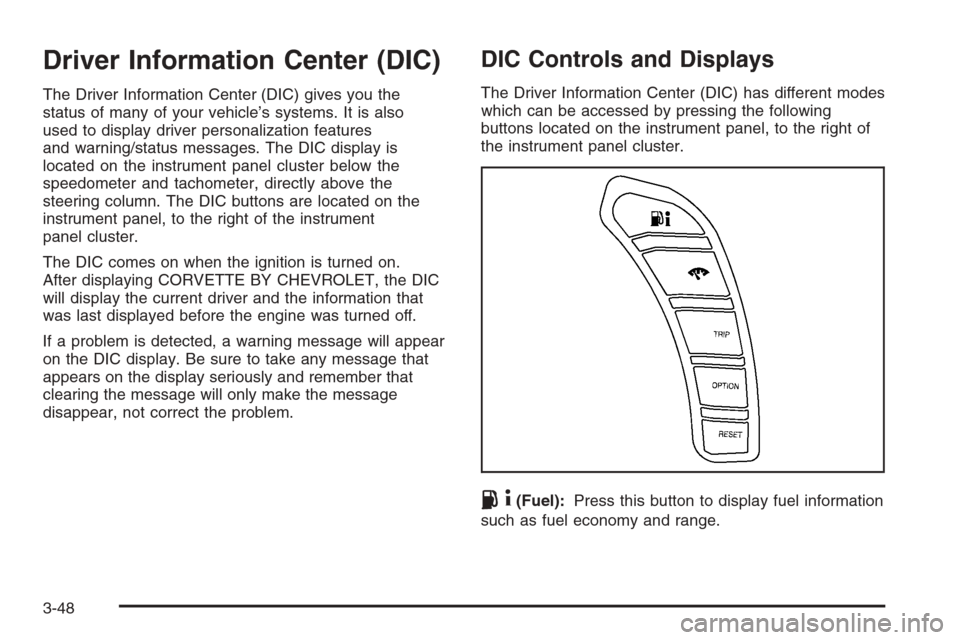
the instrument panel cluster.
.4(Fuel):Press this button to display fuel information
such as fuel economy and range.
3-48
Page 189 of 426
OPTION Button
The OPTION button allows you to access the
PERSONAL OPTIONS menu and customize the
personalization settings on your vehicle. SeeDIC
Vehicle Personalization on page 3-68for more
information.
RESET Button
The RESET button, used along with other buttons, will
reset system functions and turn off or acknowledge
messages on the DIC.
DIC Warnings and Messages
The following messages and warnings may appear in
the DIC display. The DIC display area is located in the
instrument panel cluster below the speedometer and
tachometer, directly above the steering column.
You may receive more than one message at a time.
Messages will appear one behind the other. To
acknowledge a message and remove it from the display,
press the RESET button. You may scroll through the
messages that may have been sent at the same time.
The message center is continuously updated with the
vehicle performance status.
ABS ACTIVE (Anti-Lock Brake System Active):When
your anti-lock system is adjusting brake pressure to help
avoid a braking skid, the ABS ACTIVE message will be
displayed.Slippery road conditions may exist if this message is
displayed, so adjust your driving accordingly. The
message will stay on for a few seconds after the system
stops adjusting brake pressure.
ACTIVE HANDLING:Your vehicle has a computer
controlled system to assist the driver in controlling the
vehicle in difficult driving conditions. You may feel
or hear the system working and see the ACTIVE
HANDLING message displayed in the DIC. This
message will stay on for a few seconds following the
active handling event. This is normal when the system is
operating. SeeActive Handling System on page 4-10
andBraking on page 4-6.
ACTIVE HANDLING CALIBRATING:This message
will display and the active handling system light on the
instrument panel cluster will be on while the system is
calibrating after exceeding 19 mph (30 km/h) for
10 seconds. SeeActive Handling System Light on
page 3-40. The Active Handling System is not functional
yet. The Active Handling System performance is affected
until the next message ACTIVE HANDLING READY is
displayed. The Active Handling System is off until the
ACTIVE HANDLING READY message is displayed.
SeeActive Handling System on page 4-10for more
information.
3-53
Page 205 of 426
Entering the Personal Options Menu
To enter the personal options menu, use the
following steps:
1. If you have an automatic transmission vehicle, turn
the vehicle on with the shift lever in PARK (P).
If you have a manual transmission vehicle, turn the
vehicle on with the parking brake set.
2. Press the OPTION button and you will enter the
PERSONAL OPTIONS menu.
The DIC will display the current driver
number (1 or 2) for a few seconds and then will
display instructions on which buttons to use
for setting the personalizations. The RESET button
is used to select a setting for a particular feature.
The OPTION button is used to move to the
next feature.
3. Press the OPTION button while the instruction
screen is displayed to enter the rst personalization
menu item.
4. Once you have cycled through all of the personal
options, pressing the OPTION button a nal time
exits the personal options menu. In addition, if
no button is pressed within 45 seconds, the DIC will
exit the personal options menu.
Personal Options
The following options are available for programming:
Display Units:This option allows you to choose
the measurement units.
Press the OPTION button until DISPLAY UNITS
appears on the display, then press the RESET button to
scroll through the following modes:
ENGLISH (default)
METRIC
If you choose ENGLISH, all information will be displayed
in English units.
If you choose METRIC, all information will be displayed
in metric units.
When the mode you want is selected, press the
OPTION button to set your choice and advance to the
next personal option.
Auto Memory Recall (Automatic Transmission
only):If your automatic transmission vehicle has the
memory package, you may have this option. This option
allows the driver’s seat, the telescopic steering
column, if equipped, and the outside rearview mirrors to
automatically move to the current driver’s set position
when the engine starts.
3-69
Page 206 of 426
Press the OPTION button until AUTO MEMORY
RECALL appears on the display, then press the RESET
button to scroll through the following modes:
YES
NO (default)
If you choose YES, the driver’s seat, the outside
rearview mirrors and the telescopic steering column, if
equipped, positions are recalled when you turn the
ignition on.
If you choose NO, this option will turn off.
When the mode you want is selected, press the
OPTION button to set your choice and advance to the
next personal option.
Auto Exit Recall:If your vehicle has the memory
package, you may have this option. This option allows
the driver’s seat and telescopic steering column, if
equipped, to automatically move to the current driver’s
exit position when one of the following occurs:
The vehicle is turned off or in Retained Accessory
Power (RAP) or accessory mode and the driver’s
door is opened.
The vehicle is turned off or in RAP and the unlock
button on the keyless access transmitter is
pressed.In order for the Auto Exit Recall feature to work on an
automatic transmission vehicle, the vehicle must be
in PARK (P). On a manual transmission vehicle,
the parking brake must be set.
Press the OPTION button until AUTO EXIT RECALL
appears on the display, then press the RESET button to
scroll through the following modes:
YES
NO (default)
If you choose YES, when you turn the ignition off and
open the driver’s door or press the unlock button on the
keyless access transmitter, the seat and the telescopic
steering wheel, if equipped, will return to their stored exit
positions for an easy exit or an easy entrance when
returning to the vehicle.
The seat and steering wheel will only return to the
stored driving position if you press the appropriate
memory button or activate the auto memory recall
feature.
If you choose NO, this option will turn off.
When the mode you want is selected, press the
OPTION button to set your choice and advance to the
next personal option.
3-70
Page 213 of 426
Audio System(s)
Determine which radio your vehicle has and then read
the pages following to familiarize yourself with its
features.
Driving without distraction is a necessity for a safer
driving experience. SeeDefensive Driving on page 4-2.
By taking a few moments to read this manual and
get familiar with your vehicle’s audio system, you can
use it with less effort, as well as take advantage of
its features. While your vehicle is parked, set up your
audio system by presetting your favorite radio stations,
setting the tone and adjusting the speakers. Then,
when driving conditions permit, you can tune to your
favorite stations using the presets and steering
wheel controls if the vehicle has them.{CAUTION:
This system provides you with a far greater
access to audio stations and song listings.
Giving extended attention to entertainment
tasks while driving can cause a crash and you
or others can be injured or killed. Always keep
your eyes on the road and your mind on the
drive — avoid engaging in extended searching
while driving.
Keeping your mind on the drive is important for safe
driving. For more information, seeDefensive Driving on
page 4-2.
3-77
Page 214 of 426
Here are some ways in which you can help avoid
distraction while driving.
While your vehicle is parked:
Familiarize yourself with all of its controls.
Familiarize yourself with its operation.
Set up your audio system by presetting your
favorite radio stations, setting the tone, and
adjusting the speakers. Then, when driving
conditions permit, you can tune to your favorite
radio stations using the presets and steering wheel
controls if the vehicle has them.
Notice:Before adding any sound equipment to
your vehicle, such as an audio system, CD player,
CB radio, mobile telephone, or two-way radio, make
sure that it can be added by checking with your
dealer. Also, check federal rules covering mobile
radio and telephone units. If sound equipment can
be added, it is very important to do it properly.
Added sound equipment may interfere with
the operation of your vehicle’s engine, radio, or
other systems, and even damage them. Your
vehicle’s systems may interfere with the operation
of sound equipment that has been added.Notice:The chime signals related to safety belts,
parking brake, and other functions of your vehicle
operate through the radio/entertainment system.
If that equipment is replaced or additional equipment
is added to your vehicle, the chimes may not
work. Make sure that replacement or additional
equipment is compatible with your vehicle before
installing it. SeeAccessories and Modifications
on page 5-3.
Your vehicle may have a feature called Retained
Accessory Power (RAP). With RAP, the audio system
can be played even after the ignition is turned off.
SeeRetained Accessory Power (RAP) on page 2-23
for more information.
Setting the Time
With the ignition on and the radio off, press the H or the
M button to enter clock mode. Press and hold H until
the correct hour appears on the display. Press and
hold M until the correct minute appears on the display.
To change the time default setting from 12 hour to
24 hour, press either the H or the M button for
two seconds to enter the clock mode. Press the tune
knob to select between the 12 or 24 hour display format.
The clock mode will automatically time out with the
changed display format set as the current default setting.
3-78