2006 CHEVROLET AVEO ignition
[x] Cancel search: ignitionPage 169 of 362
Setting the Equalization
The order for customized equalization settings are EQ
OFF, CLASSIC, DANCE, ROCK, JAZZ, POP, VOICE,
TECHNO, EQ OFF.
SOUND (Equalization):Press this button until EQ OFF
appears on the display to select customized equalization
settings designed for classic, dance, rock, jazz, pop,
voice and techno. Turn the volume knob until the desired
equalization setting appears on the display. When
finished making the selection, press the SOUND button
to set the equalization setting.
To cancel an equalization setting, press the SOUND
button until EQ OFF appears on the display, turn
the volume knob until OFF appears on the display, then
press the SOUND button again to set the equalization
setting.
Playing a CD
Insert a CD partway into the slot, label side up. The
player will pull it in and the CD should begin playing.
You can insert a CD with the ignition off.
When the CD is inserted, CDP will appear on the
display. As the CD is loading Filecheck will appear on
the display. As each new track starts to play, Track and
the track number will appear on the display.If the ignition or radio is turned off with a CD in the
player, it will stay in the player. When a CD is in
the player and the ignition is turned on, the radio must
be turned on before the CD will start playback. When
the ignition and radio are turned on, the CD will
start playing where it stopped, if it was the last selected
audio source.
The CD player can play the smaller 3 inch (8 cm) single
CDs with an adapter ring. Full-size CDs and the
smaller CDs are loaded in the same manner.
If playing a CD-R, the sound quality may be reduced
due to CD-R quality, the method of recording, the quality
of the music that has been recorded, and the way the
CD-R has been handled. There may be an increase
in skipping, difficulty in finding tracks, and/or difficulty in
loading and ejecting. If these problems occur, check
the bottom surface of the CD. If the surface of the CD is
damaged, such as cracked, broken, or scratched, the
CD will not play properly. If the surface of the CD
is soiled, seeCare of Your CDs on page 3-71for more
information.
If there is no apparent damage, try a known good CD.
3-55
Page 170 of 362
Do not add any label to a CD, it could get caught in the
CD player. If a CD is recorded on a personal computer
and a description label is needed, try labeling the top of
the recorded CD with a marking pen instead.
Notice:If you add any label to a CD, insert more
than one CD into the slot at a time, or attempt
to play scratched or damaged CDs, you could
damage the CD player. When using the CD player,
use only CDs in good condition without any
label, load one CD at a time, and keep the CD player
and the loading slot free of foreign materials,
liquids, and debris.
If an error appears on the display, see “CD Messages”
later in this section.
2 RPT (Repeat):Press this button to repeat the current
track. RPT will appear on the display. Press this
button again to turn off repeat play.
3 RDM (Random):Press this button to hear the tracks
in random, rather than sequential, order. RDM will
appear on the display. Press this button again to turn off
random play.
4 INT (Scan):Press this button to listen to the first few
seconds of each track on each loaded CD. INTRO
will appear on the display. To stop scanning press this
button again. The current track will begin to play.()TUNE (Previous/Next Track):Press the down
arrows to go to the start of the current track or press
the up arrows to go to the next track. The track number
will appear on the display. The player will continue
moving backward or forward through the CD with each
press of the up or down arrows.
AM:Press this button to listen to the radio when a CD
is playing. The inactive CD will remain safely inside
the radio for future listening.
FM:Press this button to listen to the radio when a CD
is playing. The inactive CD will remain safely inside
the radio for future listening.
CD/AUX:Press this button to play a CD when listening
to the radio. CDP will appear on the display when
the CD player has been selected. The CD symbol will
appear on the display when a CD is loaded.
Press this button while a CD is playing to pause the
CD. PAUSE will flash on the display. Press this button
again to start playing the CD.
EJECT:Press this button to eject a CD. The only way
a CD can be ejected from the player is by pressing
the eject button. The CD can eject when the ignition or
the radio is turned off.
3-56
Page 172 of 362
No Folder
When the CD contains only compressed files, the files will
be located under the root folder. The next and previous
folder functions will have no function on a CD that was
recorded without folders or playlists. When displaying the
name of the folder the radio will display ROOT.
When the CD contains only compressed audio files, but
no folders, all files will be located under the root
folder. When the radio displays the name of the folder,
the radio will display ROOT.
Order of Play
Tracks will be played in the following order:
•Playback will begin from the first track under the
root directory.
•When all tracks from the root directory have been
played, playback will continue from files, according
to their numerical listing.
•After playing the last track from the last folder, the
player will begin playing again at the first track of
the first folder or root directory.
File System and Naming
The song name in the ID3 tag will be displayed. If the
song name is not present in the ID3 tag, then the
radio will display the file name without the extension
(such as MP3/WMA) instead.
Track names longer than 32 characters or 4 pages will
be shortened. The display will not show parts of
words on the last page of text and the extension of the
filename will not be displayed.
Playing an MP3/WMA
With the ignition on, insert a CD partway into the slot,
label side up. The player will pull it in, Loading, then
Filecheck, and then MP3 or WMA will appear on
the display. The CD should begin playing. You cannot
insert a CD with the ACC off.
As each new track starts to play, the track number, and
the song name will appear on the display.
If the ignition or radio is turned off with a CD in the
player, it will stay in the player. When a CD is in
the player and the ignition is turned on, the radio must
be turned on before the CD will start playback. When
the ignition and radio are turned on, the CD will
start playing where it stopped, if it was the last selected
audio source.
3-58
Page 178 of 362

Setting the Equalization
The order for customized equalization settings are EQ
OFF, CLASSIC, DANCE, ROCK, JAZZ, POP, VOICE,
TECHNO, EQ OFF.
SOUND (Equalization):Press this button until EQ OFF
appears on the display to select customized equalization
settings designed for classic, dance, rock, jazz, pop,
voice and techno. Turn the volume knob until the desired
equalization setting appears on the display. When
finished making the selection, press the SOUND button
to set the equalization setting.
To cancel an equalization setting, press the SOUND
button until EQ OFF appears on the display, turn
the volume knob until OFF appears on the display, then
press the SOUND button again to set the equalization
setting.
Playing a CD(s)
LOAD:Press this button to load CDs into the CD
player. This CD player will hold up to six CDs.
1. Press and release the load button. A message to
select a slot number from 1-6 will appear on
display.
2. Press the desired slot number. Wait for the
message to insert the disc.
3. Load a CD. Insert the CD partway into the slot,
label side up. The player will pull the CD in.To insert multiple CDs, do the following:
1. Press and hold the load button for two seconds.
You will hear a beep and a message to load
multiple discs will be displayed.
2. Follow the displayed instruction on when to insert
the discs. The CD player takes up to six CDs.
3. Press the LOAD button again to cancel loading
more CDs.
As each CD is inserted, CDP will appear on the display
and as each CD is loading Filecheck will appear on
the display.
Once playback begins, the track and track number will
appear on the display.
If the ignition or radio is turned off with a CD in the
player, it will stay in the player. When a CD is in
the player and the ignition is turned on, the radio must
be turned on before the current CD will start playback.
When the ignition and radio are turned on, the CD
will start playing where it stopped, if it was the
last selected audio source.
The CD player can play the smaller 3 inch (8 cm) single
CDs with an adapter ring. Full-size CDs and the
smaller CDs are loaded in the same manner.
3-64
Page 180 of 362
AM:Press this button to listen to the radio when a CD
is playing. The inactive CD will remain safely inside
the radio for future listening.
FM:Press this button to listen to the radio when a CD
is playing. The inactive CD will remain safely inside
the radio for future listening.
CD/AUX:Press this button to play a CD when listening
to the radio. CDP will appear on the display when
the CD player has been selected. The CD symbol will
appear on the display when a CD is loaded.
Press this button while a CD is playing to pause the
CD. PAUSE will flash on the display. Press this button
again to start playing the CD.
EJECT:Press this button to eject the CD. Press and
hold this button to eject all CDs. The only way a CD can
be ejected from the player is by pressing the eject
button. The CD can eject when the ignition or the radio
is turned off.
Using an MP3 CD
MP3 Format
If you burn your own MP3/WMA disc on a personal
computer:
•Make sure the MP3/WMA files are recorded on a
CD-R disc.
•Do not mix standard audio and MP3/WMA files on
one disc.
•Make sure each MP3/WMA file has a .m3u or .wma
extension, other file extensions may not work.
•Files can be recorded with a variety of fixed or
variable bit rates. Song title, artist name, and album
will be available for display by the radio when
recorded using ID3 tags version 1 and 2.
•Create a folder structure that makes it easy to find
songs while driving. Organize songs by albums
using one folder for each album. Each folder
or album should contain 18 songs or less.
•Make sure to finalize the disc when burning an
MP3/WMA disc, using multiple sessions. It is usually
better to burn the disc all at once.
The player will be able to read and play a maximum of
50 folders, 5 sessions, and 999 files. Long file names,
folder names may use more disc memory space
than necessary. To conserve space on the disc,
minimize the length of the file, folder names. You can
also play an MP3/WMA CD that was recorded using no
file folders. The system can support up to 8 folders in
depth, though, keep the depth of the folders to a
minimum in order to keep down the complexity and
confusion in trying to locate a particular folder during
playback. If a CD contains more than the maximum of
50 folders, 5 sessions, and 999 files the player will
let you access and navigate up to the maximum, but all
items over the maximum will be ignored.
3-66
Page 182 of 362
Playing an MP3/WMA
With the ignition on, insert a CD partway into the slot,
label side up. The player will pull it in, Loading, then
Filecheck, and then MP3 or WMA will appear on
the display. The CD should begin playing. You cannot
insert a CD with the ACC off.
As each new track starts to play, the track number, and
the song name will appear on the display.
If the ignition or radio is turned off with a CD in the player,
it will stay in the player. When a CD is in the player and
the ignition is turned on, the radio must be turned on
before the CD will start playback. When the ignition and
radio are turned on, the CD will start playing where it
stopped, if it was the last selected audio source.
The CD player can play the smaller 3 inch (8 cm) single
CDs with an adapter ring. Full-size CDs and the
smaller CDs are loaded in the same manner.
If playing a CD-R, the sound quality may be reduced due
to CD-R quality, the method of recording, the quality of
the music that has been recorded, and the way the CD-R
has been handled. There may be an increase in skipping,
difficulty in finding tracks, and/or difficulty in loading and
ejecting. If these problems occur, check the bottom
surface of the CD. If the surface of the CD is damaged,
such as cracked, broken, or scratched, the CD will not
play properly. If the surface of the CD is soiled, seeCare
of Your CDs on page 3-71for more information.If there is no apparent damage, try a known good CD.
Do not add any label to a CD, it could get caught in the
CD player. If a CD is recorded on a personal computer
and a description label is needed, try labeling the top of
the recorded CD with a marking pen instead.
Notice:If you add any label to a CD, insert more
than one CD into the slot at a time, or attempt
to play scratched or damaged CDs, you could
damage the CD player. When using the CD player,
use only CDs in good condition without any
label, load one CD at a time, and keep the CD player
and the loading slot free of foreign materials,
liquids, and debris.
If an error appears on the display, see “CD Messages”
later in this section.
All of the CD functions work the same while playing an
MP3WMA, except for those listed here. See “Playing
a CD” earlier for more information.
SCROLL (MP3/WMA Mode Only):Press the SOUND
button for longer than two seconds. The song title
and other available information of the song will scroll
on/off. The offset is scroll on. The scroll mode can
be changed only when the SOUND button is pressed
for longer than two seconds.
3-68
Page 207 of 362
{CAUTION:
If you do not shift down, your brakes could get
so hot that they would not work well. You
would then have poor braking or even none
going down a hill. You could crash. Shift down
to let your engine assist your brakes on a
steep downhill slope.
{CAUTION:
Coasting downhill in NEUTRAL (N) or with the
ignition off is dangerous. Your brakes will have
to do all the work of slowing down. They could
get so hot that they would not work well. You
would then have poor braking or even none
going down a hill. You could crash. Always
have your engine running and your vehicle in
gear when you go downhill.
•Know how to go down hills. The most important
thing to know is this: let your engine do some of
the slowing down. Shift to a lower gear when you go
down a steep or long hill.
•Know how to go uphill. Drive in the highest gear
possible.
•Stay in your own lane when driving on two-lane
roads in hills or mountains. Do not swing wide
or cut across the center of the road. Drive at speeds
that let you stay in your own lane.
•As you go over the top of a hill, be alert. There
could be something in your lane, like a stalled car or
an accident.
•You may see highway signs on mountains that
warn of special problems. Examples are long
grades, passing or no-passing zones, a falling rocks
area, or winding roads. Be alert to these and take
appropriate action.
4-21
Page 221 of 362
Dolly Towing
Notice:Towing your vehicle from the rear with the
front wheels on the ground could cause transaxle
damage. Do not tow the vehicle from the rear
with the front wheels on the road.
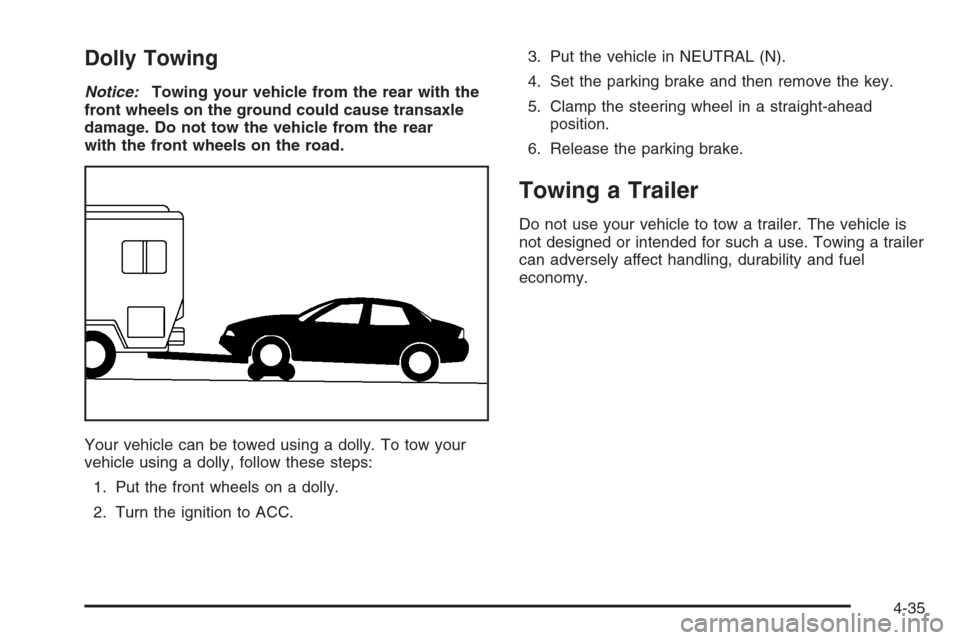
Your vehicle can be towed using a dolly. To tow your
vehicle using a dolly, follow these steps:
1. Put the front wheels on a dolly.
2. Turn the ignition to ACC.3. Put the vehicle in NEUTRAL (N).
4. Set the parking brake and then remove the key.
5. Clamp the steering wheel in a straight-ahead
position.
6. Release the parking brake.
Towing a Trailer
Do not use your vehicle to tow a trailer. The vehicle is
not designed or intended for such a use. Towing a trailer
can adversely affect handling, durability and fuel
economy.
4-35