2006 CADILLAC XLR V wheel
[x] Cancel search: wheelPage 111 of 456

Instrument Panel Overview...............................3-4
Hazard Warning Flashers................................3-6
Other Warning Devices...................................3-6
Horn .............................................................3-6
Power Tilt Wheel and Telescopic Steering
Column......................................................3-6
Turn Signal/Multifunction Lever.........................3-7
Turn and Lane-Change Signals........................3-7
Headlamp High/Low-Beam Changer..................3-8
Flash-to-Pass.................................................3-8
Windshield Wipers..........................................3-9
Rainsense™ Wipers......................................3-10
Windshield Washer.......................................3-11
Headlamp Washer........................................3-11
Cruise Control..............................................3-12
Adaptive Cruise Control.................................3-15
Exterior Lamps.............................................3-28
Wiper Activated Headlamps............................3-29
Headlamps on Reminder................................3-29
Daytime Running Lamps (DRL).......................3-30
Adaptive Forward Lighting System...................3-31
Fog Lamps ..................................................3-31
Twilight Sentinel
®..........................................3-32
Exterior Lighting Battery Saver........................3-33
Instrument Panel Brightness...........................3-33
Courtesy Lamps...........................................3-33Entry/Exit Lighting.........................................3-33
Reading Lamps............................................3-33
Battery Run-Down Protection..........................3-34
Head-Up Display (HUD).................................3-34
Ultrasonic Rear Parking Assist (URPA)............3-38
Accessory Power Outlet(s).............................3-40
Ashtray(s) and Cigarette Lighter......................3-41
Climate Controls............................................3-41
Dual Climate Control System..........................3-41
Outlet Adjustment.........................................3-47
Passenger Compartment Air Filter...................3-47
Warning Lights, Gages, and Indicators............3-48
Instrument Panel Cluster................................3-49
Speedometer and Odometer...........................3-50
Trip Odometer..............................................3-50
Tachometer.................................................3-50
Safety Belt Reminder Light.............................3-50
Airbag Readiness Light..................................3-51
Passenger Airbag Status Indicator...................3-52
Voltmeter Gage............................................3-54
Brake System Warning Light..........................3-54
Anti-Lock Brake System Warning Light.............3-55
Traction Control System (TCS)
Warning Light...........................................3-56
Engine Coolant Temperature Gage..................3-57
Section 3 Instrument Panel
3-1
Page 112 of 456

Tire Pressure Light.......................................3-57
Malfunction Indicator Lamp.............................3-58
Engine Oil Pressure Gage.............................3-61
Security Light...............................................3-62
Fog Lamp Light............................................3-62
Lights On Reminder......................................3-62
Highbeam On Light.......................................3-62
Fuel Gage...................................................3-63
Driver Information Center (DIC).......................3-64
DIC Controls and Displays.............................3-64
DIC Warnings and Messages.........................3-67
Other Messages...........................................3-77
DIC Vehicle Personalization............................3-78Trip Computer................................................3-82
Oil Life Indicator...........................................3-82
Audio System(s).............................................3-82
Theft-Deterrent Feature..................................3-83
Audio Steering Wheel Controls.......................3-84
Radio Reception...........................................3-84
Care of Your CDs.........................................3-86
Care of the CD Player...................................3-86
Diversity Antenna System..............................3-86
XM™ Satellite Radio Antenna System
(Trunk Mounted)........................................3-86
XM™ Satellite Radio Antenna System
(Diversity System).....................................3-86
Section 3 Instrument Panel
3-2
Page 115 of 456

The main components of the instrument panel are the following:
A. Head-Up Display (HUD) Controls/Instrument Panel
Brightness Controls. SeeHead-Up Display (HUD)
on page 3-34orInstrument Panel Brightness
on page 3-33.
B. Turn Signal/Multifunction Lever. SeeTurn
Signal/Multifunction Lever on page 3-7.Cruise
Control. SeeCruise Control on page 3-12. Exterior
Lamps Control. SeeExterior Lamps on page 3-28.
Fog Lamps. SeeFog Lamps on page 3-31.
C. Instrument Panel Cluster. SeeInstrument Panel
Cluster on page 3-49.
D. Windshield Wiper/Washer Lever. See “Windshield
Wipers” underTurn Signal/Multifunction Lever
on page 3-7.
E. Driver Information Center (DIC) Controls/Interior
Lamps. SeeDIC Controls and Displays on
page 3-64.
F. Air Outlets. SeeOutlet Adjustment on page 3-47.
G. Hazard Warning Flasher Button. SeeHazard
Warning Flashers on page 3-6.
H. Voice Commands/Audio Controls. SeeOnStar
®
System on page 2-38orAudio Steering Wheel
Controls on page 3-84.
I. Adaptive Cruise Controls (If Equipped).
See “Adaptive Cruise Control (ACC)” under
Turn Signal/Multifunction Lever on page 3-7.J. Power Tilt Wheel and Telescopic Steering Button.
SeePower Tilt Wheel and Telescopic Steering
Column on page 3-6.
K. Horn. SeeHorn on page 3-6.
L. Audio Steering Wheel Controls. SeeAudio Steering
Wheel Controls on page 3-84.
M. Ignition Switch. SeeIgnition Positions on page 2-21.
N. Shift Lever. SeeAutomatic Transmission Operation
on page 2-25.
O. Traction Control Button. SeeTraction Control
System (TCS) on page 5-9.
P. Retractable Hardtop Button. SeeRetractable
Hardtop on page 2-47.
Q. Cupholders. SeeCupholder(s) on page 2-45.
R. Cigarette Lighter. SeeAshtray(s) and Cigarette
Lighter on page 3-41.
S. Climate Controls. SeeDual Climate Control System
on page 3-41.
T. Audio/Navigation System. SeeNavigation System
Overview on page 4-2.
U. Glove Box. SeeGlove Box on page 2-45.
3-5
Page 116 of 456

Hazard Warning Flashers
Your hazard warning ashers let you warn others.
They also let police know you have a problem. Your
front and rear turn signal lamps will ash on and off.
The hazard warning
asher button is located
near the center of the
instrument panel.
Your hazard warning ashers work no matter what
mode the ignition is in, even if the ignition is turned off.
Press the button to make the front and rear turn
signal lamps ash on and off. Press the button again to
turn the ashers off.
When the hazard warning ashers are on, your turn
signals will not work.
Other Warning Devices
If you carry reective triangles, you can set them up at
the side of the road about 300 feet (100 m) behind
your vehicle.
Horn
Press near or on the horn symbols on your steering
wheel pad to sound the horn.
Power Tilt Wheel and Telescopic
Steering Column
The power tilt wheel
control is located on the
outboard side of the
steering column.
To operate the power tilt feature, push the control up
and the steering wheel will tilt up. Push the control down
and the steering wheel will go down.
Push the control forward and the steering wheel moves
toward the front of the vehicle. Push the control rearward
and the steering wheel moves toward the rear of the
vehicle. To set the memory position, seeDIC Vehicle
Personalization on page 3-78andMemory Seat, Mirrors
and Steering Wheel on page 2-56.
3-6
Page 122 of 456

Cruise Control
Your vehicle is equipped with cruise control.
9(Off):This position
turns the system off.
R(On):This position activates the system.
+ (Resume/Accelerate):Move the lever to this symbol
to make the vehicle accelerate or resume to a
previously set speed.
T(Set):Press this button at the end of the lever to
set the speed.
With cruise control, you can maintain a speed of
about 25 mph (40 km/h) or more without keeping your
foot on the accelerator. This can really help on long trips.
Cruise control does not work at speeds below about
25 mph (40 km/h).Cruise control will not work if your parking brake is set,
or if the master cylinder brake uid level is low.
If you apply your brakes, the cruise control will shut off.
{CAUTION:
Cruise control can be dangerous where you
cannot drive safely at a steady speed. So, do
not use your cruise control on winding roads
or in heavy traffic.
Cruise control can be dangerous on slippery
roads. On such roads, fast changes in tire
traction can cause excessive wheel slip, and
you could lose control. Do not use cruise
control on slippery roads.
If your vehicle is in cruise control when the traction
control system (if equipped) begins to limit wheel spin,
the cruise control will automatically disengage. See
Traction Control System (TCS) on page 5-9. When road
conditions allow you to safely use it again, you may
turn cruise control back on.
3-12
Page 126 of 456

{CAUTION:
On winding roads, Adaptive Cruise
Control may not detect a vehicle ahead.
You could crash into a vehicle ahead of
you. Do not use Adaptive Cruise Control
on winding roads.
Adaptive Cruise Control may not have time
to slow your vehicle enough to avoid a
crash when you are driving in conditions
where vehicles may suddenly slow or stop
ahead of you, enter your lane, or cross
your vehicle’s path. If you are driving in
these conditions, do not use Adaptive
Cruise Control. The warning beep and
alert symbol may indicate that you are
driving in conditions where Adaptive
Cruise Control should not be used.
See “Alerting the Driver” in this section.
On slippery roads, fast changes in tire
traction can cause needless wheel
spinning, and you could lose control. Do
not use cruise control on slippery roads.
CAUTION: (Continued)
CAUTION: (Continued)
When weather limits visibility, such as
when in fog, rain, or snow conditions,
Adaptive Cruise Control performance is
limited. There may not be enough distance
to adapt to the changing traffic conditions.
Do not use cruise control when visibility
is low.
Some of the Adaptive
Cruise controls are
located on the end of
the multifunction lever.
9(Off):This position turns the system off.
R(On):This position turns the system on.
3-16
Page 128 of 456

To set Adaptive Cruise Control, do the following:
1. Make sure the Head-Up Display (HUD) is on and
properly adjusted. SeeHead-Up Display (HUD)
on page 3-34for more information.
2. Move the switch to on.
3. Get up to the speed you want.
4. Press in the set button at the end of the lever
and release it.
5. Take your foot off the accelerator pedal.
Once Adaptive Cruise Control is set, it may immediately
apply the brakes if it detects a vehicle ahead is too
close or moving slower than your vehicle.This symbol will appear
on the Head-Up
Display (HUD) to indicate
that Adaptive Cruise
Control is active.
SeeHead-Up Display
(HUD) on page 3-34
for more information.
Make sure the set speed is visible on the HUD so
you know the speed your vehicle will accelerate to
if a vehicle is not detected in your path. Keep in mind
speed limits, surrounding traffic speeds and weather
conditions when adjusting your set speed.
If your vehicle is in Adaptive Cruise Control when
the traction control system begins to limit wheel spin,
the Adaptive Cruise Control will automatically disengage.
SeeTraction Control System (TCS) on page 5-9
andStabiliTrak
®System on page 5-11. When road
conditions allow you to safely use it again, you may
turn the Adaptive Cruise Control back on.
3-18
Page 130 of 456
Selecting the Follow Distance (GAP)
When the system detects a slower moving vehicle,
it will adjust your vehicle’s speed and maintain the
follow distance (gap) you select.
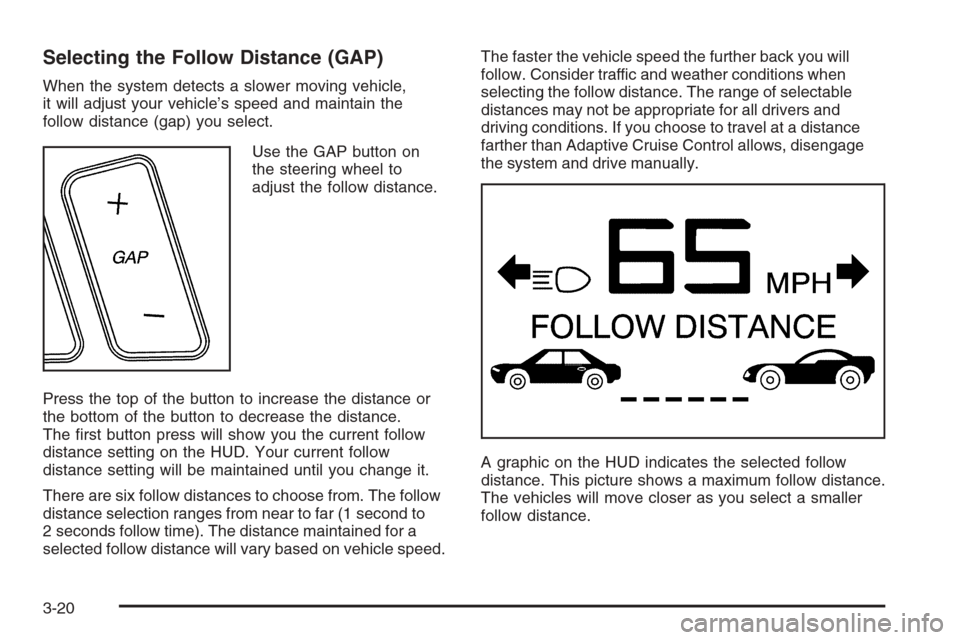
Use the GAP button on
the steering wheel to
adjust the follow distance.
Press the top of the button to increase the distance or
the bottom of the button to decrease the distance.
The rst button press will show you the current follow
distance setting on the HUD. Your current follow
distance setting will be maintained until you change it.
There are six follow distances to choose from. The follow
distance selection ranges from near to far (1 second to
2 seconds follow time). The distance maintained for a
selected follow distance will vary based on vehicle speed.The faster the vehicle speed the further back you will
follow. Consider traffic and weather conditions when
selecting the follow distance. The range of selectable
distances may not be appropriate for all drivers and
driving conditions. If you choose to travel at a distance
farther than Adaptive Cruise Control allows, disengage
the system and drive manually.
A graphic on the HUD indicates the selected follow
distance. This picture shows a maximum follow distance.
The vehicles will move closer as you select a smaller
follow distance.
3-20