2006 CADILLAC STS reset
[x] Cancel search: resetPage 165 of 480

Ending Cruise Control
To end a cruise control session, step lightly on the
brake pedal.
Stepping on the brake pedal will end the current cruise
control session only. Move the cruise control switch
to off to turn off the system completely.
Erasing Speed Memory
When you turn off the cruise control or the ignition, your
cruise control set speed memory is erased.
Adaptive Cruise Control
If your vehicle has this feature, be sure to read this
entire section before using it.
The system operates on a radio frequency subject to
Federal Communications Commission (FCC) Rules and
with Industry Canada.
This device complies with Part 15 of the FCC Rules.
Operation is subject to the following two conditions:
1. This device may not cause interference, and
2. This device must accept any interference received,
including interference that may cause undesired
operation of the device.This device complies with RSS-210 of Industry Canada.
Operation is subject to the following two conditions:
1. This device may not cause interference, and
2. This device must accept any interference received,
including interference that may cause undesired
operation of the device.
Changes or modications to this system by other than
an authorized service facility could void authorization to
use this equipment.
Adaptive Cruise Control is an enhancement to traditional
cruise control and is not a safety system. It allows you to
keep cruise control engaged in moderate traffic
conditions without having to constantly reset your cruise
control. Adaptive Cruise Control uses radar to detect a
vehicle directly ahead in your path, within a distance of
328 ft (100 m), and operates at speeds above
25 mph (40 km/h). When it is engaged by the driver, the
system can apply limited braking or acceleration of the
vehicle, automatically, to maintain a selected follow
distance to the vehicle ahead. The vehicle’s braking
during Adaptive Cruise Control is comparable to a person
applying moderate pressure to the vehicle’s brake pedal.
3-19
Page 170 of 480

Decreasing Set Speed While Using
Adaptive Cruise Control
Press in the set/decrease button on the end of the lever
until you reach the lower speed you want, then
release it.
To slow down in very small amounts, briey press the
set/decrease button. Each time you do this, your
set speed will be 1 mph (1.6 km/h) slower.
Resuming a Set Speed
Suppose you set your Adaptive Cruise Control at a
desired speed and then you apply the brake. This will
disengage the Adaptive Cruise Control. But you do
not need to reset it.
Once you are going about 25 mph (40 km/h) or more,
move the Adaptive Cruise Control switch briey from on
to resume/increase. Adaptive Cruise Control will be
engaged with the previously chosen set speed.
Selecting the Follow Distance (GAP)
When the system detects a slower moving vehicle, it will
adjust your vehicle’s speed and maintain the follow
distance (gap) you select.Use the GAP button on
the steering wheel to
adjust the follow distance.
Press the top of the button to increase the distance or
the bottom of the button to decrease the distance.
The rst button press will show you the current follow
distance setting on the HUD. Your current follow
distance setting will be maintained until you change it.
There are six follow distances to choose from. The follow
distance selection ranges from near to far (one second to
two seconds follow time). The distance maintained for a
selected follow distance will vary based on vehicle speed.
The faster the vehicle speed the further back you will
follow. Consider traffic and weather conditions when
selecting the follow distance. The range of selectable
distances may not be appropriate for all drivers and
driving conditions. If you prefer to travel at a follow
distance farther than Adaptive Cruise Control allows,
disengage the system and drive manually.
3-24
Page 180 of 480
Your vehicle is loaded such that the front end of the
vehicle points upward, causing the IntelliBeam™
sensor to aim high and not detect headlamps
and taillamps.
You are driving on winding or hilly roads.
You may need to manually disable or cancel the
high-beam headlamps by turning the low-beam
headlamps on, if any of the above conditions exist.
Disabling and Resetting IntelliBeam™ at
the Rearview Mirror
IntelliBeam™ can be disabled and reset to the original
factory setting by using the controls on the inside
rearview mirror.
AUTO
3(IntelliBeam™ On/Off):To disable the
system, press this button on the inside rearview mirror.
The IntelliBeam™ indicator will turn off and the will
not come back on until the IntelliBeam™ button
is pressed again.
When IntelliBeam™ has turned on the high-beams, pull
or push the high-beam stalk. This will disable
IntelliBeam™. The IntelliBeam™ indicator on the mirror
will turn off. To re-enable IntelliBeam™, press the
IntelliBeam™ button on the mirror.A different sensitivity setting is available for dealer
diagnostics. This is done by pushing and holding this
button for 20 seconds until the light ashes three times.
If you accidentally activate this, the vehicle’s setting
will automatically be reset each time the ignition
is turned off and then on again; otherwise, refer to
the text above for resetting the system.
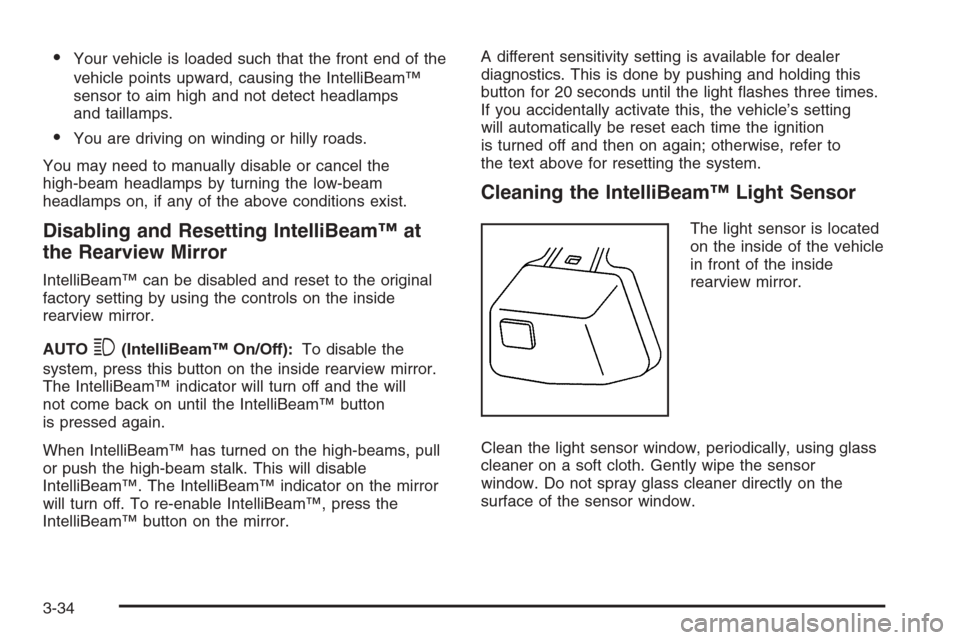
Cleaning the IntelliBeam™ Light Sensor
The light sensor is located
on the inside of the vehicle
in front of the inside
rearview mirror.
Clean the light sensor window, periodically, using glass
cleaner on a soft cloth. Gently wipe the sensor
window. Do not spray glass cleaner directly on the
surface of the sensor window.
3-34
Page 211 of 480

Anti-Lock Brake System
Warning Light
With the anti-lock brake
system, the light will come
on when your engine is
started and may stay on
for several seconds.
That is normal.
If the ABS warning light comes on and stays on, there
may be a problem with the antilock portion of the
brake system. If the red BRAKE light is not on, you still
have brakes, but you do not have antilock brakes.
SeeBrake System Warning Light on page 3-64.
If the light stays on, press the ignition button to OFF/ACC.
If the light comes on when you are driving, stop as soon
as possible and turn the ignition off. Then start the engine
again to reset the system. If the light still stays on, or
comes on again while you are driving, your vehicle needs
service. If the regular brake system warning light is not
on, you still have brakes, but you do not have anti-lock
brakes. If the regular brake system warning light is also
on, you do not have anti-lock brakes and there is a
problem with your regular brakes. SeeBrake System
Warning Light on page 3-64.The anti-lock brake system warning light should come
on briey when you turn the ignition on. If the light does
not come on then, have it xed so it will be ready to
warn you if there is a problem.
Low Tire Pressure Warning Light
This light will come on
briey as you start the
engine, for vehicles
equipped with the Tire
Pressure Monitor System.
It will then come on only when a at or low tire pressure
condition exists.
SeeTire Pressure Monitor System on page 5-66for
more information.
3-65
Page 220 of 480

DIC Controls and Displays
The Driver Information Center (DIC) has different modes
which can be accessed by pressing the four DIC
buttons located on the instrument panel, to the left of
the steering wheel.
DIC Buttons (Base Level)
If your vehicle does not
have a Head-Up Display
(HUD), these are the
buttons for your DIC.
«4ª(Information):Press the top or bottom of this
button to scroll through the available vehicle information
displays which include digital speed display, if your
vehicle has this feature, fuel range, fuel economy, fuel
used, average speed, timer, battery voltage, tire
pressure, if your vehicle has a tire pressure monitor
(TPM) system, and engine oil life, if your vehicle has
this feature.
If you have an STS-V, the DIC also has additional
vehicle information displays which include engine boost,
engine oil temperature, oil pressure, and transmission
uid temperature.
See “MPH (km)” later in this section for more information
on the digital speed display.
AB
300 (Trip Information):Press the top of this
button to scroll through the odometer, trip odometer A
and trip odometer B. Press and hold the bottom of
this button to reset each trip odometer back to zero.
4// (Reset):Press this button to reset certain DIC
features and to acknowledge DIC warning messages
and clear them from the DIC display.
EM (English/Metric):Press this button to change the
display from English to metric.
3-74
Page 221 of 480

DIC Buttons (Uplevel)
If your vehicle has a HUD,
these are the buttons for
your DIC.
«4ª(Information):Press the top or bottom of this
button to scroll through the available vehicle information
displays which include digital speed display, if your
vehicle has this feature, fuel range, fuel economy, fuel
used, average speed, timer, battery voltage, tire
pressure, if your vehicle has a tire pressure monitor
(TPM) system, engine oil life, if your vehicle has this
feature, and display units. See “MPH (km)” later in this
section for more information on the digital speed display.
«~ª(Head-Up Display):Press this button to
change the position of the HUD on the windshield. Press
the top part of the button to move the HUD image up.
Press the bottom part of the button to move the
HUD image down.
To adjust the brightness of the HUD image, see
Head-Up Display (HUD) on page 3-40.
For information on adjusting the instrument panel
brightness, seeInstrument Panel Brightness on
page 3-39.
4// (Reset):Press this button to reset certain DIC
features and to acknowledge DIC warning messages
and clear them from the DIC display.
3(Trip Information):Press this button to scroll
through the odometer, trip odometer A and trip
odometer B. To reset each trip odometer, either press
the reset button or press and hold the trip information
button until the trip odometer displayed returns to zero.
3-75
Page 222 of 480

Information Display Menu Items
The following display menu items can be displayed by
pressing the information button.
MPH (km/h)
If your vehicle has this display, it shows the vehicle’s
speed digitally in either miles per hour (mph) or
kilometers per hour (km/h).
MILES RANGE (km RANGE)
This display shows the approximate number of
remaining miles (mi) or kilometers (km) you can drive
without relling your fuel tank. This estimate is based on
the current driving conditions and will change if the
driving conditions change. For example, if you are
driving in traffic making frequent stops, the display may
read one number, but if you enter the freeway, the
number may change even though you still have the
same amount of fuel in the fuel tank. This is because
different driving conditions produce different fuel
economies. Generally, freeway driving produces better
fuel economy than city driving.
Once the range drops below approximately 40 miles
(64 km) remaining, the display will show LOW RANGE.
If your vehicle is low on fuel, the Fuel Level Low
message will be displayed. See “Fuel Level Low” under
DIC Warnings and Messages on page 3-79for more
information.
MPG AVG (L/100 km AVG)
This display shows the approximate average miles per
gallon (mpg) or liters per 100 kilometers (L/100 km).
This number is calculated based on the number of mpg
(L/100 km) recorded since the last time this display
was reset. To reset MPG AVG, press the reset button.
The display will return to zero.
MPG INST (L/100 km INST)
This display shows the current fuel economy. This
number reects only the fuel economy that the vehicle
has right now and will change frequently as driving
conditions change. Unlike average fuel economy, this
display cannot be reset.
GAL FUEL USED (L FUEL USED)
This display shows the number of gallons (gal) or
liters (L) of fuel used since the last reset of this display.
To reset GAL FUEL USED, press the reset button.
The display will return to zero.
AVG MPH (AVG km/h)
This display shows the average speed of the vehicle in
miles per hour (mph) or kilometers per hour (km/h).
This average is calculated based on the various vehicle
speeds recorded since the last reset of this display.
To reset AVG MPH, press the reset button. The display
will return to zero.
3-76
Page 223 of 480

TIMER OFF
This display can be used like a stopwatch. You can
record the time it takes to travel from one point to
another. To access the timer, press the information
button until 00:00:00 TIMER OFF displays. To turn on
the timer, press the reset button until TIMER ON
displays. The timer will then start. To turn off the timer,
press the reset button again until TIMER OFF
displays. The timer will stop and display the end timing
value. To reset the timer, press and hold the reset
button after the timer has been stopped. The display
will return to zero.
BATTERY VOLTS
This display shows the current battery voltage. If the
voltage is in the normal range, the value will display. For
example, the display may read 13.2 BATTERY VOLTS.
If the voltage is low, the display will have LOW after
it. If the voltage is high, the display will have HIGH after
it. Your vehicle’s charging system regulates voltage
based on the state of the battery. The battery voltage
may uctuate when viewing this information on the DIC.
This is normal. SeeCharging System Light on
page 3-63for more information.
If there is a problem with the battery charging system,
the DIC may display a message. SeeDIC Warnings and
Messages on page 3-79for more information.
Tire Pressure
If your vehicle has a tire pressure monitor (TPM) system,
this display shows the air pressure of each road tire in
either pounds per square inch (psi) or kilopascals (kPa).
If the tire pressure is normal, the value will display. If the
tire pressure is low, LOW will appear on the display with
the value. If the tire pressure is high, HIGH will appear on
the display with the value. Press the information button to
scroll through the following displays:
LF TIRE:This display shows the air pressure in the
driver’s side front tire.
RF TIRE:This display shows the air pressure in the
passenger’s side front tire.
LR TIRE:This display shows the air pressure in the
driver’s side rear tire.
RR TIRE:This display shows the air pressure in the
passenger’s side rear tire.
If the tire pressure display shows dashes instead of a
value, there may be a problem with your vehicle. If this
consistently occurs, see your GM dealer for service.
3-77