Page 61 of 194
RADIO 58
function button
– Press the function button in the radio menu.
Each time the button is pressed, the frequency
band changes.The following frequency bands are available:Main radio menuGeneral
The radio station list for the selected frequency band is
displayed in the main radio menu.The station lists for the FM and AM range differ in their behavior.
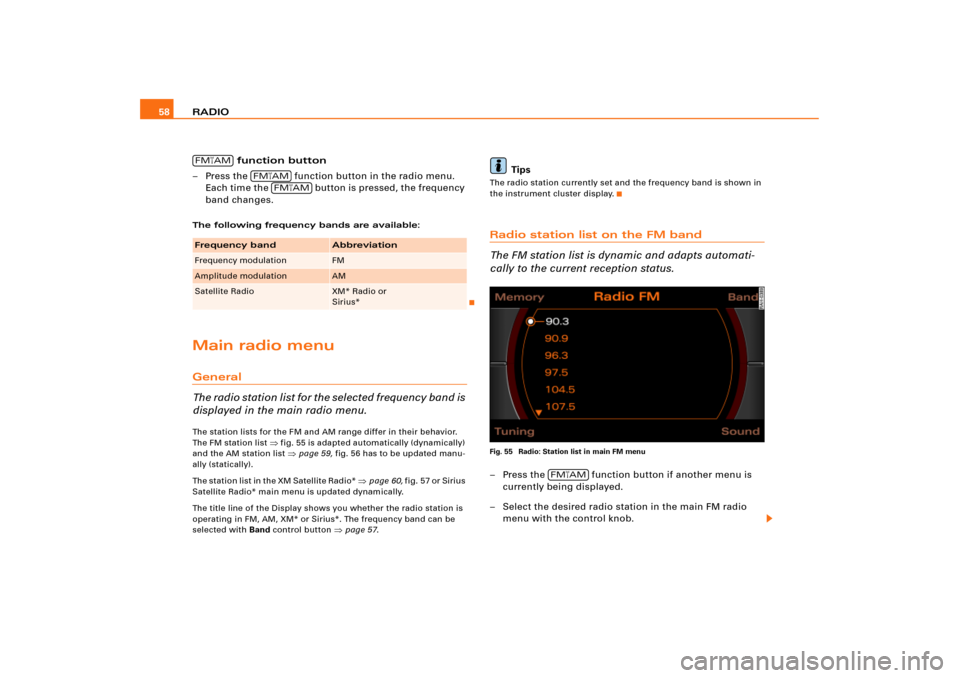
The FM station list
�fig.55 is adapted automatically (dynamically)
and the AM station list �page 59, fig.56 has to be updated manu-
ally (statically).
The station list in the XM Satellite Radio*
�page 60, f i g .5 7 o r S i r i u s
Satellite Radio* main menu is updated dynamically.
The title line of the Display shows you whether the radio station is
operating in FM, AM, XM* or Sirius*. The frequency band can be
selected with Band control button
�page 57.
Tips
The radio station currently set and the frequency band is shown in
the instrument cluster display.Radio station list on the FM band
The FM station list is dynamic and adapts automati-
cally to the current reception status.Fig. 55 Radio: Station list in main FM menu– Press the function button if another menu is
currently being displayed.
– Select the desired radio station in the main FM radio
menu with the control knob.
Frequency band
Abbreviation
Frequency modulation
FM
Amplitude modulation
AM
Satellite Radio
XM* Radio or
Sirius*
FM�AM
FM�AM
FM�AM
FM�AM
Page 62 of 194
RADIO 58
function button
– Press the function button in the radio menu.
Each time the button is pressed, the frequency
band changes.The following frequency bands are available:Main radio menuGeneral
The radio station list for the selected frequency band is
displayed in the main radio menu.The station lists for the FM and AM range differ in their behavior.
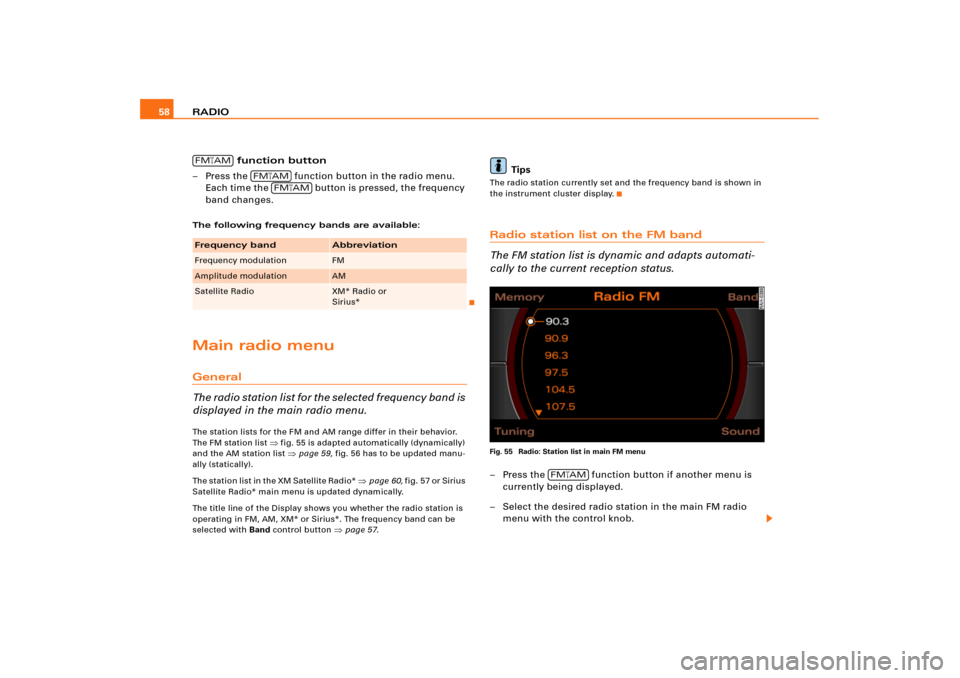
The FM station list
�fig.55 is adapted automatically (dynamically)
and the AM station list �page 59, fig.56 has to be updated manu-
ally (statically).
The station list in the XM Satellite Radio*
�page 60, f i g .5 7 o r S i r i u s
Satellite Radio* main menu is updated dynamically.
The title line of the Display shows you whether the radio station is
operating in FM, AM, XM* or Sirius*. The frequency band can be
selected with Band control button
�page 57.
Tips
The radio station currently set and the frequency band is shown in
the instrument cluster display.Radio station list on the FM band
The FM station list is dynamic and adapts automati-
cally to the current reception status.Fig. 55 Radio: Station list in main FM menu– Press the function button if another menu is
currently being displayed.
– Select the desired radio station in the main FM radio
menu with the control knob.
Frequency band
Abbreviation
Frequency modulation
FM
Amplitude modulation
AM
Satellite Radio
XM* Radio or
Sirius*
FM�AM
FM�AM
FM�AM
FM�AM
Page 63 of 194
RADIO59
General operation
RADIO, CD
NAME, TEL
NAV, INFO
CAR, SETUP All the FM stations that can be received are on this list. The list is
limited to a maximum of 30 stations.
If the main FM radio menu does not appear after pressing the func-
tion button, you can change the frequency band by pressing the
Band control button
�page 57 or by repeatedly pressing the
function button �page 16.
Radio station list on the AM band
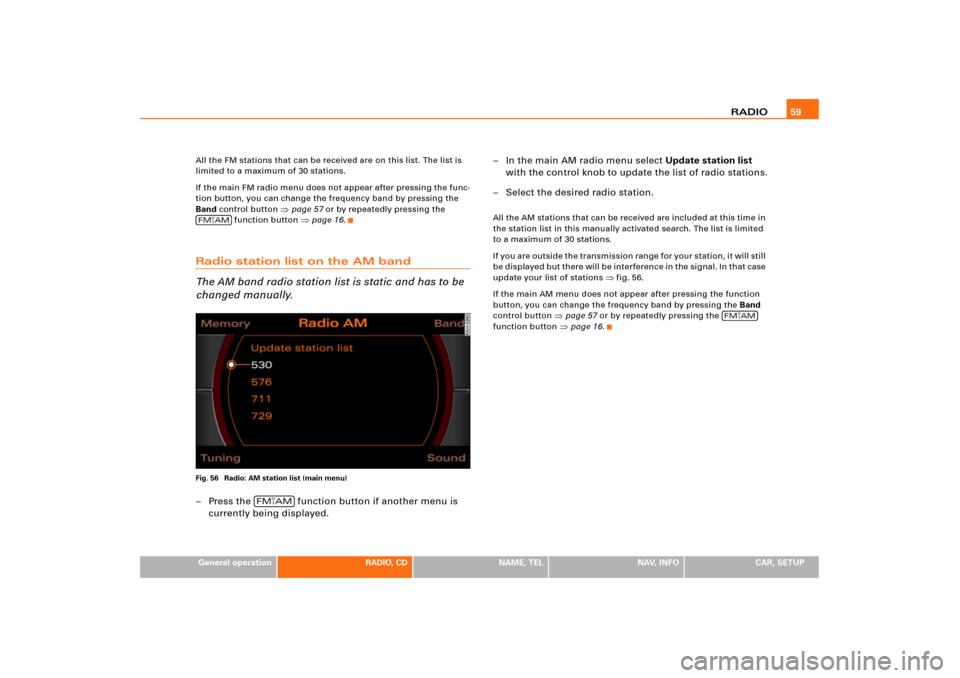
The AM band radio station list is static and has to be
changed manually.Fig. 56 Radio: AM station list (main menu)– Press the function button if another menu is
currently being displayed.– In the main AM radio menu select Update station list
with the control knob to update the list of radio stations.
– Select the desired radio station.
All the AM stations that can be received are included at this time in
the station list in this manually activated search. The list is limited
to a maximum of 30 stations.
I f y o u a re o u t s i d e t h e t r a n s m is s io n ra n g e fo r y o u r s t a t io n , i t w il l s t i l l
b e d i s p la y e d b ut t h e re wi l l b e i n t e r fe re n c e in t he s i g n a l . I n t h a t c as e
update your list of stations
�fig.56.
If the main AM menu does not appear after pressing the function
button, you can change the frequency band by pressing the Band
control button
�page 57 or by repeatedly pressing the
function button �page 16.
FM
�AM
FM�AM
FM
�AM
Page 64 of 194
RADIO 60Applies to vehicles: with Satellite Digital Audio Radio ServiceRadio station list in satellite mode
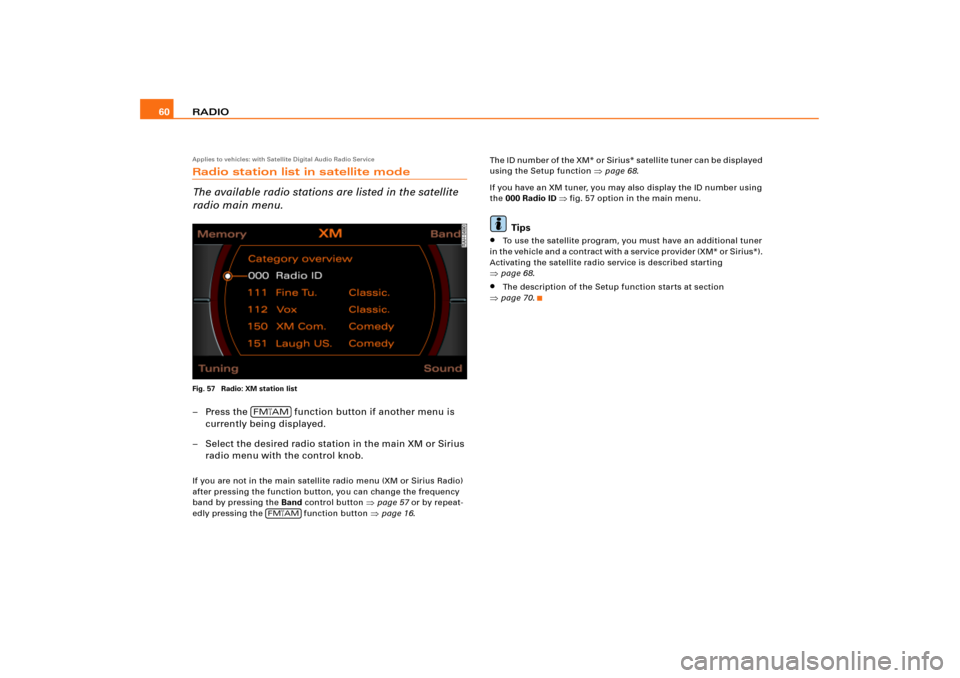
The available radio stations are listed in the satellite
radio main menu.Fig. 57 Radio: XM station list– Press the function button if another menu is
currently being displayed.
– Select the desired radio station in the main XM or Sirius
radio menu with the control knob.If you are not in the main satellite radio menu (XM or Sirius Radio)
after pressing the function button, you can change the frequency
band by pressing the Band control button
�page 57 or by repeat-
edly pressing the function button �page 16.Th e I D n u mb e r o f t he X M* o r S i r iu s * s a t e l l i te t u n e r c a n b e d i s p l a y e d
using the Setup function
�page 68.
If you have an XM tuner, you may also display the ID number using
the 000 Radio ID
�fig.57 option in the main menu.
Tips
�
To use the satellite program, you must have an additional tuner
i n t h e v e h i c l e a n d a c o n t r a c t w i t h a s e r v i c e p r o v i d e r ( X M * o r S i r i u s * ) .
Activating the satellite radio service is described starting
�page 68.�
The description of the Setup function starts at section
�page 70.
FM�AM
FM
�AM
Page 66 of 194
RADIO 62Sound control buttonSound settingsStarting on
�page 92, you can read how to select the sound
settings for the radio function.
Tuning control buttonManual station selection
With the manual settings option, even weak stations
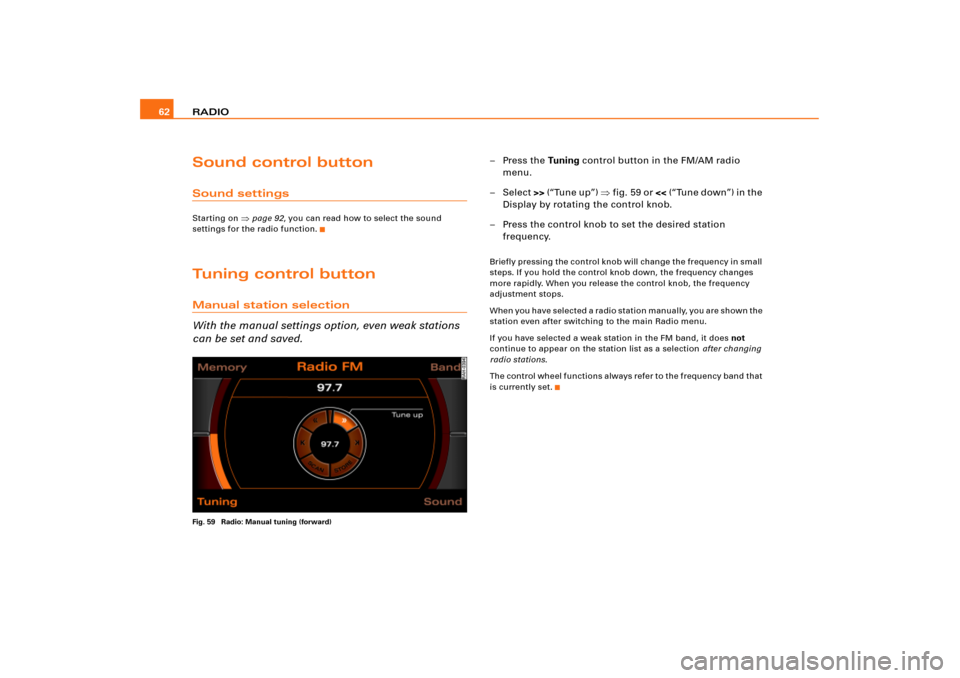
can be set and saved.Fig. 59 Radio: Manual tuning (forward)
–Press the Tuning control button in the FM/AM radio
menu.
– Select >> (“Tune up”) �fig.59 or << (“Tune down”) in the
Display by rotating the control knob.
– Press the control knob to set the desired station
frequency.Briefly pressing the control knob will change the frequency in small
steps. If you hold the control knob down, the frequency changes
more rapidly. When you release the control knob, the frequency
adjustment stops.
W h e n y o u h a v e s e l e c t e d a r a d i o s t a t i o n m a n u a l l y, y o u a r e s h o w n t h e
station even after switching to the main Radio menu.
If you have selected a weak station in the FM band, it does not
continue to appear on the station list as a selection after changing
radio stations.
The control wheel functions always refer to the frequency band that
is currently set.
Page 73 of 194
RADIO69
General operation
RADIO, CD
NAME, TEL
NAV, INFO
CAR, SETUP
Applies to vehicles: with Satellite Digital Audio Radio ServiceSatellite station list
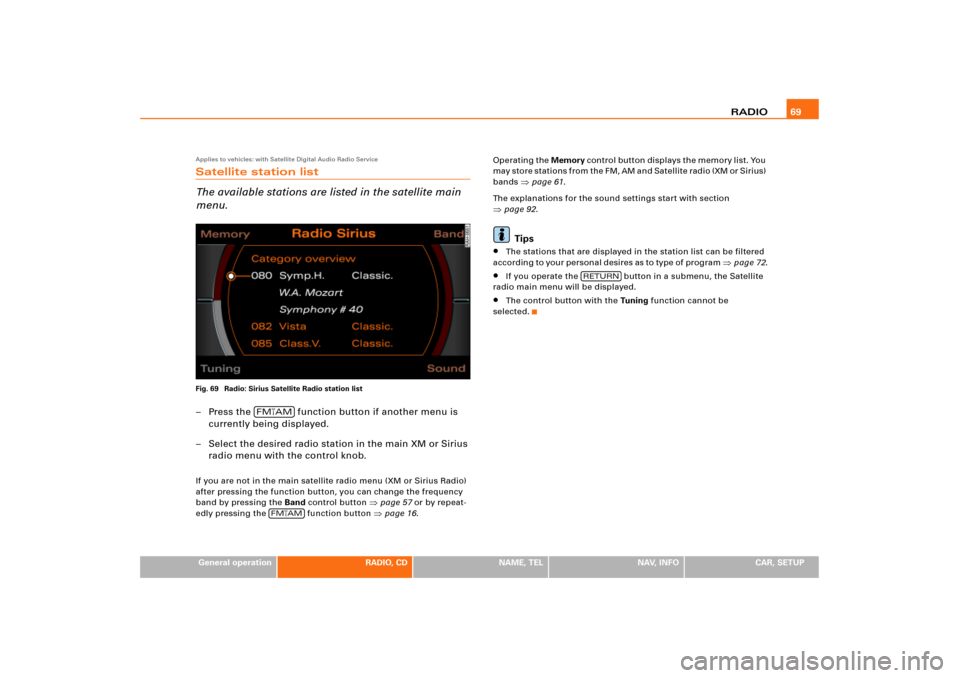
The available stations are listed in the satellite main
menu.Fig. 69 Radio: Sirius Satellite Radio station list– Press the function button if another menu is
currently being displayed.
– Select the desired radio station in the main XM or Sirius
radio menu with the control knob.If you are not in the main satellite radio menu (XM or Sirius Radio)
after pressing the function button, you can change the frequency
band by pressing the Band control button
�page 57 or by repeat-
edly pressing the function button �page 16.Operating the Memory c o n t ro l b ut t o n d i s p l a y s t h e m e m o r y l i s t . Yo u
m a y s t o r e s t a t i o n s f r o m t h e F M , A M a n d S a t e l l i t e r a d i o ( X M o r S i r i u s )
bands
�page 61.
The explanations for the sound settings start with section
�page 92.Tips
�
The stations that are displayed in the station list can be filtered
a c c o r d in g to yo u r p e r s o n a l d e s i re s as to ty p e o f p ro g ra m
�page 72.
�
If you operate the button in a submenu, the Satellite
radio main menu will be displayed.
�
The control button with the Tu n i n g function cannot be
selected.
FM�AM
FM
�AM
RETURN
Page 78 of 194
CD/SD 74CD/SDIntroductionGeneral
C D a n d M P 3 o p e r a t i o n i s s e l e c t e d b y u s i n g t h e
function button.Depending on the equipment in your vehicle, you can use the
function to play an audio CD in the DVD navigation drive,
use a CD changer*
�page 79 or the MP3 player integrated into the
Navigation System �page 83.
You switch between the CD and MP3 function by using the control
button with the Source function
�page 77.
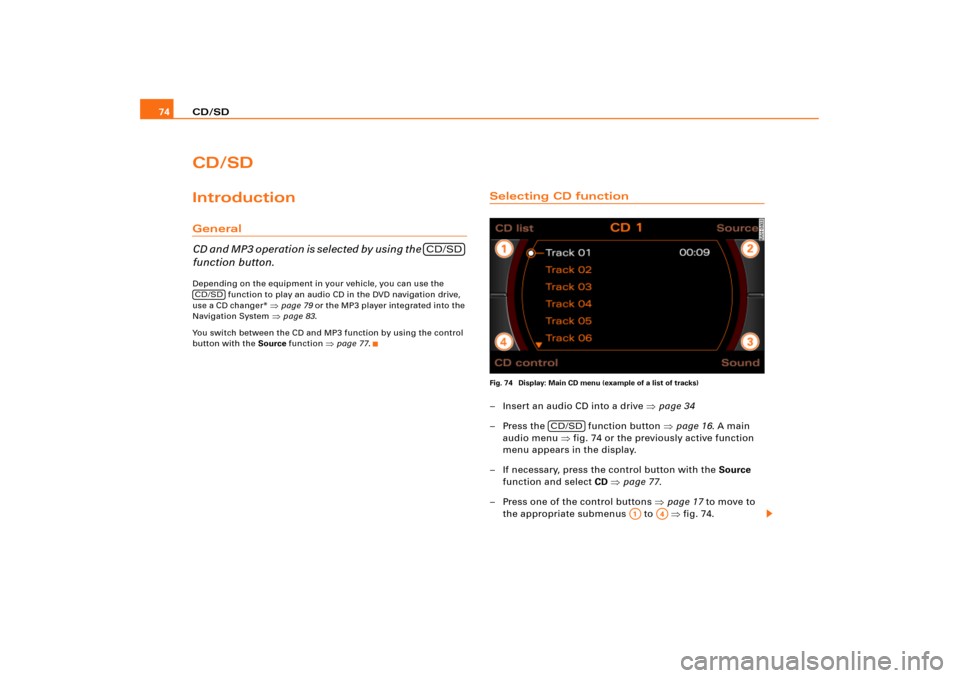
Selecting CD functionFig. 74 Display: Main CD menu (example of a list of tracks)– Insert an audio CD into a drive �page 34
– Press the function button �page 16. A main
audio menu �fig.74 or the previously active function
menu appears in the display.
– If necessary, press the control button with the Source
function and select CD �page 77.
– Press one of the control buttons �page 17 to move to
the appropriate submenus to �fig.74.
CD/SD
CD/SD
CD/SD
A1
A4
Page 82 of 194
CD/SD 78
Tips�
Sound controls can be adjusted individually for each piece of
equipment
�page 92.
�
The audio source selected is shown in the title line of the
display.
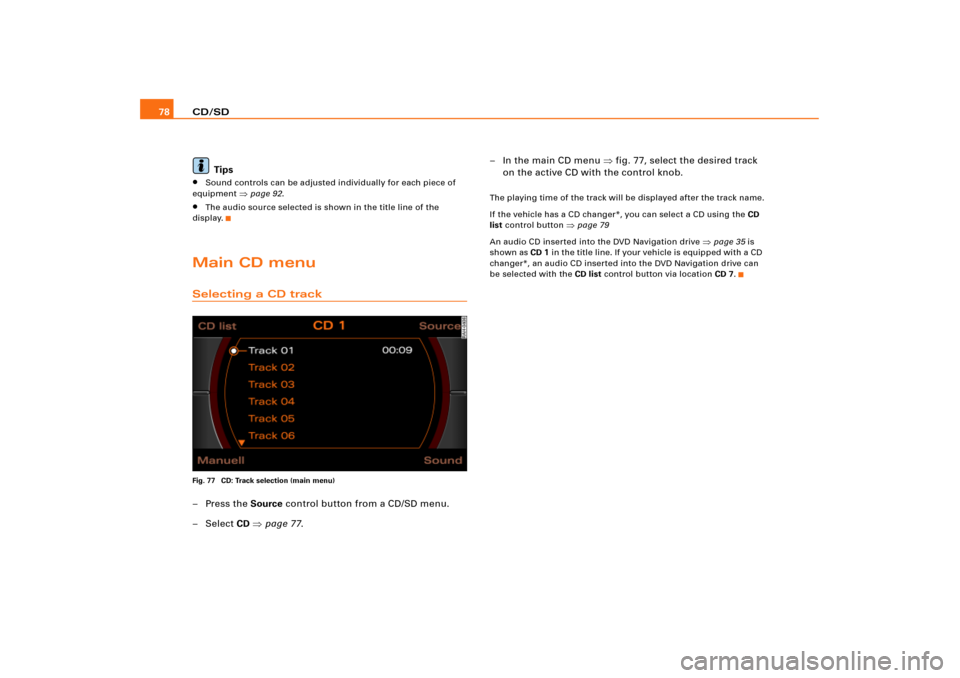
Main CD menuSelecting a CD trackFig. 77 CD: Track selection (main menu)–Press the Source control button from a CD/SD menu.
– Select CD �page 77.– In the main CD menu �fig.77, select the desired track
on the active CD with the control knob.
The playing time of the track will be displayed after the track name.
If the vehicle has a CD changer*, you can select a CD using the CD
list control button
�page 79
An audio CD inserted into the DVD Navigation drive
�page 35 is
shown as CD 1 in the title line. If your vehicle is equipped with a CD
changer*, an audio CD inserted into the DVD Navigation drive can
be selected with the CD list control button via location CD 7.