Page 26 of 186
25 At a glance
Multifunction steering wheel
Switch the multifunction display to the re-
spective system if you wish to operate the
system using the buttons on the multifunc-
tion steering wheel. �
On the multifunction steering wheel,
pressè or ÿ repeatedly until
one of the following, Radio, Single CD,
MP3, CD changer*, Satellite radio* or
Telephone* display appears in the mul-
tifunction display of the instrument
cluster.
Radio operation
1Waveband and position in Preset menu
2Station frequencySingle CD operation
1Single CD operation
2Current track
MP3 operation
1MP3 operation
2Current trackCD changer* operation
1Current CD
2Current track
Satellite radio* operation
1SAT and position in Preset menu
2Channel nameSelecting the multifunction display
Page 27 of 186
26 At a glanceMultifunction steering wheelTelephone* operation
Either the main display, or a list appears on
display.
Telephone main display:
In the list screen, instead of the
READY
mes-
sage, either a phone book entry or one of
the last 10 outgoing calls will be displayed.
�
In order to close the list display,
presst
.
This switches to the telephone main
display.
Page 28 of 186
27 At a glance
Menu system
� Menu system
The menu system allows for easy opera-
tion of COMAND.
Each of the following main functions has a
main menu: �
Audio
(Radio, Single CD, CD changer* and
AUX mode)
�
Satellite radio*
�
Telephone*
�
Navigation*
�
Service
Opening main menus
�
Audio (
�page 36):
Press
.
�
Satellite radio* (
�page 73):
Press �.
�
Telephone* (
�page 89):
Press �.
�
Navigation* (
�page 110):
Press �.
�
Service (
�page 157):
Press �.
Menu display
A display can be composed of 3 sections.
Example: Radio main menu
1Soft key sections
2Main area
3Status barThe functions currently assigned to the
soft keys are displayed in the soft key sec-
tions 1.
Messages or settings are displayed in the
main area 2.
The settings can be changed by operating
controls accordingly.
The status bar 3 is divided into three ar-
eas.
Left side:
The selected operating mode is given. In
this example: Radio
iA maximum of five soft keys may be
displayed on each side of the main area
2.
Page 29 of 186
28 At a glanceMenu systemCenter:
Indication of the selected operating mode.
In this example:
�
FM = selected waveband
�
1 = selected station is stored on
preset 1
Right side:
General status information is displayed, re-
gardless of the selected operating mode.
In this example:
�
ROAMING
= telephone* is logged into a
mobile communications network out-
side your home network.
�
= telephone* signal strengthMenu functions and submenus
Using the soft keys, you can switch func-
tions ON or OFF, or open submenus.
Example: Radio main menu:
�
The
Scan
soft key switches the scan
search ON or OFF.
�
The
Autost.
soft key opens the submenu
for the Autostore settings.In some situations, soft keys may not have
any function and thus not be available.
Should a soft key not be available, it will
appear shaded out, its characters will ap-
pear white.
Example:
Presets
, Scan
and
Autost.
soft key.
Page 31 of 186

30 At a glanceQuick reference COMANDSwitching ON �
Turn the key in the steering lock to po-
sition 1 or 2,
or
�
Press .
COMAND switches on the last active
system and displays the corresponding
menu.
Switching OFF
�
Turn the key in the steering lock to po-
sition 0 and remove it,
or
�
Press .Different volume settings are possible for
Navigation*, Telephone*, or Voice con-
trol*.
A common volume setting is provided for
Radio, Single CD, MP3, CD changer*, AUX
and Satellite radio* operating modes.
When setting the volume, the system auto-
matically stores the setting for the current-
ly active operating mode. The volume of
navigation announcements can be
changed only during an actual announce-
ment.
iThe system can be operated as follows:�
from COMAND itself, or
�
from the multifunction steering
wheel
This operating manual describes oper-
ation from COMAND and from the mul-
tifunction steering wheel.
Unless otherwise specified, the de-
scriptions and the displays illustrated
relate to the COMAND control unit.
Switching ON/OFF
iWithout the key in position 1 or 2 of the
steering lock, the system automatically
switches OFF again after approx. 30
minutes of inactivity.
iIf a telephone call is in progress (hands-
free) you cannot switch the COMAND
OFF, is disabled.Volume
Page 76 of 186

75 Satellite radio*
Satellite radio operation
� Satellite radio operation
�
Press�.
Prior to activation of the Satellite radio
service (
�page 75),
After Satellite radio service was acti-
vated (
�page 75).
Prior to activation of the Satellite radio
service
The telephone number of the Sirius Service
Center and the twelve-digit electronic seri-
al number (ESN) of the particular receiver
are displayed.
This information is required to call the Siri-
us Service Center for an activation re-
quest.After activation of the Satellite radio
service
The SAT main menu appears.
The radio station selected last is audible,
provided it can be received.Station information is displayed on the
main screen and in the center of the status
bar.
Switching to Satellite radio modeiCredit card information is also required
for your application.
iThe activation process takes approxi-
mately 5 to 10 minutes after calling the
Sirius Service Center.
iThe system will tune to a default sta-
tion if no station had been selected
previously. SAT main menu
Page 77 of 186

76 Satellite radio*Satellite radio operationMain area, in this example: �
ROCK
= selected category (
�page 77)
�
Vault
= name of the selected station
Status bar, in this example:
�
SAT
(on the left) = the selected mode
�
SAT5
= location in the program
memory, if the current channel is pre-
stored
�
Ch16
= number of the current channel
Selectable soft keys
�
Presets
shows channels pre-stored in the pro-
gram memory (up to 10 channels). You
can store stations (
�page 79) and re-
quest stored stations (�page 76).
�
Info
shows additional text information relat-
ed to the current channel.
�
Scan
is used to start and stop the scan
search (
�page 79).
�
Service
displays a screen showing the tele-
phone number of the Sirius Service
Center and electronic serial number
(ESN) of the particular receiver.
You can also adjust the following:
�
Bass and treble (
�page 32)
�
Balance and fader (
�page 31)
�
Sound functions (
�page 33)
�
Volume (not on soft keys)
(�page 30)
The following options are available:
�
Tuning via station presets (
�page 76)
�
Tuning via manual channel input
(�page 77)
�
Tuning via the program category list
(�page 77)
�
Tuning a station within the selected
category (
�page 78)
�
Tuning via scan search (
�page 79)
Tuning via station presets
Ten Satellite radio station presets are
available.
You can access the presets via number
keys or via the Presets menu.
Selecting a station
iThe Presets memory is empty at first-
time activation of the system.
Page 81 of 186
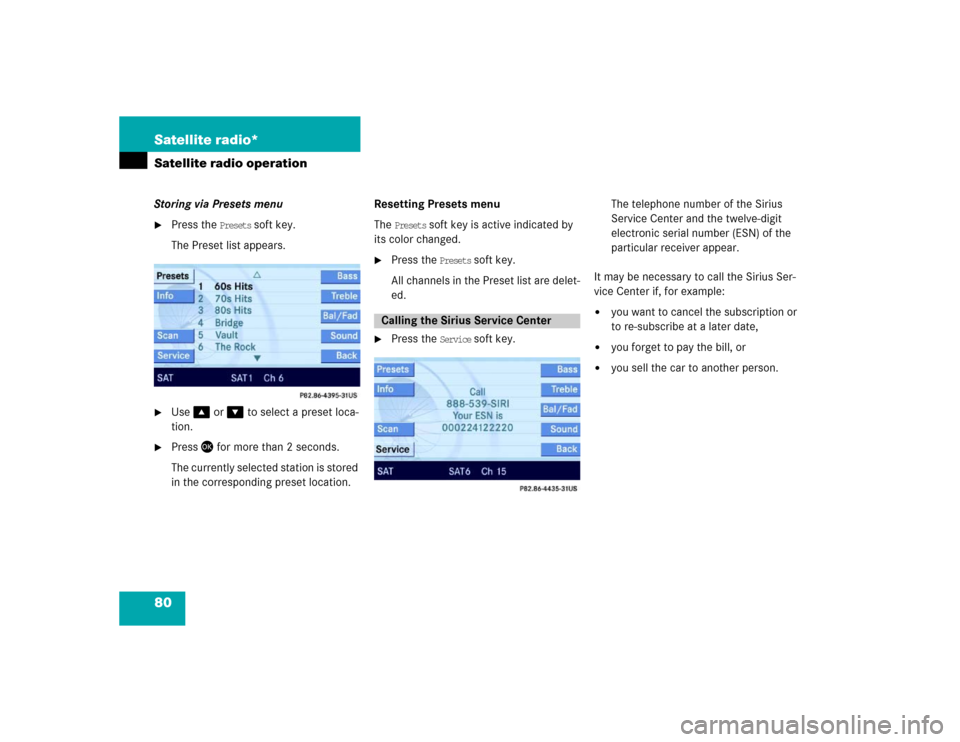
80 Satellite radio*Satellite radio operationStoring via Presets menu �
Press the
Presets
soft key.
The Preset list appears.
�
Use� or � to select a preset loca-
tion.
�
Press� for more than 2 seconds.
The currently selected station is stored
in the corresponding preset location.Resetting Presets menu
The
Presets
soft key is active indicated by
its color changed.
�
Press the
Presets
soft key.
All channels in the Preset list are delet-
ed.
�
Press the
Service
soft key.The telephone number of the Sirius
Service Center and the twelve-digit
electronic serial number (ESN) of the
particular receiver appear.
It may be necessary to call the Sirius Ser-
vice Center if, for example:
�
you want to cancel the subscription or
to re-subscribe at a later date,
�
you forget to pay the bill, or
�
you sell the car to another person.
Calling the Sirius Service Center