2005 LINCOLN AVIATOR radio controls
[x] Cancel search: radio controlsPage 18 of 368

In the tape mode, tape direction automatically reverses when the end of
the tape is reached.
In CD mode, FF advances the CD within the current track.
10.MUTE:Press to mute the
playing media. Press again to return
to playing media.
RDS:(Radio Data System): Press RDS to access the RDS features.
Ensure that RDS is ON in order to activate the Traffic, Find Program
Type and Show functions. To turn RDS ON, press FM, then press RDS
until RDS OFF appears. Press SEL to toggle ON.
•Traffic:Allows you to hear traffic broadcasts. With the feature ON,
press SEEK or SCAN to find a station broadcasting a traffic report (if
it is broadcasting RDS data).Traffic information is not available in
most U.S. markets.To activate, press RDS until TRAFFIC OFF
appears in the display then use SEL control to toggle function ON.
•FIND Program type:Allows you to search RDS-equipped stations for
a certain category of music format: Classic, Country, Info, Jazz, Oldies,
R&B, Religious, Rock, Soft, Top 40. Press RDS until FIND appears in
the display then use SEL control to scroll through the desired music
types. Press SEEK or SCAN to find program type.
•Show TYPE:Allows you to display radio station call sign or format.
To activate, press RDS until SHOW appears in the display, then use
the SEL to select NAME or TYPE.
•Setting the clock:Your vehicle is equipped with a separate in-dash
mounted clock. Please refer toSetting the clockin theDriver
controlschapter for further information.
The Federal Communications Commission (FCC) and the Canadian Radio
and Telecommunications Commission (CRTC) recommend that FM radio
broadcasters use RDS technology to transmit information. FM radio
stations are independently operated and individually elect to use RDS
technology to transmit station ID and program type as desired.
11.AUTOSET:Press to set first six
strong stations into AM, FM1 or
FM2 memory buttons; press again to
return to the original preset
stations. If there are less than six strong stations available on the
frequency band, the remaining memory preset controls will all store the
last strong station available.
REVIEW COPY
2005 Aviator f/k/a Navigator LS(231), Owners Guide (post-2002-fmt)(own2002),
Market:USA_English(fus)
Entertainment Systems
18
Page 21 of 368

2.Rewind:In CD mode, press until
desired selection is reached.
Fast forward:In CD mode, press until desired selection is reached.
TEXT:TEXT is only available when equipped with Satellite radio. Your
Audiophile radio comes equipped with Satellite ready capability. The kit
to enable Satellite reception is available through your Lincoln dealer.
Detailed Satellite instructions are included with the dealer installed kit.
Dealer installed satellite kit available only in the continental United
States.
3.DSP (Digital Signal
Processing):Press DSP to access
the Ambiance menu. Ambiance gives
the feeling of“being there”to your
music, creating increased clarity as well as an open and spacious feel to
the music. Press SEL to engage/disengage. Turn the volume control to
increase/decrease the level of ambiance.
Occupancy:Press DSP again to change the occupancy mode to optimize
sound for ALL SEATS, DRIVER SEAT or REAR SEATS. Press SEL to
scroll through settings.
4.Mute:Press to MUTE playing
media; press again to return to
playing media
5.Eject:Press to eject a CD. Press
and hold to eject all loaded discs.
6.Bass:Press BASS; then press
SEL
/to decrease/increase
the bass output.
Treble:Press TREB; then press
SEL
/to decrease/increase
the treble output.
7.Select:Use with Bass, Treble,
Balance and Fade controls to adjust
levels and set the clock.
REVIEW COPY
2005 Aviator f/k/a Navigator LS(231), Owners Guide (post-2002-fmt)(own2002),
Market:USA_English(fus)
Entertainment Systems
21
Page 22 of 368

8.Balance:Press BAL; then press
SEL
/to shift sound to the
left/right speakers.
Fade:Press FADE; then press
SEL
/to shift sound to the
rear/front speakers.
9.Menu:Press MENU and SEL to
access RDS on/off, Traffic
announcement mode, Program type
mode, and Shuffle mode.
The Federal Communications Commission (FCC) and the Canadian Radio
and Telecommunications Commission (CRTC) recommend that FM radio
broadcasters use RDS technology to transmit information. FM radio
stations are independently operated and individually elect to use RDS
technology to transmit station ID and program type as desired.
Traffic:Allows you to hear traffic broadcasts. With the feature ON, press
SEEK or SCAN to find a station broadcasting a traffic report (if it is
broadcasting RDS data).Traffic information is not available in most
U.S. markets.
FIND Program type:Allows you to search RDS-equipped stations for a
certain category of music format: Classic, Country, Info, Jazz, Oldies,
R&B, Religious, Rock, Soft, Top 40.
Show TYPE:Displays the station’s call letters and format.
Shuffle:When in CD mode, press to play tracks in a random order.
Press MENU until SHUF appears in the display. Use SEL to select SHUF
DISC, SHUF TRAC or SHUF OFF.
Compression:Brings soft and loud CD passages together for a more
consistent listening level when in CD mode. Press MENU until
compression status is displayed. Press the SEL control to enable the
compression feature when COMP OFF is displayed. Press the SEL
control again to disable the feature when COMP ON is displayed.
Setting the clock:Your vehicle is equipped with a separate in-dash
mounted clock. Please refer toSetting the clockin theDriver Controls
chapter for instructions on how to set the clock.
10.Memory presets:To set a
station: Select frequency band
AM/FM; tune to a station, press and
hold a preset button until sound
returns.
REVIEW COPY
2005 Aviator f/k/a Navigator LS(231), Owners Guide (post-2002-fmt)(own2002),
Market:USA_English(fus)
Entertainment Systems
22
Page 28 of 368

•Speed sensitive volume:Radio volume changes automatically and
slightly with vehicle speed to compensate for road and wind noise.
Recommended level is 1–3. Level 0 turns the feature off and level 7 is
the maximum setting.
Press MENU until SPEED VOL X appears in the display. Then press
SEL to increase (
) or decrease () the volume setting. The level
will appear in the display.
•Folder/track mode:In MP3 mode, press MENU until MODE appears
in the display. Use SEL to toggle between FOLDER (only tracks within
selected folder are accessible) or TRACK (all tracks on disc are
accessible) MODE.
•Autoset:Press MENU until AUTOSET appears in the display. Press
SEL to toggle ON/OFF. Allows you to set the strongest local radio
stations without losing your original memory preset stations for
AM/FM1/FM2. When the six strongest stations are filled, the station
stored in preset 1 will begin playing. If there are less than six strong
stations, the system will store the last one in the remaining presets.
•Setting the clock:Your vehicle is equipped with a separate in-dash
clock. Refer toSetting the clockin the Driver Controls chapter.
13.TUNE/CAT:In radio mode,
press to manually advance up/down
the frequency band. In satellite
radio mode, press CAT for a listing of available music categories.
CAT:CAT is only available when equipped with Satellite Radio. Your
radio comes equipped with Satellite ready capability. The kit to enable
Satellite reception is available through your dealer. Detailed Satellite
instructions are included with the dealer installed kit.Dealer installed
satellite kit only available in the continental United States.
For information regarding SIRIUS Satellite Radio, please call toll-free
888-539-SIRIUS (888-539-7474) or visit the SIRIUS website at
www.siriusradio.com
14.SEEK:Works in radio, tape and
CD modes. Press to access the
previous
or nextlistenable
radio station, tape selection or CD track.
REVIEW COPY
2005 Aviator f/k/a Navigator LS(231), Owners Guide (post-2002-fmt)(own2002),
Market:USA_English(fus)
Entertainment Systems
28
Page 32 of 368

FIND Program type:Allows you to search RDS-equipped stations for a
certain category of music format: Classic, Country, Info, Jazz, Oldies,
R&B, Religious, Rock, Soft, Top 40.
Press and hold MENU until RDS XX is shown in the display. Press MENU
until FIND appears in the display. Use SEL to scroll through music types.
Press SEEK or SCAN to search for a station playing the requested music
category.
Show TYPE:Displays the station’s call letters or music format.
Press and hold MENU until RDS XX is shown in the display. Press MENU
until SHOW appears in the display. Use SEL to select NAME or TYPE.
Compression:Brings soft and loud CD passages together for a more
consistent listening level when in CD mode. Press MENU until
compression status is displayed. Press the SEL control to enable the
compression feature when COMPRESS OFF is displayed. Press the SEL
control again to disable the feature when COMPRESS ON is displayed.
Occupancy mode:Press MENU until occupancy mode appears in the
display. Press SEL to select ALL, DRIVER or REAR SEAT occupancy
mode.
Autoset:Allows you to set the strongest local radio stations without
losing your original manually set preset stations for AM/FM1/FM2 . Press
MENU until AUTOSET appears in the display. Press SEL to toggle
ON/OFF. When the six strongest stations are filled, the station stored in
preset 1 will begin playing. If there are less than six strong stations, the
system will store the last one in the remaining presets.
Speed sensitive volume:Radio volume changes automatically and
slightly with vehicle speed to compensate for road and wind noise.
Recommended level is 1–3. Level 0 turns the feature off and level 7 is
the maximum setting.
Press MENU until SPEED VOL X appears in the display. Then press SEL
to increase (
) or decrease () the volume setting. The level will
appear in the display.
Setting the clock:Your vehicle is equipped with a separate in-dash
clock. Refer toSetting the clockin the Driver Controls chapter.
Folder/Track Mode:In MP3 mode, press MENU until MODE appears in
the display. Use SEL to toggle between FOLDER (only tracks within
selected folder are accessible) or TRACK (all tracks on disc are
accessible) MODE.
REVIEW COPY
2005 Aviator f/k/a Navigator LS(231), Owners Guide (post-2002-fmt)(own2002),
Market:USA_English(fus)
Entertainment Systems
32
Page 42 of 368

Press and hold VOICE briefly (on your steering wheel controls) until the
voice icon
appears on the Navigation display to use the Navigation
voice command. You will hear a beep, signaling that the system is ready
to take your command. Any command spoken prior to the beep will not
register with the system. Press RPT (repeat) to hear the previous
command repeated from the navigation system.
The voice activated command feature will not operate if a map DVD is
not inserted into the navigation DVD unit.
At any time, you may say these commands to change modes:
•Radio•Audio on
•AM•Audio off
•FM1•Power off
•FM2•CD Changer (if equipped)
•CD•DVD (if equipped)
•Power on
During normal radio operation, you may say:
•Seek up•Seek down
During CDDJ or in-dash CD play, you may say:
•Track up•Track down
•Previous track•Disc up
•Next disc•Disc down
•Previous disc
To change the screen display, you may say the following commands:
•Screen off•Screen day mode
•Day mode on•Screen night mode
•Night mode on•Screen auto mode
•Auto mode on
Note:If you say“Screen off”, you must touch the screen in order to
activate the screen again. The screen will not turn on again with a voice
command.
Commands that jump over screens:
•Current position•Current location
•Map
REVIEW COPY
2005 Aviator f/k/a Navigator LS(231), Owners Guide (post-2002-fmt)(own2002),
Market:USA_English(fus)
Entertainment Systems
42
Page 49 of 368
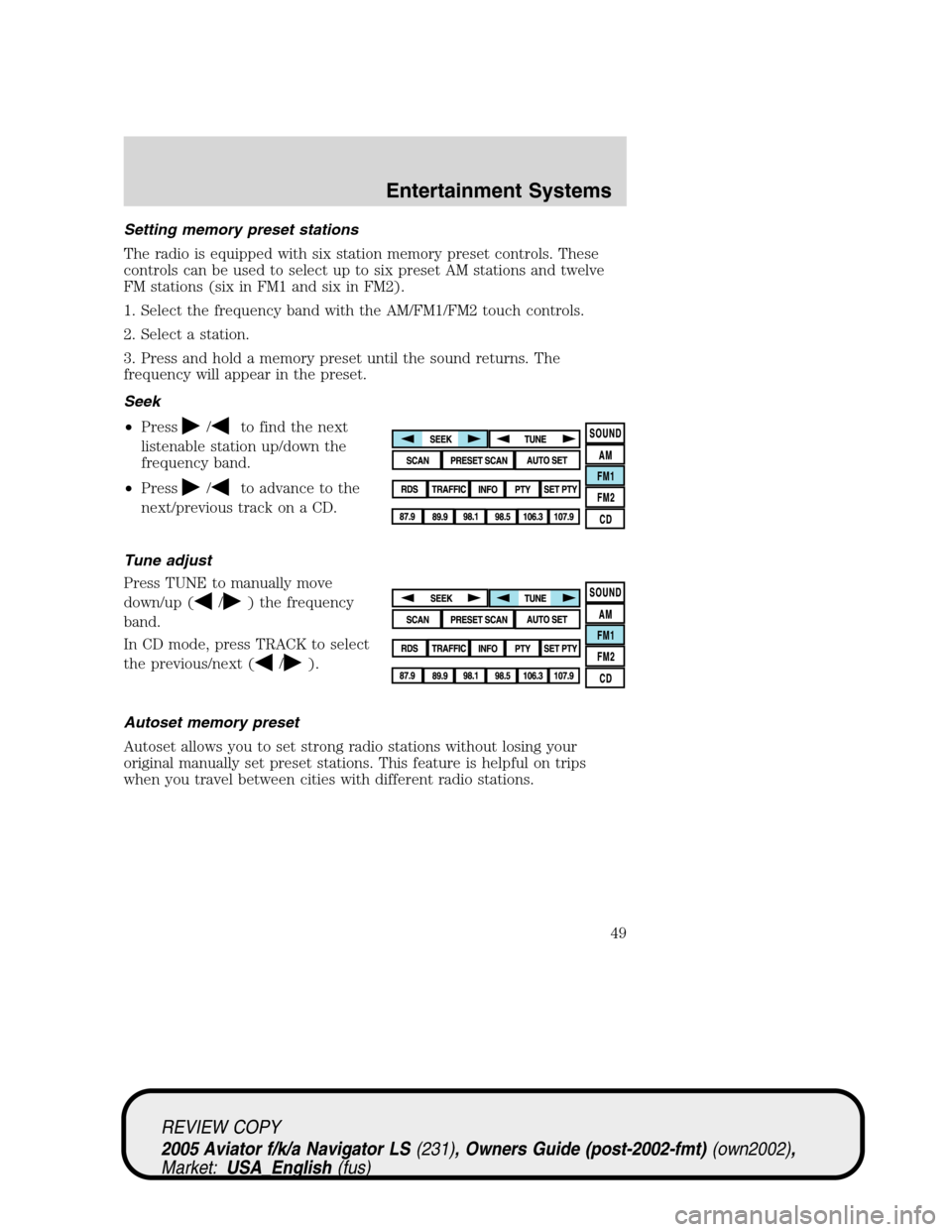
Setting memory preset stations
The radio is equipped with six station memory preset controls. These
controls can be used to select up to six preset AM stations and twelve
FM stations (six in FM1 and six in FM2).
1. Select the frequency band with the AM/FM1/FM2 touch controls.
2. Select a station.
3. Press and hold a memory preset until the sound returns. The
frequency will appear in the preset.
Seek
•Press
/to find the next
listenable station up/down the
frequency band.
•Press
/to advance to the
next/previous track on a CD.
Tune adjust
Press TUNE to manually move
down/up (
/) the frequency
band.
In CD mode, press TRACK to select
the previous/next (
/).
Autoset memory preset
Autoset allows you to set strong radio stations without losing your
original manually set preset stations. This feature is helpful on trips
when you travel between cities with different radio stations.
REVIEW COPY
2005 Aviator f/k/a Navigator LS(231), Owners Guide (post-2002-fmt)(own2002),
Market:USA_English(fus)
Entertainment Systems
49
Page 128 of 368
Bounce-Back
When an obstacle has been detected in the window opening as the
window is moving upward, the window will automatically reverse
direction and move down. This is known as“bounce-back”. If the ignition
is turned OFF (without accessory delay being active) during
bounce-back, the window will move down until the bounce back position
is reached.
Security Override
If during a bounce-back condition, the switch is released to the neutral
position, then held in the one touch up position within two seconds after
the window reaches the bounce-back position,the window will travel
up with no bounce-back protection.If the switch is released before
the window reaches fully closed or the ignition is turned OFF (without
accessory delay being active), the window will stop. Security override
can be used if the window movement is restricted in some way, for
example, if there is ice on the window or seals.
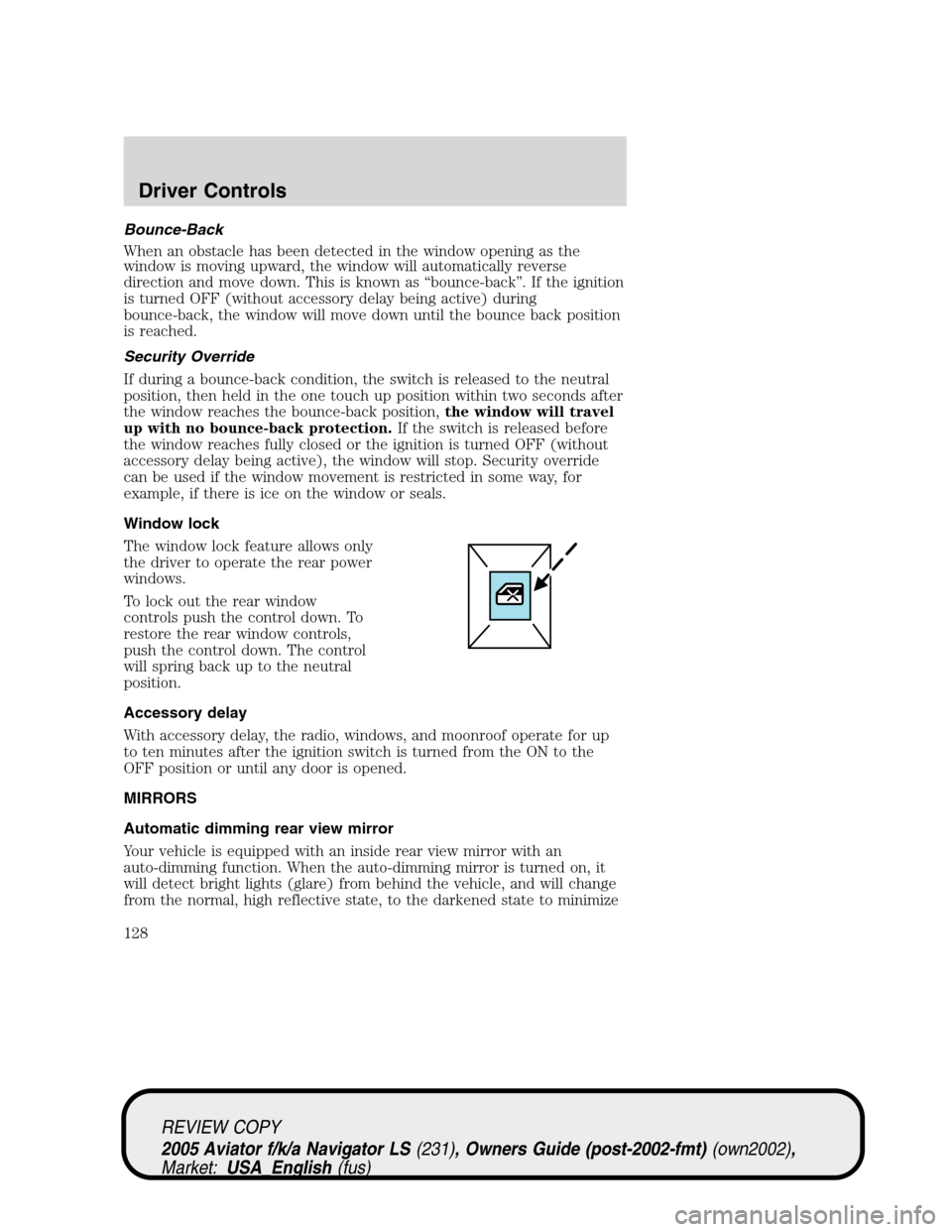
Window lock
The window lock feature allows only
the driver to operate the rear power
windows.
To lock out the rear window
controls push the control down. To
restore the rear window controls,
push the control down. The control
will spring back up to the neutral
position.
Accessory delay
With accessory delay, the radio, windows, and moonroof operate for up
to ten minutes after the ignition switch is turned from the ON to the
OFF position or until any door is opened.
MIRRORS
Automatic dimming rear view mirror
Your vehicle is equipped with an inside rear view mirror with an
auto-dimming function. When the auto-dimming mirror is turned on, it
will detect bright lights (glare) from behind the vehicle, and will change
from the normal, high reflective state, to the darkened state to minimize
REVIEW COPY
2005 Aviator f/k/a Navigator LS(231), Owners Guide (post-2002-fmt)(own2002),
Market:USA_English(fus)
Driver Controls
128