Page 46 of 368
To adjust the navigation voice output level, select the NAV MENU button
via the map screen.
Speed compensated volume (SCV)
With this feature, radio volume changes automatically with vehicle speed
to compensate for road and wind noise. To engage the SCV feature:
1. Press AUDIO.
2. Press SOUND.
3. SCV is located in the middle of
the screen. Press to turn on.
4. Select setting 1 to 7 or turn off.
The recommended level for the speed compensated volume is from level
1 through level 3. When activated, level 1 is the minimum setting and
level 7 is the maximum setting.
SOUND
AM
FM1
FM2
CDSEEK
TUNE
PRESET SCANAUTO SET
SCAN
RDS
TRAFFIC
INFO PTYSET PTY
87.9
89.9 98.1
98.5 106.3 107.9
REVIEW COPY
2005 Aviator f/k/a Navigator LS(231), Owners Guide (post-2002-fmt)(own2002),
Market:USA_English(fus)
Entertainment Systems
46
Page 47 of 368
AM/FM select
The AM/FM control works in radio, CD and navigation modes.
AM/FM select in radio mode
Press AM/FM1/FM2 to switch between AM/FM1/FM2 memory preset
stations.
AM/FM select in CD mode
Press to stop CD play and begin radio play.
AM/FM select in navigation mode
The radio will continue to play in the background of the navigation
screens. To access, press AUDIO then AM/FM1/FM2.
Sound functions
To access settings for Bass, Treble, Balance, Fade, DSP (Digital Signal
Programing), SCV (Speed Compensated Volume), and Occupancy modes:
1. Press AUDIO.
2. Press SOUND.
3. Select from Bass/Treb; Bal/Fade; DSP/SCV.
4. Press +/—to increase/decrease the levels.
REVIEW COPY
2005 Aviator f/k/a Navigator LS(231), Owners Guide (post-2002-fmt)(own2002),
Market:USA_English(fus)
Entertainment Systems
47
Page 48 of 368
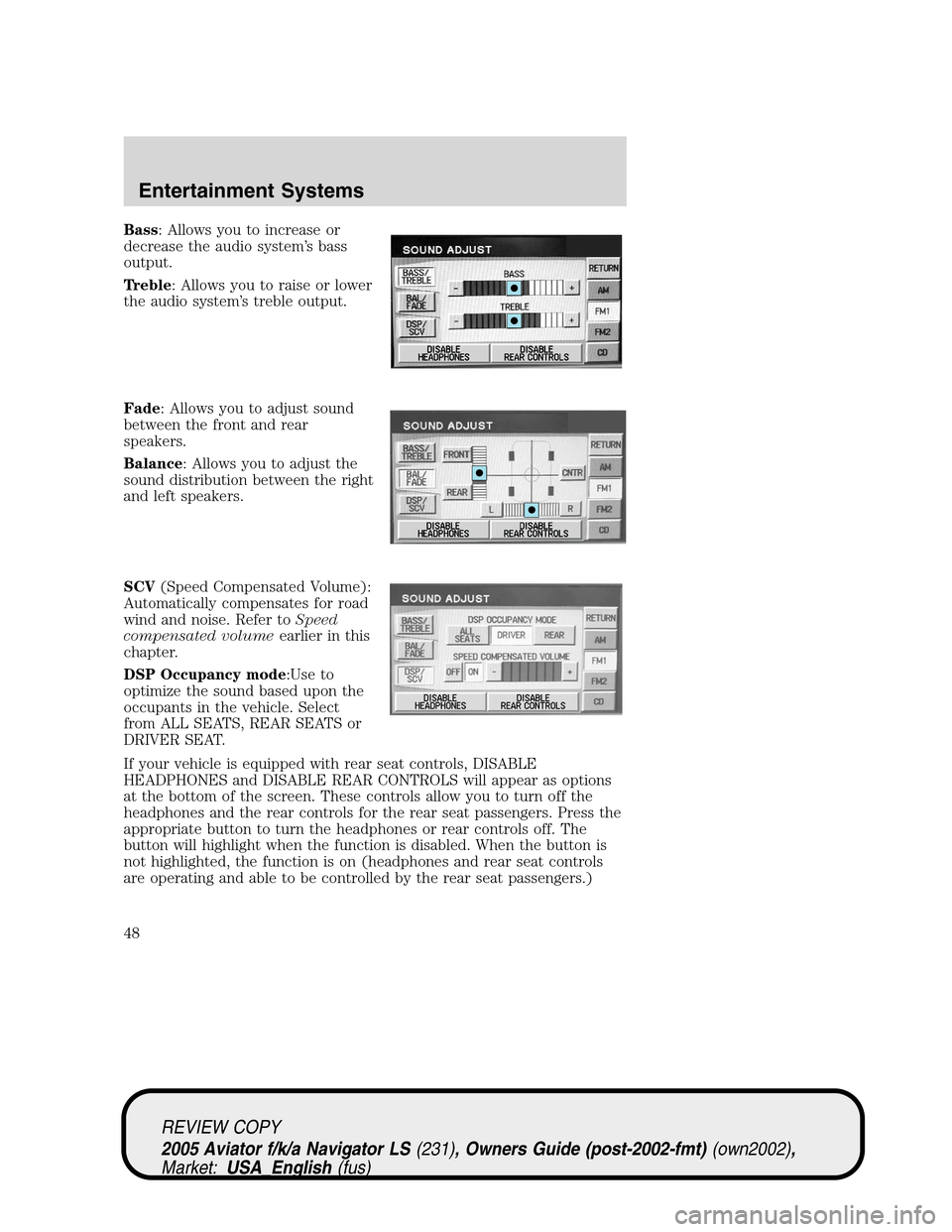
Bass: Allows you to increase or
decrease the audio system’s bass
output.
Treble: Allows you to raise or lower
the audio system’s treble output.
Fade: Allows you to adjust sound
between the front and rear
speakers.
Balance: Allows you to adjust the
sound distribution between the right
and left speakers.
SCV(Speed Compensated Volume):
Automatically compensates for road
wind and noise. Refer toSpeed
compensated volumeearlier in this
chapter.
DSP Occupancy mode:Use to
optimize the sound based upon the
occupants in the vehicle. Select
from ALL SEATS, REAR SEATS or
DRIVER SEAT.
If your vehicle is equipped with rear seat controls, DISABLE
HEADPHONES and DISABLE REAR CONTROLS will appear as options
at the bottom of the screen. These controls allow you to turn off the
headphones and the rear controls for the rear seat passengers. Press the
appropriate button to turn the headphones or rear controls off. The
button will highlight when the function is disabled. When the button is
not highlighted, the function is on (headphones and rear seat controls
are operating and able to be controlled by the rear seat passengers.)
REVIEW COPY
2005 Aviator f/k/a Navigator LS(231), Owners Guide (post-2002-fmt)(own2002),
Market:USA_English(fus)
Entertainment Systems
48
Page 50 of 368
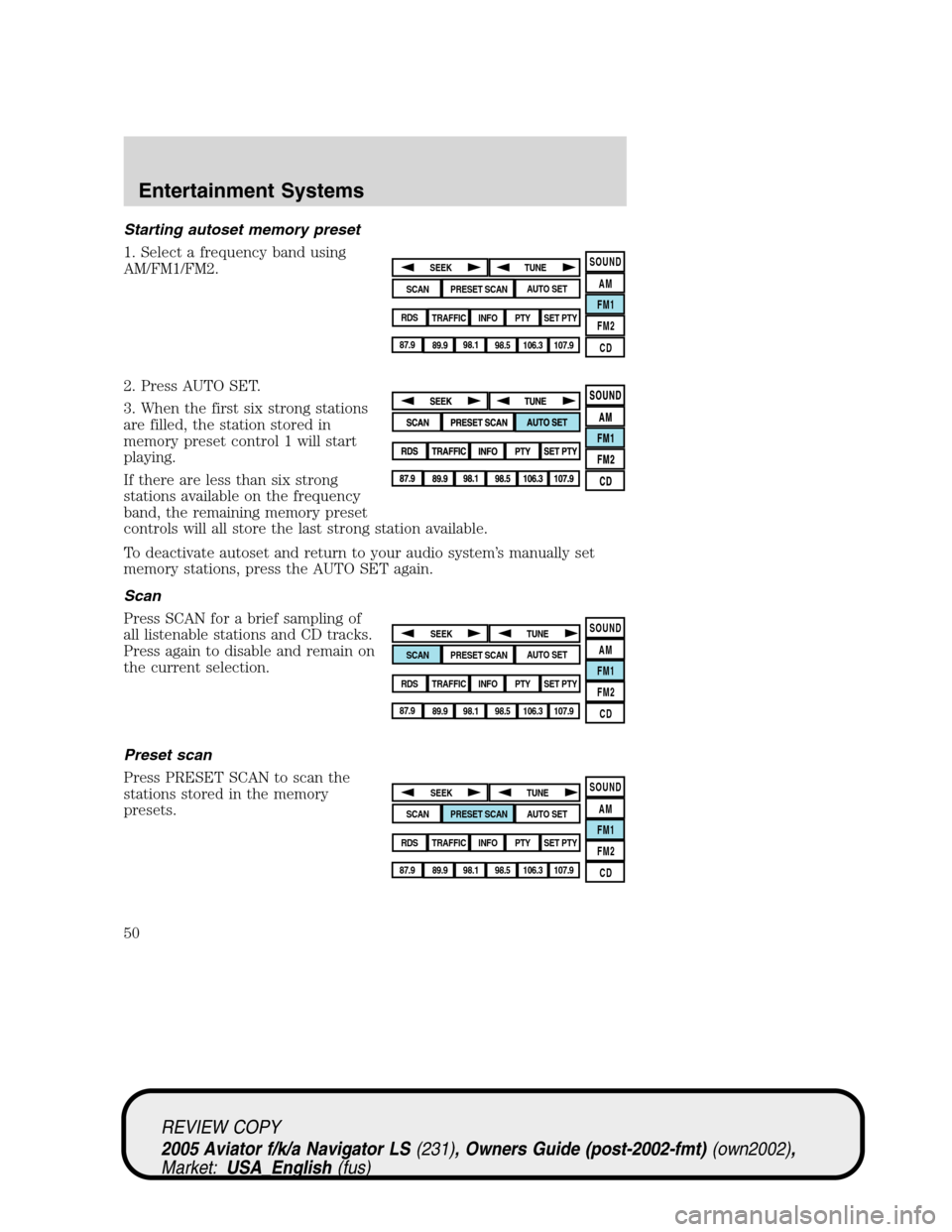
Starting autoset memory preset
1. Select a frequency band using
AM/FM1/FM2.
2. Press AUTO SET.
3. When the first six strong stations
are filled, the station stored in
memory preset control 1 will start
playing.
If there are less than six strong
stations available on the frequency
band, the remaining memory preset
controls will all store the last strong station available.
To deactivate autoset and return to your audio system’s manually set
memory stations, press the AUTO SET again.
Scan
Press SCAN for a brief sampling of
all listenable stations and CD tracks.
Press again to disable and remain on
the current selection.
Preset scan
Press PRESET SCAN to scan the
stations stored in the memory
presets.
SOUND
AM
FM1
FM2
CDSEEK
TUNE
PRESET SCANAUTO SET
SCAN
RDS
TRAFFIC
INFO PTYSET PTY
87.9
89.9 98.1
98.5 106.3 107.9
SOUND
AM
FM1
FM2
CDSEEK
TUNE
PRESET SCANAUTO SET
SCAN
RDS
TRAFFIC
INFO PTYSET PTY
87.9
89.9 98.1
98.5 106.3 107.9
SOUND
AM
FM1
FM2
CDSEEK
TUNE
PRESET SCANAUTO SET
SCAN
RDS
TRAFFIC
INFO PTYSET PTY
87.9
89.9 98.1
98.5 106.3 107.9
REVIEW COPY
2005 Aviator f/k/a Navigator LS(231), Owners Guide (post-2002-fmt)(own2002),
Market:USA_English(fus)
Entertainment Systems
50
Page 51 of 368
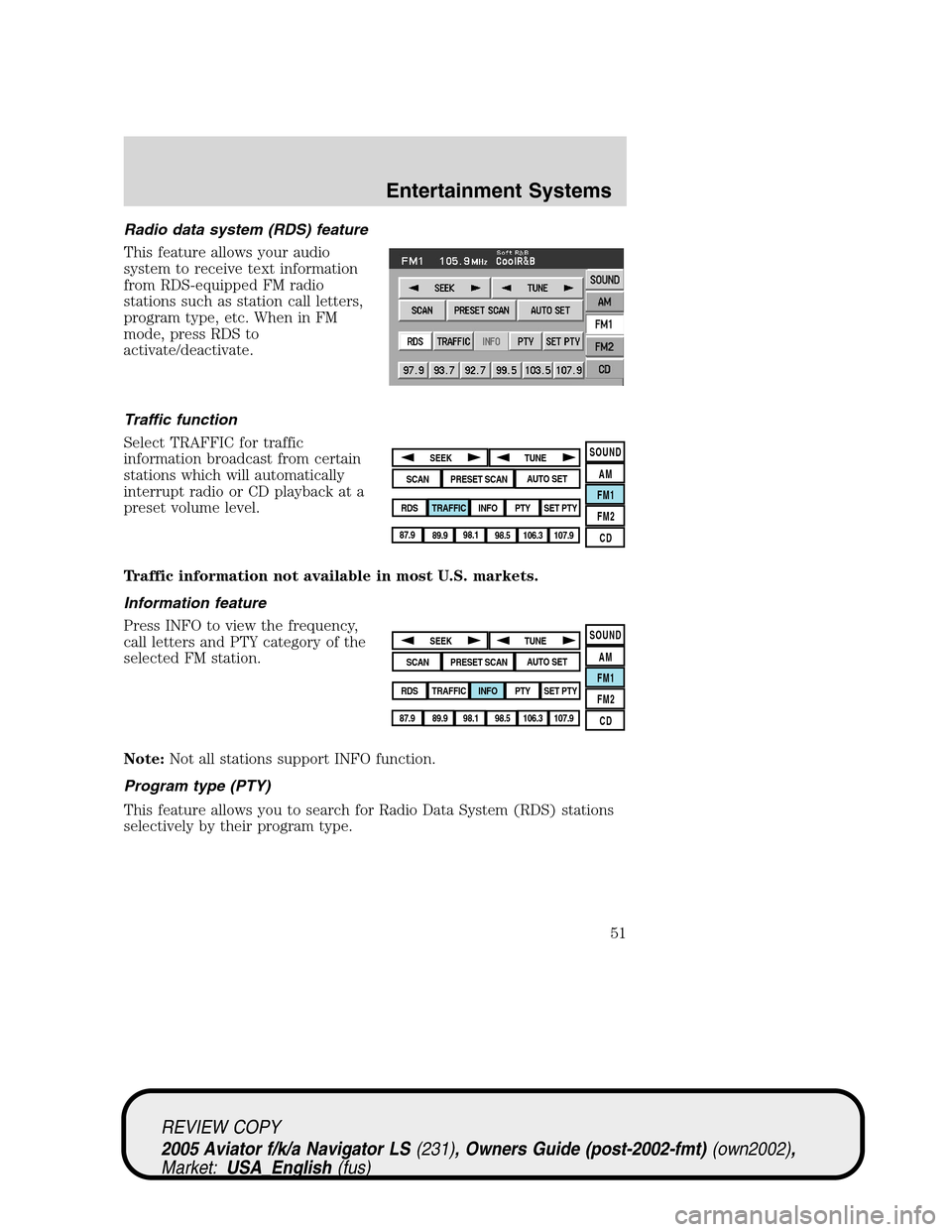
Radio data system (RDS) feature
This feature allows your audio
system to receive text information
from RDS-equipped FM radio
stations such as station call letters,
program type, etc. When in FM
mode, press RDS to
activate/deactivate.
Traffic function
Select TRAFFIC for traffic
information broadcast from certain
stations which will automatically
interrupt radio or CD playback at a
preset volume level.
Traffic information not available in most U.S. markets.
Information feature
Press INFO to view the frequency,
call letters and PTY category of the
selected FM station.
Note:Not all stations support INFO function.
Program type (PTY)
This feature allows you to search for Radio Data System (RDS) stations
selectively by their program type.
SOUND
AM
FM1
FM2
CDSEEK
TUNE
PRESET SCANAUTO SET
SCAN
RDS
TRAFFIC
INFO PTYSET PTY
87.9
89.9 98.1
98.5 106.3 107.9
SOUND
AM
FM1
FM2
CDSEEK
TUNE
PRESET SCANAUTO SET
SCAN
RDS
TRAFFIC
INFO PTYSET PTY
87.9
89.9 98.1
98.5 106.3 107.9
REVIEW COPY
2005 Aviator f/k/a Navigator LS(231), Owners Guide (post-2002-fmt)(own2002),
Market:USA_English(fus)
Entertainment Systems
51
Page 53 of 368

Satellite ready capability (if equipped)
Your Lincoln navigation system may
be equipped with Satellite ready
capability. The kit to enable Satellite
reception is available through your
Lincoln dealer. Detailed Satellite
instructions are included with the
dealer installed kit.
To access the Satellite reception (if
equipped), press MEDIA repeatedly
on your steering wheel controls
until the SAT screen appears in the
display.
CD mode
CD units are designed to play commercially pressed 4.75 in (12
cm) audio compact discs only. Due to technical incompatibility,
certain recordable and re-recordable compact discs may not
function correctly when used in Ford CD players. Irregular
shaped CDs, CDs with a scratch protection film attached, and CDs
with homemade paper (adhesive) labels should not be inserted
into the CD player. The label may peel and cause the CD to
become jammed. It is recommended that homemade CDs be
identified with permanent felt tip marker rather than adhesive
labels. Ball point pens may damage CDs. Please contact your
dealer for further information.
Playing a previously loaded CD:
To begin CD play (if a CD is already
loaded), press AUDIO hard button
and then CD.
SOUND
AM
FM1
FM2
CDSEEK
TUNE
PRESET SCANAUTO SET
SCAN
RDS
TRAFFIC
INFO PTYSET PTY
87.9
89.9 98.1
98.5 106.3 107.9
REVIEW COPY
2005 Aviator f/k/a Navigator LS(231), Owners Guide (post-2002-fmt)(own2002),
Market:USA_English(fus)
Entertainment Systems
53
Page 95 of 368
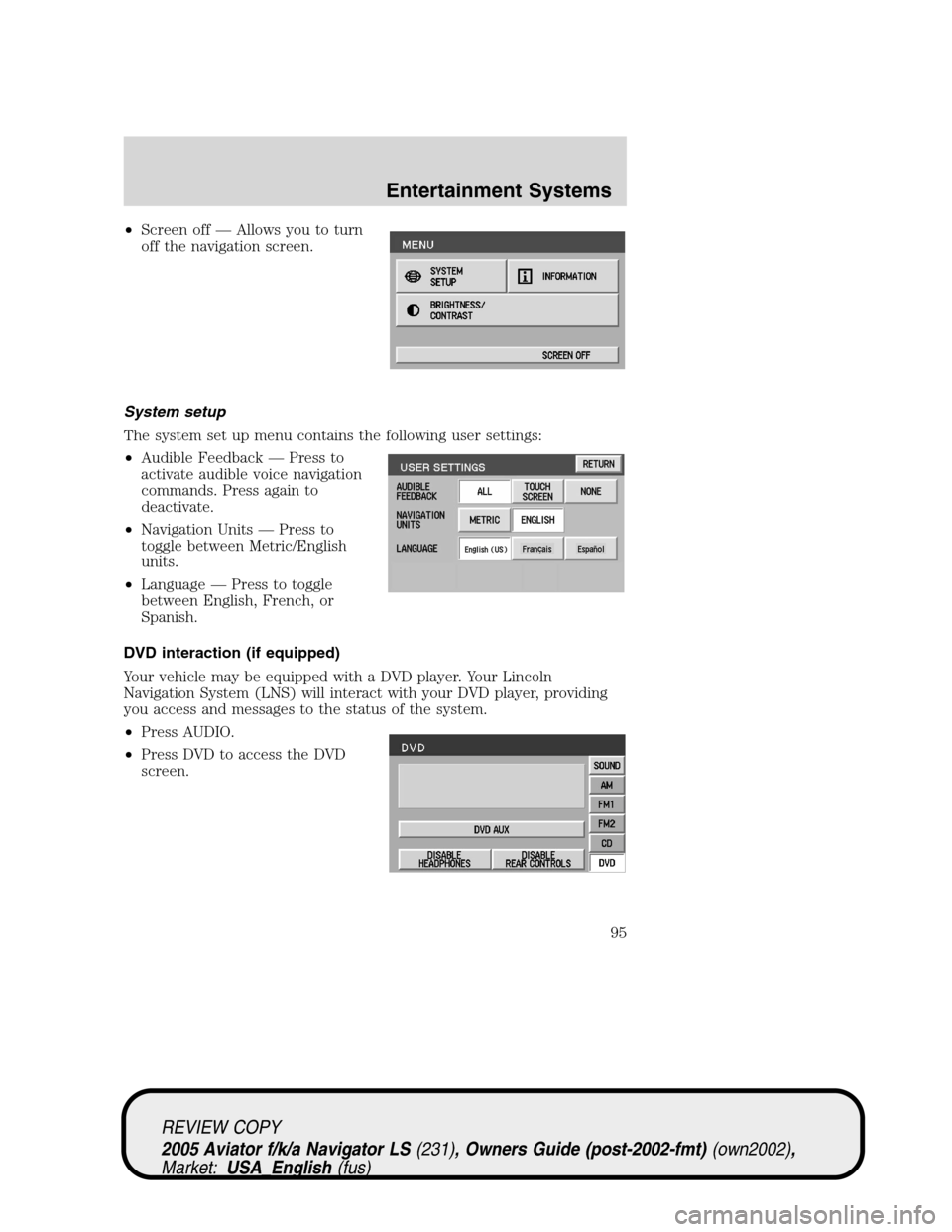
•Screen off—Allows you to turn
off the navigation screen.
System setup
The system set up menu contains the following user settings:
•Audible Feedback—Press to
activate audible voice navigation
commands. Press again to
deactivate.
•Navigation Units—Press to
toggle between Metric/English
units.
•Language—Press to toggle
between English, French, or
Spanish.
DVD interaction (if equipped)
Your vehicle may be equipped with a DVD player. Your Lincoln
Navigation System (LNS) will interact with your DVD player, providing
you access and messages to the status of the system.
•Press AUDIO.
•Press DVD to access the DVD
screen.
REVIEW COPY
2005 Aviator f/k/a Navigator LS(231), Owners Guide (post-2002-fmt)(own2002),
Market:USA_English(fus)
Entertainment Systems
95
Page 99 of 368
•Recommended products- Rubbing alcohol based cleaner (i.e., methyl
alcohol) or a damp clean cloth.
•Not harmful but not recommended- ammonia cleaner, neutral
detergent.
•Harmful to system and not recommended- acid cleaner, alkali cleaner,
benzene cleaner.
Do not clean any part of the system with benzene, paint thinner or any
other solvent.
Do not spill liquids of any kind onto the unit.
Loading the map DVD
•Your navigation DVD unit is located in the jack compartment on the
right hand side.
•Ensure that the vehicle ignition is ON.
•
If a DVD is already loaded in the Navigation unit, push the eject button.
•Load the DVD with the printed side up. Do not allow moisture or
foreign objects to enter the slot.
The navigation system utilizes a database stored in a special format on a
DVD. It is recommended always to use the latest update of this map DVD.
•The navigation system will only work with DVDs specifically intended
for your navigation system.
•Always store the map DVDs in their protective cases when not in use.
Ordering additional map DVDs
If you wish to order a replacement or additional map, please call
1–888–NAV-MAPS (1–888–628–6277) or to log onto www.navtech.com.
Latest map DVDs
The map content is constantly changing due to new roads, traffic
restrictions, etc. . Therefore, it is not always possible to exactly match
the DVD map with the current roadways. For best results, always use the
latest version of the map DVD. Map information is regularly updated, but
all areas are not necessarily covered to the same level of detail. Some
areas, in particular private roads, may not be included on the database.
To help with accuracy, always use the latest DVD version for navigation.
Customer service
If you need help operating your navigation/audio system, want to report
a map database error or want to obtain a map DVD, please call 1 (888)
628–6277 (NAV-MAPS) or log onto www.navtech.com.
REVIEW COPY
2005 Aviator f/k/a Navigator LS(231), Owners Guide (post-2002-fmt)(own2002),
Market:USA_English(fus)
Entertainment Systems
99