Page 80 of 420
linked to system. Only one linked (or paired) cellular
phone can be used with the system at a time. The system
is available in English, Spanish, or French languages (as
equipped).
The rearview mirror contains the microphone for the
system and the control buttons that will enable you to
access the system. The diagram below shows the mirror
with the appropriate buttons. Individual button behavior
is discussed in the�Operation�section.
The UConnect™system can be used with any Hands-
Free Profile certified Bluetooth™cellular phone. If your
cellular phone supports a different profile (eg., Headset
Profile), you may not be able to use any UConnect™
features. Refer to your cellular service provider or the
phone manufacturer for details.
UConnect™Switches
80 UNDERSTANDING THE FEATURES OF YOUR VEHICLE
Page 81 of 420

The UConnect™system is fully integrated with the
vehicle’s audio system. The volume of the UConnect™
system can either be adjusted from the radio volume
control knob, or from the steering wheel radio control
(right switch), if so equipped.
The radio display will be used for visual prompts from
the UConnect™system such as�CELL�or caller ID on
certain radios.
Operation
Voice commands can be used to operate the UConnect™
system and to navigate through the UConnect™menu
structure. Voice commands are required after most
UConnect™system prompts. You will be prompted for a
specific command and then guided through the available
options.
•Prior to giving a voice command, one must wait for
the voice on beep, which follows the�Ready�prompt
or another prompt.
•For certain operations, compound commands can be
used. For example, instead of saying�Setup�and then
�Phone Pairing,�the following compound command
can be said:�Setup Phone Pairing.�
•For each of the feature explanation in this section, only
the combined form of the voice command is given.
You can also break the commands into parts and say
each part of the command, when you are asked for it.
For example, you can either use the combined form
voice command�Phonebook New Entry,�or you can
break the combined form command into two voice
commands:�Phonebook�and�New Entry.�Please re-
member, the UConnect™system works best when you
talk in a normal conversational tone, as if speaking to
some one sitting eight feet away from you.
UNDERSTANDING THE FEATURES OF YOUR VEHICLE 81
3
Page 88 of 420

Answer or Reject an Incoming Call - Call
Currently in Progress
If a call is currently in progress and you have another
incoming call, you will hear the same network tones for
call waiting that you normally hear when using your cell
phone. Press the’Phone’button to place the current call
on hold and answer the incoming call. NOTE: The
UConnect™system compatible phones in market today
do not support rejecting an incoming call when another
call is in progress. Therefore, the user can only either
answer an incoming call or ignore it.
Making a Second Call while Current Call in
Progress
To make a second call while you are currently in a call,
press the’Voice Recognition’button and say�Dial�or
�Call�followed by the phone number or phonebook entry
you wish to call. The first call will be on hold while thesecond call is in progress. To go back to the first call, refer
to section�Toggling Between Two Calls.�To combine two
calls, refer to section�Conference Call.�
Place / Retrieve a Call from Hold
To put a call on hold, press the’Phone’button until you
hear a single beep which will indicate that the call has
been placed on hold. To bring the call back from hold,
press and hold the’Phone’button for 1 to 3 seconds.
Toggling Between Calls
If two calls are in progress (one active and one on hold),
press the’Phone’button until you hear a single beep
indicating that the active and hold status of the two calls
have switched. Only one call can be placed on hold at one
time.
88 UNDERSTANDING THE FEATURES OF YOUR VEHICLE
Page 89 of 420

Conference Call
When two calls are in progress (one active and one on
hold), press and hold the’Phone’button until you hear a
double beep indicating that the two calls have been
joined into one conference call.
Three-Way Calling
To initiate three-way calling, press the’Voice Recogni-
tion’button while a call is in progress and make a second
phone call as described in section�Making a Second Call
while Current Call in Progress.�After the second call has
established, press and hold the’Phone’button until you
hear a double beep indicating that the two calls have
been joined into one conference call.
Call Termination
To end a call in progress, momentarily press the’Phone’
button. All active calls will be terminated.
Redial
•
Press the’Phone’button to begin.
•After the�Ready�prompt and the following beep, say
�Redial.�
•The UConnect™system will call the last number that
was dialed on your cellular phone. Note: this may not
be the last number dialed from the UConnect™sys-
tem.
Call Continuation
Call continuation is progression of a phone call on
UConnect™system after the vehicle ignition key has
been switched to off. Call continuation functionality can
be of three types:
UNDERSTANDING THE FEATURES OF YOUR VEHICLE 89
3
Page 90 of 420

•After ignition key is switched off, a call can continue
on the UConnect™system either until the call ends or
until the vehicle battery condition dictates cessation of
the call on the UConnect™system and transfer of the
call to the mobile phone.
•After ignition key is switched to off, a call can continue
on the UConnect™system for certain duration, after
which the call is automatically transferred from the
UConnect™system to the mobile phone.
•An active call is automatically transferred to the
mobile phone after ignition key is switched to off.
Vehicles, such as Pacifica, support this approach.
UConnect™System Features
Language Selection
To change the language that the UConnect™system is
using,
•Press the’Phone’button to begin.
•After the�Ready�prompt and the following beep, say
the name of the language you wish to switch to
(English, Espanol, or Francais, if so equipped).
•Continue to follow the system prompts to complete
language selection.
After selecting one of the languages, all prompts and
voice commands will be in that language.
NOTE:After every UConnect™language change op-
eration, you need to re-enter names to the phonebook
and re-pair (re-link) phone(s).
Emergency Assistance
If you are in an emergency and the mobile phone is
reachable:
•Pick up the phone and manually dial the emergency
number for your area.
90 UNDERSTANDING THE FEATURES OF YOUR VEHICLE
Page 98 of 420
Bluetooth Communication Link
Cellular phones have been found to occasionally loose
connection to the UConnect™system. When this hap-
pens, the connection can generally be re-established by
switching the phone off/on. Your cell phone is recom-
mended to remain in Bluetooth�on�mode.
Reset
In rare instances, it may be necessary to reset the UCon-
nect™system. The reset feature is exercised by pressing
and holding the’UConnect™’and’Voice Recognition’
buttons simultaneously for 15 seconds. Normally, you do
not need to exercise this feature.
Power-Up
After switching ignition key from off to either On or ACC
position, or after a reset, you must wait at least five (5)
seconds prior to using the system.
98 UNDERSTANDING THE FEATURES OF YOUR VEHICLE
Page 102 of 420
SEATS
10–Way Driver’s Power Seat—If Equipped
The driver’s power seat switches are located on the
driver’s front door trim panel. The bottom switch con-
trols up/down, forward/rearward, and tilt adjustment.
The top switch controls the seatback recline adjustment
and the middle switch controls the lumbar adjustment.
10–Way Driver’s Power Seat
102 UNDERSTANDING THE FEATURES OF YOUR VEHICLE
Page 103 of 420
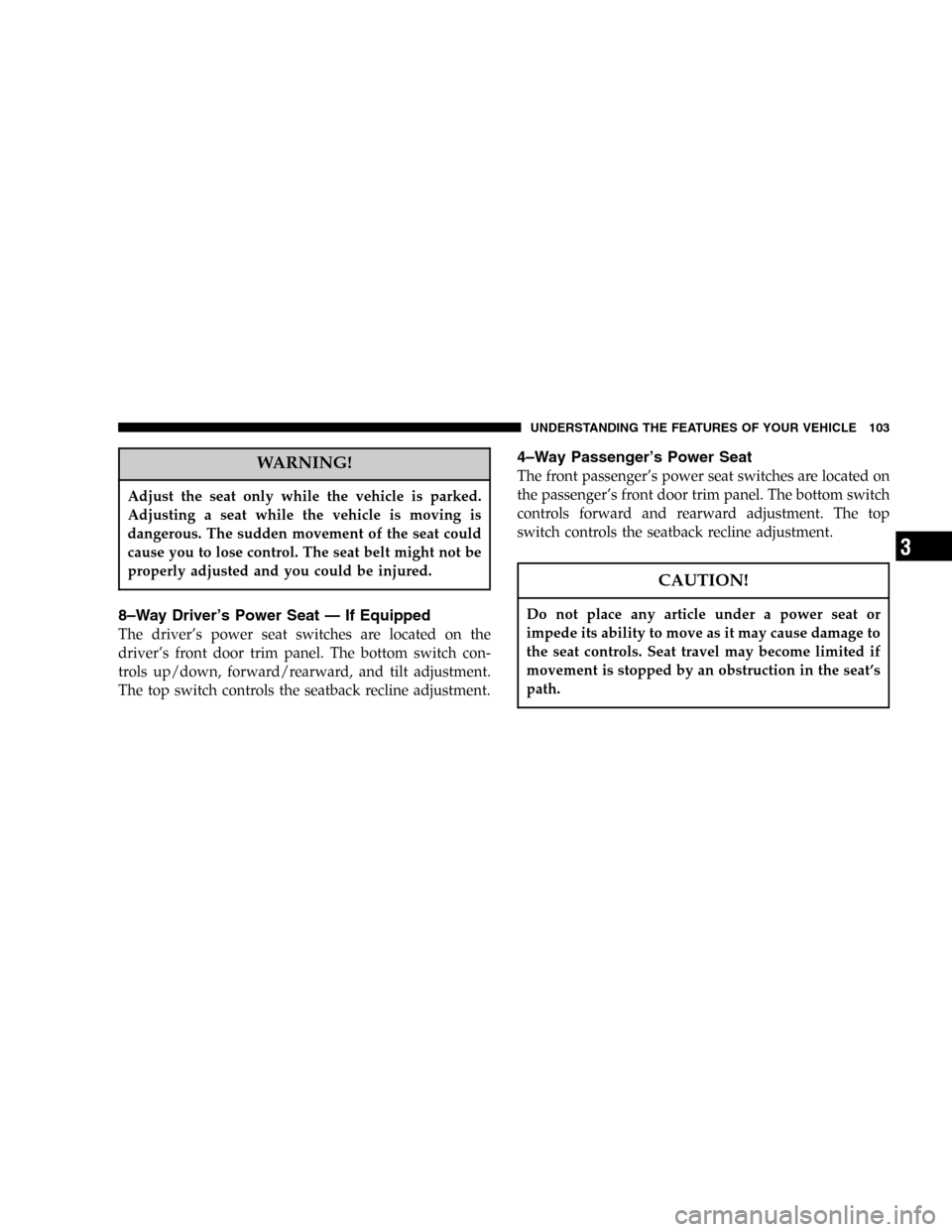
WARNING!
Adjust the seat only while the vehicle is parked.
Adjusting a seat while the vehicle is moving is
dangerous. The sudden movement of the seat could
cause you to lose control. The seat belt might not be
properly adjusted and you could be injured.
8–Way Driver’s Power Seat—If Equipped
The driver’s power seat switches are located on the
driver’s front door trim panel. The bottom switch con-
trols up/down, forward/rearward, and tilt adjustment.
The top switch controls the seatback recline adjustment.
4–Way Passenger’s Power Seat
The front passenger’s power seat switches are located on
the passenger’s front door trim panel. The bottom switch
controls forward and rearward adjustment. The top
switch controls the seatback recline adjustment.
CAUTION!
Do not place any article under a power seat or
impede its ability to move as it may cause damage to
the seat controls. Seat travel may become limited if
movement is stopped by an obstruction in the seat’s
path.
UNDERSTANDING THE FEATURES OF YOUR VEHICLE 103
3