2005 CHEVROLET UPLANDER display
[x] Cancel search: displayPage 257 of 460

RSE On-Screen Display (OSD) Menu
To use the RSE OSD menu when using a DVD or an
auxiliary device, do the following:
To access this menu, press the display button on the
remote control. Once the menu is on the screen, use the
directional arrows and the enter button to navigate the
screen. This menu will let you select default preferences
for video format, language preference, brightness,
color, contrast, and tint. Not all DVDs support all the
feature defaults in the setup menus. If a feature is not
supported, the defaults will be provided by the DVD
media. To exit this menu, press the display or the return
button on the remote control or wait for the menu to
time out.
The default language selection will apply to all
future DVDs.
To use the RSE OSD menu when using a CD or an
MP3, do the following:
Make sure that a CD or an MP3 is loaded in the RSE
system and that the system is not in auxiliary, then press
the display button on the remote control. Once the
menu is on the screen, use the directional arrows and
the enter button to navigate the screen.This menu will let you select default preferences for
language and playback settings. To exit this menu,
press the display or the return button on the remote
control or wait for the menu to time out.
Battery Replacement
To change the remote control batteries, do the following:
1. Slide the battery door, located on the back of the
remote control, down.
2. Replace the two AA batteries in the compartment.
Make sure that they are installed correctly, using
the diagram on the inside of the battery
compartment.
3. Close the battery door.
If the remote control is to be stored for a long period of
time, remove the batteries and keep them in a cool,
dry place.
3-105
Page 259 of 460

Problem Recommended Action
The language in the
audio or on the screen
is wrong.Press the main menu
button on the remote
control and change the
audio or language selection
on the DVD menu. To
change the language
preference, press the
display button to access the
RSE OSD menu. See “RSE
OSD” earlier in this section.
The remote control does
not work.Point the remote control
directly at the face of the
DVD unit. The batteries
could be weak or put in
wrong. The parental control
button might have been
pressed, the power
indicator lights will ash.
How do I get subtitles
on or off?Press the subtitle button on
the remote control to select
subtitle option or go to the
DVDs main menu and
follow the screen prompts.
The auxiliary source is
running but there is no
picture or sound.Press and release the AUX
button on the remote
control or the DVD player to
get to auxiliary input. Check
to make sure that the
auxiliary source is
connected to the inputs
properly.Problem Recommended Action
The audio or video skips
or jumps.The DVD could be dirty or
scratched. Try cleaning
the disc.
The fast forward, fast
reverse, previous, and
next functions do
not work.Some commands that do
one thing for DVDs will not
always work or perform the
same function for audio,
audio discs, or games.
These functions may also
be disabled when the DVD
is playing the copyright
information or the previews.
When RSA is on, these
buttons control RSA
functions.
My disc is stuck in the
player. The eject button
does not work.Press the eject button on
the DVD player. Turn the
ignition off, then on again,
then press the eject button
on the DVD player. Do not
attempt to force or remove
the disc from the player. If
the problem persists, return
to your GM dealer for
further assistance.
I lost the remote control
and/or the headphones.Contact your GM dealer for
assistance.
3-107
Page 261 of 460
DVD Messages
The following errors may be displayed on the video
screen.
Disc Format Error:This message will be displayed if a
disc is inserted upside down, if the disc is not readable,
or if the disc format is not compatible.
Disc Play Error:This message will be displayed if the
mechanism cannot play the disc. Scratched or
damaged discs will cause this error.
Region Code Error:This message will be displayed if
the region code of the DVD is not compatible with
the region code of the DVD player.
Load/Eject Error:This message will be displayed if the
disc is not properly loaded or ejected.
No Disc:This message will be displayed when you try
to play or eject a disc that is not in the player.
X:A white X will be displayed, in the upper left corner
of the video screen, if the operation that has been
selected is not currently available.
DVD Distortion
There may be an experience with video distortion when
operating cellular phones, scanners, CB radios,
Global Position Systems (GPS)*, two-way radios, mobile
fax, or walkie talkies.
It may be necessary to turn off the DVD player when
operating one of these devices in or near the vehicle.
*Excludes the OnStar
®System.
Cleaning the DVD Player
When cleaning the outside DVD faceplate and buttons,
use only a clean cloth dampened with clean water.
Cleaning the Video Screen
When cleaning the video screen, use only a clean cloth
dampened with clean water. Use care when directly
touching or cleaning the screen, as damage may result.
3-109
Page 262 of 460
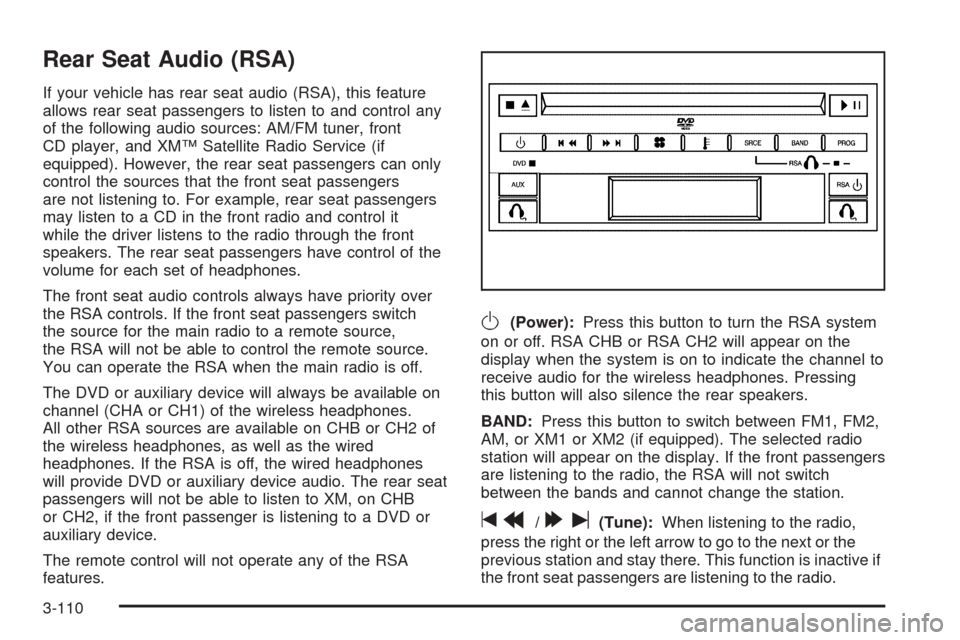
Rear Seat Audio (RSA)
If your vehicle has rear seat audio (RSA), this feature
allows rear seat passengers to listen to and control any
of the following audio sources: AM/FM tuner, front
CD player, and XM™ Satellite Radio Service (if
equipped). However, the rear seat passengers can only
control the sources that the front seat passengers
are not listening to. For example, rear seat passengers
may listen to a CD in the front radio and control it
while the driver listens to the radio through the front
speakers. The rear seat passengers have control of the
volume for each set of headphones.
The front seat audio controls always have priority over
the RSA controls. If the front seat passengers switch
the source for the main radio to a remote source,
the RSA will not be able to control the remote source.
You can operate the RSA when the main radio is off.
The DVD or auxiliary device will always be available on
channel (CHA or CH1) of the wireless headphones.
All other RSA sources are available on CHB or CH2 of
the wireless headphones, as well as the wired
headphones. If the RSA is off, the wired headphones
will provide DVD or auxiliary device audio. The rear seat
passengers will not be able to listen to XM, on CHB
or CH2, if the front passenger is listening to a DVD or
auxiliary device.
The remote control will not operate any of the RSA
features.
O(Power):Press this button to turn the RSA system
on or off. RSA CHB or RSA CH2 will appear on the
display when the system is on to indicate the channel to
receive audio for the wireless headphones. Pressing
this button will also silence the rear speakers.
BAND:Press this button to switch between FM1, FM2,
AM, or XM1 or XM2 (if equipped). The selected radio
station will appear on the display. If the front passengers
are listening to the radio, the RSA will not switch
between the bands and cannot change the station.
tr/[u(Tune):When listening to the radio,
press the right or the left arrow to go to the next or the
previous station and stay there. This function is inactive if
the front seat passengers are listening to the radio.
3-110
Page 264 of 460
Theft-Deterrent Feature
THEFTLOCK®is designed to discourage theft of your
vehicle’s radio. The feature works automatically by
learning a portion of the Vehicle Identication Number
(VIN). If the radio is moved to a different vehicle, it
will not operate and LOCKED will appear on the display.
With THEFTLOCK
®activated, the radio will not
operate if stolen.
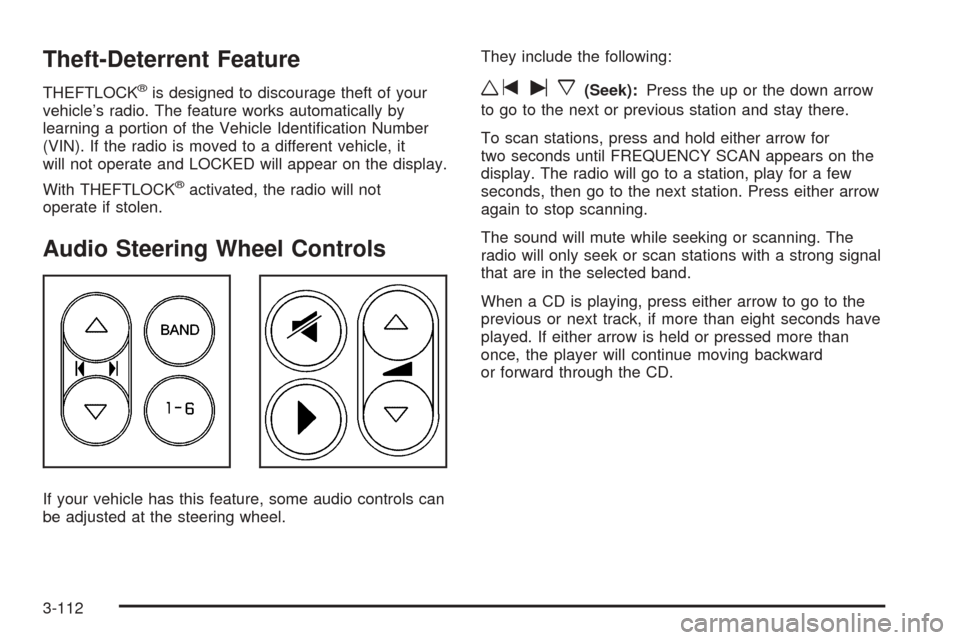
Audio Steering Wheel Controls
If your vehicle has this feature, some audio controls can
be adjusted at the steering wheel.They include the following:
wtux(Seek):Press the up or the down arrow
to go to the next or previous station and stay there.
To scan stations, press and hold either arrow for
two seconds until FREQUENCY SCAN appears on the
display. The radio will go to a station, play for a few
seconds, then go to the next station. Press either arrow
again to stop scanning.
The sound will mute while seeking or scanning. The
radio will only seek or scan stations with a strong signal
that are in the selected band.
When a CD is playing, press either arrow to go to the
previous or next track, if more than eight seconds have
played. If either arrow is held or pressed more than
once, the player will continue moving backward
or forward through the CD.
3-112
Page 265 of 460
BAND:Press this button to switch between FM1, FM2,
AM, or XM1 or XM2 (if equipped).
1-6:Press this button to scan the stations that are
programmed on the radio preset pushbuttons. The radio
will go to the next preset station stored on the
pushbuttons, play for a few seconds, then go on to the
next preset station. Press this button again to stop
scanning. The radio will only scan preset stations with a
strong signal that are in the selected band.
$(Mute):Press this button to silence the system.
Press this button again, to turn the sound on.
r(Play):When listening to the radio, press this
button to play a cassette tape or CD.
wux(Volume):Press the up or down arrow to
increase or decrease the volume.
Radio Reception
AM
The range for most AM stations is greater than for FM,
especially at night. The longer range can cause
station frequencies to interfere with each other. Static
can occur on AM stations caused by things like
storms and power lines. Try reducing the treble to
reduce this noise.
FM Stereo
FM stereo will give the best sound, but FM signals will
reach only about 10 to 40 miles (16 to 65 km). Tall
buildings or hills can interfere with FM signals, causing
the sound to fade in and out.
XM™ Satellite Radio Service
XM™ Satellite Radio Service gives digital radio
reception from coast to coast. Just as with FM, tall
buildings or hills can interfere with satellite radio signals,
causing the sound to fade in and out. The radio may
display NO SIGNAL to indicate interference.
3-113
Page 266 of 460
Care of Your CDs and DVDs
Handle discs carefully. Store them in their original cases
or other protective cases and away from direct sunlight
and dust. If the surface of a disc is soiled, dampen
a clean, soft cloth in a mild, neutral detergent solution
and clean it, wiping from the center to the edge.
Be sure never to touch the side without writing when
handling discs. Pick up discs by grasping the outer
edges or the edge of the hole and the outer edge.
Care of the CD and DVD Player
The use of CD lens cleaners for CDs is not advised,
due to the risk of contaminating the lens of the CD optics
with lubricants internal to the CD mechanism.
Fixed Mast Antenna
The xed mast antenna can withstand most car washes
without being damaged. If the mast should ever
become slightly bent, straighten it out by hand. If the
mast is badly bent, replace it.
Check occasionally to make sure the mast is still
tightened to the antenna base located on the hood of
the vehicle. If tightening is required, tighten by hand.
XM™ Satellite Radio Antenna
System
The XM™ Satellite Radio antenna is located on the roof
of your vehicle. Keep this antenna clear of snow and
ice build up for clear radio reception.
Loading items onto the roof of your vehicle can interfere
with the performance of the XM™ system. Make sure
that the XM™ satellite antenna is not obstructed.
Chime Level Adjustment
The radio is the vehicle chime producer. To change the
volume level, press and hold pushbutton 6 with the
ignition on and the radio power off. The chime volume
level will change from the normal level to loud, and
LOUD will appear on the radio display. To change back
to the default or normal setting, press and hold
pushbutton 6 again. The chime level will change from
the loud level to normal, and NORMAL will appear
on the radio display. Removing the radio and not
replacing it with a factory radio or chime module will
disable vehicle chimes.
3-114
Page 276 of 460
The traction control system automatically comes on
whenever you start your vehicle. To limit wheel
spin, especially in slippery road conditions, you should
always leave the system on. But you can turn the
traction control system off if you ever need to. You
should turn the system off if your vehicle ever gets stuck
in sand, mud or snow and rocking the vehicle is
required. SeeRocking Your Vehicle to Get It Out on
page 4-33andIf Your Vehicle is Stuck in Sand, Mud, Ice
or Snow on page 4-32.
To turn the system off,
press the traction control
button located on the
center of the instrument
panel.
If the system is limiting wheel spin when you press the
button, the TRACTION CONTROL ACTIVE message
will go off, but the system will not turn off until there is no
longer a current need to limit wheel spin. The
TRACTION CONTROL OFF message will come on to
remind you the system is off. You can turn the
system back on at any time by pressing the button
again. The traction control system warning message
should go off.StabiliTrak®System
Your vehicle may be equipped with StabiliTrak®which
combines anti-lock brake, traction and stability
control systems and helps the driver maintain directional
control of the vehicle in most driving conditions.
When you rst start your vehicle and begin to drive
away, the system performs several diagnostic checks to
insure there are no problems. You may hear or feel
the system working. This is normal and does not mean
there is a problem with your vehicle.
If the system fails to turn on or activate, the SERVICE
STABILITY SYSTEM message will be displayed on
the Driver Information Center (DIC). If the vehicle has
gone through heavy acceleration or braking or multiple
turns during the rst two miles of driving after starting
your vehicle, the STABILITY CONTROL OFF message
may appear on the DIC. If this is the case, your
vehicle does not need servicing. You will need to turn
the vehicle off and then restart it to initialize StabiliTrak
®.
If either message appears on the DIC, and your
vehicle has not gone through hard acceleration, braking
or multiple turns in the rst two miles of driving, your
vehicle should be taken in for service.
4-10