2005 CHEVROLET MALIBU CD player
[x] Cancel search: CD playerPage 238 of 434
Playing a Disc
To play a disc, gently insert the disc, with the label side
up, into the loading slot. The DVD player will continue
loading the disc and the player will automatically start if
the vehicle is in run, accessory, or RAP.
If a disc is already in the player, make sure that the
DVD player is on, then press the play/pause button on
the player faceplate or on the remote control.
Some DVDs will not allow fast forwarding or skipping of
the copyright information or the previews. Some
DVDs will begin playing after the previews have nished.
If the DVD does not begin playing at the main title,
refer to the on-screen instructions.
Stopping and Resuming Playback
To stop playing a disc, press and release the stop
button on the DVD player faceplate or the remote
control.
To resume playback, press the play/pause button on
the DVD player faceplate or the remote control.
The movie should resume play from where it was last
stopped if the disc has not been ejected or the stop
button has not been pressed twice on the remote
control.If the disc has been ejected or if the stop button has
been pressed twice on the remote control, press the play
button once to resume play at the beginning of the
disc. A resume symbol will appear momentarily on the
video screen. When the resume symbol is displayed,
press the play button again to resume playback
from where the disc last stopped.
Ejecting a Disc
Press the eject button, on the DVD player or the remote
control, to eject the disc.
If a disc is ejected from the player, but not removed, the
DVD player will reload the disc after a short period of
time. The disc will be stored in the DVD player.
The DVD player will not resume play of the disc
automatically.
3-108
Page 239 of 434
Remote Control
To use the remote control, aim it at the transmitter
window on the DVD player and press the desired button.
Direct sunlight or very bright light may affect the
ability of the transmitter to receive signals from the
remote control. If the remote control does not seem to
be working, the batteries may need to be replaced. See
“Battery Replacement” later in this section. Objects
blocking the line of sight will affect the function of the
remote control.
Notice:Do not store the remote control in heat or
direct sunlight. This could damage the remote
control and it would not be covered by your
warranty. Keep the remote control stored in the rear
seat armrest when not in use.
If your vehicle is the Malibu MAXX, your vehicle may
have a rear seat storage compartment. Store the
headphones and the remote control in this compartment
when not in use.
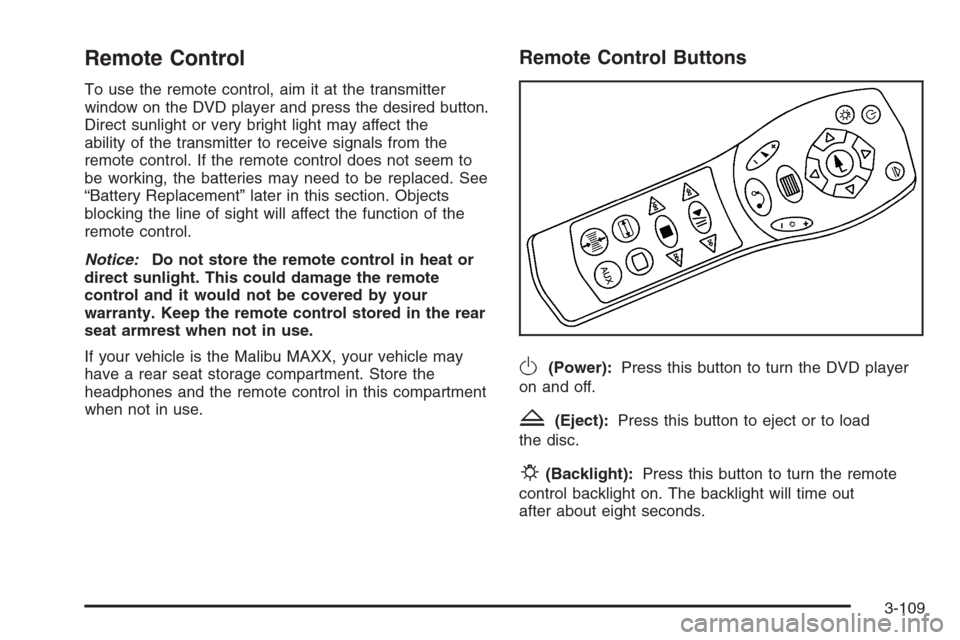
Remote Control Buttons
O(Power):Press this button to turn the DVD player
on and off.
Z(Eject):Press this button to eject or to load
the disc.
P(Backlight):Press this button to turn the remote
control backlight on. The backlight will time out
after about eight seconds.
3-109
Page 241 of 434
b(Size):Press this button to change the display
mode for 4:3 aspect ratio movies. This function cycles
between NORMAL, WIDE, and FULL video modes.
NormalThe horizontal image is not stretched. The
borders at the left and the right of the picture are
blanked. All lines of the vertical image are displayed.
WideThe horizontal image is non-lineraly stretched.
The image tends to be stretched more at the
borders then the middle. The borders are not
displayed.
FullThe horizontal image is linearly stretched. All
vertical lines are displayed. No borders are
present.
z(Display):Press this button to display the title,
chapter, the time of a DVD or track number, the time of
a CD, and the menu functions on the video screen.
Press this button again to turn off the display item.
}(Audio Compression):DVDs have a wide dynamic
audio range. Audio compression may be used to
reduce the difference between soft and loud selections
of the DVD. Press this button to switch the audio
compression on and off.
AUX (Auxiliary):Press this button to switch the system
between the DVD player and an auxiliary source.
Setup Menu
To access the setup menu, ensure that a DVD is in the
player and the video is stopped. Press the display
button. Once the menu is activated, use the directional
arrows and the enter button to navigate the screen.
Picture Preferences
The USER PREFERENCE SETTINGS menu allows the
default viewing preferences to be modied. Use the
remote control up and down arrow buttons to select. The
movie may stop while selections are being made.
TV Shape:The default video screen display may be
selected from 4:3 letterbox, 4:3 panscan, or 16:9.
Black Level Shift:The default black level to the video
screen may be adjusted.
Video Shift:The default position of the video on the
display may be adjusted.
Color Settings:The default color setting of the video
screen may be selected from Personal, Rich, Natural,
Soft, or Animation.
Personal Color:The default setting for Saturation,
Brightness, and Contrast may be adjusted.
3-111
Page 244 of 434
Title:Move between DVD titles by using the remote
control arrow buttons.
Chapter:Move between DVD chapters by using the
remote control arrow buttons.
Time Search:The user can jump to different areas of a
DVD by using the remote control arrow and enter
buttons to select a specic time position.
Favorite Track Selection (FTS):You may program the
unit to play only your favorite track selections from a DVD
or Audio CD. For a DVD, FTS is accessed from the Menu
bar. For a CD, the FTS screen will appear on the display
immediately when the CD is inserted. From the screen,
choose the tracks on the CD that you wish to store, using
the remote control right and left arrows and the ENTER
button to select. The player will remember the selections
and each time the CD is inserted in the player, only those
tracks will be played, if FTS is turned on. The player can
remember selections for up to 50 discs. To remove FTS
for a disc, the disc must be in the player and the
highlighted tracks must be de-selected. Use the right and
left arrow buttons and the ENTER button or select
CLEAR ALL on the display.Not all DVDs support all of the feature defaults in the
setup menus. In the event a feature is not supported,
defaults will be provided by the DVD media.
Exit the setup menu by pressing the return button on the
remote control. If changes are made to the setup menu,
the DVD will resume play from the beginning.
Battery Replacement
To change the remote control batteries, do the following:
1. Unclip the battery door located on the back of the
remote control.
2. Replace the two AA batteries. Make sure that they
are installed correctly, using the diagram on the
inside of the battery compartment.
3. Close the battery door.
If the remote control is to be stored for a long period of
time, remove the batteries and keep them in a cool,
dry place.
3-114
Page 245 of 434
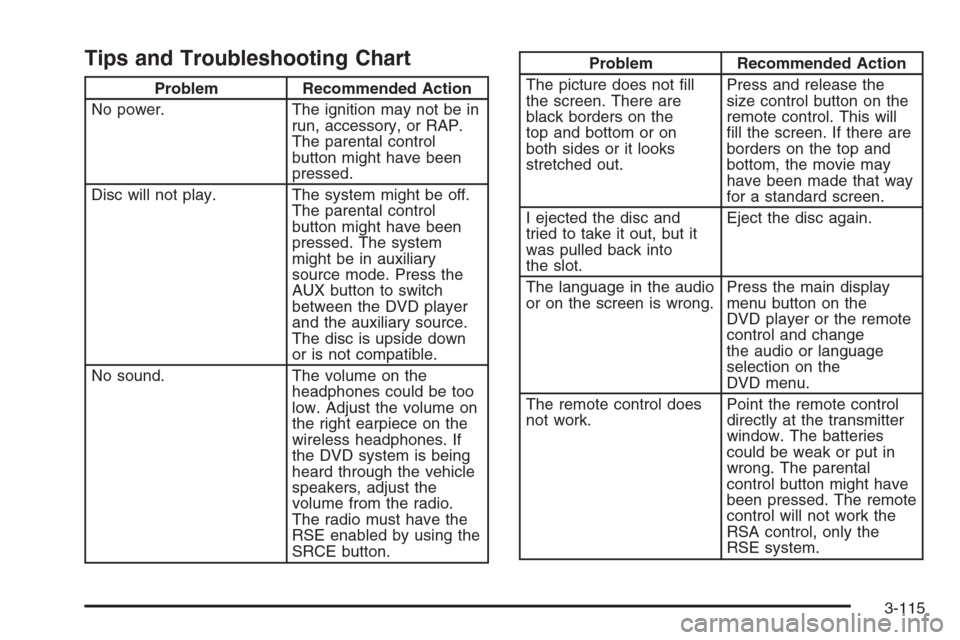
Tips and Troubleshooting Chart
Problem Recommended Action
No power. The ignition may not be in
run, accessory, or RAP.
The parental control
button might have been
pressed.
Disc will not play. The system might be off.
The parental control
button might have been
pressed. The system
might be in auxiliary
source mode. Press the
AUX button to switch
between the DVD player
and the auxiliary source.
The disc is upside down
or is not compatible.
No sound. The volume on the
headphones could be too
low. Adjust the volume on
the right earpiece on the
wireless headphones. If
the DVD system is being
heard through the vehicle
speakers, adjust the
volume from the radio.
The radio must have the
RSE enabled by using the
SRCE button.
Problem Recommended Action
The picture does not ll
the screen. There are
black borders on the
top and bottom or on
both sides or it looks
stretched out.Press and release the
size control button on the
remote control. This will
ll the screen. If there are
borders on the top and
bottom, the movie may
have been made that way
for a standard screen.
I ejected the disc and
tried to take it out, but it
was pulled back into
the slot.Eject the disc again.
The language in the audio
or on the screen is wrong.Press the main display
menu button on the
DVD player or the remote
control and change
the audio or language
selection on the
DVD menu.
The remote control does
not work.Point the remote control
directly at the transmitter
window. The batteries
could be weak or put in
wrong. The parental
control button might have
been pressed. The remote
control will not work the
RSA control, only the
RSE system.
3-115
Page 246 of 434
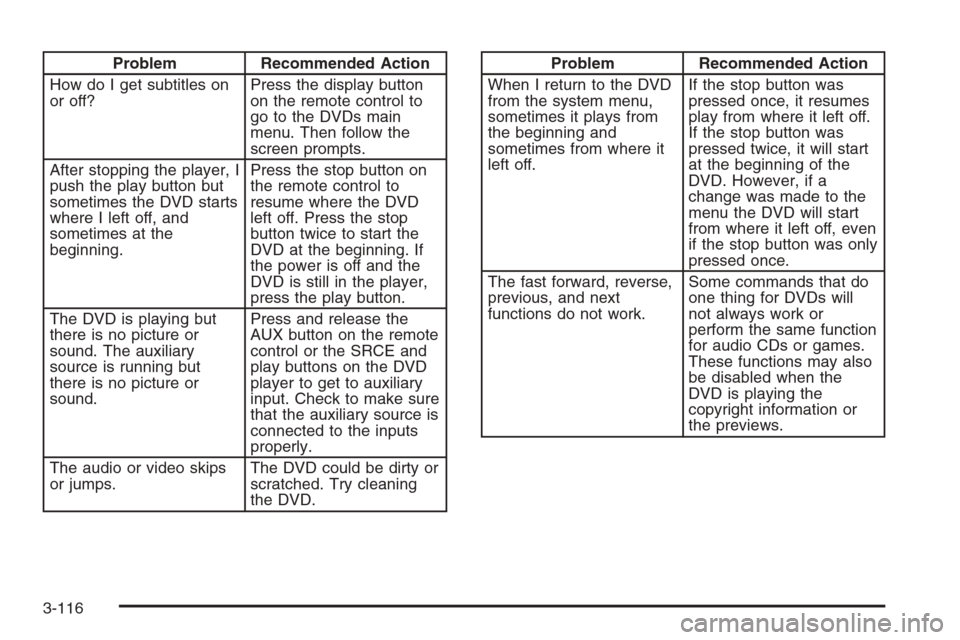
Problem Recommended Action
How do I get subtitles on
or off?Press the display button
on the remote control to
go to the DVDs main
menu. Then follow the
screen prompts.
After stopping the player, I
push the play button but
sometimes the DVD starts
where I left off, and
sometimes at the
beginning.Press the stop button on
the remote control to
resume where the DVD
left off. Press the stop
button twice to start the
DVD at the beginning. If
the power is off and the
DVD is still in the player,
press the play button.
The DVD is playing but
there is no picture or
sound. The auxiliary
source is running but
there is no picture or
sound.Press and release the
AUX button on the remote
control or the SRCE and
play buttons on the DVD
player to get to auxiliary
input. Check to make sure
that the auxiliary source is
connected to the inputs
properly.
The audio or video skips
or jumps.The DVD could be dirty or
scratched. Try cleaning
the DVD.Problem Recommended Action
When I return to the DVD
from the system menu,
sometimes it plays from
the beginning and
sometimes from where it
left off.If the stop button was
pressed once, it resumes
play from where it left off.
If the stop button was
pressed twice, it will start
at the beginning of the
DVD. However, if a
change was made to the
menu the DVD will start
from where it left off, even
if the stop button was only
pressed once.
The fast forward, reverse,
previous, and next
functions do not work.Some commands that do
one thing for DVDs will
not always work or
perform the same function
for audio CDs or games.
These functions may also
be disabled when the
DVD is playing the
copyright information or
the previews.
3-116
Page 247 of 434
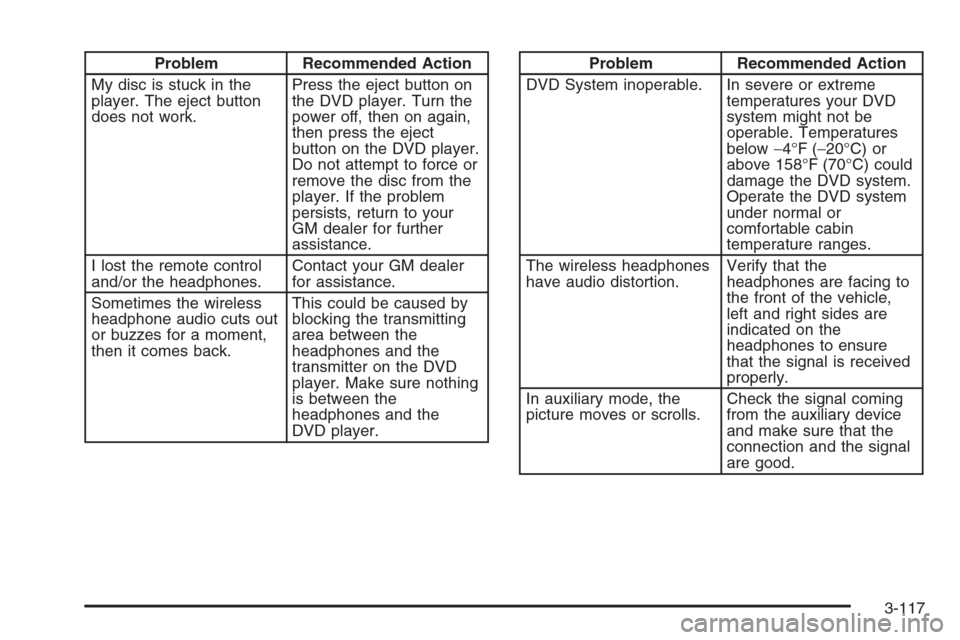
Problem Recommended Action
My disc is stuck in the
player. The eject button
does not work.Press the eject button on
the DVD player. Turn the
power off, then on again,
then press the eject
button on the DVD player.
Do not attempt to force or
remove the disc from the
player. If the problem
persists, return to your
GM dealer for further
assistance.
I lost the remote control
and/or the headphones.Contact your GM dealer
for assistance.
Sometimes the wireless
headphone audio cuts out
or buzzes for a moment,
then it comes back.This could be caused by
blocking the transmitting
area between the
headphones and the
transmitter on the DVD
player. Make sure nothing
is between the
headphones and the
DVD player.Problem Recommended Action
DVD System inoperable. In severe or extreme
temperatures your DVD
system might not be
operable. Temperatures
below−4°F (−20°C) or
above 158°F (70°C) could
damage the DVD system.
Operate the DVD system
under normal or
comfortable cabin
temperature ranges.
The wireless headphones
have audio distortion.Verify that the
headphones are facing to
the front of the vehicle,
left and right sides are
indicated on the
headphones to ensure
that the signal is received
properly.
In auxiliary mode, the
picture moves or scrolls.Check the signal coming
from the auxiliary device
and make sure that the
connection and the signal
are good.
3-117
Page 248 of 434
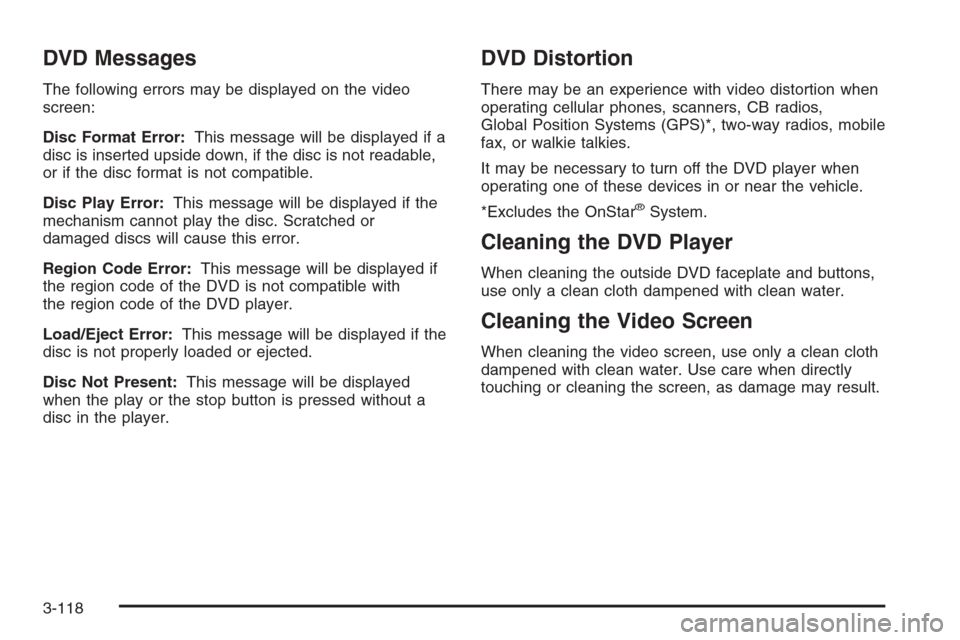
DVD Messages
The following errors may be displayed on the video
screen:
Disc Format Error:This message will be displayed if a
disc is inserted upside down, if the disc is not readable,
or if the disc format is not compatible.
Disc Play Error:This message will be displayed if the
mechanism cannot play the disc. Scratched or
damaged discs will cause this error.
Region Code Error:This message will be displayed if
the region code of the DVD is not compatible with
the region code of the DVD player.
Load/Eject Error:This message will be displayed if the
disc is not properly loaded or ejected.
Disc Not Present:This message will be displayed
when the play or the stop button is pressed without a
disc in the player.
DVD Distortion
There may be an experience with video distortion when
operating cellular phones, scanners, CB radios,
Global Position Systems (GPS)*, two-way radios, mobile
fax, or walkie talkies.
It may be necessary to turn off the DVD player when
operating one of these devices in or near the vehicle.
*Excludes the OnStar
®System.
Cleaning the DVD Player
When cleaning the outside DVD faceplate and buttons,
use only a clean cloth dampened with clean water.
Cleaning the Video Screen
When cleaning the video screen, use only a clean cloth
dampened with clean water. Use care when directly
touching or cleaning the screen, as damage may result.
3-118