2005 CHEVROLET MALIBU start stop button
[x] Cancel search: start stop buttonPage 230 of 434
RDM (Random):With random, you can listen to the
tracks in random, rather than sequential, order, on
one CD or on all of the CDs.
To use random, do one of the following:
To play the tracks on the CD you are listening to in
random order, press the RDM button. RANDOM
TRACKS and RDM will appear on the display. Press
RDM again to turn off random play. RANDOM
OFF will appear on the display and RDM will
disappear from the display.
To play the tracks on all of the CDs that are loaded,
in random order, press and hold the RDM button for
more than two seconds. You will hear a beep,
RANDOM ALL CDS, and RDM will appear on the
display. Press RDM again to turn off random
play. RANDOM OFF will appear on the display and
RDM will disappear from the display.
xSEEKw:Press the down arrow to go to the start
of the current track, if more than eight seconds have
played. Press the up arrow to go to the beginning of the
next track. If either arrow is held or pressed more
than once, the player will continue moving backward or
forward through the CD.
To scan the current CD, press and hold either SEEK
arrow for more than two seconds. The CD will go to the
next track, play the rst 10 seconds, then go on to
the next track. Press either SEEK arrow again to stop
scanning.To scan all of the CDs loaded, press and hold either
SEEK arrow for more than four seconds. The CD will go
to the next CD, play the rst 10 seconds of the rst
track, then go on to the next CD. Press either SEEK
arrow again to stop scanning.
DISP (Display):Press this knob to switch between
time, temperature, and the elapsed time of the track. To
change the default on the display (CD#/Track#/Time,
CD#/Track#/Temperature, or Track#/Elapsed
Time/Temperature), press the knob until you see the
display you want, then hold the knob for two seconds.
The radio will produce one beep and the selected
display will now be the default.
AUTO TONE/AUTO EQ (Automatic Equalization):
Press this button to select the desired equalization
setting while playing a CD. The equalization will be set
whenever a CD is played. For more information, see
“AUTO TONE” or “AUTO EQ” listed previously in
this section.
BAND:Press this button to listen to the radio when a
CD is playing. The inactive CD(s) will remain safely
inside the radio for future listening.
SRCE (Source):Press this button to play a CD or to
access the remote device, when listening to the radio.
3-100
Page 237 of 434
DVD Player Buttons
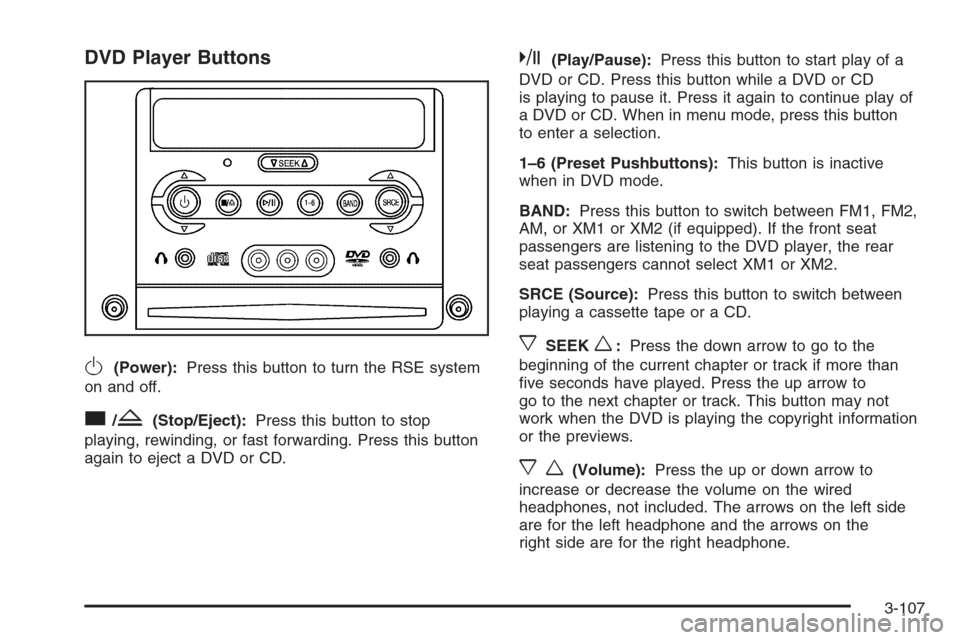
O(Power):Press this button to turn the RSE system
on and off.
c/Z(Stop/Eject):Press this button to stop
playing, rewinding, or fast forwarding. Press this button
again to eject a DVD or CD.
k(Play/Pause):Press this button to start play of a
DVD or CD. Press this button while a DVD or CD
is playing to pause it. Press it again to continue play of
a DVD or CD. When in menu mode, press this button
to enter a selection.
1–6 (Preset Pushbuttons):This button is inactive
when in DVD mode.
BAND:Press this button to switch between FM1, FM2,
AM, or XM1 or XM2 (if equipped). If the front seat
passengers are listening to the DVD player, the rear
seat passengers cannot select XM1 or XM2.
SRCE (Source):Press this button to switch between
playing a cassette tape or a CD.
xSEEKw:Press the down arrow to go to the
beginning of the current chapter or track if more than
ve seconds have played. Press the up arrow to
go to the next chapter or track. This button may not
work when the DVD is playing the copyright information
or the previews.
xw(Volume):Press the up or down arrow to
increase or decrease the volume on the wired
headphones, not included. The arrows on the left side
are for the left headphone and the arrows on the
right side are for the right headphone.
3-107
Page 238 of 434
Playing a Disc
To play a disc, gently insert the disc, with the label side
up, into the loading slot. The DVD player will continue
loading the disc and the player will automatically start if
the vehicle is in run, accessory, or RAP.
If a disc is already in the player, make sure that the
DVD player is on, then press the play/pause button on
the player faceplate or on the remote control.
Some DVDs will not allow fast forwarding or skipping of
the copyright information or the previews. Some
DVDs will begin playing after the previews have nished.
If the DVD does not begin playing at the main title,
refer to the on-screen instructions.
Stopping and Resuming Playback
To stop playing a disc, press and release the stop
button on the DVD player faceplate or the remote
control.
To resume playback, press the play/pause button on
the DVD player faceplate or the remote control.
The movie should resume play from where it was last
stopped if the disc has not been ejected or the stop
button has not been pressed twice on the remote
control.If the disc has been ejected or if the stop button has
been pressed twice on the remote control, press the play
button once to resume play at the beginning of the
disc. A resume symbol will appear momentarily on the
video screen. When the resume symbol is displayed,
press the play button again to resume playback
from where the disc last stopped.
Ejecting a Disc
Press the eject button, on the DVD player or the remote
control, to eject the disc.
If a disc is ejected from the player, but not removed, the
DVD player will reload the disc after a short period of
time. The disc will be stored in the DVD player.
The DVD player will not resume play of the disc
automatically.
3-108
Page 240 of 434
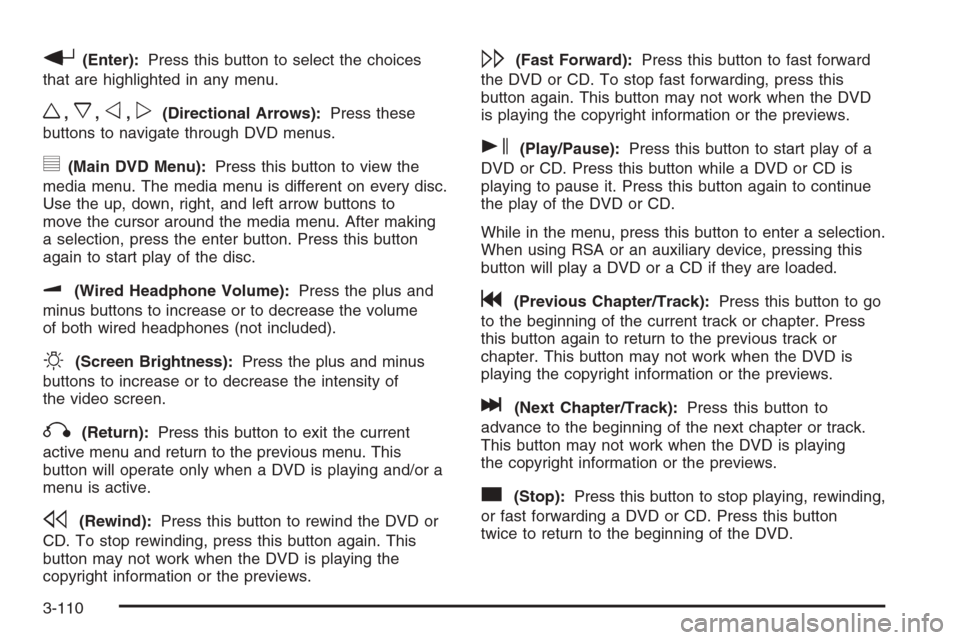
r(Enter):Press this button to select the choices
that are highlighted in any menu.
w,x,o,p(Directional Arrows):Press these
buttons to navigate through DVD menus.
y(Main DVD Menu):Press this button to view the
media menu. The media menu is different on every disc.
Use the up, down, right, and left arrow buttons to
move the cursor around the media menu. After making
a selection, press the enter button. Press this button
again to start play of the disc.
u(Wired Headphone Volume):Press the plus and
minus buttons to increase or to decrease the volume
of both wired headphones (not included).
O(Screen Brightness):Press the plus and minus
buttons to increase or to decrease the intensity of
the video screen.
q(Return):Press this button to exit the current
active menu and return to the previous menu. This
button will operate only when a DVD is playing and/or a
menu is active.
s(Rewind):Press this button to rewind the DVD or
CD. To stop rewinding, press this button again. This
button may not work when the DVD is playing the
copyright information or the previews.
\(Fast Forward):Press this button to fast forward
the DVD or CD. To stop fast forwarding, press this
button again. This button may not work when the DVD
is playing the copyright information or the previews.
s(Play/Pause):Press this button to start play of a
DVD or CD. Press this button while a DVD or CD is
playing to pause it. Press this button again to continue
the play of the DVD or CD.
While in the menu, press this button to enter a selection.
When using RSA or an auxiliary device, pressing this
button will play a DVD or a CD if they are loaded.
g(Previous Chapter/Track):Press this button to go
to the beginning of the current track or chapter. Press
this button again to return to the previous track or
chapter. This button may not work when the DVD is
playing the copyright information or the previews.
l(Next Chapter/Track):Press this button to
advance to the beginning of the next chapter or track.
This button may not work when the DVD is playing
the copyright information or the previews.
c(Stop):Press this button to stop playing, rewinding,
or fast forwarding a DVD or CD. Press this button
twice to return to the beginning of the DVD.
3-110
Page 246 of 434
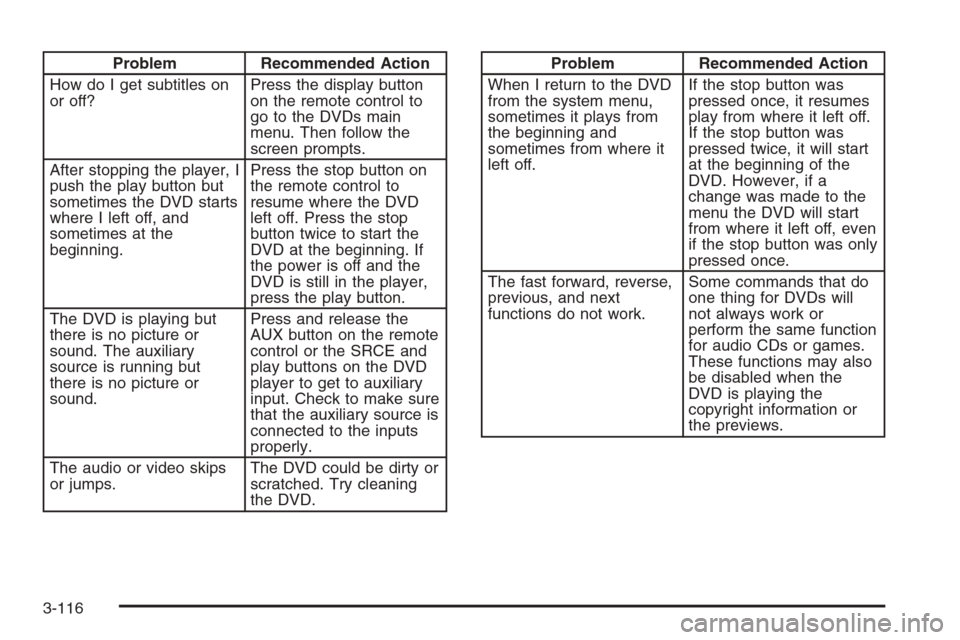
Problem Recommended Action
How do I get subtitles on
or off?Press the display button
on the remote control to
go to the DVDs main
menu. Then follow the
screen prompts.
After stopping the player, I
push the play button but
sometimes the DVD starts
where I left off, and
sometimes at the
beginning.Press the stop button on
the remote control to
resume where the DVD
left off. Press the stop
button twice to start the
DVD at the beginning. If
the power is off and the
DVD is still in the player,
press the play button.
The DVD is playing but
there is no picture or
sound. The auxiliary
source is running but
there is no picture or
sound.Press and release the
AUX button on the remote
control or the SRCE and
play buttons on the DVD
player to get to auxiliary
input. Check to make sure
that the auxiliary source is
connected to the inputs
properly.
The audio or video skips
or jumps.The DVD could be dirty or
scratched. Try cleaning
the DVD.Problem Recommended Action
When I return to the DVD
from the system menu,
sometimes it plays from
the beginning and
sometimes from where it
left off.If the stop button was
pressed once, it resumes
play from where it left off.
If the stop button was
pressed twice, it will start
at the beginning of the
DVD. However, if a
change was made to the
menu the DVD will start
from where it left off, even
if the stop button was only
pressed once.
The fast forward, reverse,
previous, and next
functions do not work.Some commands that do
one thing for DVDs will
not always work or
perform the same function
for audio CDs or games.
These functions may also
be disabled when the
DVD is playing the
copyright information or
the previews.
3-116