2005 CHEVROLET EQUINOX change time
[x] Cancel search: change timePage 159 of 364
\(Fast Forward):Press and hold this button to
advance quickly within a track. You will hear sound at a
reduced volume. Release the button to play the
passage. The elapsed time of the track will appear on
the display.
RPT (Repeat):Press this button once to hear a track
over again. RPT ON will appear on the display. The
current track will continue to repeat. Press RPT again to
turn off repeat play. RPT OFF will appear on the
display and RPT will disappear from the display.
RDM (Random):Press this button to hear the tracks in
random, rather than sequential, order. TRACK, TRK#,
and RDM will appear on the display. TRACK and
the track number will appear on the display when each
track starts to play. Press RDM again to turn off
random play. RDM OFF will appear on the display and
RDM will disappear from the display.
xSEEKw:Press the down arrow to go to the start
of the current track or to the previous track. If this
button is pressed more than once, the player will
continue moving backward through the CD.
Press the up arrow to go to the start of the next track. If
this button is pressed more than once, the player will
continue moving forward through the CD.
If either arrow is held for more than two seconds, the
CD will enter CD scan mode and the CD will playthe rst ten seconds of each track. Press either arrow
again to stop scanning.
DISP (Display):Press this knob to see how long the
current track has been playing. The track number,
and the elapsed time of the track will appear on the
display. To change the default on the display, track or
elapsed time, press the knob until you see the
display you want, then hold the knob for two seconds.
The radio will produce one beep and the selected
display will now be the default. Pressing this knob
will also display text on commercially recorded CDs
(if available).
AUTO EQ (Automatic Equalization):Press this button
to select the desired equalization setting while playing
a CD. The equalization will be automatically recalled
whenever a CD is played. For more information,
see AUTO EQ listed previously in this section.
BAND:Press this button to listen to the radio when a
CD is playing. The inactive CD will remain safely
inside the radio for future listening.
SRCE (Source):Press this button to play a CD when
listening to the radio. CD will appear on the display.
Z(Eject):Press this button to eject a CD. Eject may
be activated with either the ignition or radio off. CDs
may be loaded with the ignition and radio off if this
button is pressed rst.
3-49
Page 169 of 364
VRDM (Random):Press this button to hear the
tracks in random, rather than sequential, order. TRACK,
TRK #, and RDM will appear on the display. TRACK
and the track number will appear on the display
when each track starts to play. Press RDM again to turn
off random play. RDM OFF will appear on the display
and RDM will disappear from the display.
xSEEKw:Press the down arrow to go to the start
of the current track more than eight seconds have
played. If this button is pressed more than once, the
player will continue moving backward through the CD.
Press the up arrow to go to the start of the next track. If
this button is pressed more than once, the player will
continue moving forward through the CD.
If either arrow is held for more than two seconds, the
CD will enter CD scan mode and the CD will play
the rst ten seconds of each track. Press either arrow
again to stop scanning.
DISP (Display):Press this knob to see how long the
current track has been playing. The track number,
and the elapsed time of the track will appear on the
display. To change the default on the display, track orelapsed time, press the knob until you see the display
you want, then hold the knob for two seconds. The radio
will produce one beep and the selected display will
now be the default. Pressing this knob will also display
text on commercially recorded CDs (if available).
AUTO EQ (Automatic Equalization):Press this button
to select the desired equalization setting while playing
a CD. The equalization will be automatically recalled
whenever a CD is played. For more information,
see AUTO EQ listed previously in this section.
BAND:Press this button to listen to the radio when a
CD is playing. The inactive CD will remain safely
inside the radio for future listening.
SRCE (Source):Press this button to play a CD when
listening to the radio. CD will appear on the display when
a CD is loaded.
Z(Eject):Press this button to eject a CD. Eject may
be activated with either the ignition or radio off. CDs
may be loaded with the ignition or radio off if this button
is pressed rst.
3-59
Page 172 of 364
If the ignition or radio is turned off with a CD in the
player, it will stay in the player. When the ignition
or radio is turned on, the CD will start to play where it
stopped, if it was the last selected audio source.
As each new track starts to play, the track number will
appear on the display.
If playing a CD-R the sound quality may be reduced
due to CD-R quality, the method of recording, the quality
of the music that has been recorded, and the way the
CD-R has been handled. There may be an increase
in skipping, difficulty in nding tracks, and/or difficulty in
loading and ejecting. If these problems occur try a
known good CD.
Do not add paper labels to CDs, they could get caught
in the CD player.
Notice:If you add any label to a CD, insert more
than one CD into the slot at a time, or attempt
to play scratched or damaged CDs, you could
damage the CD player. When using the CD player,
use only CDs in good condition without any
label, load one CD at a time, and keep the CD player
and the loading slot free of foreign materials,
liquids, and debris.
If an error appears on the display, see “CD Messages”
later in this section.VDIR (Directory):Press and release this button to
display the current directory structure (at or normal).
Press and release this button twice to change the
directory structure. When at is enabled, the tracks on
the MP3 will be alphabetized by lename. The MP3
will play the next alphabetical track when the current
track is nished.
xFLDRw(Previous/Next Folder):Press the down
or the up arrow to go to the rst track in the previous
or next folder. Pressing this button while in folder
random mode will take you to the previous or next folder
and random the tracks in that folder.
s(Reverse):Press and hold this button to reverse
quickly within a track. Press and hold this button for less
than two seconds to reverse at 10 times the normal
playing speed. Press and hold it for more than
two seconds to reverse at 20 times the normal playing
speed. Release the button to play the track. REV and the
elapsed time of the track will appear on the display.
\(Forward):Press and hold this button to advance
quickly within a track. Press and hold this button for
less than two seconds to advance at 10 times the
normal playing speed. Press and hold it for more than
two seconds to advance at 20 times the normal
playing speed. Release the button to play the track.
FWD and the elapsed time of the track will appear on
the display.
3-62
Page 173 of 364
VRDM (Random):To random the tracks in the
current folder or playlist, press and release this button.
FLDR RDM ON will appear on the display. Once all
of the tracks in the current folder or playlist have been
played the system will move on to the next folder or
playlist and play all of the tracks in random order.
To random all the tracks on the CD, press and hold this
button for two seconds. You will hear a beep and
DISC RDM ON will appear on the display. This feature
will not work with playlists.
When in random, pressing and releasing either SEEK
arrow will take you to the next or previous random track.
Press and release this button again to turn off random
play. RDM OFF will appear on the display.
VINFO (Information):Press this button to display
the artist name and album contained in the ID3 tag.
xSEEKw:Press the down arrow to go to the start
of the previous track. Press the up arrow to go to
the start of the next track. Pressing either arrow for more
than two seconds will search the previous or next
tracks at two tracks per second. Release the button to
stop searching and to play the track.ADJ (Adjust):Turning this knob will fast track reverse
or advance through the tracks in all folders or playlists.
The track number and le name will appear on the
display for each track. Turning this knob while in random
will fast track reverse or advance the tracks in
sequential order.
DISP (Display):Press this knob to switch between
track mode, folder/playlist mode, and time of day mode.
The display will show sixteen characters, but there
can be two pages of text. If there are more than
eight characters in the song, folder, or playlist name,
pressing this knob within two seconds will take you
to the next page of text. If there are no other pages to
be shown, pressing this knob within two seconds
will take you to the next display mode.
Track mode will display the current track number
and the ID3 tag song name.
Folder/playlist mode will display the current folder or
playlist number and the folder/playlist name.
Time of day mode will display the time of day and
the ID3 tag song name.
To change the default on the display, press the DISP
knob until you see the display you want, then hold
this knob for two seconds. The radio will produce
one beep and the selected display will now be
the default.
3-63
Page 185 of 364
RPT (Repeat):With repeat, one track or an entire CD
can be repeated.
To use repeat, do the following:
To repeat the track you are listening to, press and
release the RPT button. RPT ON TRK # will
appear on the display. Press RPT again to turn
it off. RPT OFF will appear on the display.
To repeat the CD you are listening to, press and
hold the RPT button for more than two seconds.
RPT CD # will appear on the display. Press
RPT again to turn it off. RPT OFF will appear on
the display.
RDM (Random):With random, you can listen to the
tracks in random, rather than sequential, order, on
one CD or on all of the CDs.
To use random, do one of the following:
To play the tracks on the CD you are listening to in
random order, press the RDM button. RDM ONE
will appear on the display. Press RDM again to turn
it off. RDM OFF will appear on the display.
To play the tracks on all of the CDs that are loaded
in random order, press and hold the RDM button for
more than two seconds. You will hear a beep and
RANDOM ALL CDS and RDM will appear on
the display. Press RDM again to turn it off.
RANDOM OFF will appear on the display.
xSEEKw:Press the down arrow to go to the start
of the current track if more than eight seconds have
played. Press the up arrow to go to the beginning of the
next track. If either arrow is held or pressed more
than once, the player will continue moving backward or
forward through the CD.
To scan the current CD, press and hold either SEEK
arrow for more than two seconds. The CD will go to the
next track, play the rst 10 seconds, then go on to
the next track. Press either SEEK arrow again to stop
scanning.
To scan all of the CDs loaded, press and hold either
SEEK arrow for more than four seconds. The CD will go
to the next CD, play the rst 10 seconds of each
track, then go on to the next CD. Press either SEEK
arrow again to stop scanning.
DISP (Display):Press this button to switch between
time and the elapsed time of the track. To change
the default on the display (CD#/Track#/Time,
CD#/Track#, or Track#/Elapsed Time), press the button
until you see the display you want, then hold the
button for two seconds. The radio will produce one beep
and the selected display will now be the default.
3-75
Page 190 of 364
XM™ Satellite Radio Antenna
System
The XM™ Satellite Radio antenna is located on the roof
of your vehicle. Keep this antenna clear of snow and
ice build up for clear radio reception.
If your vehicle has a sunroof, the performance of the
XM™ system may be affected if the sunroof is open.
If the rear roof rack rail is too close to the XM antenna or
if objects stored on the roof rack cover or block the
XM antenna, the performance of the XM™ system may
be affected.
Chime Level Adjustment
Chime level adjustment is only available on RDS radios.
The radio is the vehicle chime producer. The chime is
produced from the driver’s side front door speakers.
To change the volume level, press and hold
pushbutton 6 with the ignition on and the radio power
off. The chime volume level will change from the normal
level to loud, and LOUD will appear on the radio
display. To change back to the default or normal setting,
press and hold pushbutton 6 again. The chime level
will change from the loud level to normal, and NORMAL
will appear on the radio display. Each time the chime
volume is changed, three chimes will sound as an
example of the new volume selected. Removing the
radio and not replacing it with a factory radio or chime
module will disable vehicle chimes.
3-80
Page 197 of 364
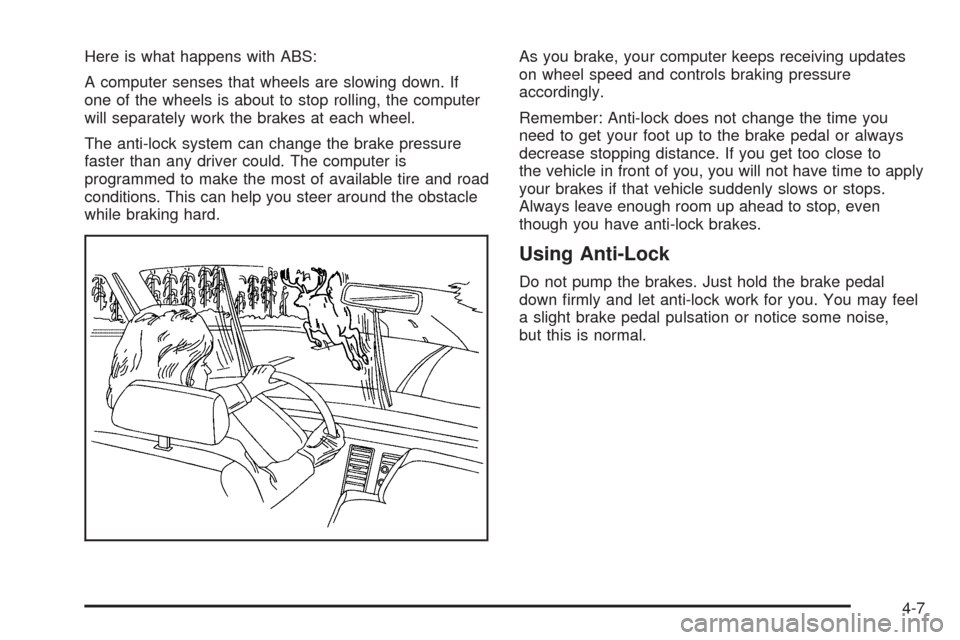
Here is what happens with ABS:
A computer senses that wheels are slowing down. If
one of the wheels is about to stop rolling, the computer
will separately work the brakes at each wheel.
The anti-lock system can change the brake pressure
faster than any driver could. The computer is
programmed to make the most of available tire and road
conditions. This can help you steer around the obstacle
while braking hard.As you brake, your computer keeps receiving updates
on wheel speed and controls braking pressure
accordingly.
Remember: Anti-lock does not change the time you
need to get your foot up to the brake pedal or always
decrease stopping distance. If you get too close to
the vehicle in front of you, you will not have time to apply
your brakes if that vehicle suddenly slows or stops.
Always leave enough room up ahead to stop, even
though you have anti-lock brakes.
Using Anti-Lock
Do not pump the brakes. Just hold the brake pedal
down rmly and let anti-lock work for you. You may feel
a slight brake pedal pulsation or notice some noise,
but this is normal.
4-7
Page 199 of 364
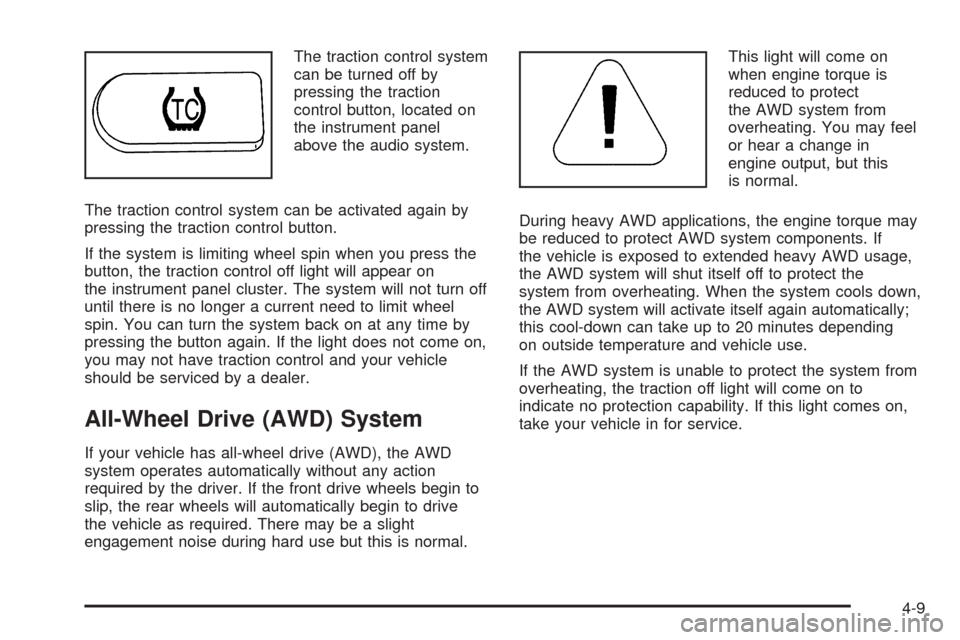
The traction control system
can be turned off by
pressing the traction
control button, located on
the instrument panel
above the audio system.
The traction control system can be activated again by
pressing the traction control button.
If the system is limiting wheel spin when you press the
button, the traction control off light will appear on
the instrument panel cluster. The system will not turn off
until there is no longer a current need to limit wheel
spin. You can turn the system back on at any time by
pressing the button again. If the light does not come on,
you may not have traction control and your vehicle
should be serviced by a dealer.
All-Wheel Drive (AWD) System
If your vehicle has all-wheel drive (AWD), the AWD
system operates automatically without any action
required by the driver. If the front drive wheels begin to
slip, the rear wheels will automatically begin to drive
the vehicle as required. There may be a slight
engagement noise during hard use but this is normal.This light will come on
when engine torque is
reduced to protect
the AWD system from
overheating. You may feel
or hear a change in
engine output, but this
is normal.
During heavy AWD applications, the engine torque may
be reduced to protect AWD system components. If
the vehicle is exposed to extended heavy AWD usage,
the AWD system will shut itself off to protect the
system from overheating. When the system cools down,
the AWD system will activate itself again automatically;
this cool-down can take up to 20 minutes depending
on outside temperature and vehicle use.
If the AWD system is unable to protect the system from
overheating, the traction off light will come on to
indicate no protection capability. If this light comes on,
take your vehicle in for service.
4-9