2005 CADILLAC STS warning
[x] Cancel search: warningPage 208 of 446

DIC Controls and Displays
The Driver Information Center (DIC) has different
modes which can be accessed by pressing the four
DIC buttons located on the instrument panel, to the
left of the steering wheel.
DIC Buttons (Base Level)
If your vehicle does not
have a Head-Up Display
(HUD), these are the
buttons for your DIC.
«4ª(Information):Press the top or bottom of this
button to scroll through the available vehicle information
displays which include fuel range, fuel economy, fuel
used, average speed, timer, battery voltage, tire pressure
(if equipped with a tire pressure monitor), engine oil life
(if equipped) and digital speed display (if equipped).
See “MPH (km)” later in this section for more information
on the digital speed display.
AB
300 (Trip Information):Press the top of this
button to scroll through the odometer, trip odometer A
and trip odometer B. Press and hold the bottom of
this button to reset each trip odometer back to zero.
4// (Reset):Press this button to reset certain DIC
features and to acknowledge DIC warning messages
and clear them from the DIC display.
EM (English/Metric):Press this button to change the
display from English to metric.
3-74
Page 209 of 446

DIC Buttons (Uplevel)
If your vehicle has a HUD,
these are the buttons for
your DIC.
«4ª(Information):Press the top or bottom of this
button to scroll through the available vehicle information
displays which include fuel range, fuel economy, fuel
used, average speed, timer, battery voltage, tire
pressure (if equipped with a tire pressure monitor),
engine oil life (if equipped), display units and digital
speed display (if equipped). See “MPH (km)” later in
this section for more information on the digital speed
display.
«~ª(Head-Up Display):Press this button to
change the position of the HUD on the windshield. Press
the top part of the button to move the HUD image up.
Press the bottom part of the button to move the
HUD image down.
You can also adjust the brightness of the HUD image.
Press in the center knob on the DIC control panel
until the knob pops out. Then pull the knob until it stops.
Turn the knob clockwise or counterclockwise to
increase or decrease the brightness. If you turn the
knob all the way counterclockwise, the HUD image will
turn off. SeeHead-Up Display (HUD) on page 3-43
for more information.
For information on adjusting the instrument panel
brightness, seeInstrument Panel Brightness on
page 3-41.
4// (Reset):Press this button to reset certain DIC
features and to acknowledge DIC warning messages
and clear them from the DIC display.
3(Trip Information):Press this button to scroll
through the odometer, trip odometer A and trip
odometer B. To reset each trip odometer, either press
the reset button or press and hold the trip information
button until the trip odometer displayed returns to zero.
3-75
Page 211 of 446
Your vehicle’s charging system regulates voltage based
on the state of the battery. The battery voltage may
uctuate when viewing this information on the DIC. This
is normal. SeeCharging System Light on page 3-64for
more information.
If there is a problem with the battery charging system,
the DIC may display a message. SeeDIC Warnings and
Messages on page 3-78for more information.
TIMER OFF
This display can be used like a stopwatch. You can
record the time it takes to travel from one point to
another. To access the timer, press the information
button until 00:00:00 TIMER OFF displays. To turn on
the timer, press the reset button until TIMER ON
displays. The timer will then start. To turn off the timer,
press the reset button again until TIMER OFF
displays. The timer will stop and display the end timing
value. To reset the timer, press and hold the reset
button after the timer has been stopped. The display
will return to zero.
AVG MPH (AVG km/h)
This display shows the average speed of the vehicle in
miles per hour (mph) or kilometers per hour (km/h).
This average is calculated based on the various vehicle
speeds recorded since the last reset of this display.
To reset AVG MPH, press the reset button. The display
will return to zero.
GAL FUEL USED (L FUEL USED)
This display shows the number of gallons or liters of
fuel used since the last reset of this display. To
reset GAL FUEL USED, press the reset button. The
display will return to zero.
MPG INST (L/100 km INST)
This display shows the current fuel economy. This
number reects only the fuel economy that the vehicle
has right now and will change frequently as driving
conditions change. Unlike average fuel economy, this
display cannot be reset.
MPG AVG (L/100 km AVG)
This display shows the approximate average miles per
gallon (mpg) or liters per 100 kilometers (L/100 km).
This number is calculated based on the number of
mpg (L/100 km) recorded since the last time this display
was reset. To reset MPG AVG, press the reset button.
The display will return to zero.
MILES RANGE (km RANGE)
This display shows the approximate number of
remaining miles or kilometers you can drive
without relling your fuel tank. This estimate is
based on the current driving conditions and will
change if the driving conditions change.
3-77
Page 212 of 446

For example, if you are driving in traffic making frequent
stops, the display may read one number, but if you
enter the freeway, the number may change even though
you still have the same amount of fuel in the fuel
tank. This is because different driving conditions produce
different fuel economies. Generally, freeway driving
produces better fuel economy than city driving.
Once the range drops below 40 miles (64 km) remaining,
the display will show LOW RANGE.
If your vehicle is low on fuel, the Fuel Level Low
message will be displayed. See “Fuel Level Low” under
DIC Warnings and Messages on page 3-78for more
information.
MPH (km/h)
This display, if equipped, shows the vehicle’s speed
digitally in either miles per hour (mph) or kilometers
per hour (km/h).
Trip Information Display Menu Items
The following display menu items can be displayed by
pressing the trip Information button.
Odometer
Press the trip information button until the odometer
appears on the DIC display. The odometer shows the
total distance the vehicle has been driven in either
miles or kilometers.
Trip Odometer
Press the trip information button until trip odometer A or B
appears on the DIC display. The trip odometer shows the
current distance traveled since the last reset for each trip
odometer in either miles or kilometers. Both odometers
can be used at the same time.
For base level vehicles, each trip odometer can be reset
to zero separately by pressing and holding the bottom
of the trip information button while the desired trip
odometer is displayed. For uplevel vehicles, reset each
trip odometer by pressing the reset button or by
pressing and holding the trip information button while
the desired trip odometer is displayed.
DIC Warnings and Messages
These messages will appear if there is a problem
sensed in one of your vehicle’s systems. The text
messages are the same for both the base audio and
Navigation systems unless otherwise indicated.
You must acknowledge a message to clear it from the
screen for further use. To clear a message, press
the reset button.
Be sure to take any message that appears on the
screen seriously and remember that clearing the
message will only make the message disappear, not
the problem.
3-78
Page 215 of 446

CHECK BRAKE FLUID
This message will display if the ignition is on to inform
the driver that the brake uid level is low. Have the
brake system serviced by your GM dealer as soon as
possible. SeeBrake System Warning Light on page 3-64
for more information.
CHECK COOLANT LEVEL
This message will display when there is a low level of
engine coolant. Have the cooling system serviced
by your GM dealer as soon as possible. SeeEngine
Coolant on page 5-22for more information.
CHECK GAS CAP
When this message displays, the gas cap has not been
fully tightened. You should recheck the gas cap to
ensure that it is on and tightened properly.
CHECK OIL LEVEL
This message will display when the oil level is low.
SeeEngine Oil on page 5-15for more information on
checking your engine oil.
CHECK TIRE PRESSURE
This symbol appears
with the CHECK TIRE
PRESSURE message.
If your vehicle is equipped with a tire pressure monitor,
this message will display when one or more of the
vehicle’s tires are low or high. SeeDIC Controls and
Displays on page 3-74for information on checking your
vehicle’s tire pressures.
3-81
Page 216 of 446
CHECK WASHER FLUID
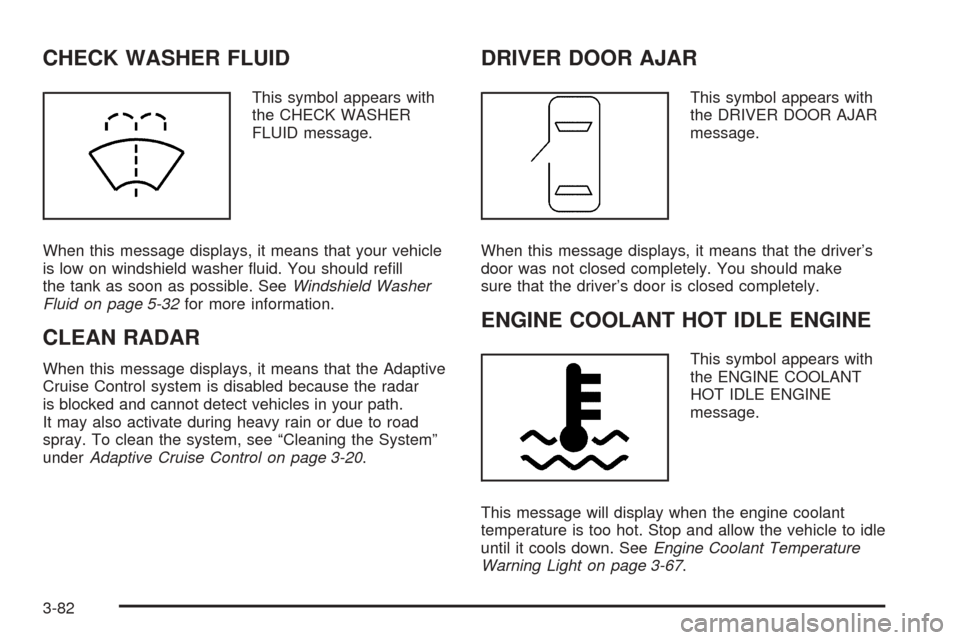
This symbol appears with
the CHECK WASHER
FLUID message.
When this message displays, it means that your vehicle
is low on windshield washer uid. You should rell
the tank as soon as possible. SeeWindshield Washer
Fluid on page 5-32for more information.
CLEAN RADAR
When this message displays, it means that the Adaptive
Cruise Control system is disabled because the radar
is blocked and cannot detect vehicles in your path.
It may also activate during heavy rain or due to road
spray. To clean the system, see “Cleaning the System”
underAdaptive Cruise Control on page 3-20.
DRIVER DOOR AJAR
This symbol appears with
the DRIVER DOOR AJAR
message.
When this message displays, it means that the driver’s
door was not closed completely. You should make
sure that the driver’s door is closed completely.
ENGINE COOLANT HOT IDLE ENGINE
This symbol appears with
the ENGINE COOLANT
HOT IDLE ENGINE
message.
This message will display when the engine coolant
temperature is too hot. Stop and allow the vehicle to idle
until it cools down. SeeEngine Coolant Temperature
Warning Light on page 3-67.
3-82
Page 217 of 446

SeeOverheated Engine Protection Operating Mode on
page 5-26for information on driving to a safe place
in an emergency.
Notice:If you drive your vehicle while the engine is
overheating, severe engine damage may occur. If
an overheat warning appears on the instrument
panel cluster and/or DIC, stop the vehicle as soon
as possible. Do not increase the engine speed above
normal idling speed. SeeEngine Overheating on
page 5-24for more information.
ENGINE HOT – AC (Air Conditioning)
OFF
This message will display when the engine coolant
becomes hotter than the normal operating temperature.
SeeEngine Coolant Temperature Gage on page 3-67.
To avoid added strain on a hot engine, the air
conditioning compressor is automatically turned off.
When the coolant temperature returns to normal, the air
conditioning compressor will turn back on. You can
continue to drive your vehicle.
If this message continues to appear, have the system
repaired by your GM dealer as soon as possible to avoid
damage to your engine.
ENGINE OVERHEATED STOP ENGINE
This message will display when the engine has
overheated. Immediately look for a safe place to pull
your vehicle over and turn the engine off right away to
avoid severe engine damage. SeeEngine Overheating
on page 5-24andOverheated Engine Protection
Operating Mode on page 5-26. A chime will also sound
when this message is displayed.
Notice:If you drive your vehicle while the engine is
overheating, severe engine damage may occur. If
an overheat warning appears on the instrument
panel cluster and/or DIC, stop the vehicle as soon
as possible. Do not increase the engine speed above
normal idling speed. SeeEngine Overheating on
page 5-24for more information.
ENGINE POWER REDUCED
This message informs you that the engine power is
being reduced to protect the engine from damage. There
could be several malfunctions that might cause this
message. Have your vehicle serviced by your GM dealer
as soon as possible.
3-83
Page 220 of 446

If the keyless access transmitter is inside of the vehicle
while this message is displayed and the push-button
start is not working, your vehicle may be near a strong
radio antenna signal causing the keyless access
system to be jammed. If this happens, place the
transmitter into the transmitter pocket located in the
center console. This will then allow you to start
the vehicle in the normal manner using the push-button
start.
OIL PRESSURE LOW STOP ENGINE
A multiple chime will sound when this message is
displayed. SeeEngine Oil on page 5-15for more
information.
Notice:If you drive your vehicle while the engine
oil pressure is low, severe engine damage may
occur. If a low oil pressure warning appears on the
instrument panel cluster and/or DIC, stop the
vehicle as soon as possible. Do not drive the vehicle
until the cause of the low oil pressure is corrected.
SeeEngine Oil on page 5-15for more information.
PASSENGER DOOR AJAR
This symbol appears with
the PASSENGER DOOR
AJAR message.
When this message displays, it means that the
passenger’s side front door was not closed completely.
You should make sure that the door is closed
completely.
3-86