Page 243 of 479

’04 TUNDRA_U (L/O 0309)
234
2004 TUNDRA from Sep. ’03 Prod. (OM34426U)
2. “” and “” (TUNE/TRACK) buttons
Radio
Push the “
” or “” (TUNE/TRACK) but-
ton to tune or seek.
Tuning:
Quickly push and release the “
” or “”
(TUNE/TRACK) button. Each time you
push the button, the radio will step up or
down to another frequency. If you push
and hold the button, and the radio will go
into the seek mode.
Seeking:
Push and hold the “
” or “” (TUNE/
TRACK) button. The radio will seek up or
down for a station of the nearest frequen-
cy and will stop on reception. Each time
you push the button, the stations will be
searched one after another.
Cassette tape player
This button has the following features—
To fast forward or reverse:
Push and hold the “
” (TUNE/TRACK)
button until “FF” will appears on the dis-
play to forward a tape. Push and hold the
“
” (TUNE/TRACK) button until “REW”
appears on the display to rewind a tape. To stop the tape while it is fast forward-
ing, push the “
” (TUNE/TRACK) button.
To stop the tape while it is rewinding,
push the “
” (TUNE/TRACK) button.
If a tape rewinds completely, the cassette
player will stop and then play that same
side. If a tape fast forwards completely,
the cassette will play the other side of the
tape using the auto −reverse feature.
To skip up or down to locate a song or
recording:
You can select up to nine recordings (in-
cluding current one).
Push the “
” or “” (TUNE/TRACK) but-
ton. “FF 1” or “REW 1” will appear on the
screen.
Next, push either side of the track button
until the number on the screen reaches
the number of tracks you want to skip. If
you push the button 10 times, the skip
feature will be turned off.
For the skip feature to work correctly a
blank space of at least 3 seconds is con-
sidered to be a start of a recording.
When a beginning of a tape is reached,
the player automatically resumes play.
When the end of the tape is reached, the
player automatically reverses sides and
resumes normal play. In addition, the feature may not work well
with some spoken, live, or classical re-
cordings.
Compact disc player
This button has the following features—
To skip up or down to a different track:
Push the “
” or “” (TUNE/TRACK) but-
ton until the number of the track you want
to listen to appears on the display. If you
want to return to the beginning of the
current track, quickly push the “
”
(TUNE/TRACK) button one time.
To fast forward or reverse:
Push and hold the “
” or “” (TUNE/
TRACK) button to fast forward or reverse
within a compact disc. When you release
the button, the compact disc player will
resume playing.
Page 245 of 479
’04 TUNDRA_U (L/O 0309)
236
2004 TUNDRA from Sep. ’03 Prod. (OM34426U)
�Be careful not to bend the electrode
of the controller battery insertion
and that dust or oil does not ad-
here to the transmitter case.
� Close the battery case securely.
After replacing the battery, check that the
controller operates properly. If the control-
ler still does not operate properly, contact
your Toyota dealer.
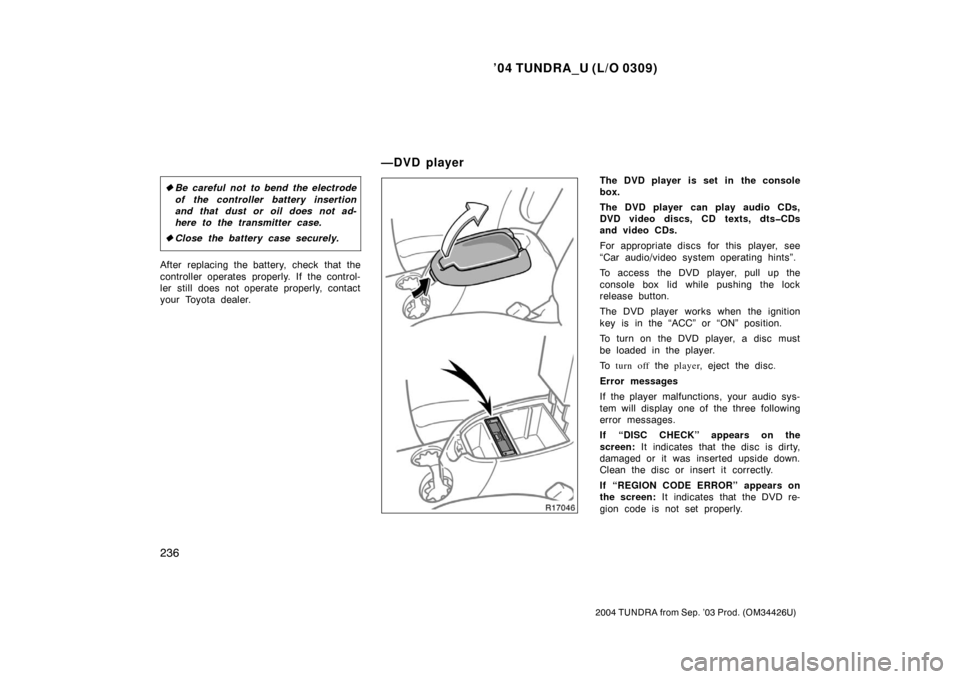
The DVD player is set in the console
box.
The DVD player can play audio CDs,
DVD video discs, CD texts, dtsCDs
and video CDs.
For appropriate discs for this player, see
“Car audio/video system operating hints”.
To access the DVD player, pull up the
console box lid while pushing the lock
release button.
The DVD player works when the ignition
key is in the “ACC” or “ON” position.
To turn on the DVD player, a disc must
be loaded in the player.
To turn off the player , eject the disc .
Error messages
If the player malfunctions, your audio sys-
tem will display one of the three following
error messages.
If “DISC CHECK” appears on the
screen: It indicates that the disc is dirty,
damaged or it was inserted upside down.
Clean the disc or insert it correctly.
If “REGION CODE ERROR” appears on
the screen: It indicates that the DVD re-
gion code is not set properly.
—DVD player
Page 251 of 479

’04 TUNDRA_U (L/O 0309)
242
2004 TUNDRA from Sep. ’03 Prod. (OM34426U)
To turn off the switches on the screen,
push the “CURSOR” button on the control-
ler once again or push the “Hide Keys” on
the screen. NOTE:
The playback condition of some
DVD video discs may be determined by
a DVD software producer. This DVD
player plays a disc as the software pro-
ducer intended. So, some functions may
not work properly. Be sure to read the
instruction manual for the DVD video
disc separately provided. For detailed
information about DVD video discs, see
“—DVD video disc information” in this
Section.
Precautions for DVD video discs
When recording on a DVD video, DVD
audio, video CD or audio tracks may not
record in some cases while the menu is
displayed. As audio will not play in this
case, verify that the video tracks are play-
ing and then activate playback.
When playback of a disc is completed:
�If an audio CD is playing, the first
track starts.
�If a DVD video, DVD audio or video
CD is playing, playback will stop or the
menu screen will be displayed.
The title/chapter number and playback
time display may not appear while playing
back certain DVD video discs.
—DVD player operation (DVD
video/DVD audio)
Page 255 of 479
’04 TUNDRA_U (L/O 0309)
246
2004 TUNDRA from Sep. ’03 Prod. (OM34426U)
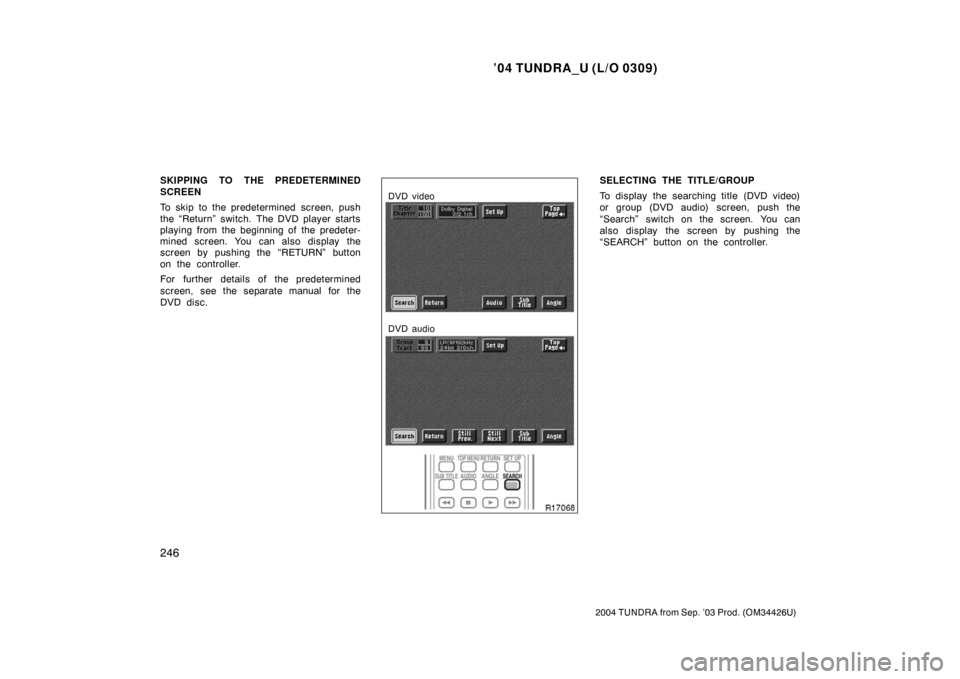
SKIPPING TO THE PREDETERMINED
SCREEN
To skip to the predetermined screen, push
the “Return” switch. The DVD player starts
playing from the beginning of the predeter-
mined screen. You can also display the
screen by pushing the “RETURN” button
on the controller.
For further details of the predetermined
screen, see the separate manual for the
DVD disc.
DVD video
DVD audio
SELECTING THE TITLE/GROUP
To display the searching title (DVD video)
or group (DVD audio) screen, push the
“Search” switch on the screen. You can
also display the screen by pushing the
“SEARCH” button on the controller.
Page 257 of 479
’04 TUNDRA_U (L/O 0309)
248
2004 TUNDRA from Sep. ’03 Prod. (OM34426U)
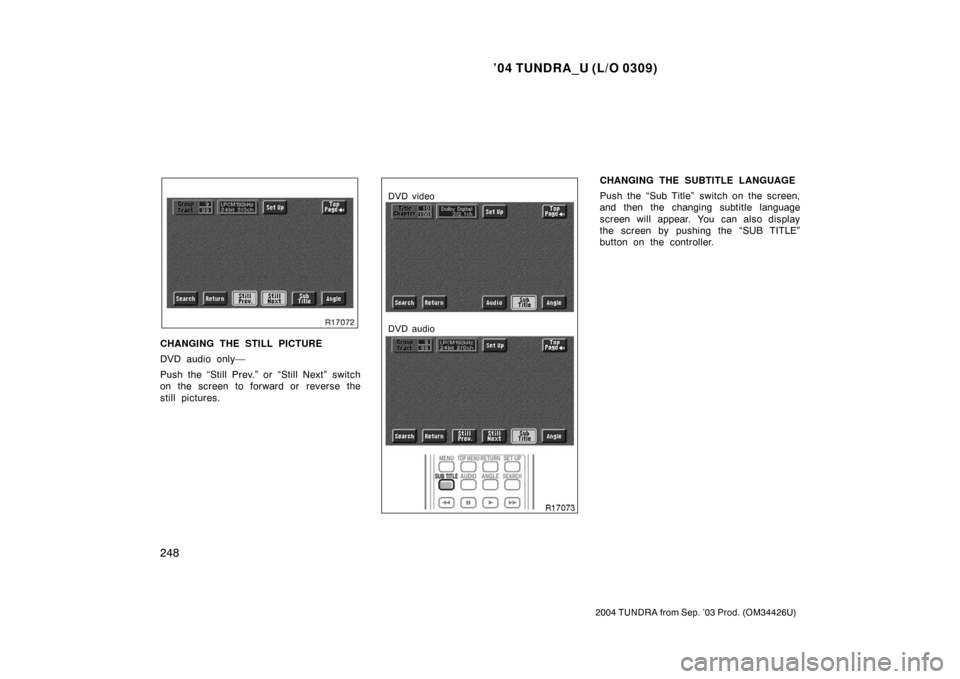
CHANGING THE STILL PICTURE
DVD audio only—
Push the “Still Prev.” or “Still Next” switch
on the screen to forward or reverse the
still pictures.
DVD video
DVD audio
CHANGING THE SUBTITLE LANGUAGE
Push the “Sub Title” switch on the screen,
and then the changing subtitle language
screen will appear. You can also display
the screen by pushing the “SUB TITLE”
button on the controller.
Page 258 of 479
’04 TUNDRA_U (L/O 0309)
249
2004 TUNDRA from Sep. ’03 Prod. (OM34426U)
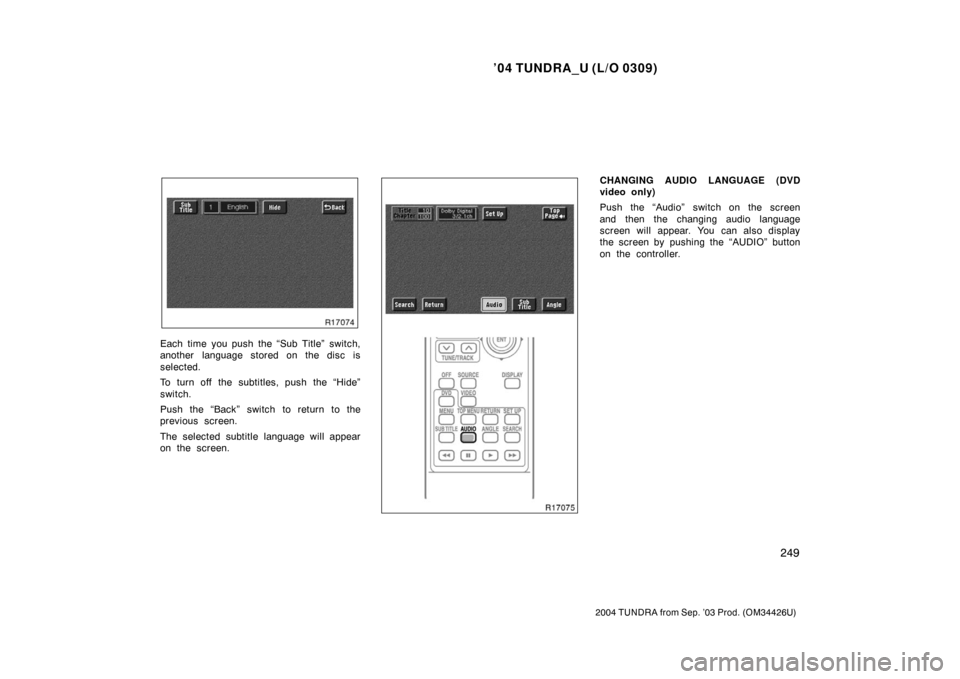
Each time you push the “Sub Title” switch,
another language stored on the disc is
selected.
To turn off the subtitles, push the “Hide”
switch.
Push the “Back” switch to return to the
previous screen.
The selected subtitle language will appear
on the screen.
CHANGING AUDIO LANGUAGE (DVD
video only)
Push the “Audio” switch on the screen
and then the changing audio language
screen will appear. You can also display
the screen by pushing the “AUDIO” button
on the controller.
Page 260 of 479
’04 TUNDRA_U (L/O 0309)
251
2004 TUNDRA from Sep. ’03 Prod. (OM34426U)
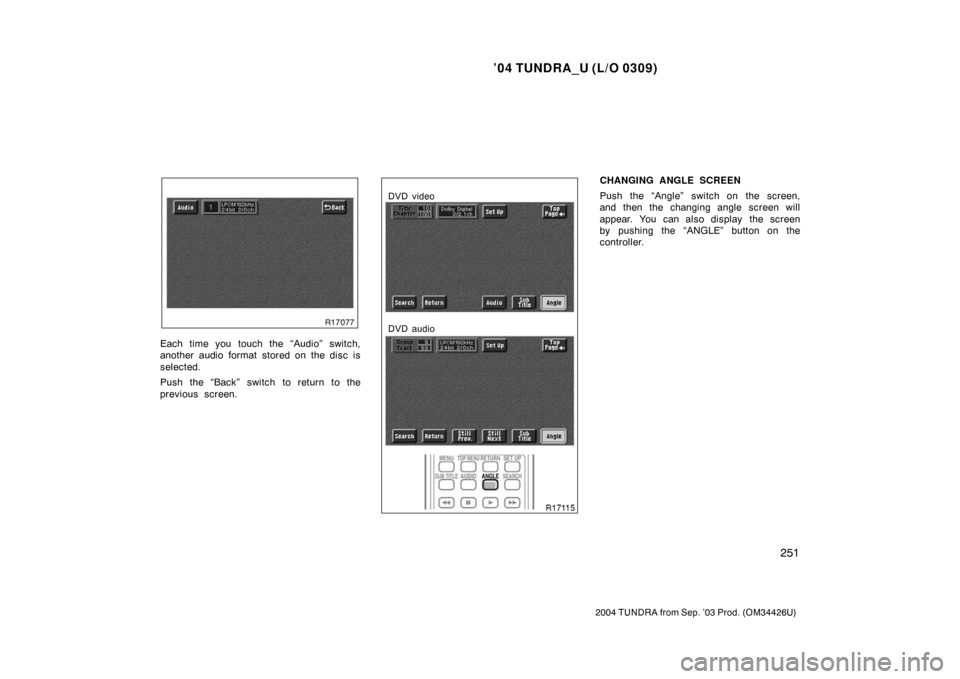
Each time you touch the “Audio” switch,
another audio format stored on the disc is
selected.
Push the “Back” switch to return to the
previous screen.
DVD video
DVD audio
CHANGING ANGLE SCREEN
Push the “Angle” switch on the screen,
and then the changing angle screen will
appear. You can also display the screen
by pushing the “ANGLE” button on the
controller.
Page 261 of 479
’04 TUNDRA_U (L/O 0309)
252
2004 TUNDRA from Sep. ’03 Prod. (OM34426U)
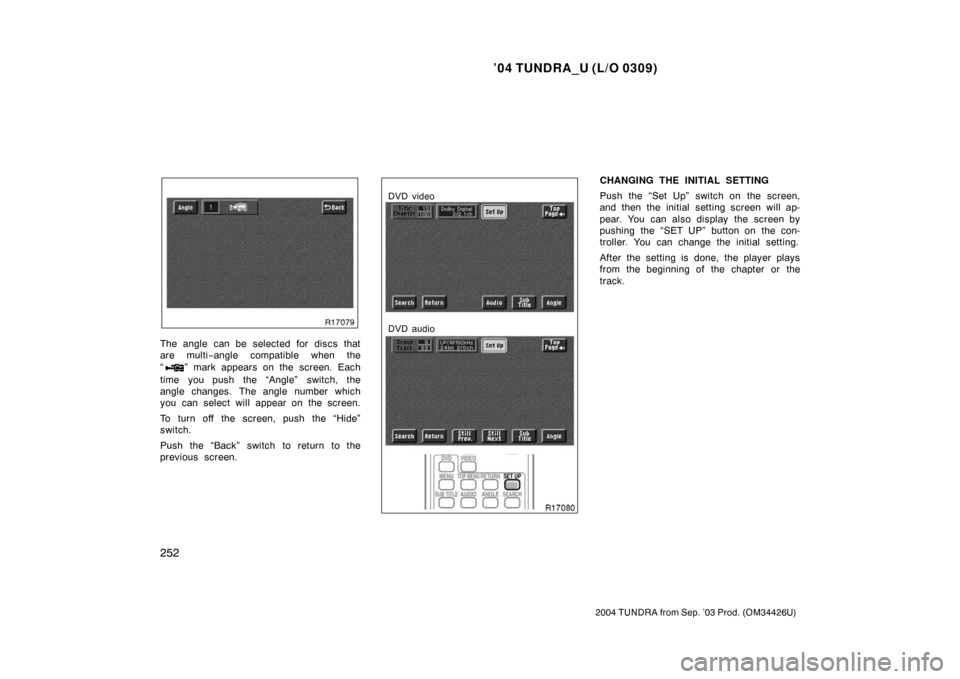
The angle can be selected for discs that
are multi −angle compatible when the
“
” mark appears on the screen. Each
time you push the “Angle” switch, the
angle changes. The angle number which
you can select will appear on the screen.
To turn off the screen, push the “Hide”
switch.
Push the “Back” switch to return to the
previous screen.
DVD video
DVD audio
CHANGING THE INITIAL SETTING
Push the “Set Up” switch on the screen,
and then the initial setting screen will ap-
pear. You can also display the screen by
pushing the “SET UP” button on the con-
troller. You can change the initial setting.
After the setting is done, the player plays
from the beginning of the chapter or the
track.