Page 129 of 442
129 Controls in detail
Control system
�Control system
The control system is activated as soon as
the SmartKey in the starter switch is
turned to position1 or as soon as the
KEYLESS-GO start/stop button* is in
position1. The control system enables you
to:�
call up information about your vehicle
�
change vehicle settings.
For example, you can use the control sys-
tem to find out when your vehicle is next
due for service, to set the language for
messages in the instrument cluster dis-
play, and much more.
The control system relays information to
the multifunction display.
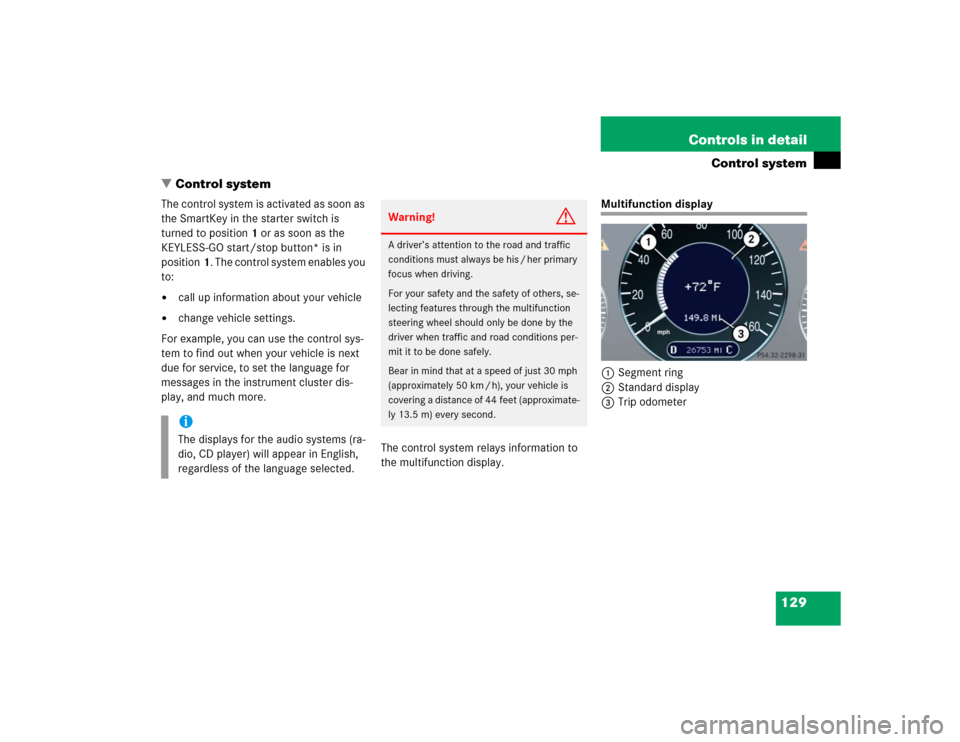
Multifunction display
1Segment ring
2Standard display
3Trip odometer
iThe displays for the audio systems (ra-
dio, CD player) will appear in English,
regardless of the language selected.
Warning!
G
A driver’s attention to the road and traffic
conditions must always be his / her primary
focus when driving.
For your safety and the safety of others, se-
lecting features through the multifunction
steering wheel should only be done by the
driver when traffic and road conditions per-
mit it to be done safely.
Bear in mind that at a speed of just 30 mph
(approximately 50 km / h), your vehicle is
covering a distance of 44 feet (approximate-
ly 13.5 m) every second.
Page 130 of 442
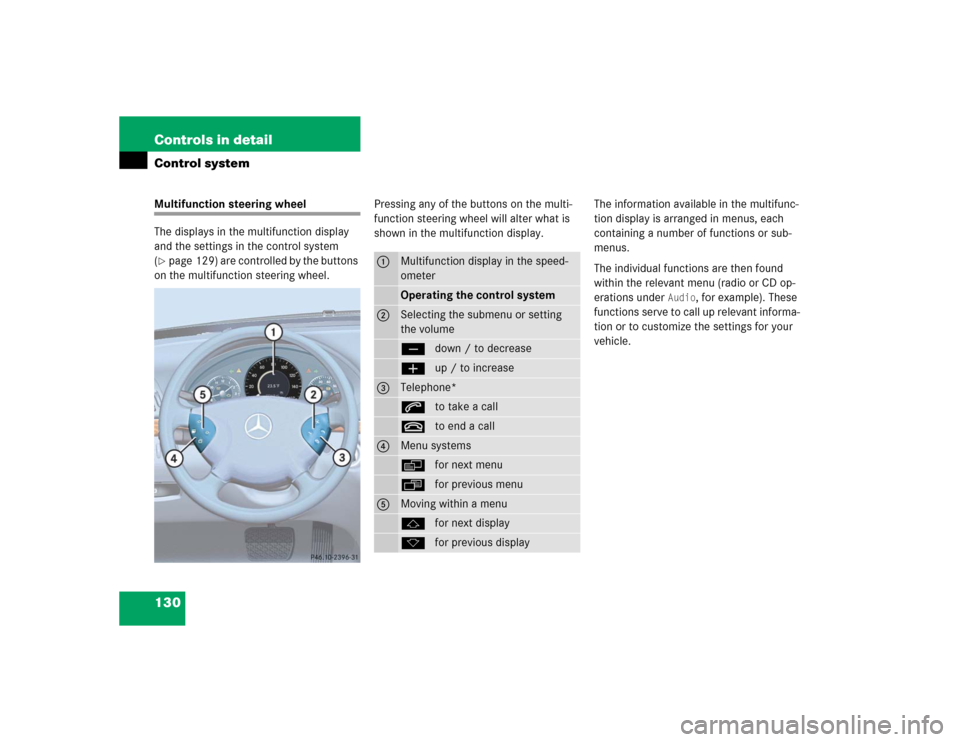
130 Controls in detailControl systemMultifunction steering wheel
The displays in the multifunction display
and the settings in the control system
(�page 129) are controlled by the buttons
on the multifunction steering wheel.Pressing any of the buttons on the multi-
function steering wheel will alter what is
shown in the multifunction display.The information available in the multifunc-
tion display is arranged in menus, each
containing a number of functions or sub-
menus.
The individual functions are then found
within the relevant menu (radio or CD op-
erations under
Audio
, for example). These
functions serve to call up relevant informa-
tion or to customize the settings for your
vehicle.
1
Multifunction display in the speed-
ometerOperating the control system
2
Selecting the submenu or setting
the volumeçdown / to decreaseæup / to increase
3
Telephone*sto take a calltto end a call
4
Menu systemsèfor next menuÿfor previous menu
5
Moving within a menujfor next displaykfor previous display
Page 133 of 442
133 Controls in detail
Control system
Menus, submenus and functions
Menu1
Menu2
Menu3
Menu4
Menu5
Menu6
Menu7
Menu8
Standard dis-
play
AUDIO
NAVI*
Distronic*
Malfunction
memory
Settings
Trip computer
Telephone
Commands/submenusDigital speed-
ometer
Select radio
station
Activate
route guid-
ance
Call up set-
tings
Call up malfunc-
tion messages
Reset to factory
settings
Fuel consumption
statistics after
start
Load phone
book
Call up FSS
PLUS
Operate CD
player
Instrument clus-
ter submenu
Fuel consumption
statistics since
the last reset
Search for
name in
phone book
Check tire pres-
sure*
Time/Date sub-
menu
Call up range
Check engine oil
level
Lighting sub-
menuVehicle sub-
menuConvenience
submenuDynamic seat*
submenu
Page 134 of 442
134 Controls in detailControl systemStandard display menu
You can select the functions in the stan-
dard display menu with buttonk
orj.
The following functions are available:Display digital speedometer
�
Press buttonj twice.
The current vehicle speed is shown in
the multifunction display.
AUDIO menu
The functions in the
Audio
menu operate
the audio equipment which you currently
have turned on.
If no audio equipment is currently turned
on, the message
AUDIO OFF
is shown in the
display.
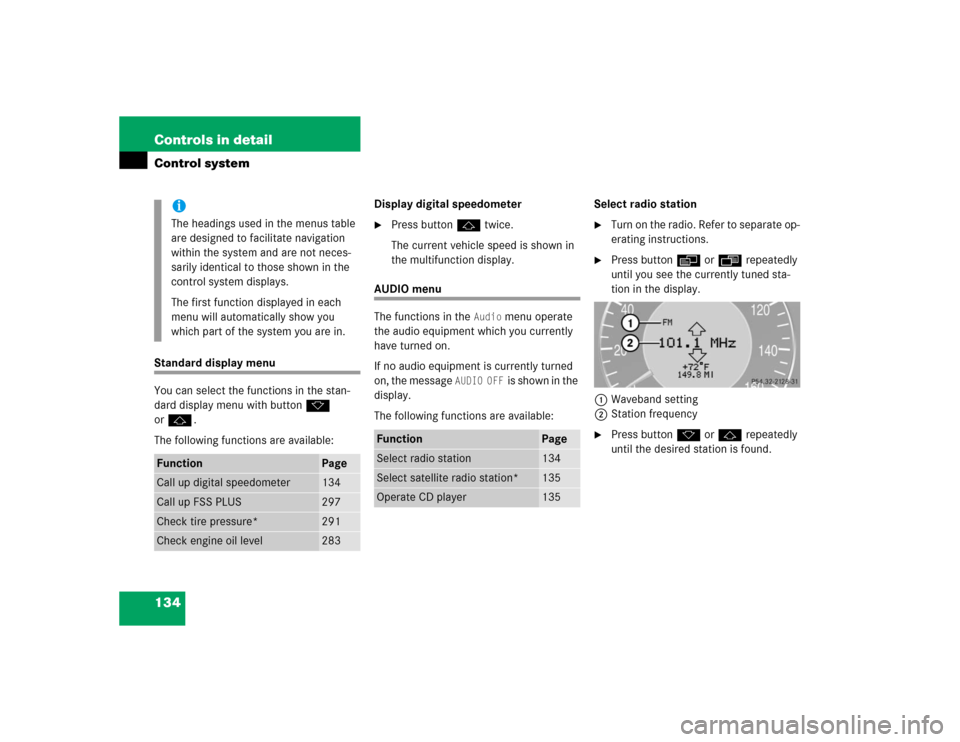
The following functions are available:Select radio station
�
Turn on the radio. Refer to separate op-
erating instructions.
�
Press buttonè orÿ repeatedly
until you see the currently tuned sta-
tion in the display.
1Waveband setting
2Station frequency
�
Press buttonk orj repeatedly
until the desired station is found.
iThe headings used in the menus table
are designed to facilitate navigation
within the system and are not neces-
sarily identical to those shown in the
control system displays.
The first function displayed in each
menu will automatically show you
which part of the system you are in.
Function
Page
Call up digital speedometer
134
Call up FSS PLUS
297
Check tire pressure*
291
Check engine oil level
283
Function
Page
Select radio station
134
Select satellite radio station*
135
Operate CD player
135
Page 135 of 442
135 Controls in detail
Control system
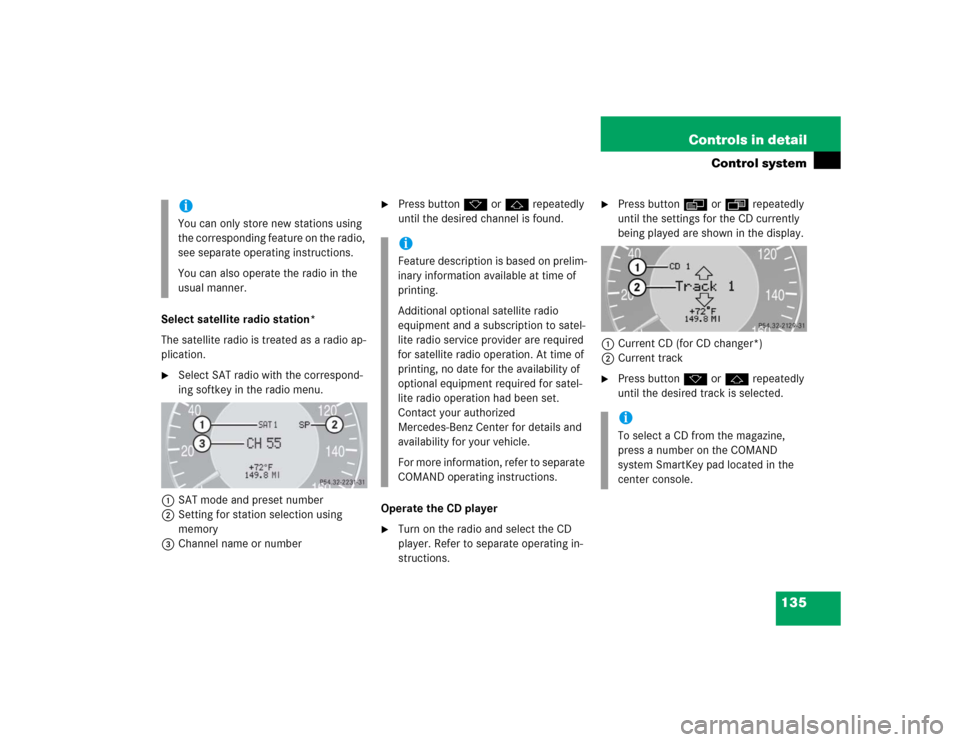
Select satellite radio station*
The satellite radio is treated as a radio ap-
plication.�
Select SAT radio with the correspond-
ing softkey in the radio menu.
1SAT mode and preset number
2Setting for station selection using
memory
3Channel name or number
�
Press buttonk orj repeatedly
until the desired channel is found.
Operate the CD player
�
Turn on the radio and select the CD
player. Refer to separate operating in-
structions.
�
Press buttonè orÿ repeatedly
until the settings for the CD currently
being played are shown in the display.
1Current CD (for CD changer*)
2Current track
�
Press buttonk orj repeatedly
until the desired track is selected.
iYou can only store new stations using
the corresponding feature on the radio,
see separate operating instructions.
You can also operate the radio in the
usual manner.
iFeature description is based on prelim-
inary information available at time of
printing.
Additional optional satellite radio
equipment and a subscription to satel-
lite radio service provider are required
for satellite radio operation. At time of
printing, no date for the availability of
optional equipment required for satel-
lite radio operation had been set.
Contact your authorized
Mercedes-Benz Center for details and
availability for your vehicle.
For more information, refer to separate
COMAND operating instructions.
iTo select a CD from the magazine,
press a number on the COMAND
system SmartKey pad located in the
center console.
Page 138 of 442
138 Controls in detailControl system�
Press buttonk orj.
The stored messages will now be dis-
played in order. See the “Practical
hints” section for malfunction and
warning messages (
�page 318).
Should any malfunctions occur while driv-
ing, the number of malfunctions will reap-
pear in the display when the SmartKey in
the starter switch is turned to position0 or
removed from the starter switch.
Settings menu
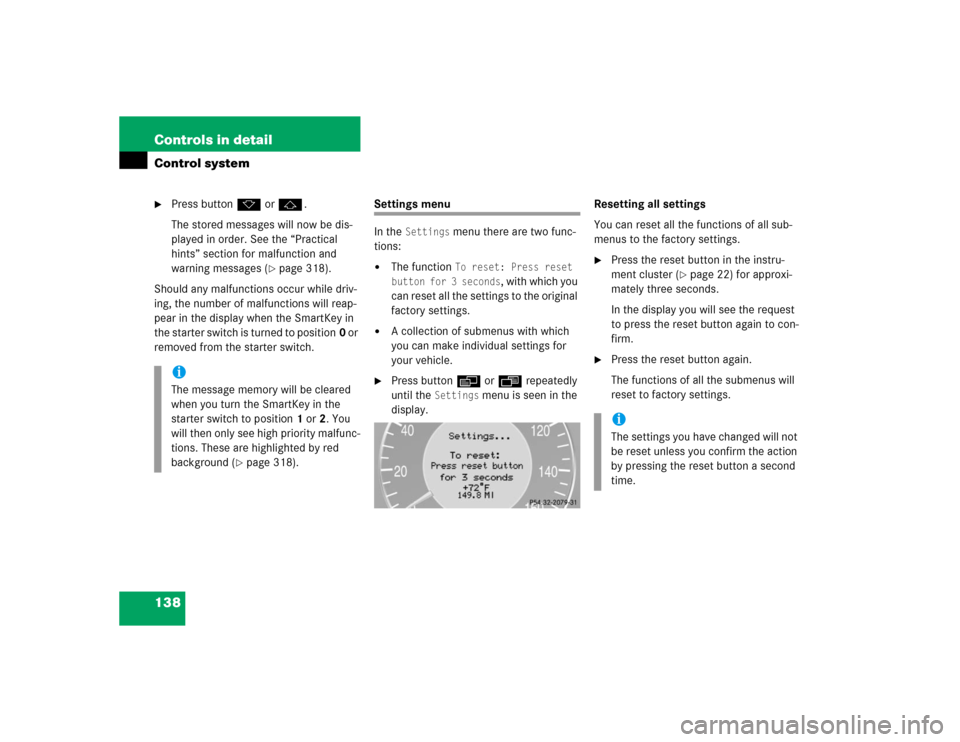
In the
Settings
menu there are two func-
tions:
�
The function
To reset: Press reset
button for 3 seconds
, with which you
can reset all the settings to the original
factory settings.
�
A collection of submenus with which
you can make individual settings for
your vehicle.
�
Press buttonè orÿ repeatedly
until the
Settings
menu is seen in the
display.Resetting all settings
You can reset all the functions of all sub-
menus to the factory settings.
�
Press the reset button in the instru-
ment cluster (
�page 22) for approxi-
mately three seconds.
In the display you will see the request
to press the reset button again to con-
firm.
�
Press the reset button again.
The functions of all the submenus will
reset to factory settings.
iThe message memory will be cleared
when you turn the SmartKey in the
starter switch to position1 or2. You
will then only see high priority malfunc-
tions. These are highlighted by red
background (
�page 318).
iThe settings you have changed will not
be reset unless you confirm the action
by pressing the reset button a second
time.
Page 147 of 442

147 Controls in detail
Control system
Setting locator lighting
During darkness, the following lamps will
come on when the exterior lamp switch is
in position
U
, the locator lighting fea-
ture is activated and the vehicle is un-
locked by SmartKey:
�
Parking lamps
�
Tail lamps
�
License plate lamps
�
Front fog lamps
The locator lighting switches off when the
driver’s door is opened. It switches off au-
tomatically after a period of approximately
40 seconds.
�
Move the selection marker with
theæ orç button to the
Light-
ing
submenu.
�
Press buttonj ork repeatedly
until you see this message in the dis-
play:
Function Surround lighting
.
The selection marker is on the current
setting.
�
Pressæ orç to select the de-
sired setting.
The locator lighting will be switched on
or off.
Ambient light level
Using this function, you can adjust the
brightness of the ambient lighting.
�
Move the selection marker with the
æ orç button to the Lighting
submenu.
�
Press button j ork repeatedly
until you see the message
Ambient
light Level
in the display.
The selection marker is on the current
setting.
�
Press æ orç to select the
brightness of the lighting. 1 represents
the darkest setting and 5 represents
the brightest setting.
The ambient light is switched off below
setting 1 or above setting 5. The selec-
tion marker points to off.
Page 149 of 442
149 Controls in detail
Control system
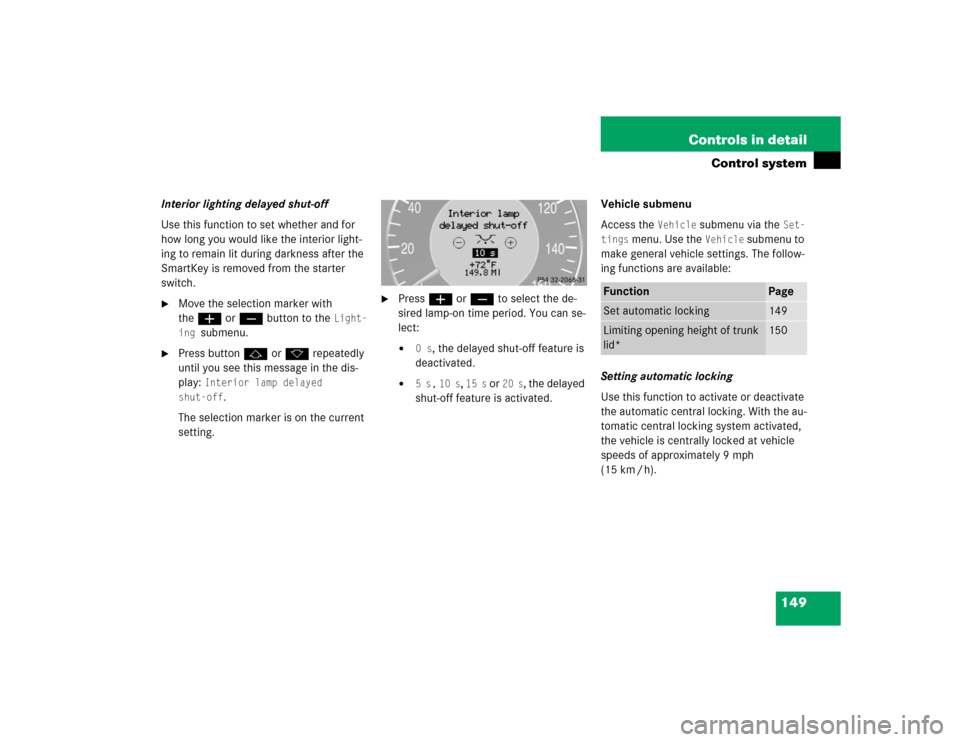
Interior lighting delayed shut-off
Use this function to set whether and for
how long you would like the interior light-
ing to remain lit during darkness after the
SmartKey is removed from the starter
switch.�
Move the selection marker with
theæ orç button to the
Light-
ing
submenu.
�
Press buttonj ork repeatedly
until you see this message in the dis-
play:
Interior lamp delayed
shut-off
.
The selection marker is on the current
setting.
�
Pressæ orç to select the de-
sired lamp-on time period. You can se-
lect:�
0 s
, the delayed shut-off feature is
deactivated.
�
5 s,
10 s
, 15 s
or
20 s
, the delayed
shut-off feature is activated.Vehicle submenu
Access the
Vehicle
submenu via the
Set-
tings
menu. Use the
Vehicle
submenu to
make general vehicle settings. The follow-
ing functions are available:
Setting automatic locking
Use this function to activate or deactivate
the automatic central locking. With the au-
tomatic central locking system activated,
the vehicle is centrally locked at vehicle
speeds of approximately 9 mph
(15 km / h).
Function
Page
Set automatic locking
149
Limiting opening height of trunk
lid*
150
