2004 GMC YUKON DENALI lock
[x] Cancel search: lockPage 220 of 468

4 FWD (Forward):Press this pushbutton to advance
the tape rapidly. Press this pushbutton again to return to
playing speed. The radio will play while the tape
advances. The station frequency and FWD will appear
on the display. You may select stations during
forward operation by using TUNE and SEEK.
5 SIDE:Press this pushbutton to play the other side of
the tape.
qSEEKr:The right arrow is the same as the
NEXT pushbutton, and the left arrow is the same as the
PREV pushbutton. If you hole either arrow or press it
more than once, the player will continue moving forward
or backward through the tape. SEEK and a positive
or negative number will appear on the display.
qSCANr:To scan the tape, press and hold either
SCAN arrow for more than two seconds until SCAN
appears on the display and you hear a beep. Use this
feature to listen to 10 seconds of each selection on
the current side of the tape. Press either SCAN arrow
again, to stop scanning. Your tape must have at
least three seconds of silence between each selection
for scan to work.
BAND:Press this button to listen to the radio when a
cassette tape or CD is playing. The inactive tape or CD
will remain safely inside the radio for future listening.TAPE DISC:Press this button to play a cassette tape
or CD when listening to the radio. The inactive tape
or CD will remain safely inside the radio for future
listening.
Z(Eject):Press this button to stop a tape when it is
playing or to eject a tape when it is not playing. Eject may
be activated with the radio off. Cassette tapes may be
loaded with the radio off if this button is pressed ®rst.
Cassette Tape Messages
CHK TAPE (Check Tape):If this message appears on
the display, the tape will not play because of one of
the following errors:
·The tape is tight and the player cannot turn the
tape hubs. Remove the tape. Hold the tape with
the open end down and try to turn the right
hub counterclockwise with a pencil. Turn the tape
over and repeat. If the hubs do not turn easily, your
tape may be damaged and should not be used in
the player. Try a new tape to make sure your player
is working properly.
·The tape is broken. Try a new tape.
·The tape is wrapped around the tape head. Attempt
to get the cassette out. Try a new tape.
3-76
Page 228 of 468

Remote Control
To use the remote control, aim it at the infrared window
below the video screen and press the desired button.
Direct sunlight or very bright light may affect the ability of
the entertainment system to receive signals from the
remote control. If the remote control does not seem to
be working, the batteries may need to be replaced.
See ªBattery Replacementº later in this section.
Objects blocking the line of sight may also affect the
function of the remote control.
Notice:Do not store the remote control in heat or
direct sunlight. This could damage the remote
control and it would not be covered by your vehicles
warranty. Keep the remote control stored in a
cool, dry place.
Remote Control Buttons
O(Power):Press this button to turn the DVD player
on or off.
v(Title):Press this button to return the DVD to the
main menu of the DVD.
n,q,p,o(Menu Navigation Arrows):Use the
arrow buttons to navigate through a menu.
3-84
Page 240 of 468

Theft-Deterrent Feature
THEFTLOCKžis designed to discourage theft of your
radio. The feature works automatically by learning
a portion of the Vehicle Identi®cation Number (VIN). If
the radio is moved to a different vehicle, it will not
operate and LOCKED will appear on the display.
When the radio and vehicle are turned off, the blinking
red light indicates that THEFTLOCK
žis armed.
With THEFTLOCKžactivated, your radio will not operate
if stolen.
Audio Steering Wheel Controls
You can control certain radio functions using the buttons
on your steering wheel.
g(OnStar/Voice Recognition):If you vehicle has
OnStarž, you can press this button to interact with the
OnStaržsystem. See the OnStaržmanual provided
with your vehicle for more information.
If your vehicle does not have OnStar
ž, pressing this
button will mute the audio system.
PROG (Program):Press this button to play a station
you have stored on the radio preset pushbuttons.
If a CD is playing in the CD changer, press this button
to go to the next available CD.
QSOURCER:Press this button to select FM1,
FM2, AM, or XM1 or XM2 (48 contiguous US states, if
equipped), or a CD. If a CD is loaded the CD symbol
will appear on the display.
QSEEKR:Press the up or the down arrow to go to
the next or to the previous radio station and stay
there.
If a CD is playing, press the up or the down arrow to
fast forward or reverse.
QVOLR(Volume):Press the up or the down arrow
to increase or to decrease volume.
3-96
Page 251 of 468

Anti-lock Brake System
Your vehicle has anti-lock brakes. ABS is an advanced
electronic braking system that will help prevent a
braking skid.
When you start your engine and begin to drive away,
your anti-lock brake system will check itself. You
may hear a momentary motor or clicking noise while
this test is going on. This is normal.
If there is a problem with
the anti-lock brake system,
this warning light will
stay on. See
Anti-Lock
Brake System Warning
Light on page 3-37
.
Along with ABS, your vehicle has a Dynamic Rear
Proportioning (DRP) system. If there is a DRP problem,
both the brake and ABS warning lights will come on
accompanied by a 10-second chime. The lights
and chime will come on each time the ignition is turned
on until the problem is repaired. See your dealer for
service.Let us say the road is wet and you are driving safely.
Suddenly, an animal jumps out in front of you. You slam
on the brakes and continue braking. Here is what
happens with ABS:
A computer senses that wheels are slowing down. If
one of the wheels is about to stop rolling, the computer
will separately work the brakes at each front wheel
and at both rear wheels.
4-7
Page 252 of 468
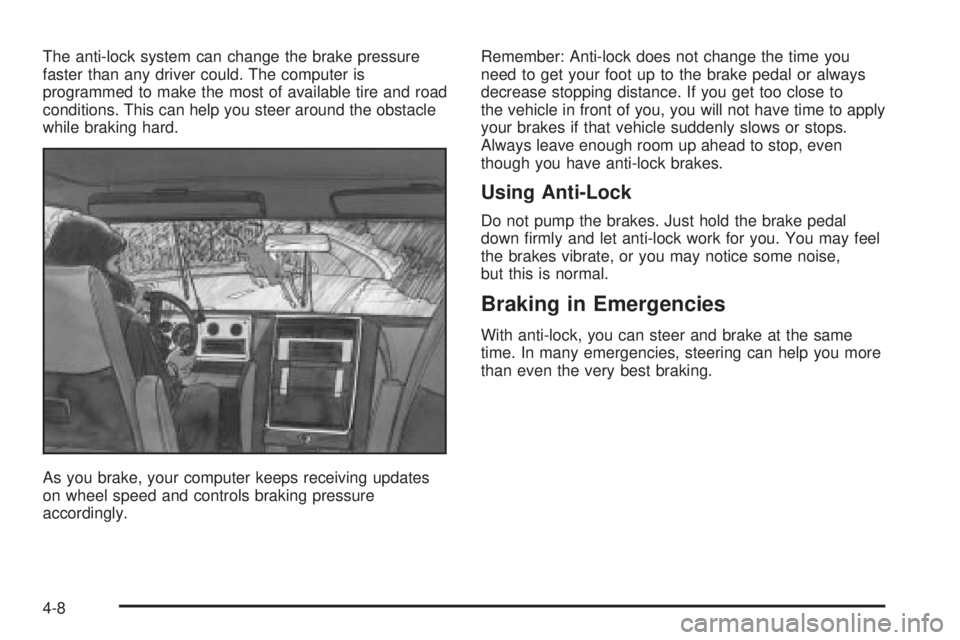
The anti-lock system can change the brake pressure
faster than any driver could. The computer is
programmed to make the most of available tire and road
conditions. This can help you steer around the obstacle
while braking hard.
As you brake, your computer keeps receiving updates
on wheel speed and controls braking pressure
accordingly.Remember: Anti-lock does not change the time you
need to get your foot up to the brake pedal or always
decrease stopping distance. If you get too close to
the vehicle in front of you, you will not have time to apply
your brakes if that vehicle suddenly slows or stops.
Always leave enough room up ahead to stop, even
though you have anti-lock brakes.
Using Anti-Lock
Do not pump the brakes. Just hold the brake pedal
down ®rmly and let anti-lock work for you. You may feel
the brakes vibrate, or you may notice some noise,
but this is normal.
Braking in Emergencies
With anti-lock, you can steer and brake at the same
time. In many emergencies, steering can help you more
than even the very best braking.
4-8
Page 253 of 468

StabilitrakžSystem
Your vehicle is equipped with Stabilitrakž, which
combines antilock brake, traction and stability control
systems and helps the driver maintain directional control
of the vehicle in most driving conditions.
When you ®rst start your vehicle and begin to drive
away, the system performs several diagnostic checks to
insure there are no problems. You may hear or feel
the system working. This is normal and does not mean
there is a problem with your vehicle. The system
should initialize before the vehicle reaches 20 mph
(32 km/h). In some cases, it may take approximately two
miles of driving before the system initializes.
If the system fails to turn on or activate, the STABILITY
SYS DISABLED or SERVICE STABILITY message
will be displayed. If the vehicle has gone through heavy
acceleration or braking or multiple turns during the
®rst two miles of driving after starting your vehicle, the
STABILITY SYS DISABLED message may appear.
If this is the case, your vehicle does not need servicing.
You will need to turn the vehicle off and then restart
it to initialize Stabilitrak
ž. If either message appears on
the Driver Information Center (DIC), and your vehicle
hasn't gone through hard acceleration, braking or
multiple turns in the ®rst two miles of driving, your
vehicle should be taken in for service.The STABILITY SYS ACTIVE message will appear on
the Driver Information Center (DIC) only when the
system is both on and activated. You may also feel or
hear the system working; this is normal. For more
information on the stability messages, see
Driver
Information Center (DIC) on page 3-46.
Stabilitrak
žand part of the
traction control system can
be turned off or back on
by pressing the
Stabilitrak
žbutton located
on the instrument panel.
When the system is turned off, the traction off light will
illuminate, and the STABILITY SYS DISABLED
message will appear on the DIC to warn the driver that
both the stability system and part of the traction
control system are disabled. Your vehicle will still have
brake-traction control when Stabilitrak
žis off, but
will not be able to use the engine speed management
system. See ªTraction Control Operationº next for
more information.
4-9
Page 256 of 468
Speed limit signs near curves warn that you should
adjust your speed. Of course, the posted speeds
are based on good weather and road conditions. Under
less favorable conditions you will want to go slower.
If you need to reduce your speed as you approach
a curve, do it before you enter the curve, while your front
wheels are straight ahead.
Try to adjust your speed so you can ªdriveº through the
curve. Maintain a reasonable, steady speed. Wait to
accelerate until you are out of the curve, and then
accelerate gently into the straightaway.
Steering in Emergencies
There are times when steering can be more effective
than braking. For example, you come over a hill and ®nd
a truck stopped in your lane, or a car suddenly pulls
out from nowhere, or a child darts out from between
parked cars and stops right in front of you. You
can avoid these problems by braking Ð if you can stop
in time. But sometimes you can not; there is not
room. That is the time for evasive action Ð steering
around the problem.
Your vehicle can perform very well in emergencies like
these. First apply your brakes.
See
Braking on page 4-6. It is better to remove as much
speed as you can from a possible collision. Then
steer around the problem, to the left or right depending
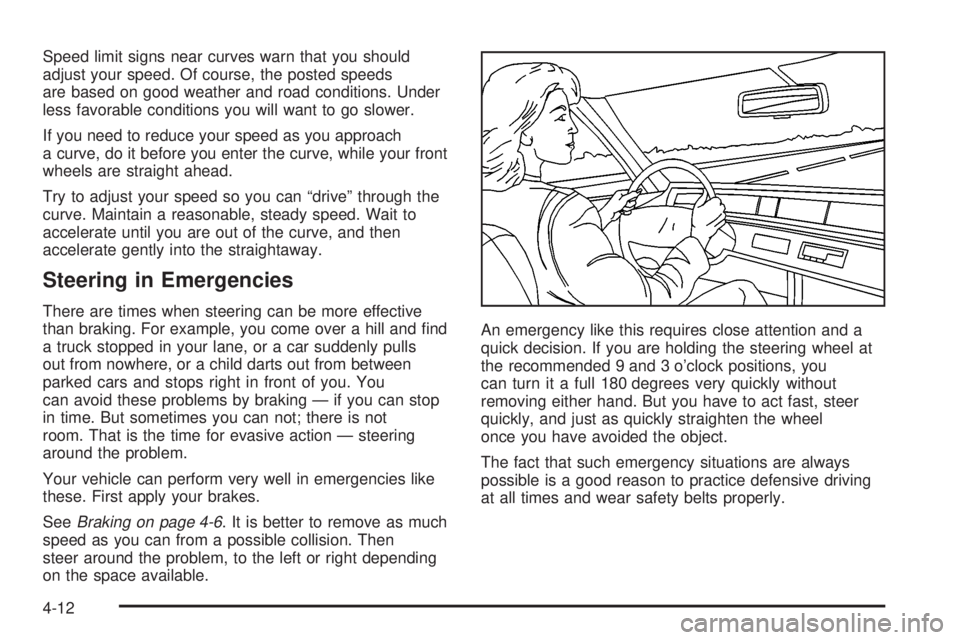
on the space available.An emergency like this requires close attention and a
quick decision. If you are holding the steering wheel at
the recommended 9 and 3 o'clock positions, you
can turn it a full 180 degrees very quickly without
removing either hand. But you have to act fast, steer
quickly, and just as quickly straighten the wheel
once you have avoided the object.
The fact that such emergency situations are always
possible is a good reason to practice defensive driving
at all times and wear safety belts properly.
4-12
Page 259 of 468

Loss of Control
Let us review what driving experts say about what
happens when the three control systems (brakes,
steering and acceleration) do not have enough friction
where the tires meet the road to do what the driver
has asked.
In any emergency, do not give up. Keep trying to steer
and constantly seek an escape route or area of less
danger.
Skidding
In a skid, a driver can lose control of the vehicle.
Defensive drivers avoid most skids by taking reasonable
care suited to existing conditions, and by not
ªoverdrivingº those conditions. But skids are always
possible.
The three types of skids correspond to your vehicle's
three control systems. In the braking skid, your wheels
are not rolling. In the steering or cornering skid, too much
speed or steering in a curve causes tires to slip and lose
cornering force. And in the acceleration skid, too much
throttle causes the driving wheels to spin.
A cornering skid is best handled by easing your foot off
the accelerator pedal.If your vehicle starts to slide, ease your foot off the
accelerator pedal and quickly steer the way you want
the vehicle to go. If you start steering quickly enough,
your vehicle may straighten out. Always be ready
for a second skid if it occurs.
Of course, traction is reduced when water, snow, ice,
gravel or other material is on the road. For safety,
you will want to slow down and adjust your driving to
these conditions. It is important to slow down on slippery
surfaces because stopping distance will be longer and
vehicle control more limited.
While driving on a surface with reduced traction, try
your best to avoid sudden steering, acceleration
or braking (including engine braking by shifting to a
lower gear). Any sudden changes could cause the tires
to slide. You may not realize the surface is slippery
until your vehicle is skidding. Learn to recognize warning
clues Ð such as enough water, ice or packed snow
on the road to make a ªmirrored surfaceº Ð and slow
down when you have any doubt.
Remember: Any anti-lock brake system (ABS) helps
avoid only the braking skid.
4-15