Page 187 of 397
Removing Discs from the CD Changer
If there is a single CD in the changer, press the EJT button
and the CD will eject. If the CD is not removed within 15
seconds, it will automatically reload into the CD changer.
To eject additional CDs from the changer, first select the
numbered button where the CD is located and then press
the EJT button.
CD Changer Operation with the Changer Off
The CD changer is able to load and eject discs with the
ignition power off. However, while the ignition is off, one
of the six numbered buttons must be pressed first. 6 DISC CD/DIGITAL VIDEO DISC (DVD) CHANGER
Ð IF EQUIPPED
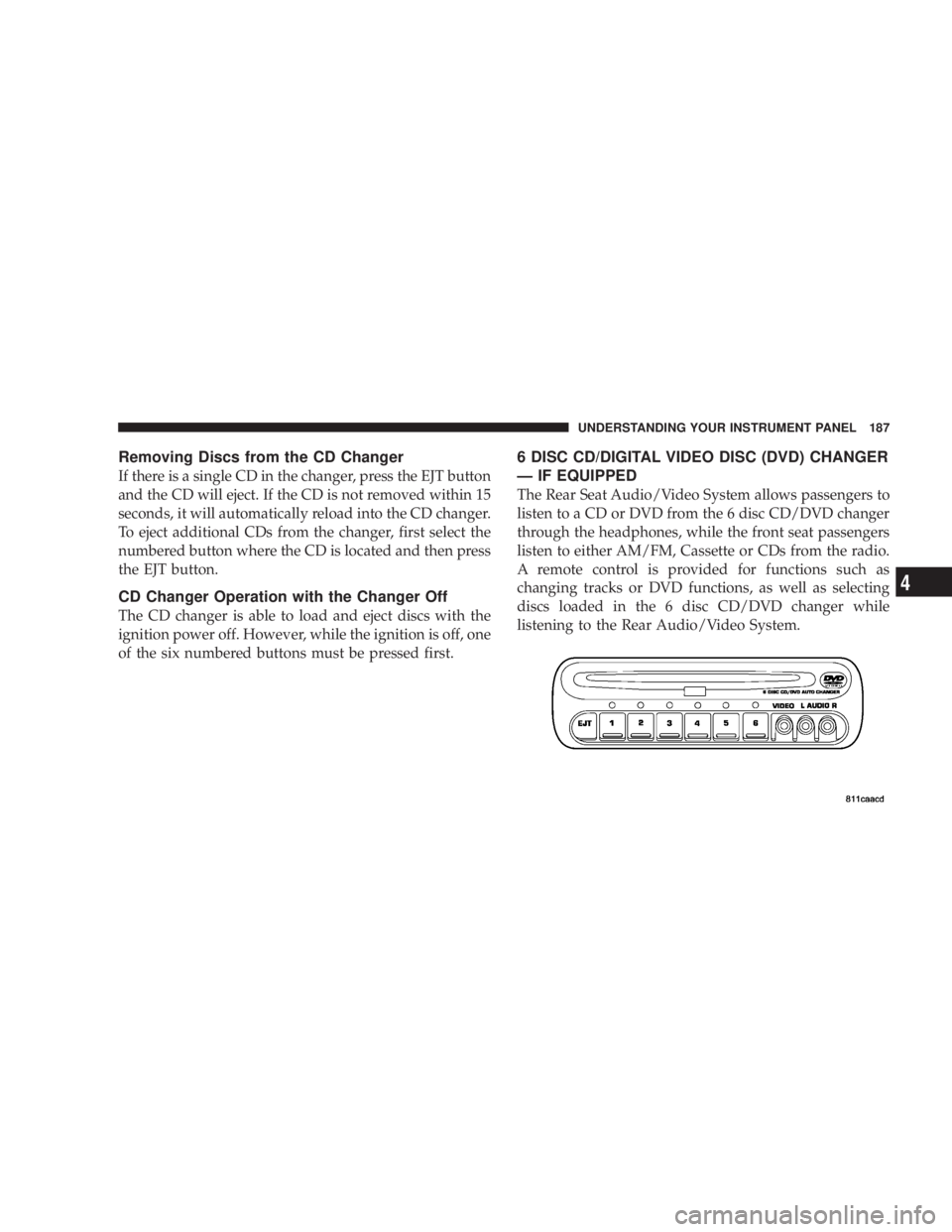
The Rear Seat Audio/Video System allows passengers to
listen to a CD or DVD from the 6 disc CD/DVD changer
through the headphones, while the front seat passengers
listen to either AM/FM, Cassette or CDs from the radio.
A remote control is provided for functions such as
changing tracks or DVD functions, as well as selecting
discs loaded in the 6 disc CD/DVD changer while
listening to the Rear Audio/Video System. UNDERSTANDING YOUR INSTRUMENT PANEL 187
4
Page 188 of 397
Operating Instructions Ð CD/DVD Changer
Loading The CD/DVD Changer
The CD/DVD changer is a multi-disc changer,
and will accept up to six discs. Gently insert
one disc into the CD/DVD changer with the
label facing up. The disc will automatically be
pulled into the CD/DVD changer.
To insert additional discs into the changer, follow the
instructions shown:
1. Select and press any numbered button without an
illuminated light above it.
2. Insert the disc while the light above the chosen button
is flashing and the light below the loading slot is illumi-
nated.
3. Upon insertion, the disc will begin to play, and both
the button light and the light below the loading slot will
illuminate. 4. Repeat the process for loading any additional CD/
DVDs. The CD/DVD changer will stop while additional
CD/DVDs are loaded.
If the volume control is ON, the unit will switch from
radio to CD/DVD mode and begin to play. The radio
display will show the chapter number and index time in
hours and minutes of the DVD, and the track number,
minutes and second of the CD. Play will begin automati-
cally in approximately 20 seconds. If the DVD does not
play automatically, press the ªENTERº button on the
remote control or on the side of the video screen to select
play from the menu options.
NOTE:
² You may eject a disc with the radio OFF. The ignition
switch must be in the ON or ACC position to insert a
disc with the radio OFF.188 UNDERSTANDING YOUR INSTRUMENT PANEL
Page 189 of 397
² If you insert a disc with the ignition ON and the radio
OFF, the DVD will automatically be pulled into the
DVD changer and the display will show the time of
day.
EJECT (EJT) Button
If there is a single disc in the changer, press the EJT
button and the disc will eject. The unit will switch to the
radio mode. If you do not remove the disc within 10
seconds, it will be reloaded and the display will show
PAUSE. The radio mode will continue to operate.
To eject additional discs from the changer, first select the
numbered button where the disc is located and then press
the EJT button.
The disc can be ejected with the radio OFF. Operating Instructions Ð Remote Control
Power Button (PWR)
Pressing the ªPOWERº button will turn the rear audio/
video system ON/OFF. The headphone symbol will flash
for approximately 5 seconds in the radio display and
sound can be heard from the headphones.
NOTE:
² The power button on the headphones must be turned
ON before sound can be heard from the headphones.
² When the rear audio/video system is ON, sound can
only be heard from the front speakers. The rear
speakers will turn back on when the rear audio/video
system is turned OFF. UNDERSTANDING YOUR INSTRUMENT PANEL 189
4
Page 191 of 397
Channel Button
Press this button to select between channel ªAº or
channel ªBº, or if interference is heard through the
headphones.
Remote Control Battery Service
² To replace the batteries for the remote control slide the
cover rearward.
The replacement batteries for the remote control are two
AAA batteries. Operating Instructions Ð Video Screen
Push up on the release button to lower the video screen.
1. Screen Width Button
Changes the width of the screen picture.
2. Enter Button
This button will enter the selection from the on-screen
menu. UNDERSTANDING YOUR INSTRUMENT PANEL 191
4
Page 192 of 397
3. Brightness Button
Changes the brightness of the screen picture. Operating Instructions Ð Headphones
1. ON/OFF Button
2. Scan Button
3. Volume Control
4. LED192 UNDERSTANDING YOUR INSTRUMENT PANEL
Page 193 of 397
Power Button
Pressing the power button will turn the headphones
ON/OFF.
NOTE:
² The headphones will turn off automatically and the
red LED will illuminate for approximately 2 minutes
when the radio or rear audio/video system is turned
off.
² The rear audio/video system must be turned ON
before sound can be heard from the headphones.
Volume Control
Rotate the volume control upward to increase the vol-
ume. Scan Button
Pressing the scan button will automatically find the
audio signal that is transmitted from the CD/DVD
changer when the rear audio/video system and the
headphones are on. This button is used only if the
headphones are locked on to a source other than the
vehicle's radio.
NOTE: When the ªGREEN LEDº is showing the head-
phones are receiving the audio signal. When the ªRED
LEDº is showing the headphones are searching for the
audio signal UNDERSTANDING YOUR INSTRUMENT PANEL 193
4
Page 195 of 397
NOTE: Follow the manufactures instructions for the
correct colors when connecting the RCA cables.
Operating Instructions Ð Video
Games/Camcorders
A video game unit or camcorder can be connected to the
rear audio/video system. Connect the cables to the RCA
jacks located on the front of the CD/DVD changer.
NOTE: To operate a video game unit a DC to AC
adapter may be required, plug the adapter into any
power outlet.
Follow the manufactures instructions for the correct
colors when connecting the RCA cables.
NOTE: MP3 player's, video game systems, camcorders
connected to the RCA jacks and CD's or DVD's inserted
into the CD/DVD changer can be heard through the
headphones. REMOTE SOUND SYSTEM CONTROLS Ð IF
EQUIPPED
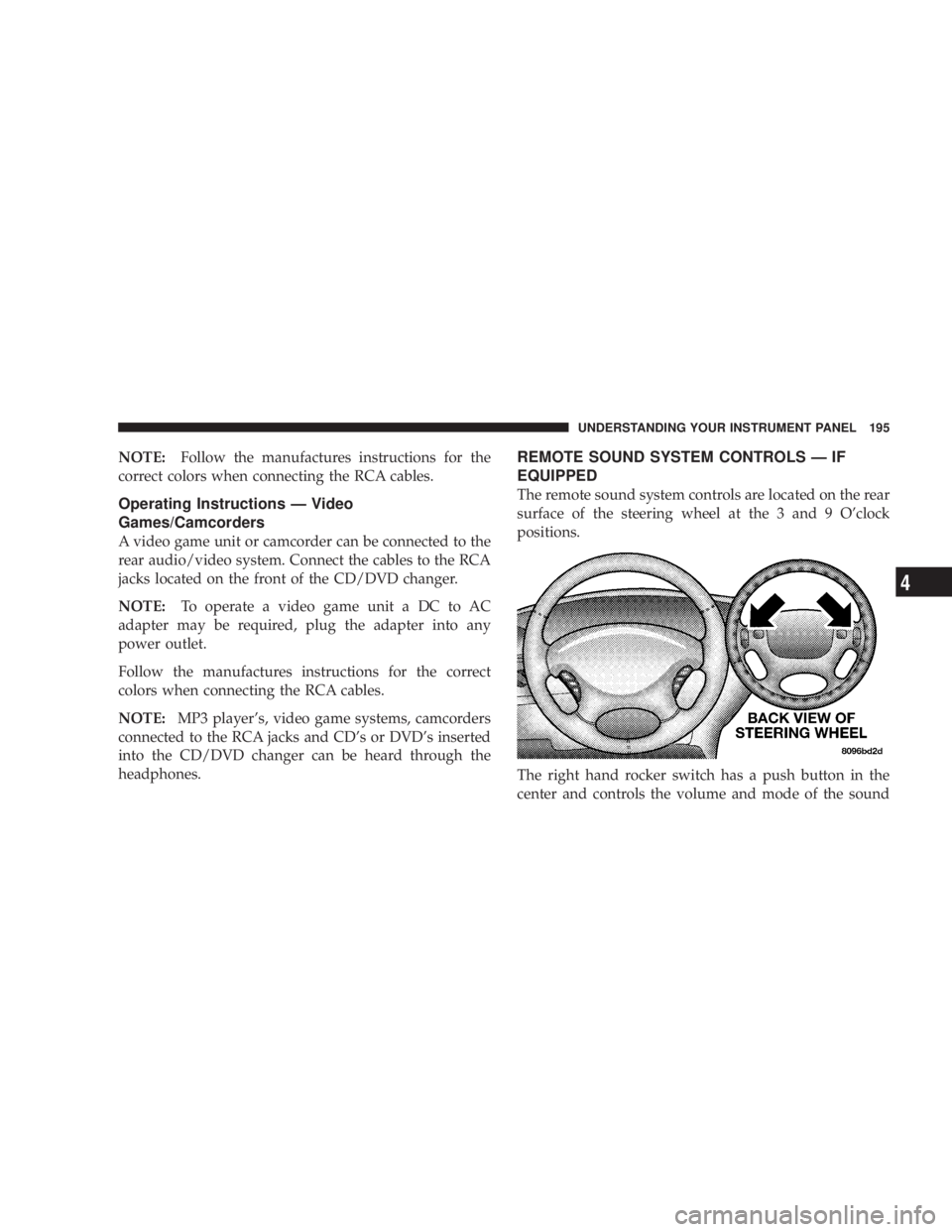
The remote sound system controls are located on the rear
surface of the steering wheel at the 3 and 9 O'clock
positions.
The right hand rocker switch has a push button in the
center and controls the volume and mode of the sound UNDERSTANDING YOUR INSTRUMENT PANEL 195
4
Page 197 of 397
CD Player
Pressing the top of the switch once will go to the next
track on the CD. Pressing the bottom of the switch once
will go to the beginning of the current track or to the
beginning of the previous track if it is within one second
after the current track begins to play.
If you press the switch up or down twice it plays the
second track, three times, it will play the third, etc.
The button in the center of the left hand switch has no
function in this mode.
CASSETTE TAPE AND PLAYER MAINTENANCE
To keep the cassette tapes and player in good condition,
take the following precautions:
1. Do not use cassette tapes longer than C-90; otherwise,
sound quality and tape durability will be greatly dimin-
ished. 2. Keep the cassette tape in its case to protect from
slackness and dust when it is not in use.
3. Keep the cassette tape away from direct sunlight, heat
and magnetic fields such as the radio speakers.
4. Before inserting a tape, make sure that the label is
adhering flatly to the cassette.
5. A loose tape should be corrected before use. To rewind
a loose tape, insert the eraser end of a pencil into the tape
drive gear and twist the pencil in the required directions.
Maintain your cassette tape player. The head and capstan
shaft in the cassette player can pick up dirt or tape
deposits each time a cassette is played. The result of
deposits on the capstan shaft may cause the tape to wrap
around and become lodged in the tape transport. The
other adverse condition is low or ªmuddyº sound from
one or both channels, as if the treble tone control were UNDERSTANDING YOUR INSTRUMENT PANEL 197
4