2004 CHEVROLET VENTURE ignition
[x] Cancel search: ignitionPage 280 of 516
BAND (Alternate Frequency):Alternate frequency
allows the radio to switch to a stronger station with the
same program type. To turn alternate frequency on
press and hold BAND for two seconds AF ON will
appear on the display. The radio may switch to stronger
stations.
To turn alternate frequency off press and hold BAND
again for two seconds. AF OFF will appear on the
display. The radio will not switch to other stations. When
you turn the ignition off and then on again, the
alternate frequency feature will automatically be
turned on.
This function does not apply for XM™ Satellite Radio
Service.
Setting Preset PTYs (RDS Only)
The six numbered pushbuttons let you return to your
favorite PTYs. These buttons have factory PTY presets.
You can set up to 12 PTYs (six FM1 and six FM2) by
performing the following steps:
1. Press BAND to select FM1 or FM2.
2. Press the P-TYPE button to activate program type
select mode. P-TYPE and the last selected PTY will
appear on the display.3. Turn the P-TYPE knob to select a PTY.
4. Press and hold one of the six numbered
pushbuttons until you hear a beep. Whenever you
press that numbered pushbutton, the PTY you
set will return.
5. Repeat the steps for each pushbutton.
RDS Messages
ALERT!:Alert warns of local or national emergencies.
When an alert announcement comes on the current
radio station, ALERT! will appear on the display. You will
hear the announcement, even if the volume is muted
or a CD is playing. If a CD is playing, play will stop
during the announcement. You will not be able to turn
off alert announcements.
ALERT! will not be affected by tests of the emergency
broadcast system. This feature is not supported by
all RDS stations.
3-98
Page 285 of 516
Playing a CD
The CD player can play the smaller 8 cm single CDs
with an adapter ring. Full-size CDs and the smaller CDs
are loaded in the same manner.
If playing a CD-R the sound quality may be reduced
due to CD-R quality, the method of recording, the quality
of the music that has been recorded, and the way the
CD-R has been handled. You may experience an
increase in skipping, difficulty in nding tracks, and/or
difficulty in loading and ejecting. If these problems occur
try a known good CD.
Do not add paper labels to CDs, they could get caught
in the CD player.
Do not play 3 inch CDs without a standard adapter CD.
If an error appears on the display, see “CD Messages”
later in this section.LOAD CD
Z:Press the LOAD side of this button to
load CDs into the CD player. This CD player will
hold up to six CDs.
To insert one CD, do the following:
1. Turn the ignition on.
2. Press and release the LOAD side of the LOAD CD
button.
3. Wait for the light, located to the right of the slot, to
turn green.
4. Load a CD. Insert the CD partway into the slot,
label side up. The player will pull the CD in.
When a CD is inserted, the CD symbol will be displayed.
If you select an equalization setting for your CD, it will
be activated each time you play a CD.
The CD will begin to play automatically. As each new
track starts to play, the track number will appear on the
display.
3-103
Page 286 of 516

To insert multiple CDs, do the following:
1. Turn the ignition on.
2. Press and hold the LOAD side of the LOAD CD
button for two seconds.
You will hear a beep and the light, located to the
right of the slot, will begin to ash.
3. Once the light stops ashing and turns green, load
a CD. Insert the CD partway into the slot, label side
up. The player will pull the CD in.
4. Once the CD is loaded, the light will begin ashing
again. Press the LOAD side of the LOAD CD button
again. Once the light turns green, load the next
CD. Repeat this procedure for each CD.
The CD player takes up to six CDs. Do not try to
load more than six.
To load more than one CD but less than six, complete
Steps 1 through 3. When you have nished loading
CDs, the radio will begin to play the last CD loaded.
When a CD is inserted, the CD symbol will be displayed.
If more than one CD has been loaded, a number for
each CD will be displayed. If you select an equalization
setting for your CD, it will be activated each time you
play a CD.
As each new track starts to play, the track number will
appear on the display.Playing a Specic Loaded CD
For every CD loaded, a number will appear on the
display. To play a specic CD, rst press the CD AUX
button, then press the numbered pushbutton that
corresponds to the CD you want to play. A small bar will
appear under the CD number that is playing, and the
track number will appear.
If an error appears on the display, see “CD Messages”
later in this section.
LOAD CD
Z(Eject):Press the CD eject side of this
button to eject a CD. You will hear a beep and the
light will ash to let you know when a CD is being
ejected.
REMOVE CD will be displayed. You can now remove
the CD. If the CD is not removed, after 25 seconds, the
CD will be automatically pulled back into the receiver.
If you try to push the CD back into the receiver,
before the 25 second time period is complete, the
receiver will sense an error and will try to eject the CD
several times before stopping.
Do not repeatedly press the CD eject button to eject a
CD after you have tried to push it in manually. The
receivers 25-second eject timer will reset at each press
of eject, which will cause the receiver to not eject
the CD until the 25-second time period has elapsed.
3-104
Page 294 of 516
DVD Player
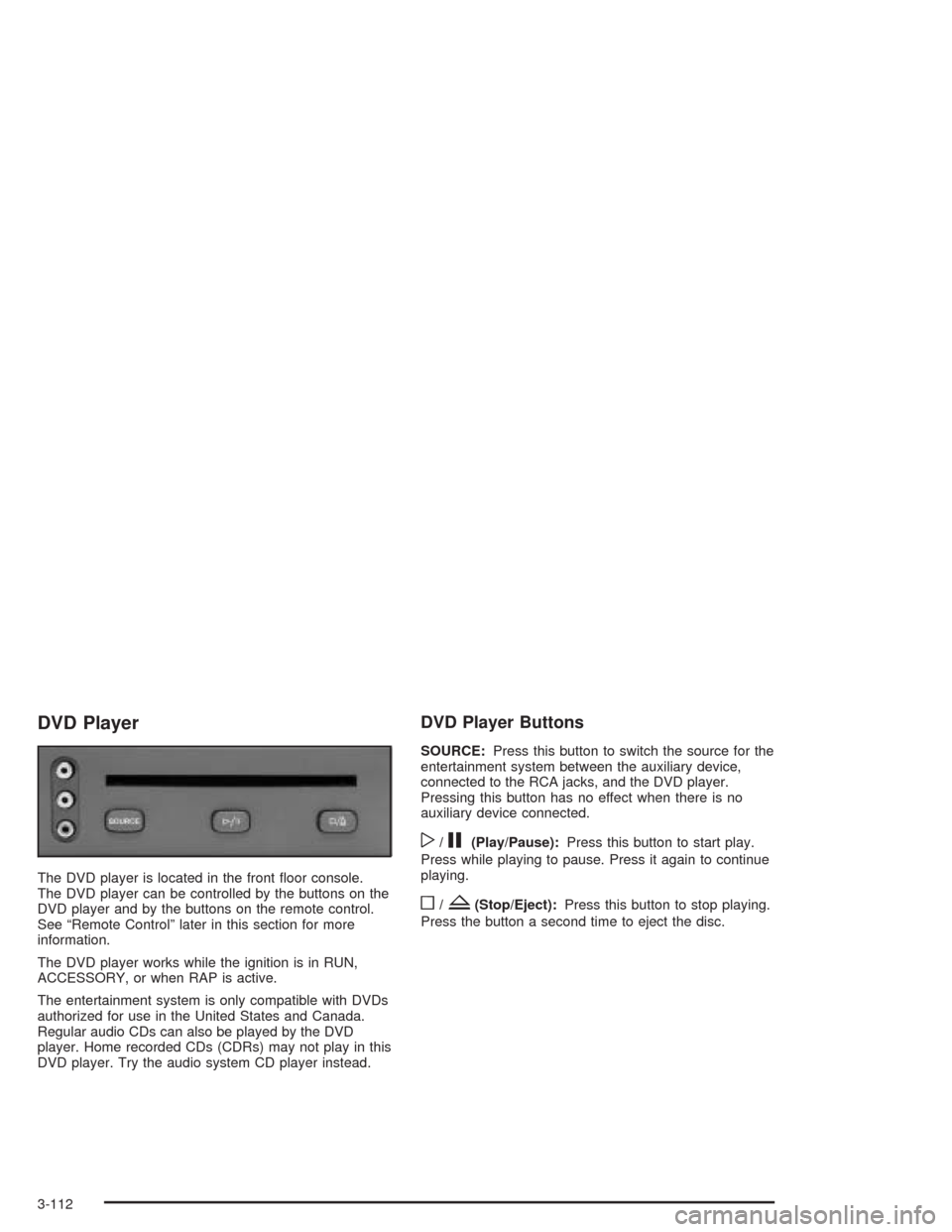
The DVD player is located in the front oor console.
The DVD player can be controlled by the buttons on the
DVD player and by the buttons on the remote control.
See “Remote Control” later in this section for more
information.
The DVD player works while the ignition is in RUN,
ACCESSORY, or when RAP is active.
The entertainment system is only compatible with DVDs
authorized for use in the United States and Canada.
Regular audio CDs can also be played by the DVD
player. Home recorded CDs (CDRs) may not play in this
DVD player. Try the audio system CD player instead.
DVD Player Buttons
SOURCE:Press this button to switch the source for the
entertainment system between the auxiliary device,
connected to the RCA jacks, and the DVD player.
Pressing this button has no effect when there is no
auxiliary device connected.
w/j(Play/Pause):Press this button to start play.
Press while playing to pause. Press it again to continue
playing.
o/Z(Stop/Eject):Press this button to stop playing.
Press the button a second time to eject the disc.
3-112
Page 301 of 516
qr(Tune):When listening to the radio, press the
right or the left arrow to go to the next or the previous
station and stay there. This function is inactive if
the front seat passengers are listening to the radio.
When a CD is playing, press the right arrow to go to the
next track on the CD. Press the left arrow to go to the
start of the current track, if more than eight seconds
have played. This function is inactive if the front
seat passengers are listening to a CD.
P.SET SCAN (Preset Scan):Press and hold this
button to scan the preset radio stations set on the
pushbuttons on the main radio. The radio will go to a
preset station stored on the pushbuttons, play for a few
seconds, then go on to the next preset station. The
selected radio station will appear on the display above
the video screen. Press this button again to stop
scanning presets. This function is inactive if the front
seat passengers are listening to the radio.
When a CD is playing in the six-disc CD changer, press
this button to select the next CD, if multiple CDs are
loaded. This function is inactive if the front seat
passengers are listening to a CD.
CD TAPE:Press this button to switch between playing
a CD, a DVD, or an auxiliary device when the
headphones are on channel B. If one of the devices are
not loaded, the system will skip over the device when
this button is pressed.Theft-Deterrent Feature
(Non-RDS Radios)
THEFTLOCK®is designed to discourage theft of your
vehicle’s radio. The feature works automatically by
learning a portion of the Vehicle Identication Number
(VIN). If the radio is moved to a different vehicle, it
will not operate and LOCKED will appear on the display.
When the radio and vehicle are turned off, the blinking
red light indicates that THEFTLOCK
®is armed.
With THEFTLOCK
®activated, the radio will not operate
if stolen.
Theft-Deterrent Feature
(RDS Radios)
THEFTLOCK®is designed to discourage theft of your
vehicle’s radio. The feature works automatically by
learning a portion of the Vehicle Identication Number
(VIN). If the radio is moved to a different vehicle, it
will not operate and LOCKED will appear on the display.
When the ignition is off and RAP is not active, the
blinking red light indicates that THEFTLOCK
®is armed.
With THEFTLOCK
®activated, the radio will not
operate if stolen.
3-119
Page 331 of 516
If you drive regularly in steep country, or if you are
planning to visit there, here are some tips that can make
your trips safer and more enjoyable.
Keep your vehicle in good shape. Check all uid
levels and also the brakes, tires, cooling system
and transaxle. These parts can work hard on
mountain roads.
Know how to go down hills. The most important
thing to know is this: let your engine do some of
the slowing down. Shift to a lower gear when you go
down a steep or long hill.
{CAUTION:
If you do not shift down, your brakes could get
so hot that they would not work well. You
would then have poor braking or even none
going down a hill. You could crash. Shift down
to let your engine assist your brakes on a
steep downhill slope.
{CAUTION:
Coasting downhill in NEUTRAL (N) or with the
ignition off is dangerous. Your brakes will have
to do all the work of slowing down. They could
get so hot that they would not work well. You
would then have poor braking or even none
going down a hill. You could crash. Always have
your engine running and your vehicle in gear
when you go downhill.
Know how to go uphill. You may want to shift down to
a lower gear. The lower gears help cool your engine
and transaxle, and you can climb the hill better.
Stay in your own lane when driving on two-lane
roads in hills or mountains. Do not swing wide or cut
across the center of the road. Drive at speeds that let
you stay in your own lane.
As you go over the top of a hill, be alert. There could
be something in your lane, like a stalled car or an
accident.
You may see highway signs on mountains that warn
of special problems. Examples are long grades,
passing or no-passing zones, a falling rocks area or
winding roads. Be alert to these and take appropriate
action.
4-27
Page 369 of 516

When to Change Engine Oil
(GM Oil Life System)
Your vehicle has a computer system that lets you know
when to change the engine oil and lter. This is based on
engine revolutions and engine temperature, and not on
mileage. Based on driving conditions, the mileage at
which an oil change will be indicated can vary
considerably. For the oil life system to work properly, you
must reset the system every time the oil is changed.
When the system has calculated that oil life has been
diminished, it will indicate that an oil change is
necessary. A CHANGE ENGINE OIL message will
come on. Change your oil as soon as possible within
the next two times you stop for fuel. It is possible that, if
you are driving under the best conditions, the oil life
system may not indicate that an oil change is necessary
for over a year. However, your engine oil and lter
must be changed at least once a year and at this time
the system must be reset. Your dealer has GM-trained
people who will perform this work using genuine
GM parts and reset the system. It is also important to
check your oil regularly and keep it at the proper level.
If the system is ever reset accidentally, you must
change your oil at 3,000 miles (5 000 km) since your
last oil change. Remember to reset the oil life system
whenever the oil is changed.
How to Reset the Change Engine Oil
Message
The GM Oil Life System calculates when to change
your engine oil and lter based on vehicle use. Anytime
your oil is changed, reset the system so it can
calculate when the next oil change is required. If a
situation occurs where you change your oil prior to a
CHANGE ENGINE OIL message being turned on, reset
the system.
1. With the ignition key in RUN but the engine off,
repeatedly push the trip/reset button until OIL is
displayed on the Driver Information Center (DIC).
2. Once OIL is displayed, push and hold the trip/reset
button for ve seconds. The number will disappear
and be replaced by 100 (indicating 100% oil life
remaining).
3. Turn the key to OFF.
If the CHANGE ENGINE OIL message comes back on
when you start your vehicle, the engine oil life system
has not reset. Repeat the procedure.
5-17
Page 396 of 516
Notice:If you leave your radio or other accessories
on during the jump starting procedure, they could
be damaged. The repairs would not be covered
by your warranty. Always turn off your radio and
other accessories when jump starting your vehicle.
3. Turn off the ignition on both vehicles. Unplug
unnecessary accessories plugged into the cigarette
lighter or in the accessory power outlet. Turn off
the radio and all lamps that aren’t needed. This will
avoid sparks and help save both batteries. And it
could save your radio!
4. Open the hoods and locate the batteries. Find the
positive (+) and negative (−) terminal locations on
each vehicle.
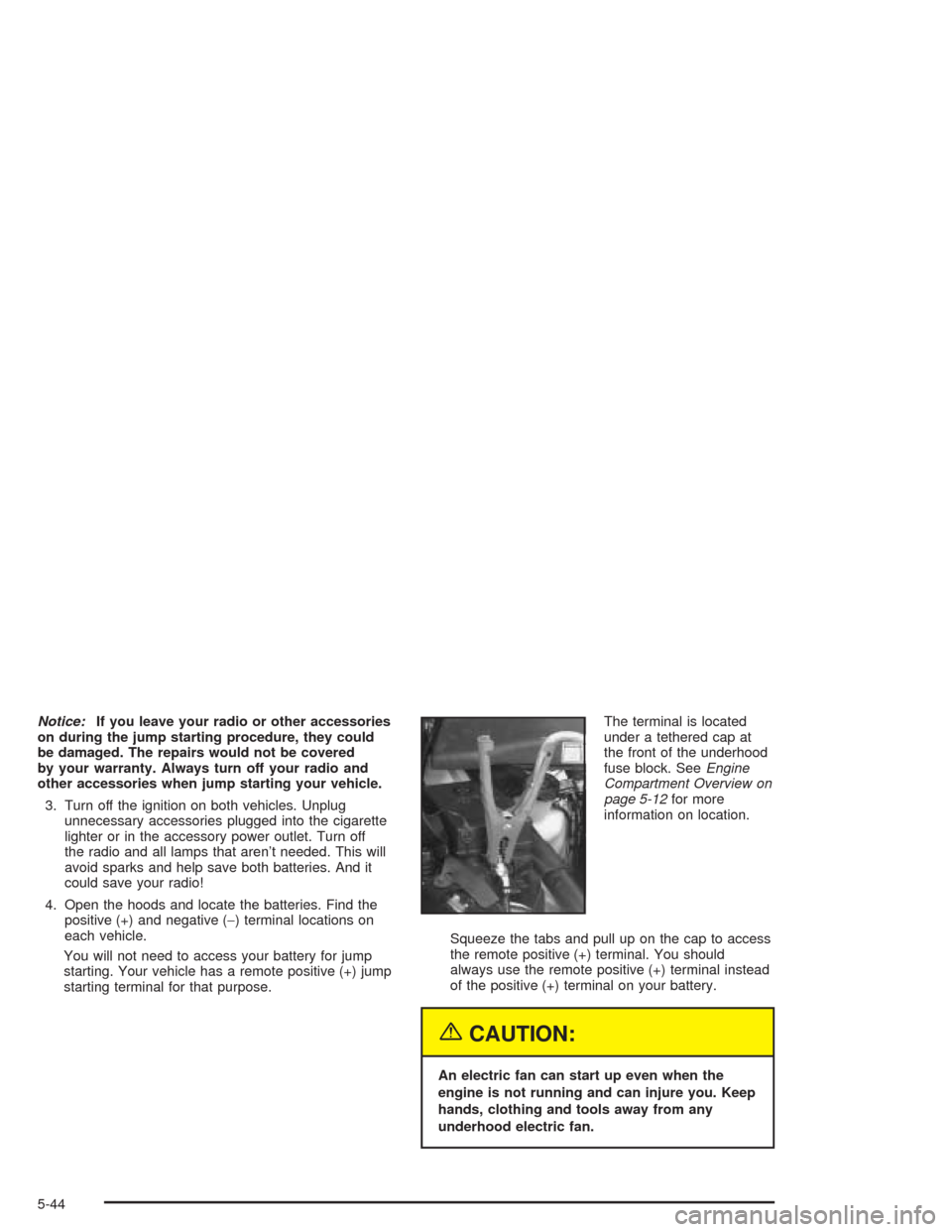
You will not need to access your battery for jump
starting. Your vehicle has a remote positive (+) jump
starting terminal for that purpose.The terminal is located
under a tethered cap at
the front of the underhood
fuse block. SeeEngine
Compartment Overview on
page 5-12for more
information on location.
Squeeze the tabs and pull up on the cap to access
the remote positive (+) terminal. You should
always use the remote positive (+) terminal instead
of the positive (+) terminal on your battery.
{CAUTION:
An electric fan can start up even when the
engine is not running and can injure you. Keep
hands, clothing and tools away from any
underhood electric fan.
5-44