2004 CHEVROLET AVALANCHE light
[x] Cancel search: lightPage 234 of 548

Lamp on page 3-47. Reinstall the fuel cap, making sure
to fully install the cap. SeeFilling Your Tank on
page 5-7. The diagnostic system can determine if the
fuel cap has been left off or improperly installed. A loose
or missing fuel cap will allow fuel to evaporate into
the atmosphere. A few driving trips with the cap properly
installed should turn the light and message off.
CHECK WASHER FLUID
If the washer uid level is low, this message will appear
on the DIC. Adding washer uid will clear the message.
Pressing the select button will acknowledge this
message and clear it from the DIC display. If you do not
clear this message, it will clear itself after 10 seconds
until the next ignition cycle.
TRANSMISSION HOT
If the transmission uid temperature becomes high, the
message center will display this message.
When the transmission enters the protection mode, you
may notice a change in the transmission shifting
patterns. When the transmission uid temperature
returns to normal, the display will turn off and the
transmission shifting patterns will return to normal.
Notice:If you drive your vehicle while the
transmission uid is overheating and the
transmission temperature warning is displayed on
the instrument panel cluster and/or DIC, youcan damage the transmission. This could lead to
costly repairs that would not be covered by
your warranty. Do not drive your vehicle with
overheated transmission uid or while transmission
temperature warning is displayed.
The following situations can cause the transmission to
operate at higher temperatures:
Towing a trailer
Hot outside air temperatures
Hauling a large or heavy load
Low transmission uid level
High transmission uid level
Restricted air ow to the radiator.
A temporary solution to hotter transmission operating
temperatures may be to let the transmission cool down. If
the transmission is operated at higher temperatures on a
frequent basis, seeScheduled Maintenance on page 6-4
for the proper transmission maintenance intervals.
TRANS HOT IDLE ENGINE
If the transmission uid gets hot, this message will
appear on the DIC along with a continuous chime.
Driving with the transmission uid temperature high can
cause damage to the vehicle. Stop the vehicle and
3-68
Page 237 of 548

STABILITY SYS ACTIVE
You may see the STABILITY SYS ACTIVE message on
the DIC. It means that an advanced computer-controlled
system has come on to help your vehicle continue to
go in the direction in which you’re steering.
For more information on the Stabilitrak
®system, see
Stabilitrak®System on page 4-11.
SERVICE STABILITY
If you ever see the SERVICE STABILITY message, it
means there may be a problem with your
Stabilitrak
®system. If you see this message try to reset
the system (stop; turn off the engine; then start the
engine again). If the SERVICE STABILITY message still
comes on, it means there is a problem. You should
see your dealer for service. The vehicle is safe to drive,
however, you do not have the benet of Stabilitrak
®,
so reduce your speed and drive accordingly.
For more information on the Stabilitrak
®system, see
Stabilitrak®System on page 4-11.
STABILITY SYS DISABLED
The STABILITY SYS DISABLED message will turn on
when you press the Stabilitrak®button, or when the
stability control has been automatically disabled. There
are four conditions that can cause this message to
appear. One condition is overheating, which could occur
if Stabilitrak
®activates continuously for an extended
period of time. The message will also be displayed if the
brake system warning light is on. SeeBrake System
Warning Light on page 3-42Brake System Warning
Light. The message could be displayed if the stability
system takes longer than usual to complete its
diagnostic checks due to driving conditions. Also, if an
engine or vehicle related problem has been detected,
and the vehicle needs service, the message will appear.
The message will turn off as soon as the conditions
that caused the message to be displayed are no longer
present.
For more information on the Stabilitrak
®system, see
Stabilitrak®System on page 4-11.
3-71
Page 260 of 548
Playing a CD
If the ignition or radio is turned off with the CD in the
player, it will stay in the player. When the ignition or the
radio is turned on, the CD will start playing, where it
stopped, if it was the last selected audio source.
The CD player can play the smaller 3 inch (8 cm) single
CDs with an adapter ring. Full-size CDs and the
smaller CDs are loaded in the same manner.
If playing a CD-R the sound quality may be reduced
due to CD-R quality, the method of recording, the quality
of the music that has been recorded, and the way the
CD-R has been handled. You may experience an
increase in skipping, difficulty in nding tracks, and/or
difficulty in loading and ejecting. If these problems occur
try a known good CD.
Do not add paper labels to CDs, they could get caught
in the CD player.
If an error appears on the display, see “CD Messages”
later in this section.LOAD CD
Z:Press the LOAD side of this button to
load CDs into the CD player. This CD player will
hold up to six CDs.
To insert one CD, do the following:
1. Turn the ignition on.
2. Press and release the LOAD side of the LOAD CD
button.
3. Wait for the light, located to the right of the slot, to
turn green.
4. Load a CD. Insert the CD partway into the slot,
label side up. The player will pull the CD in.
When a CD is inserted, the CD symbol will appear on
the display. If an equalization setting has been selected
for the CD, the equalization will be activated each
time a CD is played.
As each new track starts to play, the track number will
appear on the display.
3-94
Page 261 of 548
To insert multiple CDs, do the following:
1. Turn the ignition on.
2. Press and hold the LOAD side of the LOAD CD
button for two seconds.
You will hear a beep and the light, located to the
right of the slot, will begin to ash.
3. Once the light stops ashing and turns green, load
a CD. Insert the CD partway into the slot, label side
up. The player will pull the CD in.
Once the CD is loaded, the light will begin ashing
again. Once the light stops ashing and turns green
you can load another CD. The CD player takes up to
six CDs. Do not try to load more than six.
To load more than one CD but less than six, complete
Steps 1 through 3. When you have nished loading
CDs, the radio will begin to play the last CD loaded.
When a CD is inserted, the CD symbol will appear on
the display. If more than one CD has been loaded,
a number for each CD will appear on the display. If you
select an equalization setting for your CD, it will be
activated each time you play a CD.
As each new track starts to play, the track number will
appear on the display.Playing a Specic Loaded CD
For every CD loaded, a number will appear on the
display. To play a specic CD, rst press the CD AUX
button. Then press the numbered pushbutton that
corresponds to the CD you want to play. A small bar will
appear under the CD number that is playing, and the
track number will appear on the display.
If an error appears on the radio display, see “CD
Messages” later in this section.
LOAD CD
Z(Eject):Press the CD eject side of this
button to eject a single CD or multiple CDs. To eject the
CD that is currently playing, press and release this
button. To eject multiple CDs, press and hold this button
for two seconds. You will hear a beep and the light will
ash to let you know when a CD is being ejected.
REMOVE CD will appear on the display. You can now
remove the CD. If the CD is not removed, after
25 seconds, the CD will be automatically pulled back into
the receiver. If you try to push the CD back into the
receiver, before the 25 second time period is complete,
the receiver will sense an error and will try to eject the CD
several times before stopping.
3-95
Page 266 of 548
Parental Control
This button is located behind the video screen. Press
this button while a DVD or CD is playing to freeze
the video and mute the audio. The video screen will
display Parental Control ON and the power indicator
light on the DVD player will ash. It will also disable all
other button operations from the remote control and
the DVD player, with the exception of the eject button.
Press this button again to restore operation of the
DVD player.
This button may also be used to turn the DVD player
power on and automatically resume play if the ignition is
in RUN, ACCESSORY, or if RAP is active.
Before You Drive
The RSE system is for rear seat passengers only. The
driver cannot safely view the video screen while
driving and should not try to do so.
Headphones
The RSE system includes two sets of wireless
headphones.
Each set of headphones has an ON/OFF control. An
indicator light will illuminate on the headphones
when they are on. If the light does not illuminate, the
batteries may need to be replaced. See “Battery
Replacement” following for more information.
Each set of headphones has a volume knob. To adjust
the volume, adjust this knob.
The transmitters are located below the video display
screen. The headphones will shut off automatically
if they lose the signal from the system after about four
minutes to save battery power. The signal may be lost if
the system is turned off or if the headphones are out
of range of the transmitters.
3-100
Page 267 of 548
When using the wired headphones, if the front seat
passengers play a CD in the Radio with Six-Disc CD (if
equipped) or use XM™ Satellite Radio Service (if
equipped), you will hear the audio for these sources,
instead of the DVD or CD that is currently playing
through the RSE.
Notice:Do not store the headphones in heat or
direct sunlight. This could damage the headphones
and repairs would not be covered by your warranty.
Keep the headphones stored in a cool, dry place.
Battery Replacement
To change the batteries, do the following:
1. Loosen the screw on the battery compartment door
located on the left side of the headphone earpiece.
2. Replace the two AAA batteries in the compartment.
Make sure that they are installed correctly, using
the diagram on the inside of the battery
compartment.
3. Tighten the screw to close the compartment door.
If the headphones are to be stored for a long period
of time, remove the batteries and keep them in a cool,
dry place.
Stereo RCA Jacks
The RCA jacks are located behind the video screen.
The RCA jacks allow audio and video signals to
be connected from an auxiliary device such as a
camcorder or a video game unit to the RSE system.
Standard RCA cables, not included, are needed
to connect the auxiliary device to the RCA jacks. The
yellow connector inputs video and the red and white
connectors input right and left audio. Refer to the
manufacturer’s instructions for proper connection of the
auxiliary device.
To use the auxiliary inputs on the RSE system, connect
an external auxiliary device to the color-coded RCA
jacks and turn both the auxiliary device and the
RSE system power on. If the RSE system had been
previously in the DVD player mode, pressing the SRCE
button on the faceplate or the remote control will
switch the RSE system between the auxiliary device
and the DVD player.
3-101
Page 268 of 548
How to Change the Video Format when in
the Auxiliary Mode
The auxiliary input video format is preset to NTSC. In
some countries, the video format may be in PAL system.
To change the video format, perform the following:
1. Press the display menu button.
2. Press the down arrow button to highlight the Video
Format option.
3. Press the enter button to select Video Format.
4. Press the right or left arrow button to select
the desired video format.
5. Press the enter button to accept the change.
Audio Output
Audio from the DVD player or auxiliary inputs may be
heard through the following possible sources:
Wireless Headphones
Vehicle Speakers
Vehicle wired headphone jacks on the Rear Seat
Audio system (if equipped)
The RSE system will always transmit the audio signal
by infrared to the wireless headphones, if there is audio
available. See “Headphones” previously for more
information.
3-102
Page 270 of 548
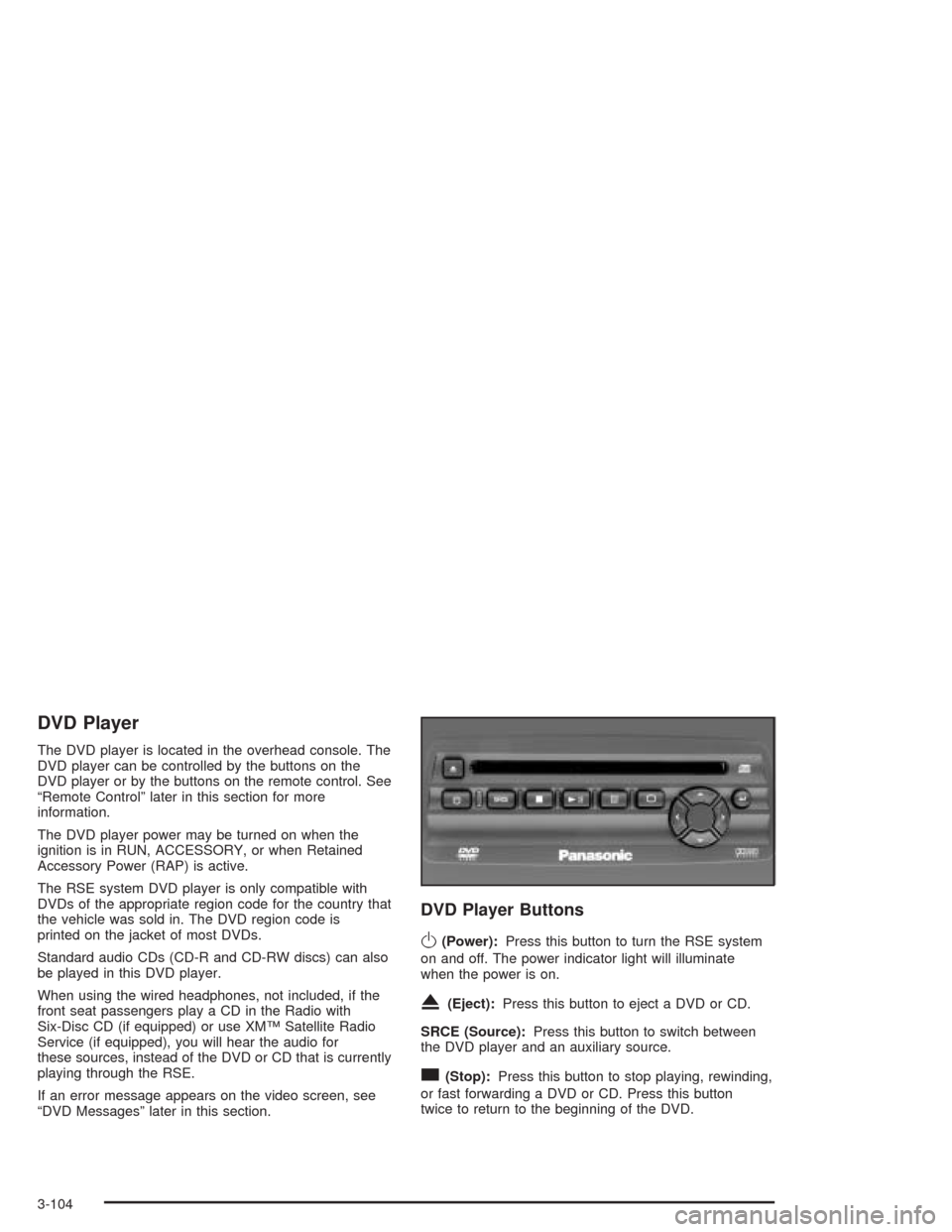
DVD Player
The DVD player is located in the overhead console. The
DVD player can be controlled by the buttons on the
DVD player or by the buttons on the remote control. See
“Remote Control” later in this section for more
information.
The DVD player power may be turned on when the
ignition is in RUN, ACCESSORY, or when Retained
Accessory Power (RAP) is active.
The RSE system DVD player is only compatible with
DVDs of the appropriate region code for the country that
the vehicle was sold in. The DVD region code is
printed on the jacket of most DVDs.
Standard audio CDs (CD-R and CD-RW discs) can also
be played in this DVD player.
When using the wired headphones, not included, if the
front seat passengers play a CD in the Radio with
Six-Disc CD (if equipped) or use XM™ Satellite Radio
Service (if equipped), you will hear the audio for
these sources, instead of the DVD or CD that is currently
playing through the RSE.
If an error message appears on the video screen, see
“DVD Messages” later in this section.
DVD Player Buttons
O(Power):Press this button to turn the RSE system
on and off. The power indicator light will illuminate
when the power is on.
X(Eject):Press this button to eject a DVD or CD.
SRCE (Source):Press this button to switch between
the DVD player and an auxiliary source.
c(Stop):Press this button to stop playing, rewinding,
or fast forwarding a DVD or CD. Press this button
twice to return to the beginning of the DVD.
3-104