2004 BMW 760LI SEDAN AC System
[x] Cancel search: AC SystemPage 158 of 232
Radio
156
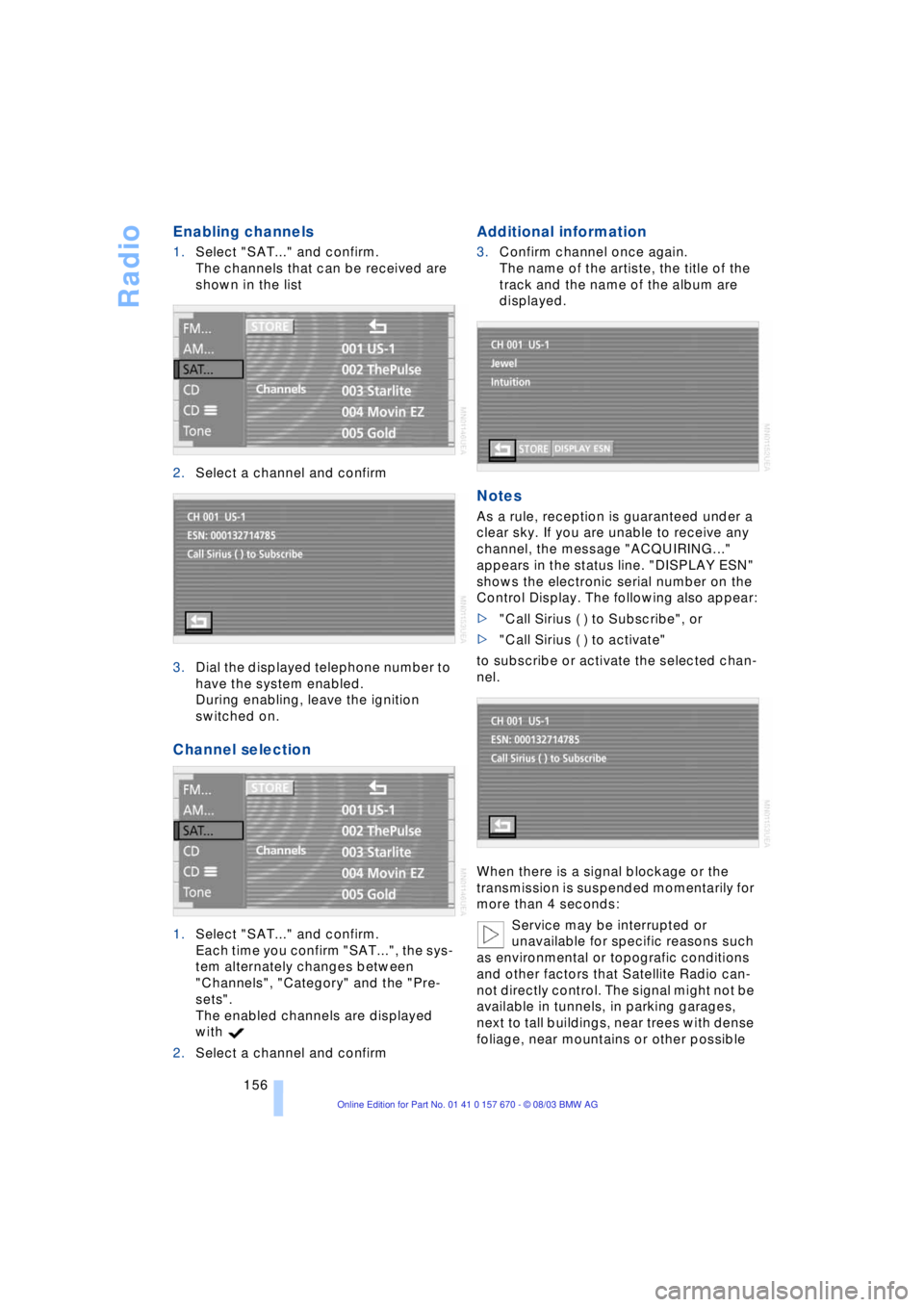
Enabling channels
1.Select "SAT..." and confirm.
The channels that can be received are
shown in the list
2.Select a channel and confirm
3.Dial the displayed telephone number to
have the system enabled.
During enabling, leave the ignition
switched on.
Channel selection
1.Select "SAT..." and confirm.
Each time you confirm "SAT...", the sys-
tem alternately changes between
"Channels", "Category" and the "Pre-
sets".
The enabled channels are displayed
with
2.Select a channel and confirm
Additional information
3.Confirm channel once again.
The name of the artiste, the title of the
track and the name of the album are
displayed.
Notes
As a rule, reception is guaranteed under a
clear sky. If you are unable to receive any
channel, the message "ACQUIRING..."
appears in the status line. "DISPLAY ESN"
shows the electronic serial number on the
Control Display. The following also appear:
>"Call Sirius ( ) to Subscribe", or
>"Call Sirius ( ) to activate"
to subscribe or activate the selected chan-
nel.
When there is a signal blockage or the
transmission is suspended momentarily for
more than 4 seconds:
Service may be interrupted or
unavailable for specific reasons such
as environmental or topografic conditions
and other factors that Satellite Radio can-
not directly control. The signal might not be
available in tunnels, in parking garages,
next to tall buildings, near trees with dense
foliage, near mountains or other possible
Page 160 of 232
CD Compact Disc
158
CD Compact Disc
Listening to CDs
Insert the CD in the slot.
If a CD is already inserted in the CD player:
Start playback
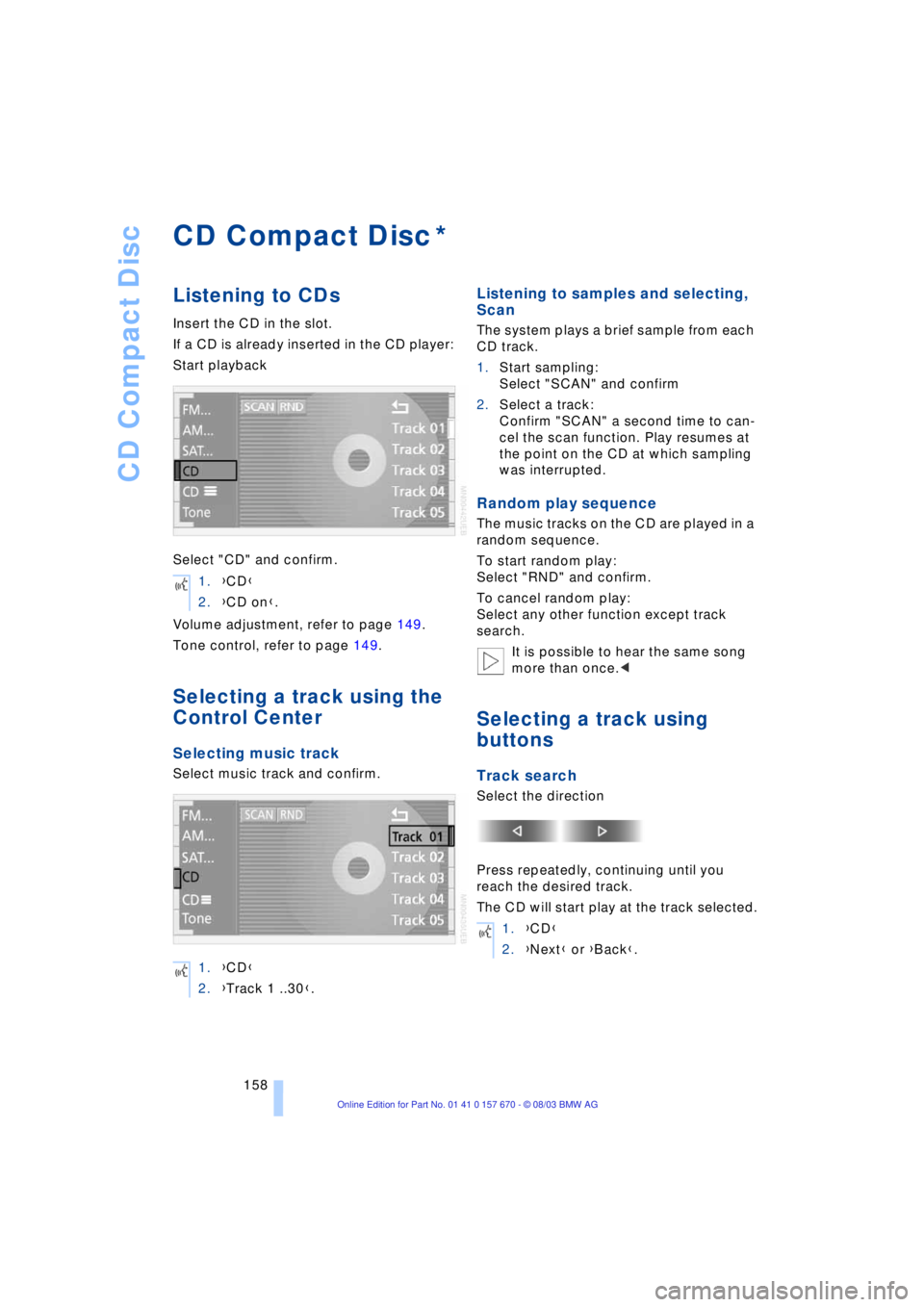
Select "CD" and confirm.
Volume adjustment, refer to page 149.
Tone control, refer to page 149.
Selecting a track using the
Control Center
Selecting music track
Select music track and confirm.
Listening to samples and selecting,
Scan
The system plays a brief sample from each
CD track.
1.Start sampling:
Select "SCAN" and confirm
2.Select a track:
Confirm "SCAN" a second time to can-
cel the scan function. Play resumes at
the point on the CD at which sampling
was interrupted.
Random play sequence
The music tracks on the CD are played in a
random sequence.
To start random play:
Select "RND" and confirm.
To cancel random play:
Select any other function except track
search.
It is possible to hear the same song
more than once.<
Selecting a track using
buttons
Track search
Select the direction
Press repeatedly, continuing until you
reach the desired track.
The CD will start play at the track selected.
*
1.{CD}
2.{CD on}.
1.{CD}
2.{Track 1 ..30}.
1.{CD}
2.{Next} or {Back}.
Page 163 of 232
Navigation
Entertainment
Driving tips
161Reference
At a glance
Controls
Communications
Mobility
If the CD magazine has been newly filled,
playback begins with the lowest CD, e.g.
CD 1, track 1.
Volume adjustment, refer to page 149.
Tone control, refer to page 149.
If you play self-recorded audio CDs,
faults, e.g. drop-outs, can occur, or
the CD is not played at all.<
Status displays
The CD magazine's load status is indicated
on the Control Display.
If the display fails to detect a CD that
you have loaded in the magazine,
check to ensure that the CD has been
inserted correctly and inspect it for signs
of defects.<
Selecting a track using the
Control Center
Selecting a CD
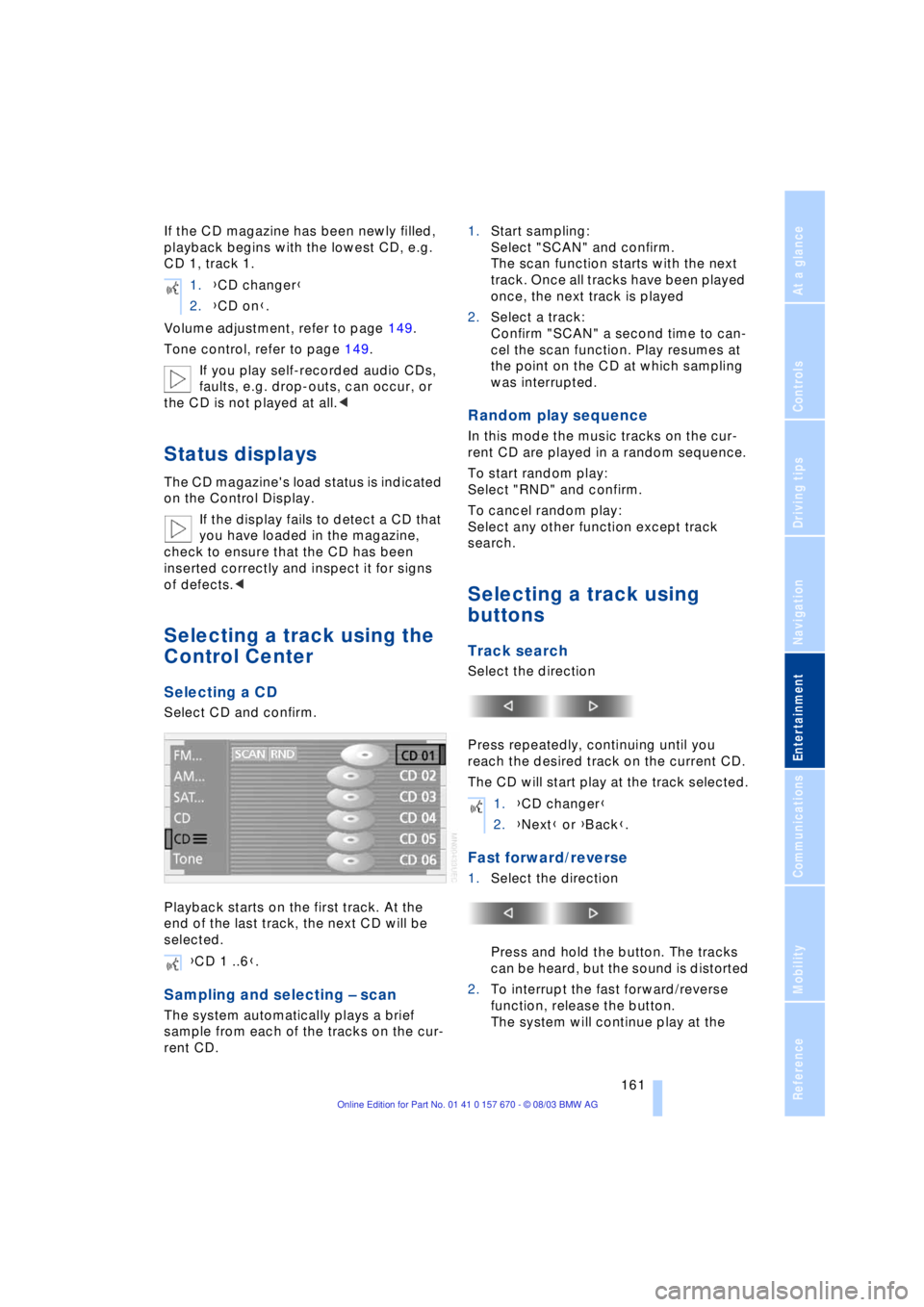
Select CD and confirm.
Playback starts on the first track. At the
end of the last track, the next CD will be
selected.
Sampling and selecting Ð scan
The system automatically plays a brief
sample from each of the tracks on the cur-
rent CD.1.Start sampling:
Select "SCAN" and confirm.
The scan function starts with the next
track. Once all tracks have been played
once, the next track is played
2.Select a track:
Confirm "SCAN" a second time to can-
cel the scan function. Play resumes at
the point on the CD at which sampling
was interrupted.
Random play sequence
In this mode the music tracks on the cur-
rent CD are played in a random sequence.
To start random play:
Select "RND" and confirm.
To cancel random play:
Select any other function except track
search.
Selecting a track using
buttons
Track search
Select the direction
Press repeatedly, continuing until you
reach the desired track on the current CD.
The CD will start play at the track selected.
Fast forward/reverse
1.Select the direction
Press and hold the button. The tracks
can be heard, but the sound is distorted
2.To interrupt the fast forward/reverse
function, release the button.
The system will continue play at the 1.{CD changer}
2.{CD on}.
{CD 1 ..6}.
1.{CD changer}
2.{Next} or {Back}.
Page 165 of 232
Navigation
Entertainment
Driving tips
163Reference
At a glance
Controls
Communications
Mobility
TV
For your own safety, the TV picture is only
shown on the rear screen.
The system is designed for reception
of analog television. Due to the quality
of mobile reception, reduced picture qual-
ity can result depending on the position
and network coverage in spite of the highly
advanced reception technology used.
A change in vehicle positions can result
in improved reception quality in many
cases.<
Television
1.Switch on audio or video sources, refer
to page 149
If an audio source is switched on,
select "Video" and confirm.<
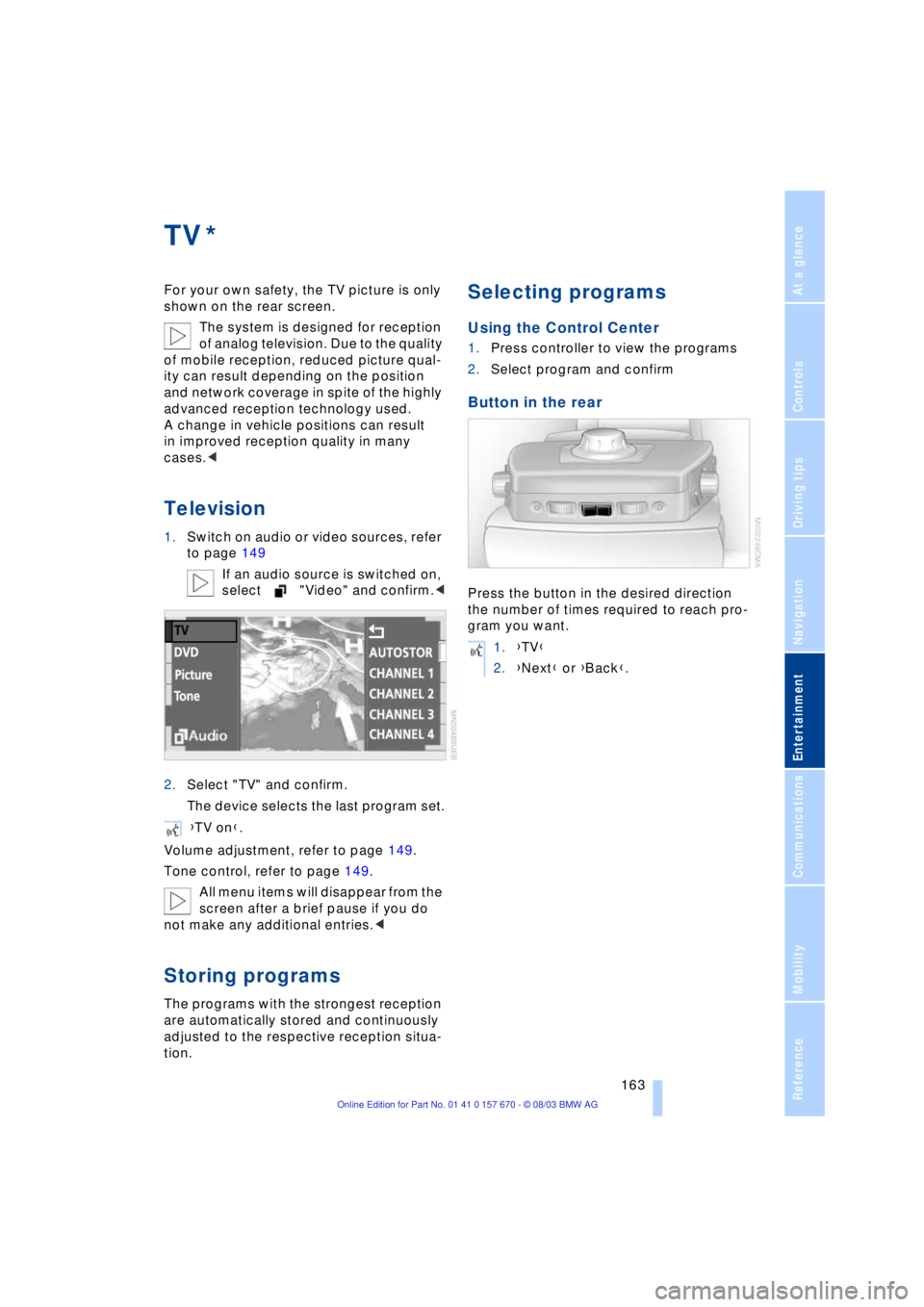
2.Select "TV" and confirm.
The device selects the last program set.
Volume adjustment, refer to page 149.
Tone control, refer to page 149.
All menu items will disappear from the
screen after a brief pause if you do
not make any additional entries.<
Storing programs
The programs with the strongest reception
are automatically stored and continuously
adjusted to the respective reception situa-
tion.
Selecting programs
Using the Control Center
1.Press controller to view the programs
2.Select program and confirm
Button in the rear
Press the button in the desired direction
the number of times required to reach pro-
gram you want.
*
{TV on}.
1.{TV}
2.{Next} or {Back}.
Page 169 of 232
Navigation
Entertainment
Driving tips
167Reference
At a glance
Controls
Communications
Mobility
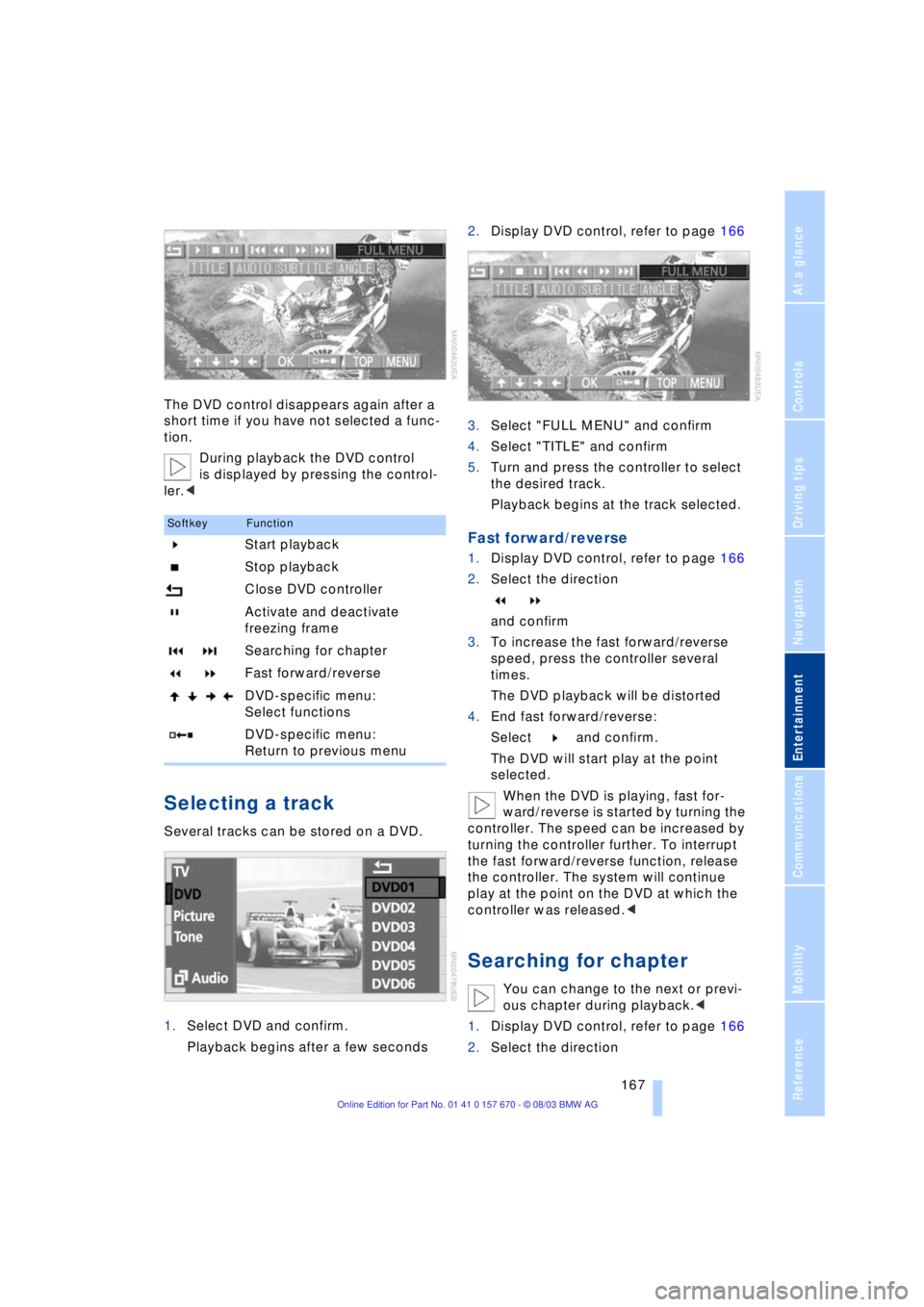
The DVD control disappears again after a
short time if you have not selected a func-
tion.
During playback the DVD control
is displayed by pressing the control-
ler.<
Selecting a track
Several tracks can be stored on a DVD.
1.Select DVD and confirm.
Playback begins after a few seconds2.Display DVD control, refer to page 166
3.Select "FULL MENU" and confirm
4.Select "TITLE" and confirm
5.Turn and press the controller to select
the desired track.
Playback begins at the track selected.
Fast forward/reverse
1.Display DVD control, refer to page 166
2.Select the direction
and confirm
3.To increase the fast forward/reverse
speed, press the controller several
times.
The DVD playback will be distorted
4.End fast forward/reverse:
Select and confirm.
The DVD will start play at the point
selected.
When the DVD is playing, fast for-
ward/reverse is started by turning the
controller. The speed can be increased by
turning the controller further. To interrupt
the fast forward/reverse function, release
the controller. The system will continue
play at the point on the DVD at which the
controller was released.<
Searching for chapter
You can change to the next or previ-
ous chapter during playback.<
1.Display DVD control, refer to page 166
2.Select the direction
SoftkeyFunction
Start playback
Stop playback
Close DVD controller
Activate and deactivate
freezing frame
Searching for chapter
Fast forward/reverse
DVD-specific menu:
Select functions
DVD-specific menu:
Return to previous menu
Page 172 of 232
DVD changer
170 The DVD Audio format is not sup-
ported by the DVD changer. However,
many audio DVDs available in stores also
contain a video track in the DVD Video for-
mat in addition to the audio track. These
DVDs can be played back by the DVD
changer. Please refer to the information on
your DVD to determine whether your audio
DVD contains an additional video track.
DVDs are usually divided into tracks and
chapters and can contain different subti-
tles, camera angles or sound tracks, lan-
guages and sound formats. Depending on
the version of the DVD, these functions can
be selected either directly with the DVD
control system or only via the DVD-specific
menu. Refer to the information on your DVD
for possible selections.
High levels of humidity inside the player
can condense on the laser's scan lens and
prevent it from reading the DVD.<
Page 176 of 232
Using the phone in your vehicle
174
Using the phone in your vehicle
Safety notes
A car phone can provide many services, in
an emergency even initiating a lifesaving
rescue. However, bear the following in
mind:
Adjustments
To avoid posing an unnecessary haz-
ard due to inattention, both to your
own vehicle's occupants and to other road
users: never attempt to use the controls or
make entries unless traffic and road condi-
tions allow.<
Using the phone in your vehicle
Using a portable phone to make and
receive calls while driving is now ille-
gal in virtually every country in the world.
Always use your hands-free system, or
stop your vehicle in an area where you will
not pose a safety hazard to other road
users and switch the engine off.<
Antenna
When using the phone, ensure that
all persons in the area are at least
20 in/50 cm from the antenna. Never use
your BMW portable phone if the antenna is
damaged. Contact between your skin and
a damaged antenna can result in minor
burns.
If the antenna is damaged, have it replaced
immediately.<
Special environmental conditions
Do not use your phone from within a
garage, or near an open hood. The air
in these areas could contain fuel vapors,
and the phone might generate sparks that
could result in burns.
This same precaution applies to opening
luggage compartment lids on vehicles
equipped for operation using natural gas or
hydrogen, and to all vehicles with luggage
compartment-mounted batteries.Always switch off your BMW portable
phone in areas where blasting work is
being conducted with explosives. The
phone signals could potentially act as a
high-frequency transmitter and set off
explosions.
Always switch off your BMW portable
phone in areas where an increased explo-
sion danger is present. This category
includes filling stations along with fuel and
chemical storage depots, etc., and all
areas in which the air can contain fuel,
chemicals or metal particles. Under these
conditions, your BMW portable phone
could conceivably generate sparks that
could lead to a fire or explosion. Always
observe all legal regulations governing the
use of portable phones in the vicinity of fill-
ing stations, chemical factories and other
areas where an explosion potential exists.
Never use the BMW portable phone in hos-
pitals, care centers or at other locations
where medical equipment may be in oper-
ation, such as accident sites, etc.
Your service provider can furnish you with
more detailed information on legal regula-
tions governing the use of your phone.<
Medical equipment
Portable phones can generate inter-
ference capable of preventing hearing
aids and cardiac pacemakers from operat-
ing correctly. If you or any occupant of the
vehicle will be using such equipment, con-
sult a physician or the manufacturer of the
equipment to determine whether it is ade-
quately shielded against high-frequency
energy.
Persons with cardiac pacemakers should
bear the following in mind:
Always hold the switched-on BMW porta-
ble phone more than 15 cm away from the
cardiac pacemaker.
Do not carry the BMW portable phone in
your breast pocket.
Use the ear on the opposite side of the car-
diac pacemaker to reduce the likelihood of
Page 177 of 232
175
Entertainment
Reference
At a glance
Controls
Driving tips Communications
Navigation
Mobility
influencing the cardiac pacemaker.
With the slightest sign of a cardiac pace-
maker malfunction, switch the BMW porta-
ble phone off immediately.<
Batteries
To avoid possible short circuits, after
removing a battery you should never
allow it to come into contact with metallic
surfaces of any kind. This is why you should
handle charged batteries with care, in par-
ticular if you place batteries, e.g. in jacket
or shirt pockets that contain metal objects.
If you are in an environment where there is
a risk of explosion, do not remove the bat-
tery from the device, as otherwise sparks
from your battery could cause explosions
or fire.<
Disposing of used batteries
Return used batteries to a recycling
collection point or to your BMW cen-
ter.<
Care instructions
You can find useful information on caring
for your portable phone in the separate
Caring for your vehicle brochure and in the
separate portable phone Owner's Manual.
Controls
You have the option of making phone calls
with the car phone
* or the BMW portable
phone.
If there is no BMW portable phone in the
cradle, the Personal Calling connection is
set up with the car phone.
The car phone must be enabled prior
to initial use. In this connection,
please consult your BMW center.<
The telephone used to set up a connection
appears in the upper status line.
For information on operating your
portable phone, please consult the
separate Owner's Manual.
>The Control Center
>The folding telephone keypad
>The voice command system Ð not for
incoming calls.
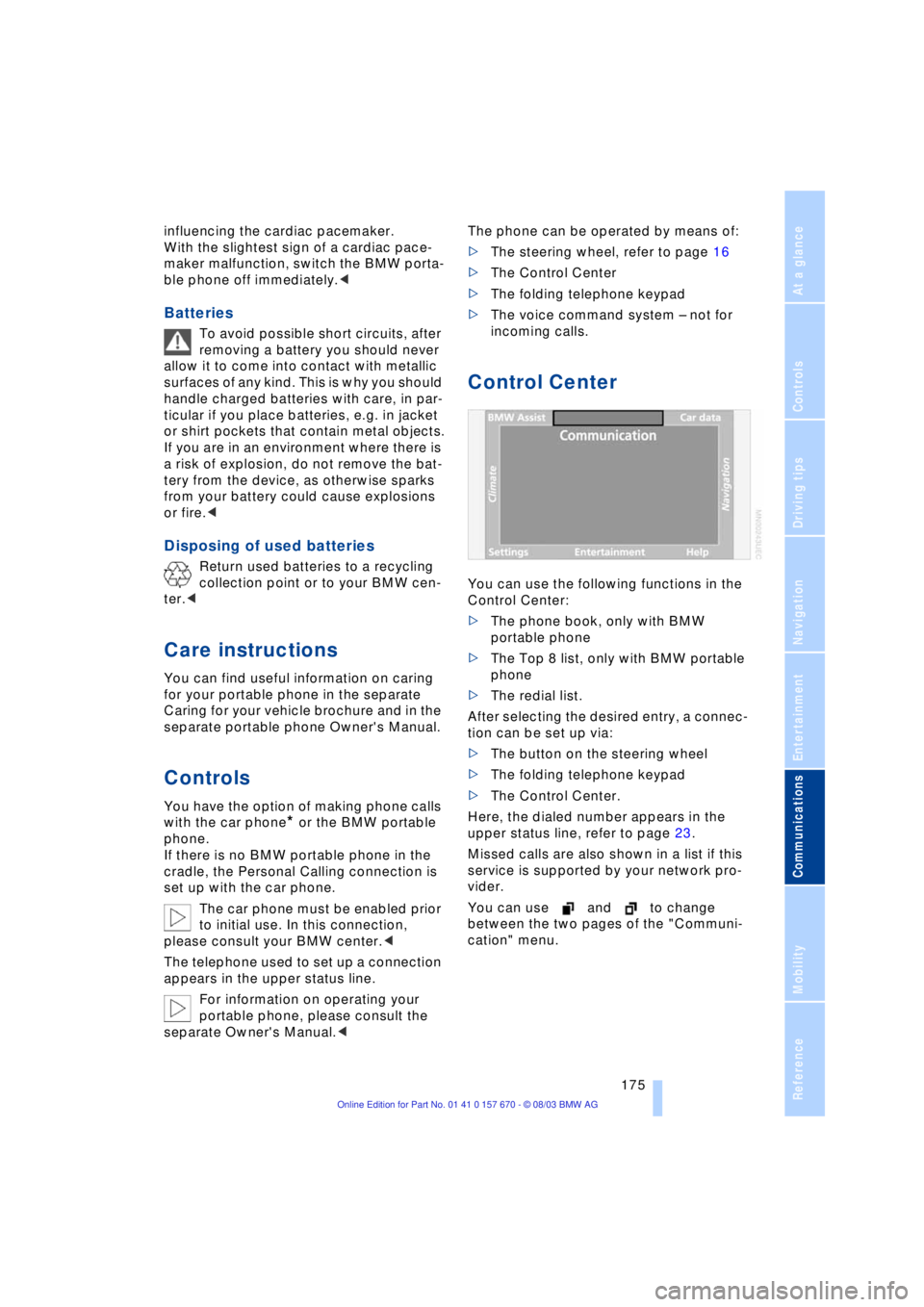
Control Center
You can use the following functions in the
Control Center:
>The phone book, only with BMW
portable phone
>The Top 8 list, only with BMW portable
phone
>The redial list.
After selecting the desired entry, a connec-
tion can be set up via:
>The button on the steering wheel
>The folding telephone keypad
>The Control Center.
Here, the dialed number appears in the
upper status line, refer to page 23.
Missed calls are also shown in a list if this
service is supported by your network pro-
vider.
You can use and to change
between the two pages of the "Communi-
cation" menu.