2004 BMW 645CI COUPE esp
[x] Cancel search: espPage 96 of 216

Practical interior accessories
94
Practical interior accessories
Integrated universal remote
control*
The concept
The integrated universal remote control
replaces up to three different hand-held
transmitters for various items of radio-con-
trolled equipment such as door openers
and house alarm systems. The integrated
universal remote control registers and
stores signals from the original hand-held
transmitters.
The signal of an original hand-held trans-
mitter can be programmed on one of the
three memory buttons 1. Then the respec-
tive device can be actuated with the mem-
ory button 1 programmed for its use with
the ignition key in position 2. The indicator
lamp 2 flashes to confirm transmission of
the signal.
If you sell your vehicle one day, delete the
saved programs beforehand for your own
security, refer to page 95.
To prevent possible damage or injury,
before programming or using the inte-
grated universal remote control, always
inspect the immediate area to make certain
that no people, animals or objects are
within the travel range of the device. Also,
comply with the safety precautions of the
original hand-held transmitter.<
Checking compatibility
If you see this symbol on the pack-
aging or in the manual supplied with
the original hand-held transmitter, it
is safe to assume that it is compatible with
the integrated universal remote control.
If you have additional questions, please
consult your BMW Sports Activity Vehicle
Center or call 1-800-355-3515.
You can also visit these websites:
www.bmwusa.com or
www.homelink.com. HomeLink is a registered trademark owned
by Johnson Controls, Inc.
Programming
1Memory buttons
2Indicator lamp
Fixed-code hand-held transmitters
1.Ignition key in position 2
2.When using for the first time: press both
outer buttons 1 for approx. 20 seconds,
maintaining pressure until the indicator
lamp 2 starts to flash. The three mem-
ory buttons 1 are cleared
3.Hold the original hand-held transmitter
at a distance of approx. 2 in/5 cm to
8 in/20 cm to the memory buttons 1
The required distance between
the hand-held transmitter and the
memory buttons 1 depends on the rele-
vant system of the original hand-held
transmitter used.<
4.Simultaneously press the transmit but-
ton on the original hand-held transmit-
ter and the desired memory button 1 on
the integrated universal remote control.
Initially, the indicator lamp 2 flashes
slowly. Release both buttons as soon
as the indicator lamp 2 flashes rapidly.
If the indicator lamp 2 does not flash
rapidly after approx. 15 seconds,
change the distance
5.To program other original hand-held
transmitters, repeat steps 3 and 4.
Page 97 of 216

Controls
95Reference
At a glance
Driving tips
Communications
Navigation
Entertainment
Mobility
The corresponding memory button 1 is
now programmed with the signal of the
original hand-held transmitter.
The equipment can be used in ignition key
position 2.
If the device cannot be operated after
repeated programming, check
whether the original hand-held transmitter
uses an alternating-code system. Here,
either read the instructions for the original
hand-held transmitter or hold down the
programmed memory button 1 of the inte-
grated universal remote control. If the indi-
cator lamp 2 on the integrated universal
remote control flashes rapidly for a short
time then lights up for approx. 2 seconds,
this indicates that the original hand-held
transmitter uses an alternating-code sys-
tem. In the case of an alternating-code sys-
tem, program the memory buttons 1 as
described at Alternating-code hand-held
transmitters.<
Alternating-code hand-held
transmitters
To program the integrated universal remote
control, consult the Operating Instructions
for the equipment to be set. You will find
information there on the possibilities for
synchronization.
When programming hand-held transmitters
that employ an alternating code, please
observe the following supplementary
instructions:
Programming will be easier with the
aid of a second person.<
1.Park your vehicle within the range of the
remote-controlled equipment
2.Program the integrated universal
remote control as described above at
Fixed-code hand-held transmitters
3.Locate the button at the receiver of the
equipment to be set, e.g. on the drive
4.Press the button on the receiver of the
equipment to be set. After step 4, you
have approx. 30 seconds for step 55.Press the programmed memory
button 1 of the integrated universal
remote control three times.
The corresponding memory button 1 is
now programmed with the signal of the
original hand-held transmitter.
If you have any additional questions,
please contact your BMW center.<
Clearing memory buttons
Press both outer buttons 1 of the inte-
grated universal remote control for approx.
20 seconds, maintaining pressure until the
indicator lamp 2 starts to flash. All three
memory buttons are cleared.
The memory of individual memory but-
tons 1 cannot be cleared.
Glove compartment
Opening
Press button. The glove compartment
opens automatically and the lamps come
on.
Closing
Fold the cover up.
To prevent injury in the event of an
accident while the vehicle is being
driven, close the glove compartment
immediately after use.<
Rechargeable flashlight*
The flashlight is located on the left side of
the glove compartment.
The flashlight can remain there continu-
ously.
Page 98 of 216
Practical interior accessories
96 Be sure that the flashlight is switched
off when it is inserted into its holder.
Failure to comply with this precaution
could lead to overcharging and damage.<
Center armrest
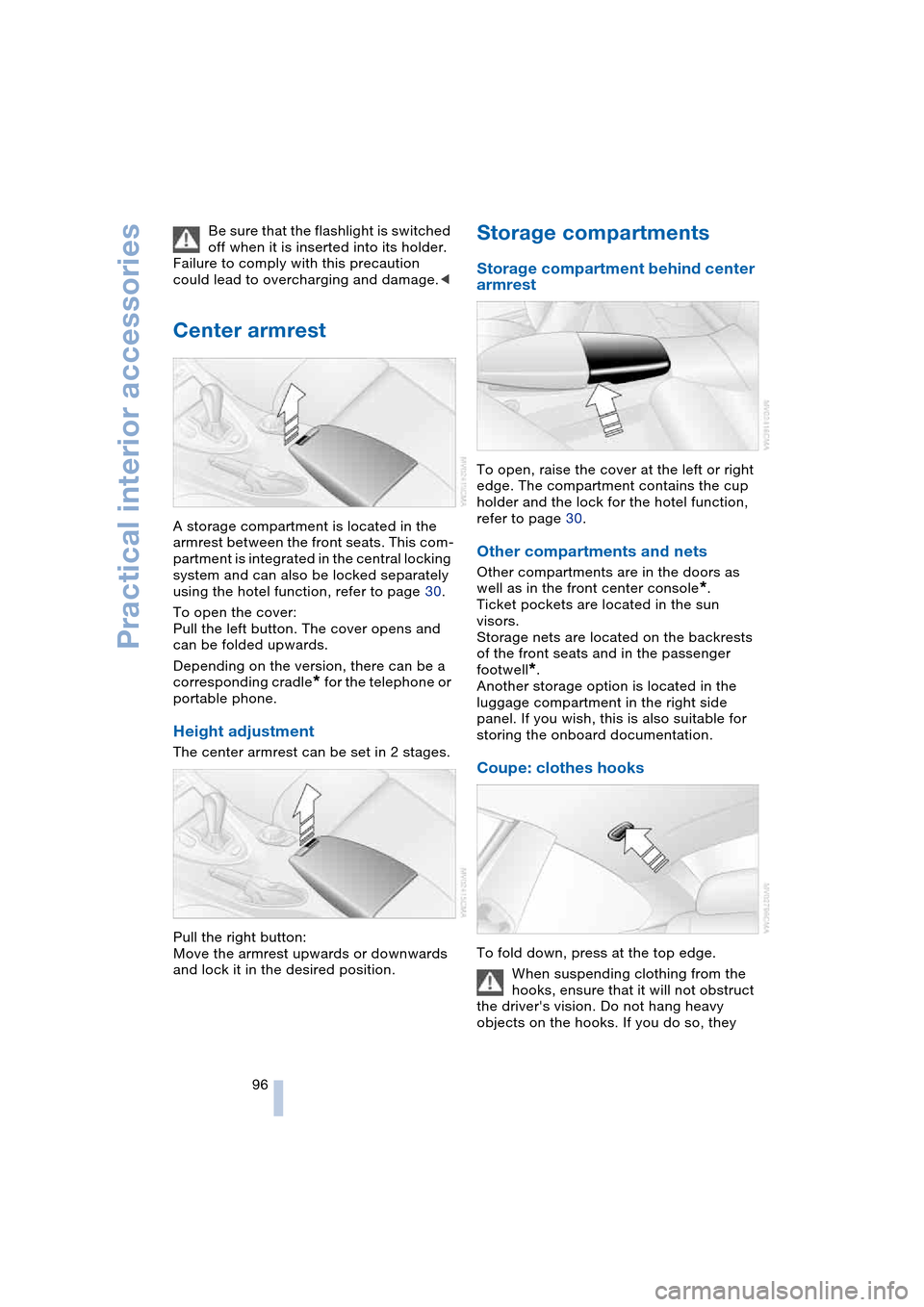
A storage compartment is located in the
armrest between the front seats. This com-
partment is integrated in the central locking
system and can also be locked separately
using the hotel function, refer to page 30.
To open the cover:
Pull the left button. The cover opens and
can be folded upwards.
Depending on the version, there can be a
corresponding cradle
* for the telephone or
portable phone.
Height adjustment
The center armrest can be set in 2 stages.
Pull the right button:
Move the armrest upwards or downwards
and lock it in the desired position.
Storage compartments
Storage compartment behind center
armrest
To open, raise the cover at the left or right
edge. The compartment contains the cup
holder and the lock for the hotel function,
refer to page 30.
Other compartments and nets
Other compartments are in the doors as
well as in the front center console
*.
Ticket pockets are located in the sun
visors.
Storage nets are located on the backrests
of the front seats and in the passenger
footwell
*.
Another storage option is located in the
luggage compartment in the right side
panel. If you wish, this is also suitable for
storing the onboard documentation.
Coupe: clothes hooks
To fold down, press at the top edge.
When suspending clothing from the
hooks, ensure that it will not obstruct
the driver's vision. Do not hang heavy
objects on the hooks. If you do so, they
Page 105 of 216
Driving tips
103Reference
At a glance
Controls
Communications
Navigation
Entertainment
Mobility
road surface. This phenomenon is referred
to as hydroplaning, and is characterized
by a partial or complete loss of contact
between the tires and the road surface, ulti-
mately undermining your ability to steer
and brake the vehicle.<
The risk of hydroplaning increases as the
tread depth of the tires decreases, also
refer to Tire tread on page 167.
Driving through water
Do not drive through water on the
road if it is deeper than 1 ft/30 cm,
and then only at walking speed at the most.
Otherwise, the vehicle's engine, the electri-
cal systems and the transmission may be
damaged.<
Braking safely
Your BMW is equipped with ABS as stan-
dard. The best way to achieve optimized
braking response from the ABS is to apply
maximum pressure to the brake pedal in
situations where this is required: panic
stops. Since the vehicle maintains steering
responsiveness, you can nevertheless
avoid possible obstacles with a minimum
of steering effort.
Pulsation at the brake pedal combines with
sounds from the hydraulic circuits to indi-
cate to the driver that ABS is in its active
mode.
Do not drive with your foot resting on
the brake pedal. Even light but con-
sistent pedal pressure can lead to high
temperatures, brake wear and possibly
even brake failure.<
Driving in wet conditions
While driving in wet conditions and in
heavy rain, it is a good idea to apply light
pressure to the brake pedal every few
miles. Monitor traffic conditions to ensure
that this maneuver does not endanger
other road users. The heat generated in this
process helps dry the pads and rotors to
ensure that full braking efficiency will then
be available when you need it.
Hills
To prevent overheating and thus
reduced efficiency of the brake sys-
tem, downshift to a gear in which only min-
imal brake applications are needed when
descending long or steep downhill
stretches. Even light but consistent pedal
pressure can lead to high temperatures,
brake wear and possibly even brake fail-
ure.<
You can further enhance the engine's brak-
ing effect by selecting a lower gear in the
automatic transmission's manual mode,
downshifting as far as first gear on
extremely steep stretches, refer to
page 59. This strategy helps you avoid
placing excessive loads on the brake sys-
tem.
Never drive with the clutch pressed
or allow the vehicle to coast with the
transmission in Neutral – or with the engine
switched off – there is no engine braking
when the transmission is in Neutral, and no
power assist for brakes and steering when
the engine is not running.
Never allow floor mats, carpets or any other
objects to protrude into the area around the
accelerator and brake pedals and obstruct
their movement.<
Corrosion on brake rotors
When the vehicle is driven only occasion-
ally, during extended periods when the
vehicle is not used at all, and in operating
conditions where brake applications are
less frequent, there is an increased ten-
dency for corrosion to form on rotors, while
contaminants accumulate on the brake
pads. This occurs because the minimum
pressure which must be exerted by the
pads during brake applications to clean the
rotors is not reached.
Should corrosion form on the brake rotors,
the brakes will tend to respond with a pul-
sating effect that even extended applica-
tion will fail to cure.
Page 113 of 216
Navigation
Driving tips
111Reference
At a glance
Controls
Communications
Entertainment
Mobility
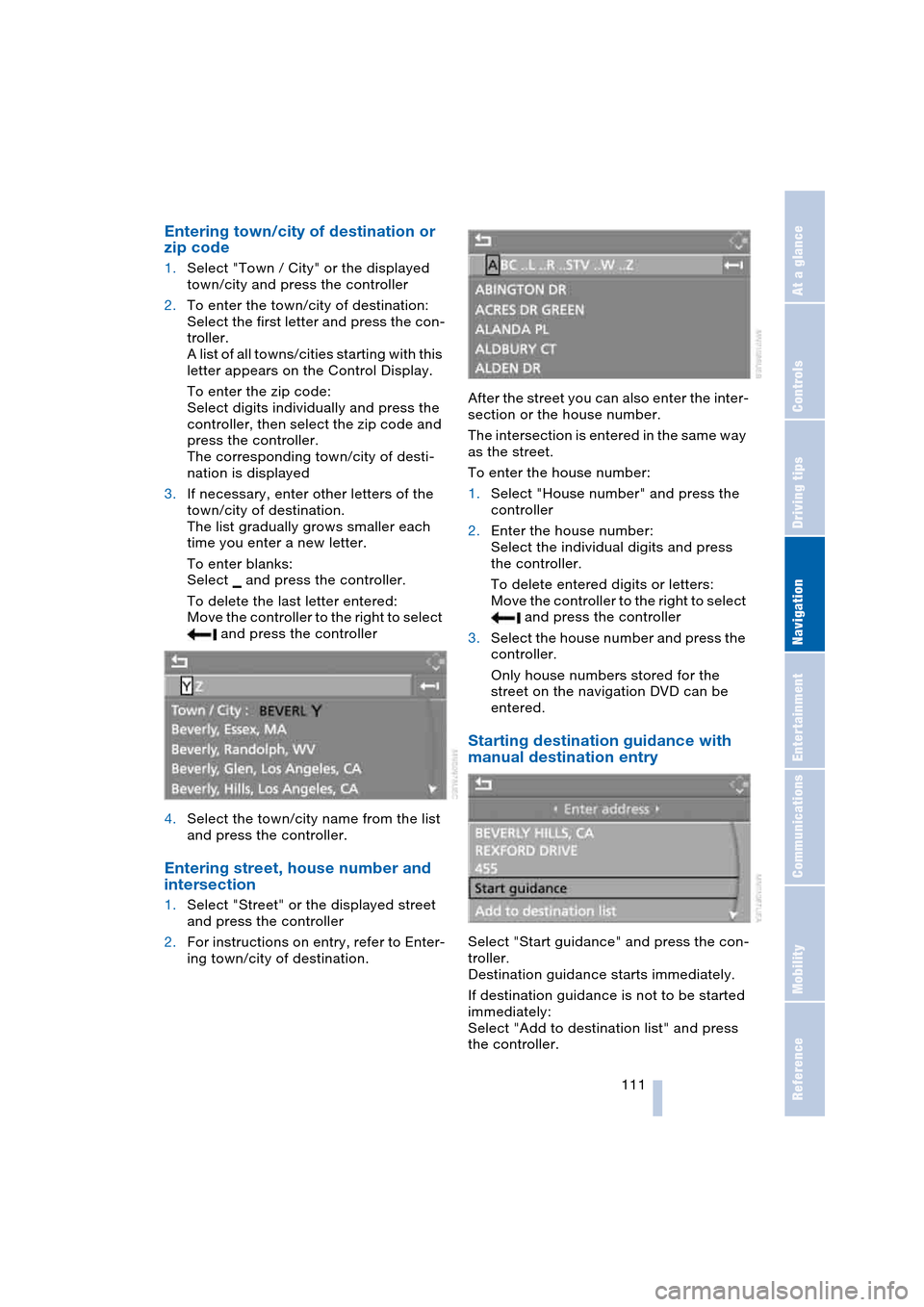
Entering town/city of destination or
zip code
1.Select "Town / City" or the displayed
town/city and press the controller
2.To enter the town/city of destination:
Select the first letter and press the con-
troller.
A list of all towns/cities starting with this
letter appears on the Control Display.
To enter the zip code:
Select digits individually and press the
controller, then select the zip code and
press the controller.
The corresponding town/city of desti-
nation is displayed
3.If necessary, enter other letters of the
town/city of destination.
The list gradually grows smaller each
time you enter a new letter.
To enter blanks:
Select and press the controller.
To delete the last letter entered:
Move the controller to the right to select
and press the controller
4.Select the town/city name from the list
and press the controller.
Entering street, house number and
intersection
1.Select "Street" or the displayed street
and press the controller
2.For instructions on entry, refer to Enter-
ing town/city of destination.After the street you can also enter the inter-
section or the house number.
The intersection is entered in the same way
as the street.
To enter the house number:
1.Select "House number" and press the
controller
2.Enter the house number:
Select the individual digits and press
the controller.
To delete entered digits or letters:
Move the controller to the right to select
and press the controller
3.Select the house number and press the
controller.
Only house numbers stored for the
street on the navigation DVD can be
entered.
Starting destination guidance with
manual destination entry
Select "Start guidance" and press the con-
troller.
Destination guidance starts immediately.
If destination guidance is not to be started
immediately:
Select "Add to destination list" and press
the controller.
Page 119 of 216

Navigation
Driving tips
117Reference
At a glance
Controls
Communications
Entertainment
Mobility
You can change the choice of route when-
ever the destination guidance is active.
Wordmatch principle
The system supports the wordmatch prin-
ciple to make it easier for you to enter the
names of streets or towns/cities. The sys-
tem runs ongoing checks, comparing your
destination entries with the data stored on
the navigation DVD as the basis for instant
response. The user benefits include:
>Names of specific locations can also
vary from the official versions provided
that the spelling of the entry corre-
sponds to a standard form used in
another country.
Example:
Instead of 'München', you can also
enter the English spelling 'Munich' or
the Italian spelling 'Monaco'
>When you are entering the names of
towns/cities and streets the system will
complete them automatically as soon
as enough letters are available to
ensure unambiguous identification
>The system only accepts name entries
beginning with letters that are stored on
the navigation DVD. The system will not
accept nonexistent names and
addresses.
Page 133 of 216
Navigation
Entertainment
Driving tips
131Reference
At a glance
Controls
Communications
Mobility
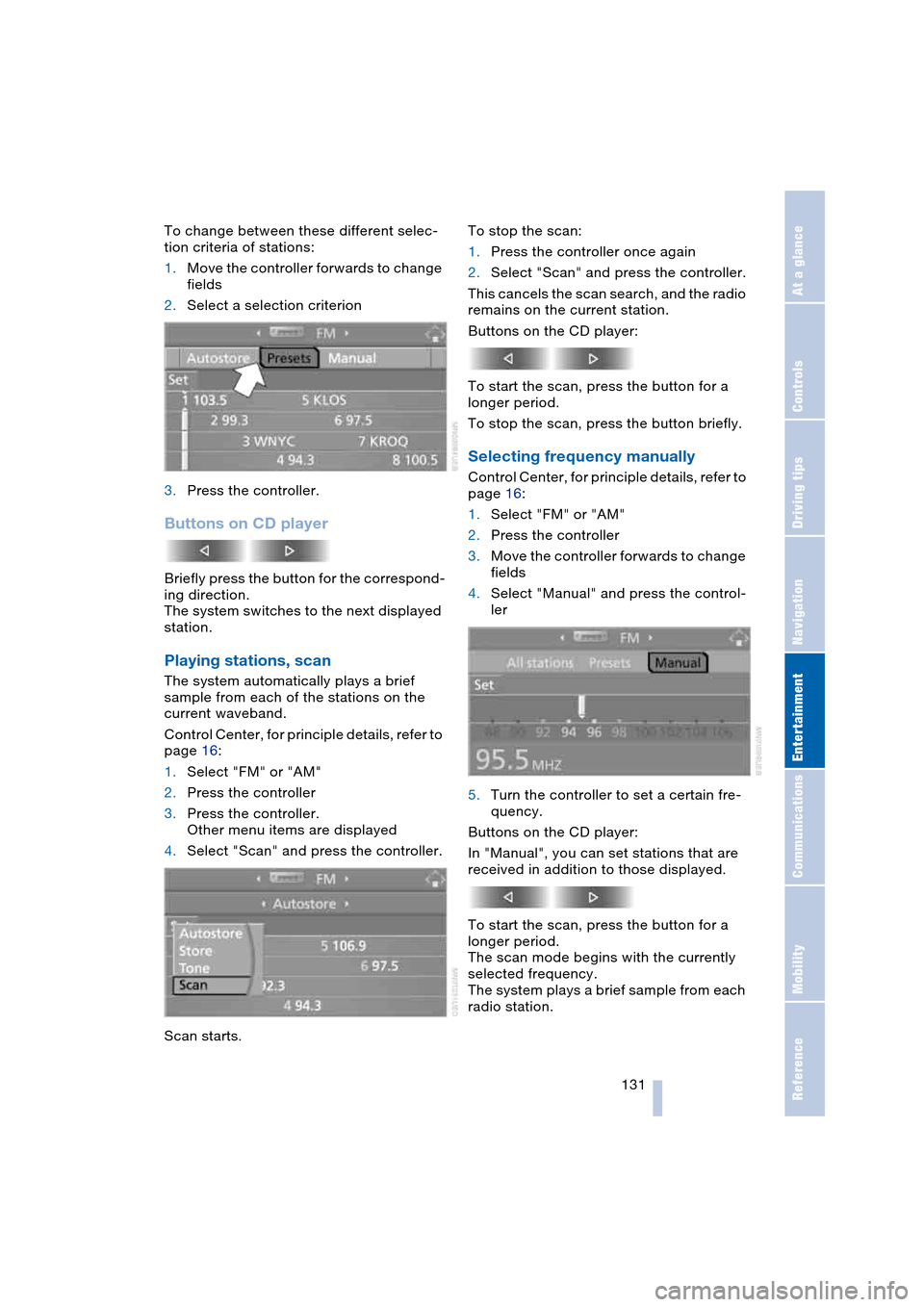
To change between these different selec-
tion criteria of stations:
1.Move the controller forwards to change
fields
2.Select a selection criterion
3.Press the controller.
Buttons on CD player
Briefly press the button for the correspond-
ing direction.
The system switches to the next displayed
station.
Playing stations, scan
The system automatically plays a brief
sample from each of the stations on the
current waveband.
Control Center, for principle details, refer to
page 16:
1.Select "FM" or "AM"
2.Press the controller
3.Press the controller.
Other menu items are displayed
4.Select "Scan" and press the controller.
Scan starts.To stop the scan:
1.Press the controller once again
2.Select "Scan" and press the controller.
This cancels the scan search, and the radio
remains on the current station.
Buttons on the CD player:
To start the scan, press the button for a
longer period.
To stop the scan, press the button briefly.
Selecting frequency manually
Control Center, for principle details, refer to
page 16:
1.Select "FM" or "AM"
2.Press the controller
3.Move the controller forwards to change
fields
4.Select "Manual" and press the control-
ler
5.Turn the controller to set a certain fre-
quency.
Buttons on the CD player:
In "Manual", you can set stations that are
received in addition to those displayed.
To start the scan, press the button for a
longer period.
The scan mode begins with the currently
selected frequency.
The system plays a brief sample from each
radio station.
Page 138 of 216
Radio
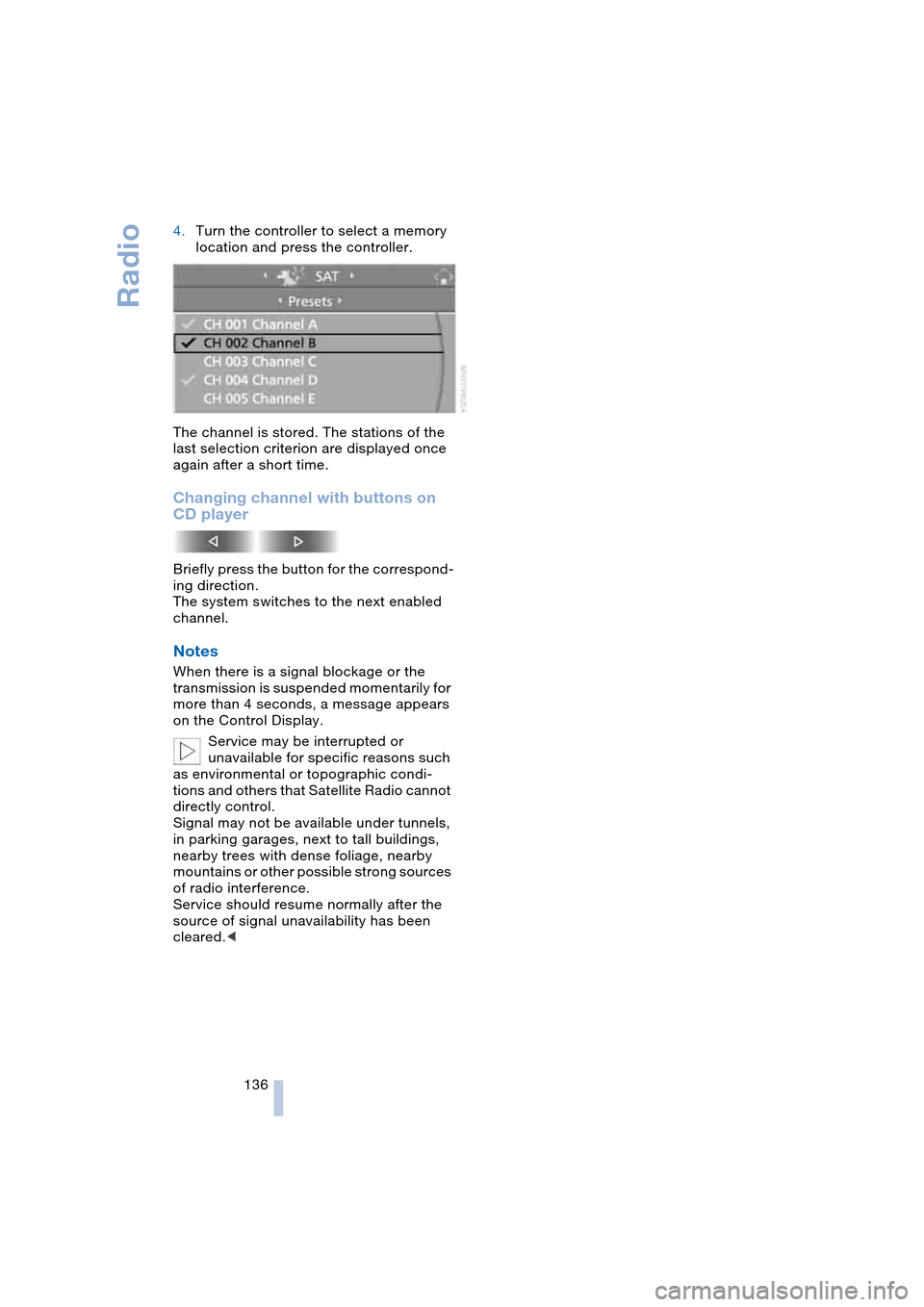
136 4.Turn the controller to select a memory
location and press the controller.
The channel is stored. The stations of the
last selection criterion are displayed once
again after a short time.
Changing channel with buttons on
CD player
Briefly press the button for the correspond-
ing direction.
The system switches to the next enabled
channel.
Notes
When there is a signal blockage or the
transmission is suspended momentarily for
more than 4 seconds, a message appears
on the Control Display.
Service may be interrupted or
unavailable for specific reasons such
as environmental or topographic condi-
tions and others that Satellite Radio cannot
directly control.
Signal may not be available under tunnels,
in parking garages, next to tall buildings,
nearby trees with dense foliage, nearby
mountains or other possible strong sources
of radio interference.
Service should resume normally after the
source of signal unavailability has been
cleared.<