Page 125 of 225
117 Navigation
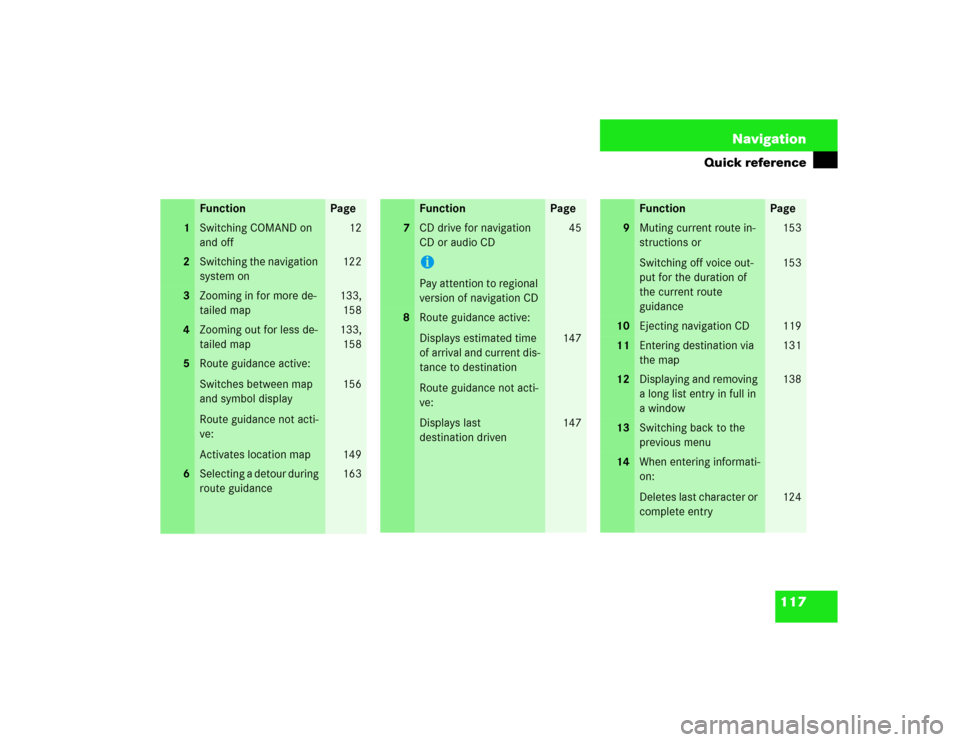
Quick reference
Function
Page
1
Switching COMAND on
and off
12
2
Switching the navigation
system on
122
3
Zooming in for more de-
tailed map
133,
158
4
Zooming out for less de-
tailed map
133,
158
5
Route guidance active:
Switches between map
and symbol display
Route guidance not acti-
ve:
Activates location map
156
149
6
Selecting a detour during
route guidance
163
7
CD drive for navigation
CD or audio CDiPay attention to regional
version of navigation CD
45
8
Route guidance active:
Displays estimated time
of arrival and current dis-
tance to destination
Route guidance not acti-
ve:
Displays last
destination driven
147
147
Function
Page
9
Muting current route in-
structions or
Switching off voice out-
put for the duration of
the current route
guidance
153
153
10
Ejecting navigation CD
119
11
Entering destination via
the map
131
12
Displaying and removing
a long list entry in full in
a window
138
13
Switching back to the
previous menu
14
When entering informati-
on:
Deletes last character or
complete entry
124
Function
Page
Page 126 of 225
118 NavigationQuick reference
Function
Page
15
Turn to
Highlight menu field, list
entry or character
Alter the map scale
Press to
Confirm entry/selection,
starting function or acti-
vating submenu
Activate map scale bar
133
133
16
Turn to
During voice output:
Lower (left)/raise (right)
the volume
Press to
Repeat current route in-
structions
17
Requesting and dis-
playing Info Services
System settings
184
187
18
Color screenFunction
Page
Page 150 of 225
142 NavigationDestination inputSelecting a route mode P
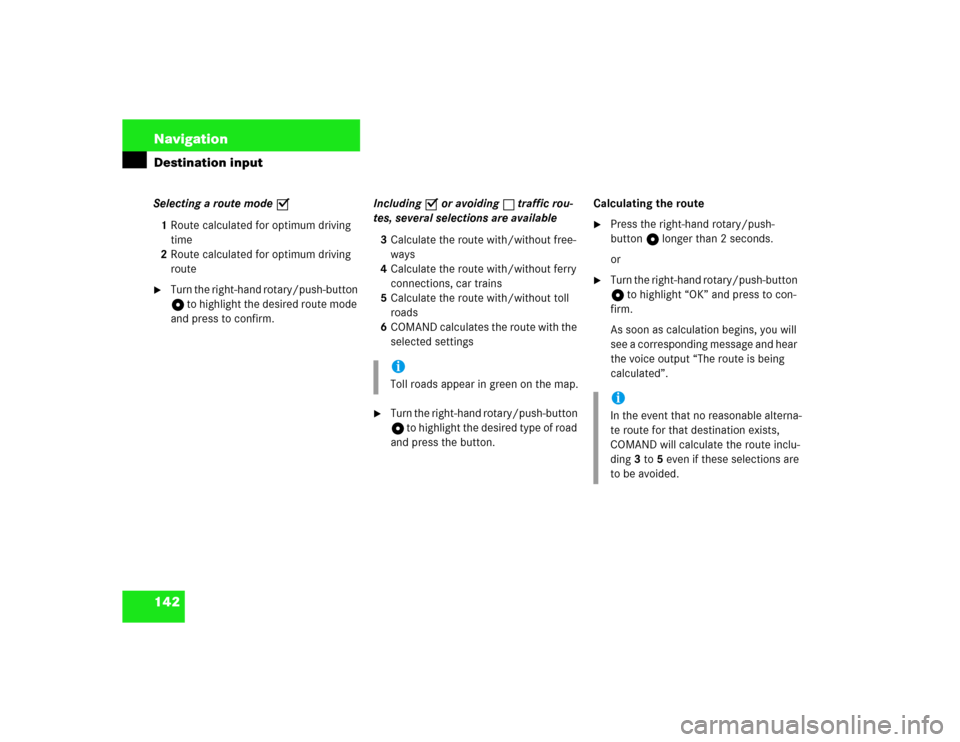
1Route calculated for optimum driving
time
2Route calculated for optimum driving
route�
Turn the right-hand rotary/push-button
v to highlight the desired route mode
and press to confirm.Including P or avoiding Q traffic rou-
tes, several selections are available
3Calculate the route with/without free-
ways
4Calculate the route with/without ferry
connections, car trains
5Calculate the route with/without toll
roads
6COMAND calculates the route with the
selected settings
�
Turn the right-hand rotary/push-button
v to highlight the desired type of road
and press the button.Calculating the route
�
Press the right-hand rotary/push-
button v longer than 2 seconds.
or
�
Turn the right-hand rotary/push-button
v to highlight “OK” and press to con-
firm.
As soon as calculation begins, you will
see a corresponding message and hear
the voice output “The route is being
calculated”.
iToll roads appear in green on the map.
iIn the event that no reasonable alterna-
te route for that destination exists,
COMAND will calculate the route inclu-
ding 3 to 5 even if these selections are
to be avoided.
Page 151 of 225
143 Navigation
Destination input
7Calculation method
8Destination
Cancel route calculation�
Turn the right-hand rotary/push-button
v to highlight “Cancel” and press to
confirm.
The main destination input menu will
appear.During the calculation, the symbol display
will appear after a few seconds.
9Calculation of route
10Arrow indicating the direction to the
destination (as the crow flies)
11Distance to the destination (as the
crow flies)The route will be calculated. COMAND
identifies the road you are travelling on.
Position 12 now indicates the driving di-
rection.
You will e.g. hear the voice output “Please,
make the next right turn”.
P82.85-9192-31
78
P82.85-9194-31P82.85-9194-31
12
Page 154 of 225
146 NavigationRoute guidanceAfter the destination is selected and the
route is calculated, the navigation system
will guide you to the destination using both
pictorial displays and voice outputs.
During route guidance, you can select the
following 3 screen displays:�
Symbol display
Always appears after a route has been
calculated
�
Map display
Activate the map with menu field 5,
switch back to symbol display with
menu field 8
�
Mix
Before the vehicle makes a turn,
COMAND switches automatically from
the map to the symbol display.
Once the turn has been completed, the
map is displayed again.
iIn the map display, menu fields 6, 8, 9
are removed after 6 seconds.
Turn the right-hand rotary/push-button
v to display the menu fields again.
iThe map appears automatically after 5
seconds if the vehicle is located on a
road which is not digitized (message
OFF ROAD).
If COMAND recognizes a stored road,
the symbol display is called up again.
Page 160 of 225

152 NavigationRoute guidanceOnce the route has been calculated, the
symbol display will appear.
If you now are at the maneuver point, you
will also hear a voice output, e.g. “Please
turn right”.During route guidance, you can select the
following 3 screen displays:
�
Symbol display
�
Map display
�
Mix of map and symbol display
(�page 157)
Voice output
During the trip, apart from visual informati-
on (symbol or map displays), COMAND
also provides all of the necessary route in-
formation via voice output.
COMAND gives you spoken recommenda-
tions
�
when route guidance begins
�
after the route has been calculated
�
before and during a change in the dri-
ving direction
�
on reaching the destination or a way
point
Beginning route guidance
Warning
G
Voice output is intended to direct you while
driving without diverting your attention from
the road and driving. Please always use this
feature instead of consulting the symbol or
map display for directions while driving
which may cause you to divert your attenti-
on from driving and increase your risk of ac-
cident.
Page 161 of 225

153 Navigation
Route guidance
If an audio source is switched on, e.g. the
radio, the voice output will be mixed with
that of the audio source.
You can individually set the audio volume
differential between voice output/audio
source (
�page 64). COMAND mutes navi-
gation voice outputs during telephone/
Tele Aid operation.
Repeating current voice output
�
Press the left-hand rotary/push-button
v briefly.
Muting current voice output
�
Press Ö briefly during a voice out-
put. You will hear the next announce-
ment normally.Switching the voice output off for the
duration of the current route guidance
�
Press Ö longer than 2 seconds du-
ring a voice output.
You will see the message “Voice output
is muted”.
Switching the voice output on again
The current route guidance has been com-
pleted.
Voice output will automatically switch on
again.
During a voice output
�
Press the left-hand rotary/push-button
v.Altering the voice output volume
At the COMAND control unit
�
Turn the left-hand rotary/push-button
v during a voice output.
COMAND will accept this setting for
following voice outputs.
At the multifunctional steering wheel
You can alter the volume with the steering
wheel keys during a voice output as well.
To raise the volume
�
Press J.
To lower the volume
�
Press I.
Page 162 of 225
154 NavigationRoute guidanceExample of a traffic situation with voice
output
1“Prepare to turn right” (advance notice)
2“Turn right after 250 feet”
3“Please, turn next right”
Manual recall of the current voice instruc-
tion�
Press left-hand rotary/push-button v.Advance notice of right turn
4Name of the street you are to turn onto
5Arrow indicating driving direction
6Name of the street you are travelling on
7Distance in miles to right turn Just before a right turn
8Name of the street you will to turn onto
9Right-turn arrow
10Name of the street you are now driving
on
11Distance graph to turning point, redu-
ces as you approach the intersectionTurning onto a street
iAs you approach a junction or inter-
change (e.g. I-695), COMAND will advi-
se you the direction of travel to follow
(e.g. North) as well as the name of the
route.
iIn special situations, e.g. when turning
quickly several times in succession,
there may be deviations in the accuracy
of the voice instructions.


