Page 51 of 272
Destination entry
Selecting a destination
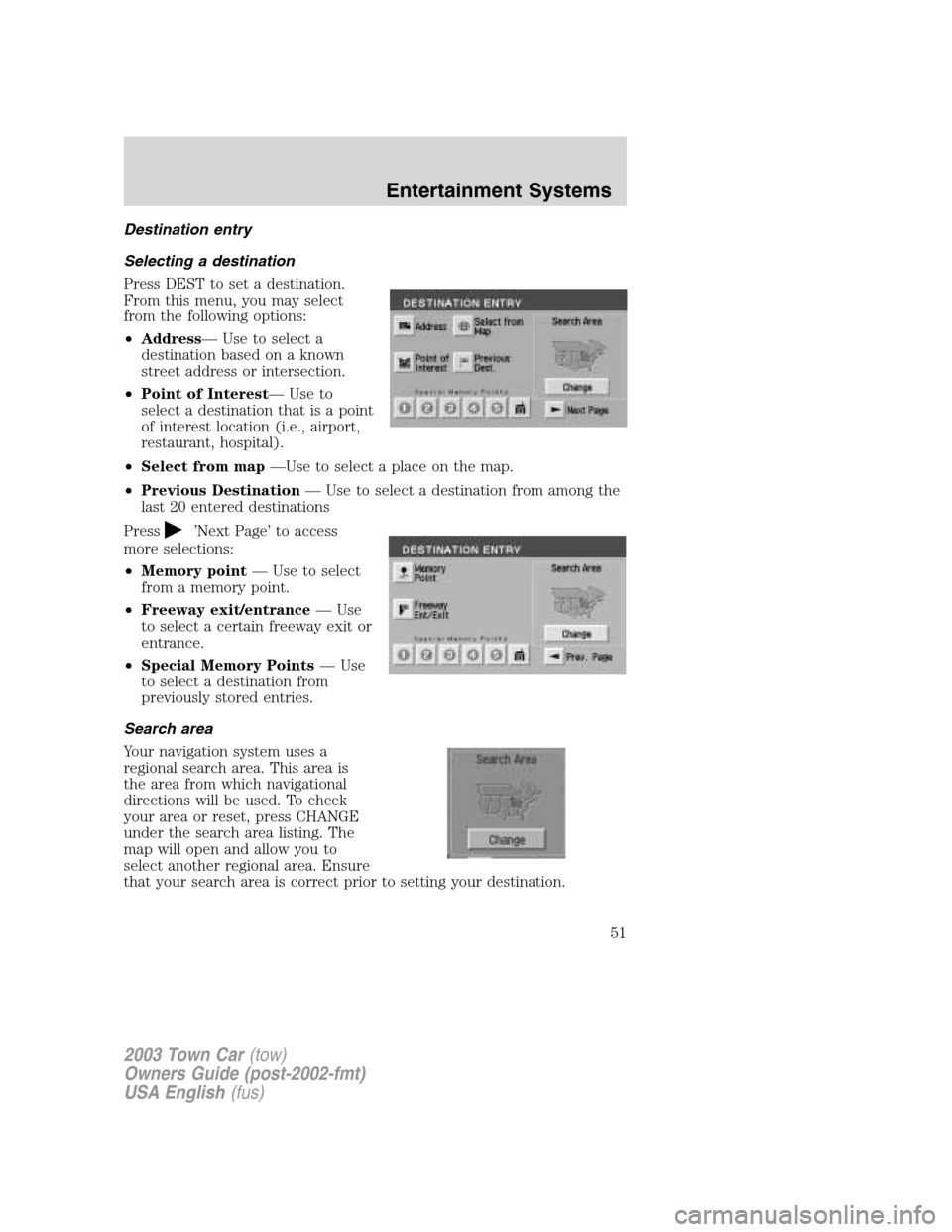
Press DEST to set a destination.
From this menu, you may select
from the following options:
•Address—Use to select a
destination based on a known
street address or intersection.
•Point of Interest—Use to
select a destination that is a point
of interest location (i.e., airport,
restaurant, hospital).
•Select from map—Use to select a place on the map.
•Previous Destination—Use to select a destination from among the
last 20 entered destinations
Press
’Next Page’to access
more selections:
•Memory point—Use to select
from a memory point.
•Freeway exit/entrance—Use
to select a certain freeway exit or
entrance.
•Special Memory Points—Use
to select a destination from
previously stored entries.
Search area
Your navigation system uses a
regional search area. This area is
the area from which navigational
directions will be used. To check
your area or reset, press CHANGE
under the search area listing. The
map will open and allow you to
select another regional area. Ensure
that your search area is correct prior to setting your destination.
2003 Town Car(tow)
Owners Guide (post-2002-fmt)
USA English(fus)
Entertainment Systems
51
Page 53 of 272
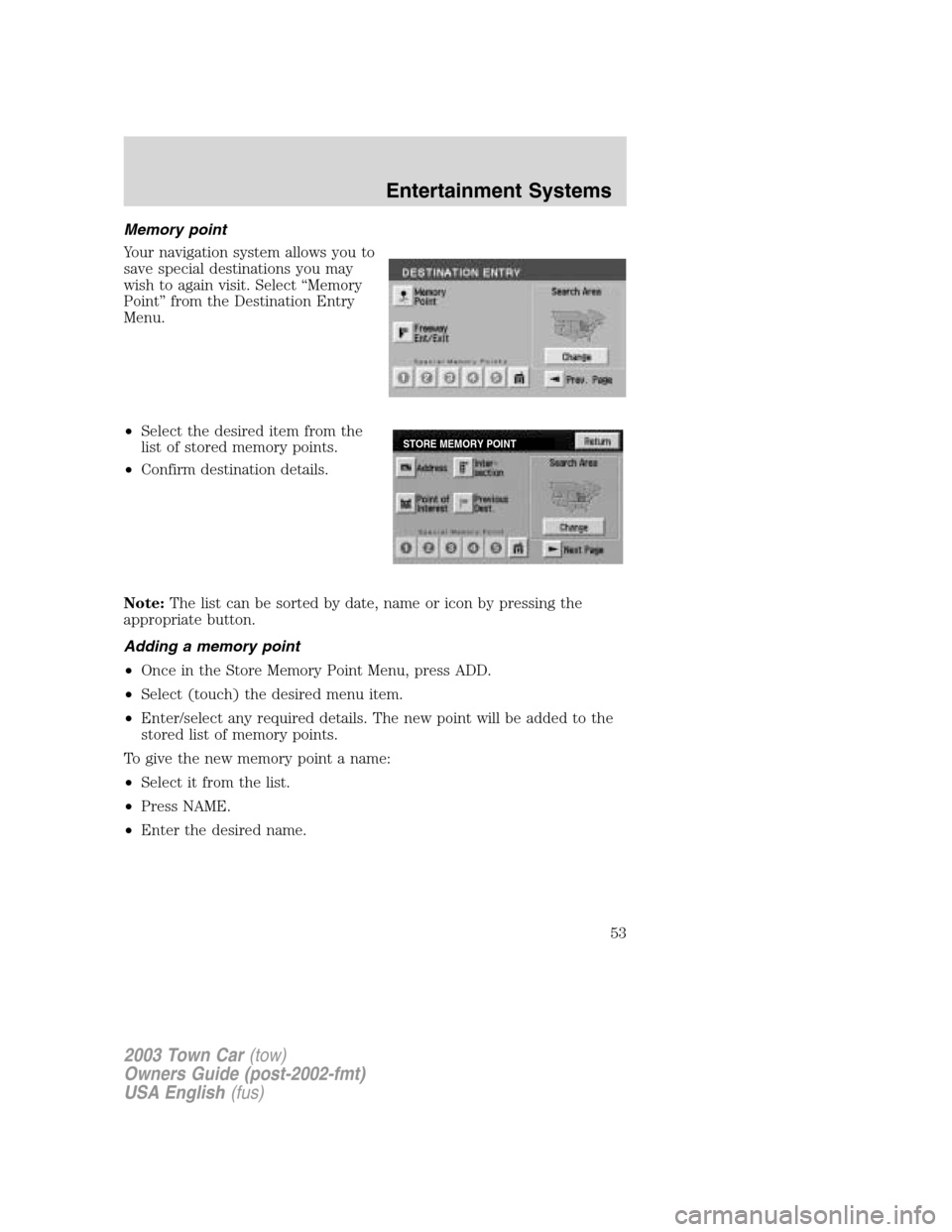
Memory point
Your navigation system allows you to
save special destinations you may
wish to again visit. Select“Memory
Point”from the Destination Entry
Menu.
•Select the desired item from the
list of stored memory points.
•Confirm destination details.
Note:The list can be sorted by date, name or icon by pressing the
appropriate button.
Adding a memory point
•Once in the Store Memory Point Menu, press ADD.
•Select (touch) the desired menu item.
•Enter/select any required details. The new point will be added to the
stored list of memory points.
To give the new memory point a name:
•Select it from the list.
•Press NAME.
•Enter the desired name.
STORE MEMORY POINT
2003 Town Car(tow)
Owners Guide (post-2002-fmt)
USA English(fus)
Entertainment Systems
53
Page 61 of 272
Route calculation
Once the route criteria is selected,
the navigation system automatically
calculates the selected destination.
The route appears on the display
screen and a voice prompt provides
instructions.
The system may calculate up to four
routes for the desired destination.
Press“Next”to scroll through the
various planned routes. Press“Start”
to confirm the route selection and begin route guidance.
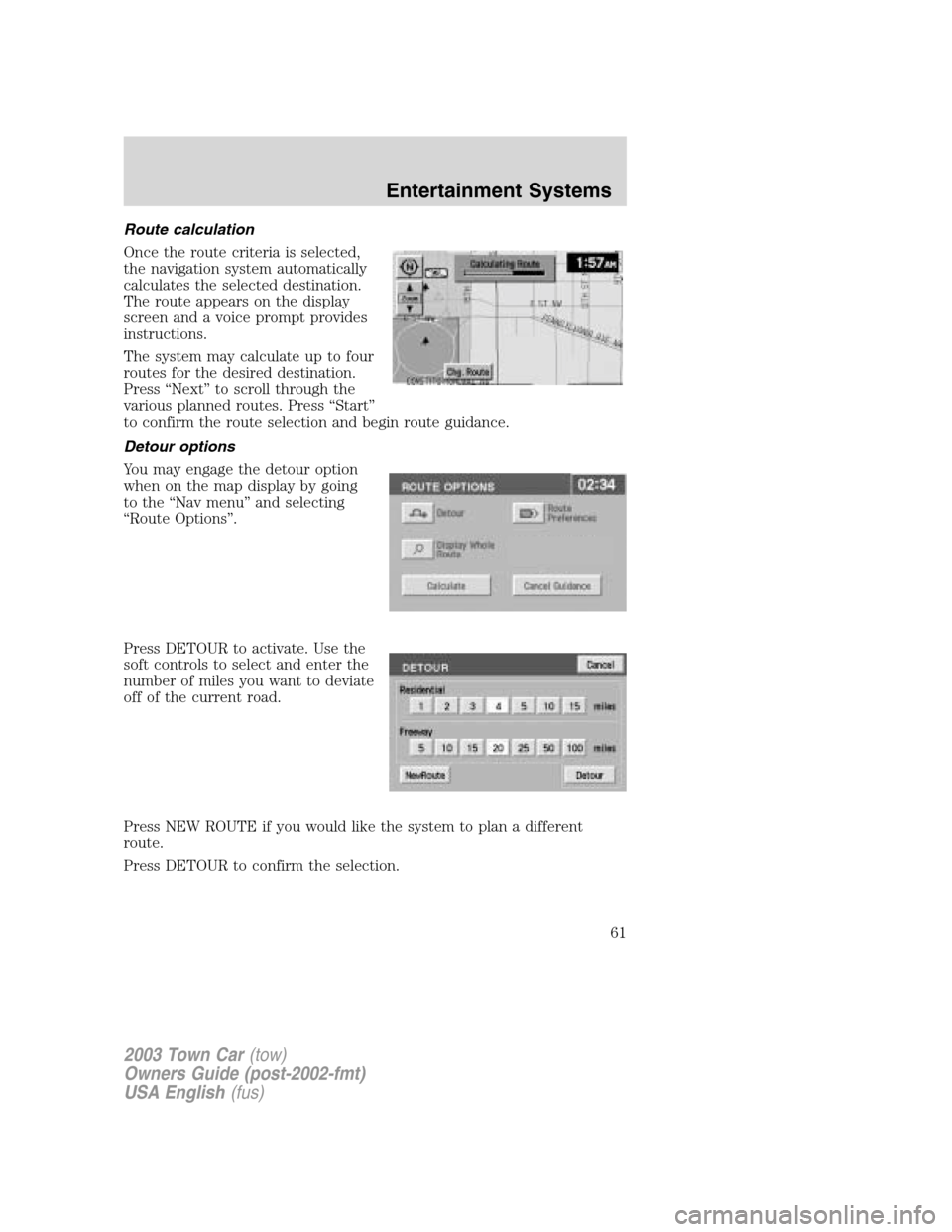
Detour options
You may engage the detour option
when on the map display by going
to the“Nav menu”and selecting
“Route Options”.
Press DETOUR to activate. Use the
soft controls to select and enter the
number of miles you want to deviate
off of the current road.
Press NEW ROUTE if you would like the system to plan a different
route.
Press DETOUR to confirm the selection.
2003 Town Car(tow)
Owners Guide (post-2002-fmt)
USA English(fus)
Entertainment Systems
61
Page 65 of 272
•Screen off—Allows you to turn
off the navigation screen.
System setup
The system set up menu contains the following user settings:
•Audible Feedback—Press to
activate audible voice navigation
commands. Press again to
deactivate.
•Navigation Units—Press to
toggle between Metric/English
units.
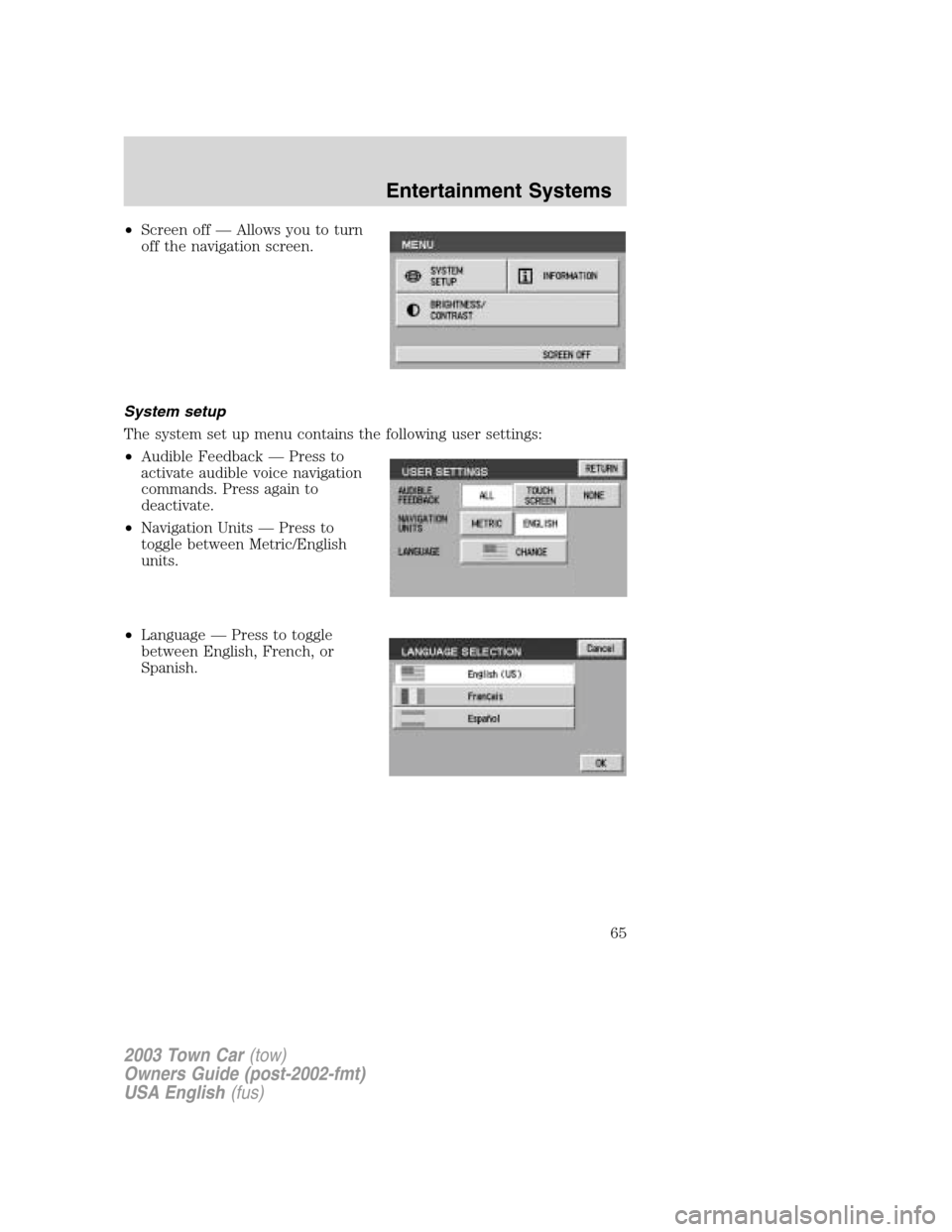
•Language—Press to toggle
between English, French, or
Spanish.
2003 Town Car(tow)
Owners Guide (post-2002-fmt)
USA English(fus)
Entertainment Systems
65
Page 66 of 272
General information
Safety information
Please read and follow all stated safety precautions. Failure to do
so may increase your risk of collision and personal injury. Ford
Motor Company shall not be liable for any damages of any type
arising from failure to follow these guidelines.
Do not attempt to service, repair or modify the system. See your Ford or
Lincoln Mercury dealer.
The driver must not attempt to operate any detailed operation of
the navigation system while the vehicle is in motion. Give full
attention to driving and to the road. Pull off the road and park in a
safe place before performing detailed operations.
If the system is used for an extended period of time with the
vehicle stationary, ensure that the engine is running to avoid
draining the battery.
Do not apply pressure to the display screen.
The navigation system is not a substitute for your personal judgement.
Route suggestions should not supersede local traffic regulations or safe
driving practices.
Do not follow route suggestions if they direct you to perform an unsafe
or illegal maneuver, would place you in an unsafe situation, or would
route you into an area that you consider unsafe.
Drivers should not rely on screen displays while their vehicle is in
motion. Let the voice guide you. If viewing is necessary, pull off the road
to a safe location.
Do not use the navigation system to locate emergency services.
For road safety reasons, the driver should program the system only when
the vehicle is stationary. Certain functions will therefore not operate
while the vehicle is in motion.
The map database DVD does not reflect road detours, closures or
construction, road characteristics such as rough road surface, slope or
grade, weight or height restrictions, traffic congestion, weather or similar
conditions.
To use the system as effectively and safely as possible, obtain up-to-date
map database DVD whenever they become available.
2003 Town Car(tow)
Owners Guide (post-2002-fmt)
USA English(fus)
Entertainment Systems
66
Page 68 of 272
Static can be caused on AM stations by power lines, electric fences,
traffic lights and thunderstorms. Moving away from an interfering
structure (out of its“shadow”) returns your reception to normal.
•Station overload.Weak signals are sometimes captured by stronger
signals when you pass a broadcast tower. A stronger signal may
temporarily overtake a weaker signal and play while the weak station
frequency is displayed.
Principles of GPS (global positioning system) operation
Your system directs you based on information derived from global
positioning satellites, road maps stored on the DVD, sensors in your
vehicle and the desired destination. The system compiles all necessary
information to guide you to your selected destination. Space satellites
determine the vehicle’s current location and transmit position and time
signals to your car.
If the vehicle has been parked for a long period of time, the navigation
function may be temporarily unresponsive. The navigation system will
operate reliably again once GPS reception is available for a few minutes.
Limited GPS reception
System performance may be adversely affected if GPS reception is
interrupted or interference occurs over a distance of several miles. The
following are possible causes for GPS reception being interrupted. If the
vehicle is:
•in multi-story parking garages
•in tunnels and under bridges
•inside or in between buildings
•by forests or tree-lined avenues
•in heavy rain showers and thunderstorms
•in valleys and in mountainous regions
•roads under cliffs
Ensure that you do not have any metal objects on the rear parcel shelf
and that if your windows are tinted, they use non-metal tinting instead of
metal oxide tinting. Both of these factors can also interrupt GPS
reception.
Cleaning the display
Do not spray cleaning fluid directly onto the unit. Instead, spray onto a
soft cloth and gently wipe the unit. Only recommended products should
be used.
2003 Town Car(tow)
Owners Guide (post-2002-fmt)
USA English(fus)
Entertainment Systems
68
Page 69 of 272
Do not clean any part of the system with benzene, paint thinner or any
other solvent.
Do not spill liquids of any kind onto the unit.
Loading the map DVD
•Your navigation DVD unit is either located:
in the front lower center stack area by the passenger’s feet (access
door),
in the trunk,
or in the jack compartment.
•Ensure that the vehicle ignition is ON.
•If a DVD is already loaded in the Navigation unit, push the eject
button.
•Load the DVD with the printed side up. Do not allow moisture or
foreign objects to enter the slot.
The navigation system utilizes a database stored in a special format on a
DVD. It is recommended always to use the latest update of this map
DVD.
•The navigation system will only work with DVDs specifically intended
for your navigation system.
•Always store the map DVDs in their protective cases when not in use.
Ordering additional map DVDs
If you wish to order a replacement or additional map, please call
1–888–NAV-MAPS (1–888–628–6277) or to log onto www.navtech.com.
Latest map DVDs
The map content is constantly changing due to new roads, traffic
restrictions, etc. . Therefore, it is not always possible to exactly match
the DVD map with the current roadways. For best results, always use the
latest version of the map DVD. Map information is regularly updated, but
all areas are not necessarily covered to the same level of detail. Some
areas, in particular private roads, may not be included on the database.
To help with accuracy, always use the latest DVD version for navigation.
Customer service
If you need help operating your navigation/audio system, want to report
a map database error or want to obtain a map DVD, please call 1 (888)
628–6277 (NAV-MAPS) or log onto www.navtech.com.
2003 Town Car(tow)
Owners Guide (post-2002-fmt)
USA English(fus)
Entertainment Systems
69
Page 111 of 272
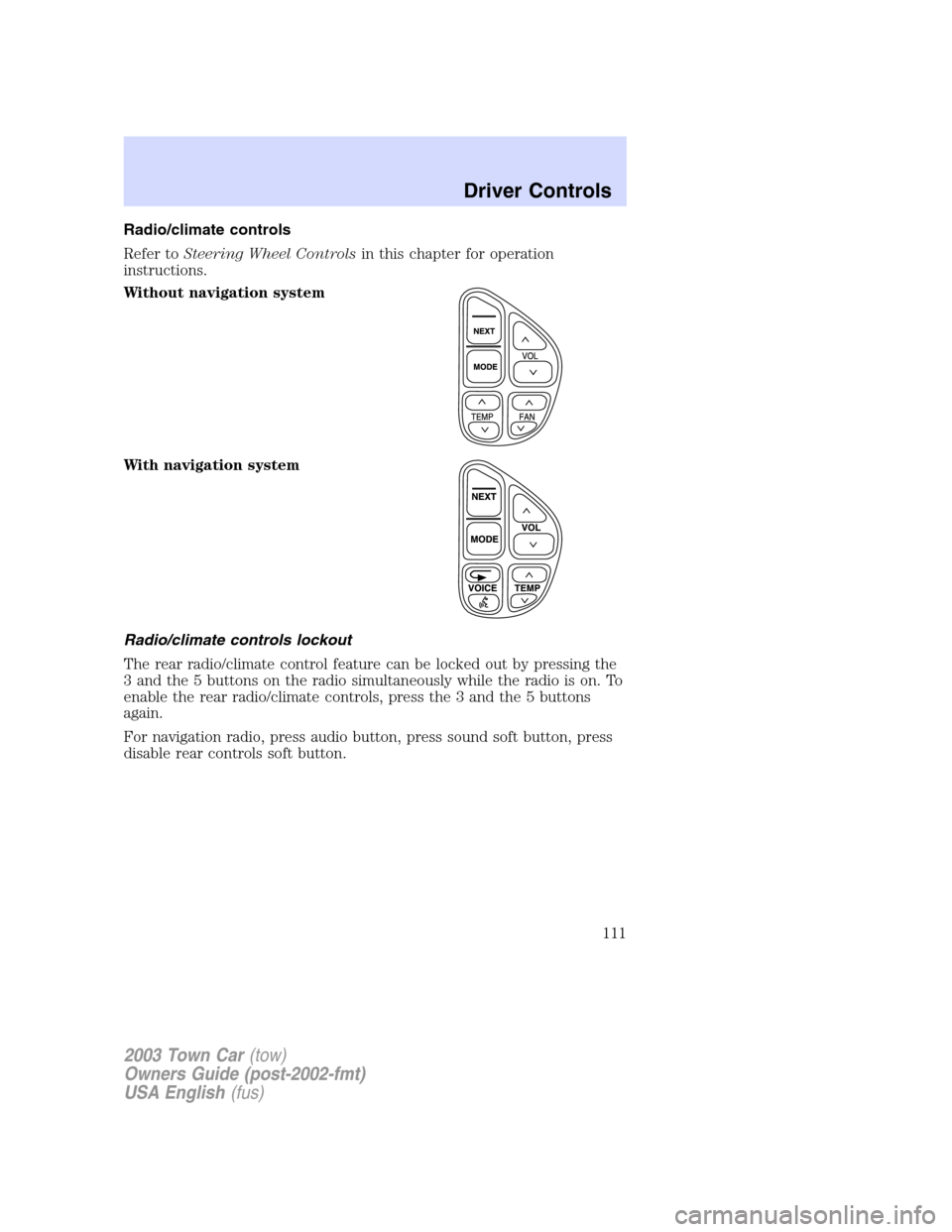
Radio/climate controls
Refer toSteering Wheel Controlsin this chapter for operation
instructions.
Without navigation system
With navigation system
Radio/climate controls lockout
The rear radio/climate control feature can be locked out by pressing the
3 and the 5 buttons on the radio simultaneously while the radio is on. To
enable the rear radio/climate controls, press the 3 and the 5 buttons
again.
For navigation radio, press audio button, press sound soft button, press
disable rear controls soft button.
2003 Town Car(tow)
Owners Guide (post-2002-fmt)
USA English(fus)
Driver Controls
111