Page 25 of 288
THX audio system
Your Lincoln LS is equipped with
the Lucasfilm THX�certified
premium audio system. This system
creates optimal acoustic quality for
all seating positions and road
conditions.
The system offers an advanced
speaker system, amplifier, subwoofer
and equalizer.
Your system has a large range of features, yet is easy to use. Guidance is
shown on the display screen and is supplemented with voice prompts.
The display screen provides full information for operating the system
through use of menus, text screens and map displays. Screen selections
are made by touching the desired selection on the screen.
Entertainment Systems
25
Page 26 of 288

1.VOL-PUSH: Press to turn the system ON/OFF. Turn to adjust the
audio volume level.
2.AUDIO: Press to enter audio mode and access radio, CD, CDDJ, DVD
(if equipped) settings.
3.MAP: Press to enter map mode and view your current vehicle position
on the map. Press and hold to obtain additional position information.
4.DEST: Press to enter Destination Entry mode. This allows you to
enter a destination and route to it. With an active route, pressing DEST
allows the user to request a Detour, display entire route, select route
preferences, or change or cancel the destination.
5.MENU: Press to access system settings such as display, brightness,
clock mode, etc.
6.CD OPEN CLOSE: Press to open/close the display screen and access
the CD player.
Initial map display
After pressing AGREE to the initial
WARNING screen, you will move
into the initial map screen which
shows the current vehicle location.
Pressing the globe icon will take you
to the user settings—audible
feedback, navigation units, language
and clock.
Entertainment Systems
26
Page 27 of 288
Quick Start — How to get going
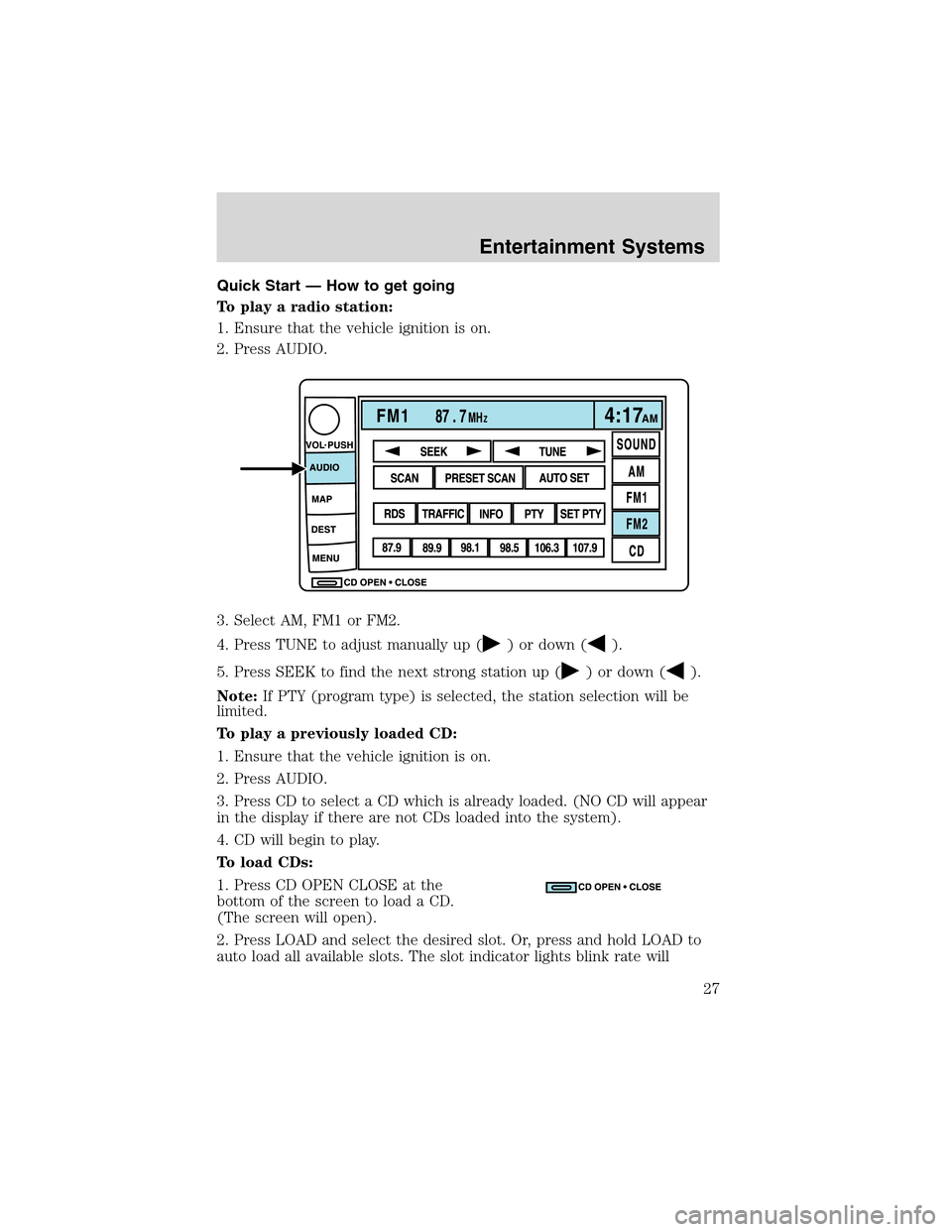
To play a radio station:
1. Ensure that the vehicle ignition is on.
2. Press AUDIO.
3. Select AM, FM1 or FM2.
4. Press TUNE to adjust manually up (
) or down ().
5. Press SEEK to find the next strong station up (
) or down ().
Note:If PTY (program type) is selected, the station selection will be
limited.
To play a previously loaded CD:
1. Ensure that the vehicle ignition is on.
2. Press AUDIO.
3. Press CD to select a CD which is already loaded. (NO CD will appear
in the display if there are not CDs loaded into the system).
4. CD will begin to play.
To load CDs:
1. Press CD OPEN CLOSE at the
bottom of the screen to load a CD.
(The screen will open).
2. Press LOAD and select the desired slot. Or, press and hold LOAD to
auto load all available slots. The slot indicator lights blink rate will
Entertainment Systems
27
Page 29 of 288
To adjust the voice guidance volume:
Press to turn the voice guidance
option on/off and to determine the
volume level of the guidance voice
prompts.
Audio mode
Your Lincoln Navigation Audio System has many features including a full
range of audio functions. To access these functions, press AUDIO on the
main bezel. This will take you into audio mode.
Volume/power control
Press knob to turn the audio system
on/off. Turn to raise or lower
volume. The levels will be displayed
on the screen.
To activate the navigation mode,
press MAP or DEST.
To adjust the navigation voice output level, select the NAV MENU button
via the map screen.
Speed compensated volume (SCV)
With this feature, radio volume changes automatically with vehicle speed
to compensate for road and wind noise. To engage the SCV feature:
1. Press AUDIO.
Entertainment Systems
29
Page 30 of 288

2. Press SOUND.
3. SCV is located in the middle of
the screen. Press to turn on.
4. Select setting 1 to 7 or turn off.
The AM/FM control works in radio, CD and navigation modes.
AM/FM select in radio mode
Press to switch between AM/FM1/FM2 memory preset stations.
AM/FM select in CD mode
Press to stop CD play and begin radio play.
Radio reception factors:
•Distance/strength.The further an FM signal travels, the weaker it is.
The listenable range of the average FM station is approximately 40 km
(24 miles). This range can be affected by“signal modulation.”Signal
modulation is a process radio stations use to increase their
strength/volume relative to other stations.
•Terrain.Hills, mountains and tall buildings between your vehicle’s
antenna and the radio station signal can cause FM reception problems.
Static can be caused on AM stations by power lines, electric fences,
traffic lights and thunderstorms. Moving away from an interfering
structure (out of its“shadow”) returns your reception to normal.
•Station overload.Weak signals are sometimes captured by stronger
signals when you pass a broadcast tower. A stronger signal may
temporarily overtake a weaker signal and play while the weak station
frequency is displayed.
AM/FM select in navigation mode
The radio will continue to play in the background of the navigation
screens. To access, press AUDIO then AM/FM1/FM2.SOUND
AM
FM1
FM2
CDSEEK
TUNE
PRESET SCANAUTO SET
SCAN
RDS
TRAFFIC
INFO PTYSET PTY
87.9
89.9 98.1
98.5 106.3 107.9
Entertainment Systems
30
Page 34 of 288
•Information
•Jazz
•Religious
•Rock
•Soft
•To p 4 0
Once PTY has been programmed,
press SEEK (
/) or SCAN to
initiate a search up or down the
frequency.
Preset scan and Autoset also initiate
PTY searches. The search will stop
when the desired program type has
been reached. If no program type is
found, a message will display.
Sound functions
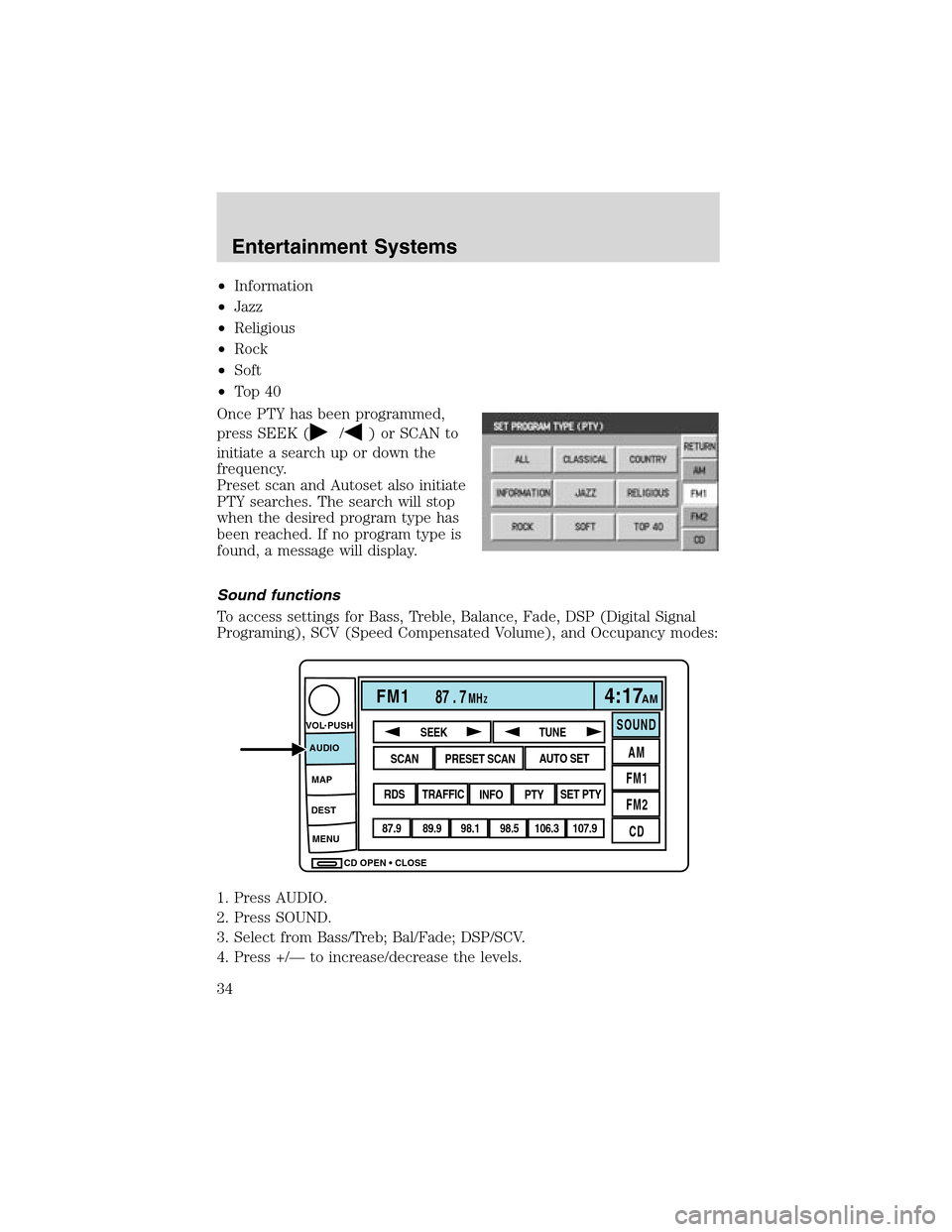
To access settings for Bass, Treble, Balance, Fade, DSP (Digital Signal
Programing), SCV (Speed Compensated Volume), and Occupancy modes:
1. Press AUDIO.
2. Press SOUND.
3. Select from Bass/Treb; Bal/Fade; DSP/SCV.
4. Press +/—to increase/decrease the levels.
CD OPEN CLOSE MENU DESTMAP AUDIO VOL PUSH
FM187 . 7MHZ4:17AM
SOUND
AM
FM1
FM2
CDSEEK
TUNE
PRESET SCANAUTO SET
SCAN
RDS
TRAFFIC
INFO PTYSET PTY
87.9
89.9 98.1
98.5 106.3 107.9
Entertainment Systems
34
Page 39 of 288
Pause
InCD mode, press PAUSE to pause
the current playing media. Press
again to enable the media to
continue playing.
Map mode
Map display information
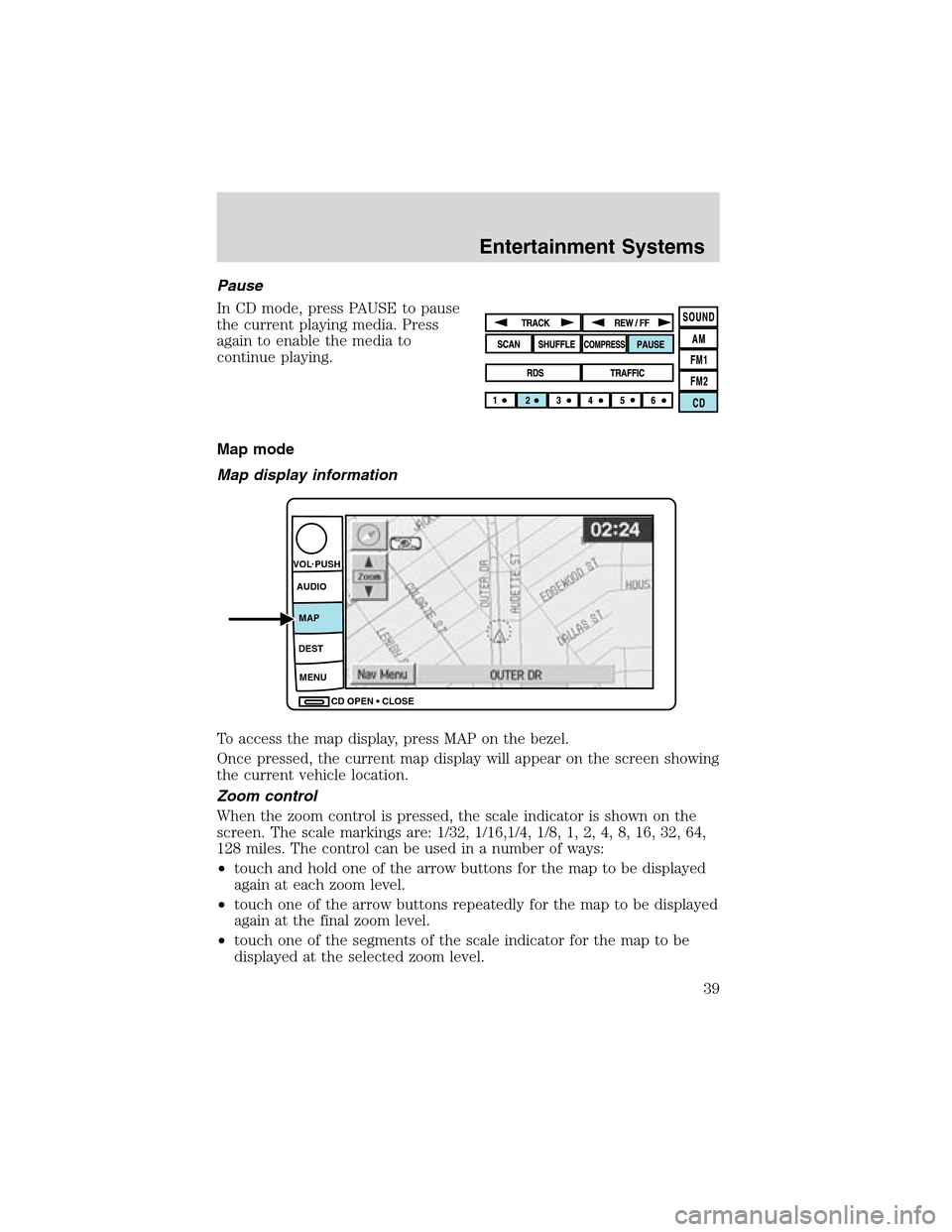
To access the map display, press MAP on the bezel.
Once pressed, the current map display will appear on the screen showing
the current vehicle location.
Zoom control
When the zoom control is pressed, the scale indicator is shown on the
screen. The scale markings are: 1/32, 1/16,1/4, 1/8, 1, 2, 4, 8, 16, 32, 64,
128 miles. The control can be used in a number of ways:
•touch and hold one of the arrow buttons for the map to be displayed
again at each zoom level.
•touch one of the arrow buttons repeatedly for the map to be displayed
again at the final zoom level.
•touch one of the segments of the scale indicator for the map to be
displayed at the selected zoom level.
CD OPEN CLOSE MENU DESTMAP AUDIO VOL PUSH
Entertainment Systems
39
Page 40 of 288
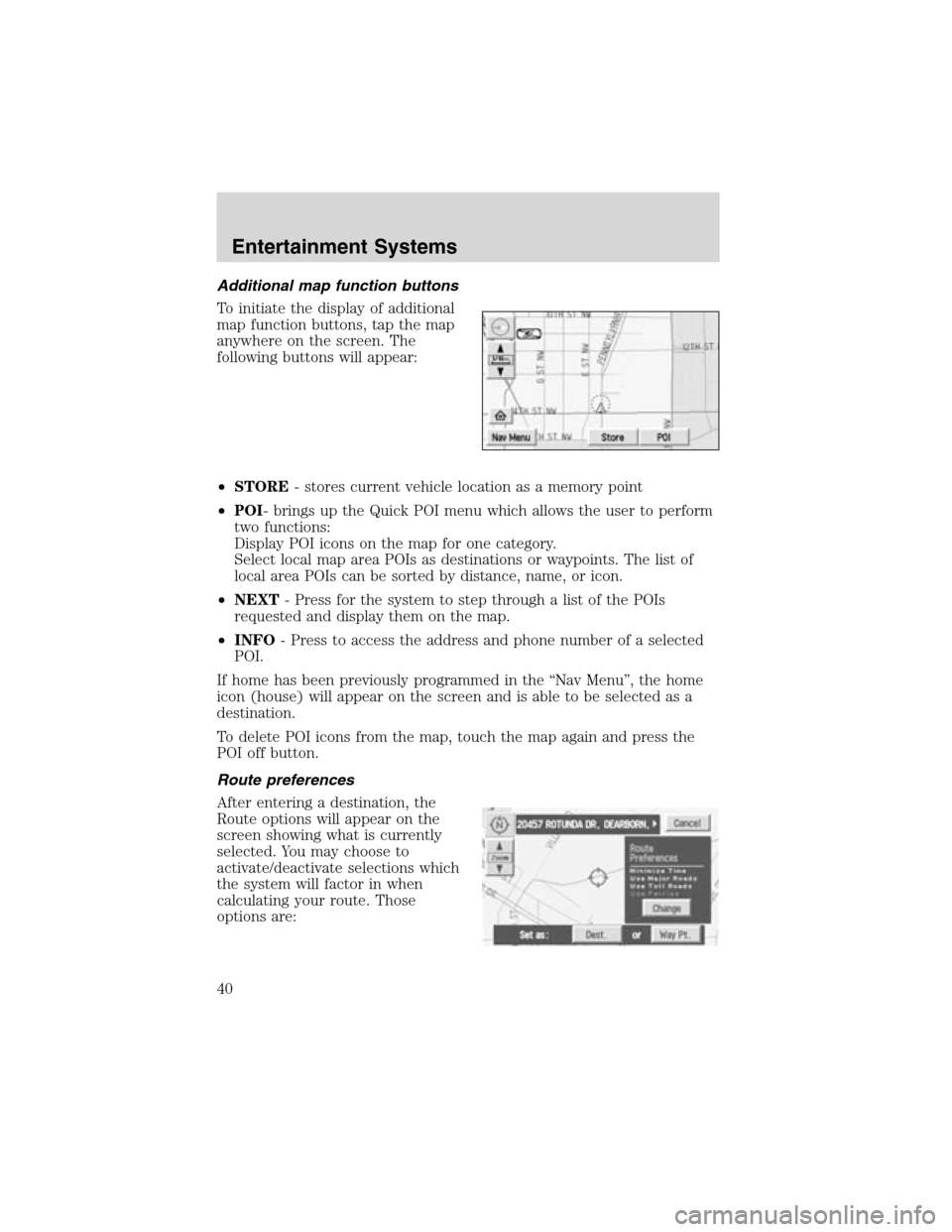
Additionalmapfunctionbuttons
To initiate the display of additional
map function buttons, tap the map
anywhere on the screen. The
following buttons will appear:
•STORE- stores current vehicle location as a memory point
•POI- brings up the Quick POI menu which allows the user to perform
two functions:
Display POI icons on the map for one category.
Select local map area POIs as destinations or waypoints. The list of
local area POIs can be sorted by distance, name, or icon.
•NEXT- Press for the system to step through a list of the POIs
requested and display them on the map.
•INFO- Press to access the address and phone number of a selected
POI.
If home has been previously programmed in the“Nav Menu”, the home
icon (house) will appear on the screen and is able to be selected as a
destination.
To delete POI icons from the map, touch the map again and press the
POI off button.
Route preferences
After entering a destination, the
Route options will appear on the
screen showing what is currently
selected. You may choose to
activate/deactivate selections which
the system will factor in when
calculating your route. Those
options are:
Entertainment Systems
40