Page 57 of 320
The audio system automatically switches to single channel reception if it
will improve the reception of a station normally received in stereo.
AUDIO SYSTEM WARRANTIES AND SERVICE
Refer to theWarranty Guidefor audio system warranty information.
If service is necessary, see your dealer or a qualified technician.
REAR SEAT ENTERTAINMENT DVD SYSTEM (IF EQUIPPED)
Your vehicle may be equipped with a Rear Seat Entertainment DVD
System which allows you to watch DVDs, play music CDs and to plug in
and play video game systems. Please review this material to become
familiar with the system features and safety information.
DVD player controls
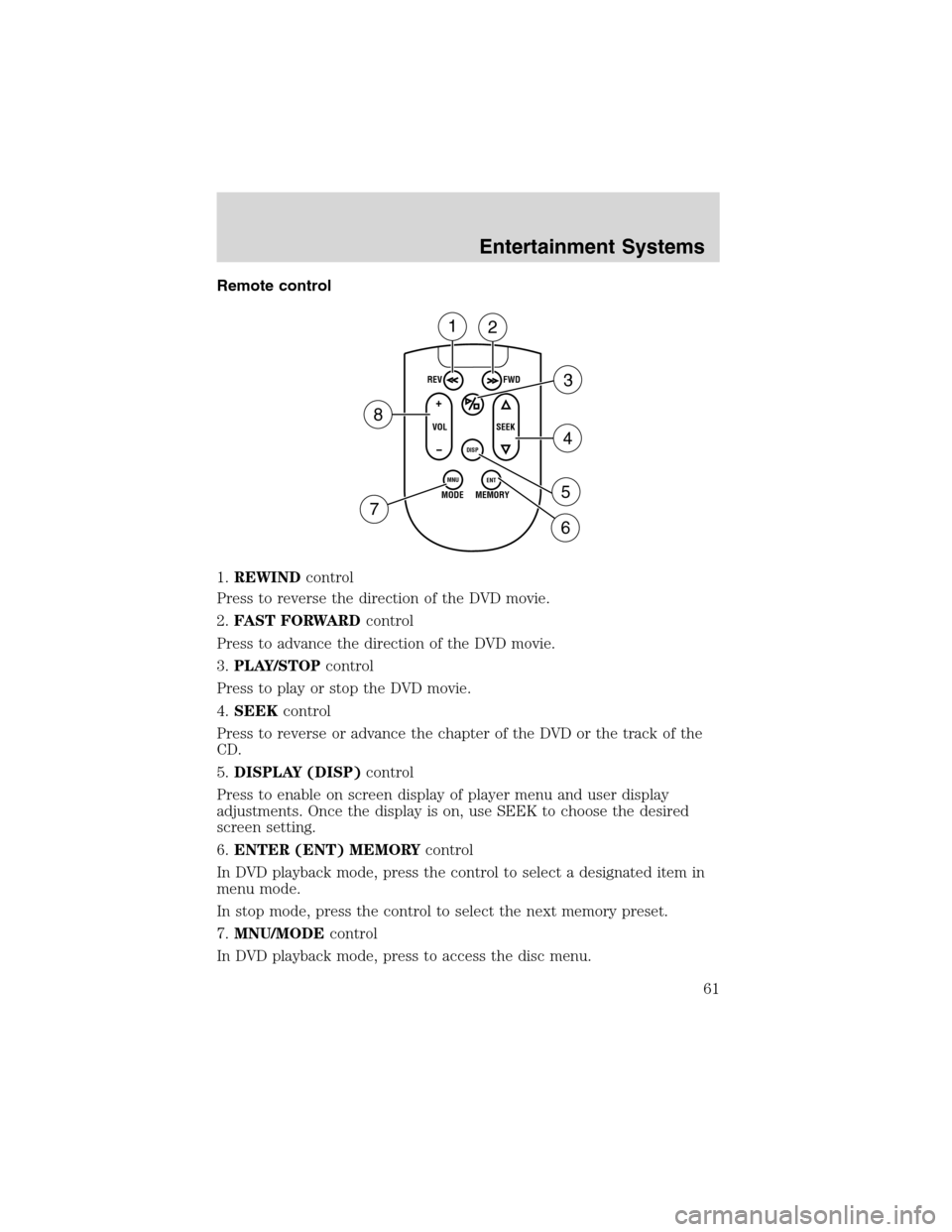
1.MAINcontrol
•NEXT—Press to access the next track on the CD, the next chapter
on the DVD, or to go up in cursor mode.
•PREV—Press to access the previous track on the CD, the previous
chapter on the DVD, or to go down in cursor mode.
•REV—Press to reverse in CD and DVD play modes or to move the
cursor left in the menu active mode.
•FWD—Press to advance in CD and DVD play modes or to move the
cursor right in the menu active mode.
2.PLAY/PAUSEcontrol
Press to playback or pause the DVD.
V
L
R
AUXDISP
MENUNEXT
PREV REV
FWDENTERDIM
+
-
78912
3456
Entertainment Systems
57
Page 61 of 320
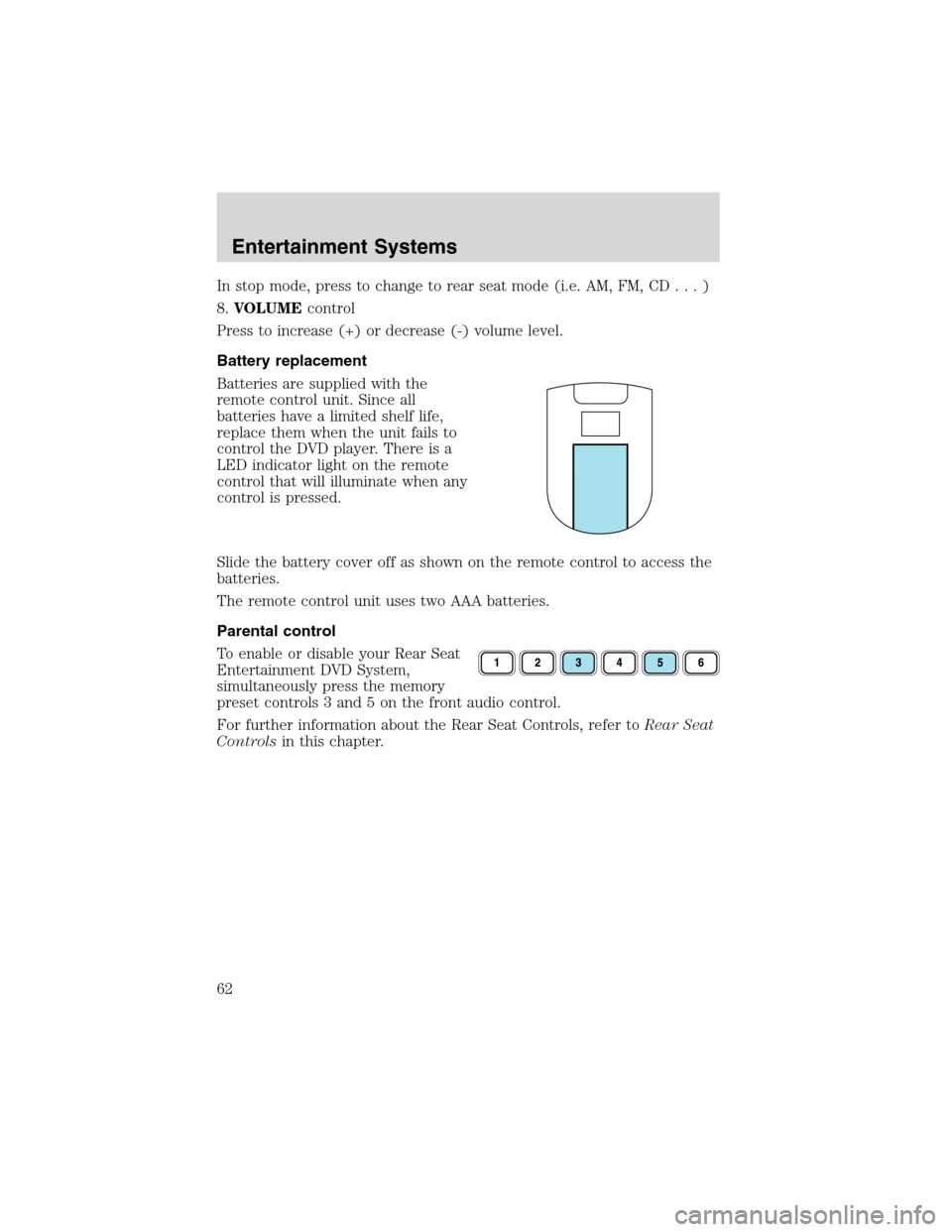
Remote control
1.REWINDcontrol
Press to reverse the direction of the DVD movie.
2.FAST FORWARDcontrol
Press to advance the direction of the DVD movie.
3.PLAY/STOPcontrol
Press to play or stop the DVD movie.
4.SEEKcontrol
Press to reverse or advance the chapter of the DVD or the track of the
CD.
5.DISPLAY (DISP)control
Press to enable on screen display of player menu and user display
adjustments. Once the display is on, use SEEK to choose the desired
screen setting.
6.ENTER (ENT) MEMORYcontrol
In DVD playback mode, press the control to select a designated item in
menu mode.
In stop mode, press the control to select the next memory preset.
7.MNU/MODEcontrol
In DVD playback mode, press to access the disc menu.
REV
FWD
SEEK VOL
MODE
MEMORY
+
DISP
MNU
ENT-
12
3
4
5
6 7
8
Entertainment Systems
61
Page 62 of 320
In stop mode, press to change to rear seat mode (i.e. AM, FM, CD...)
8.VOLUMEcontrol
Press to increase (+) or decrease (-) volume level.
Battery replacement
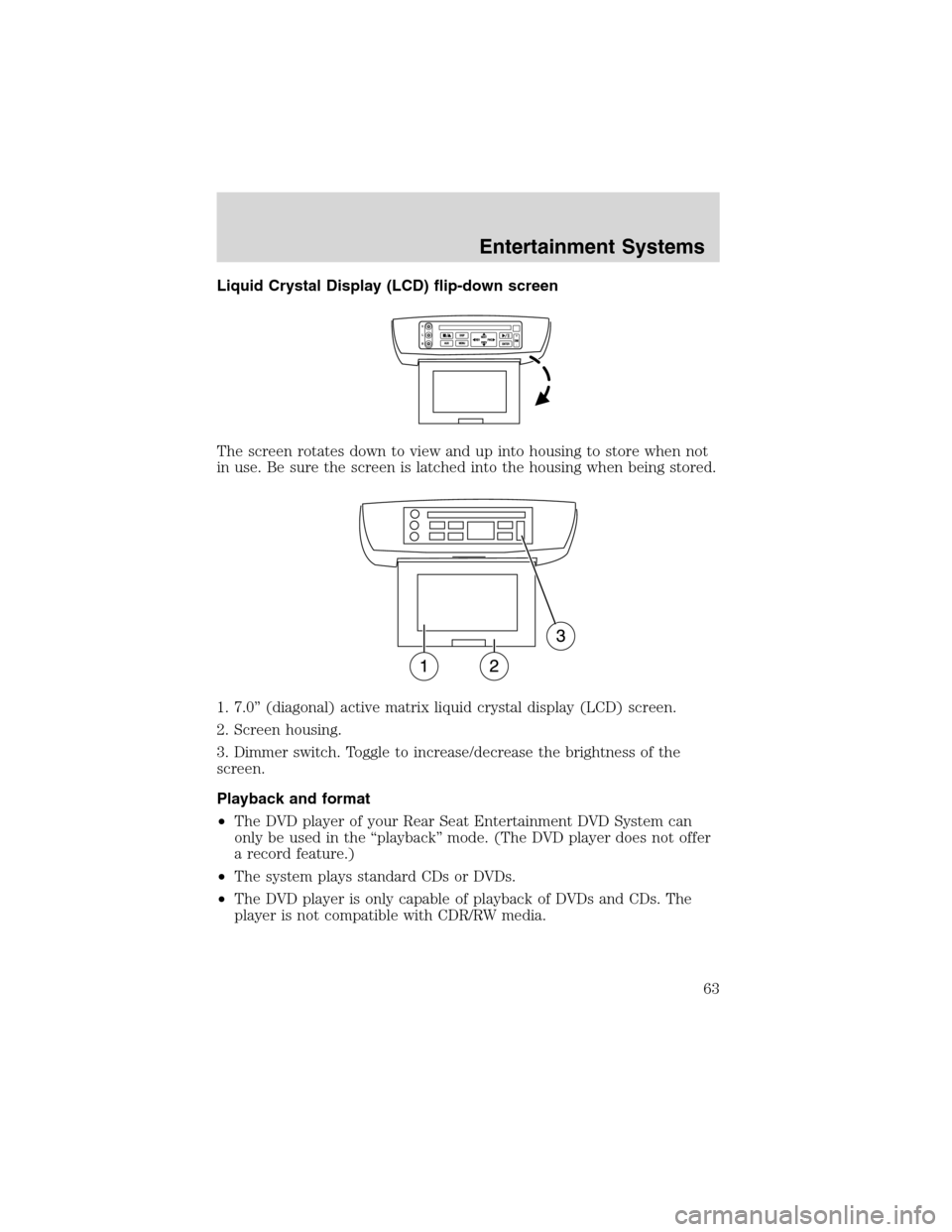
Batteries are supplied with the
remote control unit. Since all
batteries have a limited shelf life,
replace them when the unit fails to
control the DVD player. There is a
LED indicator light on the remote
control that will illuminate when any
control is pressed.
Slide the battery cover off as shown on the remote control to access the
batteries.
The remote control unit uses two AAA batteries.
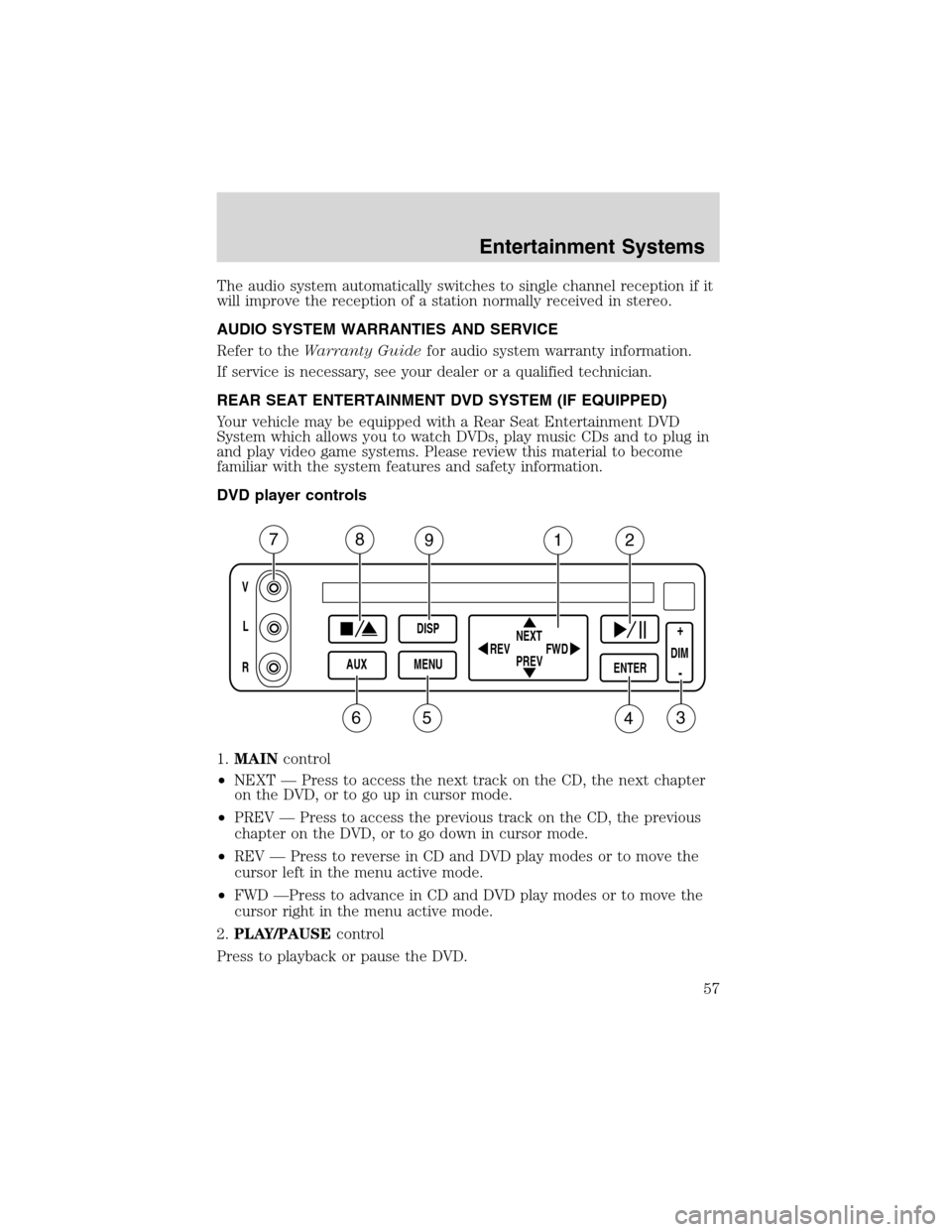
Parental control
To enable or disable your Rear Seat
Entertainment DVD System,
simultaneously press the memory
preset controls 3 and 5 on the front audio control.
For further information about the Rear Seat Controls, refer toRear Seat
Controlsin this chapter.
Entertainment Systems
62
Page 63 of 320
Liquid Crystal Display (LCD) flip-down screen
The screen rotates down to view and up into housing to store when not
in use. Be sure the screen is latched into the housing when being stored.
1. 7.0”(diagonal) active matrix liquid crystal display (LCD) screen.
2. Screen housing.
3. Dimmer switch. Toggle to increase/decrease the brightness of the
screen.
Playback and format
•The DVD player of your Rear Seat Entertainment DVD System can
only be used in the“playback”mode. (The DVD player does not offer
a record feature.)
•The system plays standard CDs or DVDs.
•The DVD player is only capable of playback of DVDs and CDs. The
player is not compatible with CDR/RW media.
Entertainment Systems
63
Page 65 of 320
Inserting a CD/DVD
Inserting a CD/DVD into the DVD player automatically turns the power
ON and playback should begin.
The counter is automatically reset to 0:00:00.
Ensure that the overhead screen is down for viewing.
Removing a CD/DVD
1. Press the STOP/EJECT control to stop playback.
2. Press the STOP/EJECT control again to eject the CD/DVD.
If the CD/DVD is not removed within the allotted time, the system will
pull the CD/DVD back into the system for safety purposes. If the
CD/DVD will not eject from the system, press and hold the EJECT
control for approximately 2 seconds. The disc should eject whether the
vehicle ignition is ON or OFF.
Playing a video game/auxiliary device
1. Connect the video line from your video game device to the YELLOW
auxiliary input jack.
2. Connect the left and right audio lines to the WHITE and RED auxiliary
input jacks respectively.
3. Press the MODE control until DVD/CD AUX (no disc in player) or
DVD/CD play (disc in player) illuminates in the radio display. If a disc is
in the system, playback should begin. To enable the aux inputs, press the
STOP control or press the AUX control on the DVD player.
Entertainment Systems
65
Page 70 of 320
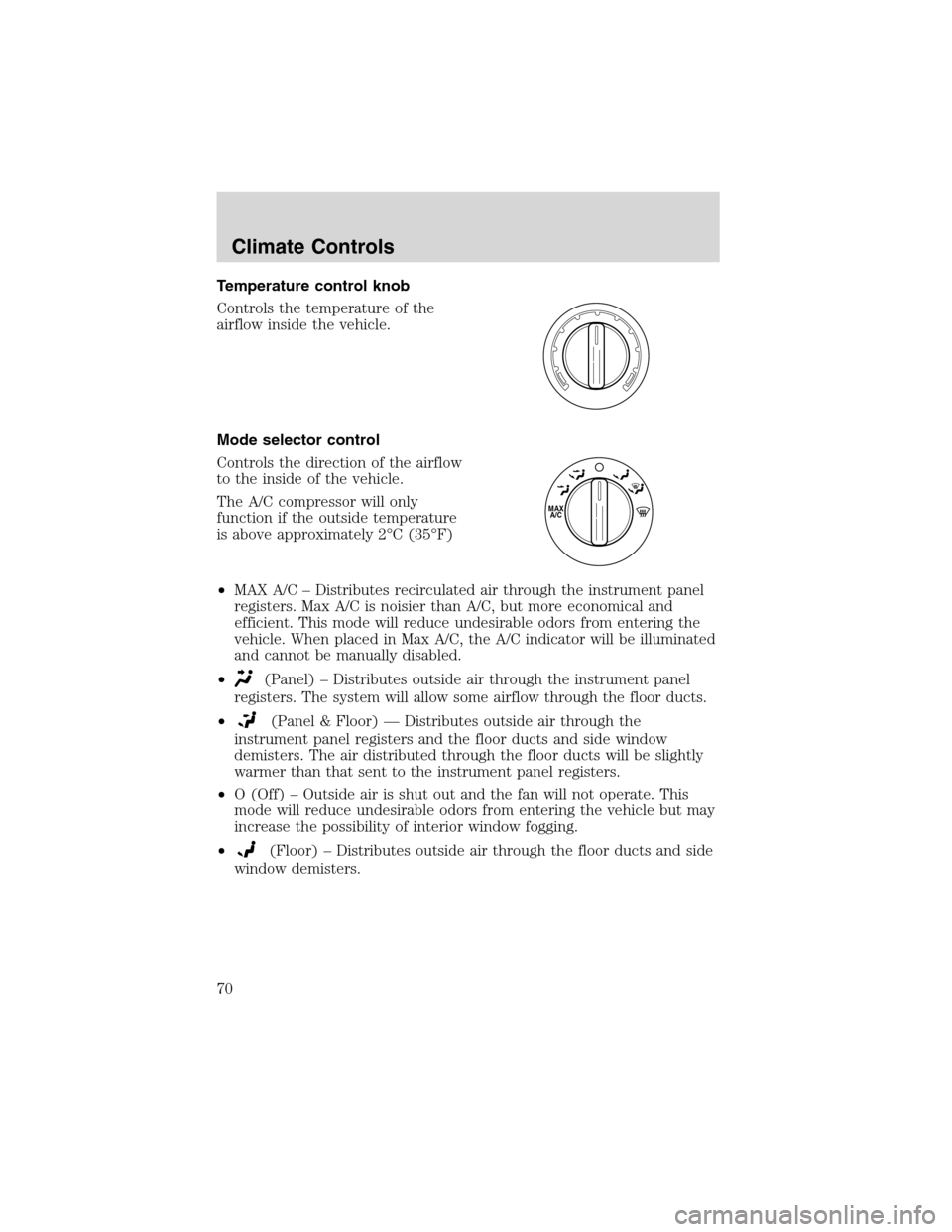
Temperature control knob
Controls the temperature of the
airflow inside the vehicle.
Mode selector control
Controls the direction of the airflow
to the inside of the vehicle.
The A/C compressor will only
function if the outside temperature
is above approximately 2°C (35°F)
•MAX A/C–Distributes recirculated air through the instrument panel
registers. Max A/C is noisier than A/C, but more economical and
efficient. This mode will reduce undesirable odors from entering the
vehicle. When placed in Max A/C, the A/C indicator will be illuminated
and cannot be manually disabled.
•
(Panel)–Distributes outside air through the instrument panel
registers. The system will allow some airflow through the floor ducts.
•
(Panel & Floor)—Distributes outside air through the
instrument panel registers and the floor ducts and side window
demisters. The air distributed through the floor ducts will be slightly
warmer than that sent to the instrument panel registers.
•O (Off)–Outside air is shut out and the fan will not operate. This
mode will reduce undesirable odors from entering the vehicle but may
increase the possibility of interior window fogging.
•
(Floor)–Distributes outside air through the floor ducts and side
window demisters.
MAX
A/C
Climate Controls
70
Page 78 of 320
Operating tips
•To reduce fogging in humid weather conditions, unless in Defrost and
Floor & Defrost, press the A/C control before driving as the air
conditioning removes moisture form the air.
•To reduce humidity buildup inside the vehicle in warm weather
conditions, don’t drive with the climate control system in the OFF
position.
•To reduce humidity buildup inside the vehicle in cold weather
conditions, don’t drive with the climate control system in the
recirculation mode or OFF mode.
•Remove any snow, ice or leaves from the exterior base of the
windshield.
•To increase the efficiency of the A/C, drive with the windows slightly
open for 2–3 minutes after start up or until the vehicle has been
“aired out.”
•Do not place objects under the front seat or over the defroster ducts.
They may reduce visibility, fall into the ducts, or degrade the
performance of your climate control system.
Do not place objects on top of the instrument panel, as these
objects may become projectiles in a collision or sudden stop.
AUXILIARY CLIMATE CONTROLS
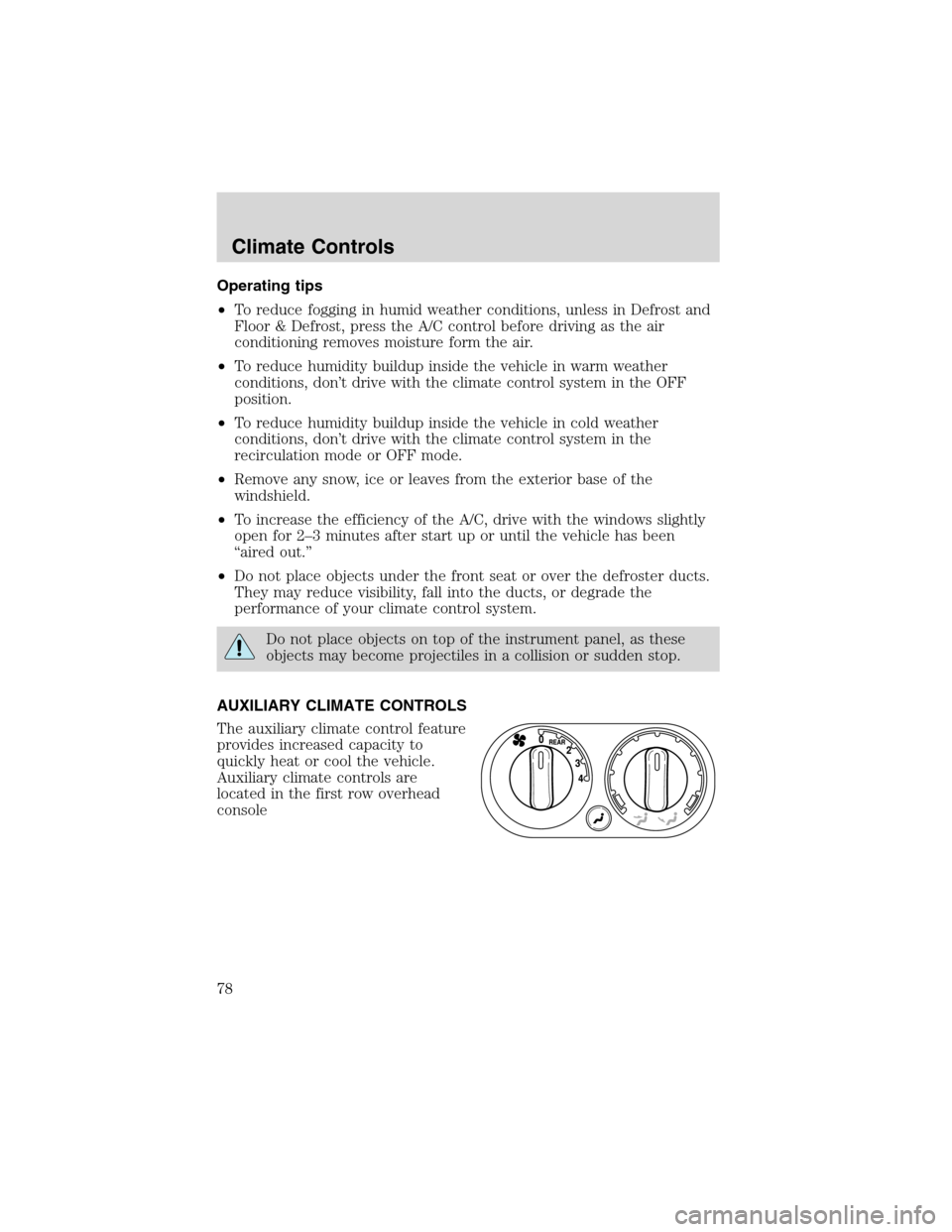
The auxiliary climate control feature
provides increased capacity to
quickly heat or cool the vehicle.
Auxiliary climate controls are
located in the first row overhead
console
Climate Controls
78
Page 111 of 320
•Continue to press and hold the HomeLink�button (note step 3 in the
“Programming”section) while you press and release—every two
seconds(“cycle”) your hand-held transmitter until the frequency
signal has been accepted by the HomeLink�. The red indicator light
will flash slowly and then rapidly after HomeLink�accepts the radio
frequency signal.
•Proceed with step 4 in the“Programming”section.
Operating the HomeLink�Universal Transceiver
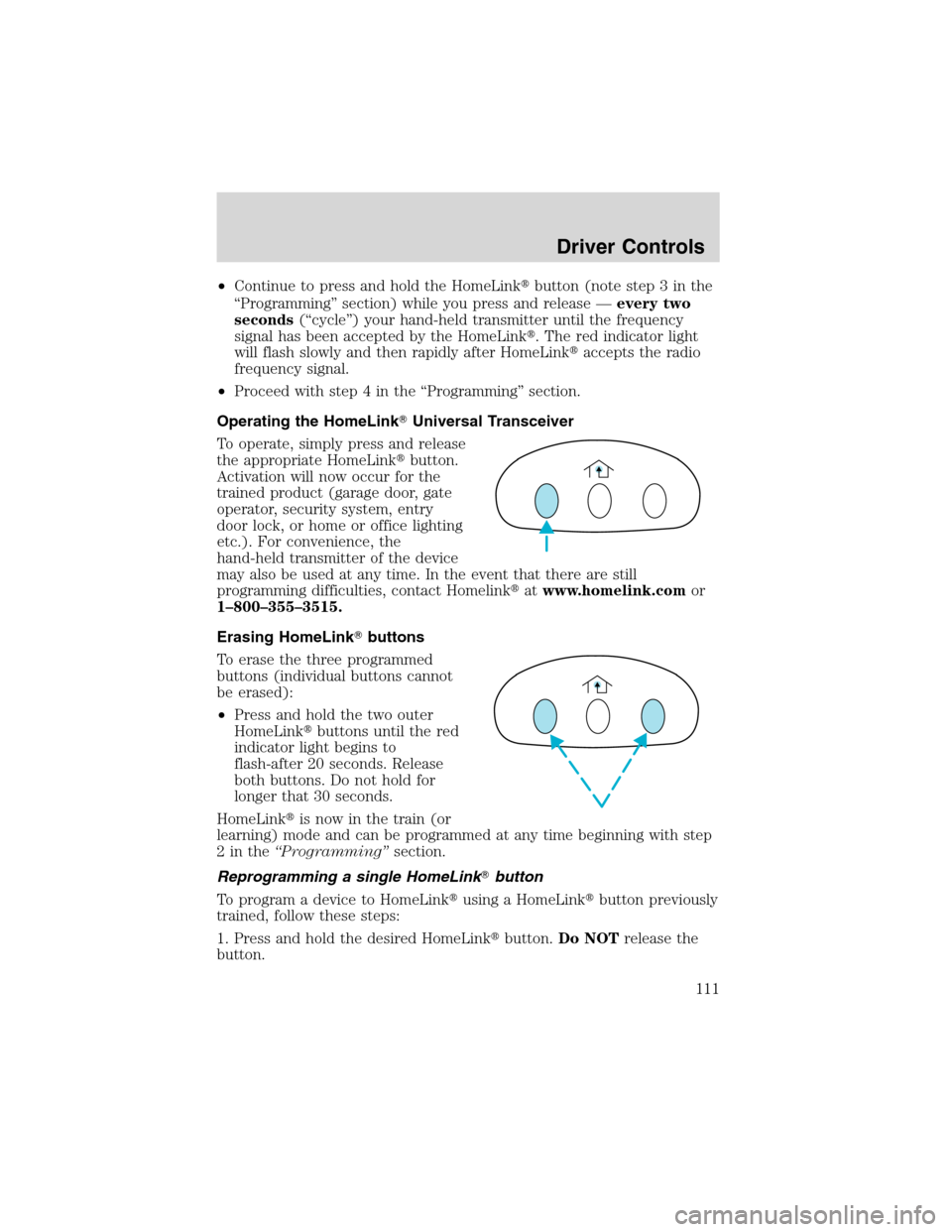
To operate, simply press and release
the appropriate HomeLink�button.
Activation will now occur for the
trained product (garage door, gate
operator, security system, entry
door lock, or home or office lighting
etc.). For convenience, the
hand-held transmitter of the device
may also be used at any time. In the event that there are still
programming difficulties, contact Homelink�atwww.homelink.comor
1–800–355–3515.
Erasing HomeLink�buttons
To erase the three programmed
buttons (individual buttons cannot
be erased):
•Press and hold the two outer
HomeLink�buttons until the red
indicator light begins to
flash-after 20 seconds. Release
both buttons. Do not hold for
longer that 30 seconds.
HomeLink�is now in the train (or
learning) mode and can be programmed at any time beginning with step
2inthe“Programming”section.
Reprogramming a single HomeLink�button
To program a device to HomeLink�using a HomeLink�button previously
trained, follow these steps:
1. Press and hold the desired HomeLink�button.Do NOTrelease the
button.
Driver Controls
111