2003 CHEVROLET VENTURE ECO mode
[x] Cancel search: ECO modePage 207 of 486

For quick cool down on hot days, do the following:
1. Select the vent mode.
2. Select the recirculation mode.
3. Select A/C.
4. Select the coolest temperature.
5. Select the highest fan speed.
Using these settings together for long periods of time
may cause the air inside of your vehicle to become too
dry. To prevent this from happening, after the air
inside of your vehicle has cooled, turn the recirculation
mode off.
The air-conditioning system removes moisture from the
air, so you may sometimes notice a small amount of
water dripping underneath your vehicle while idling
or after turning off the engine. This is normal.
Defogging and Defrosting
Fog on the inside of windows is a result of high humidity
(moisture) condensing on the cool window glass. This
can be minimized if the climate control system is
used properly. There are two modes to clear fog or frostfrom your windshield. Use the defog mode to clear the
windows of fog or moisture and warm the passengers.
Use the defrost mode to remove fog or frost from
the windshield more quickly.
Turn the right knob to select the defog or defrost mode.
-(Defog):This mode directs air to the windshield
and the ¯oor outlets. When you select this mode,
the system turns off recirculation and runs the
air-conditioning compressor unless the outside
temperature is at or below freezing. The recirculation
mode cannot be selected while in the defog mode.
0(Defrost):Pressing this button directs most of the
air to the windshield and the side window outlets,
with some air directed to the ¯oor outlets. In this mode,
the system will automatically turn off recirculation
and run the air-conditioning compressor, unless the
outside temperature is at or below freezing.
Recirculation cannot be selected while in the
defrost mode.
Do not drive the vehicle until all the windows are clear.
3-27
Page 210 of 486

Directing the Air¯ow
To direct the air¯ow to the rear-seating area, use the
right knob located on the main climate-control panel.
·Select vent or bi-level mode to direct air to the
rear of the vehicle through the overhead outlets.
·Select ¯oor, defog or defrost mode to direct air to
the rear of the vehicle through the ¯oor outlets.
Generally the upper outlets are used for air conditioning
and the ¯oor outlets are used for heating.
Selecting the Fan Speed
9
(Fan):Turn the fan knob on either rear fan control
to numeral 1, 2, or 3 to increase or decrease air¯ow
to the rear-seating area. Turn the fan knob on either rear
fan control to 0 or OFF to turn off the fan.
Setting the Temperature
If the driver is adjusting the temperature, do the
following:
To increase or decrease the temperature for the entire
vehicle, use the temperature controls located on the
main climate-control panel.If using the main climate-control panel, then the
air-conditioning system must be on to direct cooled air
to the rear of the vehicle. If it is not on, then the
temperature in the rear of the vehicle will remain at
cabin temperature.
If a rear-seat passenger is adjusting the temperature, do
the following:
Turn the right knob, located on the overhead rear-control
panel, behind the driver's seat, clockwise or
counterclockwise to raise or lower the temperature in
the rear-seating area only.
Rear Air Outlets
To increase air¯ow through the rear ¯oor outlets, place
the left bucket seat in the second row in the forward
position. For more information, see
Rear Seat Operation
on page 1-7.
The outlet behind the left rear seat is the cold air return
outlet. Be sure to keep it free from obstructions.
Also, keep the area around the base of the center
instrument panel console, between and under the front
seats, free of objects that could also obstruct air¯ow
to the rear-seating area.
For more information on how to use the main climate
control system, see ªClimate Control Systemº listed
previously in this section. For information on ventilation,
see ªOutlet Adjustmentº under ªClimate Control
Systemº listed previously in this section.
3-30
Page 239 of 486
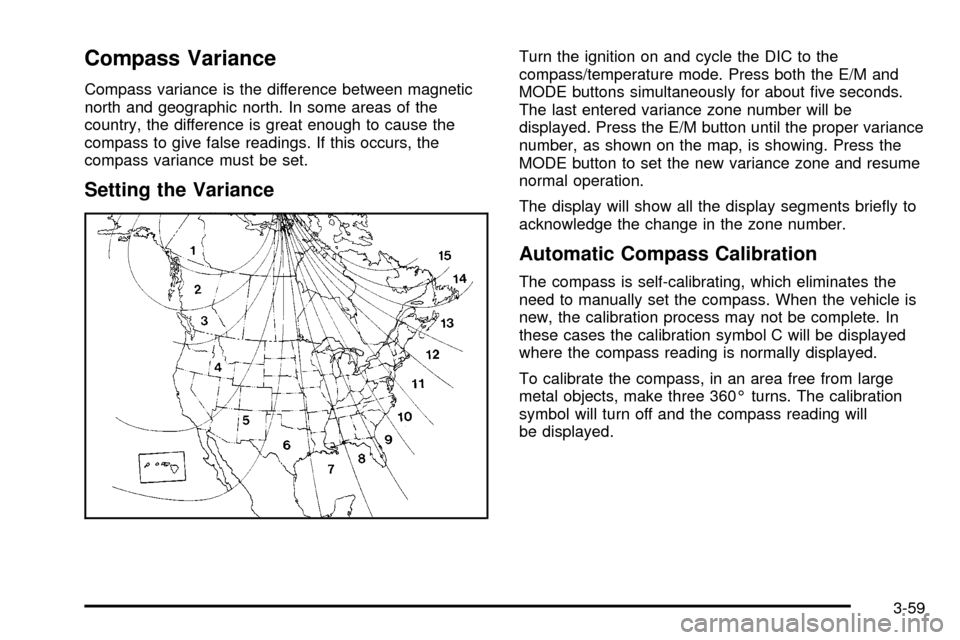
Compass Variance
Compass variance is the difference between magnetic
north and geographic north. In some areas of the
country, the difference is great enough to cause the
compass to give false readings. If this occurs, the
compass variance must be set.
Setting the Variance
Turn the ignition on and cycle the DIC to the
compass/temperature mode. Press both the E/M and
MODE buttons simultaneously for about ®ve seconds.
The last entered variance zone number will be
displayed. Press the E/M button until the proper variance
number, as shown on the map, is showing. Press the
MODE button to set the new variance zone and resume
normal operation.
The display will show all the display segments brie¯y to
acknowledge the change in the zone number.
Automatic Compass Calibration
The compass is self-calibrating, which eliminates the
need to manually set the compass. When the vehicle is
new, the calibration process may not be complete. In
these cases the calibration symbol C will be displayed
where the compass reading is normally displayed.
To calibrate the compass, in an area free from large
metal objects, make three 360É turns. The calibration
symbol will turn off and the compass reading will
be displayed.
3-59
Page 240 of 486

Manual Compass Calibration
If the compass appears erratic and the calibration
symbol does not appear, you must manually put the
compass into the calibration mode.
Turn the ignition on and cycle the DIC to the
compass/temperature mode. Press both the E/M and
MODE buttons simultaneously for at least 10 seconds
until the calibration symbol appears. Release both
buttons and complete three 360É turns in an area free
from large metal objects. The calibration symbol will turn
off and the compass reading will be displayed.
Error Displays
·
An error of the vehicle's speed sensor or fuel
sender will cause -E- to be displayed.
·In the absence of vehicle communications, a dash
ª- -º is displayed.
If one of these error messages appear, see your dealer.
Trip Computer
There are ®ve trip computer displays available by
pushing the MODE button. The information will appear
in the following order:
AVG ECON (Average Fuel Economy):This shows the
average fuel economy since the last reset.
INST ECON (Instant Fuel Economy):This shows fuel
economy for the most recent second of driving.
RANGE (Trip Range):This shows the estimated
distance that can be traveled with the remaining fuel.
The fuel economy used to calculate range is based
on the last few hours of driving.
FUEL USED (Trip Fuel Used):This shows the
accumulated fuel used since the last reset.
AVG SPEED (Average Speed):This shows the
average speed since the last reset.
Resetting the Trip Computer
Press and hold the MODE and E/M buttons for at least
two seconds. The reset is acknowledged with the
display showing all segments brie¯y. A reset can only
be done in AVG ECON, FUEL USED and AVG SPEED
displays. AVG ECON, FUEL USED and AVG SPEED
can only be reset independently. Only the mode
that is displayed will be reset.
3-60
Page 243 of 486

Setting Preset Stations
The six numbered pushbuttons let you return to your
favorite stations. You can set up to 18 stations (six FM1,
six FM2, and six AM) by performing the following
steps:
1. Turn the radio on.
2. Press AM FM to select FM1, FM2, or AM.
3. Tune in the desired station.
4. Press and hold one of the six numbered
pushbuttons until you hear a beep. Whenever you
press that numbered pushbutton, the station
you set will return.
5. Repeat the steps for each pushbutton.
Setting the Tone (Bass/Treble)
AUDIO:To adjust the bass and the treble, press and
release the AUDIO button until BAS or TRE appears on
the display. Then press and hold the up or the down
arrow to increase or to decrease. If a station is weak or
noisy, you may want to decrease the treble.
To adjust bass or treble to the middle position, select
BAS or TRE. Then press and hold the AUDIO button for
more than two seconds until you hear a beep. B and
a zero or T and a zero will appear on the display.
To adjust both tone controls and both speaker controls
to the middle position, ®rst end out of audio mode
by pressing another button, causing the radio to perform
that function, or by waiting ®ve seconds for the display
to return to time of day. Then press and hold the AUDIO
button for more than two seconds until you hear a
beep. CEN will appear on the display.
3-63
Page 244 of 486

Adjusting the Speakers (Balance/Fade)
AUDIO:To adjust the balance between the right
and the left speakers, press and release the AUDIO
button until BAL appears on the display. Then press and
hold the up or the down arrow to move the sound
toward the right or the left speakers.
To adjust the fade between the front and the rear
speakers, press and release the AUDIO button until
FAD appears on the display. Then press and hold the up
or the down arrow to move the sound toward the front
or the rear speakers.
To adjust balance or fade to the middle position, select
BAL or FAD. Then press and hold the AUDIO button
for more than two seconds until you hear a beep. L and
a zero or F and a zero will appear on the display.To adjust both tone controls and both speaker controls
to the middle position, ®rst end out of audio mode
by pressing another button, causing the radio to perform
that function, or by waiting ®ve seconds for the display
to return to time of day. Then press and hold the AUDIO
button for more than two seconds until you hear a
beep. CEN will appear on the display.
Radio Messages
CAL (Calibration):Your audio system has been
calibrated for your vehicle from the factory. If CAL
appears on the display it means that your radio has not
been con®gured properly for your vehicle and must
be returned to the dealer for service.
LOC (Locked):This message is displayed when the
THEFTLOCK
žsystem has locked up. You must
return to the dealer for service.
3-64
Page 246 of 486

qPSCAN (Preset Scan)r:Press and hold one of
the arrows for more than two seconds and the radio
will produce one beep. The radio will scan to the
®rst preset station stored on the pushbuttons, play for a
few seconds and ¯ash the station frequency, then go
on to the next preset station. SCAN will be displayed.
Press one of the arrows again or one of the pushbuttons
to stop scanning presets.
The radio will scan only to the preset stations that are in
the selected band and only to those with a strong
signal.
Setting Preset Stations
The six numbered pushbuttons let you return to
your favorite stations. You can set up to 18 stations
(six AM, six FM1 and six FM2) by performing the
following steps:
1. Turn the radio on.
2. Press BAND to select AM, FM1 or FM2.
3. Tune in the desired station.
4. Press AUTO TONE to choose the bass and treble
equalization that best suits the type of station you
are listening to.
5. Press and hold one of the six numbered
pushbuttons. The radio will produce one beep.Whenever you press that numbered pushbutton,
the station you set will return and the bass
and treble equalization that you selected will also
be automatically selected for that pushbutton.
6. Repeat the steps for each pushbutton.
Setting the Tone (Bass/Treble)
AUDIO:Push and release the AUDIO knob until BASS
or TREB appears on the display. Turn the knob to
increase or to decrease. The display will show the bass
or the treble level. If a station is weak or noisy, you
may want to decrease the treble.
To adjust the bass and the treble to the middle position,
push and hold the AUDIO knob. The radio will produce
one beep and adjust the display level to the middle
position.
To adjust all tone and speaker controls to the middle
position, push and hold the AUDIO knob when no tone
or speaker control is displayed. You will hear one
beep and the radio will display ALL. The bass and the
treble will be adjusted to the middle position.
AUTO TONE (Automatic Tone):Press this button to
choose bass and treble equalization settings designed
for country/western, jazz, talk, pop, rock and classical
stations.
To return the bass and treble to the manual mode, push
and release the AUDIO knob until MANUAL is
displayed.
3-66
Page 257 of 486

Traffic Interrupt Feature:Your radio can interrupt the
play of a cassette, or CD. Press the TRAF button.
The radio will seek to a station that broadcasts traffic
announcements. When the radio ®nds a station
that broadcasts traffic announcements, it will stop.
TRAF will appear on the display. When a traffic
announcement comes on the station that was found,
you will hear it. When the traffic announcement is over,
the radio will resume play of the cassette, or CD. If
no station is found, NO TRAF will appear on the display.
Radio Messages
CAL ERR (Calibration Error):This message is
displayed when the radio has not been calibrated
properly for the vehicle. You must return to the
dealership for service.
LOCKED:This message is displayed when the
THEFTLOCK
žsystem has locked up. You must return
to the dealership for service.
Playing a Cassette Tape
Your tape player is built to work best with tapes that are
up to 30 to 45 minutes long on each side. Tapes
longer than that are so thin they may not work well in
this player. The longer side with the tape visible should
face to the right. If the ignition is on, but the radio is
off, the tape can be inserted and will begin playing. A
tape symbol is shown on the display whenever a tape isinserted. If you hear nothing but a garbled sound, the
tape may not be in squarely. Press EJT to remove
the tape and start over.
While the tape is playing, use the VOL, AUDIO and
SEEK controls just as you do for the radio. The display
will show TAPE and an arrow showing which side of
the tape is playing.
If you want to insert a tape while the ignition is off, ®rst
press EJT or DISPL.
If an error appears on the display, see ªCassette Tape
Messagesº later in this section.
1 PREV (Previous):Your tape must have at least three
seconds of silence between each selection for previous
to work. Press this pushbutton to go to the previous
selection on the tape if the current selection has been
playing for less than three seconds. If pressed when the
current selection has been playing from 3 to 13 seconds,
it will go to the beginning of the previous selection or
the beginning of the current selection, depending upon
the position on the tape. If pressed when the current
selection has been playing for more than 13 seconds, it
will go to the beginning of the current selection.
SEEK and a negative number will appear on the display
while the cassette player is in the previous mode.
Pressing this pushbutton multiple times or holding it will
increase the number of selections to be searched
back, up to -9.
3-77