2003 CHEVROLET SILVERADO reset
[x] Cancel search: resetPage 154 of 556
Vehicle Personalization
Memory Seat
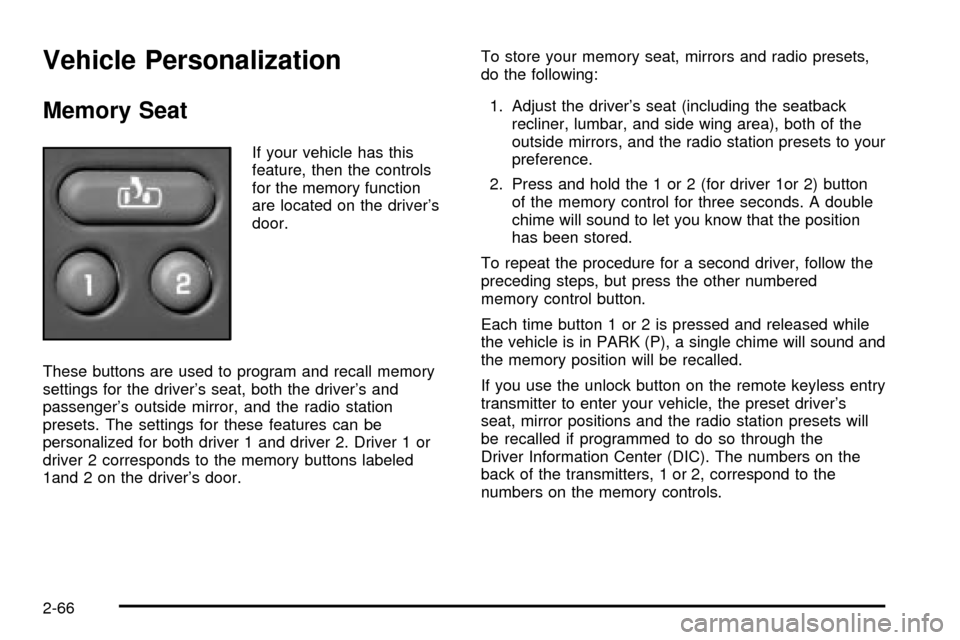
If your vehicle has this
feature, then the controls
for the memory function
are located on the driver's
door.
These buttons are used to program and recall memory
settings for the driver's seat, both the driver's and
passenger's outside mirror, and the radio station
presets. The settings for these features can be
personalized for both driver 1 and driver 2. Driver 1 or
driver 2 corresponds to the memory buttons labeled
1and 2 on the driver's door.To store your memory seat, mirrors and radio presets,
do the following:
1. Adjust the driver's seat (including the seatback
recliner, lumbar, and side wing area), both of the
outside mirrors, and the radio station presets to your
preference.
2. Press and hold the 1 or 2 (for driver 1or 2) button
of the memory control for three seconds. A double
chime will sound to let you know that the position
has been stored.
To repeat the procedure for a second driver, follow the
preceding steps, but press the other numbered
memory control button.
Each time button 1 or 2 is pressed and released while
the vehicle is in PARK (P), a single chime will sound and
the memory position will be recalled.
If you use the unlock button on the remote keyless entry
transmitter to enter your vehicle, the preset driver's
seat, mirror positions and the radio station presets will
be recalled if programmed to do so through the
Driver Information Center (DIC). The numbers on the
back of the transmitters, 1 or 2, correspond to the
numbers on the memory controls.
2-66
Page 166 of 556

Windshield Wipers
9
:OFF
8:MIST
You control the windshield wipers by turning the band
with the wiper symbol on it.
For a single wiping cycle, turn the band to mist. Hold it
there until the wipers start, then let go. The wipers
will stop after one wipe. If you want more wipes, hold
the band on mist longer.
You can set the wiper speed for a long or short delay
between wipes. This can be very useful in light rain
or snow. Turn the band to choose the delay time. The
closer to the top of the lever, the shorter the delay.
For steady wiping at low speed, turn the band away from
you to the ®rst solid band past the delay settings.
position. For high-speed wiping, turn the band further, to
the second solid band past the delay settings. To
stop the wipers, move the band to off position.
Be sure to clear ice and snow from the wiper blades
before using them. If they're frozen to the windshield,
carefully loosen or thaw them. If your blades do become
worn or damaged, get new blades or blade inserts.
Windshield Washer
There is a paddle marked with the windshield washer
symbol at the top of the multifunction lever. To
spray washer ¯uid on the windshield, push the paddle.
The wipers will clear the window and then either
stop or return to your preset speed.
{CAUTION:
In freezing weather, do not use your washer
until the windshield is warmed. Otherwise the
washer ¯uid can form ice on the windshield,
blocking your vision.
3-10
Page 168 of 556
Setting Cruise Control
{CAUTION:
If you leave your cruise control on when you
are not using cruise, you might hit a button
and go into cruise when you do not want to.
You could be startled and even lose control.
Keep the cruise control switch off until you
want to use cruise control.
1. Move the cruise control switch to on.
2. Get up to the speed you want.
3. Press in the set button at the end of the lever and
release it.
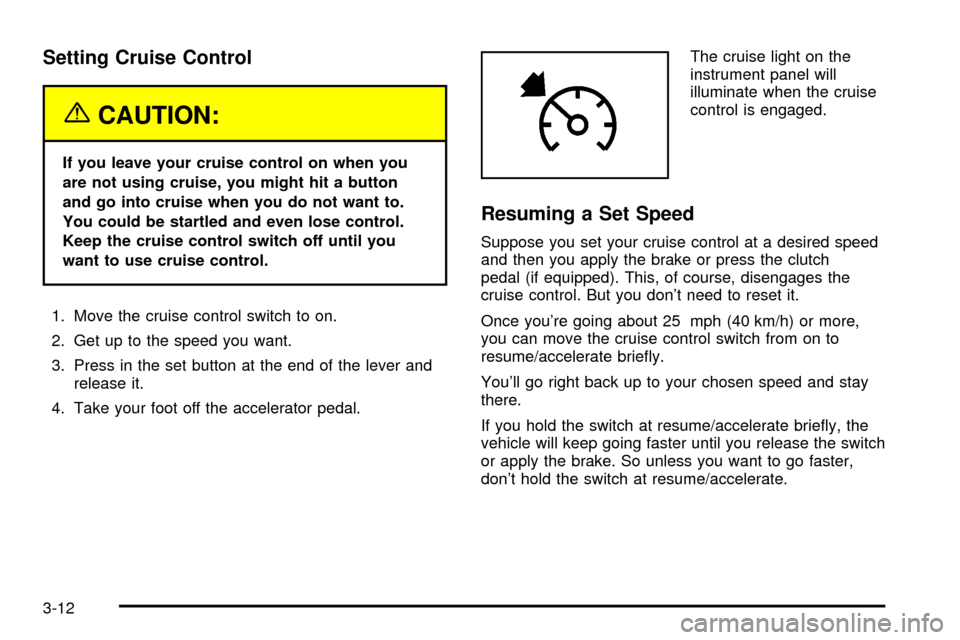
4. Take your foot off the accelerator pedal.The cruise light on the
instrument panel will
illuminate when the cruise
control is engaged.
Resuming a Set Speed
Suppose you set your cruise control at a desired speed
and then you apply the brake or press the clutch
pedal (if equipped). This, of course, disengages the
cruise control. But you don't need to reset it.
Once you're going about 25 mph (40 km/h) or more,
you can move the cruise control switch from on to
resume/accelerate brie¯y.
You'll go right back up to your chosen speed and stay
there.
If you hold the switch at resume/accelerate brie¯y, the
vehicle will keep going faster until you release the switch
or apply the brake. So unless you want to go faster,
don't hold the switch at resume/accelerate.
3-12
Page 191 of 556

Speedometer and Odometer
Your speedometer lets you see your speed in both
miles per hour (mph) and kilometers per hour (km/h).
Your odometer shows how far your vehicle has
been driven, in either miles (used in the United States)
or kilometers (used in Canada).
Trip Odometer
The trip odometer can tell you how far your vehicle has
been driven since you last set the trip odometer to zero.
Press the reset button to toggle between the trip
odometer and the regular odometer. Holding the reset
button for two seconds while the trip odometer is
displayed will reset it.
To display the odometer reading with the ignition off,
press the reset button.
Engine Hour Meter Display
The odometer can also display the number of hours the
engine has run. To display the hour meter, turn the
ignition off, press and hold the reset button for at least
four seconds. The hour meter will be displayed for
up to 30 seconds, or until the ignition is turned on.
Tachometer
Your tachometer displays the engine speed in
revolutions per minute (rpm).
Notice:On vehicles with a manual transmission, if
you operate the engine with the tachometer in
the shaded warning areas, your vehicle's engine or
other parts of your vehicle could be damaged.
Damage to your engine or vehicle caused by
operating the engine with the tachometer in the
shaded warning areas isn't covered by your vehicle
warranty. Don't operate the tachometer in the
shaded warning areas.
3-35
Page 211 of 556

C (Personalization):This button will change personal
options available on your vehicle.
D (Select):This button resets certain functions and
turns off or acknowledges messages on the DIC.
If your vehicle is not equipped with the DIC steering
wheel buttons you will not have all of the features listed
above, and you will turn off, or acknowledge DIC
messages by using the trip odometer reset stem located
on the instrument panel cluster.
DIC Operation and Displays
The DIC comes on when the ignition is on. After a short
delay the DIC will display the current driver and the
information that was last displayed before the engine
was turned off.
If a problem is detected, a warning message will appear
on the display. Pressing any of the DIC buttons will
acknowledge any current warning or service messages.
The DIC has different modes which can be accessed
by pressing the four buttons on the DIC. These buttons
are trip information, fuel information, personalization
and select. The button functions are detailed in
the following.
If your vehicle is not equipped with the DIC steering
wheel buttons not all of the features listed will be
available on your vehicle.
Trip Information Button
Use the trip information button to scroll through the
ODOMETER, PERSONAL TRIP ON/OFF, BUSINESS
TRIP ON/OFF, HOURMETER, ANNUAL LOG and
TIMER. If the personal trip and/or the business trip are
set to ON, you will also be able to scroll through
more messages. See
Personal TripandBusiness Tripnext for more information.
If your vehicle is not equipped with the DIC steering
wheel buttons you can select the trip information
by pressing the trip odometer reset stem on the
instrument panel cluster.
Personal Trip
If the PERSONAL TRIP is on (turn it on or off by
pressing the select button) you will also be able to scroll
through the following:
·PERSONAL: XX MI Ð This shows the current
distance traveled since the last reset for the
personal trip odometer in either miles or kilometers.
·PERSONAL: XX.X GAL Ð This shows the amount
of fuel used for the personal trip.
·PERSONAL: XX.X MPG Ð This shows the amount
of fuel used for the personal trip.
3-55
Page 212 of 556

·PERSONAL: AVG MPH Ð This shows the vehicle's
average speed for the personal trip.
·PERSONAL: % ANNUAL Ð This shows the ratio of
personal trip miles to annual miles as a percent.
You can reset the personal trip odometer by pressing
and holding the trip odometer reset stem.
Business Trip
If the BUSINESS TRIP is on (turn it on or off by
pressing the select button) you will also be able to scroll
through the following:
·BUSINESS: XX MI Ð This shows the current
distance traveled since the last reset for the
business trip odometer in either miles or kilometers.
·BUSINESS: XX.X MPG Ð This shows the amount
of fuel used for the business trip.
·BUSINESS: XX.X GAL Ð This shows the amount
of fuel used for the business trip.
·BUSINESS: AVG MPH Ð This shows the vehicle's
average speed for the business trip.
·BUSINESS: % ANNUAL Ð This shows the ratio of
business trip miles to annual miles as a percent.To reset the personal or business trip information, do the
following: press and hold select button for two seconds
while in one of the personal or business trip modes. This
will reset all of the information for the personal or
business trip, or if your vehicle does not have the DIC
steering wheel control buttons, press the reset stem on
the instrument panel cluster.
You can also reset the PERSONAL: XX MI, or
BUSINESS: XX MI, while they are displayed by pressing
the reset stem on the cluster. If you press and hold
the reset stem or select button for four seconds,
the display will show the distance traveled since the last
ignition cycle for the personal or business trip.
Odometer
Press the trip information button, or the trip odometer
reset step, until SEASON ODOMETER appears on
the display. This shows the total distance the vehicle has
been driven in either miles or kilometers. Pressing the
reset stem located on the instrument cluster with
the vehicle off will also display the season odometer.
Hourmeter
Press the trip button to scroll to the hourmeter. The
hourmeter shows the total number of hours the engine
has run. Pressing the reset stem on the instrument
cluster will also display the hourmeter after the season
odometer is displayed.
3-56
Page 213 of 556

Annual Log
Press the trip button, or the reset stem on the instrument
panel cluster, to scroll to the annual log. The annual
log shows the mileage accumulated since it was
last reset. To reset the annual log, press and hold the
select button, or the trip odometer reset stem for
approximately two seconds.
Timer
The DIC can be used as a stopwatch. Press the select
button, or the trip odometer reset stem, while TIMER
is displayed to start the timer. The display will show the
amount of time that has passed since the timer was
last reset (not including time the ignition is off). Time will
continue to be counted as long as the ignition is on,
even if another display is being shown on the DIC. The
timer will record up to 99 hours, 59 minutes and
59 seconds (99:59:59) after which the display will roll
back to zero.
To stop the counting of time, press the select button
brie¯y while TIMER is displayed.
To reset the timer to zero, press and hold the select
button, or the trip odometer reset stem, while TIMER is
displayed.
Fuel Information Button
Use the fuel information button to scroll through the
range, average fuel economy, instant fuel economy and
the GM Oil Life SystemŸ.
If your vehicle is not equipped with the DIC steering
wheel control buttons you will not be able to display the
fuel information.
Fuel Range
Press the fuel information button until RANGE appears
to display the remaining distance you can drive without
refueling. It's based on fuel economy and the fuel
remaining in the tank. The display will show LOW if the
fuel level is low.
The fuel economy data used to determine fuel range is
an average of recent driving conditions. As your driving
conditions change, this data is gradually updated. Fuel
range cannot be reset.
Average Fuel Economy
Press the fuel information button until AVG appears in the
display. Average fuel economy is how many miles per
gallon your vehicle is getting based on current and past
driving conditions.
Press and hold the select button while AVG.ECON is
displayed to reset the average fuel economy. Average
fuel economy will then be calculated starting from
that point. If the average fuel economy is not reset, it
will be continually updated each time you drive.
3-57
Page 214 of 556

Instant Fuel Economy
Press the fuel information button until INST appears in
the display. Instant fuel economy is how many miles
per gallon your vehicle is at the particular moment
in time. The instant fuel economy cannot be reset.
GM Oil Life SystemŸ
Press the fuel information button until ENGINE OIL LIFE
appears in the display. The GM Oil Life SystemŸ
shows an estimate of the oil's remaining useful life. It
will show 100% when the system is reset after an
oil change. It will alert you to change your oil on a
schedule consistent with your driving conditions.
Always reset the engine oil life after and oil change. To
reset the Oil Life System press and hold the select
button while ENGINE OIL LIFE is displayed. OIL LIFE
RESET will appear on the display for 10 seconds
to let you know the system is reset.
The DIC does not replace the need to maintain your
vehicle as recommended in the Maintenance Schedule
in this manual. Also, the oil change reminder does
not measure how much oil you have in your engine. So,
be sure to check your oil level often. See
Engine Oil
on page 5-16.
Personalization Button
You can program certain features to a preferred setting
for up to two people. Press the personalization button to
scroll through the following personalization features. All of
the personalization options may not be available on your
vehicle. only the options available will be displayed on
your DIC.
If your vehicle is not equipped with the DIC steering
wheel buttons you will not have any of these
personalization options except for DISPLAY
LANGUAGE. See DISPLAY LANGUAGE later in this
section for more information.
·AUTOMATIC LOCKING
·AUTOMATIC UNLOCKING
·REMOTE LOCK FEEDBACK
·ALARM WARNING TYPE
·REMOTE UNLOCK FEEDBACK
·HEADLAMPS ON AT EXIT
·PERIMETER LIGHTING
·SEAT POSITION RECALL
·EASY EXIT DRIVER SEAT
3-58