2003 CHEVROLET SILVERADO reset
[x] Cancel search: resetPage 263 of 556

Playing a Speci®c Loaded
Compact Disc
For every CD loaded, a number will appear on the radio
display. To play a speci®c CD, ®rst press the CD AUX
button to start playing a CD. Then press the numbered
pushbutton that corresponds to the CD you want to play.
A small bar will appear under the CD number that is
playing, and the track number will appear.
If an error appears on the radio display, see ªCompact
Disc Messagesº later in this section.
LOAD CD
Z(Eject):Pressing the CD eject side of
this button will eject a single disc or multiple discs. To
eject the disc that is currently playing, press and release
this button. To eject multiple discs, press and hold this
button for two seconds. You will hear a beep and the light
will ¯ash to let you know when a disc is being ejected.
REMOVE CD will be displayed. You can now remove the
disc. If the disc is not removed, after 25 seconds, the disc
will be automatically pulled back into the receiver. If you
try to push the disc back into the receiver, before the
25 second time period is complete, the receiver will sense
an error and will try to eject the disc several times before
stopping.
Do not repeatedly press the CD eject side of the
LOAD CD eject button to eject a disc after you have tried
to push it in manually. The receivers 25-second ejecttimer will reset at each press of eject, which will cause the
receiver to not eject the disc until the 25-second time
period has elapsed.
Once the player stops and the disc is ejected, remove the
disc. After removing the disc, press the PWR knob off and
then on again. This will clear the disc-sensing feature and
enable discs to be loaded into the player again.
{REV (Reverse):Press and hold this button to
reverse quickly within a track. You will hear sound at a
reduced volume. Release it to play the passage.
The display will show elapsed time.
FWD
|(Forward):Press and hold this button to
advance quickly within a track. You will hear sound at a
reduced volume. Release it to play the passage. The
display will show elapsed time.
RPT (Repeat):With repeat, you can repeat one track
or an entire disc. To use repeat, do the following:
·To repeat the track you are listening to, press and
release the RPT button. RPT will appear on the
display. Press RPT again to turn it off.
·To repeat the disc you are listening to, press and
hold the RPT button for two seconds. RPT will
appear on the display. Press RPT again to turn it off.
3-107
Page 273 of 556

Notice:Do not store the headphones in heat or
direct sunlight. This could damage the headphones
and repairs would not be covered by your warranty.
Keep the headphones stored in a cool, dry place.
If the headphones are to be stored for a long period of
time, remove the batteries and keep them in a cool,
dry place.
Stereo RCA Jacks
The RCA jacks are located behind the video screen on
the front of the DVD console. The RCA jacks allow you to
connect audio and video from an auxiliary device such as
a camcorder or a video game unit to your RSE system
just as you would to a standard television. Standard RCA
cables are needed to connect the auxiliary device to the
RCA jacks. The yellow connector inputs video and the
red and white connectors input right and left stereo audio.
Refer to the manufacturer's instructions for proper
connection of your auxiliary device.
To use the auxiliary inputs on the RSE system, connect
an external auxiliary device to the color-coded RCA
jacks and turn both the auxiliary device and the
RSE system power on. If the RSE system had been
previously in the DVD player mode, you will need
to press the SRCE button on the faceplate or the remote
control to change to the auxiliary mode. Pressing the
SRCE button will toggle the RSE system between
the auxiliary device and the DVD player.
How to Change the Video Format when in
the Auxiliary Mode
The auxiliary input video format is preset to NTSC. In
some countries, the video format may be in PAL system.
To change the video format, perform the following:
1. Press the display menu button.
2. Press the navigation down arrow key to scroll down
to Video Format.
3. Press the enter button to select Video Format.
4. Press the navigation key to select the PAL video
format.
5. Press the enter button to accept the change.
Audio Output
Audio from the DVD player or auxiliary inputs may be
heard through the following possible sources:
·Wireless Headphones
·Vehicle Speakers
·Vehicle wired headphone jacks on the Rear Seat
Audio system (if equipped)
The RSE system will always transmit the audio signal
by infrared to the wireless headphones, if there is audio
available. See ªHeadphonesº previously for more
information.
3-117
Page 277 of 556

u(Volume):Turn the knob to increase or to decrease
volume. The left knob controls the left headphone and
the right knob controls the right headphone.
SRC (Source):Press this button to select an audio
source: radio, cassette tapes, CDs, or DVDs, depending
on your vehicles options.
xSEEKw:While listening to FM1, FM2, or AM,
press the up or the down arrow to tune to the next or to
the previous station and stay there. If the front radio
is in use, you cannot seek through different stations.
While listening to a cassette tape, press the up or the
down arrow to hear the next or the previous selection. If
the cassette tape on the front radio is in use, you cannot
seek through different selections on a tape.
While listening to a CD, press the up arrow to hear the
next track on the CD. Press the down arrow to go back to
the start of the current track if more than eight seconds
have played. If the CD player on the front radio is in use,
you cannot seek through different tracks.PROG (Program):The front passengers must be
listening to something different for each of these
functions to work:
·Press this button to go to the preset radio stations
set on the pushbuttons on the main radio.
·When a cassette tape is playing, press this button
to go to the other side of the tape.
·When a CD is playing in the radio, press this button
to go back to the beginning of the CD.
·When a CD is playing in the CD changer, press this
button to select a disc.
Theft-Deterrent Feature
THEFTLOCKžis designed to discourage theft of your
radio. The feature works automatically by learning
a portion of the Vehicle Identi®cation Number (VIN). If
the radio is moved to a different vehicle, it will not
operate and LOCKED will be displayed.
When the radio and vehicle are turned off, the blinking
red light indicates that THEFTLOCK
žis armed.
With THEFTLOCK
žactivated, your radio will not operate
if stolen.
3-121
Page 278 of 556
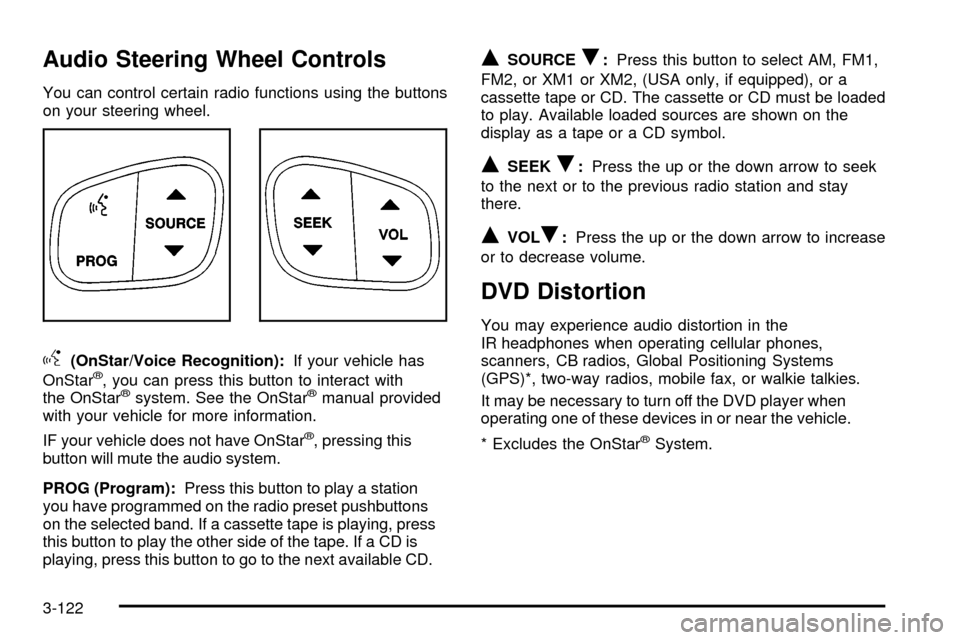
Audio Steering Wheel Controls
You can control certain radio functions using the buttons
on your steering wheel.
g(OnStar/Voice Recognition):If your vehicle has
OnStarž, you can press this button to interact with
the OnStaržsystem. See the OnStaržmanual provided
with your vehicle for more information.
IF your vehicle does not have OnStar
ž, pressing this
button will mute the audio system.
PROG (Program):Press this button to play a station
you have programmed on the radio preset pushbuttons
on the selected band. If a cassette tape is playing, press
this button to play the other side of the tape. If a CD is
playing, press this button to go to the next available CD.
QSOURCER:Press this button to select AM, FM1,
FM2, or XM1 or XM2, (USA only, if equipped), or a
cassette tape or CD. The cassette or CD must be loaded
to play. Available loaded sources are shown on the
display as a tape or a CD symbol.
QSEEKR:Press the up or the down arrow to seek
to the next or to the previous radio station and stay
there.
QVOLR:Press the up or the down arrow to increase
or to decrease volume.
DVD Distortion
You may experience audio distortion in the
IR headphones when operating cellular phones,
scanners, CB radios, Global Positioning Systems
(GPS)*, two-way radios, mobile fax, or walkie talkies.
It may be necessary to turn off the DVD player when
operating one of these devices in or near the vehicle.
* Excludes the OnStar
žSystem.
3-122
Page 279 of 556

Understanding Radio Reception
AM
The range for most AM stations is greater than for FM,
especially at night. The longer range, however, can
cause stations to interfere with each other. AM can pick
up noise from things like storms and power lines. Try
reducing the treble to reduce this noise.
FM Stereo
FM stereo will give you the best sound, but FM signals
will reach only about 10 to 40 miles (16 to 65 km).
Tall buildings or hills can interfere with FM signals,
causing the sound to come and go.
XMŸ Satellite Radio Service
(48 Contiguous US States)
XMŸ Satellite Radio gives you digital radio reception
from coast to coast. Just as with FM, tall buildings
or hills can interfere with satellite radio signals, causing
the sound to come and go. Your radio may display
NO SIGNAL to indicate interference.
Care of Your Cassette Tape Player
A tape player that is not cleaned regularly can cause
reduced sound quality, ruined cassettes or a damaged
mechanism. Cassette tapes should be stored in their
cases away from contaminants, direct sunlight and
extreme heat. If they aren't, they may not operate
properly or may cause failure of the tape player.
Your tape player should be cleaned regularly after every
50 hours of use. Your radio may display CLEAN to
indicate that you have used your tape player for
50 hours without resetting the tape clean timer. If this
message appears on the display, your cassette
tape player needs to be cleaned. It will still play tapes,
but you should clean it as soon as possible to
prevent damage to your tapes and player. If you notice
a reduction in sound quality, try a known good
cassette to see if the tape or the tape player is at fault.
If this other cassette has no improvement in sound
quality, clean the tape player.
For best results, use a scrubbing action, non-abrasive
cleaning cassette with pads which scrub the tape
head as the hubs of the cleaner cassette turn. The
recommended cleaning cassette is available through
your dealership.
3-123
Page 280 of 556

When cleaning the cassette tape player with the
recommended non-abrasive cleaning cassette, it is
possible that the cassette may eject, because the cut
tape detection feature on your radio may recognize it as
a broken tape, in error. To prevent the cleaning
cassette from being ejected, use the following steps:
1. Turn the ignition on.
2. Turn the radio off.
3. Press and hold the TAPE DISC button for ®ve
seconds. READY will appear on the display and
the cassette symbol will ¯ash for ®ve seconds.
4. Insert the scrubbing action cleaning cassette.
5. Eject the cleaning cassette after the manufacturer's
recommended cleaning time.
When the cleaning cassette has been ejected, the cut
tape detection feature is active again.
You may also choose a non-scrubbing action, wet-type
cleaner which uses a cassette with a fabric belt to
clean the tape head. This type of cleaning cassette will
not eject on its own. A non-scrubbing action cleaner
may not clean as thoroughly as the scrubbing type
cleaner. The use of a non-scrubbing action, dry-type
cleaning cassette is not recommended.After you clean the player, press and hold the eject
button for ®ve seconds to reset the CLEAN indicator.
The radio will display --- or CLEANED to show the
indicator was reset.
Cassettes are subject to wear and the sound quality
may degrade over time. Always make sure the cassette
tape is in good condition before you have your tape
player serviced.
Care of Your CDs and DVDs
Handle discs carefully. Store them in their original cases
or other protective cases and away from direct sunlight
and dust. If the surface of a disc is soiled, dampen
a clean, soft cloth in a mild, neutral detergent solution
and clean it, wiping from the center to the edge.
Be sure never to touch the side without writing when
handling discs. Pick up discs by grasping the outer
edges or the edge of the hole and the outer edge.
Care of Your CD and DVD Player
The use of CD lens cleaner discs is not advised, due to
the risk of contaminating the lens of the CD optics
with lubricants internal to the CD mechanism.
3-124
Page 377 of 556

Power Take-Off (PTO)
Before using a PTO, if equipped, refer to the
manufacturer's or installer's instructions.
To engage a PTO on a vehicle with a manual
transmission do the following:
1. Hold the clutch pedal down.
2. Set the parking brake.
3. Shift the transmission into NEUTRAL (N).
4. Engage the PTO. Refer to the manufacturer's
or installer's for instructions on electrically
engaged PTOs.
5. For mobile operations, shift the transmission into
the gear you want, apply the regular brakes and
release the parking brake. For stationary operations,
leave the parking brake applied.
6. Release the clutch and regular brakes as you
normally would. When the clutch is released,
the PTO will start.
7. Turn the PTO rotary switch to ON.To engage a PTO on a vehicle with an automatic
transmission do the following:
1. For stationary use shift the transmission into
PARK (P).
2. Turn the PTO rotary switch ON.
3. If the engine speed is below the PTO engage
speed limit, the PTO will start. The blinking LED
on the PTO control switch indicates PTO engage is
requested. When PTO engages the LED will
switch from blinking to a steady light.
To use PTO speed control in Preset Mode (Factory
Setting) do the following:
1. Engage the PTO
2. Select PARK (P) or NEUTRAL (N) range. Apply the
parking brake if NEUTRAL (N) is selected. Torque
Converter Clutch (TCC) is not available in
NEUTRAL (N) and is available only in PARK (P)
when engine speed is above 1,100 rpm.
3. Make sure your foot is off the brake pedal (and off
the clutch on vehicles equipped with a manual
transmission).
4. Select the desired engine speed for PTO operation.
Read the following preset mode information
regarding operation.
4-95
Page 378 of 556

Preset Mode:PTO speed control mode is used for
stationary applications. (PTO will remain engaged while
mobile in the preset mode, however PTO set and
resume speed controls will be inoperative). This mode
provides a default standby speed of 800 or 850 rpm
(depending on the engine/transmission combination) and
two default PTO control speeds which follow:
1. PTO Set Speed of 1,250 rpm, or
2. PTO Resume Speed of 1,700 rpm.
Please note that the standby speed (800/850 rpm) is
not to be used as a PTO control speed. Vehicles
not equipped with cruise control will not have the resume
speed capability.
To use PTO speed control in variable mode (while
mobile) do the following:
1. Engage the PTO.
2. Vehicle speed must be greater than 5 mph.
3. Make sure your foot is off the brake pedal (and off
the clutch for vehicles equipped with a manual
transmission).
4. Select the desired engine speed by using the foot
pedal, and select SET on the PTO switch or the
cruise control.To use PTO speed control in variable mode (while
stationary) do the following:
1. Engage the PTO.
2. Vehicle speed must be less than 5 mph.
3. Make sure your foot is off the brake pedal (and off
the clutch for vehicles equipped with a manual
transmission).
4. Select the desired engine speed by using the foot
pedal, and select SET on the PTO switch or the
cruise control.
Variable Mode:PTO speed control mode can be used
for both stationary and mobile applications. This
mode allows PTO to be controlled in a fashion similar to
how cruise control sets vehicle speed. The operator
can set to an rpm (between 800 and 2,200) with
the cruise control feature or with the SET position on
the PTO switch. The operator is then able to increase
rpm in increments of 100, or²tap up²with the resume
position on the cruise control. Or, the operator can
decrease rpm in increments of 100 with the SET switch
on the PTO or the cruise control.Vehicles not
equipped with cruise control will not have the ªtap
upº capability..
4-96