2003 CHEVROLET SILVERADO turn signal
[x] Cancel search: turn signalPage 165 of 556

Headlamp High/Low Beam Changer
To change the headlamps from low to high beam, push
the lever toward the instrument panel. To return the
low-beam headlamps, pull the multifunction lever toward
you. Then release it.
When the high beams are
on, this light on the
instrument panel cluster
also will be on.
Flash-To-Pass Feature
This feature allows you to use your high-beam
headlamps to signal a driver in front of you that you
want to pass. It works even if your headlamps are off.
To use it, pull the turn signal lever toward you.
If your headlamps are off or on low-beam, your
high-beam headlamps will turn on. They'll stay on as long
as you hold the lever toward you and the high-beam
indicator on the instrument panel will come on. Release
the lever to turn the high-beam headlamps off.
3-9
Page 170 of 556

Exterior Lamps
The switch on the driver's side of your instrument panel
operates the exterior lamps.
Turn the control clockwise to operate the lamps.
The exterior lamp switch has four positions:
9(OFF):Turning the switch to this position turns off
the Daytime Running Lamps (DRL) and the automatic
headlamps. An indicator light will illuminate when
the position is selected.AUTO (Automatic):Turning the control to this position
puts the system into automatic headlamp mode. An
indicator light will illuminate when this position is
selected.
;(Parking Lamps):Turning the control to this
position turns on the parking lamps, together with the
following:
·Sidemarker Lamps
·Taillamps
·License Plate Lamps
·Instrument Panel Lights
·Roof Marker Lamps (If Equipped)
2(Headlamps):Turning the switch to this position
turns on the headlamps, together with the previously
listed lamps and lights.
You can switch your headlamps from high to low-beam
by pushing the turn signal/high-beam lever towards
the instrument panel.
A circuit breaker protects your headlamps. If you have
an electrical overload, your headlamps will ¯icker on and
off. Have your headlamp wiring checked right away if
this happens.
3-14
Page 208 of 556
A reading in the low pressure zone may be caused by a
dangerously low oil level or some other problem
causing low oil pressure. Check your oil as soon as
possible. See
Oil Pressure LowunderDIC Warnings
and Messages on page 3-65andEngine Oil on
page 5-16.
{CAUTION:
Do not keep driving if the oil pressure is low. If
you do, your engine can become so hot that it
catches ®re. You or others could be burned.
Check your oil as soon as possible and have
your vehicle serviced.
Notice:Damage to your engine from neglected oil
problems can be costly and is not covered by
your warranty.
Cruise Control Light
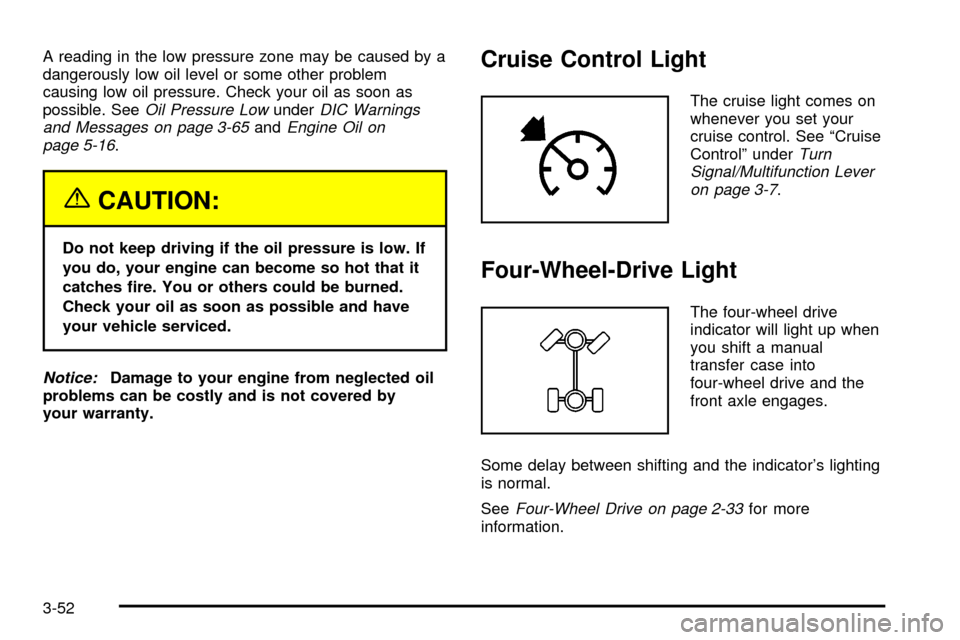
The cruise light comes on
whenever you set your
cruise control. See ªCruise
Controlº under
Turn
Signal/Multifunction Lever
on page 3-7
.
Four-Wheel-Drive Light
The four-wheel drive
indicator will light up when
you shift a manual
transfer case into
four-wheel drive and the
front axle engages.
Some delay between shifting and the indicator's lighting
is normal.
See
Four-Wheel Drive on page 2-33for more
information.
3-52
Page 227 of 556

TRANS HOT IDLE ENGINE (Allison
TransmissionžOnly)
If the transmission ¯uid in the vehicle gets hot, this
message will appear on the DIC, and you will hear a
chime. The chime will stop when the transmission ¯uid
temperature is less that 265ÉF (129ÉC). Driving with
the transmission ¯uid temperature high can cause
damage to the vehicle. Stop the vehicle and let it idle to
allow the transmission to cool. This message will
clear when the ¯uid temperature reaches a safe level.
Notice:If you keep driving your vehicle with
the transmission TRANS HOT¼IDLE ENGINE
message displayed, you can damage the
transmission. This could lead to costly repairs that
may not be covered under your warranty.
TURN SIGNAL ON
If a turn signal is left on for 3/4 of a mile (1.2 km), this
message will appear on the display and you will
hear a chime. Move the turn signal/multifunction lever to
the off position. Press the select button to acknowledge
the message and clear it from the DIC display.
Audio System(s)
Notice:Before you add any sound equipment to
your vehicle ± like a tape player, CB radio, mobile
telephone or two-way radio ± be sure you can
add what you want. If you can, it's very important to
do it properly. Added sound equipment may
interfere with the operation of your vehicle's engine,
radio or other systems, and even damage them.
Your vehicle's systems may interfere with the
operation of sound equipment that has been added
improperly.
So, before adding sound equipment, check with
your dealer and be sure to check federal rules
covering mobile radio and telephone units.
Your audio system has been designed to operate easily
and to give years of listening pleasure. You will get
the most enjoyment out of it if you acquaint yourself with
it ®rst. Figure out which radio you have in your vehicle,
®nd out what your audio system can do and how to
operate all of its controls to be sure you're getting the
most out of the advanced engineering that went into it.
Your vehicle may have a feature called Retained
Accessory Power (RAP). With RAP, you can play your
audio system even after the ignition is turned off.
See ªRetained Accessory Power (RAP)º under
Ignition
Positions on page 2-20.
3-71
Page 229 of 556

Finding a Station
AM FM:Press this button to switch the display between
time and radio station frequency. Time display is
available with the ignition turned off.
TUNE:Turn this knob to tune in radio stations.
oSEEKp:Press the right or the left arrow to seek
to the next or to the previous station and stay there.
To scan stations, press and hold one of the SEEK
arrows for two seconds until you hear a beep. The radio
will go to a station, play for a few seconds and ¯ash
the station frequency, then go on to the next station.
Press one of the SEEK arrows again to stop scanning.
To scan preset stations, press and hold one of the
SEEK arrows for more than four seconds until you hear
two beeps. The radio will go to the ®rst preset station
stored on the pushbuttons, play for a few seconds
and ¯ash the station frequency, then go on to the next
preset station. Press one of the SEEK arrows again
to stop scanning presets.
This radio will seek and scan only to stations that are in
the selected band and only to those with a strong
signal.
Setting Preset Stations
The six numbered pushbuttons let you return to your
favorite stations. You can set up to 18 stations (six AM,
six FM1 and six FM2) by performing the following
steps:
1. Turn the radio on.
2. Press AM FM to select AM, FM1 or FM2.
3. Tune in the desired station.
4. Press and hold one of the six numbered
pushbuttons until you hear a beep. Whenever you
press that numbered pushbutton, the station
you set will return.
5. Repeat the steps for each pushbutton.
Setting the Tone (Bass/Treble)
AUDIO:To adjust bass and treble, press and release
AUDIO repeatedly until BAS or TRE appears on
the display. Then press and hold the up or the down
arrow to increase or to decrease. If a station is weak or
noisy, you may want to decrease the treble.
To adjust bass or treble to the middle position, select
BAS or TRE. Then press and hold AUDIO for more than
two seconds until you hear a beep. B and a zero or T
and a zero will appear on the display.
3-73
Page 232 of 556

Playing the Radio
PWR (Power):Press this knob to turn the system on
and off.
VOL (Volume):Turn this knob to increase or to
decrease volume.
AUTO VOL (Automatic Volume):With automatic
volume, your audio system will adjust automatically to
make up for road and wind noise as you drive by
increasing the volume as vehicle speed increases.
Set the volume at the desired level. Press this button to
select LOW, MEDIUM or HIGH. AVOL will appear on
the display. Each higher setting will provide more
volume compensation as vehicle speed increases. To
turn automatic volume off, press this button until
AVOL OFF appears on the display.
DISP (Display):Push this knob to switch the display
between radio station frequency and time. Time display
is available with the ignition turned off.
For RDS, push this knob to change what appears on
the display while using RDS. The display options
are station name, RDS station frequency, PTY and the
name of the program (if available).
For XMŸ (USA only, if equipped), push this knob while
in XM mode to retrieve various pieces of information
related to the current song or channel. By pressing andreleasing this knob, you may retrieve four different
categories of information: Artist, Song Title, Category or
PTY, Channel Number/Channel Name.
To change the default on the display, push this knob
until you see the display you want, then hold the knob
for two seconds. The radio will produce one beep
and selected display will now be the default.
Finding a Station
BAND:Press this button to switch between AM, FM1,
FM2, or XM1, XM2 (USA only, if equipped). The
display will show your selection.
TUNE:Turn this knob to choose radio stations.
qSEEKr:Press the right or the left arrow to seek
to the next or to the previous station and stay there.
The radio will seek only to stations that are in the
selected band and only to those with a strong signal.
qSCANr:Press and hold one of the arrows
for more than two seconds. The radio will produce one
beep. The radio will scan to a station, play for a few
seconds, then go on to the next station. SCAN will be
displayed. Press one of the arrows again to stop
scanning.
The radio will scan only to stations that are in the
selected band and only to those with a strong signal.
3-76
Page 233 of 556

To scan preset stations, press and hold one of the
arrows for more than four seconds. The radio will
produce two beeps. The radio will scan to the ®rst preset
station, play for a few seconds, then go on to the next
preset station. PSCN will be displayed. Press one of the
arrows again or one of the pushbuttons to stop
scanning.
The radio will scan only to preset stations that are in the
selected band and only to those with a strong signal.
Setting Preset Stations
The six numbered pushbuttons let you return to your
favorite stations. You can set up to 30 stations (six AM,
six FM1 and six FM2, six XM1 and six XM2 (USA
only, if equipped), by performing the following steps:
1. Turn the radio on.
2. Press BAND to select AM, FM1, FM2, or XM1,
or XM2.
3. Tune in the desired station.
4. Press AUTO EQ to choose the bass and treble
equalization that best suits the type of station
you are listening to.5. Press and hold one of the six numbered
pushbuttons. The radio will produce one beep.
Whenever you press that numbered pushbutton, the
station you set will return and the bass and treble
equalization that you selected will also be
automatically selected for that pushbutton.
6. Repeat the steps for each pushbutton.
Setting the Tone (Bass/Treble)
AUDIO:Press and release the AUDIO knob until BASS
or TREB appears on the display. Turn the knob to
increase or to decrease. The display will show the bass
or treble level. If a station is weak or noisy, you may
want to decrease the treble.
To adjust the bass and treble to the middle position,
push and hold the AUDIO knob. The radio will produce
one beep and adjust the display level to the middle
position.
To adjust all tone and speaker controls to the middle
position, push and hold the AUDIO knob when no tone
or speaker control is displayed. The radio will produce
one beep and display ALL with the level display in
the middle position.
3-77
Page 237 of 556
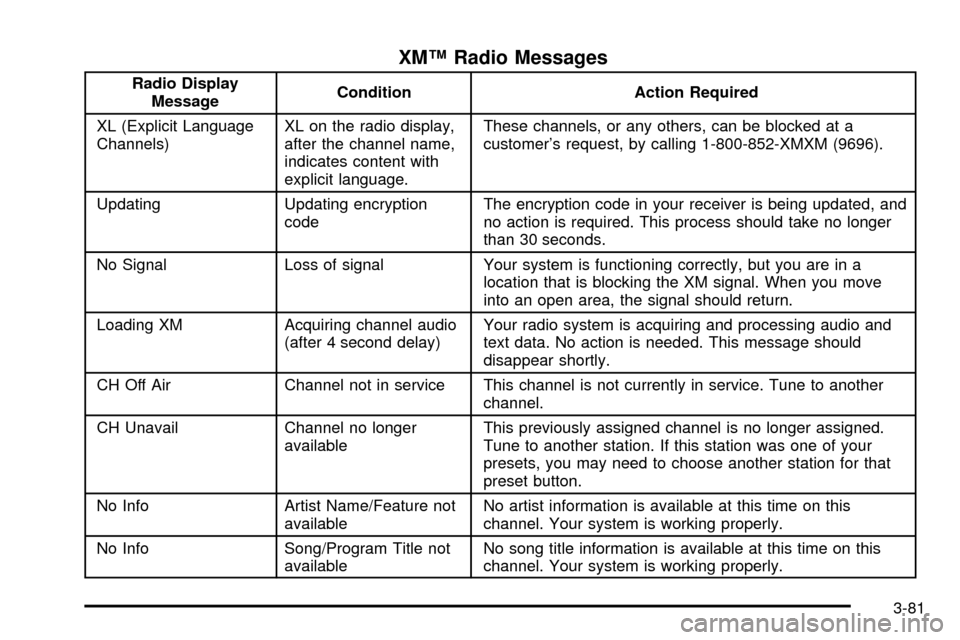
XMŸ Radio Messages
Radio Display
MessageCondition Action Required
XL (Explicit Language
Channels)XL on the radio display,
after the channel name,
indicates content with
explicit language.These channels, or any others, can be blocked at a
customer's request, by calling 1-800-852-XMXM (9696).
Updating Updating encryption
codeThe encryption code in your receiver is being updated, and
no action is required. This process should take no longer
than 30 seconds.
No Signal Loss of signal Your system is functioning correctly, but you are in a
location that is blocking the XM signal. When you move
into an open area, the signal should return.
Loading XM Acquiring channel audio
(after 4 second delay)Your radio system is acquiring and processing audio and
text data. No action is needed. This message should
disappear shortly.
CH Off Air Channel not in service This channel is not currently in service. Tune to another
channel.
CH Unavail Channel no longer
availableThis previously assigned channel is no longer assigned.
Tune to another station. If this station was one of your
presets, you may need to choose another station for that
preset button.
No Info Artist Name/Feature not
availableNo artist information is available at this time on this
channel. Your system is working properly.
No Info Song/Program Title not
availableNo song title information is available at this time on this
channel. Your system is working properly.
3-81