2003 CHEVROLET AVALANCHE buttons
[x] Cancel search: buttonsPage 131 of 492

If the indicator light stays on constantly, programming
is complete and your device should activate when the
HomeLink
žbutton is pressed and released.
To program the remaining two HomeLinkžbuttons,
begin with Step 2 under ªProgramming HomeLinkž.º
Do not repeat Step 1 as this will erase all of the
programmed channels.
If the indicator light blinks rapidly for two seconds
and then turns to a constant light, continue with
Steps 6 through 8 following to complete the
programming of a rolling-code equipped device
(most commonly, a garage door opener).
6. Locate in the garage, the garage door opener
receiver (motor-head unit). Locate the ªLearnº
or ªSmartº button. This can usually be found where
the hanging antenna wire is attached to the
motor-head unit.
7. Firmly press and release the ªLearnº or ªSmartº
button. The name and color of the button may
vary by manufacturer.
You will have 30 seconds to start Step 8.
8. Return to the vehicle. Firmly press and hold the
programmed HomeLink
žbutton for two seconds,
then release. Repeat the press/hold/release
sequence a second time, and depending on the
brand of the garage door opener (or other rolling
code device), repeat this sequence a third time
to complete the programming.HomeLink
žshould now activate your rolling-code
equipped device.
To program the remaining two HomeLink
žbuttons,
begin with Step 2 of ªProgramming HomeLinkž.º Do not
repeat Step 1.
Gate Operator and Canadian
Programming
Canadian radio-frequency laws require transmitter
signals to ªtime outº or quit after several seconds of
transmission. This may not be long enough for
HomeLink
žto pick up the signal during programming.
Similarly, some U.S. gate operators are manufactured to
ªtime outº in the same manner.
If you live in Canada, or you are having difficulty
programming a gate operator by using the
ªProgramming HomeLink
žº procedures (regardless of
where you live), replace Step 3 under ªProgramming
HomeLink
žº with the following:
Continue to press and hold the HomeLinkžbutton while
you press and release every two seconds (cycle) your
hand-held transmitter until the frequency signal has been
successfully accepted by HomeLink
ž. The indicator light
will ¯ash slowly at ®rst and then rapidly. Proceed with
Step 4 under ªProgramming HomeLink
žº to complete.
2-57
Page 132 of 492

Using HomeLinkž
Press and hold the appropriate HomeLinkžbutton for at
least half of a second. The indicator light will come
on while the signal is being transmitted.
Erasing HomeLinkžButtons
To erase programming from the three buttons do the
following:
1. Press and hold down the two outside buttons until
the indicator light begins to ¯ash, after 20 seconds.
2. Release both buttons. Do not hold for longer than
30 seconds.
HomeLink
žis now in the train (learning) mode and can
be programmed at any time beginning with Step 2
under ªProgramming HomeLink
ž.º
Individual buttons can not be erased, but they can be
reprogrammed. See ªReprogramming a Single
HomeLink
žButtonº next.
Reprogramming a Single HomeLinkž
Button
To program a device to HomeLinkžusing a HomeLinkž
button previously trained, follow these steps:
1. Press and hold the desired HomeLink
žbutton. Do
not release the button.
2. The indicator light will begin to ¯ash after
20 seconds. While still holding the HomeLink
ž
button, proceed with Step 2 under ªProgramming
HomeLinkž.º
Resetting Defaults
To reset HomeLinkžto default settings do the following:
1. Hold down the two outside buttons for about
20 seconds until the indicator light begins to ¯ash.
2. Continue to hold both buttons until the HomeLink
ž
indicator light turns off.
3. Release both buttons.
For questions or comments, contact HomeLink
žat
1-800-355-3515, or on the internet at
www.homelink.com.
2-58
Page 159 of 492
Vehicle Personalization
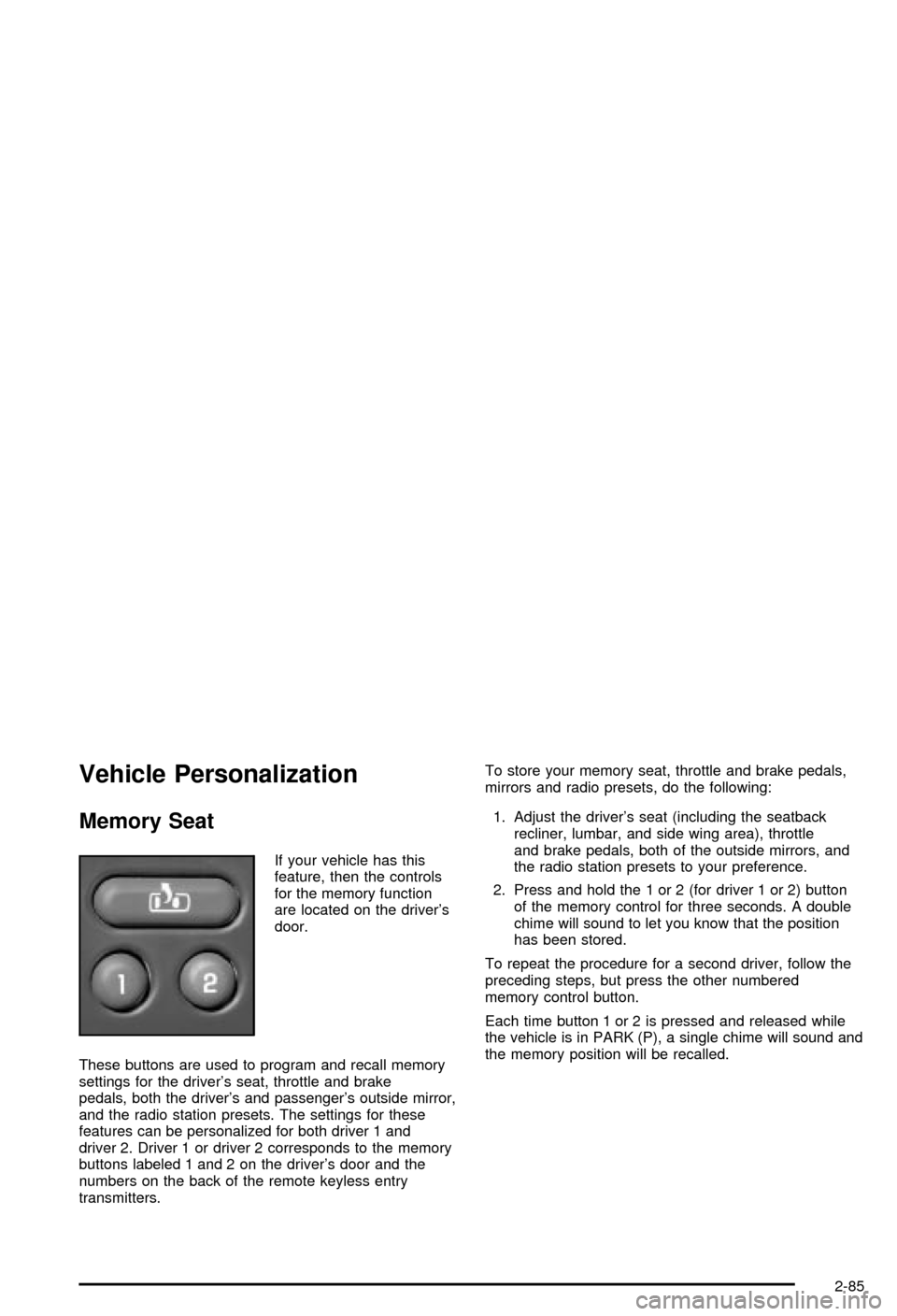
Memory Seat
If your vehicle has this
feature, then the controls
for the memory function
are located on the driver's
door.
These buttons are used to program and recall memory
settings for the driver's seat, throttle and brake
pedals, both the driver's and passenger's outside mirror,
and the radio station presets. The settings for these
features can be personalized for both driver 1 and
driver 2. Driver 1 or driver 2 corresponds to the memory
buttons labeled 1 and 2 on the driver's door and the
numbers on the back of the remote keyless entry
transmitters.To store your memory seat, throttle and brake pedals,
mirrors and radio presets, do the following:
1. Adjust the driver's seat (including the seatback
recliner, lumbar, and side wing area), throttle
and brake pedals, both of the outside mirrors, and
the radio station presets to your preference.
2. Press and hold the 1 or 2 (for driver 1 or 2) button
of the memory control for three seconds. A double
chime will sound to let you know that the position
has been stored.
To repeat the procedure for a second driver, follow the
preceding steps, but press the other numbered
memory control button.
Each time button 1 or 2 is pressed and released while
the vehicle is in PARK (P), a single chime will sound and
the memory position will be recalled.
2-85
Page 160 of 492

If you use the unlock button on the remote keyless entry
transmitter to enter your vehicle, the preset driver's
seat, throttle and brake pedal, mirror positions and the
radio station presets will be recalled if programmed
to do so through the Driver Information Center (DIC).
See
DIC Operation and Displays on page 3-46.
The numbers on the back of the transmitters, 1 or 2,
correspond to the numbers on the memory controls.
The seat, throttle and brake pedals and mirror positions
can also be recalled when placing the key in the
ignition if programmed to do so through the Driver
Information Center (DIC). See
DIC Operation and
Displays on page 3-46.
To stop recall movement of the memory seat feature at
any time, press one of the memory buttons or power
seat controls.
Easy Exit Seat
The controls for this memory function are located on the
driver's door.
B(Easy Exit Seat):This button is used to program
and recall the desired driver's seat position when
exiting/entering the vehicle. The seat position, can be
personalized for both driver 1 and driver 2.To store the seat exit position for driver 1 or 2, do the
following:
1. Select the desired driver number by pressing and
releasing the 1 or 2 button or by pressing the
unlock button on the number 1 or 2 remote keyless
entry transmitter. The seat will move to the stored
memory position.
2. Adjust the seat to the desired exit position.
3. Press and hold the exit button of the memory
control for three seconds. A double chime will sound
to let you know that the position has been stored
for the identi®ed driver (1 or 2).
To use the seat exit position, do one of the following:
·Press the exit button on the memory control.
·Or, if this feature is enabled (active) in the DIC,
then removing the key from the ignition will
cause the seat to move to the exit position.
2-86
Page 165 of 492

The main components of your instrument panel are the
following:
A. Air Outlets. See
Outlet Adjustment on page 3-28.
B. Exterior Lamps Control. See
Exterior Lamps
on page 3-13.
C. Cargo/Top-Box Lamps Button. See
Exterior Lamps
on page 3-13.
D. Automatic Transfer Case Buttons (If Equipped). See
Four-Wheel Drive on page 2-34. Traction Assist
System (If Equipped). SeeTraction Assist System
(TAS) on page 4-10. StabiliTrakžButton (If Equipped).
SeeStabilitrakžSystem on page 4-12.
E. OnStaržand Radio Steering Wheel Buttons (If
Equipped). SeeOnStaržSystem on page 2-53andAudio Steering Wheel Controls on page 3-101.
F. Instrument Panel Cluster. See
Instrument Panel
Cluster on page 3-31.
G. Shift Lever/Tow/Haul Selector Button. See
Automatic
Transmission Operation on page 2-31.
H. Audio System. See
Audio System(s) on page 3-64.
I. Dome Override Button. See
Interior Lamps on
page 3-17.J. Fog Lamps Button. See
Exterior Lamps on
page 3-13.
K. Turn Signal/Multifunction Lever. See
Turn
Signal/Multifunction Lever on page 3-7.
L. Hood Release. See
Hood Release on page 5-10.
M. Tilt Lever. See
Tilt Wheel on page 3-7.
N. Driver Information Center (DIC) Buttons. See
Driver
Information Center (DIC) on page 3-46.
O. Parking Brake Release. See
Parking Brake on
page 2-39.
P. Comfort Control Systems. See
Automatic Climate
Control System on page 3-20andDual Climate
Control System on page 3-26.
Q. Lighter (If Equipped) or Accessory Power Outlet (If
Equipped). See
Ashtrays and Cigarette Lighter
on page 3-19andAccessory Power Outlets
on page 3-19.
R. Accessory Power Outlet (If Equipped). See
Accessory Power Outlets on page 3-19.
S. Glove Box. See
Glove Box on page 2-59.
3-5
Page 189 of 492

Operation Tips
·
Keep the hood and front air inlets free of ice, snow,
or any other obstruction (such as leaves). The
heater and defroster will work far better, reducing
the chance of fogging the inside of your windows.
·Keep the air path under the front seats clear
of objects. This helps air to circulate throughout your
vehicle.
·Adding outside equipment to the front of your
vehicle, such as hood-air de¯ectors, etc., may affect
the performance of the heating and air conditioning
system. Check with your dealer before adding
equipment to the outside of your vehicle.
Climate Controls Personalization
If your vehicle is equipped with the electronic climate
control system, you can store and recall the climate
control settings for temperature, air delivery mode and
fan speed for two different drivers. The personal
choice settings recalled are determined by the
transmitter used to enter the vehicle.
After the button with the unlock symbol on a remote
keyless entry transmitter is pressed, the climate control
will adjust to the last settings of the identi®ed driver.
The settings can also be changed by pressing one of the
memory buttons (1 or 2) located on the driver's door.
When adjustments are made, the new settings are
automatically saved for that driver.
3-29
Page 192 of 492

Your instrument cluster is designed to let you know at a
glance how your vehicle is running. You'll know how
fast you're going, about how much fuel you have
and many other things you'll need to know to drive safely
and economically.
Speedometer and Odometer
Your speedometer lets you see your speed in both
miles per hour (mph) and kilometers per hour (km/h).
Your vehicle's odometer works together with the
driver information center, if equipped. You can set a
personal trip and business trip odometer. See ªTrip
Informationº under
DIC Operation and Displays
on page 3-46DIC Operation and Displays.
For vehicles without the DIC buttons, your vehicle will
be equipped with personal trip odometer, business
trip odometer and hourmeter in addition to the regular
odometer. To access the different odometers and
the hourmeter, press and release the trip stem button to
cycle through the following options:
·ODOMETER: XXXXX.X MI Ð This shows the
current distance traveled in either miles or
kilometers. The odometer cannot be reset.
·PERSONAL: XXXXX.X MI Ð This shows the
current distance traveled since the last reset for the
personal trip odometer. Press and hold the trip
stem while this is displayed to reset the personal
odometer to 0.
·BUSINESS: XXXXX.X MI Ð This shows the current
distance traveled since the last reset for the
business trip odometer. Press and hold the trip
stem while this is displayed to reset the business
odometer to 0.
·HOURMETER: XX.X HR Ð This shows the total
number of hours the engine has run. The
hourmeter cannot be reset.
To change the language of the display do the following:
1. Use the trip stem to scroll to the odometer mode.
2. Press and hold the trip stem for about four seconds
until the display scrolls through the following
choices:
·ENGLISH
·FRENCH
·SPANISH
3. Release the trip stem when you reach the desired
language.
The display will now be in the language you have
chosen.
The odometer mileage can also be checked without the
vehicle running. Simply press the trip stem on the
instrument panel cluster.
If your vehicle ever needs a new odometer installed, the
new one will be set to the correct mileage total of the
old odometer.
3-32
Page 206 of 492
Driver Information Center (DIC)
The DIC display is located on the instrument panel
cluster above the steering wheel. The DIC can display
information such as the trip odometer, fuel economy and
personalization features. Vehicles without the DIC
buttons will not have all the features as the regular DIC.
See
Speedometer and Odometer on page 3-32for
information on features for vehicles without a full DIC.
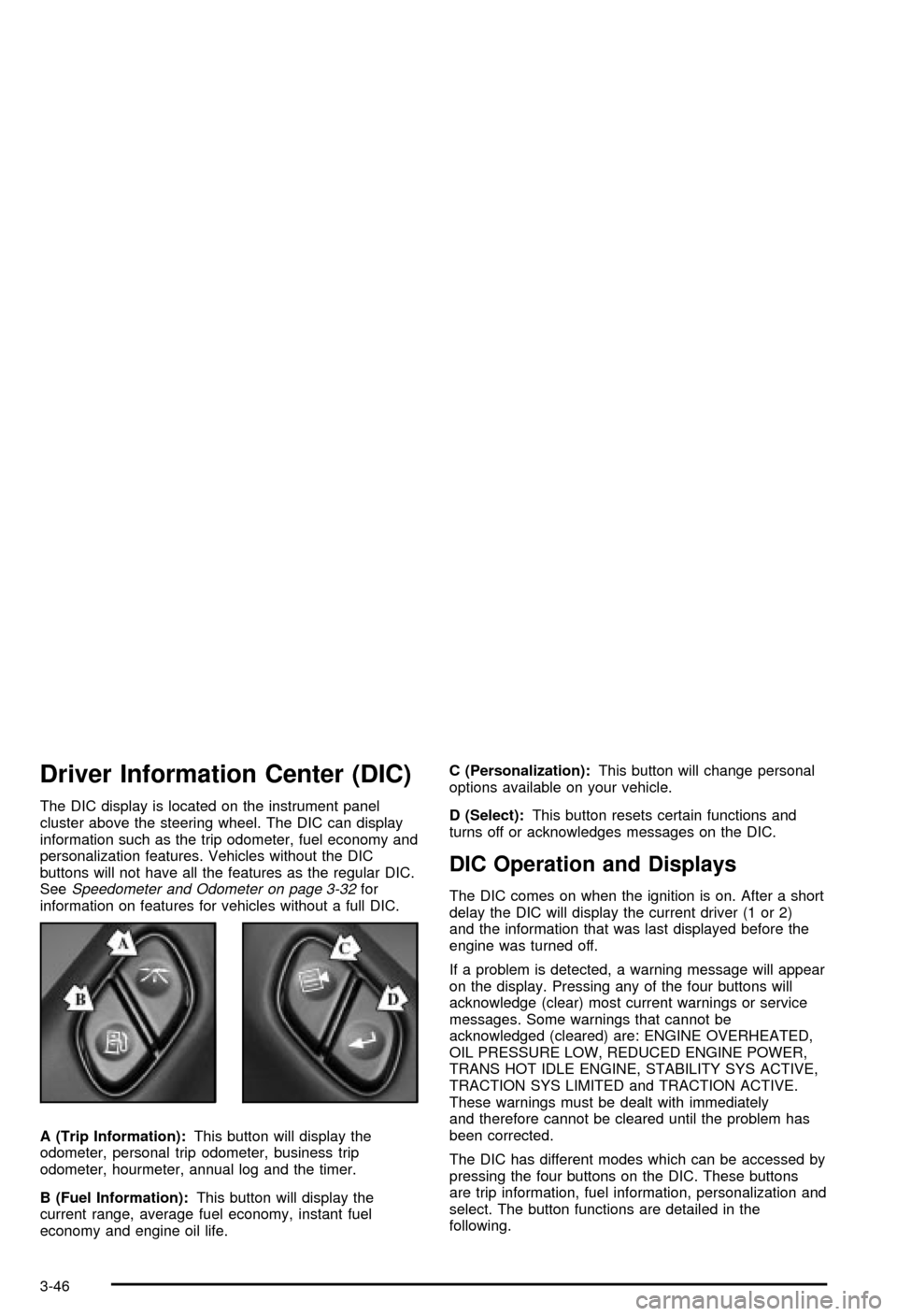
A (Trip Information):This button will display the
odometer, personal trip odometer, business trip
odometer, hourmeter, annual log and the timer.
B (Fuel Information):This button will display the
current range, average fuel economy, instant fuel
economy and engine oil life.C (Personalization):This button will change personal
options available on your vehicle.
D (Select):This button resets certain functions and
turns off or acknowledges messages on the DIC.
DIC Operation and Displays
The DIC comes on when the ignition is on. After a short
delay the DIC will display the current driver (1 or 2)
and the information that was last displayed before the
engine was turned off.
If a problem is detected, a warning message will appear
on the display. Pressing any of the four buttons will
acknowledge (clear) most current warnings or service
messages. Some warnings that cannot be
acknowledged (cleared) are: ENGINE OVERHEATED,
OIL PRESSURE LOW, REDUCED ENGINE POWER,
TRANS HOT IDLE ENGINE, STABILITY SYS ACTIVE,
TRACTION SYS LIMITED and TRACTION ACTIVE.
These warnings must be dealt with immediately
and therefore cannot be cleared until the problem has
been corrected.
The DIC has different modes which can be accessed by
pressing the four buttons on the DIC. These buttons
are trip information, fuel information, personalization and
select. The button functions are detailed in the
following.
3-46