2003 CHEVROLET ASTRO reset
[x] Cancel search: resetPage 116 of 386
Continue to press and hold the HomeLink@ button while
you press and release every two seconds (cycle) your
hand-held transmitter until the frequency signal has been
successfully accepted by HomeLink@. The indicator
light will flash slowly at first and then rapidly. Proceed
with Step
4 under “Programming HomeLink@“ to
complete.
Using HomeLink@
Press and hold the appropriate HomeLink@ button for
at least half of a second. The indicator light will come on
while the signal is being transmitted.
Erasing HomeLinP Buttons
To erase programming from the three buttons do the
following:
1. Press and hold down the two outside buttons until
the indicator light begins to flash, after
20 seconds.
2. Release both buttons. Do not hold for longer than
30 seconds.
HomeLink@ is now in the train (learning) mode and can
be programmed at any time beginning with Step
2
under “Programming HomeLink@.”
Individual buttons can not be erased, but they can be
reprogrammed. See “Reprogramming a Single
HomeLink@ Button” next.
Reprogramming a Single HomeLink*
Button
To program a device to HomeLink@ using a HomeLink@
button previously trained, follow these steps:
1. Press and hold the desired HomeLink@ button.
Do not release the button.
2. The indicator light will begin to flash after
20 seconds. While still holding the HomeLink@
button, proceed with Step
2 under “Programming
HomeLink@.”
Resetting Defaults
To reset HomeLink@ to default settings do the following:
1. Hold down the two outside buttons for about
20 seconds until the indicator light begins to flash.
2. Continue to hold both buttons until the HomeLink@
indicator light turns
off.
3. Release both buttons.
For questions or comments, contact HorneLink@
at 1-800-355-3515, or on the internet at
www.homelink.com.
2-37
Page 122 of 386
If this happens, follow these instructions to set the
variance for your particular location:
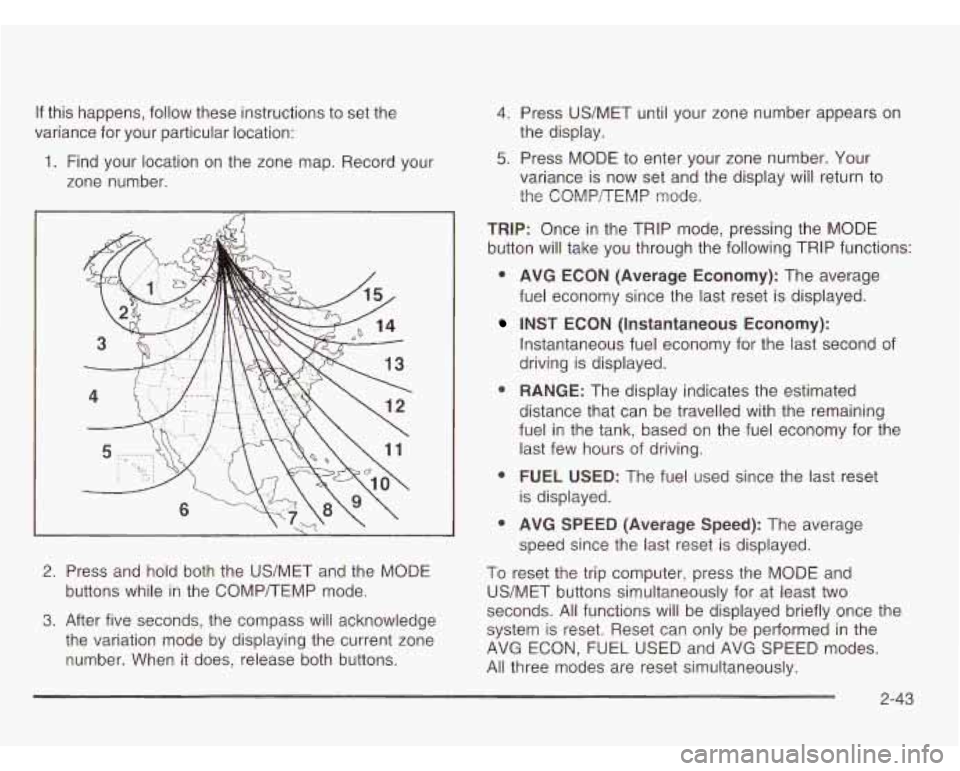
1. Find your location on the zone map. Record your
zone number.
1
2. Press and hold both the US/MET and the MODE
buttons while in the COMP/TEMP mode.
3. After five seconds, the compass will acknowledge
the variation mode by displaying the current zone
number. When it does, release both buttons.
4. Press US/MET until your zone number appears on
5. Press MODE to enter your zone number. Your
the
display.
variance is now set and the display will return to
the COMPREMP mode.
TRIP: Once in the TRIP mode, pressing the MODE
button will take you through the following TRIP functions:
0 AVG ECON (Average Economy): The average
fuel economy since the last reset is displayed.
INST ECON (Instantaneous Economy):
Instantaneous fuel economy for the last second of
driving is displayed.
distance that can be travelled with the remaining
fuel in the tank, based on the fuel economy for the
last few hours of driving.
is displayed.
speed since the last reset is displayed.
To reset the trip computer, press the MODE and
US/MET buttons simultaneously for at least two
seconds. All functions will be displayed briefly once the
system is reset. Reset can only be performed in the
AVG ECON, FUEL USED and AVG SPEED modes.
All three modes are reset simultaneously.
0 RANGE: The display indicates the estimated
0 FUEL USED: The fuel used since the last reset
0 AVG SPEED (Average Speed): The average
2-43
Page 133 of 386
Windshield Wipers For fewer wipes choose a setting closer to LOW.
Use this setting for light rain and snow.
- -
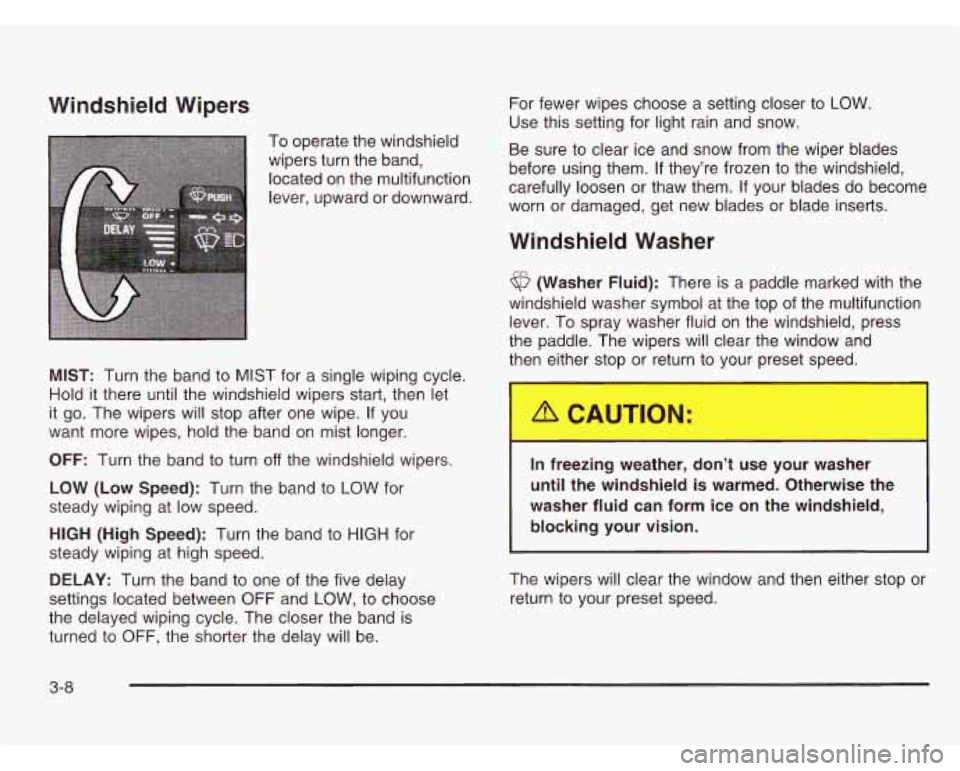
To operate the windshield
wipers turn the band,
located On the multifunction carefully loosen or thaw them. If your blades do become
lever’ Or worn or damaged, get new blades or blade inserts. Be
sure to clear ice and snow from the wiper blades
before using them.
If they’re frozen to the windshield,
Windshield Washer
6 (Washer Fluid): There is a paddle marked with the
windshield washer symbol at the top of the multifunction
lever. To spray washer fluid on the windshield, press
the paddle. The wipers will clear the window and
then either stop or return to vour preset speed.
MIST: Turn the band to MIST for a single wiping cycle.
Hold
it there until the windshield wipers start, then let
it go. The wipers will stop after one wipe. If you
want more wipes, hold the band on mist longer.
OFF: Turn the band to turn off the windshield wipers.
LOW (Low Speed): Turn the band to LOW for
steady wiping at low speed.
HIGH (High Speed): Turn the band to HIGH for
steady wiping at high speed.
DELAY: Turn the band to one of the five delay
settings located between OFF and
LOW, to choose
the delayed wiping cycle. The closer the band is
turned to OFF, the shorter the delay will be.
In freezing weather, don’t u- - your washer
until the windshield is warmed. Otherwise the
washer fluid can form ice on the windshield,
blocking your vision.
The wipers will clear the window and then either stop or
return to your preset speed.
3-8
Page 136 of 386
Resuming a Set Speed Increasing Speed While Using Cruise
Suppose you set your cruise control at a desired speed Control
and then you apply the brake. This, of course, shuts There are two ways to go to a higher speed:
off the cruise control. But you don’t need to reset it. * Use the accelerator pedal to get to the higher
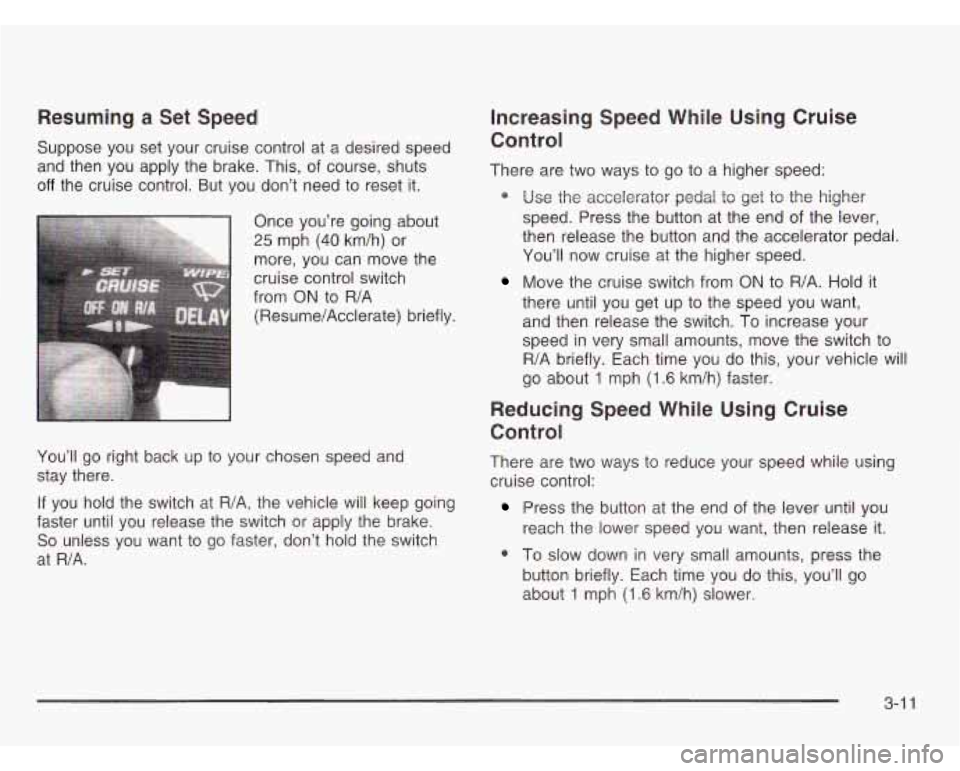
Once you’re going about
25 mph (40 km/h) or
more, you can move the
cruise control switch
from
ON to R/A
(Resume/Acclerate) briefly.
You’ll
go right back up to your chosen speed and
stay there.
If you hold the switch at
R/A, the vehicle will keep going
faster until you release the switch or apply the brake.
So unless you want to go faster, don’t hold the switch
at
R/A.
speed. Press the button at the end of the lever,
then release the button and the accelerator pedal.
You’ll now cruise at the higher speed.
Move the cruise switch from ON to R/A. Hold it
there until you get up to the speed you want,
and then release the switch. To increase your
speed in very small amounts, move the switch to
R/A briefly. Each time you do this, your vehicle will
go about
1 mph (1.6 km/h) faster.
Reducing Speed While Using Cruise
Control
There are two ways to reduce your speed while using
cruise control:
Press the button at the end of the lever until you
reach the lower speed you want, then release it.
0 To slow down in very small amounts, press the
button briefly. Each time you do this, you’ll go
about 1 mph (1.6 km/h) slower.
3-1 1
Page 150 of 386
Speedometer and Odometer
Your speedometer lets you see your speed in both
miles per hour (mph) and kilometers per hour (km/h).
Your odometer shows how far your vehicle has
been driven,
in either miles (used in the United States)
or kilometers (used in Canada).
Your odometer is tamper resistant. The digital odometer
will read
999,999 if someone tries to turn it back.
You may wonder what happens
if your vehicle needs a
new odometer installed.
If the new one can be set to
the mileage total of the old odometer, then it must
be. But
if it can’t, then it’s set at zero, and a label must
be put on the driver’s door to show the old mileage
reading when the new odometer was installed.
Trip Odometer
The trip odometer can tell you how far your vehicle has
been driven since you last set the trip odometer to zero.
The trip odometer
will appear in place of your regular
odometer when you press the TRIP button.
To reset the trip odometer, press and hold the TRIP
button. To change back to the regular odometer,
press the TRIP button again.
3-25
Page 164 of 386
AM-FM Radio
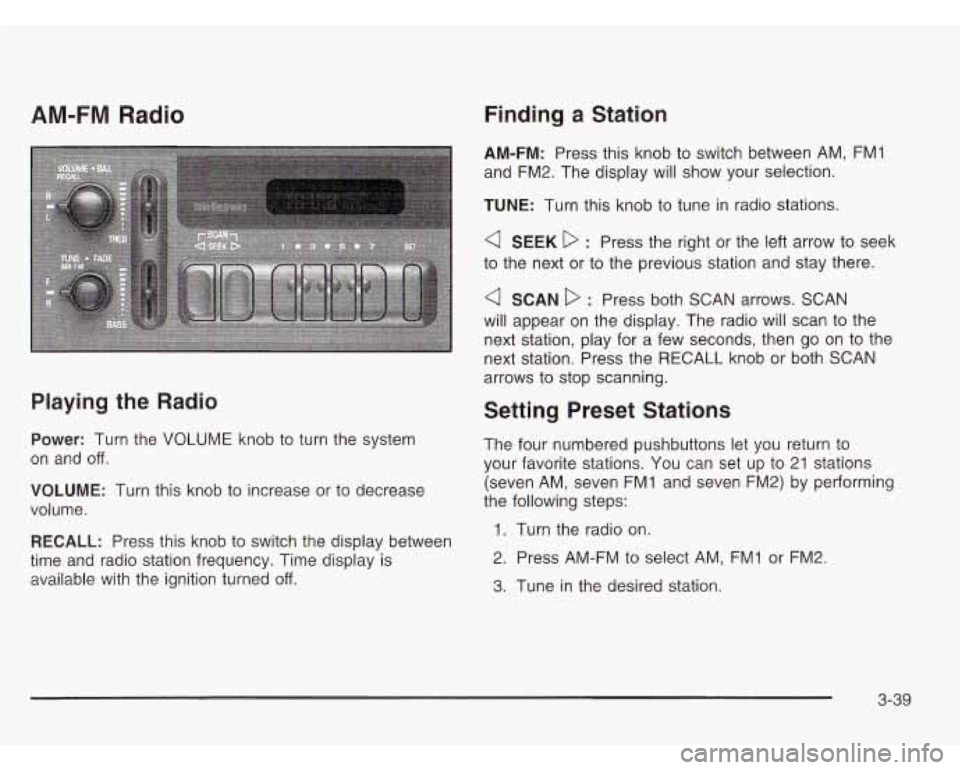
Playing the Radio
Power: Turn the VOLUME knob to turn the system
on and off.
VOLUME: Turn this knob to increase or to decrease
volume.
RECALL: Press this knob to switch the display between
time and radio station frequency. Time display is
available with the ignition turned
off.
Finding a Station
AM-FM: Press this knob to switch between AM, FMI
and FM2. The display will show your selection.
TUNE: Turn this knob to tune in radio stations.
a SEEK D : Press the right or the left arrow to seek
to the next or to the previous station and stay there.
a SCAN D : Press both SCAN arrows. SCAN
will appear on the display. The radio will scan to the
next station, play for a few seconds, then go on to the
next station. Press the RECALL knob or both SCAN
arrows to stop scanning.
Setting Preset Stations
The four numbered pushbuttons let you return to
your favorite stations. You can set up to 21 stations
(seven AM, seven FMI and seven FM2) by performing
the following steps:
1. Turn the radio on.
2. Press AM-FM to select AM, FMI or FM2.
3. Tune in the desired station.
3-39
Page 165 of 386
4. Press SET. SET will appear on the display.
5. Press one of the four pushbuttons within five
seconds. Whenever you press that numbered
pushbutton, the station you set will return.
6. Repeat the steps for each pushbutton.
In addition to the four stations already set, up to three
more stations may be preset on each band by pressing
two adjoining pushbuttons at the same time and by
performing the following steps:
1. Tune in the desired station.
2. Press SET. SET will appear on the display.
3. Press two adjoining pushbuttons at the same time,
within five seconds. Whenever you press the same
two pushbuttons, the station you set will return.
Setting the Tone (BassTTreble)
BASS: Slide this lever up or down to increase or to
decrease bass.
TREB (Treble): Slide this lever up or down to increase
or
to decrease treble. If a station is weak or noisy,
you may want to decrease the treble.
Adjusting the Speakers (Balance/Fade)
BAL (Balance): Turn the control ring behind the
upper knob to move the sound toward the left or the
right speakers.
FADE: Turn the control ring behind the lower knob to
move the sound toward the front or the rear speakers.
4. Repeat the steps for each pushbutton.
3-40
Page 167 of 386
4 SEEK D : Press the right or the left arrow to seek
to the next station or to the previous station and
stay there.
To scan stations, press and hold either SEEK arrow
for two seconds until SCAN appears on the display.
The radio will scan to a station, play for a few seconds,
then go on to the next station. Press either SEEK
arrow again to stop scanning.
The radio will seek and scan only to stations that are in
the selected band and only to those with a strong signal.
PSCAN (Preset Scan): Press this button to listen to
each of your favorite stations stored on the pushbuttons
for a few seconds. PSCAN will appear on the display.
Press this button again or one of the pushbuttons to stop
scanning presets.
The radio will scan only to the preset stations that are in
the selected band and only to those with a strong signal.
Setting Preset Stations
The six numbered pushbuttons let you return to your
favorite stations. You can set up to
18 stations (six AM,
six FM1 and six FM2) by performing the following steps:
1. Turn the radio on.
2. Press AM FM to select AM, FM1 or FM2.
3. Tune in the desired station.
4. Press AUTO TONE to select the setting you prefer.
5. Press and hold one of the six pushbuttons.
The sound will mute. When it returns, release the
pushbutton. Whenever you press that numbered
pushbutton, the station you set will return and the
tone you selected will be automatically selected
for that pushbutton.
6. Repeat the steps for each pushbutton.
3-42