2003 CADILLAC SEVILLE audio
[x] Cancel search: audioPage 199 of 408
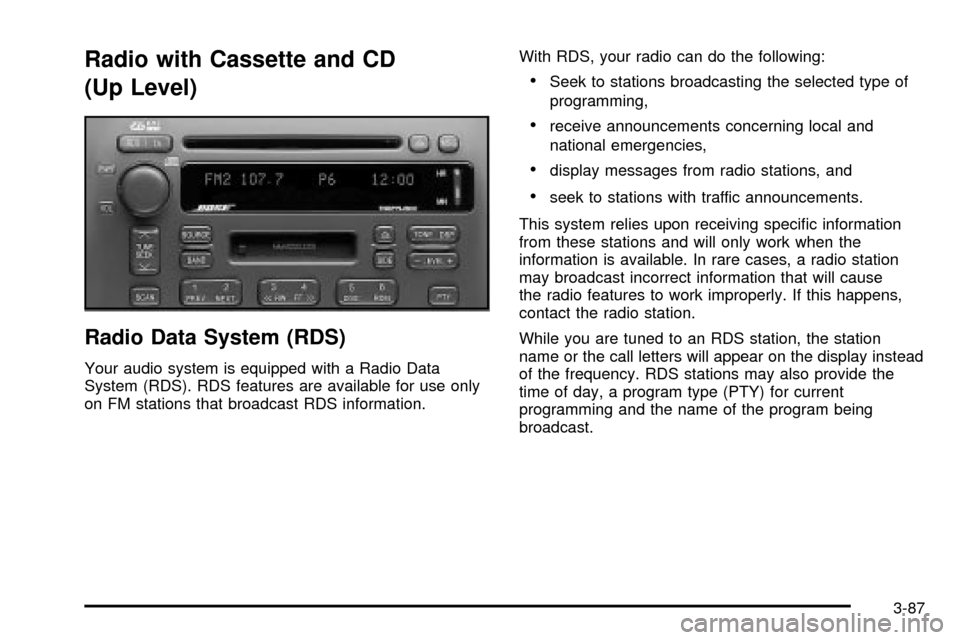
Radio with Cassette and CD
(Up Level)
Radio Data System (RDS)
Your audio system is equipped with a Radio Data
System (RDS). RDS features are available for use only
on FM stations that broadcast RDS information.With RDS, your radio can do the following:
·Seek to stations broadcasting the selected type of
programming,
·receive announcements concerning local and
national emergencies,
·display messages from radio stations, and
·seek to stations with traffic announcements.
This system relies upon receiving speci®c information
from these stations and will only work when the
information is available. In rare cases, a radio station
may broadcast incorrect information that will cause
the radio features to work improperly. If this happens,
contact the radio station.
While you are tuned to an RDS station, the station
name or the call letters will appear on the display instead
of the frequency. RDS stations may also provide the
time of day, a program type (PTY) for current
programming and the name of the program being
broadcast.
3-87
Page 200 of 408

XMŸ Radio Satellite Service
(USA Only)
XMŸ is a continental U.S. based satellite radio service
that offers 100 coast to coast channels including
music, news, sports, talk and children's programming.
XMŸ provides digital quality audio and text information,
including song title and artist name. A service fee is
required in order to receive the XMŸ service. For more
information, contact XMŸ at www.xmradio.com or
call 1-800-852-XMXM (9696).
Playing the Radio
PWR (Power):Press this knob to turn the system on
and off.
VOL (Volume):Turn this knob to increase or to
decrease volume.
AVC (Automatic Volume Control):With AVC, your
audio system monitors the noise in the vehicle.
Then, AVC adjusts the volume level so that it always
sounds the same to you.To use AVC, press and hold the TONE button until
AUTO VOLUME CONTROL OFF appears on the
display. Then press the LEVEL plus symbol. AUTO
VOLUME CONTROL ON will appear on the display.
AVC VOLUME will appear on the display any time you
adjust the volume while AVC is on. To turn AVC off,
press and hold the TONE button until AUTO VOLUME
CONTROL ON appears on the display. Then press
the LEVEL minus symbol. AUTO VOLUME CONTROL
OFF will appear on the display.
HR (Hour) or MN (Minute):Display the time with the
ignition off by pressing one of these buttons.
SOURCE:Press this button to select a source, either
cassette or compact disc. The audio source must
be loaded to play. Available loaded sources are shown
on the display. If a source is being used, it will be
underlined on the display. If none of the audio sources
are loaded, NO SOURCE LOADED will appear on
the display. Press this button again or press BAND to
switch back to the radio.
3-88
Page 202 of 408

Setting the Tone (Bass/Treble)
TONE:Press and release this button until the desired
tone BASS, TREBLE or MIDRANGE appears on
the display. The radio keeps separate tone settings for
each band, preset (except weather band presets)
and source.
-LEVEL +:After selecting the desired tone control,
press the plus or minus symbol on this button to select
the desired level.
To save the tone settings for your presets, press and
hold the numbered button for the desired preset for more
than two seconds until you hear a beep.
Adjusting the Speakers (Balance/Fade)
TONE:Press and release this button until BALANCE
or FADE appears on the display.
-LEVEL +:After selecting the desired control, press
the plus or minus symbol on this button to select
the desired level.
To save the tone settings for your presets, press and
hold the numbered pushbutton for the desired preset for
more than two seconds until you hear a beep.
Using Digital Signal Processing (DSP)
DSP:This feature is used to provide a choice of
four different listening experiences: talk, front seat,
ambience and spacious. DSP can be used while
listening to the radio, cassette, CD, or XMŸ. Press this
button to turn DSP on. Press and release this button
until the desired selection appears on the display.
To turn DSP off, press and hold this button until DSP
OFF appears on the display. When DSP OFF is
displayed, the system will provide the best overall audio
performance. The radio keeps separate DSP settings
for each band (except weather band, which is always set
to talk), preset and source.
TALK:This setting should be used when listening to
non-musical material such as news, talk shows,
sports broadcasts and books on tape. TALK makes
spoken words sound very clear.
FRONT SEAT:This setting adjusts the audio to give
the driver the best possible sound qualities. Front Seat
can be used at any time for any material. Rear seat
passengers in the vehicle may not get the same effect.
AMBIENCE:This setting is used to enhance the
stereo effect.
SPACIOUS:This setting is used to make the listening
space seem larger.
3-90
Page 205 of 408
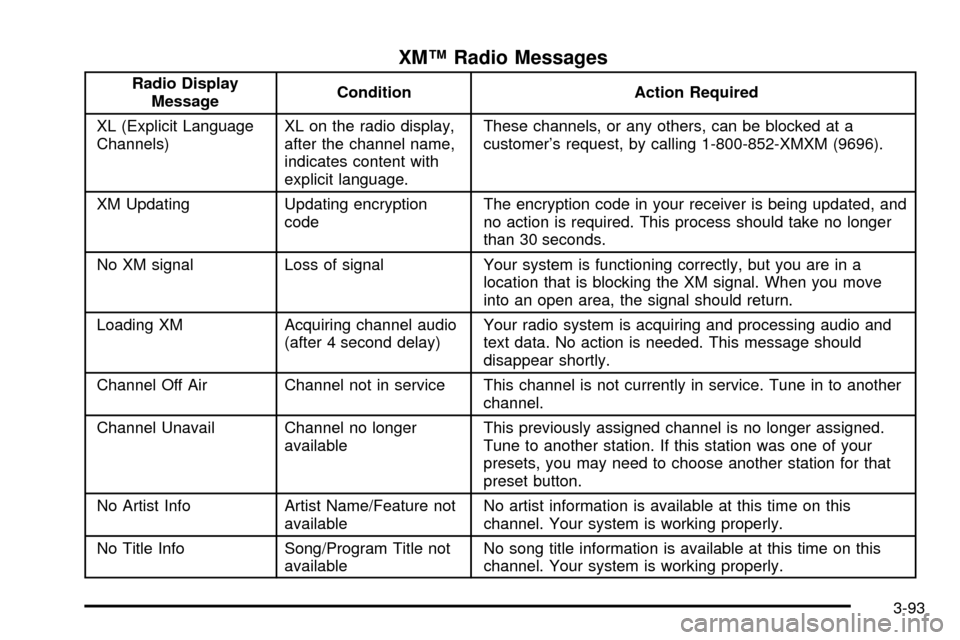
XMŸ Radio Messages
Radio Display
MessageCondition Action Required
XL (Explicit Language
Channels)XL on the radio display,
after the channel name,
indicates content with
explicit language.These channels, or any others, can be blocked at a
customer's request, by calling 1-800-852-XMXM (9696).
XM Updating Updating encryption
codeThe encryption code in your receiver is being updated, and
no action is required. This process should take no longer
than 30 seconds.
No XM signal Loss of signal Your system is functioning correctly, but you are in a
location that is blocking the XM signal. When you move
into an open area, the signal should return.
Loading XM Acquiring channel audio
(after 4 second delay)Your radio system is acquiring and processing audio and
text data. No action is needed. This message should
disappear shortly.
Channel Off Air Channel not in service This channel is not currently in service. Tune in to another
channel.
Channel Unavail Channel no longer
availableThis previously assigned channel is no longer assigned.
Tune to another station. If this station was one of your
presets, you may need to choose another station for that
preset button.
No Artist Info Artist Name/Feature not
availableNo artist information is available at this time on this
channel. Your system is working properly.
No Title Info Song/Program Title not
availableNo song title information is available at this time on this
channel. Your system is working properly.
3-93
Page 212 of 408
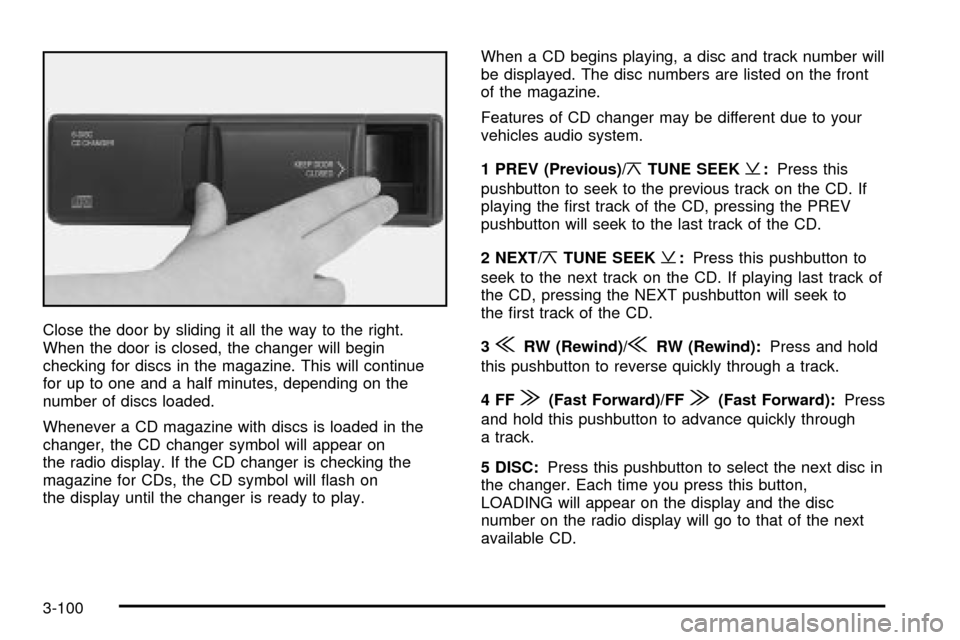
Close the door by sliding it all the way to the right.
When the door is closed, the changer will begin
checking for discs in the magazine. This will continue
for up to one and a half minutes, depending on the
number of discs loaded.
Whenever a CD magazine with discs is loaded in the
changer, the CD changer symbol will appear on
the radio display. If the CD changer is checking the
magazine for CDs, the CD symbol will ¯ash on
the display until the changer is ready to play.When a CD begins playing, a disc and track number will
be displayed. The disc numbers are listed on the front
of the magazine.
Features of CD changer may be different due to your
vehicles audio system.
1 PREV (Previous)/
¦TUNE SEEK¥:Press this
pushbutton to seek to the previous track on the CD. If
playing the ®rst track of the CD, pressing the PREV
pushbutton will seek to the last track of the CD.
2 NEXT/
¦TUNE SEEK¥:Press this pushbutton to
seek to the next track on the CD. If playing last track of
the CD, pressing the NEXT pushbutton will seek to
the ®rst track of the CD.
3
{RW (Rewind)/{RW (Rewind):Press and hold
this pushbutton to reverse quickly through a track.
4FF
|(Fast Forward)/FF|(Fast Forward):Press
and hold this pushbutton to advance quickly through
a track.
5 DISC:Press this pushbutton to select the next disc in
the changer. Each time you press this button,
LOADING will appear on the display and the disc
number on the radio display will go to that of the next
available CD.
3-100
Page 214 of 408

Radio Personalization with Home
and Away Feature
If DRIVER 1 (HOME or AWAY) PRESETS or DRIVER 2
(HOME or AWAY) PRESETS appears in the display
when the radio is ®rst turned on, your vehicle is
equipped with this feature.
This feature allows the driver to return to the last used
audio source (radio, cassette, or CD) using the
remote keyless entry transmitter. This feature can also
store and recall AM and FM presets, volume, tone,
and the last selected radio station. The number on the
back of each transmitter (1 or 2) corresponds to
driver 1 or 2. If transmitter 1 is used to enter the vehicle,
the last used audio source and/or settings set by
driver 1 will be recalled. If transmitter 2 is used to enter
the vehicle, the last used audio source and/or settings
set by driver 2 will be recalled. The settings can also be
recalled by pressing the MEMORY seat buttons 1 or 2
located on the driver's door.
Your radio can store home and away presets. Home
and away presets allow you to use one set of preset
radio settings in the area where you live, and another set
when you go out of town. You will not need to
reprogram your presets every time you travel. With the
radio off and the time displayed, use fast forward
and reverse to select home or away presets. To selectthe away presets, press and hold FF for ®ve seconds
until you hear a beep. The next time the radio comes on,
the away presets will be active. To select the home
presets, press and hold RW for ®ve seconds until you
hear a beep. The next time the radio comes on,
the home presets will be active.
When battery power is removed and later applied, you
will not have to reset your home radio presets
because the radio remembers them. However, you will
have to reset your away radio presets.
Theft-Deterrent Feature
THEFTLOCKžis designed to discourage theft of your
radio. Your vehicle has a ªbuilt inº theft-deterrent feature
on each radio that is automatic ± there is no
programming required. The radio in your vehicle cannot
be used in any other vehicle. When the radio was
originally installed in your vehicle at the factory, it stored
the Vehicle Identi®cation Number (VIN). Each time
the ignition is turned on, the VIN is veri®ed. If the
vehicle's VIN does not match the VIN stored in the
radio, THEFTLOCK
žwill be activated and the audio
system will not play. If the radio is removed from your
vehicle, the original VIN in the radio can be used to trace
the radio back to your vehicle.
3-102
Page 215 of 408
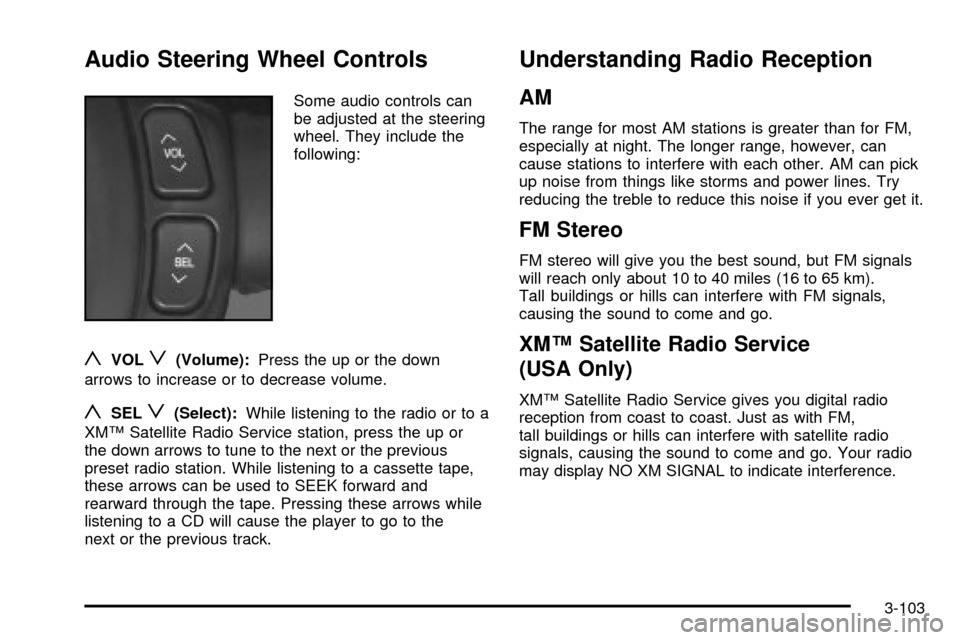
Audio Steering Wheel Controls
Some audio controls can
be adjusted at the steering
wheel. They include the
following:
yVOLz(Volume):Press the up or the down
arrows to increase or to decrease volume.
ySELz(Select):While listening to the radio or to a
XMŸ Satellite Radio Service station, press the up or
the down arrows to tune to the next or the previous
preset radio station. While listening to a cassette tape,
these arrows can be used to SEEK forward and
rearward through the tape. Pressing these arrows while
listening to a CD will cause the player to go to the
next or the previous track.
Understanding Radio Reception
AM
The range for most AM stations is greater than for FM,
especially at night. The longer range, however, can
cause stations to interfere with each other. AM can pick
up noise from things like storms and power lines. Try
reducing the treble to reduce this noise if you ever get it.
FM Stereo
FM stereo will give you the best sound, but FM signals
will reach only about 10 to 40 miles (16 to 65 km).
Tall buildings or hills can interfere with FM signals,
causing the sound to come and go.
XMŸ Satellite Radio Service
(USA Only)
XMŸ Satellite Radio Service gives you digital radio
reception from coast to coast. Just as with FM,
tall buildings or hills can interfere with satellite radio
signals, causing the sound to come and go. Your radio
may display NO XM SIGNAL to indicate interference.
3-103
Page 216 of 408

Cellular Phone Usage
Cellular phone usage may cause interference with your
vehicle's radio. This interference may occur when making
or receiving phone calls, charging the phone's battery, or
simply having the phone on. This interference is
described as an increased level of static while listening to
the radio. If you notice static while listening to the radio,
unplug the cellular phone and turn it off.
Weather Band
Weather band is restricted to speech and the audio
quality is not as good as with the AM or FM bands.
Depending on location, the radio should receive one or
two channels.
Care of Your Cassette Tape Player
A tape player that is not cleaned regularly can cause
reduced sound quality, ruined cassettes or a damaged
mechanism. Cassette tapes should be stored in their
cases away from contaminants, direct sunlight and
extreme heat. If they aren't, they may not operate
properly or may cause failure of the tape player.
Your tape player should be cleaned regularly after every
50 hours of use. Your radio may display CLEAN
TAPE to indicate that you have used your tape player
for 50 hours without resetting the tape clean timer. If this
message appears on the display, your cassette tape
player needs to be cleaned. It will still play tapes,
but you should clean it as soon as possible to prevent
damage to your tapes and player. If you notice a
reduction in sound quality, try a known good cassette to
see if the tape or the tape player is at fault. If this
other cassette has no improvement in sound quality,
clean the tape player.
For best results, use a scrubbing action, non-abrasive
cleaning cassette with pads which scrub the tape
head as the hubs of the cleaner cassette turn. The
recommended cleaning cassette is available through
your dealership.
3-104