2003 CADILLAC ESCALADE radio
[x] Cancel search: radioPage 231 of 486

4 FWD (Forward):Press this pushbutton to advance
quickly to another part of the tape. Press this pushbutton
again to return to playing speed. The radio will play
while the tape advances. The station frequency
and FWD will appear on the display. You may select
stations during forward operation by using TUNE
and SEEK.
5 SIDE:Press this pushbutton to play the other side of
the tape.
qSEEKr:The right arrow is the same as the
NEXT pushbutton, and the left arrow is the same as the
PREV pushbutton. If the arrow is held or pressed
more than once, the player will continue moving forward
or backward through the tape. SEEK and a positive
or negative number will appear on the display.
qSCANr:To scan the tape, press and hold either
SCAN arrow for more than two seconds until SCAN
appears on the display and you hear a beep. Use this
feature to listen to 10 seconds of each selection on
the current side of the tape. Press either SCAN arrow
again, to stop scanning. Your tape must have at
least three seconds of silence between each selection
for scan to work.
BAND:Press this button to listen to the radio when a
tape is playing. The tape will stop but remain in the
player.TAPE DISC:Press this button to play a tape when
listening to the radio. Press this button to switch
between the tape and compact disc if both are loaded.
The inactive tape or CD will remain safely inside the
radio for future listening.
Z(Eject):Press this button to stop a tape when it is
playing or to eject a tape when it is not playing. Eject may
be activated with the radio off. Cassette tapes may be
loaded with the radio off if this button is pressed ®rst.
Cassette Tape Messages
CHK TAPE (Check Tape):If CHK TAPE appears on
the radio display, the tape won't play because of one of
the following errors.
·The tape is tight and the player can't turn the tape
hubs. Remove the tape. Hold the tape with the
open end down and try to turn the right hub
counterclockwise with a pencil. Turn the tape over
and repeat. If the hubs do not turn easily, your
tape may be damaged and should not be used in
the player. Try a new tape to make sure your player
is working properly.
·The tape is broken. Try a new tape.
·The tape is wrapped around the tape head. Attempt
to get the cassette out. Try a new tape.
3-81
Page 232 of 486

CLEAN:If this message appears on the display, the
cassette tape player needs to be cleaned. It will still play
tapes, but you should clean it as soon as possible to
prevent damage to the tapes and player. See
Care
of Your Cassette Tape Player on page 3-103.
If any error occurs repeatedly or if an error can't be
corrected, contact your dealer.
CD Adapter Kits
It is possible to use a portable CD player adapter kit
with your cassette tape player after activating the bypass
feature on your tape player.
To activate the bypass feature, perform the following
steps:
1. Turn the ignition on.
2. Turn the radio off.
3. Press and hold the TAPE DISC button for ®ve
seconds. The radio will display READY and the
tape symbol on the display will ¯ash, indicating the
feature is active.
4. Insert the adapter into the cassette tape slot. It will
power up the radio and begin playing.
The override feature will remain active until the eject
symbol is pressed.
Playing a Compact Disc
Insert a disc partway into the slot, label side up. The
player will pull it in and the disc should begin playing.
The display will show the CD symbol. If you want
to insert a compact disc with the ignition off, ®rst press
DISP or the eject symbol.
If playing a CD-R the sound quality may be reduced
due to CD-R quality, the method of recording, the quality
of the music that has been recorded and the way the
CD-R has been handled. You may experience an
increase in skipping, difficulty in ®nding tracks and/or
difficulty in loading and ejecting. If these problems occur
try a known good CD.
Do not add paper labels to discs, they could get caught
in the CD player.
Do not play 3 inch discs without a standard adapter disc.
If an error appears on the display, see ªCompact Disc
Messagesº later in this section.
3-82
Page 233 of 486

1 PREV (Previous):Press this pushbutton to go to the
previous track if the current track has been playing
for less than eight seconds. If pressed when the current
track has been playing for more than eight seconds,
it will go to the beginning of the current track. TRACK
and the track number will appear on the display. If
you hold this pushbutton or press it more than once, the
player will continue moving back through the disc.
2 NEXT:Press this pushbutton to go to the next track.
TRACK and the track number will appear on the
display. If you hold this pushbutton or press it more than
once, the player will continue moving forward through
the disc.
3 REV (Reverse):Press and hold this pushbutton to
reverse quickly within a track. Press and hold this
pushbutton for less than two seconds to reverse at six
times the normal playing speed. Press and hold it
for more than two seconds to reverse at 17 times the
normal playing speed. Release it to play the passage.
The display will show ET and the elapsed time.
4 FWD (Forward):Press and hold this pushbutton to
advance quickly within a track. Press and hold this
pushbutton for less than two seconds to advance at six
times the normal playing speed. Press and hold it for
more than two seconds to advance at 17 times the
normal playing speed. Release it to play the passage.
The display will show ET and the elapsed time.6 RDM (Random):Press this pushbutton to hear the
tracks in random, rather than sequential, order. RDM ON
will appear on the display. RDM T and the track
number will appear on the display when each track
starts to play. Press this pushbutton again to turn
off random play. RDM OFF will appear on the display.
qSEEKr:Press the left arrow to go to the start
of the current or to the previous track. Press the right
arrow to go to the start of the next track. If either
arrow is held or pressed more then once, the player will
continue moving backward or forward through the CD.
qSCANr:To scan the disc, press and hold
either SCAN arrow for more than two seconds until
SCAN appears on the display and you hear a beep. Use
this feature to listen to 10 seconds of each track of
the disc. Press either SCAN arrow again, to stop
scanning.
DISP (Display):Press this knob to see how long the
current track has been playing. ET and the elapsed time
will appear on the display. To change the default on
the display (track or elapsed time), push the knob until
you see the display you want, then hold the knob
for two seconds. The radio will produce one beep and
selected display will now be the default.
3-83
Page 234 of 486

BAND:Press this button to listen to the radio when a
CD is playing. The CD will stop but remain in the player.
TAPE DISC:Press this button to play a tape when
listening to the radio. Press this button to switch
between the tape and compact disc if both are loaded.
The inactive tape or CD will remain safely inside the
radio for future listening.
Z(Eject):Press this button to stop a CD when it is
playing or to eject a CD when it is not playing. Eject
may be activated with either the ignition or radio off. CDs
may be loaded with the radio and ignition off if this
button is pressed ®rst.
Compact Disc Messages
If the disc comes out, it could be for one of the following
reasons:
·You're driving on a very rough road. When the road
becomes smoother the disc should play.
·It's very hot. When the temperature returns to
normal, the disc should play.
·The disc is dirty, scratched, wet or upside down.
·The air is very humid. If so, wait about an hour and
try again.
·There may have been a problem while burning
the CD.
·The label may be caught in the CD player.
If the CD is not playing correctly, for any other reason,
try a known good CD.
If any error occurs repeatedly or if an error can't be
corrected, contact your dealer.
Listening to a DVD
If your vehicle has the Rear Seat Entertainment (RSE)
system and a DVD is playing, the DVD symbol will
appear on the radio display indicating that the DVD is
available and can be listened to through your vehicle's
speakers. To listen to the DVD, press the TAPE
DISC button until RSE appears on the radio display.
The current radio source will stop and the DVD sound
will come through the speakers. To stop listening to
the DVD, press the TAPE DISC button, if a cassette
tape or a CD is loaded, or press the BAND button
to select a different source.
When the RSE system is turned off, the DVD symbol
will go off of the radio display and the radio will display
RSE OFF. The radio will return to the last radio
source that you were listening to.
3-84
Page 243 of 486

The RSE system is capable of outputting audio to the
vehicle speakers by using the radio. The RSE
system may be selected as an audio source on the
radio if the RSE system power is on. Once the
RSE system is selected as an audio source on the radio
you may adjust the speaker volume on the radio. If
the RSE system power is not on, the RSE system will
not be an available source on the radio. Refer to
the radio information for the radio that your vehicle has
for more information.
The RSE system is capable of outputting audio to the
wired headphone jacks on the Rear Seat Audio system (if
equipped). The RSE system may be selected as an audio
source on the Rear Seat Audio system if the RSE system
power is on. Refer to
Rear Seat Audio (RSA) on
page 3-97for more information.
Problem Recommended Action
No power. The ignition might not be
in on or accessory.
The parental control
button might have been
pressed. (The power
indicator light will ¯ash.)
Disc will not play. The system might be off.
The parental control
button might have been
pressed. (The power
indicator light will ¯ash.)
The system might be in
auxiliary source mode.
Press the SRCE button
to toggle between the
DVD player and the
auxiliary source.
The disc is upside down
or is not compatible.
The picture does not ®ll
the screen. There are
black borders on the top
and bottom or on both
sides or it looks
stretched out.Press the Display button
on the DVD player or on
the remote control.
Change the display mode.
3-93
Page 246 of 486

Navigation/Radio SystemThe display screen is located in the center of the
instrument panel. There are ªhardº buttons and a touch
sensitive screen.
Your vehicle may be equipped with an AM-FM radio
navigation radio system that includes digital sound
processing (DSP), Radio Data System (RDS) with
program ªtypeº selections (PTY) that will seek out the
kind of music you want to listen to and XMŸ Satellite
Radio Service capabilities (United States only). The
radio system can also communicate with your navigation
system to broadcast announcements on traffic,
weather and emergency alert communications. For
information on how to use this system, see the
ªNavigation Systemº manual.
Navigation/Radio Display and Controls
3-96
Page 247 of 486
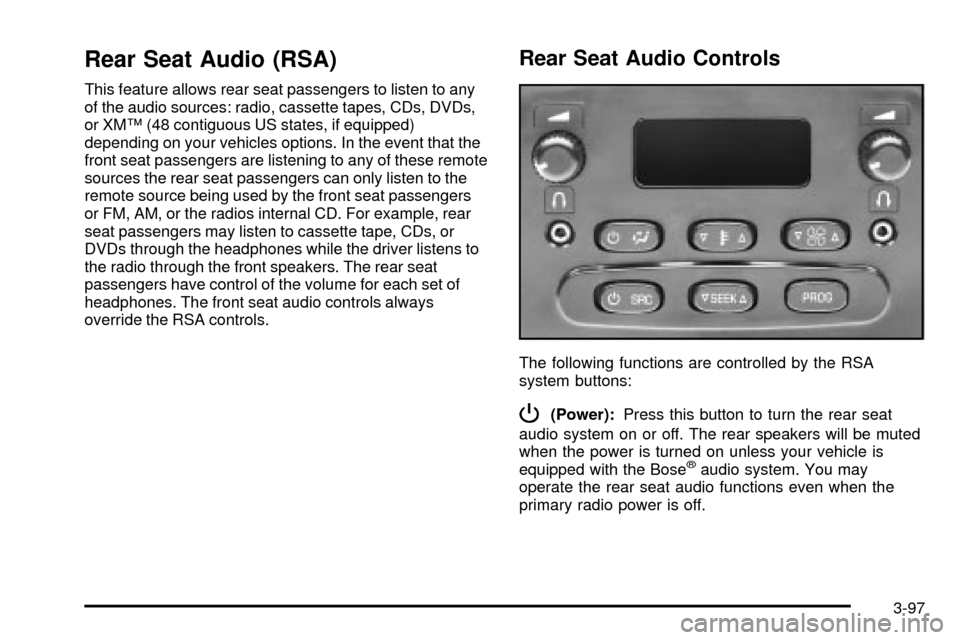
Rear Seat Audio (RSA)
This feature allows rear seat passengers to listen to any
of the audio sources: radio, cassette tapes, CDs, DVDs,
or XMŸ (48 contiguous US states, if equipped)
depending on your vehicles options. In the event that the
front seat passengers are listening to any of these remote
sources the rear seat passengers can only listen to the
remote source being used by the front seat passengers
or FM, AM, or the radios internal CD. For example, rear
seat passengers may listen to cassette tape, CDs, or
DVDs through the headphones while the driver listens to
the radio through the front speakers. The rear seat
passengers have control of the volume for each set of
headphones. The front seat audio controls always
override the RSA controls.
Rear Seat Audio Controls
The following functions are controlled by the RSA
system buttons:
P(Power):Press this button to turn the rear seat
audio system on or off. The rear speakers will be muted
when the power is turned on unless your vehicle is
equipped with the Bose
žaudio system. You may
operate the rear seat audio functions even when the
primary radio power is off.
3-97
Page 248 of 486

u(Volume):Turn the knob to increase or to decrease
volume. The left knob controls the left headphone and
the right knob controls the right headphone.
SRC (Source):Press this button to select an audio
source: radio, cassette tapes, CDs, DVDs, or XMŸ (48
contiguous US states, if equipped), depending on
your vehicles options.
xSEEKw:While listening to FM1, FM2, or AM, or
XM1 or XM2, press the up or the down arrow to
tune to the next or to the previous station and stay
there. If the front radio is in use, you cannot seek
through different stations.
While listening to a cassette tape, press the up or the
down arrow to hear the next or the previous selection. If
the cassette tape on the front radio is in use, you
cannot seek through different selections on a tape.
While listening to a CD, press the up arrow to hear the
next track on the CD. Press the down arrow to go
back to the start of the current track if more than eight
seconds have played. If the CD player on the front radio
is in use, you cannot seek through different tracks.PROG (Program):The front passengers must be
listening to something different for each of these
functions to work:
·Press this button to go to the preset radio stations
set on the pushbuttons on the main radio.
·When a cassette tape is playing, press this button
to go to the other side of the tape.
·When a CD is playing in the radio, press this button
to go back to the beginning of the CD.
·When a CD is playing in the CD changer, press this
button to select a disc.
3-98