2003 BUICK RANDEZVOUS radio
[x] Cancel search: radioPage 214 of 432

XM™Radio Messages (cont’d)
Radio Display
MessageCondition Action Required
No Info Category Name not
availableNo category information is available at this time on this
channel. Your system is working properly.
No Info No Text/Informational
message availableNo text or informational messages are available at this
time on this channel. Your system is working properly.
Not Found No channel available for
the chosen categoryThere are no channels available for the category you
selected. Your system is working properly.
XM Locked Theft lock active The XM receiver in your vehicle may have previously been
in another vehicle. For security purposes, XM receivers
cannot be swapped between vehicles. If you receive this
message after having your vehicle serviced, check with the
servicing facility.
Radio ID Radio ID label
(channel 0)If you tune to channel 0, you will see this message
alternating with your XM Radio 8 digit radio ID label. This
label is needed to activate your service.
Unknown Radio ID not known
(should only be if
hardware failure)If you receive this message when you tune to channel 0,
you may have a receiver fault. Consult with your dealer.
Chk XMRcvr Hardware failure If this message does not clear within a short period of time,
your receiver may have a fault. Consult with your retail
location.
3-78
2003 - Rendezvous OM
Page 215 of 432

Playing a Cassette Tape
The longer side with the tape visible should face to the
right. If the ignition and the radio are on, the tape
can be inserted and will begin playing. If you hear
nothing or hear a garbled sound, the tape may not be in
squarely. Press the eject button to remove the tape
and start over.
While the tape is playing, use the VOLUME and AUDIO
controls just as you do for the radio. The display will
show an arrow to show which side of the tape is playing.
If you want to insert a tape while the ignition or radio
is off,first press the eject button or DISP. Cassette tape
adapter kits for portable compact disc players will
work in your cassette tape player.
Your tape bias is set automatically.
If an error appears on the display, see“Cassette Tape
Messages”later in this section.
1
s(Reverse):Press this pushbutton to reverse the
tape rapidly. The radio will play while the tape reverses.
Press it again to return to playing speed.
2
\(Forward):Press this pushbutton to advance
quickly to another part of the tape. The radio will play
while the tape advances. Press this pushbutton again to
return to playing speed.6 SIDE:Press this pushbutton to play the other side of
the tape.
©SEEK¨:Your tape must have at least three
seconds of silence between each selection for seek to
work. Press the left or the right arrow to go to the
previous or to the next selection on the tape.
To scan cassette tape selections, press and hold one of
the SEEK arrows for two seconds until SCN appears
on the display. You will hear a beep. The tape will go to
the next selection, play for a few seconds, then go on
to the next selection. The cassette tape will only
scan forward. Press one of the SEEK arrows again to
stop scanning.
BAND:Press this button to listen to the radio when a
cassette tape or CD is playing.
CD TAPE:Press this button to play a cassette tape or
a CD when listening to the radio.
Z(Eject):Press this button to eject a tape.
3-79
2003 - Rendezvous OM
Page 216 of 432

Cassette Tape Messages
If an error message appears while trying to play a
cassette tape, it could be for one of the following
reasons:
•TIGHT TAPE:The tape is tight and the player can’t
turn the tape hubs. Remove the tape. Hold the tape
with the open end down and try to turn the right
hub counterclockwise with a pencil. Turn the tape
over and repeat. If the hubs do not turn easily, your
tape may be damaged and should not be used in
the player. Try a new tape to make sure your player
is working properly.
•BROKEN TAPE:The tape is broken. Try a
new tape.
CLEAN PLAYER:If this message appears on the
display, the cassette tape player needs to be cleaned. It
will still play tapes, but you should clean it as soon as
possible to prevent damage to the tapes and player. See
Care of Your Cassette Tape Player on page 3-108.
If any error occurs repeatedly or if an error can’t
be corrected, contact your dealership. If your radio
displays an error number, write it down and provide it to
your dealership when reporting the problem.
CD Adapter Kits
It is possible to use a portable CD player adapter kit
with your cassette tape player after activating the bypass
feature on your tape player.
To activate the bypass feature, use the following steps:
1. Turn the ignition on.
2. Turn the radio off.
3. Insert the adapter into the cassette slot.
4. Press and hold the CD TAPE button until READY is
displayed.
The override feature will remain active until the eject
button is pressed.
Playing a Compact Disc
Insert a disc partway into the slot, label side up. The
player will pull it in. The disc should begin playing. If you
want to insert a CD while the ignition or the radio is
off,first press the eject button or DISP.
If you turn off the ignition or radio with a disc in the
player, it will stay in the player. When you turn on the
ignition or system, the disc will start playing where
it stopped, if it was the last selected audio source.
If an error appears on the display, see“Compact Disc
Errors”later in this section.
3-80
2003 - Rendezvous OM
Page 217 of 432

1s(Reverse):Press and hold this pushbutton to
quickly reverse within a track. You will hear sound.
2
\(Forward):Press and hold this pushbutton
to quickly advance within a track. You will hear sound.
4 RDM (Random):Press this pushbutton to hear
the tracks in random, rather than sequential, order.
Press RDM again to turn off random play.
DISP (Display):Press this button to see which track is
playing. Press it again withinfive seconds to see
how long it has been playing. To change the default on
the display (track or elapsed time), push this button
until you see the display you want, then hold the knob
until the displayflashes. The selected display will
now be the default.
©SEEK¨:Press the left SEEK arrow to go to the
start of the current track if more than eight seconds have
played. If you hold the button or press it more than
once, the player will continue moving back through
the disc.
Press the right SEEK arrow to go to the next track.
If you hold the button or press it more than once, the
player will continue moving forward through the disc.
To scan CD tracks, press and hold one of the
SEEK arrows for two seconds until SCAN appears on
the display. You will hear a beep. The disc will go to thenext track, play for a few seconds, then go on to the
next track. The disc will only scan forward. Press one of
the SEEK arrows again to stop scanning.
BAND:Press this button to listen to the radio when a
cassette tape or CD is playing.
CD TAPE:Press this button to change to playing a
cassette tape or a CD when listening to the radio.
Z(Eject):Press this button to eject a CD.
Compact Disc Errors
CHECK CD:If this message appears on the radio
display, it could be due to one of the following reasons:
•You’re driving on a very rough road. When the
road becomes smoother, the disc should play.
•The disc is dirty, scratched, wet or upside down.
•The air is very humid. If so, wait about an hour and
try again.
If the CD is not playing correctly, for any other reason,
try a known good CD.
If any error occurs repeatedly or if an error can’tbe
corrected, contact your dealer. If your radio displays an
error number, write it down and provide it to your
dealer when reporting the problem.
3-81
2003 - Rendezvous OM
Page 218 of 432
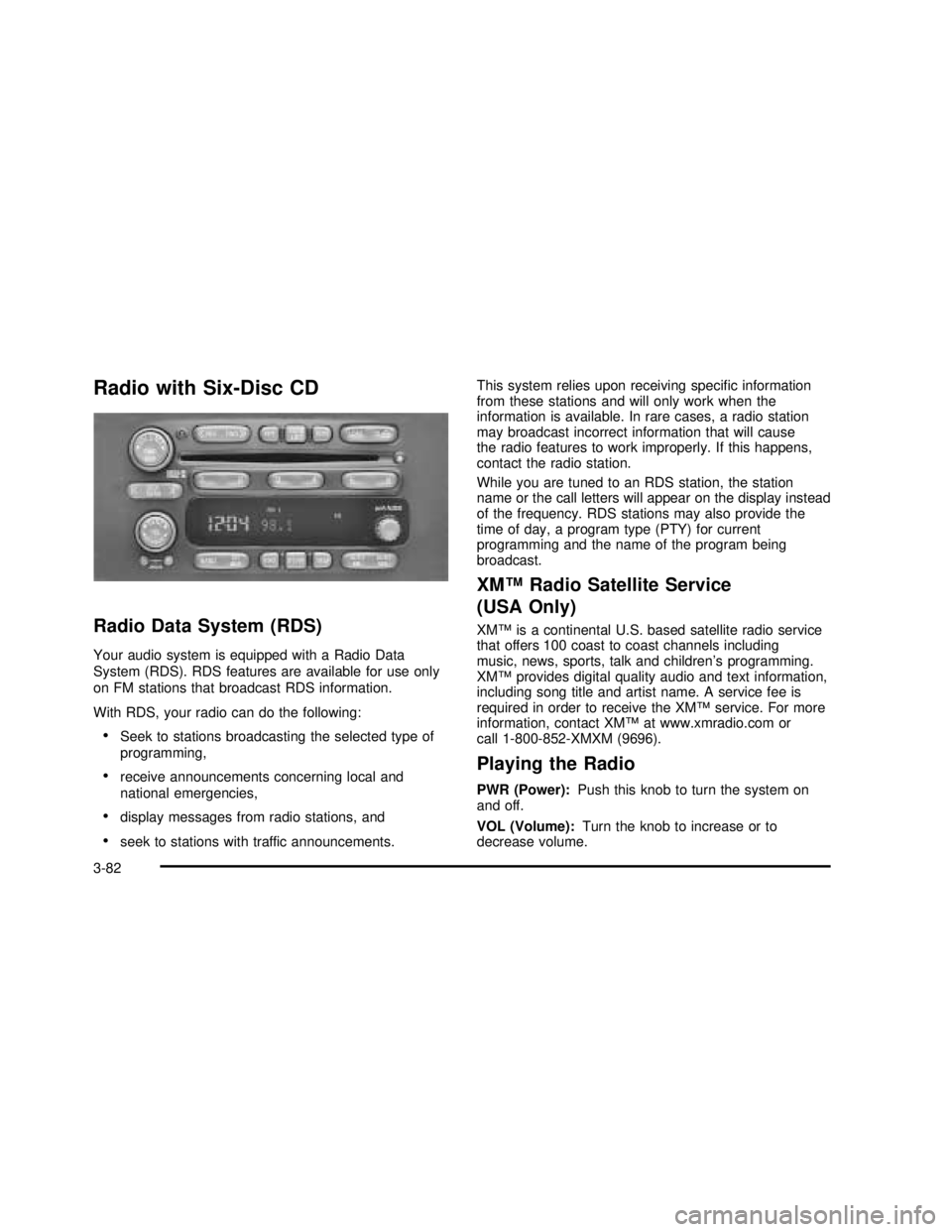
Radio with Six-Disc CD
Radio Data System (RDS)
Your audio system is equipped with a Radio Data
System (RDS). RDS features are available for use only
on FM stations that broadcast RDS information.
With RDS, your radio can do the following:
•Seek to stations broadcasting the selected type of
programming,
•receive announcements concerning local and
national emergencies,
•display messages from radio stations, and
•seek to stations with traffic announcements.This system relies upon receiving specific information
from these stations and will only work when the
information is available. In rare cases, a radio station
may broadcast incorrect information that will cause
the radio features to work improperly. If this happens,
contact the radio station.
While you are tuned to an RDS station, the station
name or the call letters will appear on the display instead
of the frequency. RDS stations may also provide the
time of day, a program type (PTY) for current
programming and the name of the program being
broadcast.
XM™Radio Satellite Service
(USA Only)
XM™is a continental U.S. based satellite radio service
that offers 100 coast to coast channels including
music, news, sports, talk and children’s programming.
XM™provides digital quality audio and text information,
including song title and artist name. A service fee is
required in order to receive the XM™service. For more
information, contact XM™at www.xmradio.com or
call 1-800-852-XMXM (9696).
Playing the Radio
PWR (Power):Push this knob to turn the system on
and off.
VOL (Volume):Turn the knob to increase or to
decrease volume.
3-82
2003 - Rendezvous OM
Page 219 of 432

AUTO VOL (Automatic Volume):Your system has a
feature called automatic volume. With this feature,
your audio system adjusts automatically to make up for
road and wind noise as you drive.
Set the volume at the desired level. Press this button to
select MIN, MED or MAX. Each higher setting will
allow for more volume compensation at faster vehicle
speeds. Then, as you drive, automatic volume increases
the volume, as necessary, to overcome noise at any
speed. The volume level should always sound the same
to you as you drive. If you don’t want to use automatic
volume, select OFF.
RCL (Recall):Push this knob to switch the display
between the radio station frequency and the time.
Pushing this knob with the ignition off will display
the time.
For XM™(USA only, if equipped), pressing this button
while in XM™mode to retrieve various pieces of
information related to the current song or channel.
By pressing and releasing the RCL button, you may
retrieve four different categories of information:
Artist, Song Title, Category or PTY, Channel
Number/Channel Name.
To change the default on the display, push the knob
until you see the display you want, then hold the knob
until the displayflashes. The selected display will
now be the default.Finding a Station
BAND:Press this button to switch between AM, FM1,
FM2, or XM1, XM2 (USA only, if equipped). The
display will show your selection.
TUNE:Turn this knob to select radio stations.
sSEEKt:Press the right or the left arrow to go to
the next or to the previous station and stay there.
The radio will seek only to stations that are in the
selected band and only to those with a strong signal.
sSCANt:Press and hold either SCAN arrow
for two seconds until SC appears on the display and
you hear a beep. The radio will go to a station, play for
a few seconds, then go on to the next station. Press
either SCAN arrow again to stop scanning.
To scan preset stations, press and hold either SCAN
arrow for more than four seconds. PRESET SCAN will
appear on the display. You will hear a double beep.
The radio will go to a preset station stored on your
pushbuttons, play for a few seconds, then go on to the
next preset station. Press either SCAN arrow again
to stop scanning presets.
The radio will scan only to stations that are in the
selected band and only to those with a strong signal.
3-83
2003 - Rendezvous OM
Page 220 of 432

Setting Preset Stations
The six numbered pushbuttons let you return to your
favorite stations. You can set up to 30 stations (six AM,
six FM1 and six FM2, six XM1 and six XM2 (USA
only, if equipped), by performing the following steps:
1. Turn the radio on.
2. Press BAND to select AM, FM1, FM2, or XM1,
or XM2.
3. Tune in the desired station.
4. Press AUTO EQ to select the equalization.
5. Press and hold one of the six numbered
pushbuttons until you hear a beep. Whenever you
press that numbered pushbutton, the station
you set will return and the equalization that you
selected will also be automatically selected for that
pushbutton.
6. Repeat the steps for each pushbutton.
Setting the Tone (Bass/Treble)
AUDIO:Push the AUDIO knob until BASS, MID or
TREB appears on the display. Turn the knob to increase
or to decrease. If a station is weak or noisy, you may
want to decrease the treble.
To adjust bass, midrange or treble to the middle
position, select BASS, MID or TREB and push and hold
the AUDIO knob. The radio will produce one beep
and adjust the display level to zero.To adjust all tone and speaker controls to the middle
position, push and hold the AUDIO knob when no tone
or speaker control is displayed. The radio will produce
one beep and CENTERED will appear on the display.
AUTO EQ (Automatic Equalization):Press this button
to choose between bass, midrange and treble
equalization settings designed for country, jazz, talk,
pop, rock and classical program types.
To return to the manual mode (CUSTOM), press the
AUTO EQ button until CUSTOM appears on the display.
Then you will be able to manually adjust the bass,
midrange and treble using the AUDIO knob.
Adjusting the Speakers (Balance/Fade)
AUDIO:To adjust the balance between the right
and the left speakers, push the AUDIO knob until BAL
appears on the display. Turn the knob to move the
sound toward the left or the right speakers.
To adjust the fade between the front and rear speakers,
push and hold the AUDIO knob until FAD appears on
the display. Turn the knob to move the sound toward the
front or the rear speakers.
To adjust the balance and the fade to the middle
position, select balance or fade and push and hold the
AUDIO knob. The radio will beep once and will
adjust the display level to the middle position.
3-84
2003 - Rendezvous OM
Page 221 of 432

To adjust all tone and speaker controls to the middle
position, push and hold the AUDIO knob when no tone
or speaker controls are displayed. The radio will
produce one beep and CENTERED will appear on the
display.
Finding a PTY Station (RDS and XM™)
To select andfind a desired PTY perform the following:
1. Press the P-TYPE button. P-TYPE and the last
selected PTY will be displayed on the screen.
2. Select a category by turning the P-TYPE knob.
3. Once the desired category is displayed, press either
SEEK arrow to select the category and take you to
the category’sfirst station.
4. If you want to go to another station within that
category and the category is displayed, press
either SEEK arrow once. If the category is not
displayed, press either SEEK arrow twice to display
the category and then to go to another station.
5. If PTY times out and is no longer on the display, go
back to Step 1.
If both P-TYPE and TRAF are on, the radio will search
for stations with the selected PTY and traffic
announcements.
To use the PTY interrupt feature, press and hold the
P-TYPE button until you hear a beep on the PTY
you want to interrupt with. When selected, an asteriskwill appear beside that PTY on the display. You may
select multiple interrupts if desired. When you are
listening to a compact disc, the last selected RDS station
will interrupt play if that selected program type format
is broadcast.
SCAN:You can also scan through the channels within
a category by performing the following:
1. Press the P-TYPE button. P-TYPE and the last
selected PTY will be displayed on the screen.
2. Select a category by turning the P-TYPE knob.
3. Once the desired category is displayed, press and
hold either SCAN arrow, and the radio will begin
scanning within your chosen category.
4. Press either SCAN arrow again to stop at a
particular station.
BAND (Alternate Frequency):Alternate frequency
allows the radio to switch to a stronger station with the
same program type. Press and hold BAND for two
seconds to turn alternate frequency on. AF ON
will appear on the display. The radio may switch to
stronger stations. Press and hold BAND again for two
seconds to turn alternate frequency off. AF OFF
will appear on the display. The radio will not switch to
other stations. When you turn the ignition off and then on
again, the alternate frequency feature will automatically
be turned on.
This function does not apply for XM™.
3-85
2003 - Rendezvous OM