2003 BUICK LESABRE turn signal
[x] Cancel search: turn signalPage 117 of 380

Flash-To-Pass
This feature lets you use the high-beam headlamps to
signal the driver in front of you that you want to pass. It
works even if your headlamps are off.
Pull the turn signal lever toward you brie¯y to
¯ash-to-pass.
If the headlamps are off or on low beam, the high-beam
headlamps will turn on. They'll stay on as long as
you hold the lever toward you and the high-beam
indicator on the instrument panel cluster will come on.
Windshield Wipers
The windshield wipers are controlled by turning the
band marked WIPER.
If your windshield wipers are on for more than six
seconds while you are driving, the low-beam headlamps,
instrument panel cluster backlighting and taillamps will
turn on. For more information see ªWiper Activated
Headlampsº under
Exterior Lamps on page 3-14.
Off:Turn the band to OFF to turn the wipers off.
3-9
Page 119 of 380
Windshield Washer
At the top of the turn signal/multifunction lever, there's a
paddle with the word PUSH on it. To spray washer
¯uid on the windshield, push the paddle. The wipers will
clear the window and either stop or return to your
preset speed. For more washer cycles, push and hold
the paddle.
{CAUTION:
In freezing weather, don't use your washer
until the windshield is warmed. Otherwise the
washer ¯uid can form ice on the windshield,
blocking your vision.
Ice build up can block washer nozzles. Remove ice for
proper operation.
See
Windshield Washer Fluid on page 5-36for more
information.
Cruise Control
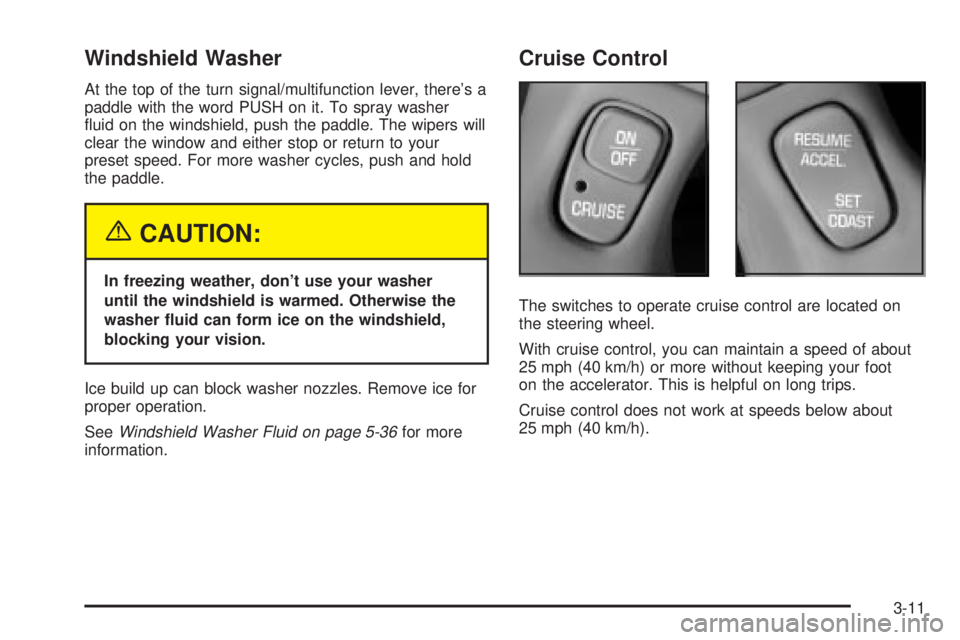
The switches to operate cruise control are located on
the steering wheel.
With cruise control, you can maintain a speed of about
25 mph (40 km/h) or more without keeping your foot
on the accelerator. This is helpful on long trips.
Cruise control does not work at speeds below about
25 mph (40 km/h).
3-11
Page 123 of 380

Headlamps On Reminder
If you leave the exterior lamp buttons for the headlamps
or parking lamps on, remove the key from the ignition
and open the driver's door, you will hear a continuous
warning chime. The chime will turn off when the
lamps are turned off.
Daytime Running Lamps
Daytime Running Lamps (DRL) can make it easier for
others to see the front of your vehicle during the
day. DRL can be helpful in many different driving
conditions, but they can be especially helpful in the short
periods after dawn and before sunset. Fully functional
daytime running lamps are required on all vehicles
®rst sold in Canada.
A light sensor on top of the instrument panel monitors
the exterior light level for the operation of DRL and
Twilight Sentinel
ž, so be sure it isn't covered.
The DRL system will make your high-beam headlamps
turn on at reduced brightness in daylight when the
following conditions are met:
·The ignition is on,
·the exterior lamp button for the headlamps is
off and
·the transaxle is not in PARK (P).When the DRL are on, only your high-beam headlamps
will be on. The parking lamps, taillamps, sidemarker
and other lamps won't be on.
When it is dark enough outside, your low-beam
headlamps will come on. The other lamps that turn on
with your headlamps will also turn on. When it is
bright enough outside, the regular lamps will go off, and
your high-beam headlamps change to the reduced
brightness of DRL.
To turn off all exterior lighting at night when you are
parked, turn off the headlamps and move the Twilight
Sentinel
žlever all the way toward OFF. The exterior
lamps will turn back on automatically when you move
the transaxle out of PARK (P).
As with any vehicle, you should turn on the regular
headlamp system when you need it.
Cornering Lamps
If your vehicle has this feature, the cornering lamps
come on when the headlamps or parking lamps are on
and you signal a turn with the multifunction lever.
They provide more light for cornering.
3-15
Page 128 of 380

Battery Load Management
The battery load management feature is designed to
monitor the vehicle's electrical load and determine when
the battery is in a heavy discharge condition. During
times of high electrical loading, the engine may idle at a
higher rpm setting than normal to make sure the
battery charges. High electrical loads may occur when
several of the following are on: headlamps, high beams,
rear window defogger, fan at high speed, heated
seats (if equipped) and engine cooling fans.
If your vehicle's battery remains in a heavy discharge
condition for a long period of time, the fan, rear
defogger, heated seats and heated mirrors will be
disabled and the DIC will display BATTERY SAVER
ACTIVE. This can happen either under long periods of
idling or low speed driving with high electrical loading,
or in the event of a charging system fault.
Head-Up Display (HUD)
{CAUTION:
If the HUD image is too bright, or too high in
your ®eld of view, it may take you more time to
see things you need to see when it's dark
outside. Be sure to keep the HUD image dim
and placed low in your ®eld of view.
If your vehicle is equipped with the Head-Up Display
(HUD), you can see some of the driver information that
appears on your instrument panel cluster.
The information may be displayed in English or metric
units and appears as a re¯ection in the windshield.
The HUD consists of the following information:
·Speedometer Reading
·Turn Signal Indicators
·High-Beam Headlamp Indicator
·Check Gages Message
3-20
Page 152 of 380

Security Light
Your vehicle may have a
content theft-deterrent
alarm system. With
this system, the
SECURITY light will ¯ash
as you open the door
(if your ignition is off).
For more information see
Content Theft-Deterrent on
page 2-18.
Cruise Control Light
The CRUISE light comes
on when you set the
vehicle's cruise control.
See ªCruise Controlº under
Turn Signal/Multifunction
Lever on page 3-7.
Service Vehicle Soon Light
This light will come on and
stay on if your vehicle has
certain non-emission
related problems.
These problems may not be obvious and may affect
vehicle performance or durability. Consult a quali®ed
dealership for necessary repairs to maintain top vehicle
performance.
This light will come on brie¯y when the ignition is turned
on to show that it is working properly.
3-44
Page 157 of 380

DIC Warnings and Messages
Other messages or warnings may appear in the DIC
display. For Canadian drivers, in addition to the
DIC message your DIC will display EXP with a number
after it which re¯ects the following messages:
EXP
(Export ID) Warning Message
20 TURN SIGNAL STILL ON?
24 TRUNK AJAR
25 WINDSHIELD WASHER FLUID LOW
27 BATTERY SAVER ACTIVE
36 ENGINE OIL LOW ± CHECK LEVEL
40 THEFT ATTEMPT DETECTED
54 SERVICE STABILITY SYSTEM
55 STABILITY SYSTEM ACTIVE
61 GAS CAP LOOSE ± CHECK CAP
81 CHANGE ENGINE OIL SOON
91
TRACTION CONTROL SYSTEM ACTIVE
102 CHECK CHARGE SYSTEM
139 DOOR AJAR
144 CHECK TIRE PRESSURES
The EXP codes are used to make translation from
English to other languages easier.
Pressing any of the DIC control buttons will remove
the messages or warnings from the DIC display.SERVICE STABILITY SYSTEM ± 54:If you ever see
the SERVICE STABILITY SYSTEM message, it
means there may be a problem with your stability
enhancement system. If you see this message, try to
reset the system (stop; turn off the engine; then start the
engine again). If the SERVICE STABILITY SYSTEM
message still comes on, it means there is a problem.
You should see your dealer for service. Reduce
your speed and drive accordingly.
STABILITY SYSTEM ACTIVE ± 55:You may see the
STABILITY SYSTEM ACTIVE message on the Driver
Information Center. It means that an advanced,
computer-controlled system has come on to help your
vehicle continue to go in the direction in which you're
steering. This stability enhancement system activates
when the computer senses that your vehicle is just
starting to spin, as it might if you hit a patch of ice or
other slippery spot on the road. When the system is on,
you may hear a noise or feel a vibration in the brake
pedal. This is normal.
When the STABILITY SYSTEM ACTIVE message is on,
you should continue to steer in the direction you want
to go. The system is designed to help you in bad
weather or other difficult driving situations by making the
most of whatever road conditions will permit. If the
STABILITY SYSTEM ACTIVE message comes on, you'll
know that something has caused your vehicle to start
to spin, so you should consider slowing down.
3-49
Page 165 of 380

To scan preset stations, press and hold one of the
SEEK arrows for more than four seconds until PSCAN
and the preset number appear on the display. You
will hear a double beep. The radio will go to the ®rst
preset station stored on your pushbuttons, play for a few
seconds, then go on to the next preset station. Press
one of the SEEK arrows again to stop scanning presets.
The radio will seek and scan only to stations that are
in the selected band and only to those with a strong
signal.
Setting Preset Stations
The six numbered pushbuttons let you return to your
favorite stations. You can set up to 18 stations (six FM1,
six FM2 and six AM) by performing the following
steps:
1. Turn the radio on.
2. Press BAND to select FM1, FM2, or AM.
3. Tune in the desired station.
4. Press EQ to select the EQ setting. It will be stored
with the preset station.
5. Press and hold one of the six numbered
pushbuttons. When you hear the radio produce one
beep, release the pushbutton. Whenever you
press that numbered pushbutton, the station you
set will return.
6. Repeat the steps for each pushbutton.
Setting the Tone (Bass/Treble)
AUDIO:Push and release AUDIO until BASS, MID, or
TREBLE appears on the display. Then turn the
AUDIO knob to increase or to decrease. If a station is
weak or noisy, you may want to decrease the treble.
To adjust bass, midrange or treble to the middle
position, select BASS, MID, or TREBLE. Then push and
hold AUDIO for more than two seconds until you hear
a beep. BASS and a zero, MID and a zero or TREBLE
and a zero will appear on the display.
To adjust both tone controls and both speaker controls
to the middle position, end out of audio mode by
waiting ®ve seconds without making any changes. Then
push and hold AUDIO for more than two seconds
until you hear a beep. ALL CENTERED will appear on
the display.
Adjusting the Speakers (Balance/Fade)
AUDIO:To adjust the balance between the right
and the left speakers, push and release AUDIO until
BAL appears on the display. Then turn the AUDIO knob
to move the sound toward the right or the left speakers.
A bar graph with indicators will show how the sound
is balanced between the right and the left speakers.
3-57
Page 172 of 380

Finding a Station
BAND:Press this button to switch between FM1, FM2,
or AM, XM1 or XM2 (USA only, if equipped). The
display will show your selection.
TUNE:Turn this knob to choose a radio station.
©SEEK¨:Press the right or the left arrow to go to
the next or to the previous station and stay there.
To scan stations, press and hold one of the SEEK
arrows for two seconds until SCAN appears on
the display. The radio will go to a station, play for a few
seconds, then go on to the next station. Press one of
the SEEK arrows again to stop scanning.
To scan preset stations, press and hold one of the
SEEK arrows for more than four seconds until SCAN
and the preset number appear on the display. You
will hear a double beep. The radio will go to the ®rst
preset station stored on your pushbuttons, play for a few
seconds, then go on to the next preset station. Press
one of the SEEK arrows again to stop scanning presets.
The radio will seek and scan only to the stations that
are in the selected band and only to those with a strong
signal.
Setting Preset Stations
The six numbered pushbuttons let you return to your
favorite stations. You can set up to 30 stations (six FM1,
six FM2, and six AM, six XM1 and six XM2 (USA
only, if equipped), by performing the following steps:
1. Turn the radio on.
2. Press BAND to select FM1, FM2, or AM, XM1
or XM2.
3. Tune in the desired station.
4. Press EQ to select the EQ setting. It will be stored
with the preset station.
5. Press and hold one of the six numbered
pushbuttons. When you hear the radio produce one
beep, release the pushbutton. Whenever you
press that numbered pushbutton, the station you
set will return.
6. Repeat the steps for each pushbutton.
3-64